


What is the Mapal Assistant?
The Mapal Assistant is your built-in AI tool within Mapal OS. Acting as a digital co-pilot, it helps you navigate the platform, analyse visible data, and find fast answers to your questions. It is multilingual and supports typed or spoken queries in your preferred language.
The Assistant is designed to reduce friction in everyday tasks, simplify operations, increase productivity, and deliver contextual support when you need it.
How to access
Open the Mapal Assistant from the icon in the lower-left corner of your Mapal App's dashboard.
For step-by-step access instructions, see Access the Mapal AI Assistant.
What you can use it for
The Mapal Assistant supports five main functions:
- Knowledge Base Assistant
- Ask how-to questions about using any Mapal product
- Answers are sourced from the official Knowledge Base
- Avoids guessing—provides an answer only if it is confident
- “Take Me To” Navigation
- Instantly move to key pages across Flow, Compliance, Engagement, and Reputation
- Example: “Where do I assign a piece of learning?”
- Not available in Mapal One
- Hospitality Knowledge
- Get answers to operational scenarios like “How do I handle a customer complaint?”
- Built on general hospitality best practices
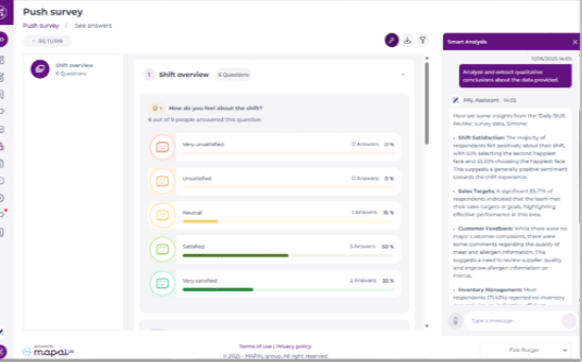
- Smart Analysis (SA)
- Summarise visible data directly from dashboards and reports
- Available in Compliance, Flow, Engagement, and Reputation
- Ask: “How have scores changed over the past month?”
- Note: Only visible data is included in the analysis.
- Policies and Procedures
- Ask questions about your own documents (e.g. “What’s our holiday policy?”)
- Documents must be uploaded and segmented by Business Unit or Department
- Assistant prioritises uploaded content, then Knowledge Base, then hospitality guidance
Note: Some features may vary based on your role or access permissions.
How to use it
- Click the Assistant icon to open the chat window.
- Enter your question or prompt using natural language.
- Responses will appear in a conversational format.
- You can ask about training, compliance, performance, and more.
The Assistant is designed to avoid guessing. If it is unsure, it will provide no answer.
How to give feedback
Your feedback helps improve the Assistant over time:
- Use the thumbs up/down buttons to rate responses.
- If possible, explain why the reply was helpful or not.
- Flag issues such as inaccuracies or missing answers.
Tip: Start with a simple question
Build confidence by trying prompts such as:
- “How do I create a new user?”
- “What’s our holiday policy?”
- “Where do I find survey results?”
- “Show me all overdue training by department.”
- “How did location X perform in compliance last week?”
- “What is the average onboarding time for new hires?”
