Message: “No public holidays have been set for this year.”
Options:
Copy from previous year: Imports an existing calendar with all assigned holidays. Use this option to save time when setting up future years. *Note: This option is only available if the selected year does not already contain any holidays. Once a holiday exists, the option is disabled.
Configure manually: Add or remove holidays manually to the calendar.
To add a holiday, click the desired date on the calendar.
To remove a holiday, click the highlighted date again.
Note: This screen only appears if no holidays have been saved for that year.
Calendar view
Displays the 12 months of the year in a grid. The public holiday calendar is displayed by year and by location. The current year loads by default.
You can view as many previous years as exist in your Workforce history, and one year ahead.
Only locations where centres exist are displayed.
The default country corresponds to the first available centre for the client.
All holidays appear in the same colour on the calendar, regardless of their type. Hover over a holiday to view its type.
Holidays displayed depend on the location level selected.
Example: If you are at the Country level (e.g. Spain), only national holidays will appear. If you select a lower level, such as Locality (Madrid), the calendar will display all holidays for that locality plus those from the higher levels: Province > Region > Country.
Holiday types
You can register and view four types of holidays depending on their geographical scope:
National: applies to all centres in the country.
Regional/Autonomous: applies to centres in the selected region.
Provincial: applies to the selected province.
Local: applies to a specific locality.
Location filters
The module uses hierarchical filters: Country ? Region ? Province ? Locality.
You can filter by any level independently of the others.
Only locations with active client centres are shown.
Export holidays
You can export the holiday calendar for a specific location and year.
Open the calendar for the desired year.
Select the Export icon.
Choose one of the following formats:
List of holidays
Full calendar (with legend)
The file downloads automatically in .pdf format.
Manage non-holiday periods in Workforce using GIR 3
Start from: The Workforce Dashboard.
From the main menu, go to Configuration > Configuration by business unit.
Note: If you still see the path Configuration > Non-holiday periods, you are working on GIR 2. This screen has been deprecated. Please use Configuration > Configuration by business unit instead.
Select the Business Unit you want to configure.
Select the Holidays tab.
Locate the Non-holiday periods section.
Create a new Non-holiday period
Select + Period.
Set a Start and End date for the period.
Select + Add. The period will now be added to the list.
Note: You can continue adding periods by using the + Period button again.
Select Accept to save your new non-holiday periods.
Delete a Non-holiday period
In the Holidays tab, review the list of existing non-holiday periods.
Select Delete (the trash can icon) on the period’s line.
A confirmation window will appear.
Select Delete again to complete the removal.
Note: Unlike GIR 2, you cannot edit a period once it has been created. If you need to make changes, delete the old period and create a new one.
Set absences to count as vacation days
Start from: The Workforce dashboard.
Navigate to Configuration > Contracts (or Configuration > Collective Agreements if you manage this at agreement level).
Note:Contracts apply to employees based on their employment periods. Collective Agreements apply to work centres for specific date ranges. Choose the level that matches your policy.
Create a new record or select an existing Contract/Collective Agreement and open it by clicking Edit.
Find the option Deduct vacation absenteeism incidents and select:
Yes: the contract/agreement will treat selected absenteeism as vacation.
No: the contract/agreement will NOT treat selected absenteeism as vacation.
According to Collective Agreement: the contract inherits the rule from the applicable Collective Agreement.
If you chose Yes, proceed to select the Absenteeism incident types that must be deducted as vacation.
Select Accept to apply the change, or Cancel to discard.
Note: You must have the appropriate permissions to edit Contracts or Collective Agreements. Contact your administrator if options are unavailable.
Change GIR Staff Configuration
Start from: The Workforce module.
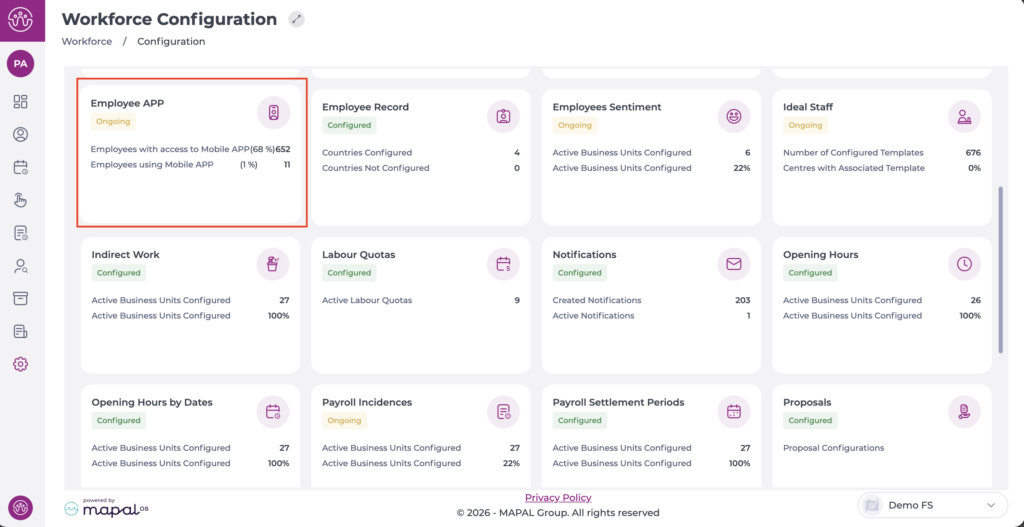
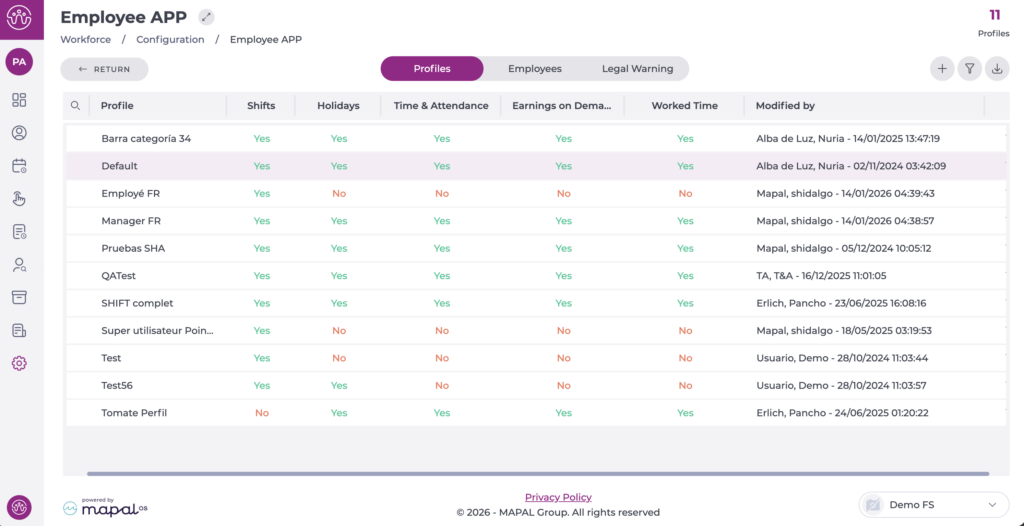
Navigate to Configuration > Employee APP.
In the Settings screen, you will see three tabs that allow you to adjust settings in three different aspects of the app:
ProfilesIn this tab, you can configure the options available in GIR Staff for workers, including permissions, functionalities, notifications, among others.
Legal WarningThis tab is where you can indicate the legal warning that employees must accept before using GIRStaff. This warning is editable and can be adjusted according to the company's needs and legal parameters.
Set up incidents that do not accrue holidays
Start from: The Workforce module.
From the Collective Agreements configuration
Navigate to Configuration > Collective Agreements.
Select New to create a new agreement OR Edit to modify an existing agreement.
On the agreement setup screen, navigate to Accrued Vacations.
Sets the number of Vacation Days per Year. They can be fixed, according to age (days or years), or imported values.
Under Deducted leaves from vacation rights, choose a parameter from the drop-down list .
Notes: If the parameter is left Undefined, you will not be able to continue with the configuration.
When you choose a parameter, a list of absence incidents will be displayed. Select all applicable incidents.
Select Accept to save the changes OR Cancel to discard them.
From the Contracts configuration
Navigate to Configuration > Contracts.
Select New to create a new contract OR Edit to modify an existing contract.
Notes: You can facilitate the search for an existing contract by using the Status, Group, Concept, and Country filters.
On the contract setup screen, navigate to Accrued Vacation.
Sets the number of Vacation Days per Year. They can be Fixed, According to Seniority (days or years), Imported Values, or According to Collective Agreement.
Under Deducted leaves from vacations rights, choose a parameter from the drop-down list.
Notes: If the parameter is left set to No, you will not be able to continue with the incident configuration.
When you choose a parameter, a list of absence incidents will be displayed. Select all applicable incidents from the list.
Select Accept to save the changes OR Cancel to discard them.
Record absenteeism incidents in the Workforce App
Start from: The Workforce App.
Select the Workforce icon on the app screen to display the menu.
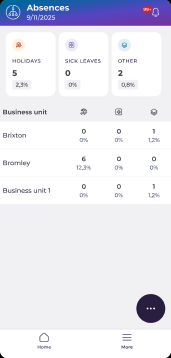
Select Absences from the main menu.
Main Absences Screen
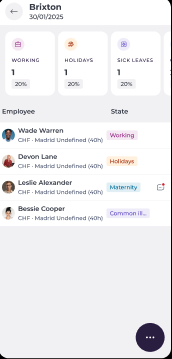
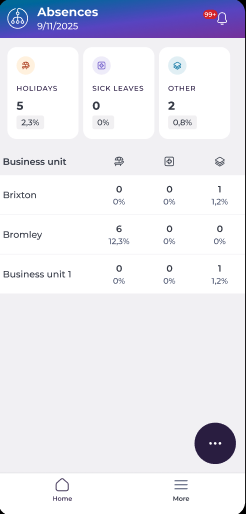
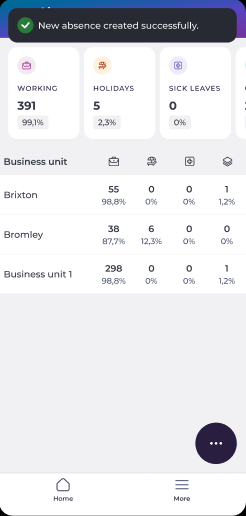
The main absences page shows the absence statistics for all the centers to which the user has access.
The counters in the page header show:
The number of employees Working.
The number of absenteeism incidents by type:
Holidays
Sick leaves
Other incidents
Percentages of the total.
By selecting a business unit (in the grid), the details of the absences of the selected business unit will be displayed.
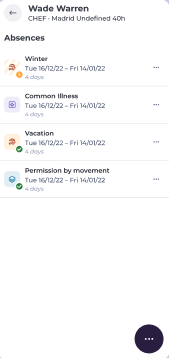
Select the employee's field (the row) to view the details of his or her absence incidents.
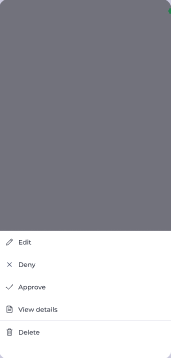
By sliding one of the rows to the left, you will discover the different actions available for the absence occurrence:
Edit the incident, including the option to attach documentation from the cell phone.
Eliminate the incident.
Review or de-review the issue.
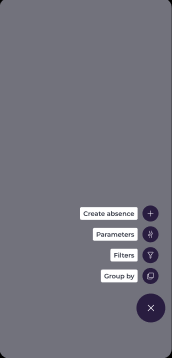
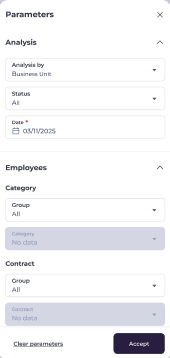
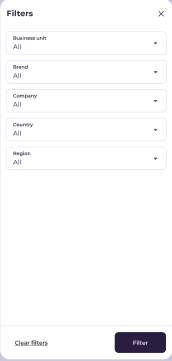
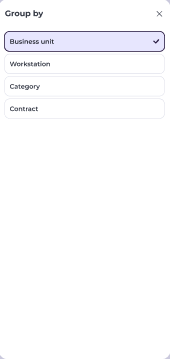
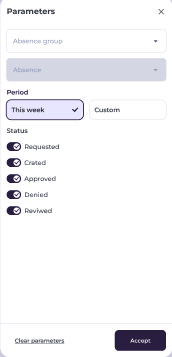
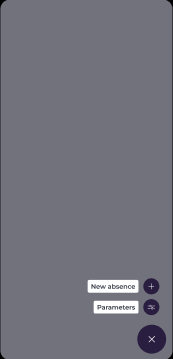
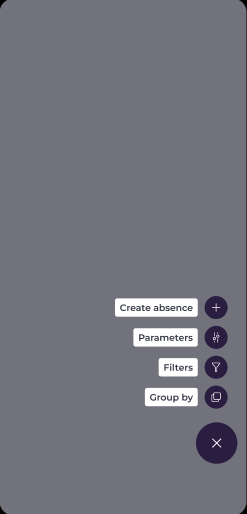
The floating menu gives access to absence creation, parameters, filter, and grouping by components.
Create an absenteeism record
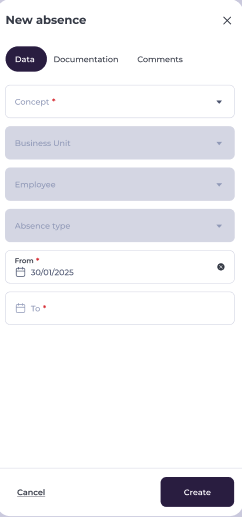
Navigate to the floating menu on the main Absenteeism page and select Create Absence.
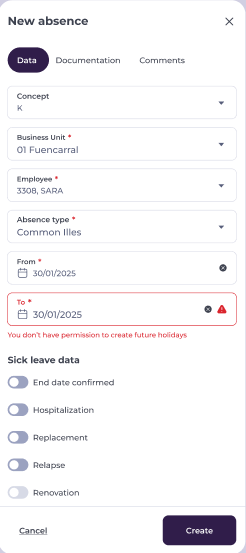
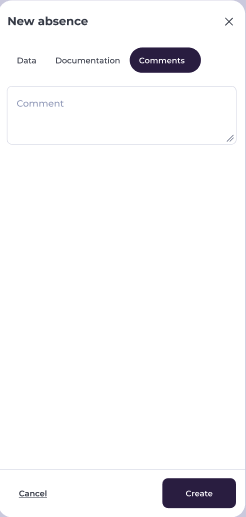
Once the Create Absence component appears, fill in all the fields.
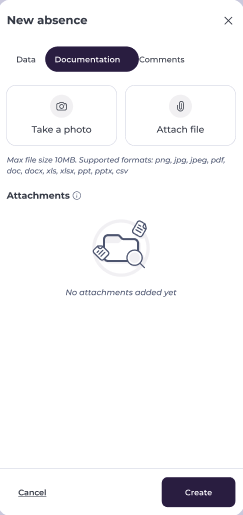
Note: Note that, unlike the PC panel, the Documents tab will be disabled. Users will only be able to add documents to absences already created.
Sick leave will display additional fields to configure:
End date confirmed
Hospitalization
Replacement
Relapse
If the start and end dates are the same, and if the absence can be set for a period of time within a day, a switch will be enabled to define the absence as a partial absence if necessary.
In cases such as these, new fields will be enabled to establish the start and end times of the absence.
To edit an incident, access the employee's issue, swipe left, and select the Pencil icon.
Note: This option will only be displayed if the user has the necessary permissions and the absence is not in review status.
When editing an absence, you can attach files to it by selecting them from the files stored on your mobile device or by taking a picture of the document.
Note: As in the other menus, you can use parameters, filters, and groupings to find the occurrences.
Absenteeism Rules
Absences can be managed with rules to enforce company policies and operational requirements. These rules can be activated during initial setup or by request and are inactive by default.
Rules can be configured to:
Require supporting documents: e.g., Sick Leave or Work Accident may require a medical note.
Set minimum and maximum duration limits: e.g., Marriage Leave maximum 15 days; Vacation minimum 1 day.
Block requests on specific days: e.g., Training cannot be requested on public holidays in the site’s calendar.
Restrict by seniority: e.g., Paid Leave requires 90 days of service.
Prevent consecutive incompatible incidents: e.g., Personal Leave cannot be placed immediately before Vacation.
Restrict by job category: e.g., Union Days only available to representatives.
Limit the number of requests within a period: e.g., Justified Absence limited to 3 per month.
These rules reduce errors, prevent unnecessary back-and-forth, and ensure absence processes match operational needs.
View your assigned shifts and absences
Start from: The Mapal One dashboard.
Navigate to Shifts & Absences > Assigned.
The Assigned tab is located under the Next Up section on the right-hand side of the screen.
The Assigned section provides a comprehensive view of all assigned shifts and absences in independent event cards.
Upcoming Shifts: Displays details of the next scheduled shift, including:
Location
Time
Assigned roles
A countdown timer that helps employees prepare for their upcoming shift.
Upcoming Holidays: Showcases the next planned holiday, including:
Duration
Remaining days until the holiday begins
Shift Recording
The Shift Recording feature allows companies to confirm that employees have acknowledged and seen their assigned shifts. This is important for compliance or operational purposes, especially in regions where this is a legal requirement.
This feature works as follows:
A notification prompts users to confirm their assigned shifts.
Users are required to acknowledge shiftsdirectly on the platform before navigating away from the page. To do this, they need to select the Confirm button.
For companies with the feature enabled, shifts marked as Viewed are logged in the system, and managers can track which employees have confirmed their shifts.
Find and accept new shifts
Start from: The Mapal One dashboard.
How shift proposals work for employees
When a manager needs extra cover at short notice, they create a shift proposal in Workforce. Eligible employees then see this proposal in Mapal One under Shift Finder and, if enabled, receive a push notification.
Each open shift can only be taken by one person, so once a colleague accepts and the shift is assigned, it is removed from the pending list for everyone else.
Find and accept a new shift
Navigate to Shifts & Absences > Shift Finder.
On the Next Up block on the right-hand side of the screen, select the Shift Finder tab.
The Shift Finder section provides a streamlined way for employees to explore and respond to available shifts. Managers can also monitor the status of shift proposals in real time. Key features include:
Pending Proposals: Displays a list of shifts that employees can accept or decline. Each proposal includes details such as the shift time, location, and assigned role. Employees can quickly review the information and make a decision.
Previous Proposals: Offers a historical record of past shift proposals, including those that were accepted, declined, or left unanswered. This helps employees and managers track proposal history for future reference.
Select a shift proposal from the Pending list.
Select Accept to add the shift to your calendar.
Understand default and enabled workstations
The enabled and default positions are configured in the Projected Shift screen, at the time of shift configuration.
Enabled workstations
Enabled workstations are all positions that an employee is qualified to perform. Depending on their capabilities and performance, one or several positions may be assigned to the same employee.
Enabled workstations can be assigned on an employee-by-employee basis or using a general listing of the entire unit.
Default workstation
When shifts are created, employees will be automatically assigned to their assigned Default workstation. The default workstation will be one of the positions enabled for the employee.
Normally, when no default workstation is defined for an employee, his default workstation will be "Undefined".
For example, if an employee is new and has not been assigned a job yet, his default workstation will be "Undefined". However, if there is an employee who has already been qualified to fill kitchen, cashier, room, and service positions, but his default position is Kitchen, their shift will always be created for Kitchen by default.
It is always possible to change the assigned workstation in the shift manually through the Projected Shift screen.