Manage GIR users
Manage users through Mapal OS
- In Mapal OS, select Configuration > User management > Users.
- Follow the process to manage your users in Mapal OS.
Note: if you're not sure whether you are on Mapal OS, contact your customer success manager.
Manage users through GIR
- Select Users > Administration from the main menu.
 In the Administration screen, all registered users will be displayed. To find the specific user to manage, you can filter by Status (Active/Inactive users), by Role, or directly enter the text you want to search for.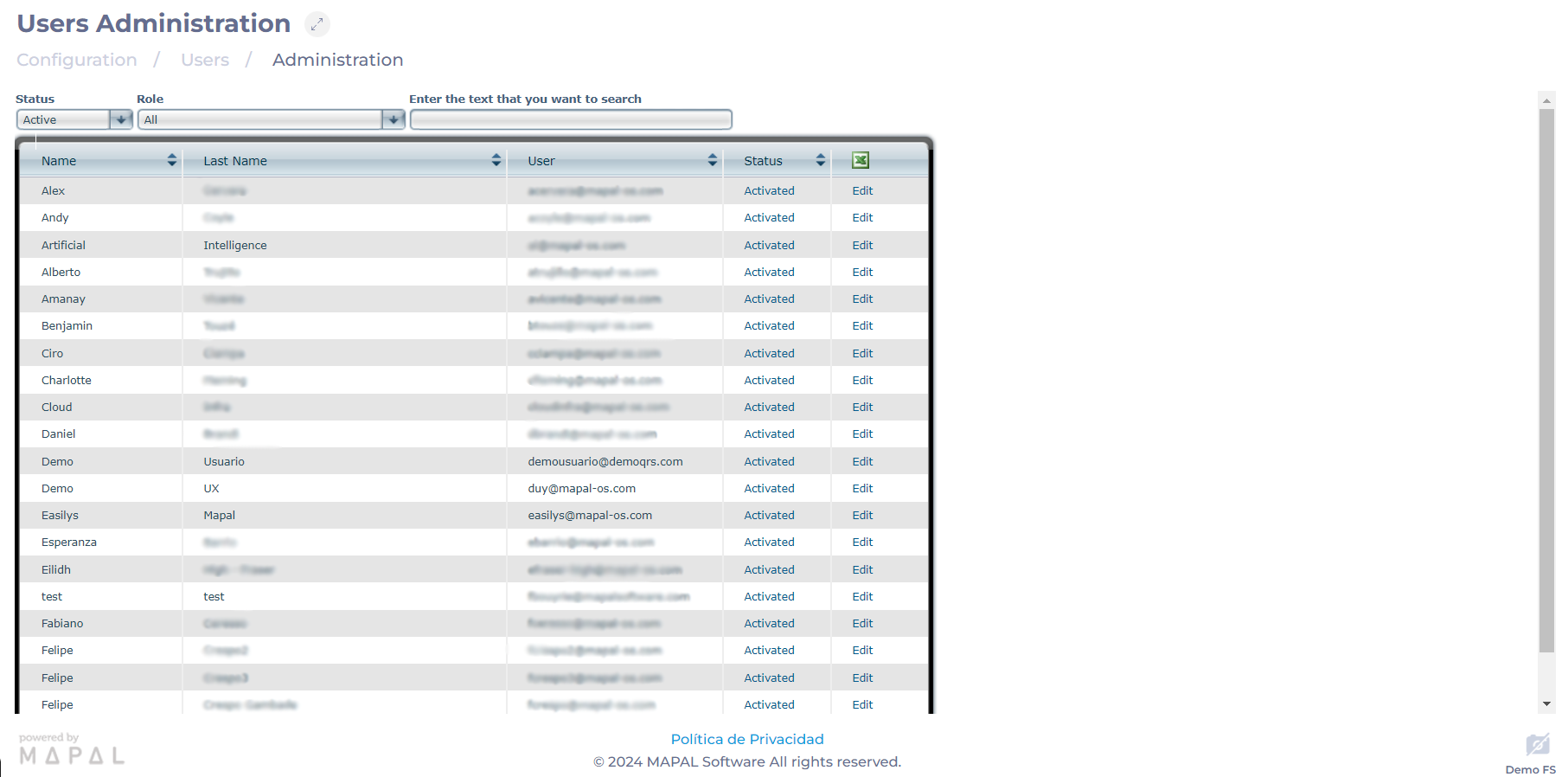
Change the status of a User
- Select Activated/Disabled in the user's Status column.
- When selecting the status, a pop-up screen will appear to confirm activation or deactivation.
- Select OK to confirm or Cancel to dismiss.

Edit a user
- Select Edit in the user's field.
- In the user's popup window, you can modify aspects such as:
- First Name
- Last Name
- Mobile Phone
- Notification Language
- Role
- Associated Worker
Note: By selecting an Associated Worker, you can mark the Access Restriction by Check-in (The associated worker must be clocked in at the time of logging into GIR) or Deactivate/disable the user if the worker is terminated (This will be done at the end of the day, as the day of termination is worked).
-
- Work Centers to which the user will have access.
Note: If a user is selected in add accesses, the accesses of that person will be copied to the same work centers.
- Select Save to apply the changes or Cancel to dismiss them.
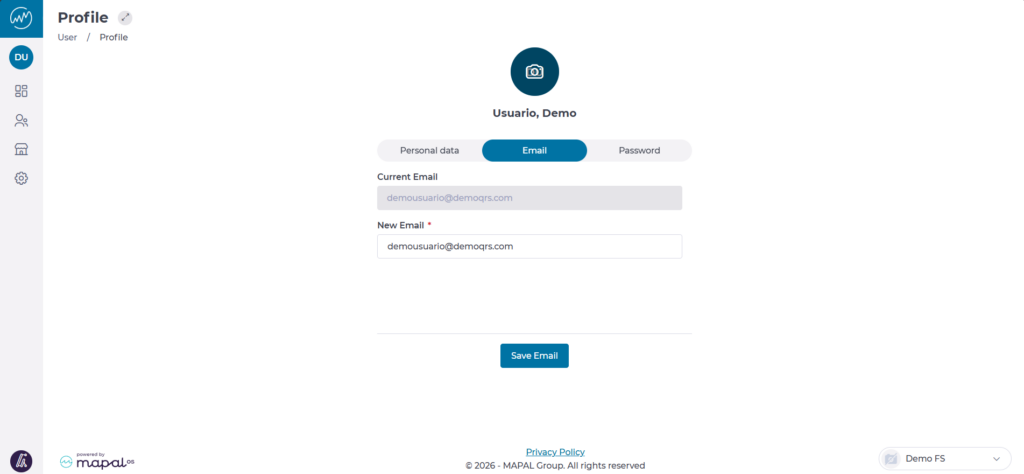
Note: The email address can only be changed by the user themselves. To do so, go to Settings > User Initials > Profile > Email.
Here you will have the option to enter a new email address