Manage allergen information for guest orders

Note: Actions on the Easilys platform depend on your user access permissions. If you cannot perform the actions below, it may be due to restrictions on your user profile. Contact the Support team or your administrator for assistance.

Start from: The Easilys menu.

  • Navigate to Guest Orders > Consolidated allergen management.
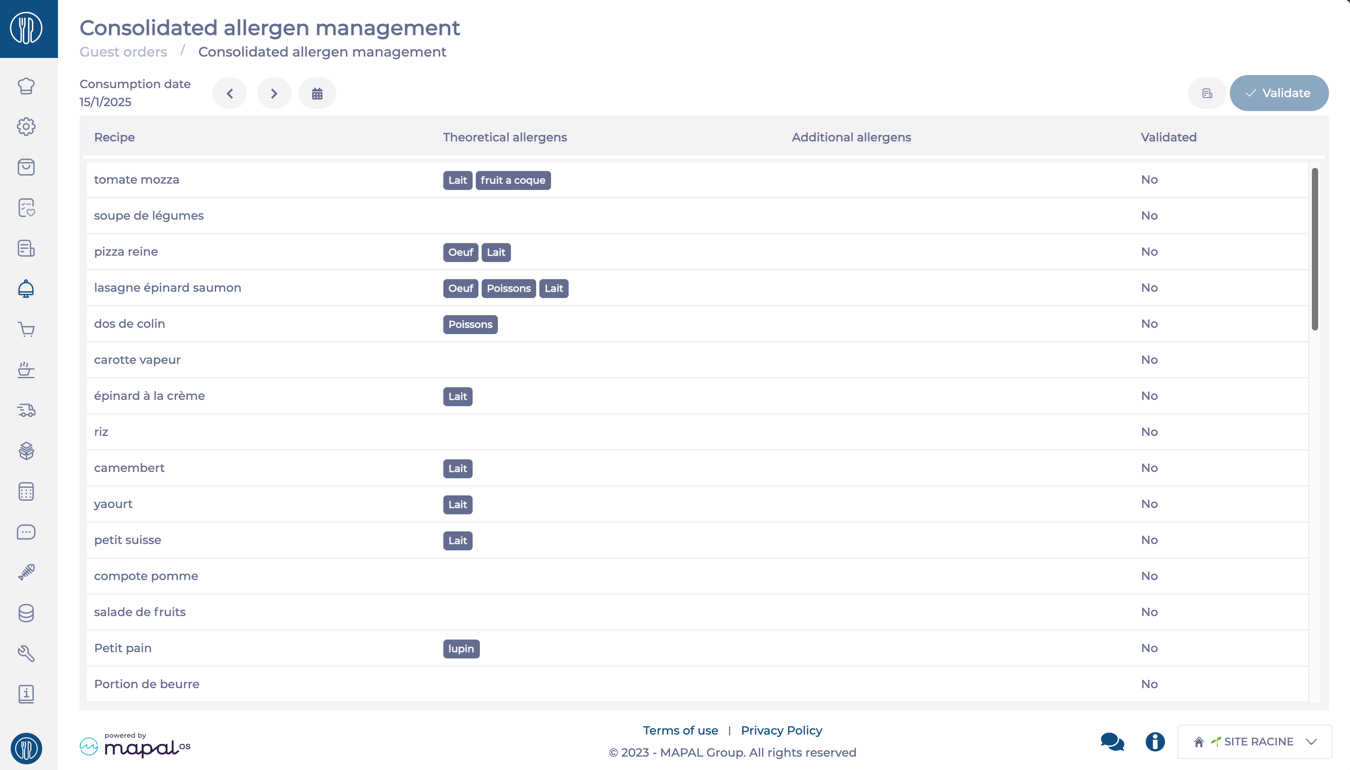
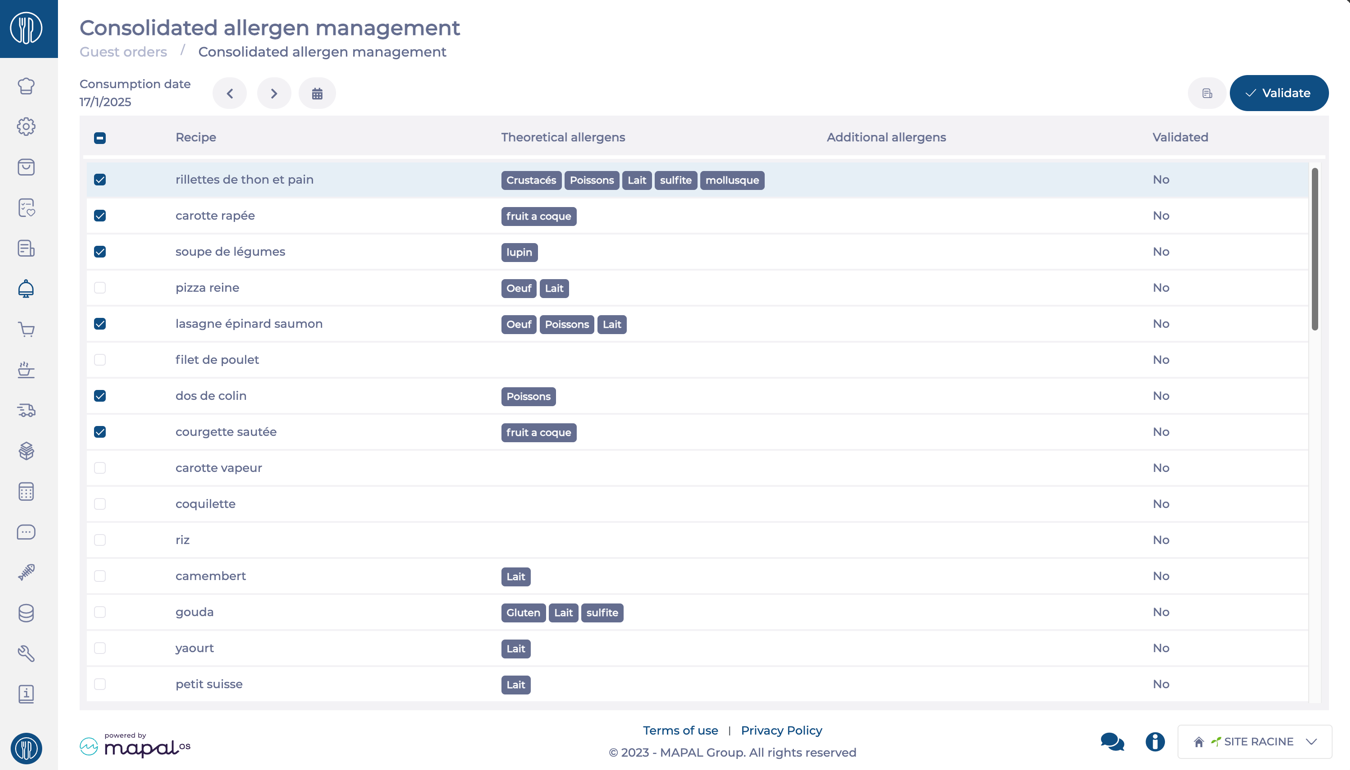
This screen provides a consolidated list of recipes scheduled for delivery on the next day or upcoming days, along with their theoretical allergens. The goal is to ensure that all allergen information is accurate, up-to-date, and validated.

In this screen, you can:

  • View Theoretical Allergen Data: Theoretical allergens are preloaded from the industrial products used to create recipes in Easilys. The screen displays recipes scheduled for upcoming deliveries, including all allergens associated with each recipe.

  • Update Missing or Incorrect Allergen Data: If production uses alternative products or if allergen information is incomplete, you can:

    • Select the specific recipe.

    • Add the missing allergen data at the recipe level.

    • Once you finish adding the allergens, select Save to update the recipe.

  • Validate Allergen Data: Validation ensures the allergen data is accurate before sharing it with customers. Validation can be performed:

    • In bulk: Select multiple multiple recipes simultaneously and press Validate.

    • Recipe by recipe: Select a single recipe and press Validate.

Export Consolidated Allergen Reports

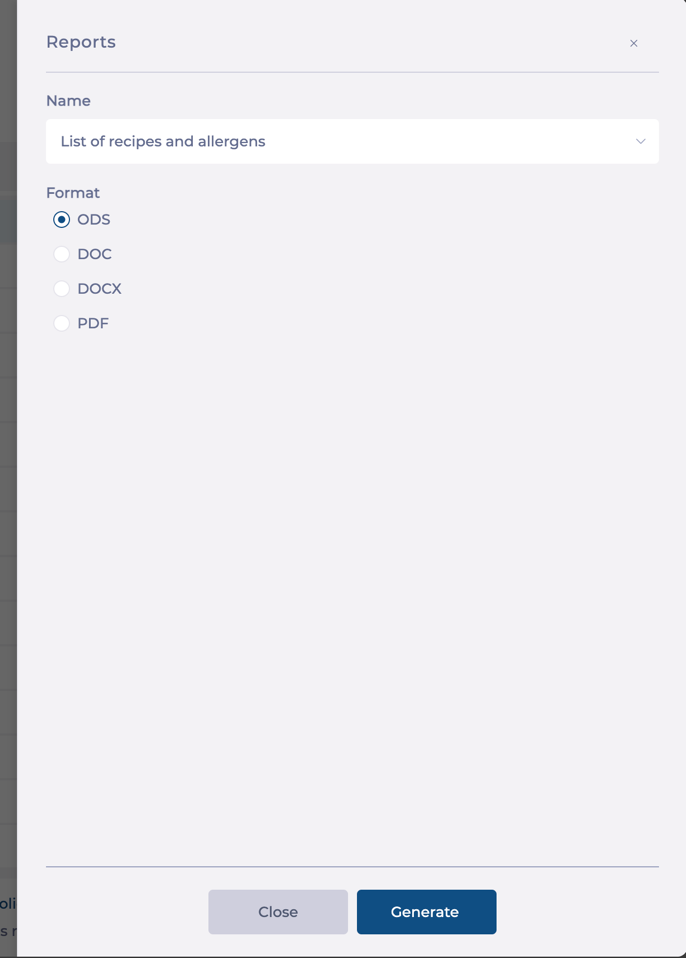
  • Use the Reports button to export allergen data for the selected recipes.

  • Rename the file and choose a file type for export. Supported formats include ODS, DOC, DOCX, and PDF.
Add a recipe card in Flow Learning

Start fromthe Flow Learning dashboard.
  • Navigate to Learning & Development > L&D Settings > Recipes.

Introducing Recipe cards

The Recipe Cards feature allows users to create and access detailed recipe references for their company, providing essential information such as allergens, prep time, cook time, and step-by-step instructions. These Recipe Cards are stored in the Recipe Book within the Document Library on Mapal One, offering employees a convenient resource for preparing dishes. It's important to note that Recipe Cards are not assignable; once created, they are automatically available for employees to access in the Recipe Book.

Setting up allergens

Allergens are linked to the ingredients that you will later add for your company. These can be celery, gluten, crustaceans, eggs, fish, lupin, milk, mollusks, mustard, nuts, peanuts, sesame seeds, Sulphur dioxide, soy, etc. With this information, you’ll build up a bank that you can then apply to ingredients.
  • Select the Allergens tab.
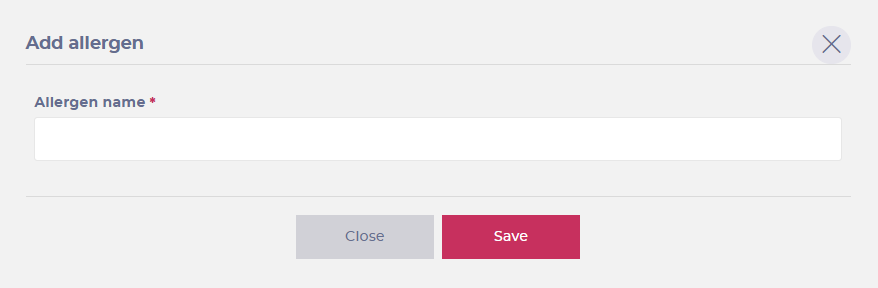
  • Use the + icon button to begin creating a new allergen.
  • Fill in the Allergen name and hit Save.

Setting up ingredients

Ingredients are the components that will be used to make up your recipe cards. Each ingredient can be associated with an allergen, so that allergen information can be clearly labelled in recipes.
  • Select the Ingredients tab.
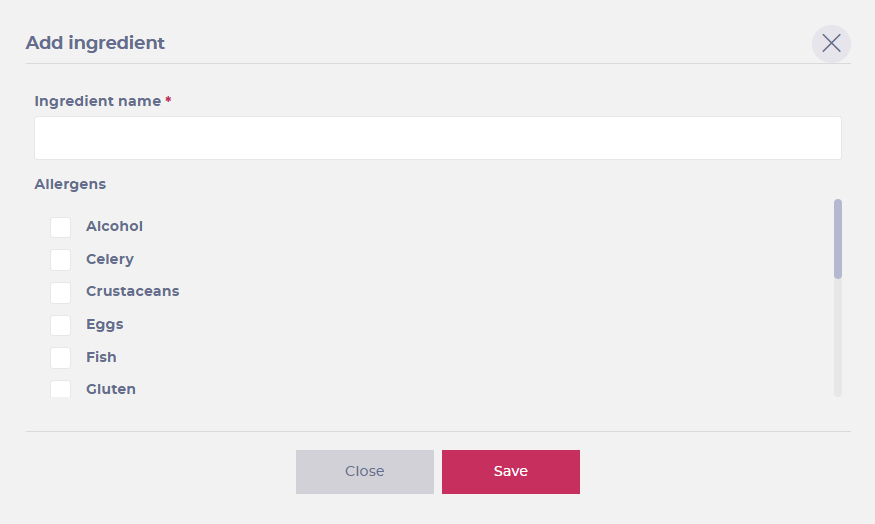
  • Use the + icon button to begin creating a new ingredient.
  • Fill in the Ingredient name.
  • Select any allergens from the list, that are contained by this ingredient.
  • Use the Save button to complete the creation process.

Add a Recipe Card

  • Return to the Recipes tab.
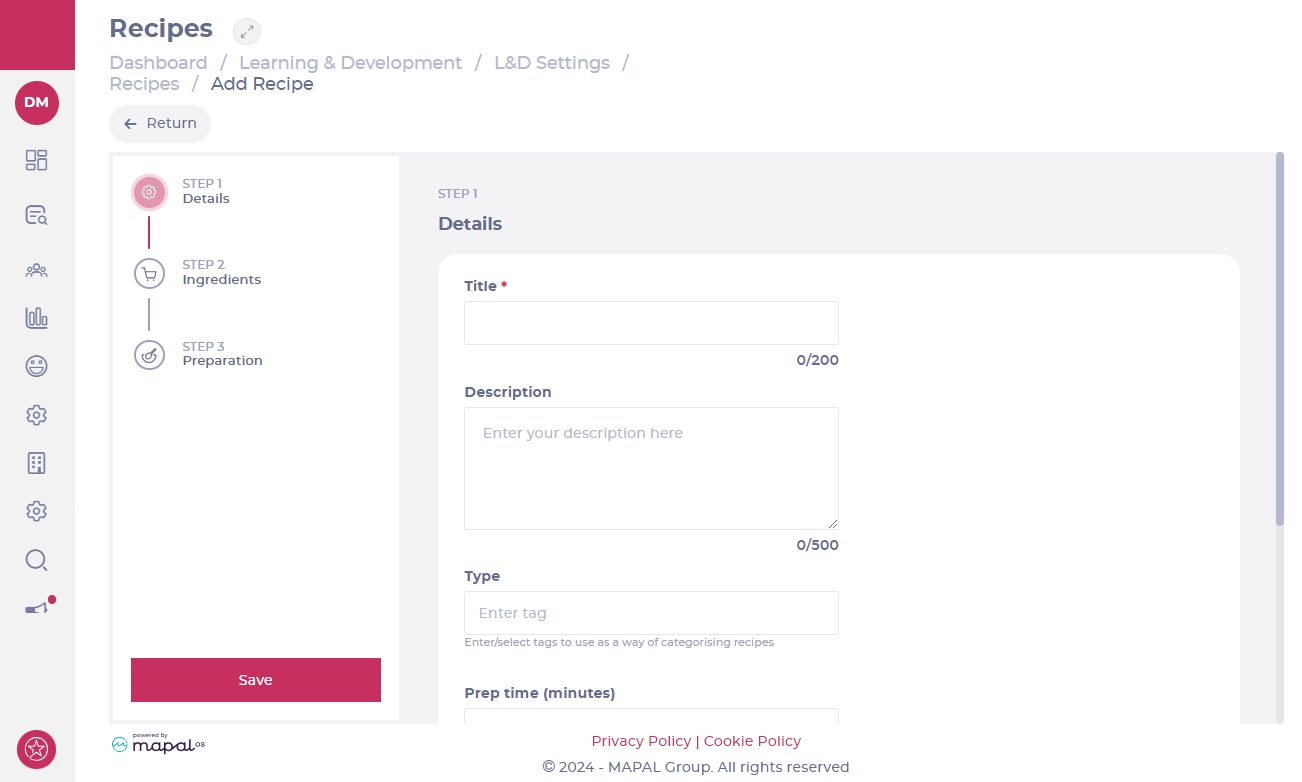
  • Select + Add.

  • Complete the fields in the steps of the form that appears.
    • Details: recipe name, recipe header image, prep time, cook time, tags.
    • Ingredients: add the ingredients and the amount of each, for example, in grams or a generic term, such as a ‘pinch’. Note: when selecting a specific ingredient, any relevant allergens will be associated.
    • Steps: use the text boxes to add the necessary steps in the recipe.
    • When you're ready, select Save to create your new recipe card.