Assign a collection
Start from: Learning & Development > Assign Learning.
There are two ways to assign a Collection to a learner. This can either be done manually using Assign Learning or automatically using Training Structures. If a Collection is assigned with a due date, then it will appear in ‘Required by you’ within Mapal One. If a Collection is assigned without a due date, then it will appear in ‘Recommended for you’ within Mapal One.
Assign Learning
- Select Collections from the Assign Learning panel.
The process for assigning collections detailed below is the same as assigning learning individually. See Assign learning for more details.
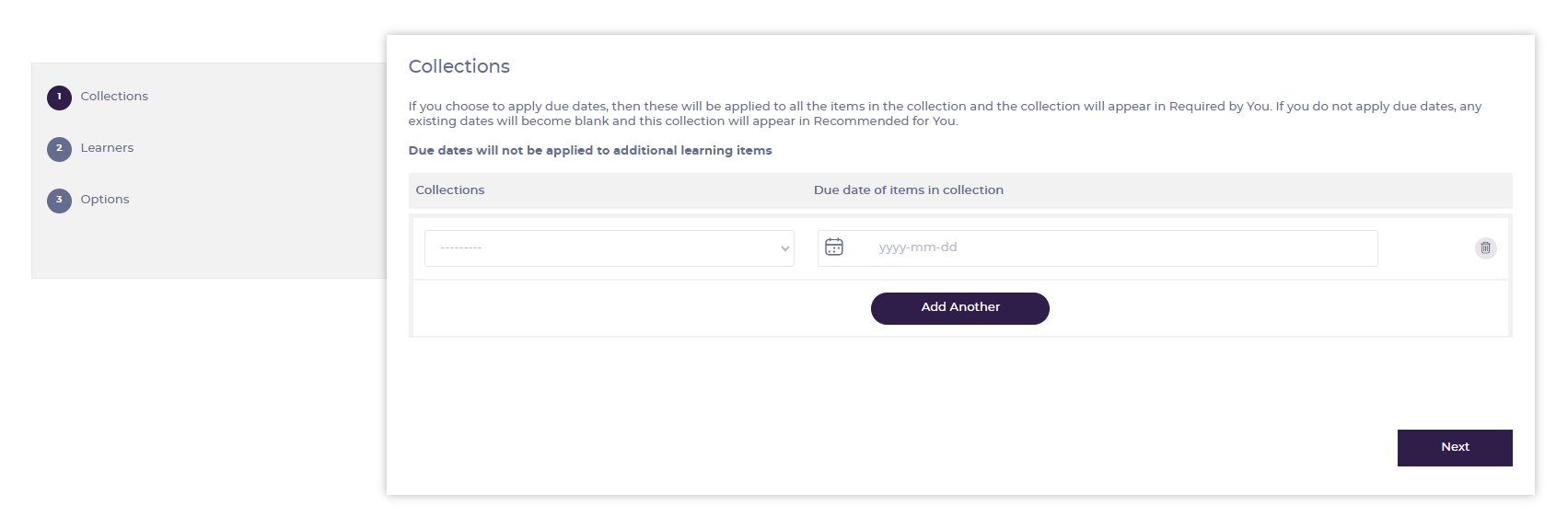
- Select the collection(s) to assign and set due date(s) if required. Select Next OR Learners when you have added the collections you require.
- Find learners in the list and use the checkboxes to select them. You can use Search
 and Filter
  to find learners in the list.
 - Select Next OR Options when you have selected all the learners to assign the collection(s) to.
- Toggle Send Emails on to send email notifications to the selected learners when the learning is assigned.
- Toggle Reissue completed on to assign the modules to any learners who have already completed them. If this setting is left off, completed modules will not be reissued; they will remain completed.
- Enter a code in the Exam blocker field to restrict access to assessments in legacy Flow modules.
- Select Review Learning to continue to Review Learning summary, showing details of the collection(s), learners and selected options for the assignment.
- Select Confirm & Assign to complete the assignment.
Training Structures
Collections are added to a training structure in the same way as other types of learning. See Edit training structures and Set up new training structures for more information.
Note: When the assignment is completed, any items in the collection(s) which are already assigned to any selected learners, will be moved into the assigned collection(s) for those learners. They will retain the status that they previously had outside of the collection, (for example, if the item is 'in progress').
Any non-module items from the collection that were already assigned to a learner will retain the due date from the original assignment. If the assigned collection has a due date set, any modules which were already assigned will have their due date changed to the setting for the collection when they are moved into it.
If any items which were already assigned have a due date, then the collection will appear in the ‘Required by you’ section in Mapal One.
Assign learning
Start from: The Flow Learning Dashboard.
Select modules to assign
- Select Learning & Development > Assign Learning from the main menu.
From the pop-up that appears:
- Select that you would like to assign learning items individually.
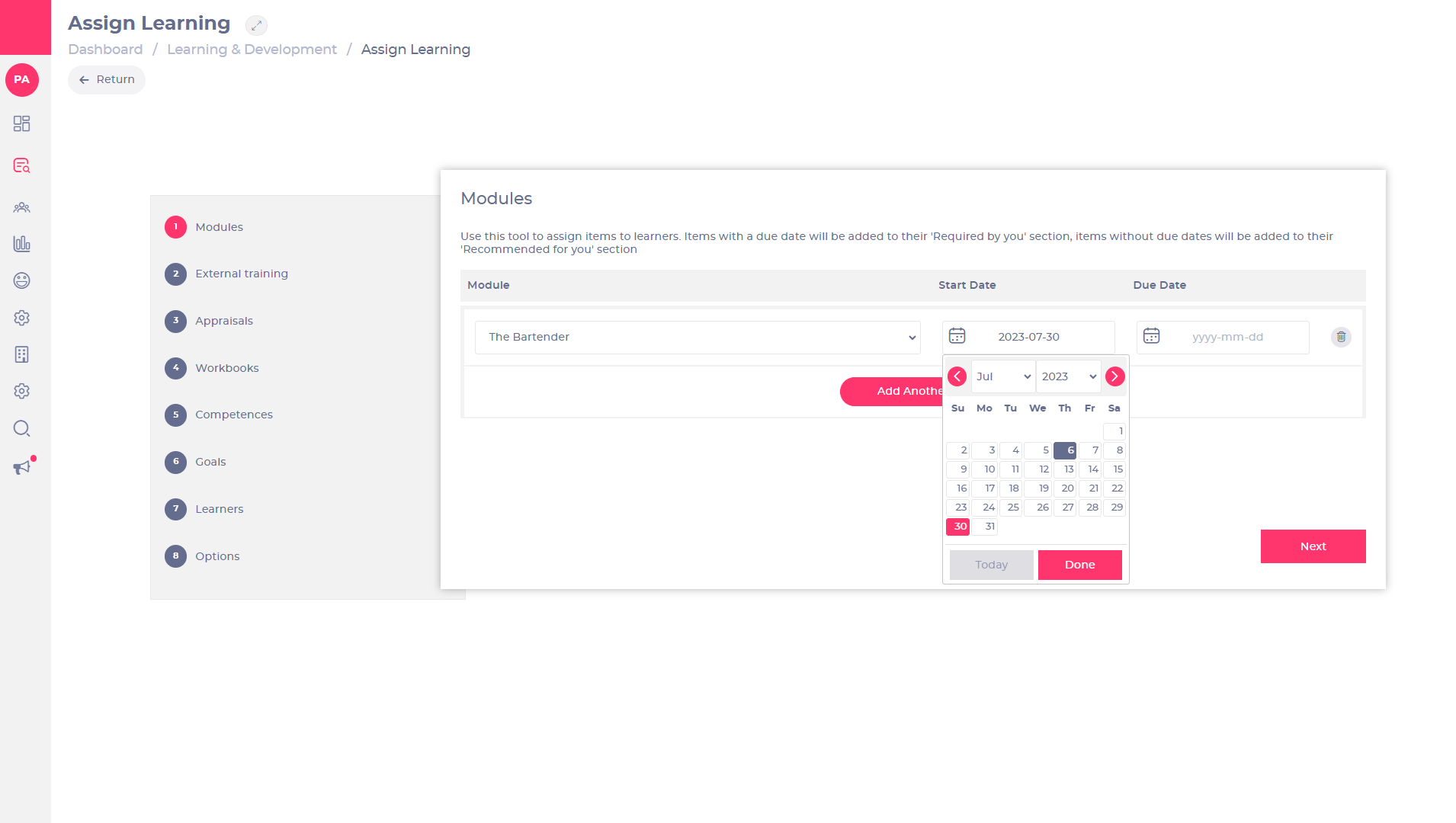
- Select the Modules tab from the Assign Learning page.
- Use the dropdown list under Module to select the module that you want to assign.
- Select the field under Start Date and select a date if you want to define when your learner will be able to access the module.
- Select the field under Due Date and select a date if you want to define when your learner should complete the module.
Note: Adding due dates when assigning modules sends automatic notifications to learners when modules are due or overdue. It also ensures the module is flagged as Required by you in the Mapal One learner's portal. If no due date is set, the module will be flagged as Recommended for you in the Mapal One learner's portal.
- Select Add Another if you want to repeat the process for another module.
Note: You can repeat this process until you have selected all of the modules that you want to assign.
- Select Next when you have made your module selection.
Select other learning content to assign
- Select any of the tabs from the Assign Learning page - you may have options such as external training, appraisals, workbooks, competences, knowledge checks or goals.
- Select the options in the relevant fields to make the selection you want to assign.
- Select Next when you have made your selection.
Select learners to assign learning to
- Select the Learners tab from the Assign Learning page.
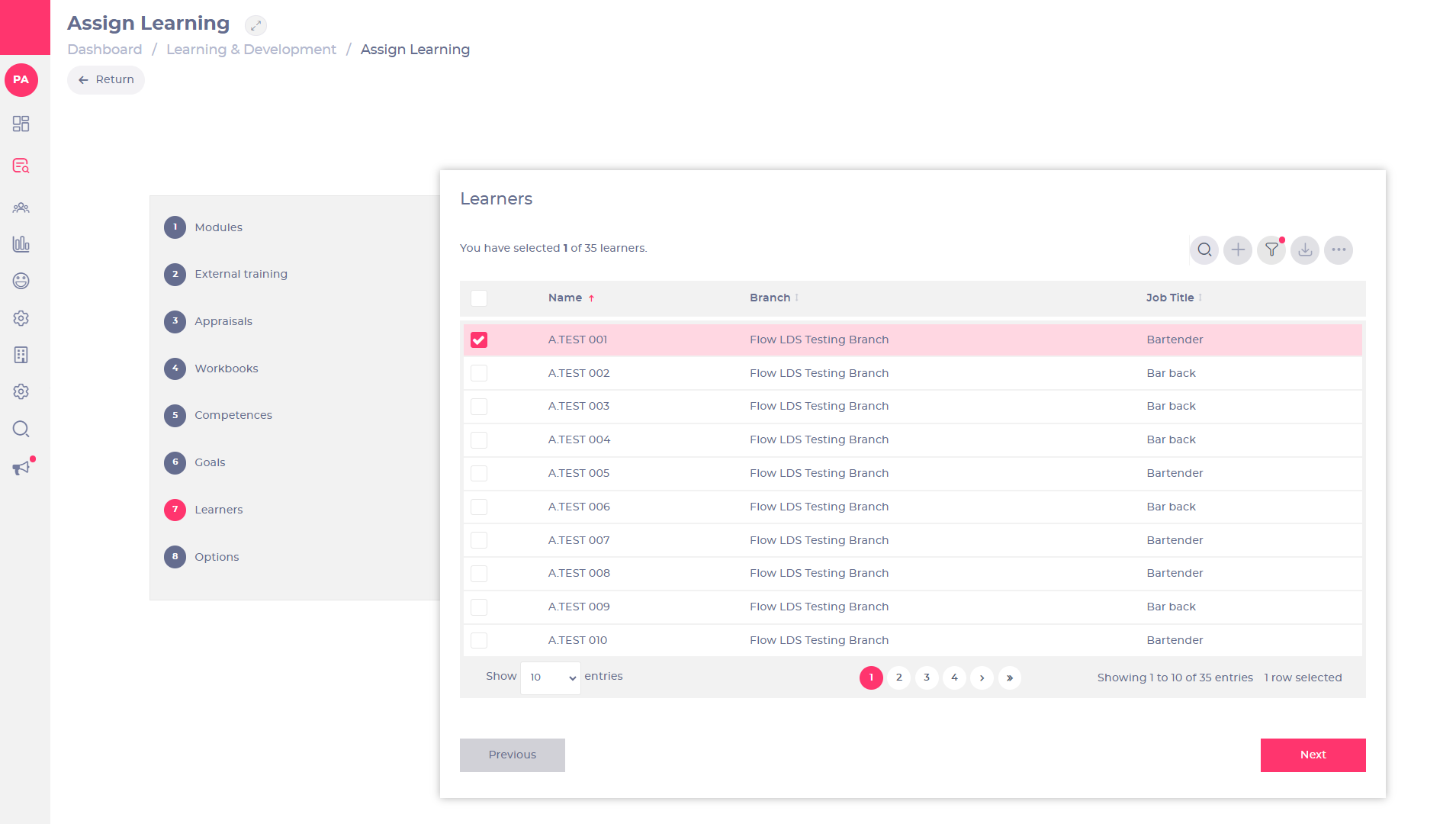
- Use the search functions or the page tabs to find the learner you want to assign the learning to and tick the box next to their name.
Note: You can assign learning in bulk by selecting Filter  to create a group of learners based on categories such as Branch or Job Title.
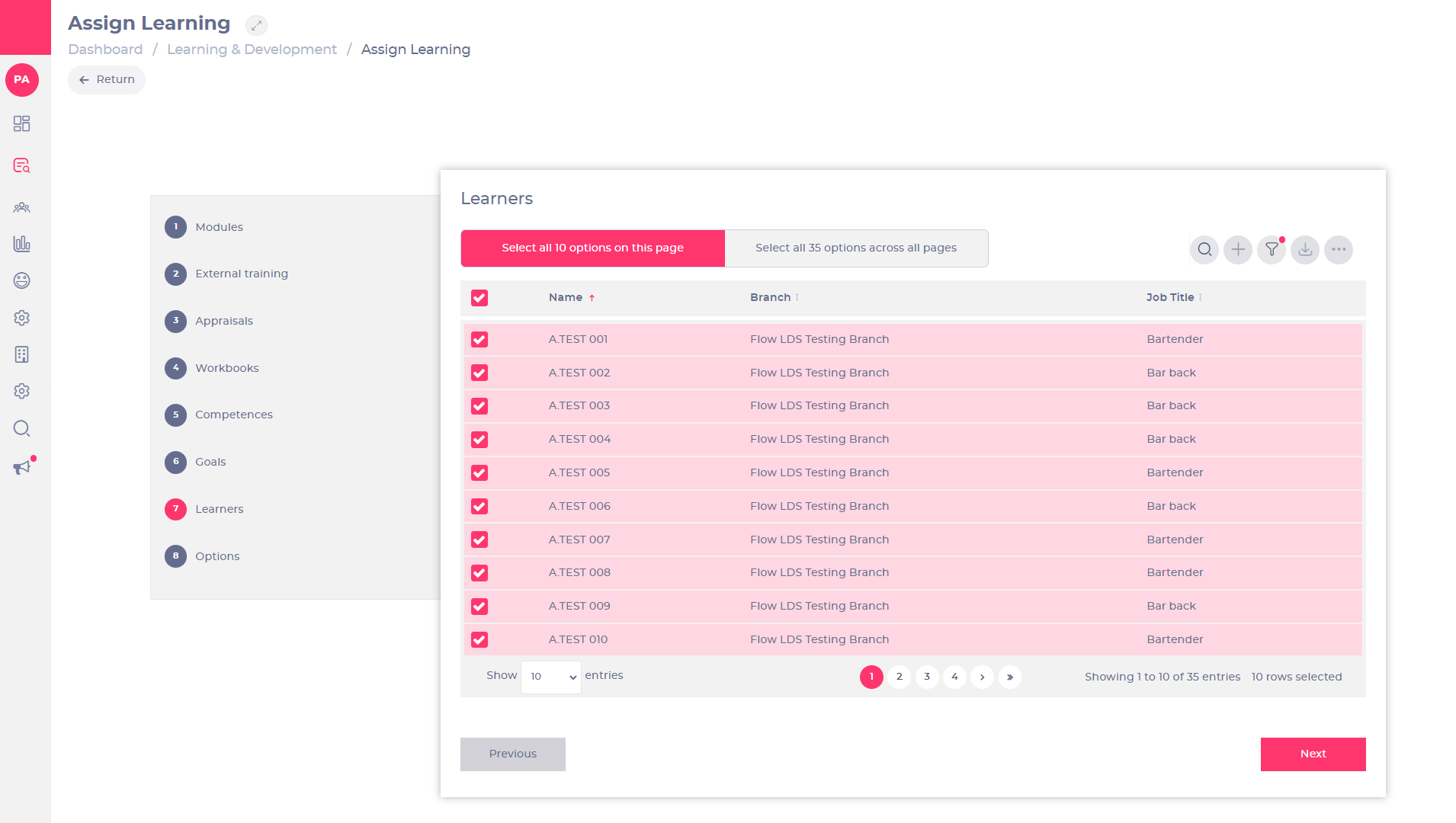
Once you have created a group that you would like to assign the same learning to, select the box next to the Name column to tick All learners in the list.
- Select Next when you have made your learner selection. This will take you to the Options tab.
Review and assign learning
- Select the Options tab from the Assign Learning page.
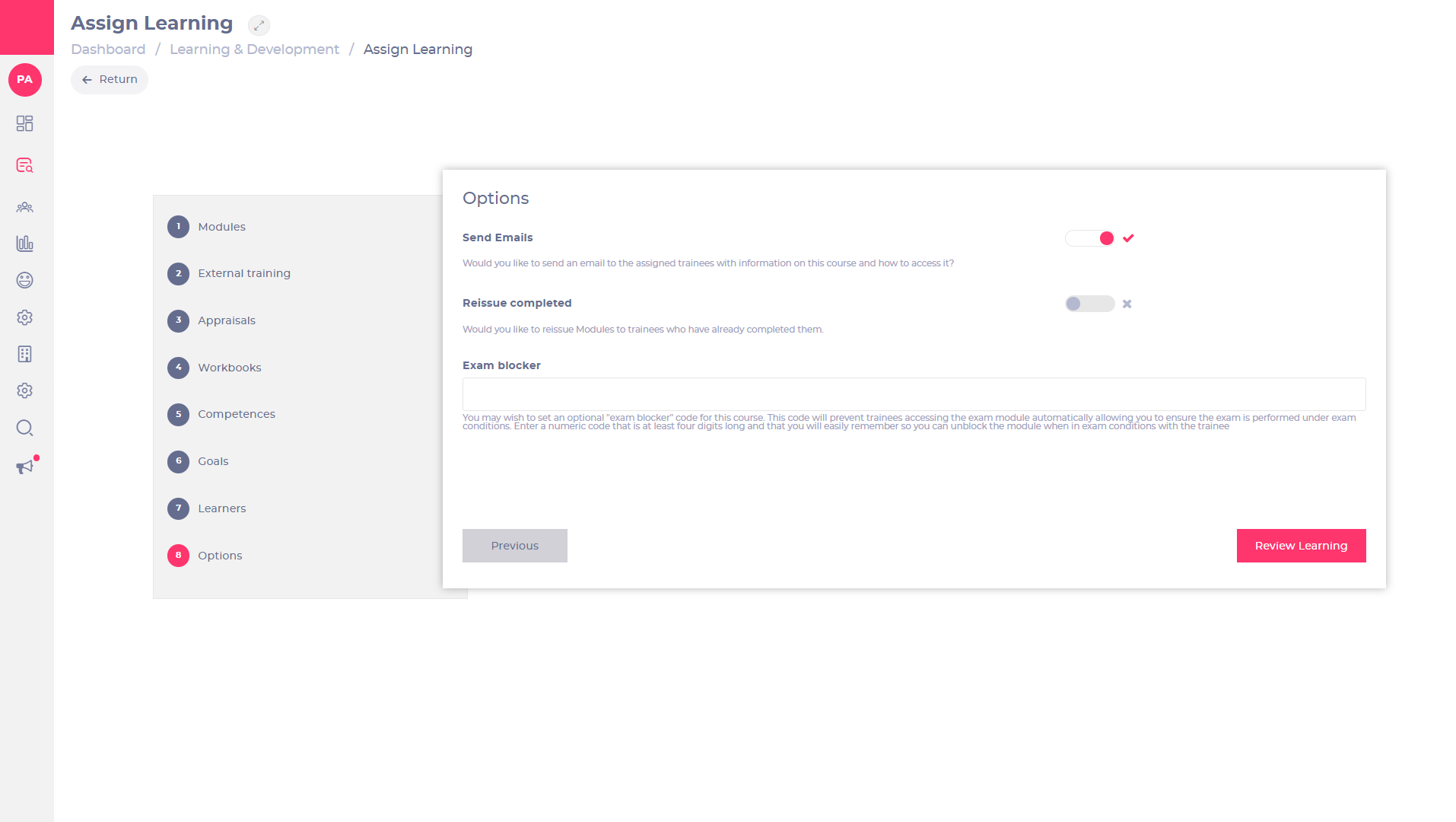
- Toggle Send Emails to on if you want your learners to receive email notifications for the learning you assign them.
- Toggle Reissue completed to on if you want your learners to be assigned modules that they have already completed.
Note: This toggle doesn't apply to other forms of learning such as external training, appraisals, workbooks, competences, knowledge checks and goals.
- Enter at least a four-digit number in the Exam blocker field if you want to control when the learner is able to access end-of-module exams. This code is then used to unblock the exam for the learner.
Note: This is helpful when you need your learners to complete their module exams under exam conditions. Exam blocker codes only apply to legacy Flow modules.
- Select Review Learning to make a final check that all details are correct before you assign learning.
- Select Confirm and Assign to view a summary of the learning you have assigned.
Note: The Print now option allows you to view or make a hard copy of the instructions that your learners will receive via email.
Your selection of learners will now be assigned the learning selection that you made. Details of this assignment will appear in Reports and other functionalities associated with learning progress and completion.
Create vs. assign tasks in Flow Learning
The difference between creating and assigning content
In Flow Learning, there are two primary aspects that training managers need to understand: creating learning content and assigning that content to learners. These two distinct processes are fundamental to managing employee development and ensuring that training goals align with organisational objectives.
While the content creation process allows for the design and customisation of training resources, the assignment process focuses on delivering these resources to the appropriate learners for completion and review.
Creating Content in Flow Learning
Flow Learning offers a suite of tools that allow you to create tailored content for different learning and development needs. Whether you’re building a new workbook, setting up an appraisal, or designing an interactive training module, the platform provides various resources for crafting dynamic and engaging materials.
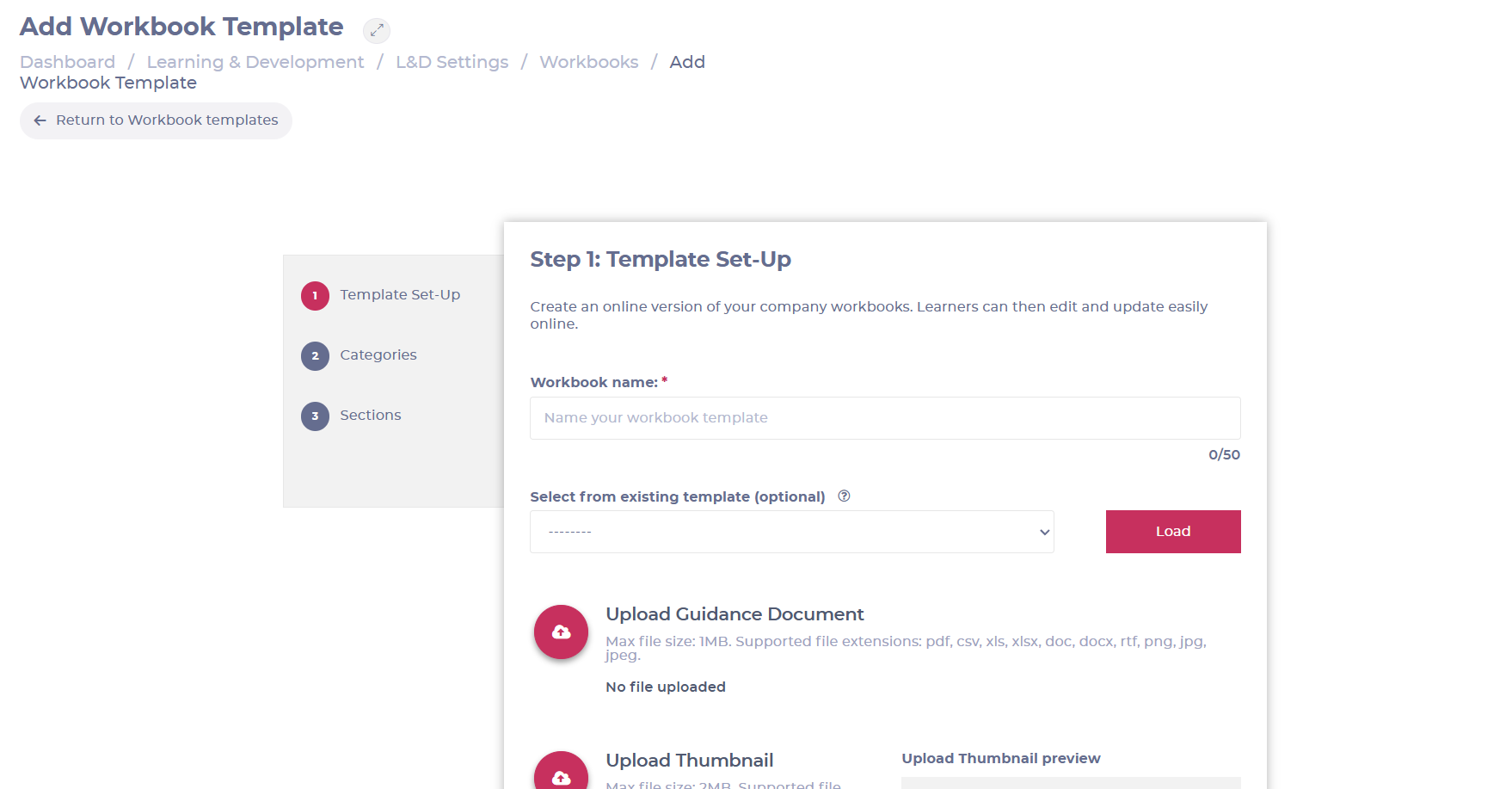
The creation process typically involves using easy-to-navigate screens where you can add titles, descriptions, multimedia elements, and custom settings. For example, when creating a new workbook, managers can upload guidance documents, set up sign-off settings, define categories, and add sections that assess learner comprehension.
For specific types of contents, the system also allows for the inclusion of external links, PDFs, images, and other resources, providing a comprehensive learning experience.
For more detailed guides on creating content, refer to our articles on specific content creation:
Learning
- Create additional learning
- Create a collection
- Build External Training
- Create Knowledge Checks (Quizzes)
- Build training modules using Module Builder
- Create quizzes and exams with Module Builder
Development
Assigning Content to Learners
Once content is created, the next step is to assign it to the appropriate learners. This process involves determining which learners or groups should receive the training and setting due dates for its completion.
The purpose of this process is to deliver the right content to the right learners at the right time, ensuring that each individual or team has access to the training they need.
For example, when assigning a Workbook or any other content through the Assign Learning screen, you are allowed to select the specific content and the due date. You can assign one or more resources to one or multiple learners at the same time.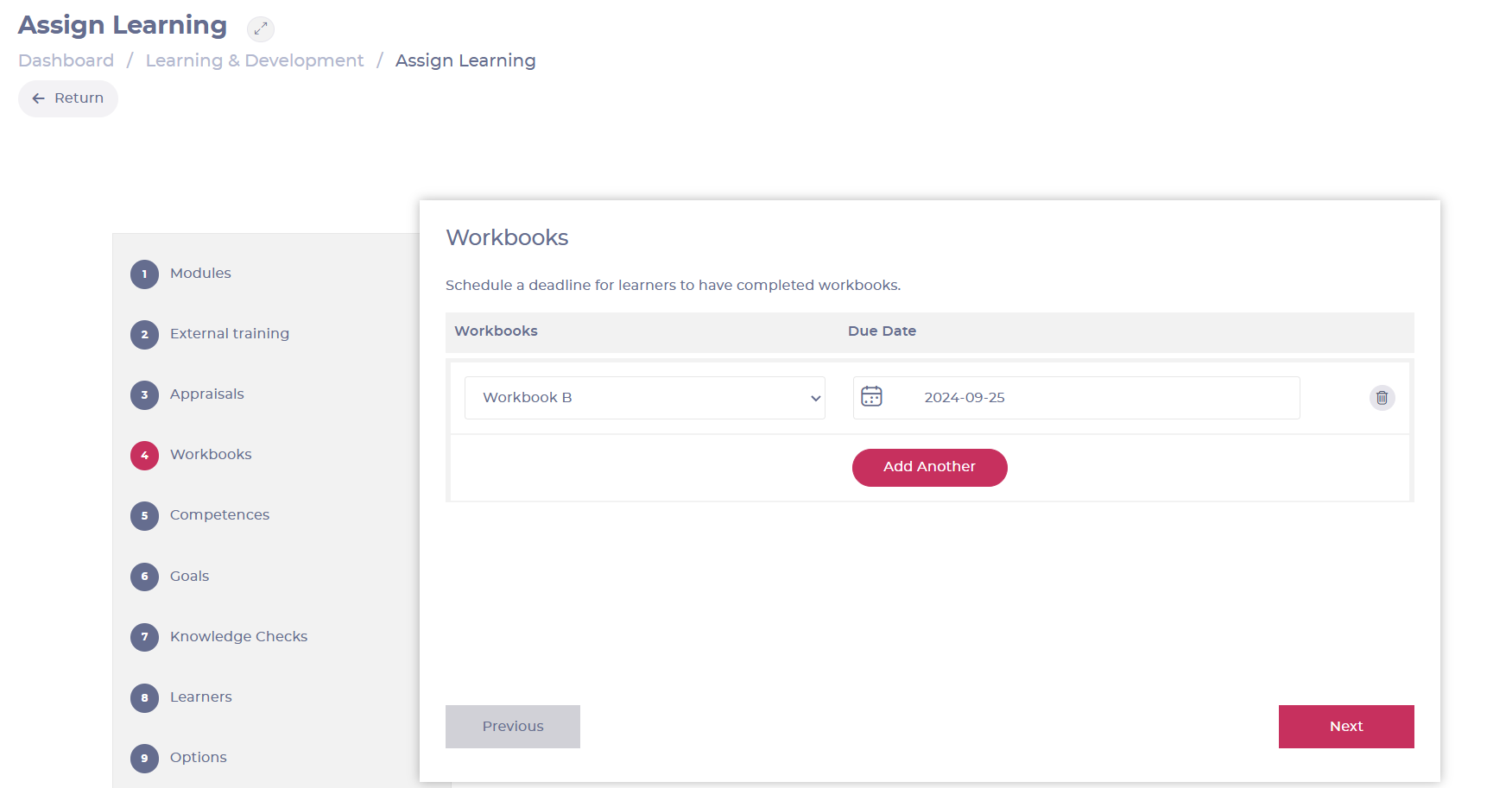
For more detailed guides on assigning content, refer to Assign Learning.
Notes: There are additional ways of assigning content to learners. Depending on the specific content you want to assign, you can refer to additional guides in Flow Learning > Development / Développement / Desarrollo or Flow Learning > Learning / Formation / Formación.