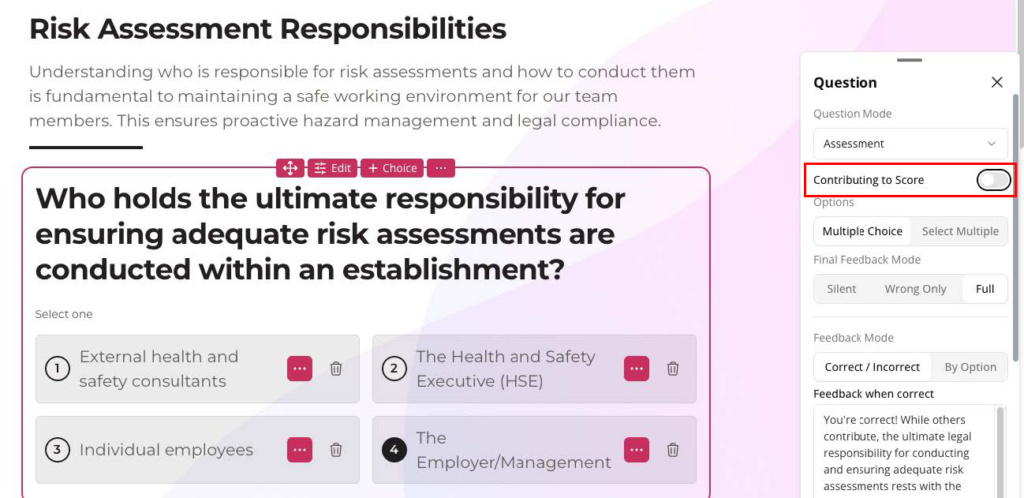
Completion settings in Studio
Start from: The Flow Learning dashboard.
- Navigate to Learning & Development > Studio.
- Select the specific lesson you want to configure.
Grading
- Inside the lesson, select the Settings cog to access the lesson settings.
- Select Grading. This section is split into two parts: Scoring and Reporting.
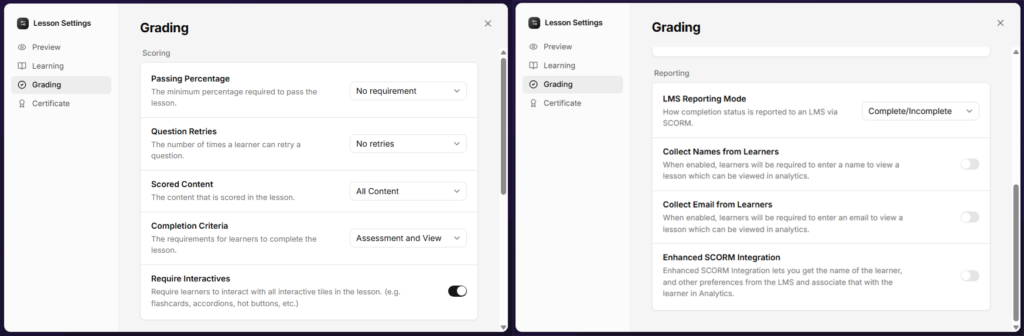
Scoring
- Passing Percentage: Set the pass percentage mark if you add an assessment to your lesson. The Flow Learning standard is around 80%, but this depends on how many questions you include in your assessment.
- Question Retries: Set how many times a learner can retake the questions within the lesson. This applies to all question tile types.
- Scored Content: Set which content is assessed. If your questions are built throughout the lesson, select All content. If you have a dedicated section for questions, select Specific section and choose the section required.
- Completion Criteria: Set how completion is logged. Assessment only logs completion via the question tiles that contribute to the score. Assessment and view logs the contributing question tiles and also requires learners to view every page of the content. Assessment and view works for courses without assessments as well.
- Require Interactives: Toggle on if you want learners to interact with the interactive content for it to count towards completion. This ensures learners review all content.
Note: A quiz page counts as complete only after the learner submits an answer.
Reporting
The relevant setting in this section is LMS Reporting Mode. Set this to Complete/Incomplete, as this reports back to Flow Learning most reliably.
Assessment: all questions
You can set up Studio lessons to complete with a score based on all the questions that learners answer correctly. This can include all question tiles except the feedback tile. Questions do not have to be on their own page at the end of the lesson: they can be placed anywhere throughout the lesson.
The following settings are required for this completion type.
Lesson settings
- Select the Settings cog.
- Navigate to Learning and ensure Restart Lesson Button and Completion Dialog are toggled on.
- Navigate to Grading.
- Set your passing percentage. This depends on your content and how many questions you ask. For example, if you set up your lesson with 5 questions and want learners to answer a minimum of 3 correctly, your passing percentage is 60%. If you have 10 questions and want a minimum of 8 correct, your passing percentage is 80%. The Flow Learning standard is 80%, so we recommend 5 or 10 questions.
- Set Question Retries to No retries.
- Set Scored Content to All content.
- Set Completion Criteria to Assessment and view. This ensures learners view all of the lesson content and the assessment content.
- Toggle on Require Interactives.
- Scroll to Reporting and set LMS Reporting Mode to Complete/Incomplete.
Question settings
Question tiles include a small interaction label. These labels are fixed and cannot currently be edited to make them more prominent. With this in mind, consider adding interaction guidance within the text of your questions, for example "Select the answer you think is correct". Keep this in mind whichever completion setting you use.
Once you have added your question content, ensure that all questions in the lesson are linked to the score:
- Select the question tile in the Editor, then select Edit. A panel opens.
- Ensure Question mode is set to Assessment and toggle on Contributing to Score.
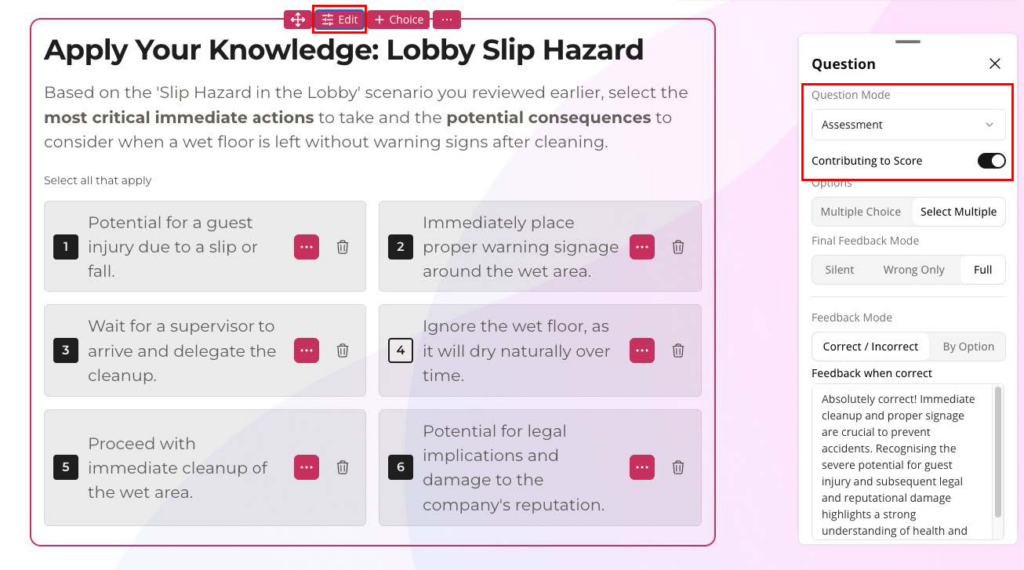
Formative questions throughout the lesson
If you want practice exercises throughout your lesson that do not contribute to the assessment score, add question tiles as knowledge checks and toggle off Contributing to Score.
Our recommendations
Assessment only
We recommend using assessment questions whenever the learning requires evaluation. These are most effective placed at the end of a course, with a pass percentage of 80% (learners pass with 4/5 or 8/10).
Your pass percentage depends on the number of questions, the content you are building, and your company's policies. For example, an allergens-specific lesson will likely need a higher pass percentage of 90 to 100%.
Once the learner has completed or passed the assessment, the Completion Dialog appears. This is why we recommend placing your assessment on its own page at the end of your lesson: it gives learners a definitive end to their module.
Setting up an assessment page
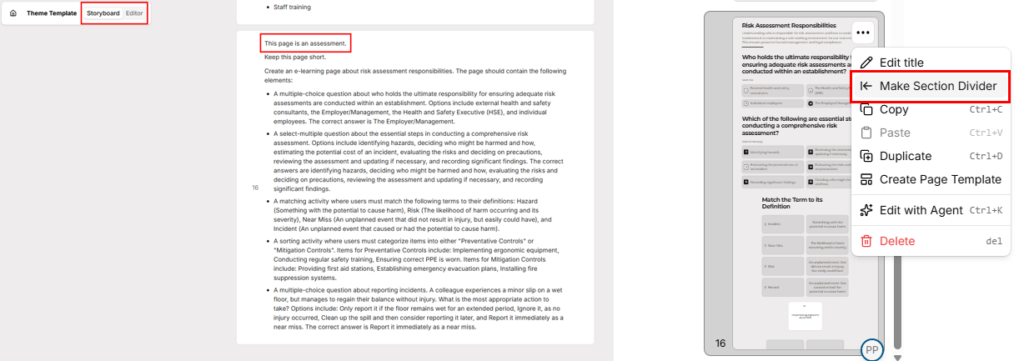
- Select Storyboard.
- Add a page with a prompt outlining that it is to be set up as an assessment, along with what you would like the assessment to include.
- Make the assessment page its own section: select Editor, select the action menu (...) on your assessment page, then select Make Section Divider. This lets you select the section in your Scored Content setting.
Lesson settings
- Select the settings cog.
- Navigate to Learning and ensure Restart Lesson Button and Completion Dialog are toggled on.
- Navigate to Grading.
- Set your passing percentage.
- Set Question Retries to No retries.
- Set Scored Content to Specific section and select your assessment page.
- Set Completion Criteria to Assessment only.
- Toggle off Require Interactives.
- Scroll to Reporting and set LMS Reporting Mode to Complete/Incomplete.
Question settings
As with Assessment: all questions, ensure that all questions in the lesson are linked to the score:
- Select the question tile in the Editor, then select Edit. A panel opens.
- Ensure Question mode is set to Assessment and toggle on Contributing to Score.
Formative questions throughout the lesson
If you are including an assessment page, we do not recommend using formative questions on the earlier pages of the lesson. If you do include formative question components (practice questions) outside your assessment page, ensure they do not have Contributing to Score toggled on.
Attainment
Attainment completion means the learner needs to interact with every selectable component in the lesson to complete it.
We recommend adding a Complete this lesson button on the final page, so the course completes once the learner reaches the final page rather than when they complete the last interactive component.
Lesson settings
- Select the Settings cog.
- Navigate to Learning and ensure Restart Lesson Button and Completion Dialog are toggled on.
- Navigate to Grading.
- Set your passing percentage to No Requirement.
- Set Question Retries to No retries.
- Set Scored Content to All content.
- Set Completion Criteria to Assessment and view. This ensures learners view all of the lesson content and the assessment content.
- Toggle on Require Interactives.
- Scroll to Reporting and set LMS Reporting Mode to Complete/Incomplete.
With these settings, learners receive a prompt to complete all interactive components on the page before they can move on.
Question settings
If you have any question tiles in your lesson, ensure that Contributing to Score is toggled off in the question settings.