Catalogues tag

Starting from: Sites > Administration of Tags

 
To learn more about tags, refer to the article What is a tag and what is it used for?
 

These tags are associated with sites as well as Smart Catalogue rules: this way, Easilys knows which rules should apply for tagged sites and products managed by the parent site, available for ordering from each child site.

"Catalogues" type tags are attached from site settings, in the Tags tab to qualify sites and in Smart Catalogue rules.

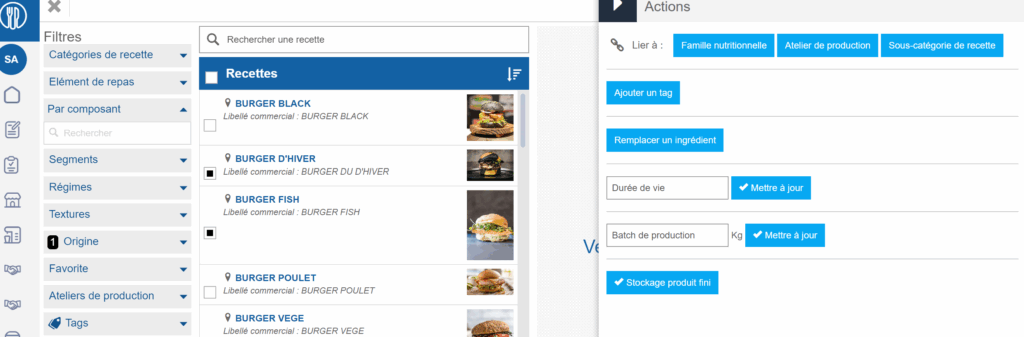
Create recipe catalogues and make them available to desired sites

Start from: The Easilys menu.

1. Creating recipe tags

On the parent site:

In the Recipes section:

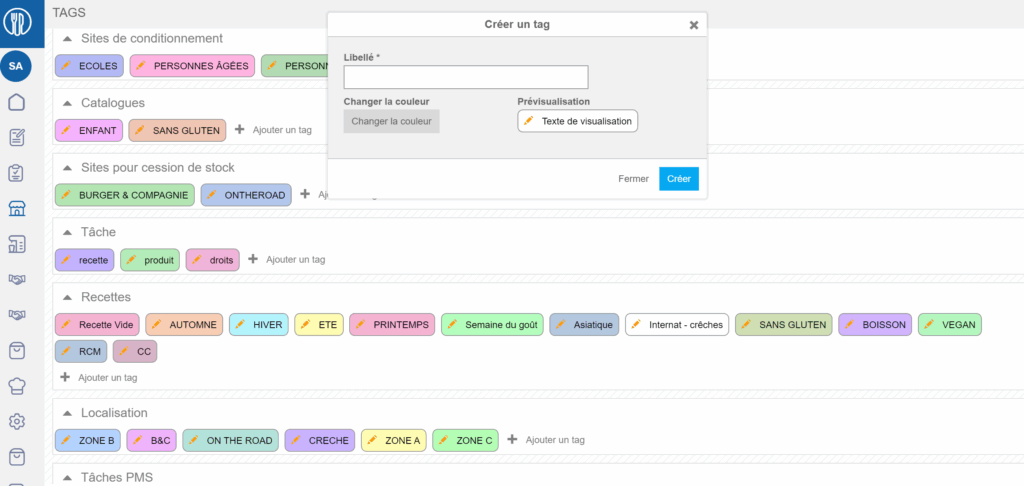
The Create tag window appears:

Note: You can choose a color to associate with your tag. To do this:

To modify the label or color:

Note: It is not yet possible to delete a tag. If it is necessary to delete unused tags, please contact support.

2. Adding recipe tags to recipe cards

On the parent site:

Note: You cannot add a tag to an inherited recipe. The recipe must belong to the site you are on and therefore be local.

3. Assign appropriate recipe tags to child sites

This step allows you to define which sites can see specific recipe catalogues. This procedure is explained in the article Tag "Recipes".

Optimise Smart Catalogue rules using recipe categories and subcategories

Starting point: The Easilys menu.

Using recipe categories or subcategories

  • A recipe category allows you to categorise recipes and group them together within the same group.

  • A recipe subcategory allows you to refine this categorisation further.

Thanks to recipe categorisation, you can:

    • Filter your recipe list to show only those that belong to a specific category.

    • Use categories and subcategories as criteria for applying a rule in Smart Selection, Smart Grammage, Smart Packaging or Smart Catalogue.

Manage your product catalogue

Start from: the Analytics dashboard

  • Navigate to Configuration > Products.

  • The Products screen displays a central table containing all available products. Each row represents a product, and columns display its core details:

    • Code: The unique identifier used in the system.

    • Product: The product's name.

    • U: The unit of measurement (e.g., "l" for litre, "ud" for unit).

    • Shrinkage: Indicator of product shrinkage behaviour (if applicable).

    • Action: Options available:

      • Edit: Modify the product’s details.

      • Groups: Assign or update product groups.

      • Delete: Remove a product entry

Filtering and search

  • Use the filter bar above the table to narrow down the product list:

    • Language: Choose the product name language.

    • Type: Filter by Sale Items and Raw Materials.

    • Group: Filter by predefined product groups.

    • Family / Subfamily: Filter to specific classifications.

    • Search in the table: Search directly for a product by keyword or code.

These tools allow you to easily locate specific entries and manage them at scale.

Add a product entry

  • Select New at the bottom of the table.

  • Complete the required fields in the product creation form, such as the code, family, unit, and name.

  • Select Accept. Your new product will now appear on the list.

  • To edit or group a product, click the corresponding Edit or Groups buttons in the Actions column.

Note: You can also delete products in bulk by selecting the red X button at the top right corner of the table.

Import products

  • Select the Excel icon. This will download a template file.

  • Fill out the Excel file with your products’ details.

  • Back in the products screen, select the Import button.

  • Select the file you have edited and upload it.

  • The product grid will now be updated with the new imported products.

src="src="src="src="src="src="

Manage cases of promotion, animations, or product substitutions

Note: each action performed on the application is subject to a fee. If you are unable to carry out the recommended actions in the articles you are viewing, this may mean that the necessary rights have not been enabled for your user profile. Contact the Support team, or your Admin, to find out more.

Start from: The Easilys menu.

Occasionally, a supplier may offer special promotions or events over a given period, or propose an out-of-stock product with another. These situations can be managed using price lists.

MANAGING A SPECIAL PRODUCT PROMOTION OR ANIMATION

1st STEP: CREATE A DEDICATED PRICE LIST

  • Select the Products > Price Lists tabs.
  • Select Create a price list.

Une image contenant texte, logiciel, Icône d’ordinateur, Page web<br><br>Description générée automatiquement

 
The “Create a price list” window appears.

Une image contenant texte, capture d’écran, logiciel, Icône d’ordinateur<br><br>Description générée automatiquement


  • Enter the name to identify your special offers and promotions. The name is the price list label, for example: PROMOS September 2022.
  • Do not specify an expiry date.
  • Indicate the “None”  (Aucune) product family to be able to add all products regardless of family.

STEP 2: ADD RELEVANT PRODUCTS

  • Select Add a supplier product in the price list dedicated to promotions and events you have just created.

Une image contenant texte, capture d’écran, logiciel, nombre<br><br>Description générée automatiquement


  • If the product already exists in the Easilys database, search for it in the list and select it to add it to the price list. In this case, the “Add a supplier product” window appears. Fill in the required information and select Add.
  • If the product does not exist in the Easilys database, select Create at the bottom of the list of supplier products.
  • Enter the validity date of the promotion/activity to tell Easilys when the product will be offered for order.
  • Enter price.

Une image contenant texte, logiciel, Page web, nombre<br><br>Description générée automatiquement

 Une image contenant texte, logiciel, nombre, Page web<br><br>Description générée automatiquement

STEP 3: CONTROL AND ADVISE

  • Remember to check that the normal-price supplier product is no longer available, and that the promotional/animation version is.
  • Play with the Delivery Date filter on the Supplier orders screen (Supplier orders > Supplier orders tabs) to check that the product can be ordered during the appropriate period, and that it cannot be ordered outside this period.
  • Notify Easilys users by posting a message on the Easilys home page.

MANAGING THE SUBSTITUTION OF ONE PRODUCT FOR ANOTHER DEFINITIVE SUBSTITUTION

  • Select the Products > Price Lists tabs.
  • Select the price list in which the product to be substituted can be found.

Une image contenant texte, capture d’écran, logiciel, Icône d’ordinateur<br><br>Description générée automatiquement


  • If the supplier product substituting the initial product already exists in the Easilys database: find it in the price list or add it by selecting + Add supplier product.
  • If the supplier product substituting the initial product does not yet exist, create it by selecting + Add a supplier product, then click on Create at the bottom of the list of products proposed by Easilys.
  • Indicate in the label of the substituting supplier product the reference of the supplier product it replaces. This will enable you to find the new product if you are searching for the old one by its reference number. 

Une image contenant texte, logiciel, nombre, Icône d’ordinateur<br><br>Description générée automatiquement


  • Indicate a start date for the substituting product and an end date for the substituted product.

Une image contenant texte, logiciel, Page web, Icône d’ordinateur<br><br>Description générée automatiquement


  • Remember to uncheck the box Orderable? for substituted products before duplicating a price list. When a product is duplicated, the validity date is not duplicated, so that a substituted product can be ordered again.

PERIODIC SUBSTITUTION

  • Proceed in the same way as for a definitive substitution, but remember to change the start and end date on the substituted and substituting products at the end of the substitution period.

Understand Smart Catalogue rule types

Noteactions performed on the Easilys platform are subject to user access permissions. If you are unable to carry out the actions described in the articles, it may be because you do not have the necessary permissions activated on your user profile. Contact the Support team, or your administrator, for help.

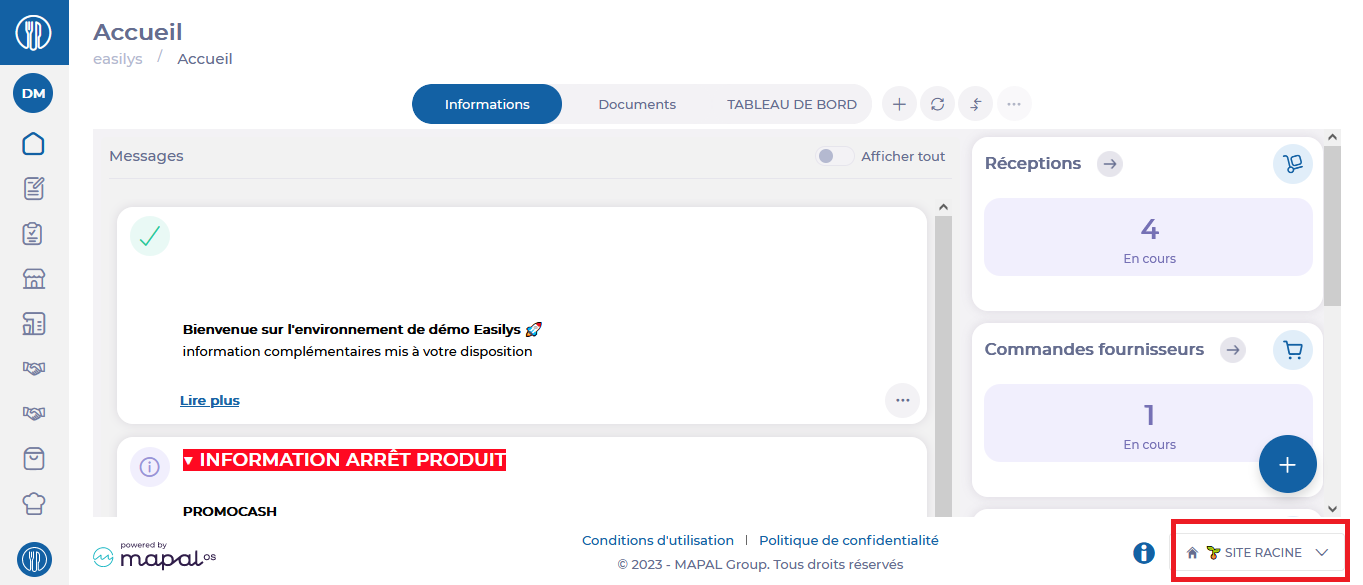
Start fromthe Easilys menu.

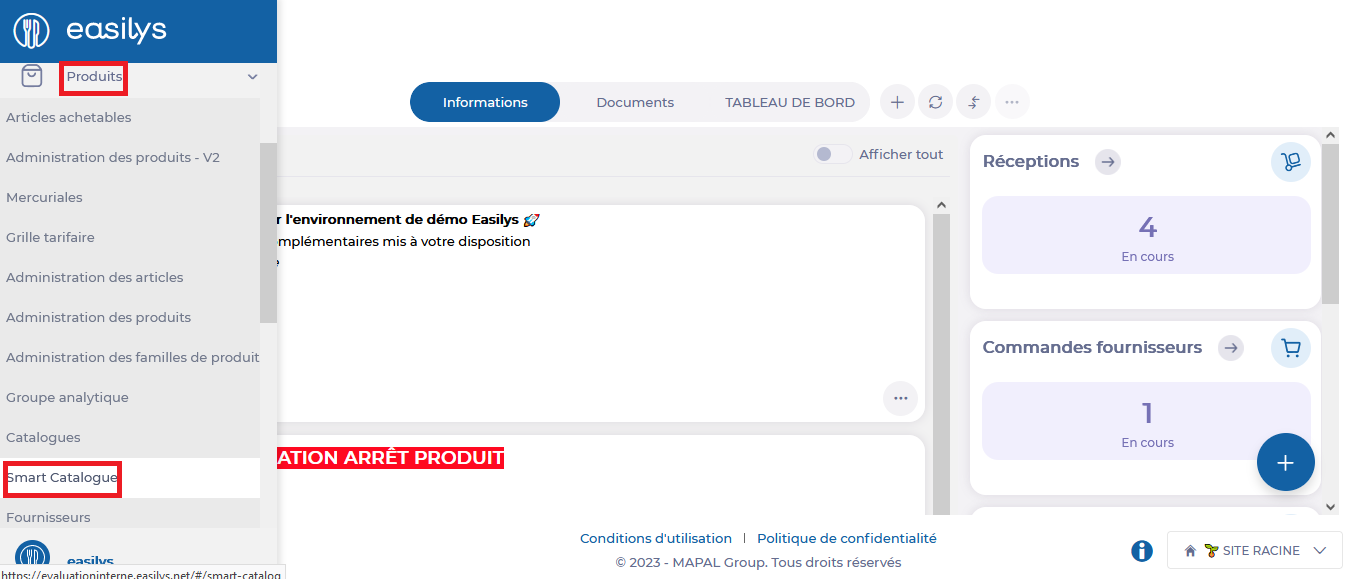
  • Select Products > Smart Catalogue from the main menu.

See Create Smart Catalog rules for more information.

There are several types of rules, with different procedures depending on the type chosen:

Inclusion type rule

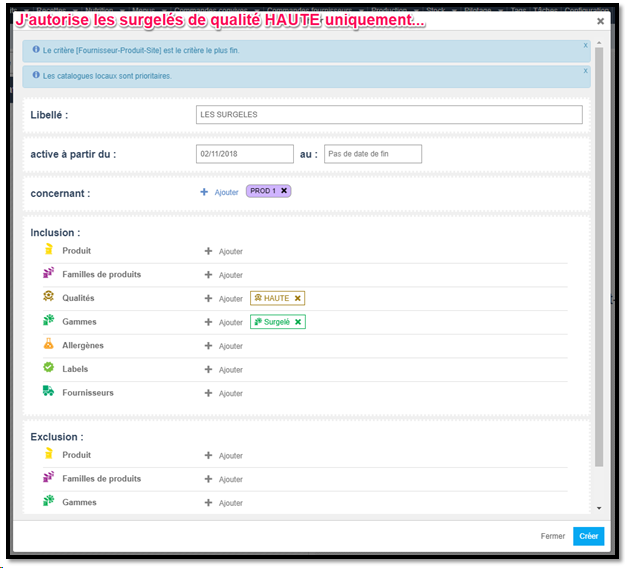
  • Add one or more inclusion criteria to indicate what the site is allowed to see.

Noteby default, a site has visibility over everything. Once an inclusion rule has been created, it can only see what is allowed by inclusion rules.

Example 1: I want to authorize frozen products for sites tagged PROD 1.
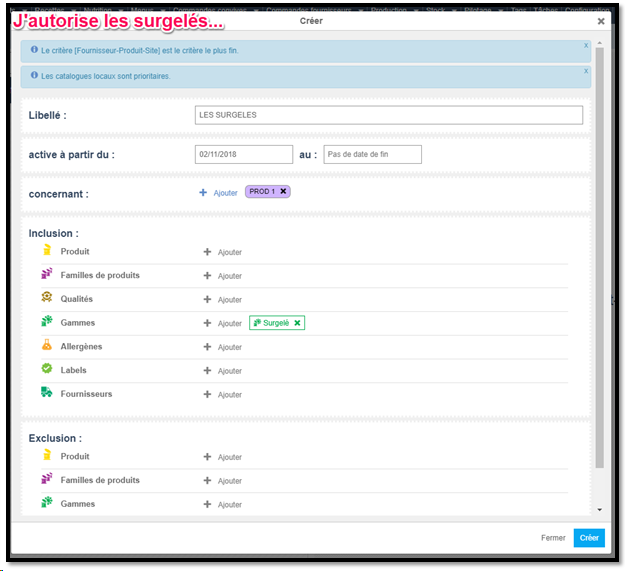
Example 2: I would like to authorize high quality frozen products only, for sites tagged PROD 1.
Exclusion type rule

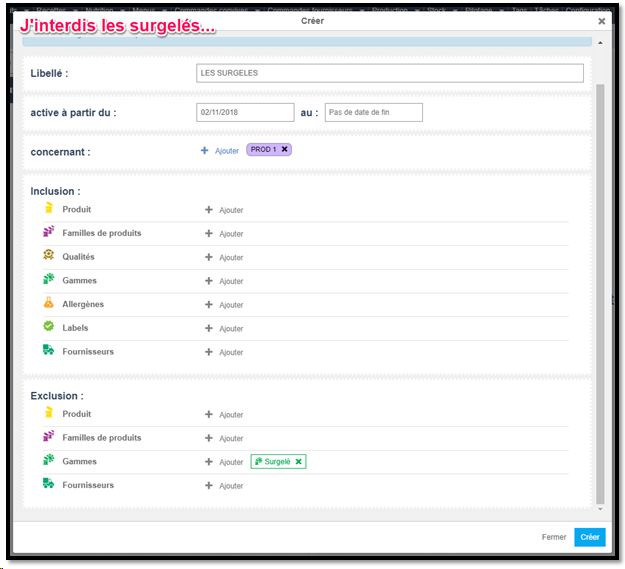
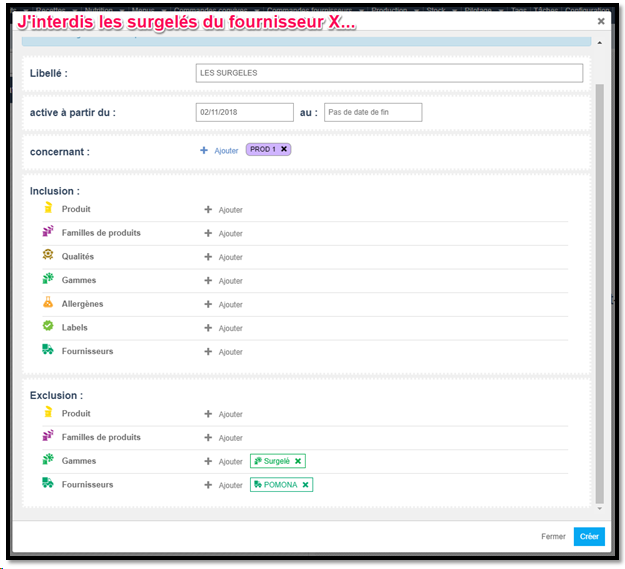
  • Add one or more inclusion criteria to indicate what the site is not allowed to see.

Example 1: I want to ban frozen products from sites tagged PROD 1.
Example 2: I would like to ban frozen products from supplier X.

Inclusion and Exclusion type rule

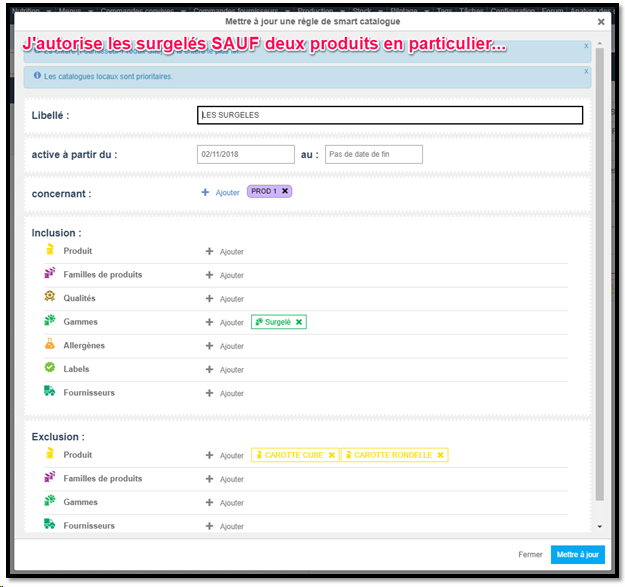
  • Add one or more inclusion criteria to indicate what the site is allowed to see, and one or more exclusion criteria to indicate exemptions.

Example 1: I want to authorize frozen products for sites tagged PROD 1, except for frozen products from supplier X.
Example 2: I want to authorize frozen products for sites tagged PROD 1, except for round carrot and diced carrot products.

 

Create Smart Catalogue rules

??Notes: actions performed on the Easilys platform are subject to user access permissions. If you are unable to carry out the actions described in the articles, it may be because you do not have the necessary permissions activated on your user profile. Contact the Support team, or your administrator, for help.

Start from: The Easilys menu. 

Smart Catalogue rules are used to manage the products that can or cannot be ordered by sites. They must be created on the site that owns the price lists. 

The rules are passed on to the child sites. It is therefore possible to create these rules on the root site so that they apply to all sites, or on a parent site so that they apply only to its own child sites. 

Create a Smart Catalogue rule 

  • Go to the root or parent site where the price lists are created. 

A screenshot of a chat<br><br>Description automatically generated 

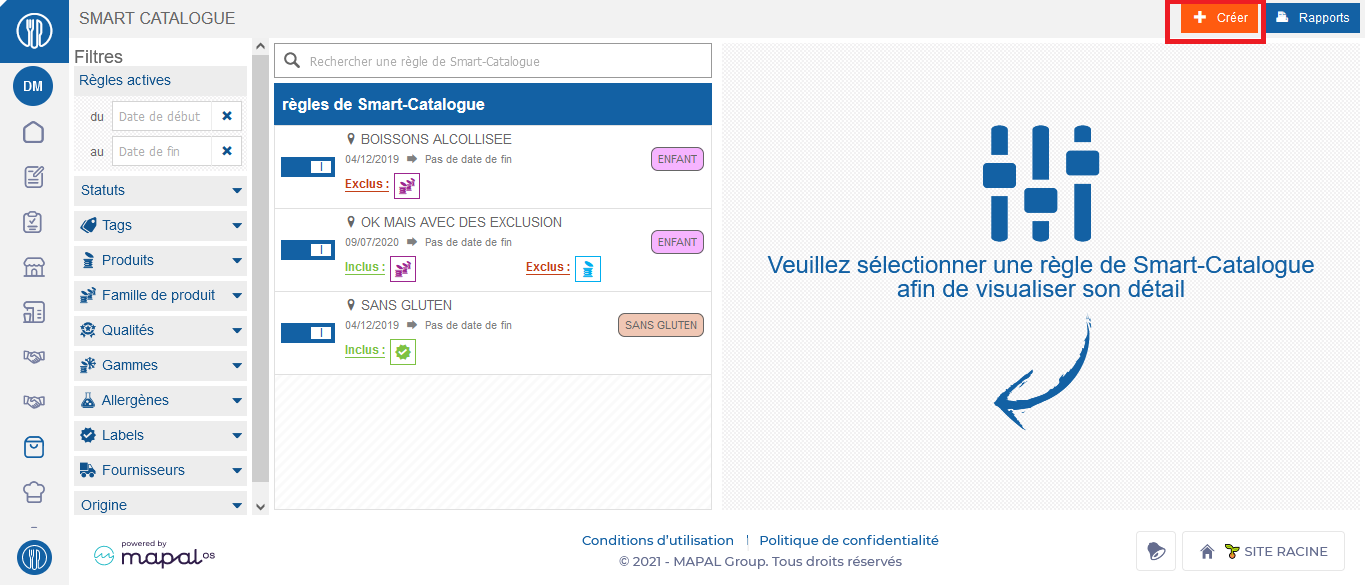
  • Select Products > Smart Catalogue from the main menu. 


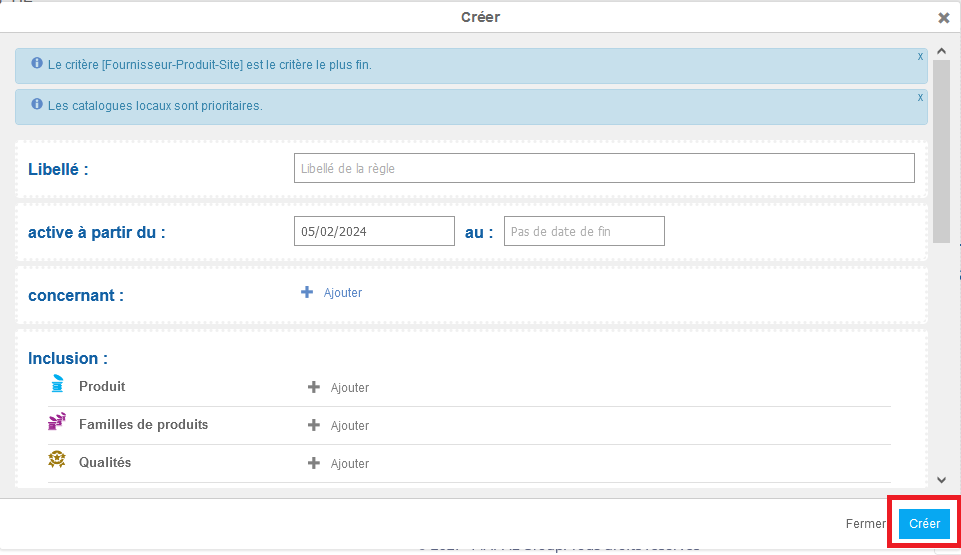
  • Select + Create

 
The "Create" window appears on the screen. 

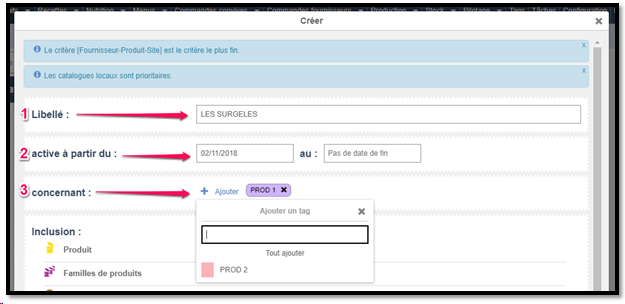
  • Fill in the information on the screen. 

https://git.ideolys.com/mgambone/club-content/uploads/2a438c3a3e33b7966a4863147e48f359/image.png

 
Details of information required to create a rule 

  • Label: Name the rule here. 
  • Active from ... to ...: Change the validity start date here if required, which defaults to the current date. Then add an expiry date if necessary. ? 
  • Concerning: Select here + Add to add a tag to specify which sites the rule should apply to. Adding tags is essential. 

Notes: don't forget to add this same tag to the child sites affected by the tag.

  • Inclusion: Indicate here which criteria you wish to include in this rule by selecting+Add next to each item (Products, Product families, etc.). Here you can add multiple criteria per item.
  • Exclusion: Indicate here which criteria you wish to exclude from this rule by selecting +Add next to each item (Products, Product families, etc.). Here you can add multiple criteria per item. 
  • Then select Create to create the rule. 

05.png

Modifying a Smart Catalogue rule 

  • On the Smart Catalogue page, select the rule to be modified. 

  • Select Update to modify the selected rule. 

06.png

 
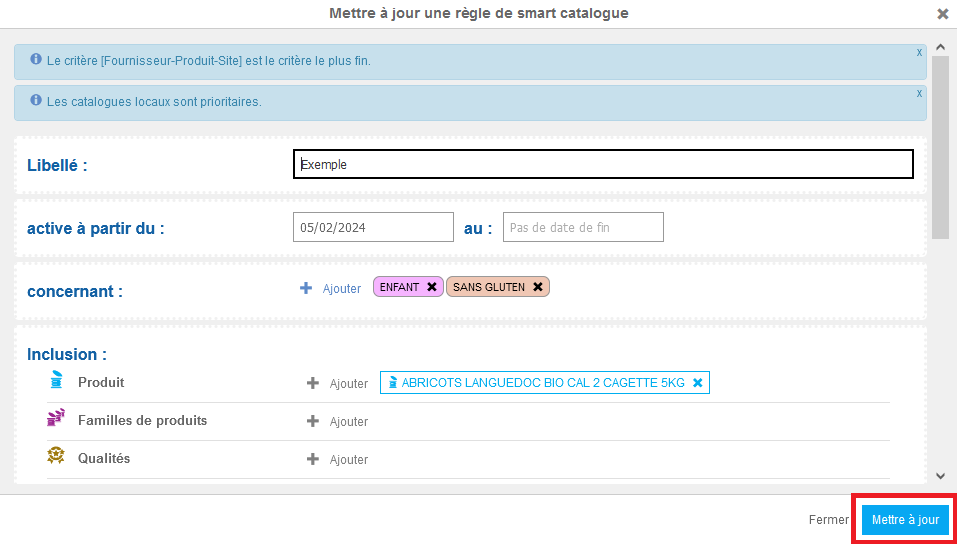
The "Update smart catalogue rule" window appears. 

  • Make any necessary changes. 

  • Select Update to update the modified information and close the window. 

07.png

Activate/deactivate a Smart Catalogue rule 

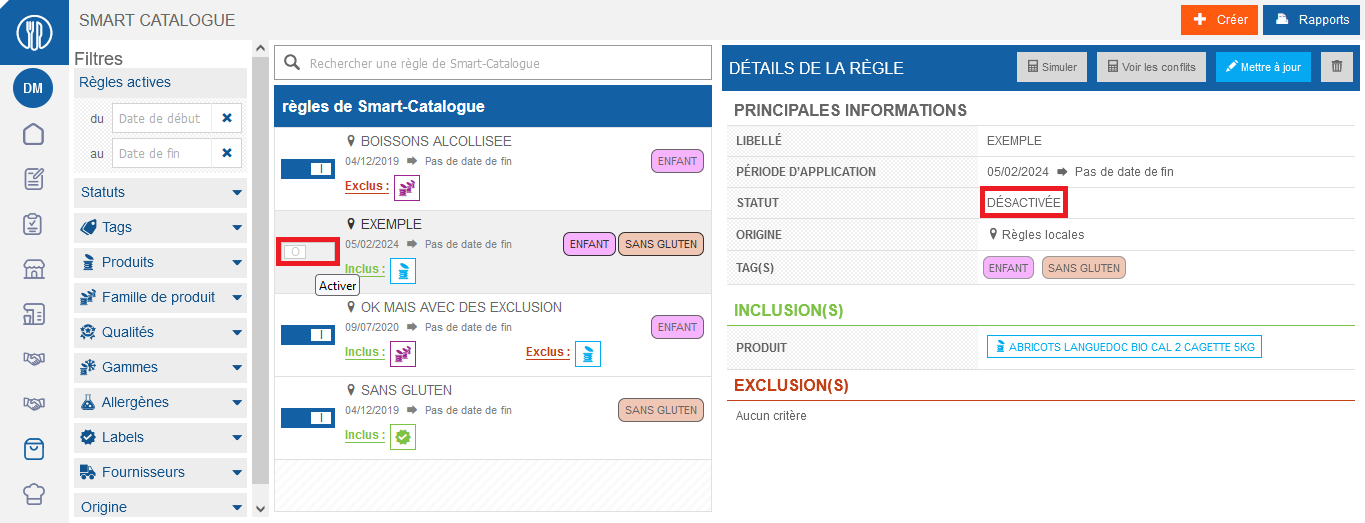
  • Select the on/off switch to activate or deactivate a rule. The status of the rule is then modified in the "Rule details" window. 

10.png

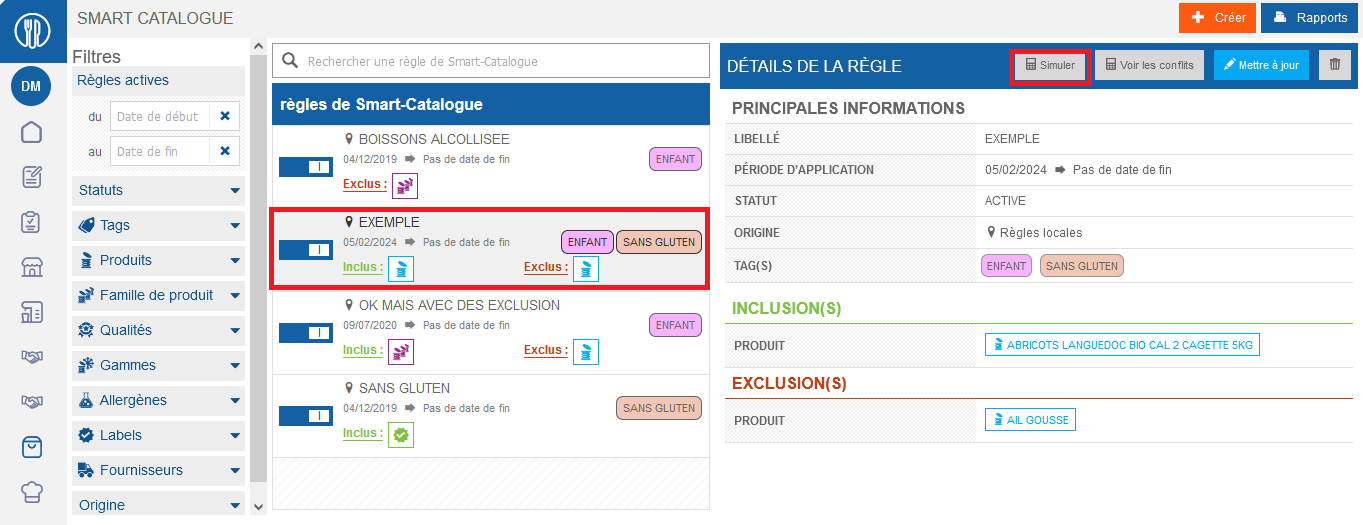
Simulate a Smart Catalogue rule 

  • On the Smart Catalogue page, select the rule to be simulated. 

  • Select Simulate

11.png

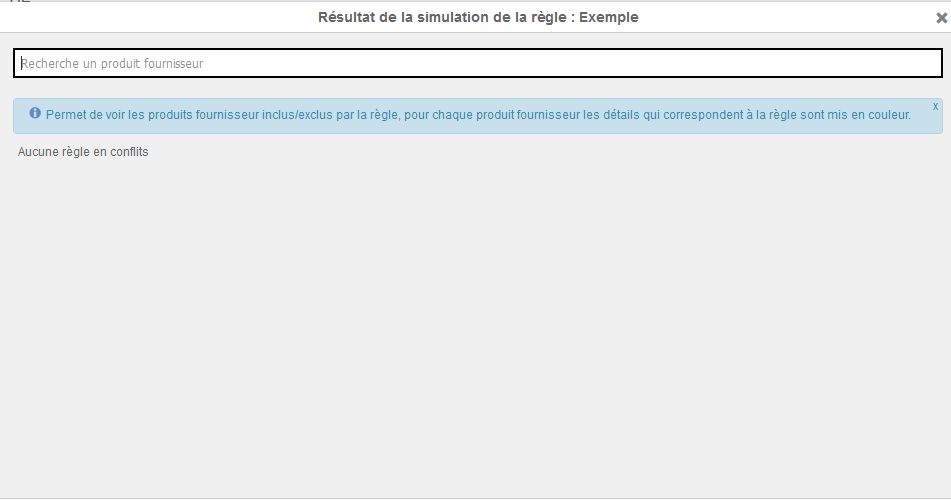
The "Result of the rule's simulation: [Rule name]" window appears. 

Authorized products for the site are displayed in green, and prohibited products in red. 

12.png

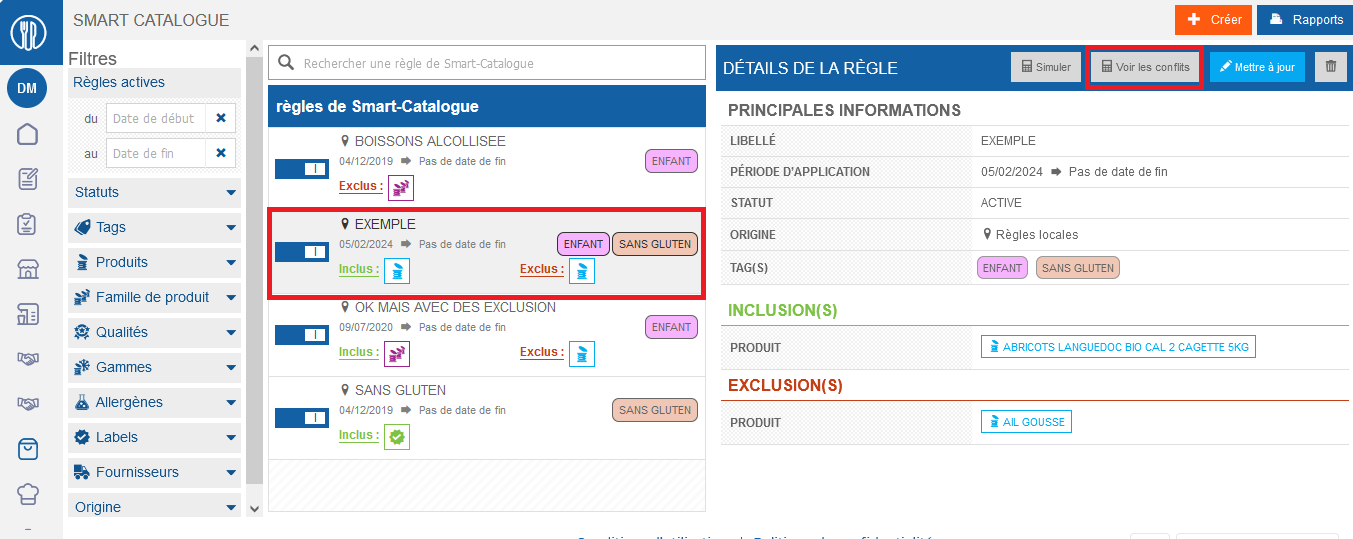
Check if other rules conflict with a Smart Catalogue rule 

  • On the Smart Catalogue page, select the rule you wish to check. 

  • Select View conflicts

13.png

The "Result of the rule's simulation: [Rule name]" window appears. 

14.png

Delete a Smart Catalogue rule 

  • On the Smart Catalogue page, select the rule to be deleted. 

  • Select the trash can icon to delete the selected rule. 

The "Delete: [Rule name]" window appears. 

09.png

  • Select Remove to confirm deletion.