Print and/or send a claim and/or credit note request to the supplier

Start from: The Easilys menu.

It is possible to print claims and credit note requests to send to suppliers from an exit voucher. If you have enabled automatic sending of claims and credit note requests on the supplier file, you then do not have to perform the sending procedure yourself.

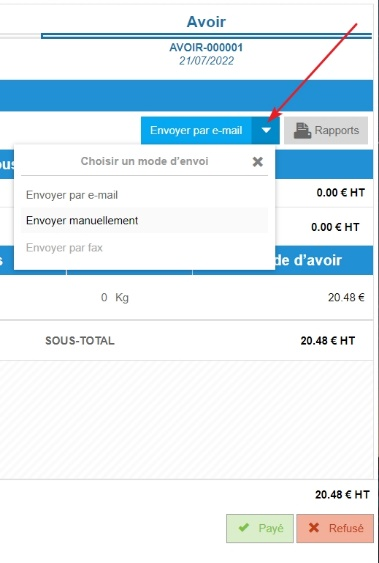
PRINT A CLAIM OR SUPPLIER CREDIT NOTE REQUEST

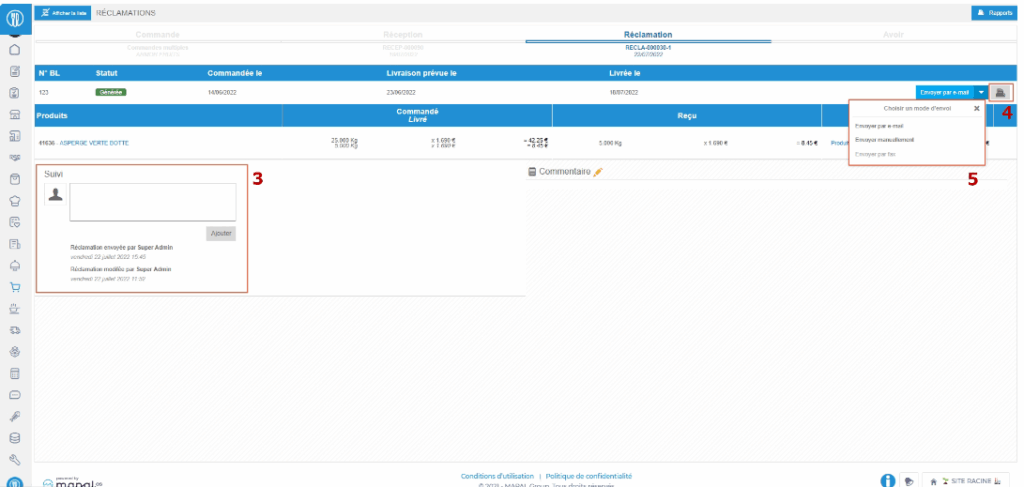
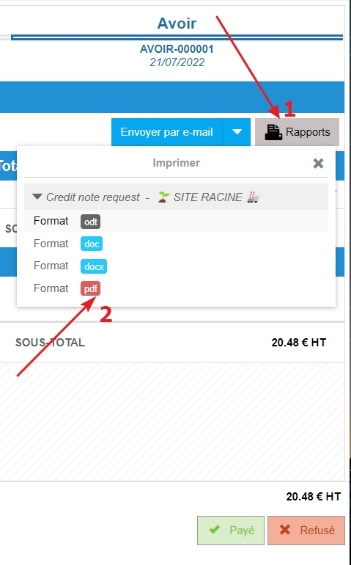
A "Print" window appears on the screen to allow you to choose the file format.

SEND A CLAIM OR SUPPLIER CREDIT NOTE REQUEST

Managing claims after receipt validation

Start from: The Easilys menu.

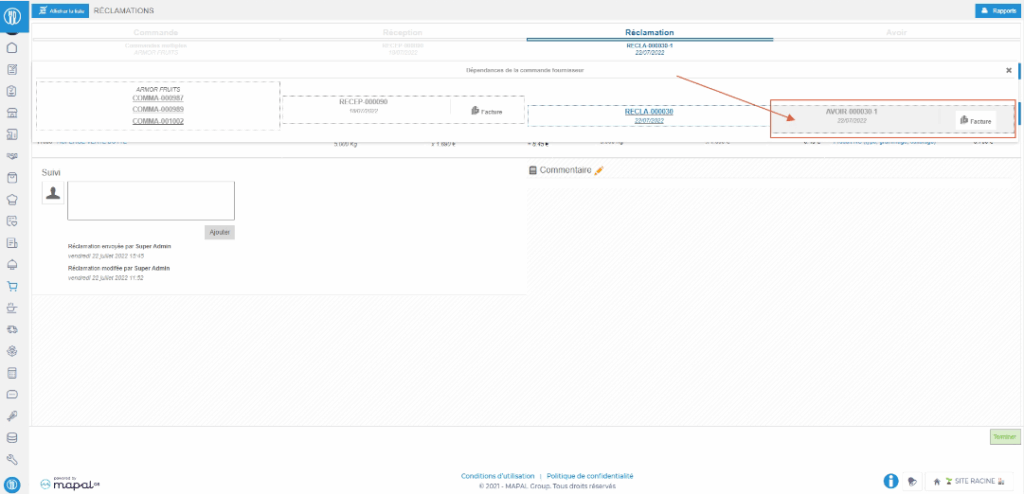
A claim is always generated from a reception. It can be linked to a credit note request created manually or automatically by Easilys if it detects a discrepancy between the order and the delivery or between the delivery and the reception. It can also be created manually without being linked to a credit note request. This allows you to keep a record of a non-compliance during delivery.

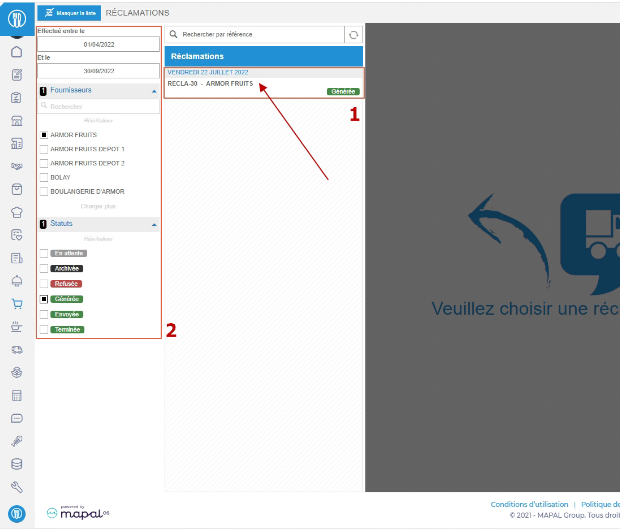
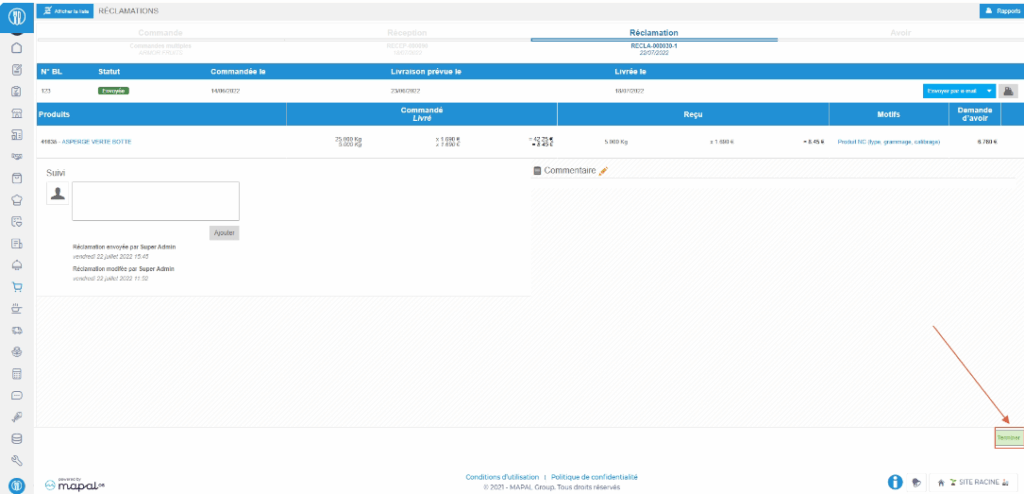
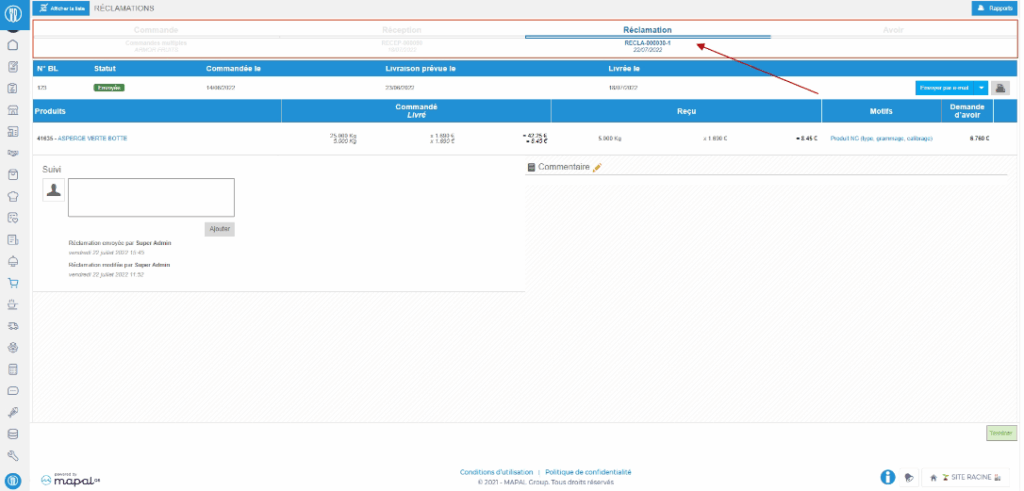
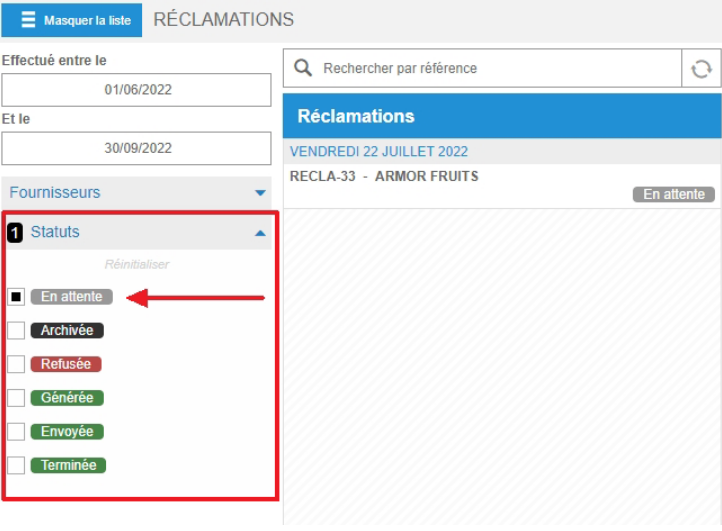
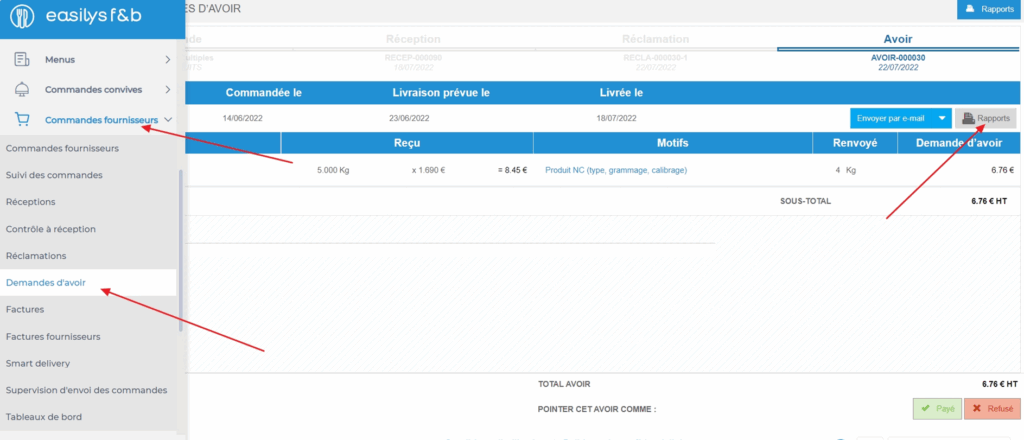
When you validate the reception containing claims, you can find these claims in a dedicated screen for tracking. As shown below, you can view, print and/or send them by email according to your organization. Once the claim is processed, you can set its status to Completed for effective tracking.

You will find all generated claims. (1)

For more information, see the article Managing credit note requests after receipt validation.

Validate claims (with or without related credit note request)

Start from: The Easilys menu.

FROM THE PERSPECTIVE OF THE PERSON SUBMITTING FOR VALIDATION

Note: The validation of claims can be limited to certain suppliers, certain sites, or certain non-compliance criteria. See the article on activation of the validation feature.

The "Send for validation" window appears.

Note: If there is a credit note request, the credit note request will only be created when the claim giving rise to this request is validated by the manager.

FROM THE PERSPECTIVE OF THE VALIDATION MANAGER

Note: If email notification is enabled in the validation workflow settings, an email will be sent to the specified address(es) as soon as validation is required. See the article on activation of the validation feature.

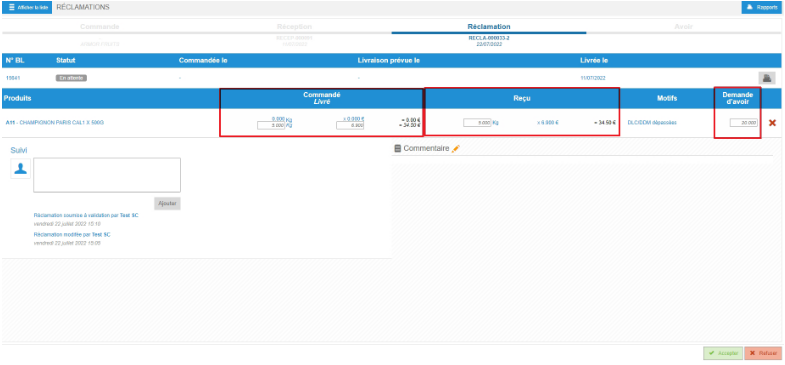
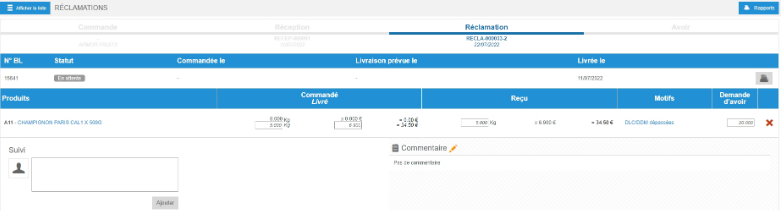
If you need to make changes, modify the figures in the Ordered, Delivered, Received, and Credit note request fields.

Note: It is possible to communicate between the user submitting a validation and the manager via the "Follow-up" area.

If a credit note request is linked, then the credit note request form is created.

When you select Reject, the receipt opens again. The user who sent the validation request will need to redo their goods receipt and request claim validation again if necessary.

Modify a claim or credit request in a delivery note

Note: each action performed on the application is subject to a fee. If you are unable to carry out the recommended actions in the articles you are viewing, this may mean that the necessary rights have not been activated for your user profile. Contact the Support team, or your administrator, to find out more.

Start from: The Easilys menu.

It is possible to modify claims and credit note requests sent to suppliers from a delivery note, in order to correct them or simply to add more detailed information.

Easilys can recognise certain situations that would require a claim or credit request, and therefore generates them automatically.

These situations are identified in Easilys by the acronym NC, for Non-Compliance criteria.

Other situations require manual action on the part of the user.

In both cases, automatic creation by Easilys, or manual creation by you, you can modify them before validating the receipt.

INTERPRET NON-CONFORMING SITUATIONS

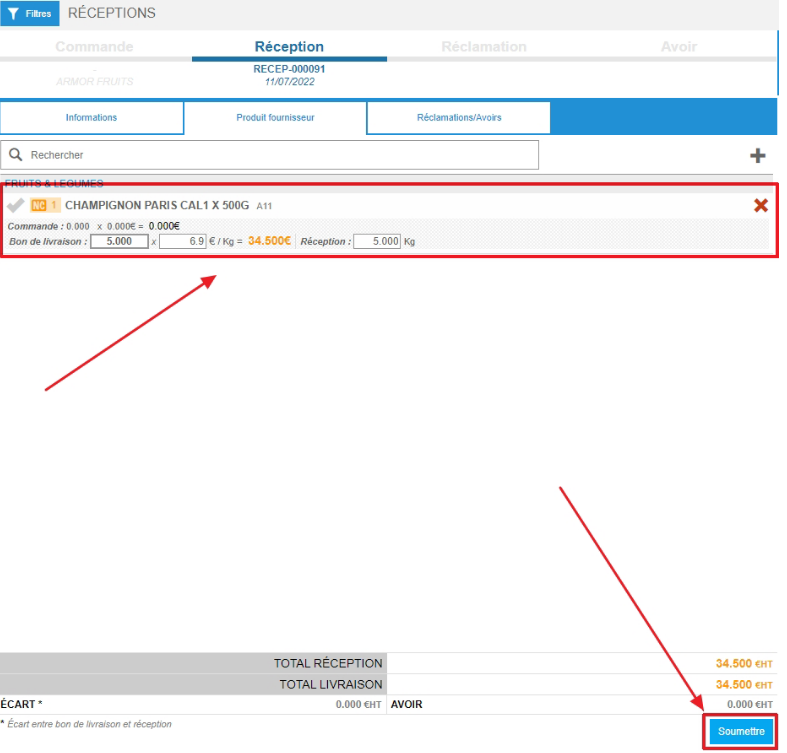
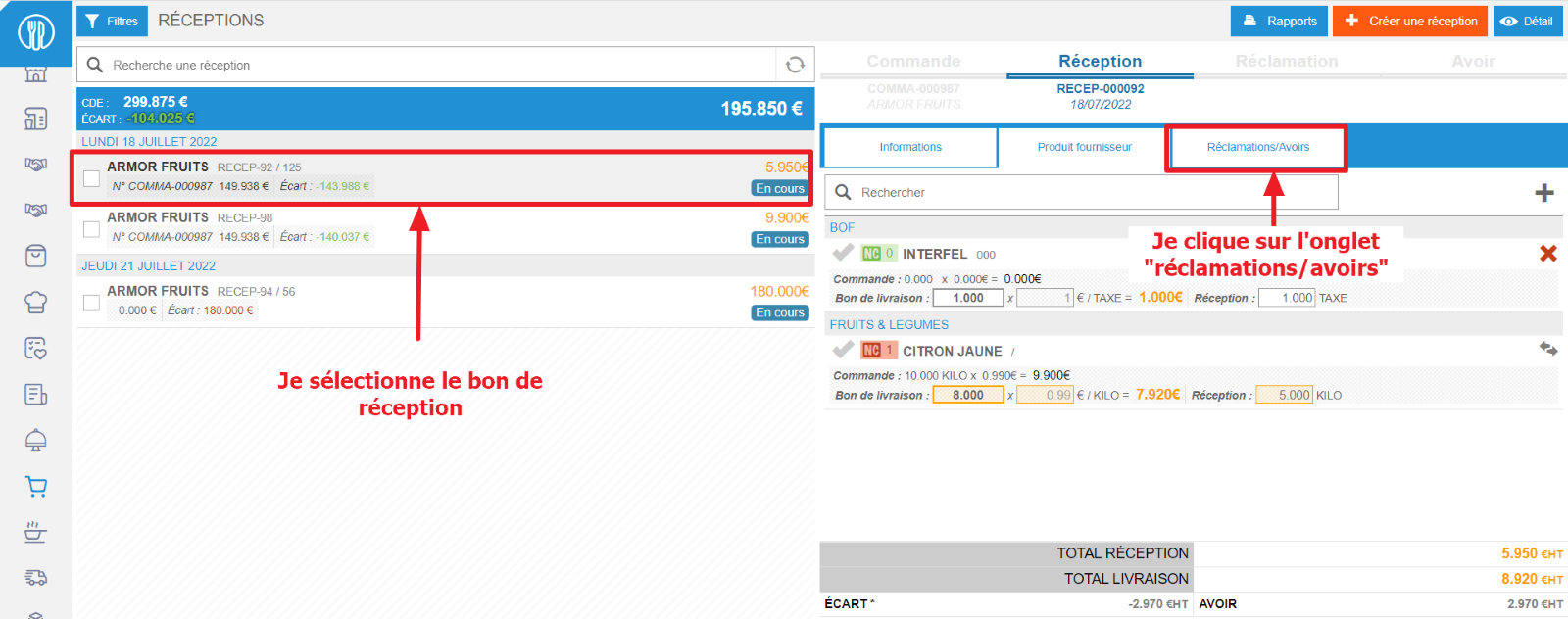
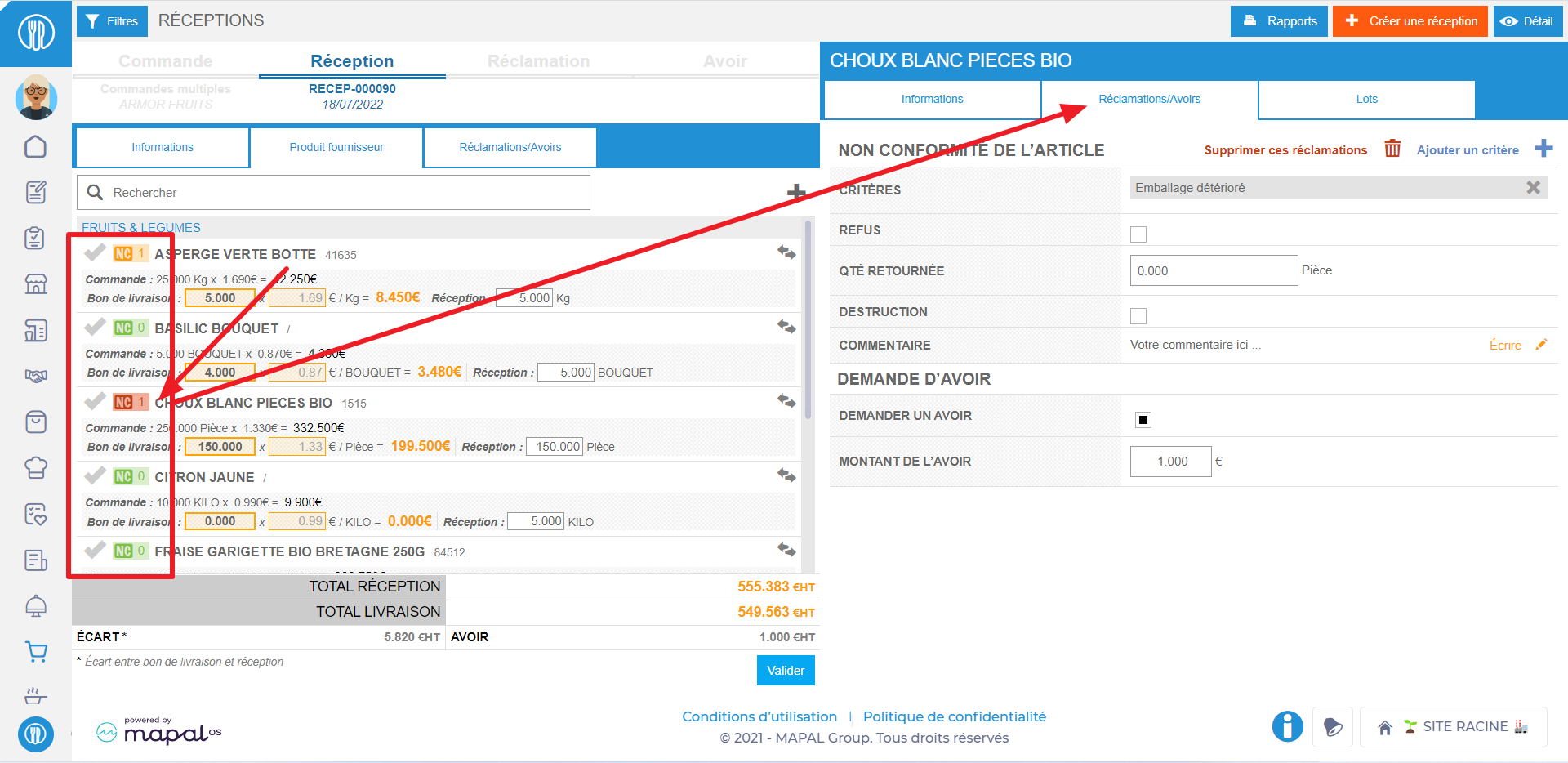
In a delivery note (Supplier orders > Reception tabs), you can quickly see if there is a claim or credit note request concerning a supplier product, thanks to the NC button visible to the left of each product name.
Une image contenant texte, capture d’écran, nombre, diagramme<br><br>Description générée automatiquement

Green NC pictogram: There are no claims or credit requests related to the supplier product.

Yellow NC pictogram: There is a claim linked to the supplier's product.

Red NC pictogram: There is a claim that gives rise to a credit request linked to the supplier's product.

MODIFY A CLAIM AND/OR CREDIT REQUEST

  • Select the Supplier orders > Reception.
  • Select the non-validated reception in which you wish to modify claims and/or credit note requests.
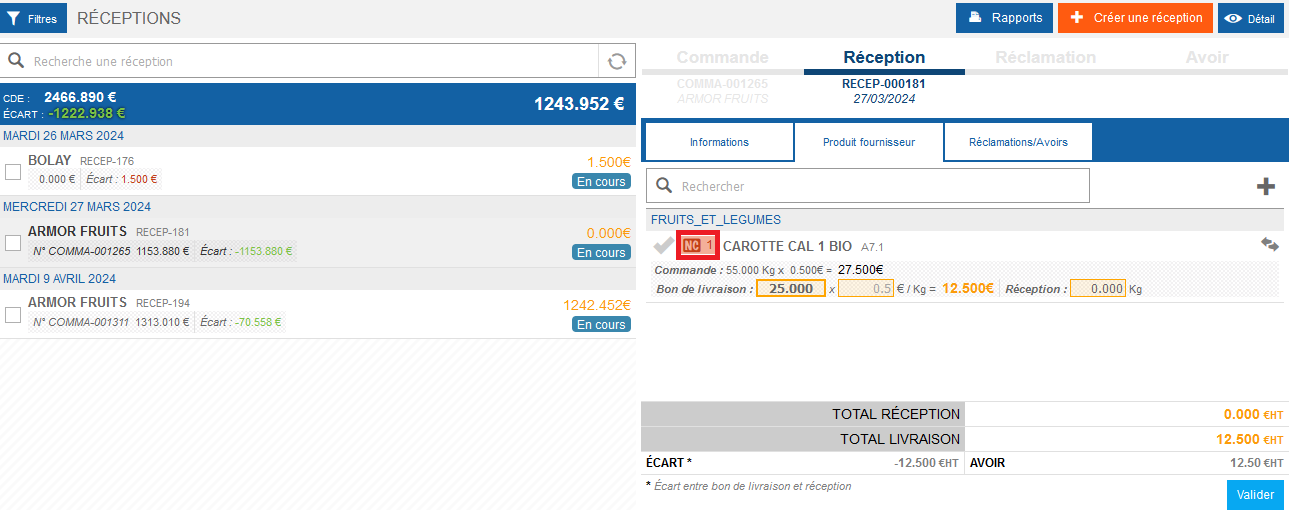
  • Select NC visible to the left of the name of the supplier product subject to a credit request.
Une image contenant texte, logiciel, Page web, Icône d’ordinateur<br><br>Description générée automatiquement


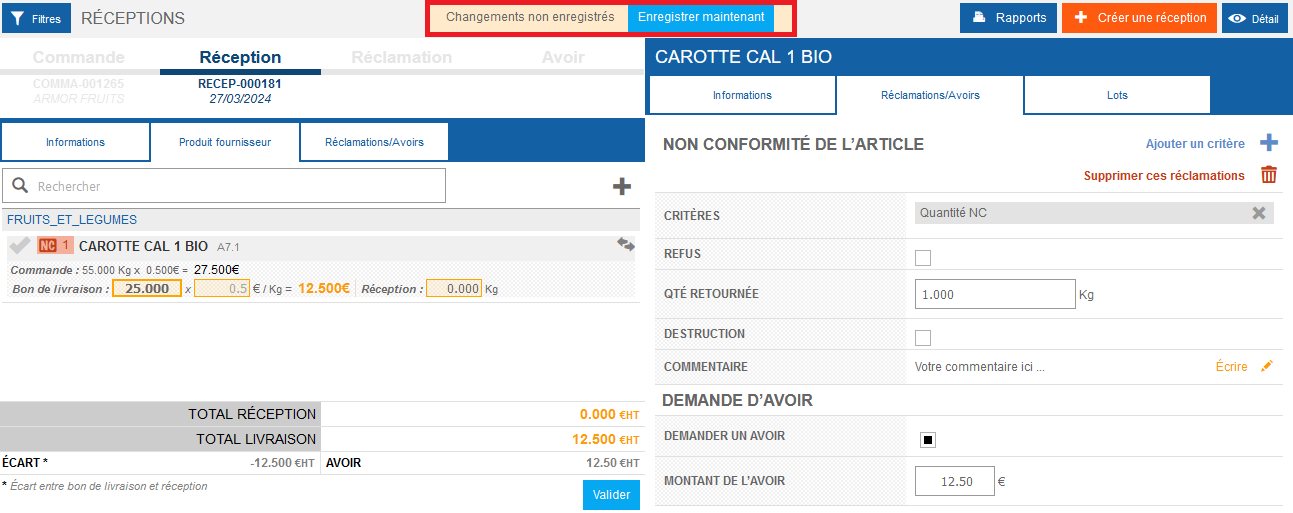
  • Supplier product details are displayed. It opens in the "Claims/Credit notes" tab.
  • Make the desired changes and select Save now when finished.
Une image contenant texte, logiciel, nombre, Police<br><br>Description générée automatiquement

 
If your reception is already validated, and you still want to modify a claim or credit request AND you have not set up automatic sending of claims and credit requests on the supplier sheet, you can reopen the reception to modify it. For more information, see the article Reopen a completed reception.

You can also delete a claim and/or credit request. To find out more, see the article Delete a credit note request in a receipt.
Record a claim and/or credit request related to a reception

Note: actions performed on the Easilys platform are subject to user access permissions. If you are unable to carry out the actions described in the articles, it may be because you do not have the necessary permissions activated on your user profile. Contact the Support team, or your administrator, for help. 
 

Interpreting non-compliant situations 

  • Select the Supplier Orders > Receptions tabs. 

  • Select a reception to view its details. 

The 'NC' pictogram to the left of each product name on the delivery note makes it easy to identify any complaint or credit note request concerning a product supplied. 

 
A screenshot of a computer<br><br>Description automatically generated 

  • Green NC: There are no claims or credit requests related to the supplier's product. 
  • Yellow NC: There is a claim linked to the supplier's product. 
  • Red NC: There is a claim that gives rise to a credit request linked to the supplier's product. 

Manually generate a claim and/or credit request for a supplier product 

A credit note request is always linked to a claim. To generate a credit note request, a claim must first be generated. 

However, it is possible to generate a claim only to notify the supplier of a problem, without any financial compensation. 

  • Select the Supplier Orders > Receptions tabs. 

  • Select a reception to view its details. 

  • In a receipt containing supplier products, select "NC" next to the name of the product concerned by the claim and/or credit memo to be generated. 

A screenshot of a computer<br><br>Description automatically generated 

  • Supplier product details are displayed. It opens in the "Claims/Credit" tab. 


A screenshot of a computer<br><br>Description automatically generated

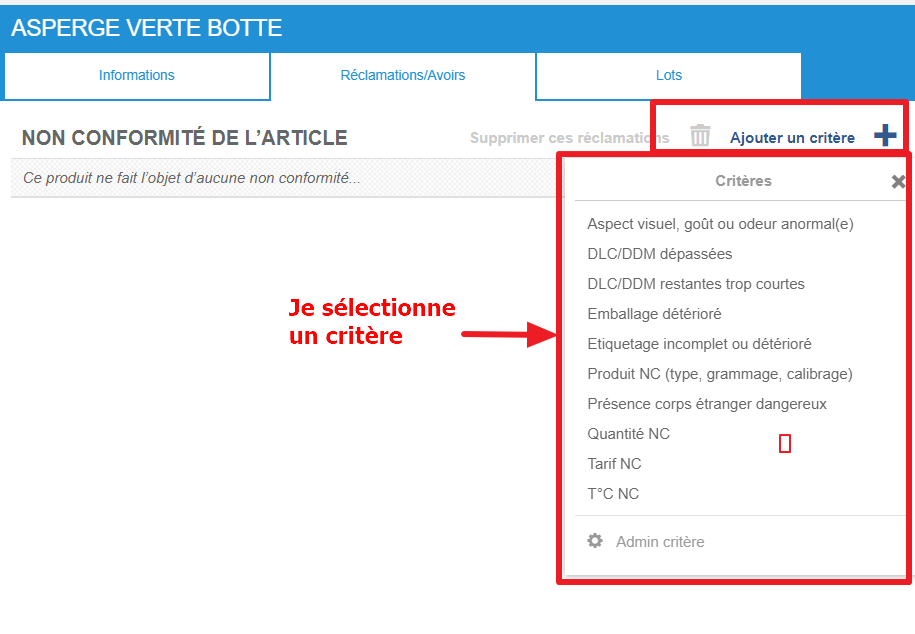
  • Add one or more non-compliance criteria by selecting Add a criterion


A screenshot of a computer<br><br>Description automatically generated

To find out more, see Manage non-compliance criteria

  • If necessary, indicate whether you have refused the goods by ticking the Refusal box. 

  • If necessary, indicate the quantity of merchandise you have returned to the supplier in the Qty returned box. 

  • If necessary, indicate whether the goods have been destroyed by ticking the Destruction box. 

  • If necessary, add a comment by selecting Write on the "Comment" line to add details about the reasons for the claim and/or credit note request. 


  • If the problem reported by the claim allows you to request a credit note, check the Request a credit note box. 

  • Enter the expected amount in the Credit note amount box. 

  • Select Save now

Generate a complaint and/or request for a credit note on the general condition of the reception area 

  • Select the Supplier Orders > Receptions tabs. 

  • Select a reception, then select the Claims/Credit notes tab. 

A screenshot of a computer<br><br>Description automatically generated
 
The application indicates whether supplier products are subject to claims or credit requests, but it is also from this tab that you can create a claim and/or credit request on reception in general. 

  • Add one or more non-compliance criteria by selecting Add a criterion


To find out more, see Manage non-compliance criteria

  • If necessary, indicate whether you have refused the goods by ticking the Refusal box. 

  • If necessary, indicate the quantity of merchandise you have returned to the supplier in the Qty returned box. 

  • If necessary, indicate whether the goods have been destroyed by ticking the Destruction box. 

  • If necessary, add a comment by selecting Write on the "Comment" line to add details about the reasons for the claim and/or credit note request.


A screenshot of a computer<br><br>Description automatically generated

  • If the problem reported by the claim allows you to request a credit note, check the Request a credit note box. 

  • Enter the expected amount in the Credit note amount box. 

  • Select Save now