Email notifications in Compliance
Start from: The Compliance dashboard.
Enable and disable email notifications
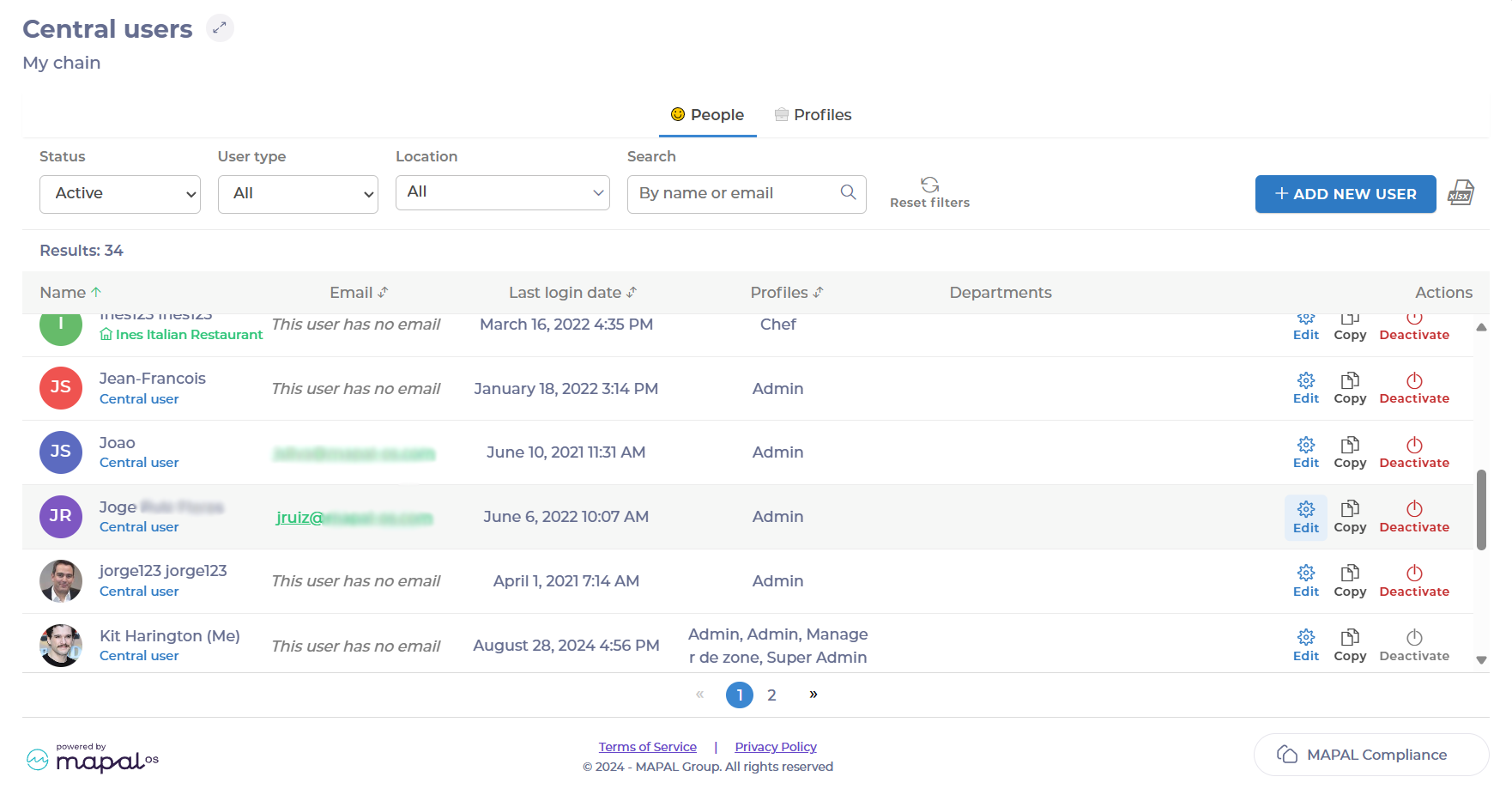
- Select People > Users from the main menu.
- Find the user you want to configure email notifications for and select Edit.
- Scroll down to Notifications or select Notifications directly from the side menu.
- Toggle On/Off the different email notifications you want the user to receive.
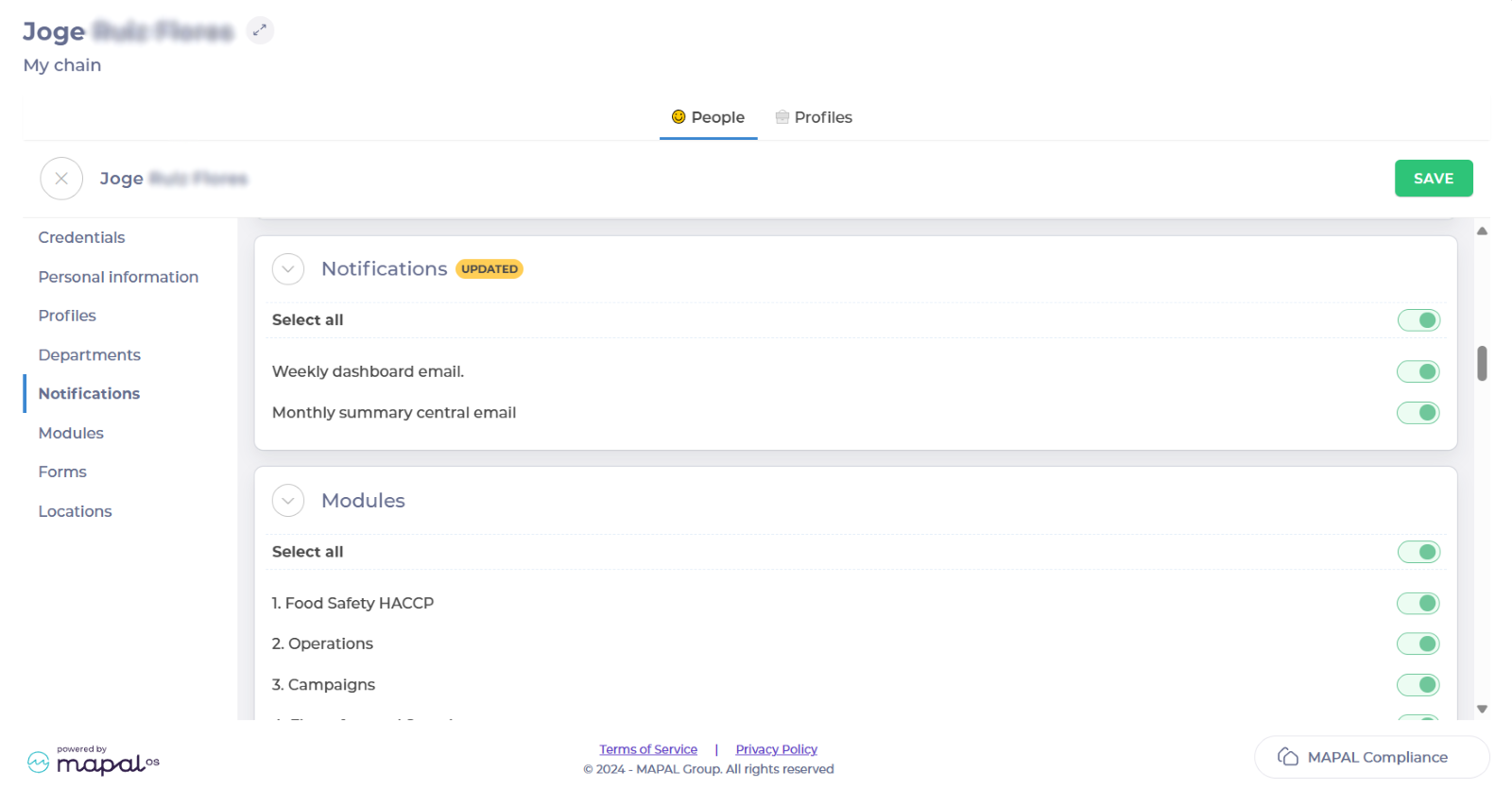
- Select Save.
Notes: Only users with registered emails can enable notifications.
Available email notifications
Central users
On a central user you can see the following options for email notifications:
- Weekly dashboard email: Summary of compliance performance for all locations.
- Monthly summary central email: A comprehensive monthly report on compliance results.
- Weekly locations summary central email: A weekly recap of compliance data from all locations.
- Upcoming tasks for the next four weeks: Sent every Monday, this email reminds users about bigger or less frequent tasks (i.e., tasks not scheduled on a daily or weekly basis) for all sites that the central user is connected with.
Note: This email is turned off by default, and users must manually enable it in their profile.
Local users
On a local user you can see the following options for email notifications:
- Daily registration email: A report of all the previous day’s registrations.
- To-Do today morning email: A list of tasks due in the morning.
- To-Do today afternoon email: A list of tasks due in the afternoon.
- Weekly summary local email: A summary of compliance performance for the past week.
- Monthly summary local email: A detailed compliance report for the past month.
- Upcoming tasks for the next four weeks: Sent every Monday, this email reminds users about bigger or less frequent tasks (i.e., tasks not scheduled on a daily or weekly basis).
Note: This email is turned off by default, and users must manually enable it in their profile.
Deviation notifications
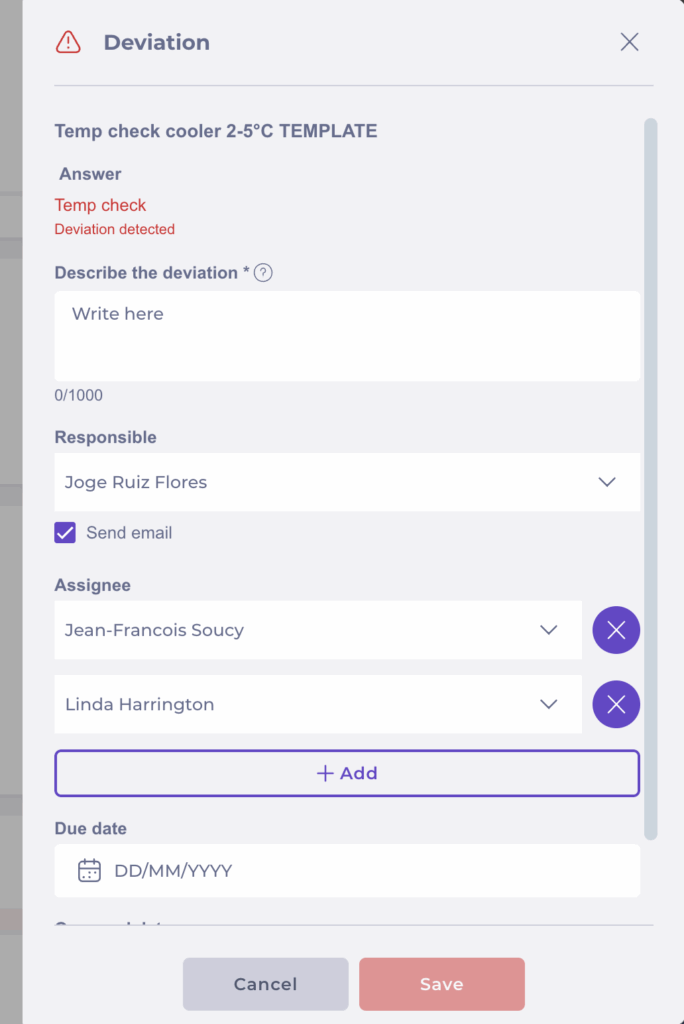
When a deviation is recorded, the user logging the deviation can assign one or more responsible users. Email notifications are sent automatically based on the assignment settings.
The automatic notification flow works as follows:
- When a deviation is created and opened with assignees set, an email is sent immediately to all assigned users so they know they are responsible for reviewing and resolving it.
- If new assignees are added later to an existing deviation, they are notified automatically when the change is saved, without needing any manual follow-up.
- This behaviour applies whether there is a single assignee or multiple assignees on the deviation.
This ensures that everyone responsible for a deviation is informed at the right time, improves communication between teams, and reduces the risk of delays caused by missed notifications.