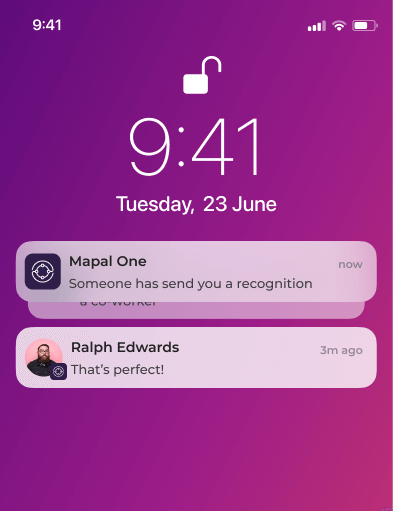
Notifications in Engagement

Recognitions

News

Agile feedback

Ideas

Operator name in email subject lines

All automated Engagement emails display the operator name at the beginning of the subject line. This helps recipients quickly recognise where the notification is coming from.

Example:
Mapal Coffee Co – Push Survey

This applies to all notification types, including recognitions, agile feedback, news, and ideas.

Branding

Email notifications also support operator branding within the email body. Organisations can customise the appearance of Engagement emails to reflect their identity, including:

These elements are applied consistently across all notification emails to support clarity, professionalism, and brand alignment. Email templates are optimized in formatting and readability to ensure that emails are recognisable, well-structured, and aligned with each organisation’s identity.

Operator-level email notification controls

Administrators have the ability to enable or disable outgoing email notifications at the operator level. This gives organisations more flexibility to manage which notifications are sent by email.

These settings are not configurable by end users. If you need changes to how email notifications are handled for your organization, please contact your Customer Success Manager (CSM) for assistance.

Removing login links from notifications (SSO-only customers)

For organisations that use Single Sign-On (SSO) to access Mapal One, it is possible to remove the standard login links that appear in Engagement email notifications. This option helps prevent confusion for users who log in exclusively via SSO and do not require direct access links.

If your organisation uses SSO and you would like this setting enabled, please contact your Customer Success Manager, who can activate it for your account.

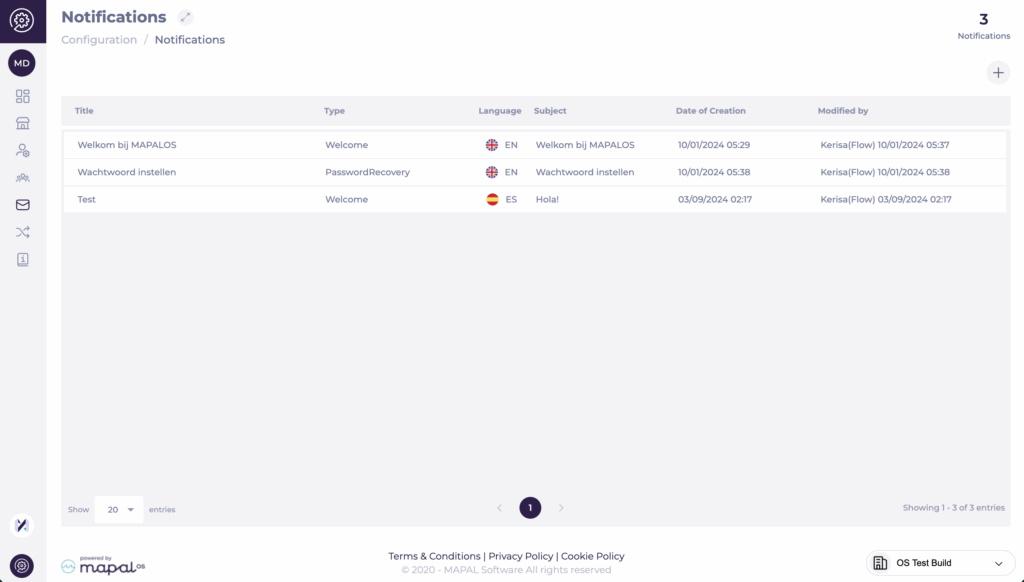
Manage notifications in Mapal OS

Start from: The Mapal OS dashboard.

You will see a table listing all existing notification templates. From here, you can:

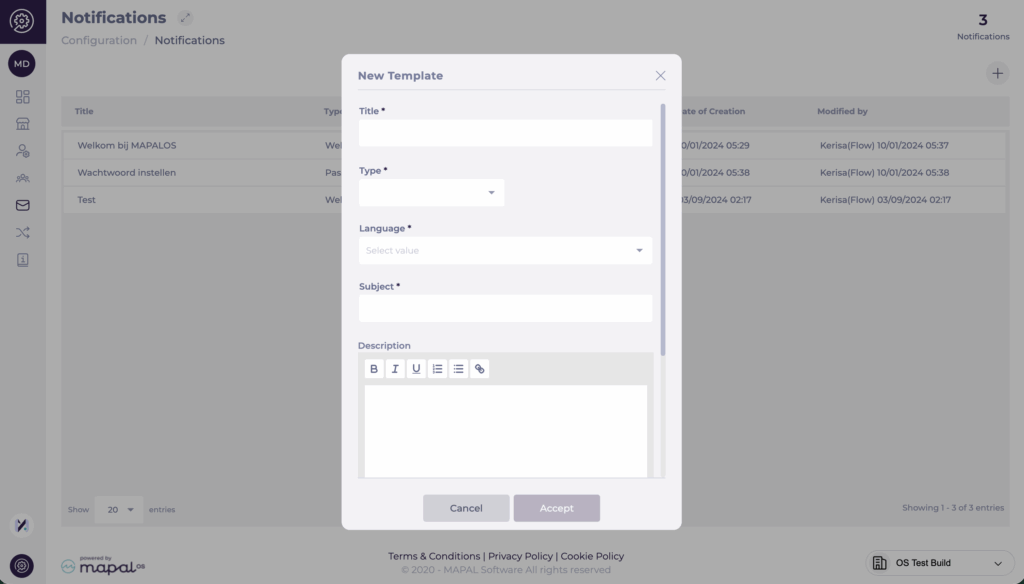
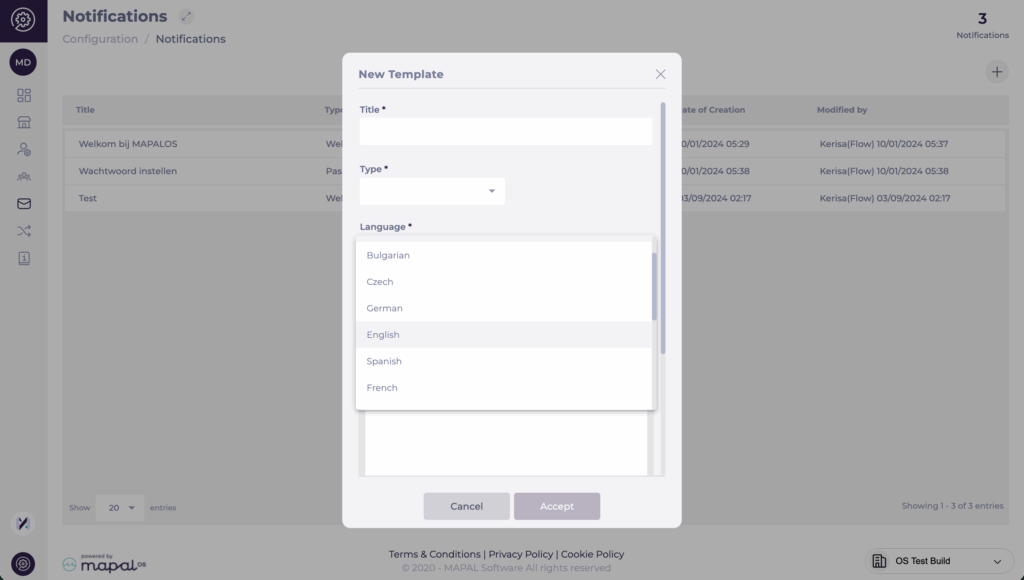
Create or edit a template

FieldDescription
Title*Enter the internal name for the template. This title helps identify it later in the notifications list.
Type*Choose the type of message this template will apply to (e.g., Welcome, Password Reset, Training Reminder).
Language*Select the language for this message from the dropdown. You can create different versions of the same template in multiple languages.
Subject*Enter the subject line that will appear in the email message.
DescriptionWrite the main body of the email. Use the editor toolbar to format the text (bold, italics, lists, links). You can also upload images or files directly in this area to include attachments or embedded visuals in your message.

After filling in all mandatory fields, select Accept to save your new template or Cancel to discard changes.

Note: Custom templates override the default system messages for the same notification type. Password setup messages will always include a system-generated setup link at the bottom of the email.

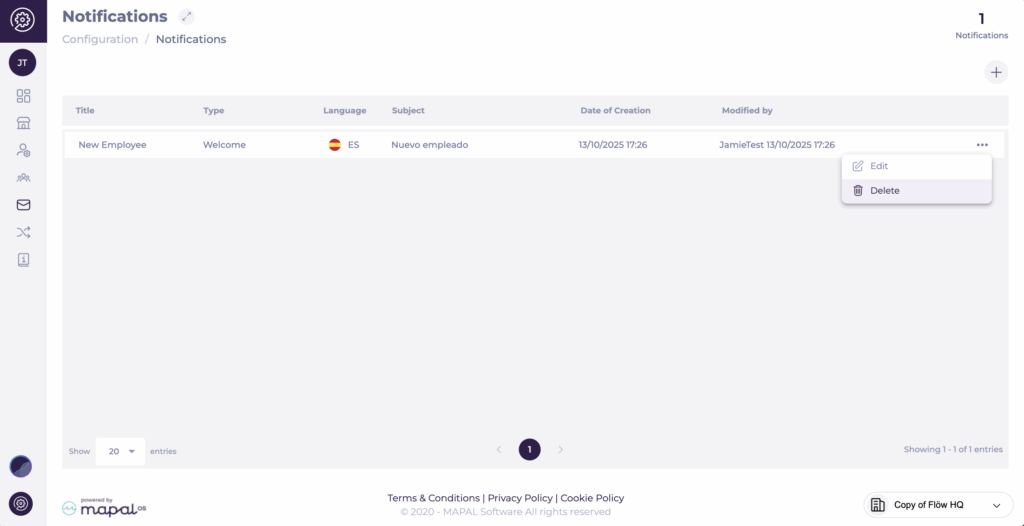
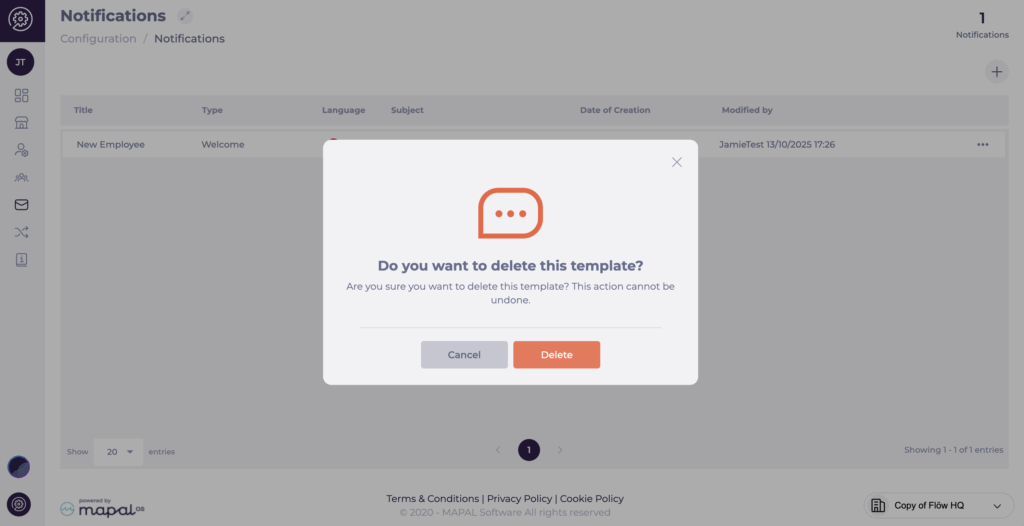
Delete a notification template

You can remove unused or test templates to keep the Notifications list clear and easier to manage.

Once deleted, the template is no longer available for selection or editing, which helps reduce the risk of selecting or sending an outdated template by mistake.

Multilingual notification templates

Mapal OS supports a wide range of languages for email notifications, allowing you to tailor messages to each user’s preferred language. When creating or editing a template, select the appropriate language from the Language dropdown in the New Template window.

Supported Languages

You can create one version per language. If a user’s preferred language does not have a custom version, Mapal OS automatically uses the English template.

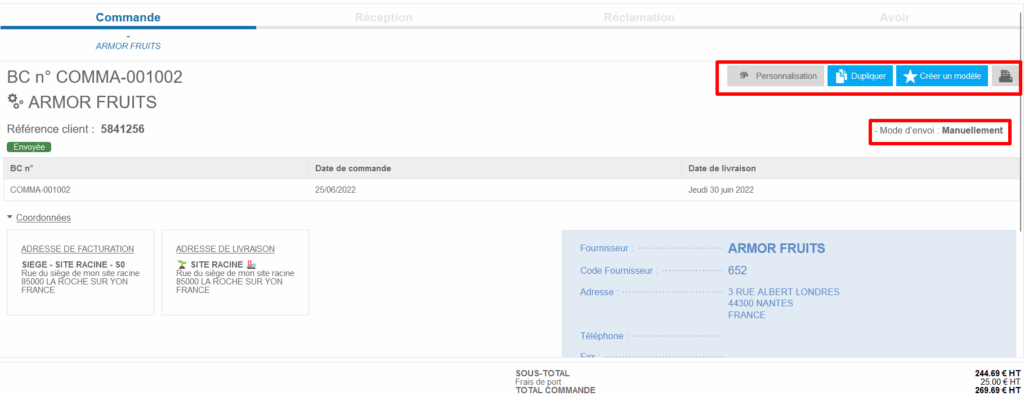
Display a clickable confirmation link in the order email

Start from: The Easilys menu.

If the supplier receives the order email but does not click on the clickable confirmation link, your order will then remain in "Pending" status on the ORDER TRACKING screen of the application. It will therefore be impossible for you to receive the goods because the receipt voucher will not be generated on the RECEPTIONS screen.
Make sure to inform your supplier of this procedure, otherwise you might consider disabling the feature.

To enable this option:

In case a link has not been clicked by oversight, you can unlock your order yourself if you have the necessary permissions.

For this:

The order will then be considered as properly sent and the receipt voucher will be generated.

However, be careful to perform this manipulation only if you have had confirmation from the supplier that they have indeed received the order email.

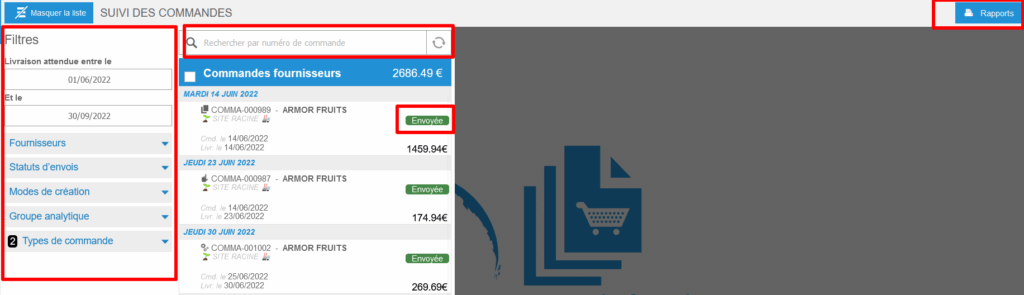
Track the status of your orders

Start from: The Easilys menu.

Note: You have filters, a search bar, and a reports button at the top right, allowing you to generate documents to check the status of orders.

Order statuses in detail

Order statuses indicate the progress of each order.

Order creation modes in detail

You can filter the orders displayed on the screen, in the list, according to their creation mode. Note that each creation mode is represented by a different icon.

Bulk send control

When selecting multiple orders to send at once, the system checks if any order in the batch requires external validation (for example, orders that must go through a manager or specific workflow).

If even one order requires validation, the bulk send option will be disabled. Those orders must first be validated individually before they can be sent. This ensures that external validations cannot be bypassed by sending in bulk.

Email notifications in Compliance

Start from: The Compliance dashboard.  

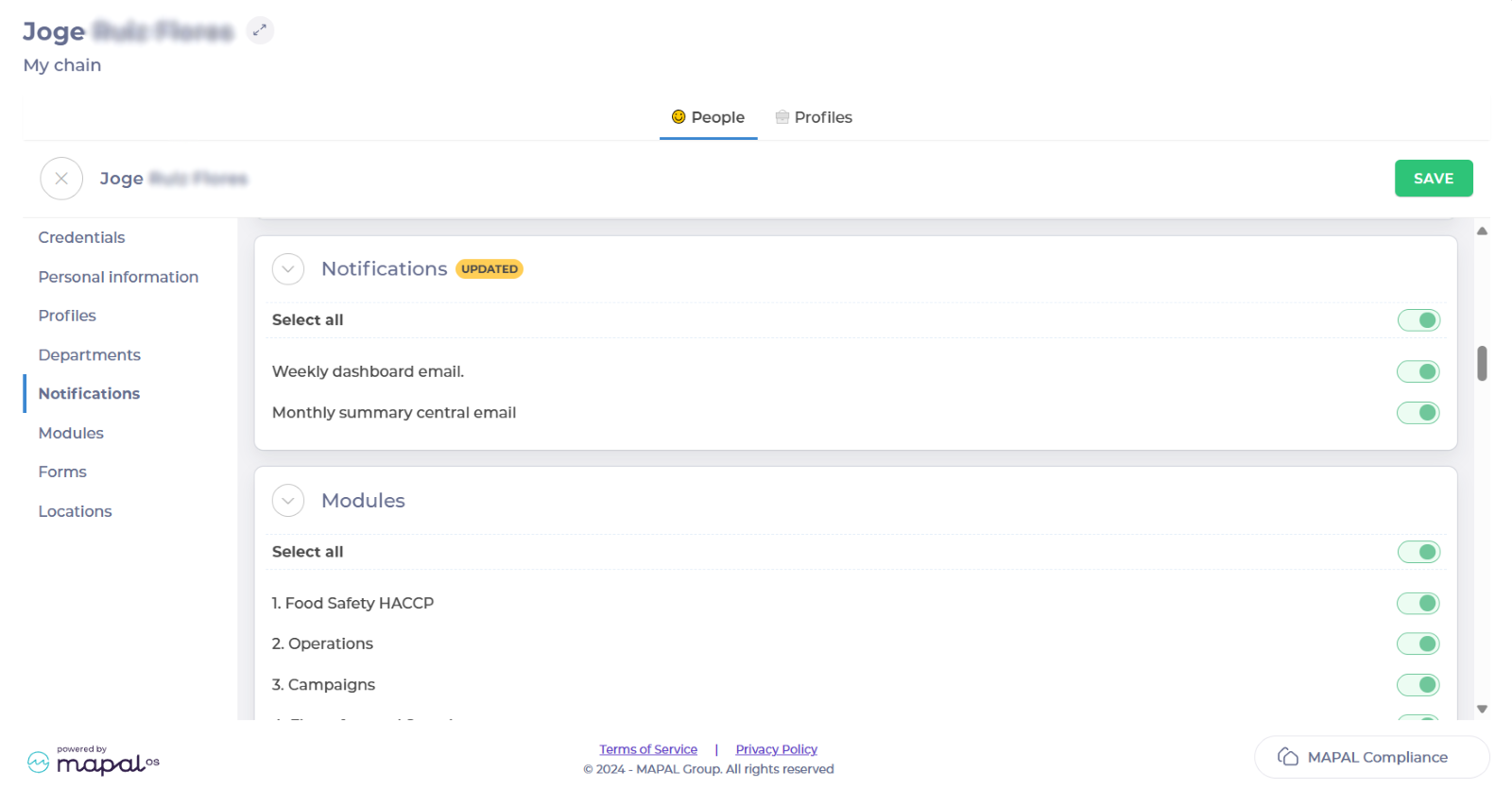
Enable and disable email notifications 

Notes: Only users with registered emails can enable notifications.  

Available email notifications 

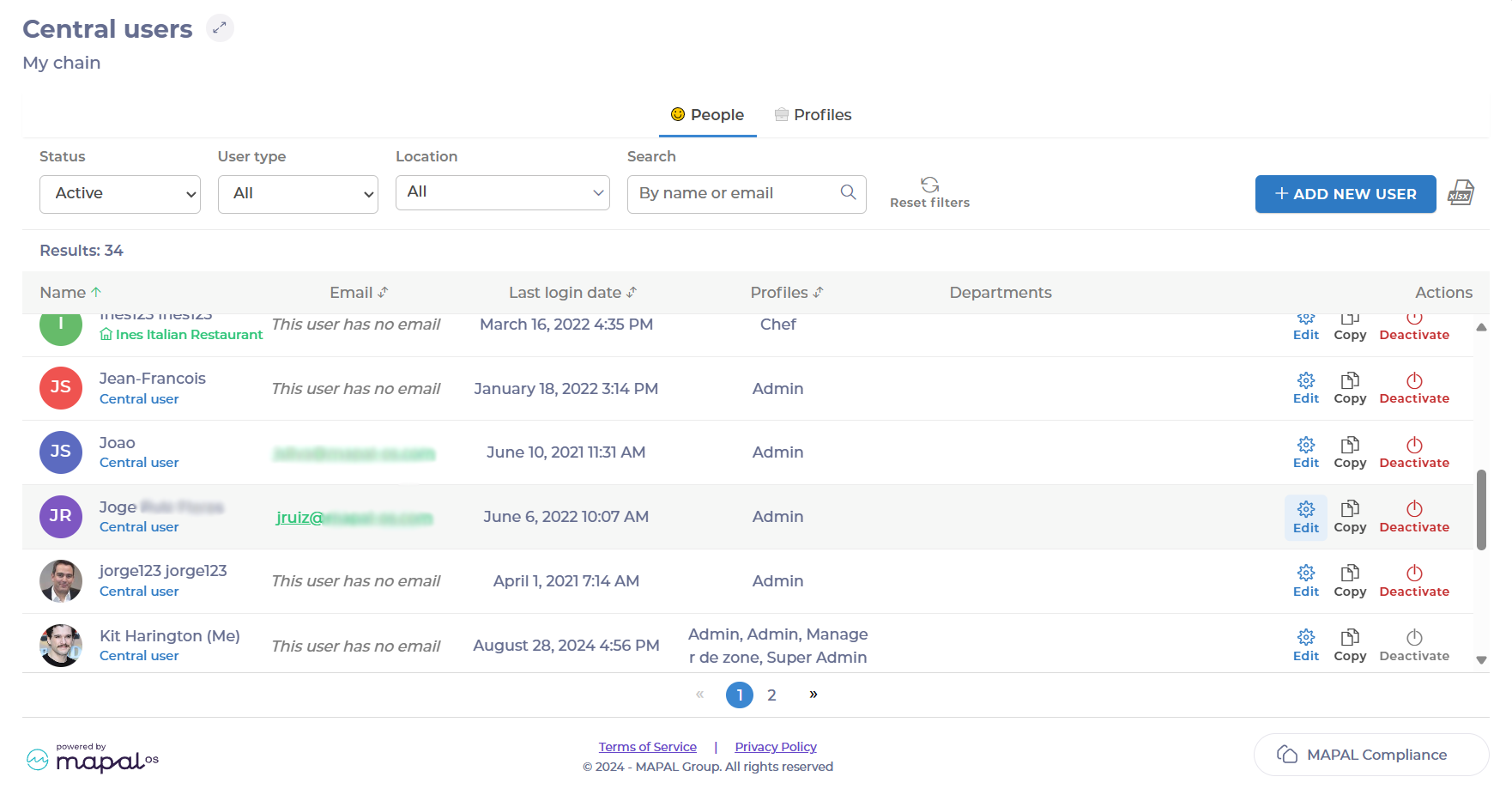
Central users 

On a central user you can see the following options for email notifications:  

Note: This email is turned off by default, and users must manually enable it in their profile.

Local users 

On a local user you can see the following options for email notifications: 

Note: This email is turned off by default, and users must manually enable it in their profile.

Deviation notifications

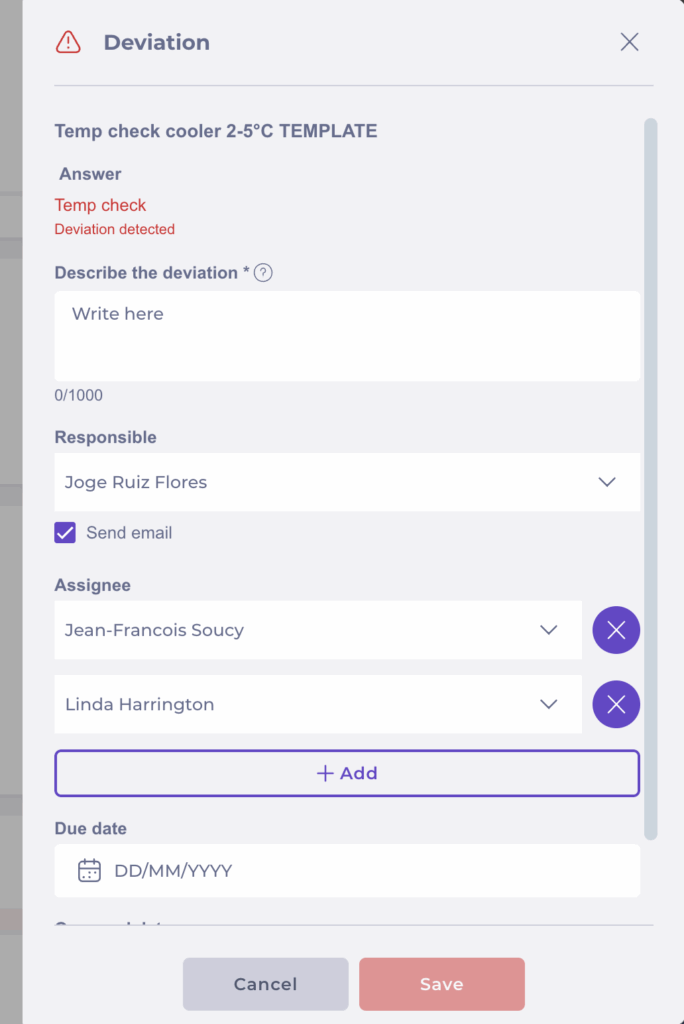
When a deviation is recorded, the user logging the deviation can assign one or more responsible users. Email notifications are sent automatically based on the assignment settings.

The automatic notification flow works as follows:

This ensures that everyone responsible for a deviation is informed at the right time, improves communication between teams, and reduces the risk of delays caused by missed notifications.

Understand the insights email

Note: this is a new feature that can be enabled for companies. If you’d like to receive insights emails, please get in touch with the Mapal Support team or your Customer Success Manager.

What you'll find in the email

The email has four sections:

  1. An overview of compliance for your platform (this is the same as the data on your Flow dashboard).
  2. A snapshot of the Compliance leaderboard for the entire company, so you can compare how your specific area or branch is doing.
  3. The number of learners that have logged in.
  4. The percentage of logins compared with the 7 days prior.
  • Select See more on any of the sections to be taken directly to that specific report in Flow.

Other useful information

If you have this feature enabled, every training and account manager in the company will receive the insights email.

The email is sent out every Tuesday from 10 AM GMT +00:00, although you may receive yours slightly later, depending on your position in the queue.

Please note that the email is currently only available in English.
 

Customise email content

Start from: The Flow Learning dashboard.

Available templates

NameDescriptionCategory
Appraisal overdue notification sent to the TraineeFirst and last paragraphs of reminder that an appraisal is overdue, triggered at one day and seven days past due date. Please note the reviewer is BCC’d in to this emailLearner
Appraisals sign off notification sent to traineeNotification sent to trainee when a training manager signs off the appraisals.Learner
Appraisals Sign off notification sent to Training ManagerNotification sent to training manager when a trainee signs off the appraisals.Manager
Booked by manager Training Calendar notificationBooked by manager Training Calendar notification.Training Calendar
Cancelled Training Calendar notification.Cancelled Training Calendar notification.Training Calendar
Chosen Training Calendar notificationChosen Training Calendar notificationTraining Calendar
Common Email FooterUse this field to set the default footer of email communications from your company.Footer
Completed appraisals notification sent to TraineeNotification sent to trainee when a training manager marks the appraisals as completed.Learner
Confirmed Training Calendar notificationConfirmed Training Calendar notification.Training Calendar
Existing Trainee Training instructionsFirst and last paragraphs of the training instructions sent to all existing trainees.Learner
Flow Branch resource overdue alertNotification sent to managers letting them know of any trainees who have unread Development items that are overdue.Manager
Goal sign off notification sent to the TraineeNotification sent to the trainee when a training manager signs off the goal.Learner
Goal sign off notification sent to the Training ManagerNotification sent to the training manager when a trainee signs off the goal.Manager
Invited Training Calendar notificationInvited Training Calendar notification.Training Calendar
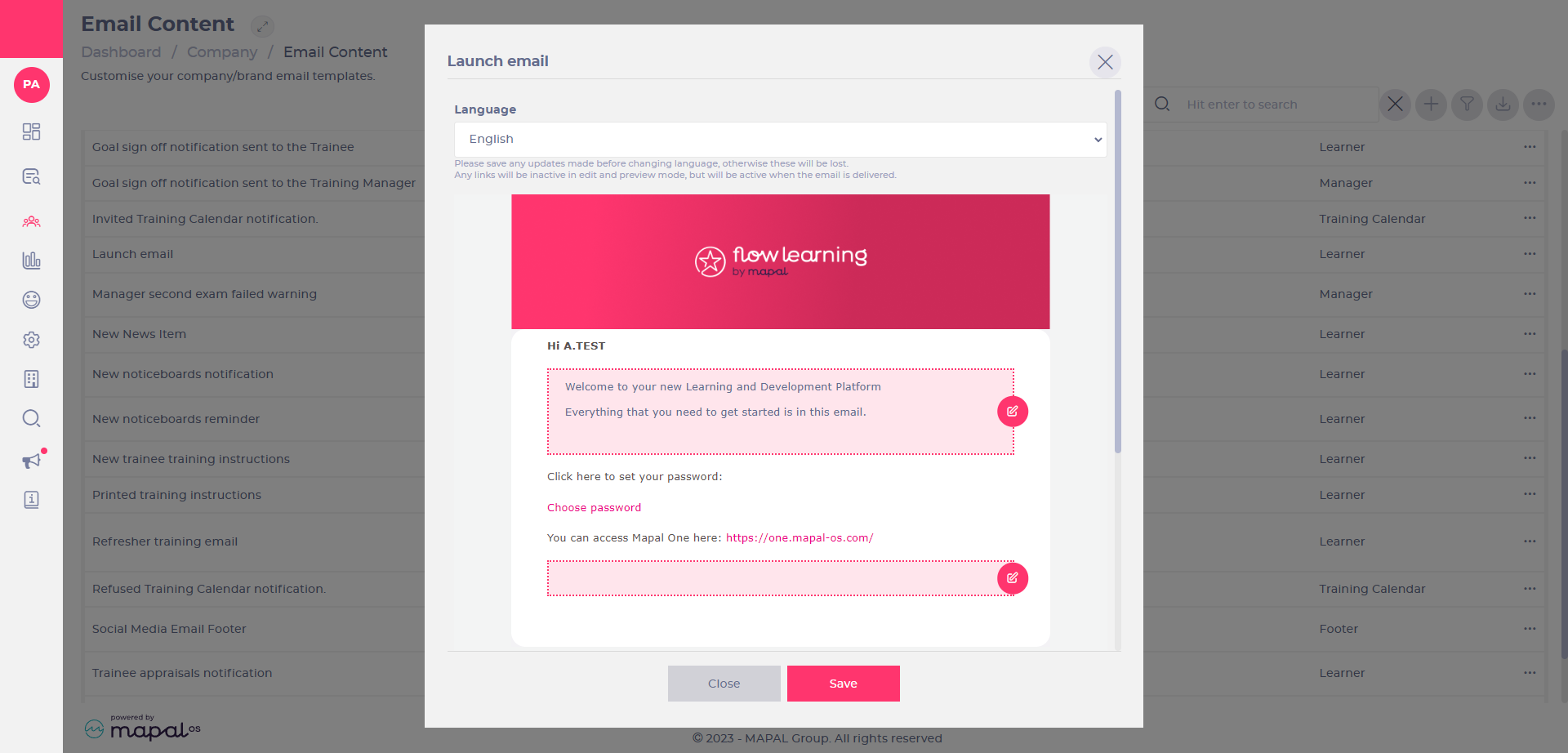
Launch emailFirst and last paragraphs of the launch email sent to trainees.Learner
Manager second exam failed warningNotification sent to managers letting them know of any trainees who have failed an exam twice.Manager
New News ItemFirst and last paragraphs of the notification sent out when a new News item has been created.Learner
New noticeboards notificationFirst and last paragraphs of the notification sent out when a new noticeboards item has been created.Learner
New noticeboards reminderFirst and last paragraphs of the reminder email for noticeboards items that are past the 'read by' date - note this date must be sent to trigger this email.Learner
New trainee training instructionsFirst and last paragraphs of the training instructions sent to all new trainees.Learner
Printed training instructionsFirst and last paragraphs of the training instructions available to print off from the system.Learner
Refresher training emailFirst and last paragraphs of the training instructions sent to all trainees from the refresher training. Note if this is not set, the 'new trainee' or 'existing trainee' instructions email will be sent for new or existing trainees as default.Learner
Refused Training Calendar notificationRefused Training Calendar notification.Training Calendar
Social Media Email FooterUse this field to set an additional footer above the default footer – used as a space for including social media info.Footer
Trainee appraisals notificationFirst and last paragraphs of the notification sent out to the trainee when an appraisal has been created for them. Note the creator is BCC’d into this email.Learner
Trainee appraisals reminderFirst and last paragraphs of the reminder sent to the trainee that there is an upcoming appraisal in one week.Learner
Trainee course dates changeFirst and last paragraphs of email sent out when the due date / start date of any courses they are on are changed.Learner
Trainee External Trainings NotificationFirst and last paragraphs of External Trainings assigned to trainees when imported via feed process or through job titles. Note that manual assignment of External Trainings results in the new or existing training instructions emails above.Learner
Trainee External Trainings ReminderFirst and last paragraphs of reminder that the trainee has External Trainings due for completion in a week.Learner
Trainee module due date reminderFirst and last paragraphs of reminder that the trainee has a module completion date due in two days.Learner
Trainee module overdue reminderFirst and last paragraphs of reminder that the trainee has a module completion date one day in the past.Learner
Trainee workbooks notificationFirst and last paragraphs of the notification sent out to the trainee when a workbook has been created for them. Note the creator is BCC’d into this email.Learner
Trainee workbooks reminderFirst and last paragraphs of the reminder sent to the trainee that there is an upcoming workbook in one week.Learner
Training Calendar Reminder NotificationTraining Calendar Reminder Notification.Training Calendar
Training manager welcome emailFirst and last paragraphs of email sent to new training managers inviting them to choose their password for the management system.Manager
Workbooks sign off notification sent to traineeNotification sent to trainee when a training manager signs off the workbooks.Learner
Workbooks Sign off notification sent to Training ManagerNotification sent to training manager when a trainee signs off the workbooks.Manager

Link a learner (with multiple links)

Link accounts using your access email

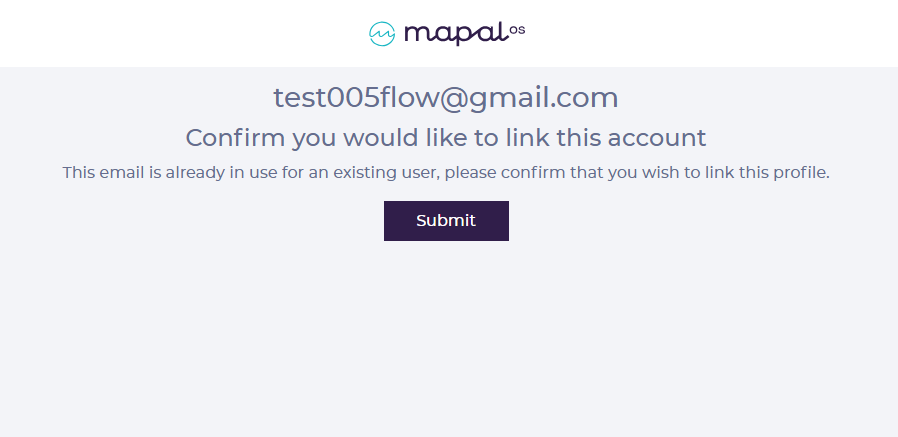
If the learner already has an account on Mapal One, the system will detect that there are multiple profiles using the same email address. The access email will provide instructions for them to link their account.

Note: Contact Mapal support if you can't find the access email.

Switching between companies via browser

Switching between companies via the Mapal One app

Link a learner (with multiple links) as a manager

Linking a learner on Mapal OS

Learners are linked automatically in Mapal OS. If you have any existing learners that remain unlinked, contact the Mapal Support team at [email protected].

Note for OS Source customers: The tile for linking learners is an internal read-only view and is not visible in your customer portal. Please contact your Customer Success Manager if you have questions or need assistance.

Linking a learner in Flow Learning

If you are not using Mapal OS, you can still link learners through the Flow Learning management system.

Starting From: The Flow Learning Dashboard.

Learners often have another active profile on Flow (with another company) using the same email address.

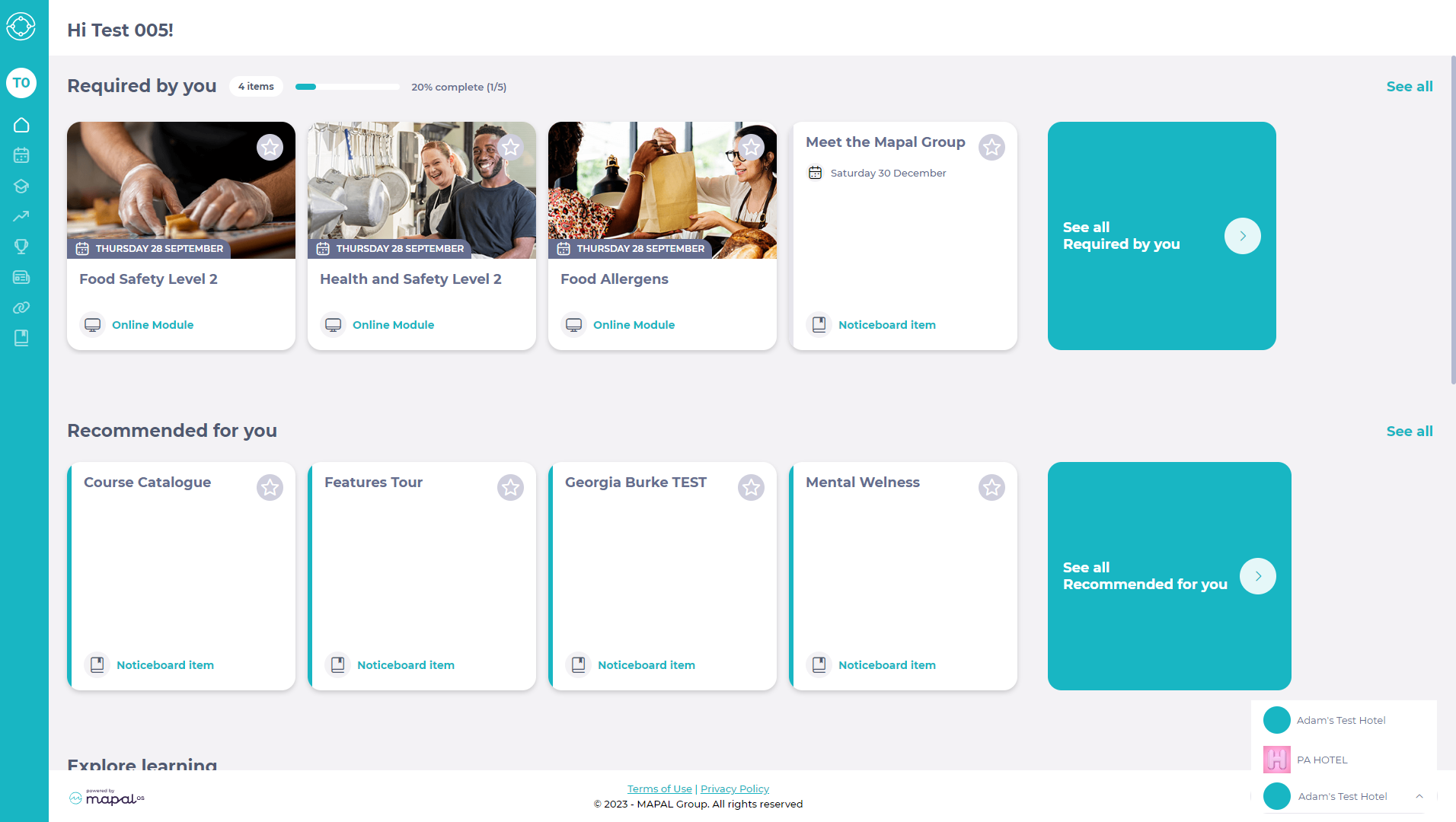
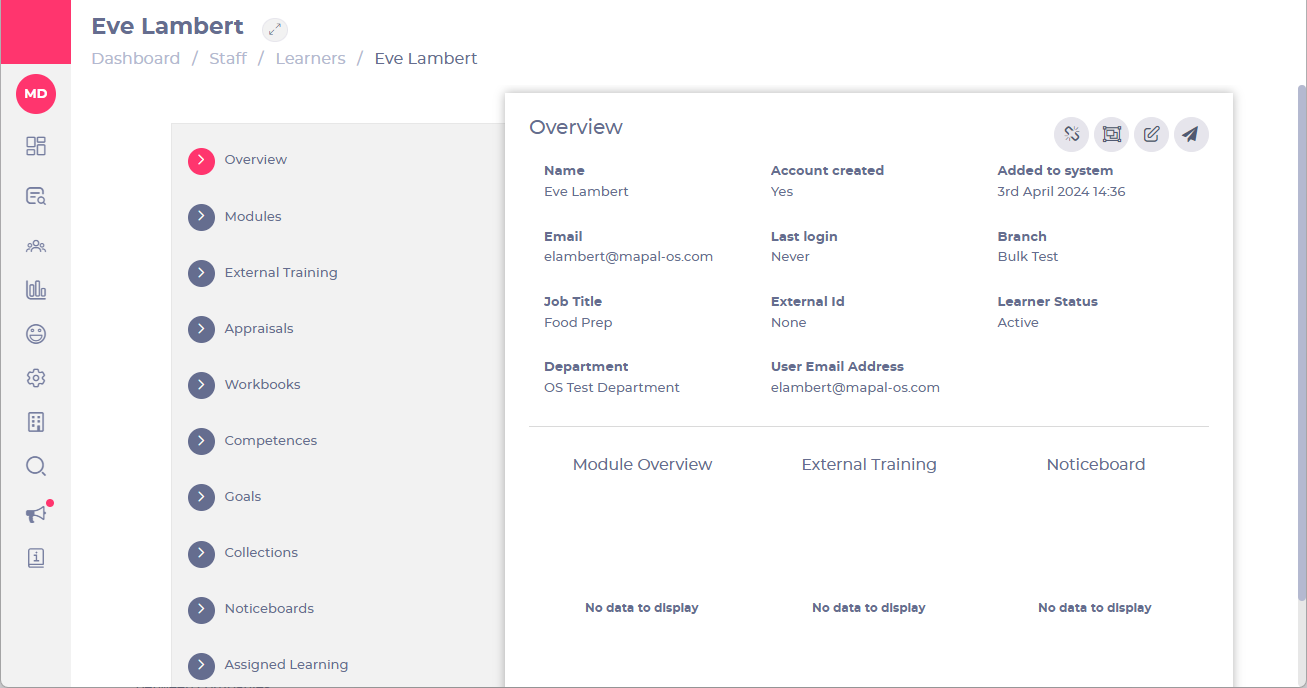
If the learner's accounts have already been linked, 'Account created' will be set to 'Yes' on the learner's profile. This means they can log in to Mapal One and switch between all the companies they are linked to. See Link a learner (with multiple links) to see how a learner can switch between companies.

Check for duplicate emails using Feed Logs

If your company uses an HR / API link - you can check for duplicate emails in your Feed Logs. See Use the feed to check updates for more information.

There are two ways to locate and link learners together: Using 'Unlinked Learners' to link multiple learners in bulk; and using learner profiles to link learners individually.

Using 'Unlinked Learners' to link multiple learners in bulk

Note: This function is only visible for Account Managers, therefore you may need to ask someone with those permissions within your company to action this.

Note: At this point, learners will not be removed from the list, nor will account created change to 'yes' from this action - learners need to follow the instructions in the email to link their account (at which point they will no longer appear in the list and account created will show as yes).

Using learner profiles to link learners individually

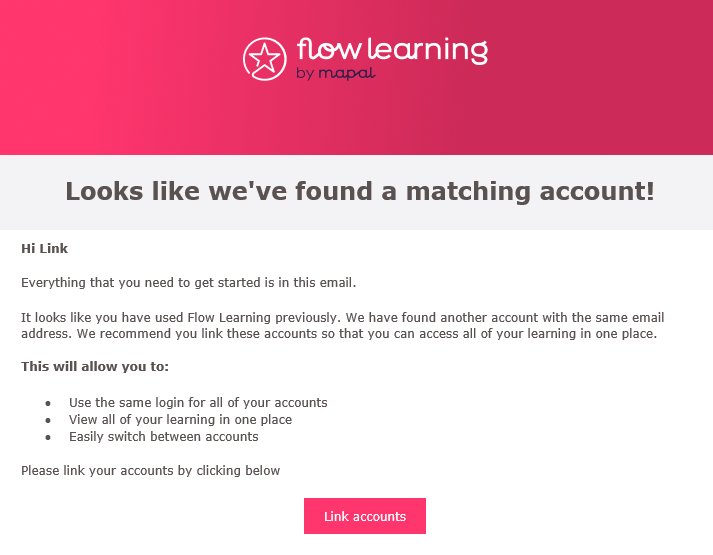
Note: The learner can then link their accounts together from within the welcome email, see below for what the email will look like:

After the learner has linked the accounts using the Link accounts button in the email, they can Log in to Mapal One in the normal way using their email address and password and from their profile, they can now switch between all the companies they are linked to. See Link a learner (with multiple links) to see how a learner can switch between companies.

Note:

Unlink a learner (user verification)

Starting from:  Company > Learners > Learner profile

User verification on Mapal OS

For customers using Mapal OS as their main platform, the process of unlinking a learner before changing their email is not required. When an email address is updated in Mapal OS, it automatically syncs across the system, updating both the learner profile and the associated user account. This ensures that the correct email is reflected without requiring additional manual steps.

Permissions required to unlink learners

You'll need to have the right permissions set up to unlink learners. Only Account Managers have permission to perform this process.

Unlinking a learner to allow a change of email

There may be instances where a learner is unable to verify their account - for example, if they are added with an incorrect/invalid email address. 

When the learner's email has not been updated and the learner has no way to verify their email address:

  • Select Unlink Learner on the learner profile overview.

This will remove the associated, unverified user account from the profile to allow the change of email to take place.

A pop-up will appear asking if you are sure you want to unlink the learner:

  • Select Confirm to unlink the learner OR select Cancel to return to the learner's profile.


Updating the email address

For companies that are manually managed, the email address can be amended immediately after the ‘Unlink Learner’ button is actioned.

Companies with an HR/API integration will need to wait for the next feed run before the email address is updated, this happens once every 24 hours. If any of the steps above do not work as expected,  get in touch with your Customer Success Manager.