Review received feedback

Start from: The Mapal One dashboard.
  • Select Career > Evaluations from the main menu.
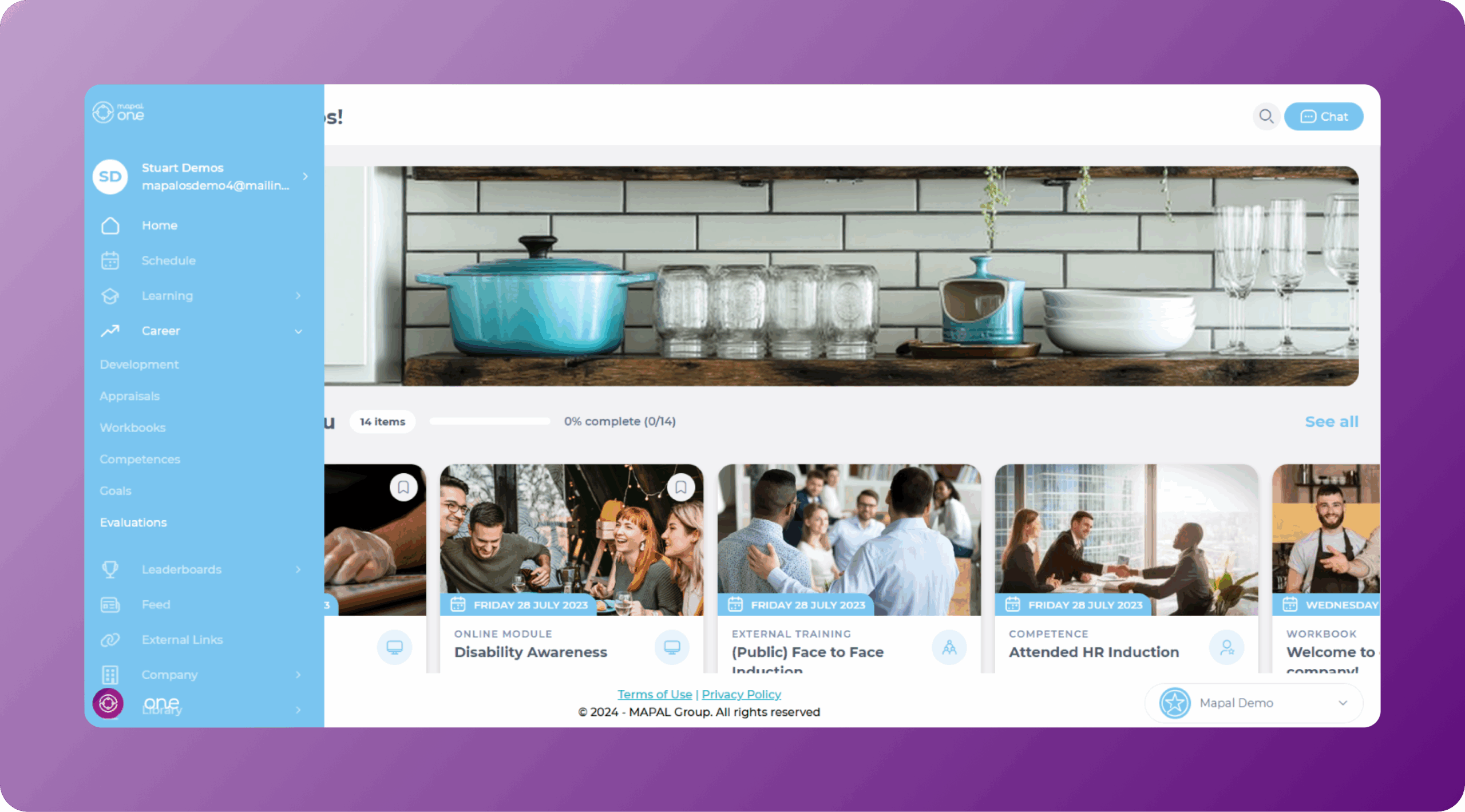
  • Select the Evaluations tab.
  • There’s a side panel where you can see the evaluations given, received, and create new evaluations. Select the Received tab in the side panel.
  • You’ll see a list of all the evaluations received. Select the specific evaluation you wish to review.

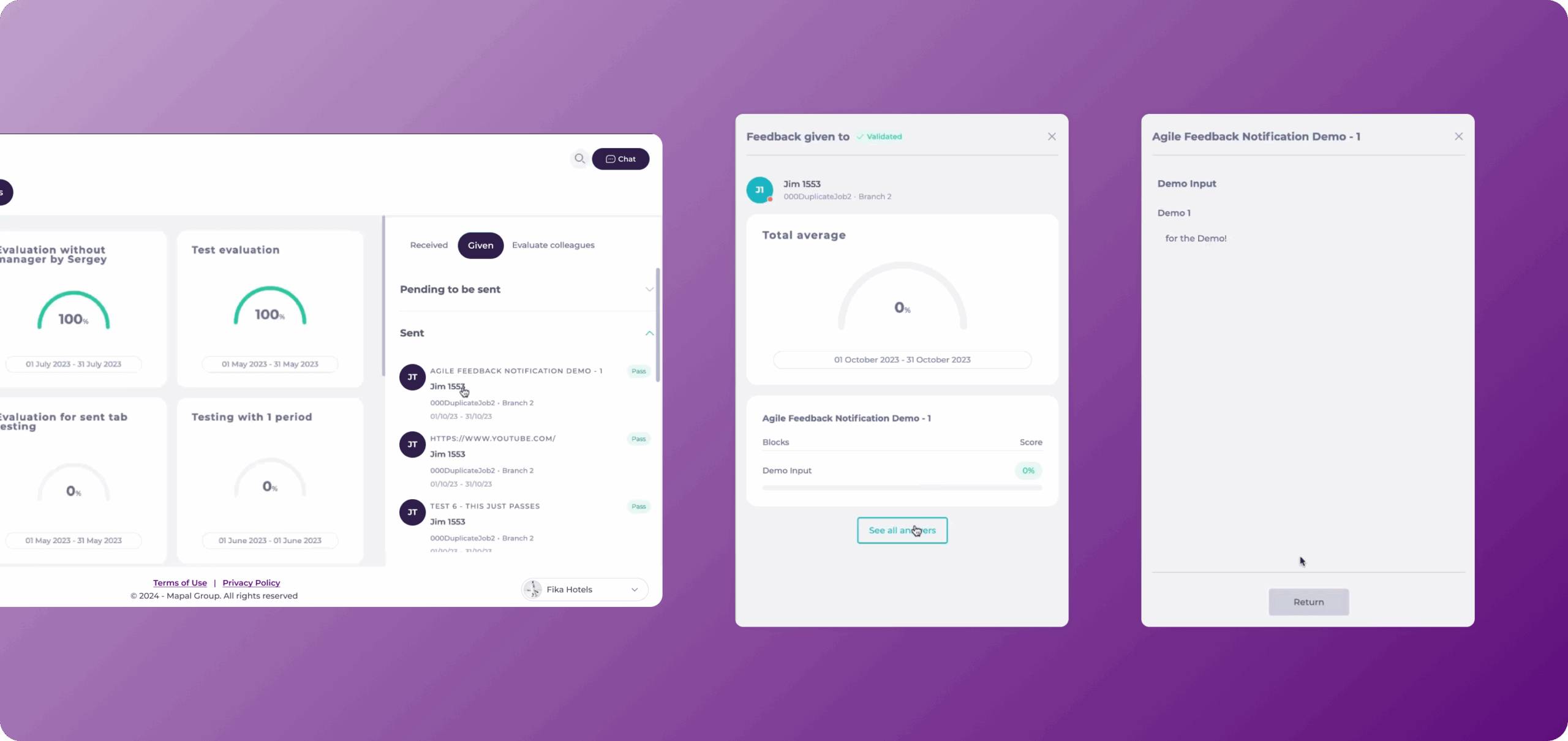
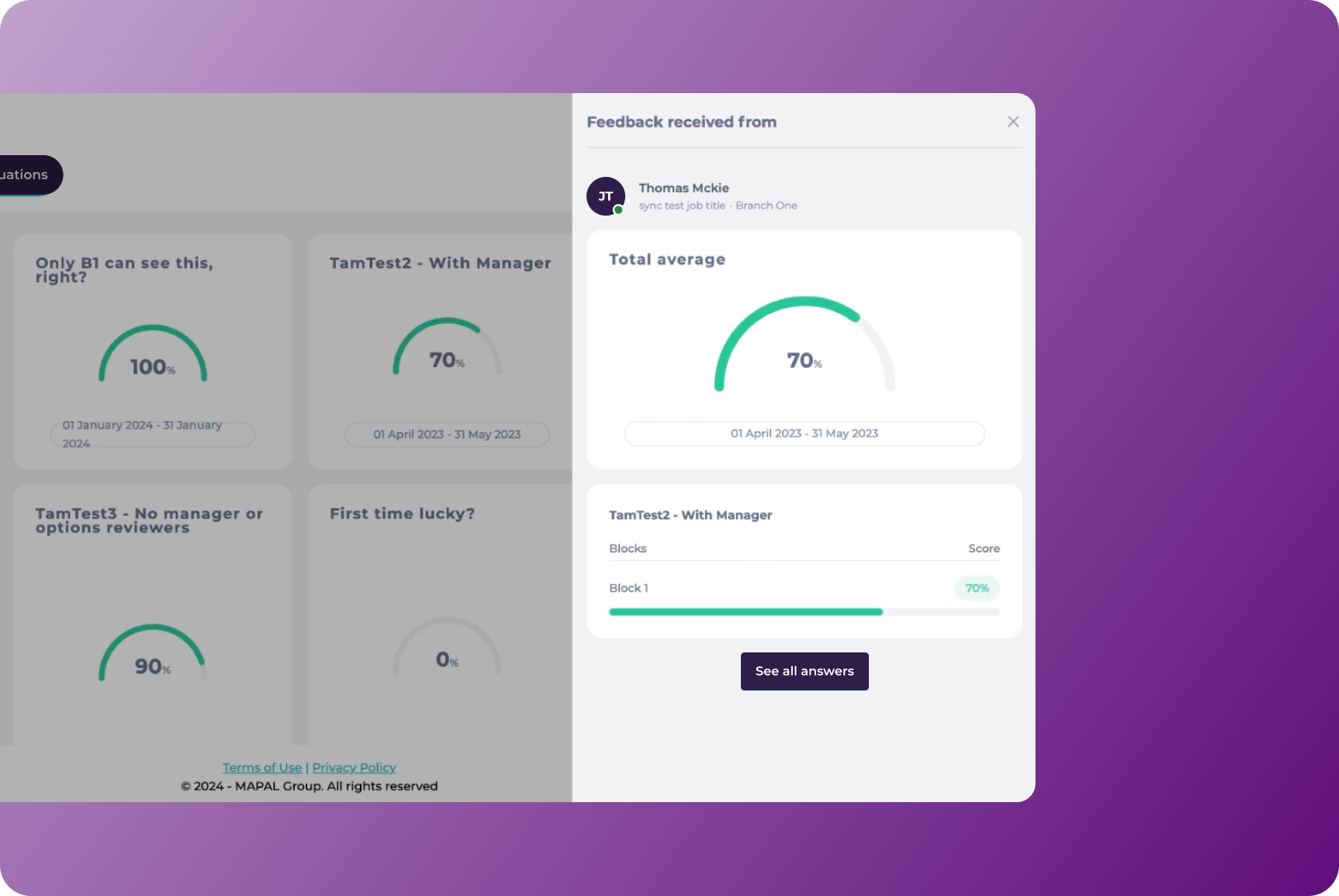
  • The Feedback Received from window will appear with an overview of the evaluation. Here, you’ll be able to see:
    • Name of the evaluator
    • Role
    • Branch
    • Total average
    • Name of the evaluation
    • Score
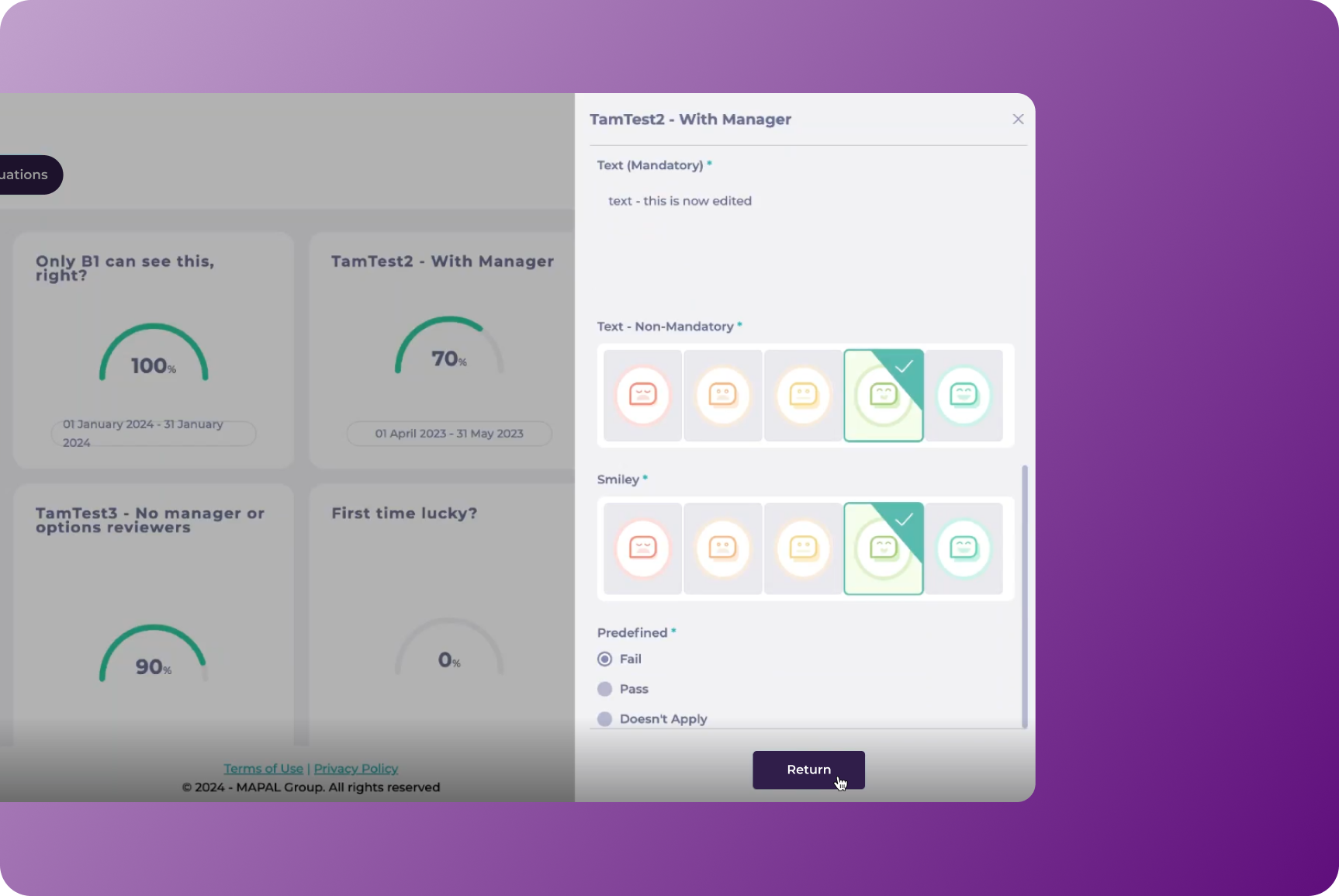
  • Select See All Answers to view the detailed responses of the evaluator.
  • Once the evaluation is reviewed, you can select Return to go back to the evaluation overview OR X to return to the list.
Evaluate the performance of your colleagues

Start From: The Mapal One dashboard.
  • Select Career > Evaluations from the main menu.

  • Select the Evaluation tab.
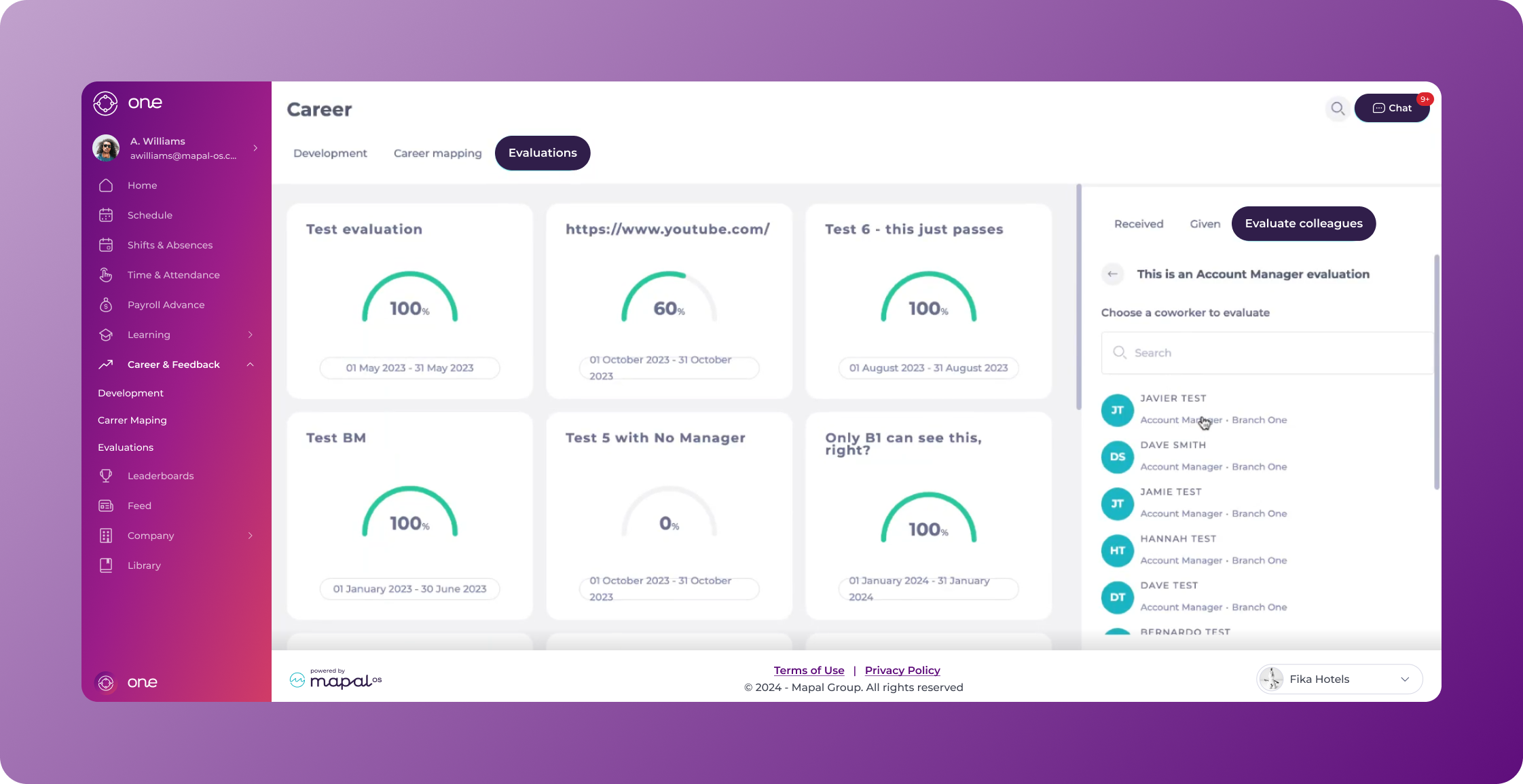
  • On the side panel, you’ll be able to see the Evaluations you have given and received. Select the Evaluate colleagues tab in the side panel to provide a new evaluation.
  • You’ll see a list of possible evaluations. Select Evaluate coworkers in the specific evaluation you wish to fill out.
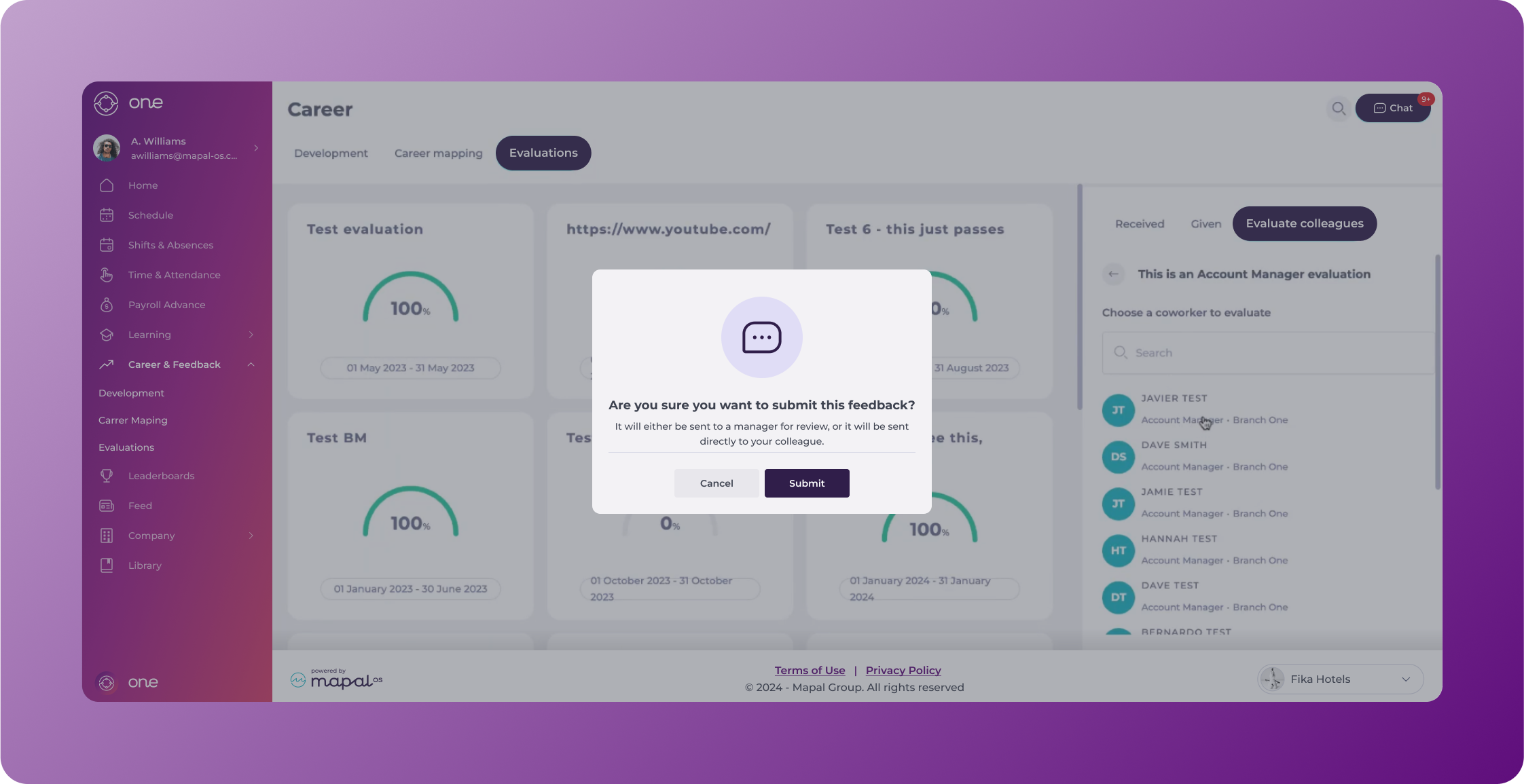
  • Then you’ll see a list of all your colleagues. You can choose from the list or use the search bar to locate the specific colleague you want to evaluate.


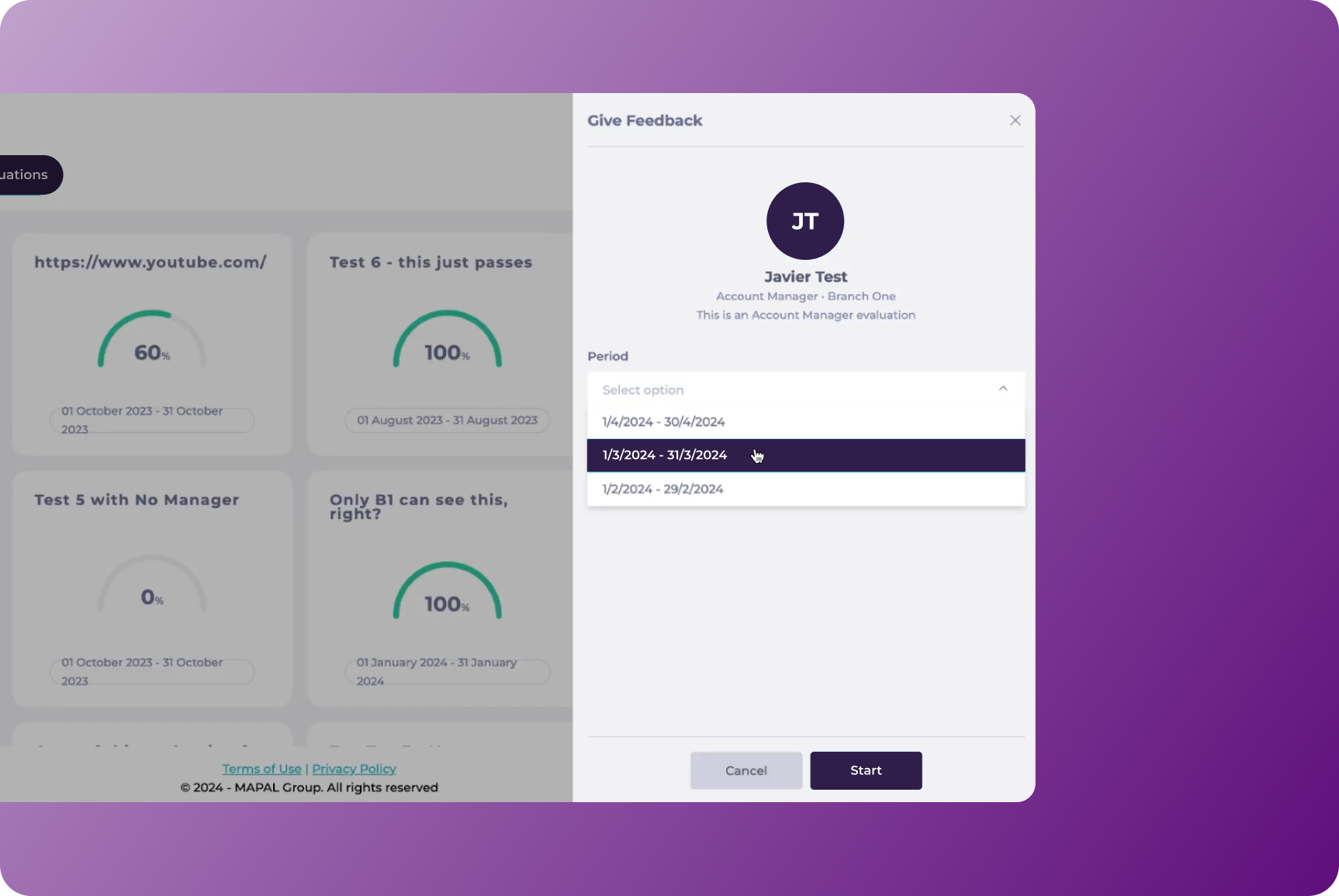
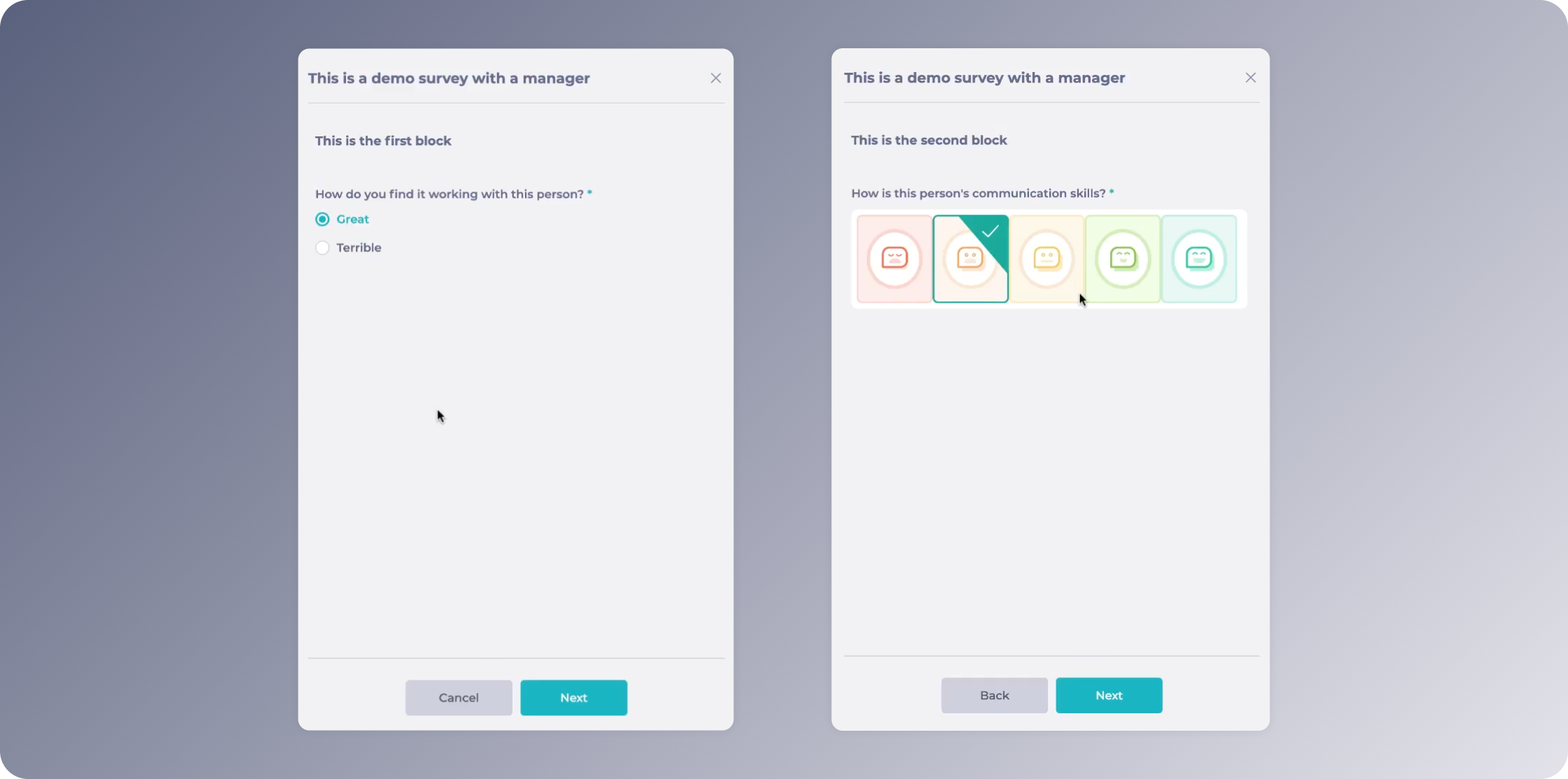
  • In the Give Feedback window, choose the Period you wish to evaluate from the dropdown and select Start.

  • Provide the response(s) to the question(s) as required and select Next.
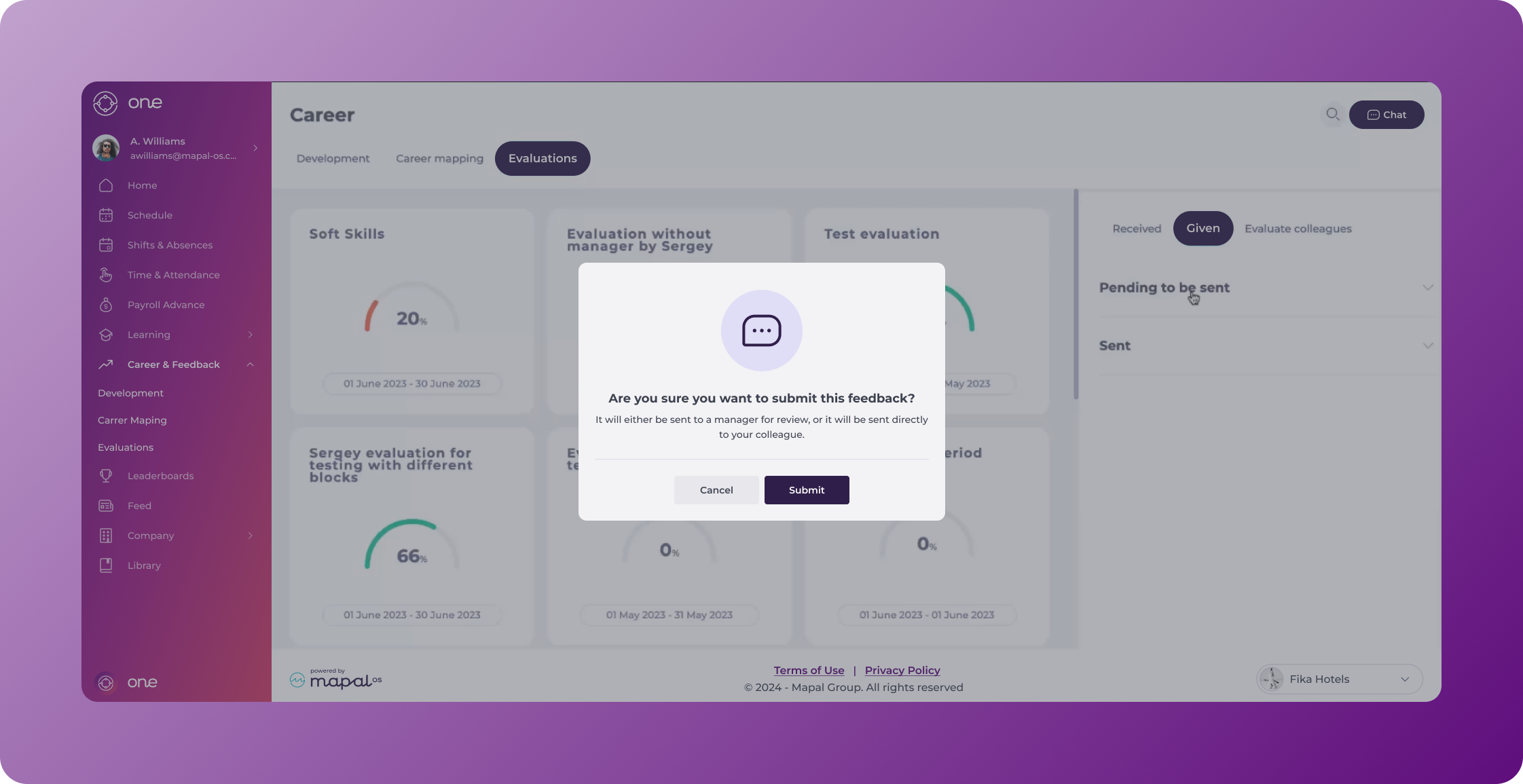
  • A confirmation pop-up window will appear. Select Submit to send the evaluation OR Cancel to discard it.

Review feedback from your team members

Start from: The Mapal One dashboard.
  • Select Career > Evaluations from the main menu.

  • Select the Evaluation tab.
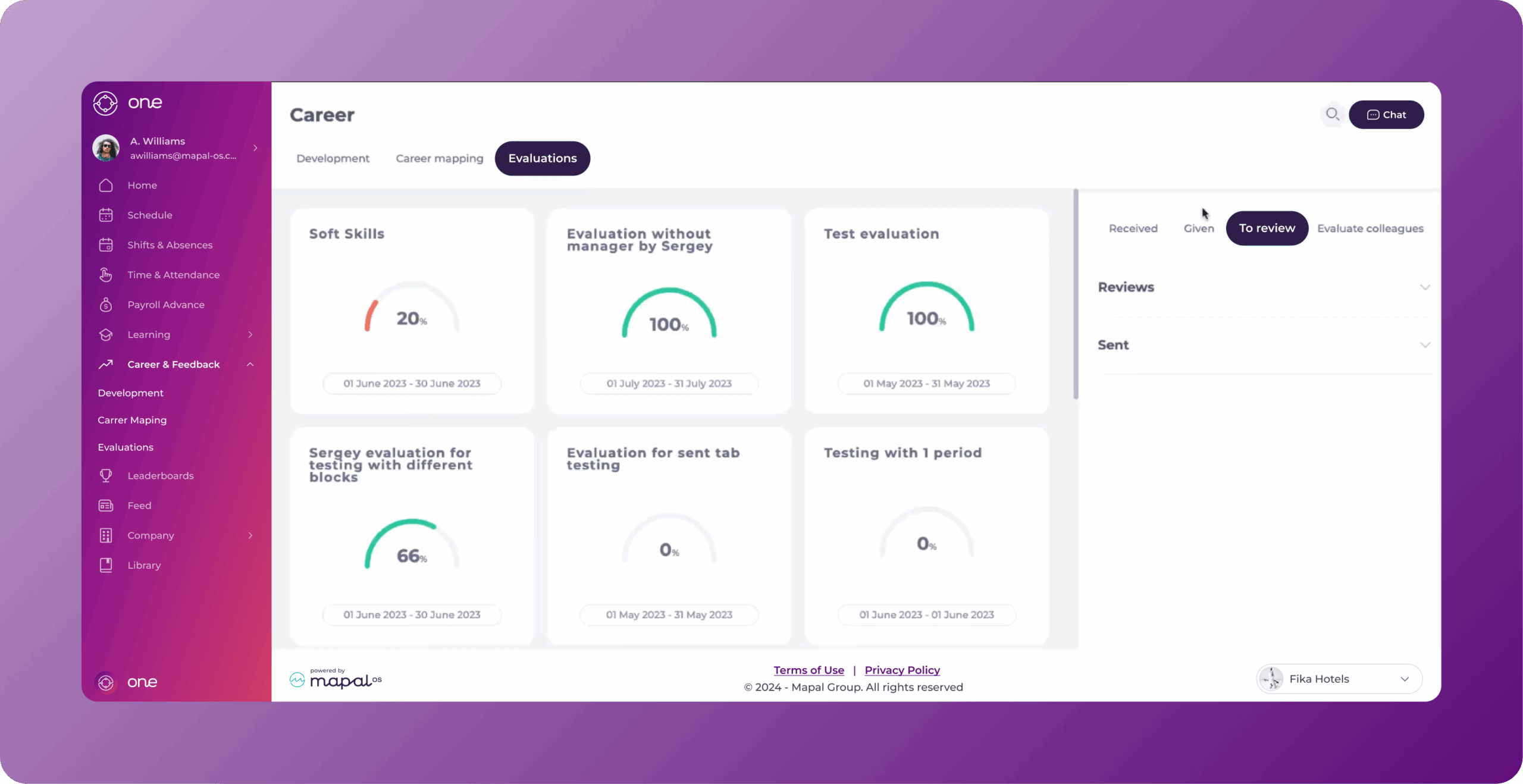
  • On the side panel, you’ll be able to enter new evaluations, see the evaluations you have given, received, and the ones pending to review. Select the To review tab in the side panel to review pending evaluations.

  • You’ll see two dropdown lists of evaluations pending for Reviews and Sent. Select Reviews.
  • Select the evaluation you want to review from the list.

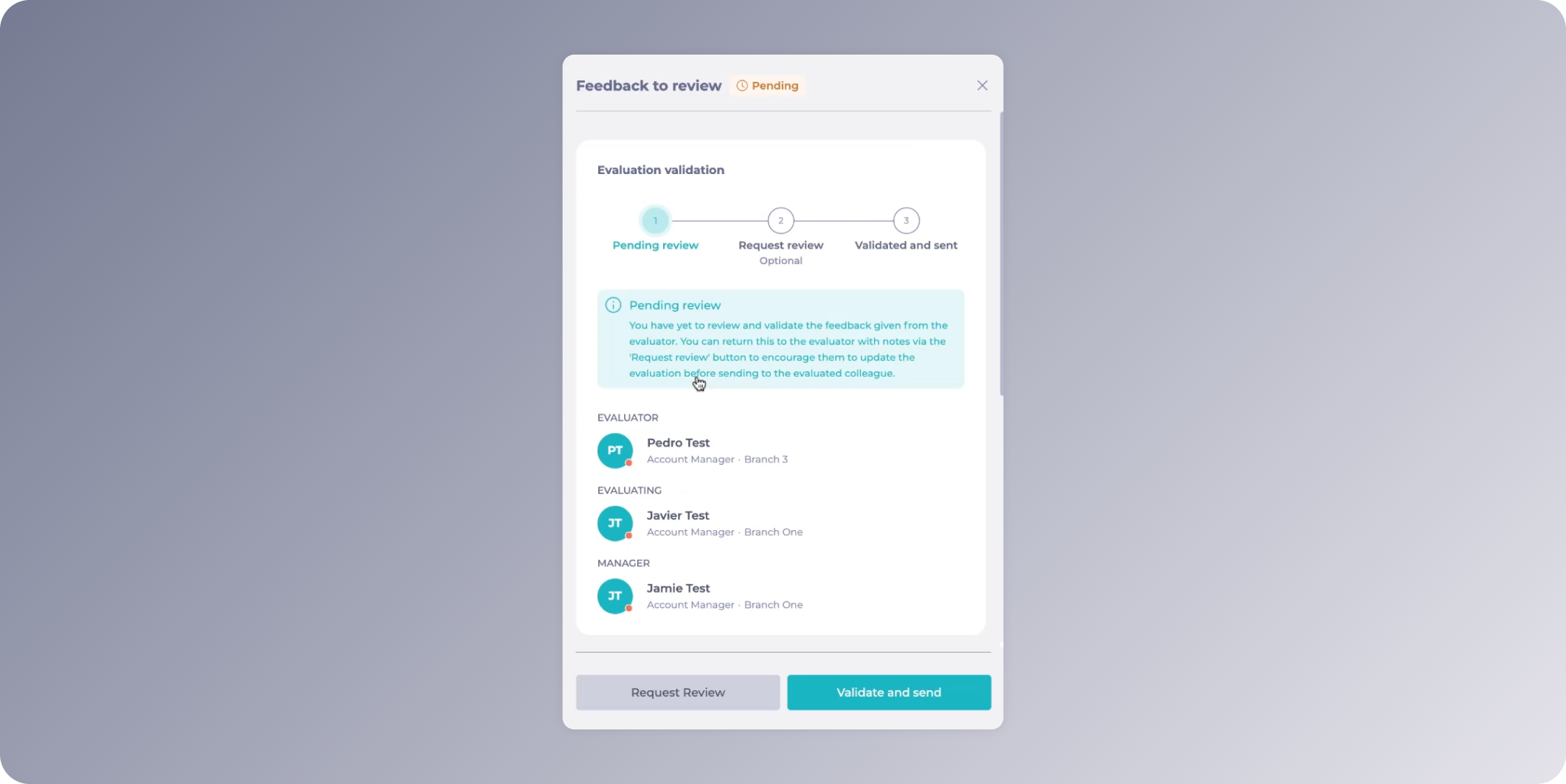
  • You’ll now be able to scroll down and see the details of the evaluation, such as:
    • Total Score: The feedback includes an overall performance score, summarizing the evaluator’s assessment.
    • Block Scores: Feedback is broken down into specific blocks, allowing managers to see detailed scores for different performance areas. This breakdown provides a nuanced view of the evaluated colleague’s strengths and areas for improvement.

  • If the feedback requires improvements or additional information, you can return it to the evaluator using the Request Review button. This action allows you to provide notes and guidance on how the evaluation can be updated to meet the necessary standards.

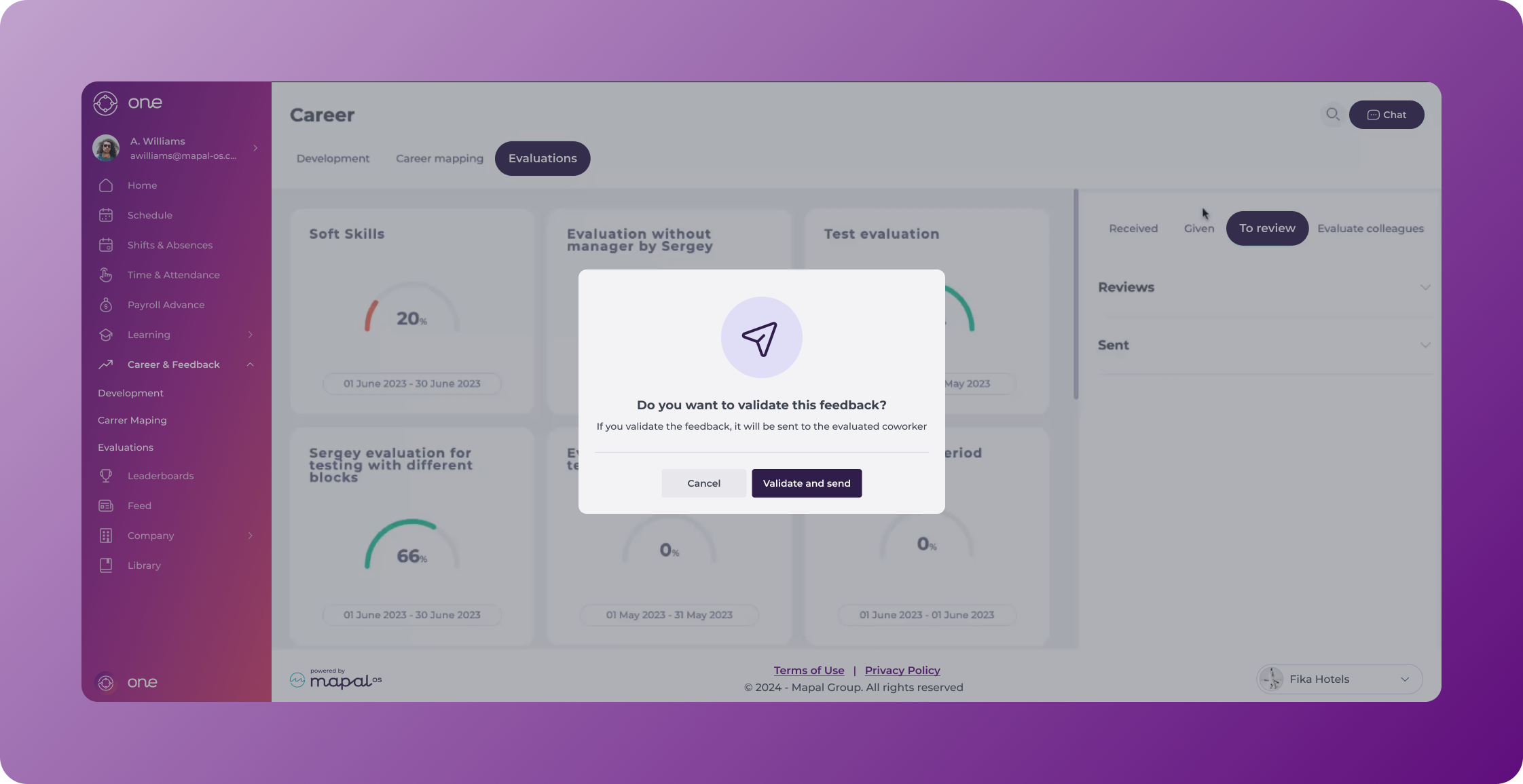
  • If the feedback is deemed appropriate and constructive, select Validate and send. The validated feedback is then sent to the evaluated colleague, allowing them to see their performance evaluation and any accompanying comments.

  • Once the evaluation is validated and sent, you will be able to see it back in To review, exactly under the Sent dropdown list.

Review the feedback given by you

Start from: The Mapal One dashboard.
  • Select Career > Evaluations from the main menu.

  • Select the Evaluations tab.
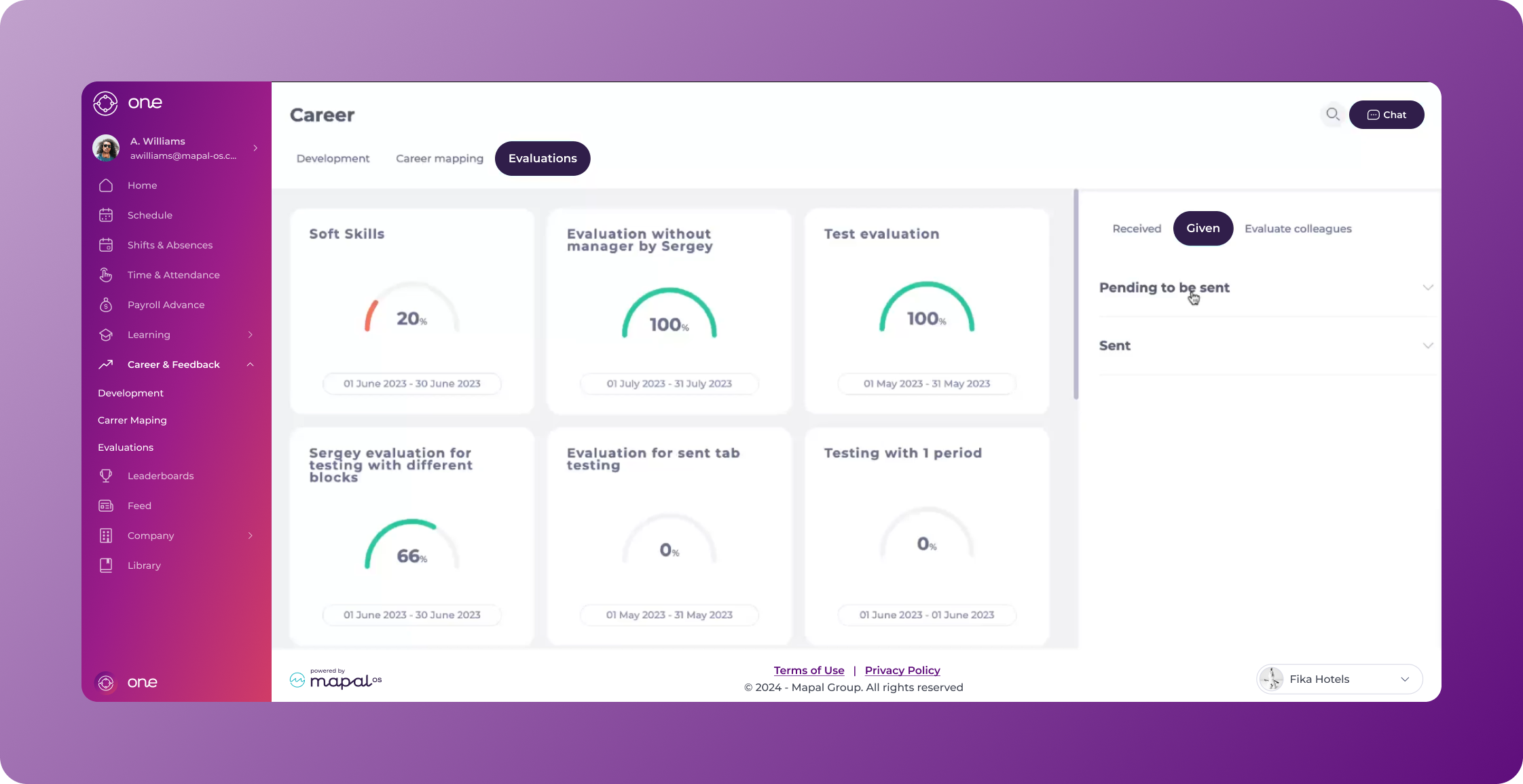
  • On the side panel, you’ll be able to enter new evaluations, and see the evaluations you have given and received. Select the Given tab in the side panel to review the evaluations you have given.

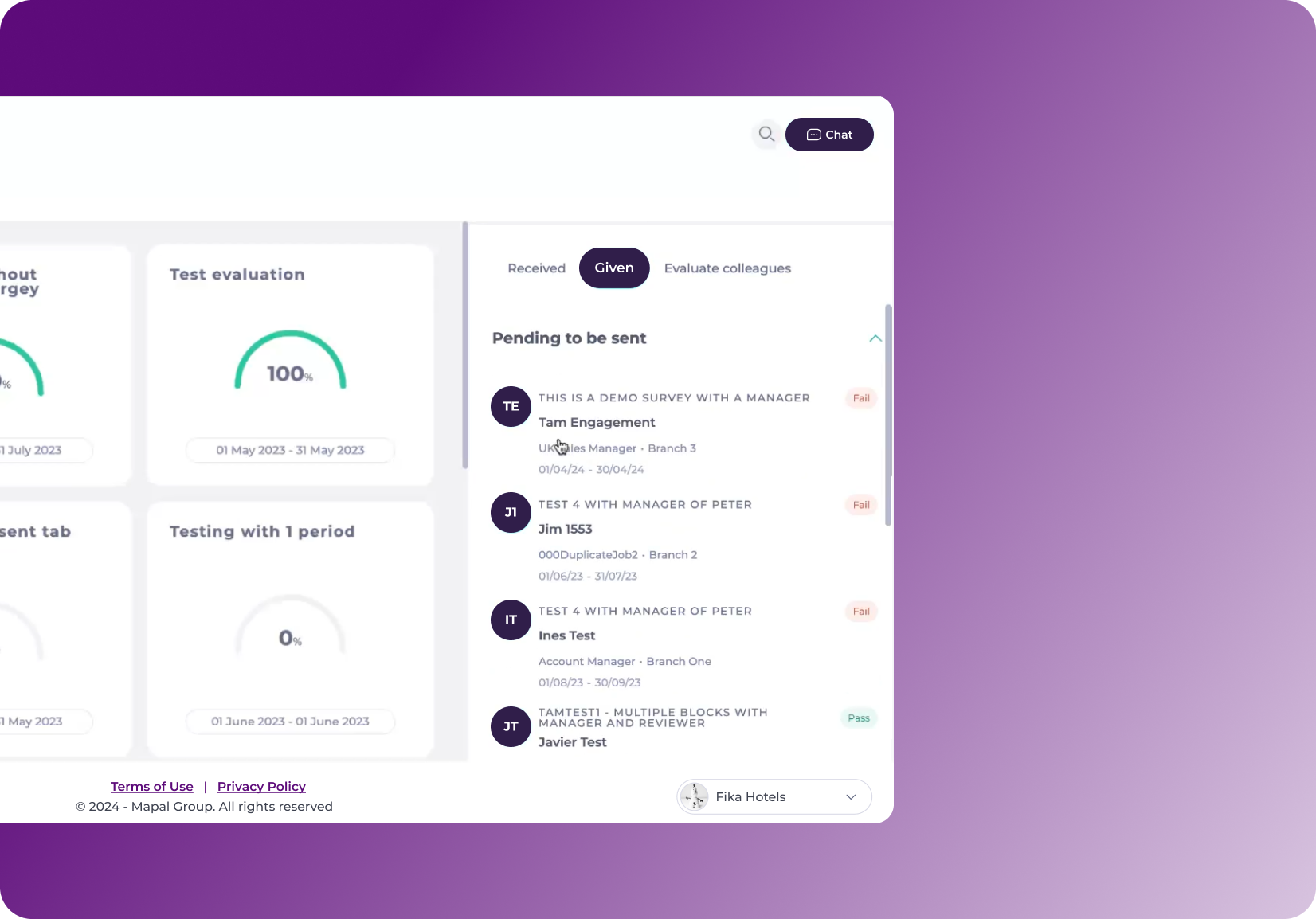
  • You’ll see two dropdown lists of evaluations Pending to be sent and Sent. Select Pending to be sent.
  • Select the evaluation you want to review from the list.

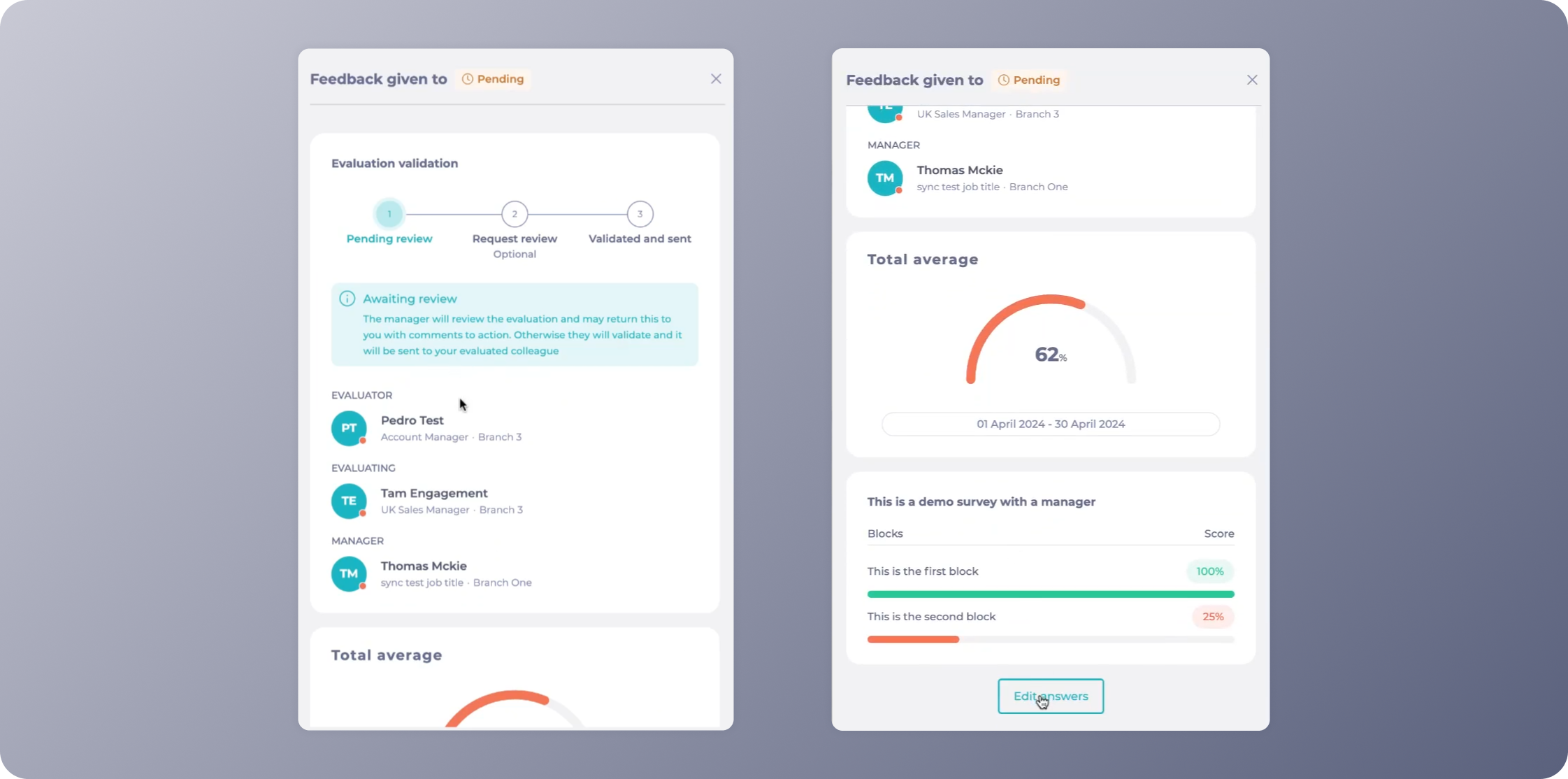
  • You’ll now be able to scroll down and see the details of the evaluation, such as:
    • Total Score: Each feedback evaluation includes a total score, summarizing the overall performance rating given to a colleague.
    • Block Scores: The feedback is divided into specific blocks or categories, such as teamwork, customer service, punctuality, and professionalism. Employees can review the scores for each block to understand the detailed assessment.

  • You will be able to edit your responses by selecting Edit answers.

  • Select Next once you finish editing and then Submit on the confirmation window.


Back in the Given list, you can also review the evaluations already sent to your colleagues in the Sent dropdown list. In this case, you will be able to see all the details of your evaluation, but can’t edit them, as it is already sent.

View your evaluations dashboard

Start From: The Mapal One dashboard. 

  • Select Career > Evaluations from the main menu.  


  • The Career page appears with the evaluations Dashboard.  


Each card on the dashboard has the title of an evaluation and corresponds to the aggregate feedback received for a specific evaluation. These cards represent the cumulative feedback received (percentage) for that particular evaluation, providing users with a quick snapshot of performance trends and areas for improvement.  

Additionally, users can discern the evaluation period associated with each card, allowing for better contextualization of the feedback data. 


Agile Feedback on Mapal One

Start From: The Mapal One dashboard.  

  • Select Career > Evaluations from the main menu.  


You will now see the Career screen. Here you will find the evaluations that have been set up.  


Here you will find two panels:  

  • In the left panel, you’ll find a dashboard with summary tiles showing an average score from the last available evaluation period.  

For more information about the dashboard, see View your evaluation Dashboard.  

  • In the right panel, you can find your individual evaluations, as well as providing feedback. You’ll find these features distributed in different tabs: 

  • Received: View evaluations received from peers, providing insights into performance and areas for improvement. 

To learn more about the received feedback, see Review received feedback

  • Given: Track evaluations provided to colleagues, ensuring accountability and participation in the feedback process. 

  • Evaluate colleagues: Identify pending evaluations to be completed, ensuring timely feedback Exchange. Once the evaluation is made, it will then either go to Given > To be reviewed (if a manager has been added to the evaluation) or straight to Given > Sent. 

To know more about the evaluations, see Evaluate the performance of your colleagues