Manage budgets from the Analytics sales tool
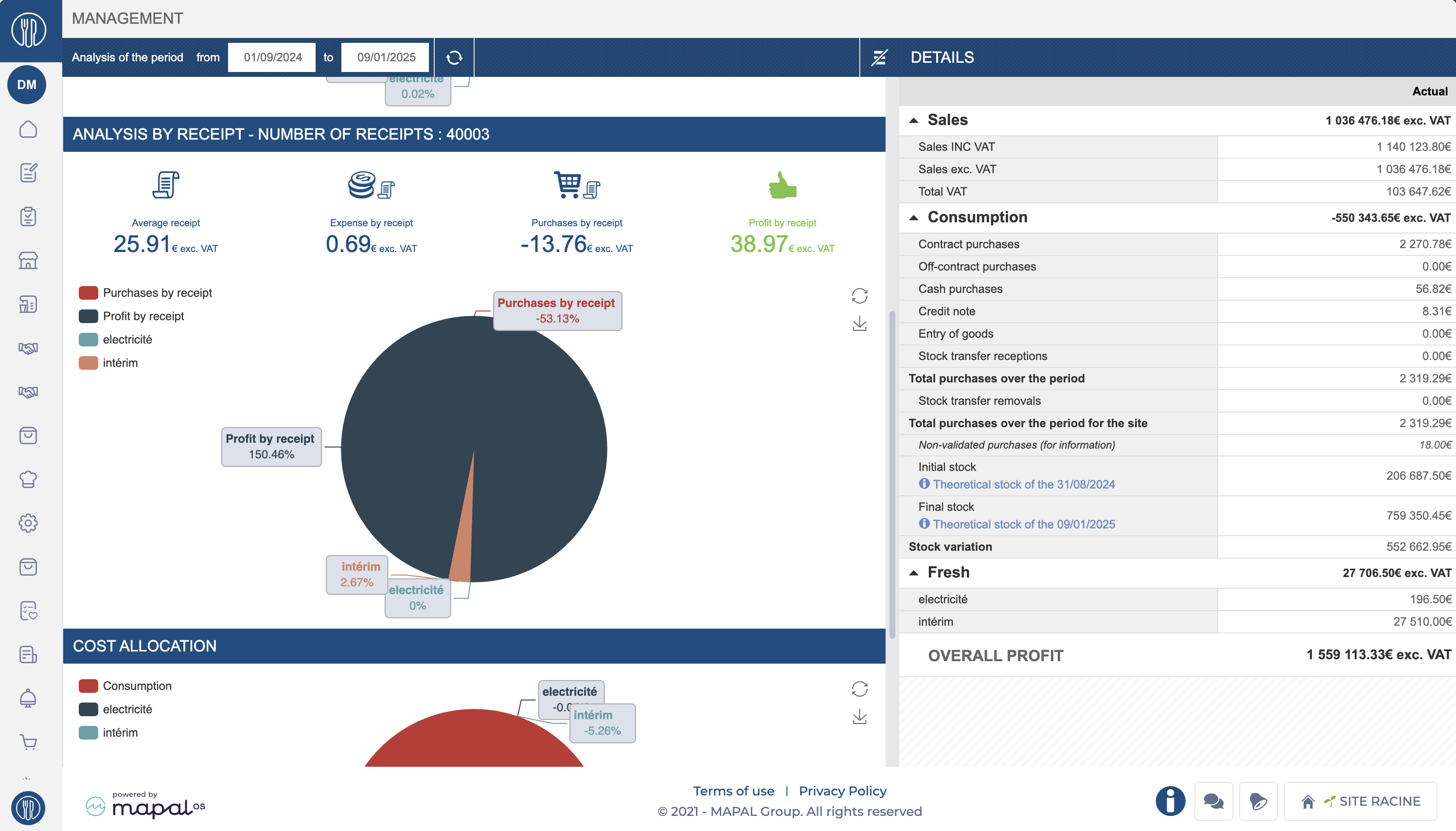
Start from: The Analytics module.
- Select Sales from the main menu.
- Configure the Sales screen to display the data you need OR choose an existing Scenario where you use a Budget as a Comparison Scenario.
To learn more about Sales configuration, see Filter and navigate through Sales data.
- Select from the dropdown the Budget you want to view and manage.
- Select Accept to see the configuration result on the Sales screen.
- Select the Budget button.
A Sales Budget modal will open where you can manage four blocks:
Budget Scope
In this section, you will set the general budget data.
- Select the budget to manage from the Budget* dropdown.
- Select the Data Source for that budget. It can be POS or Cash Sheet.
- Select the Center* for which you will configure that budget.
- Set the From* and To* dates that will govern that budget.
- Select the Sale Types included in that budget. Use the Individual or Group switch to set whether it will be a single group of sale types or several.
- Select the Sale Periods established for the budget.
Notes: Fields marked with * are mandatory./msdyn_blobfile/%24value)
Reference Data
In this block, you will set whether the budget will use reference data from another center, date, or source.
- In Reference Center, select whether you want to use the same center in a previous year or another specific center.
- Select whether you want to use Historical Data or another Budget as Reference Source.
- In Reference Date, you can set the specific time range you will use as reference for your budget. It can be the same day of the week in a previous week, same date in a previous year, or a comparable day in a previous year.
- Depending on the parameter you use in Reference Date, you can select the Previous Year or Previous Week you will use as reference.
- Select whether you will Use budgeted data as reference for future dates. If you do, then set the Budget for Future Dates.
Projection Method and Assumptions
In this section, you can set how you want to project the budget and whether you want to establish variations to the references you have set.
- Select the Projection Method to use. It can be Sales, Tickets and Average Ticket, Customers and Average Ticket per Customer, or Trend.
- In Sales Assumptions, set a Percentage variation, Specific variation or Particular value. You can set a single value for All days or a different one By days of the week.
- Set a reference parameter for Tickets and Customers. It can be Same growth as in Sales, Same number of Tickets/Customers as in Reference Date, Same growth as Tickets/Customers and Average ticket per customer.
Distribution by Sale Types and Periods
In this block you can set specific budget distributions by periods and sale types.
- Choose whether you want to make the distribution Based on Reference Data or not.
- Choose whether you want to Show all Sale Types or not.
- You can Load a base distribution by choosing a specific date from the reference data.
- Set the distributions in percentage. In the table, rows correspond to sale types and columns to periods.
- Keep in mind that the sum of all distributions must equal 100%. You can view this in the Total row.
Once you complete each of the blocks, select Accept to save changes OR Cancel to discard them.