Once you locate your post, select the [...] in the top right corner of the post.
Edit the post
Choose Edit to make changes to the text or images.
Make the necessary updates. Here, you can:
Modify the Title.
Modify the post.
Upload additional attachments.
Select Save to confirm the edits.
Note: Posts now support multiple image uploads, which will display as an image carousel for better visual engagement.
Delete the post
You can delete your post if it is no longer relevant by selecting the same [...] and Delete.
A confirmation window will appear. Select Yes, delete to complete the removal.
Check viewers for a forum or news post
Start from: The Engagement dashboard.
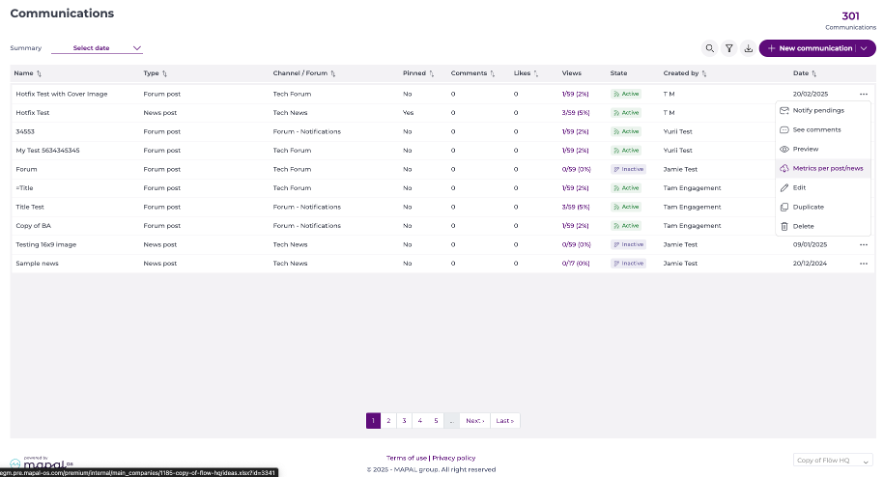
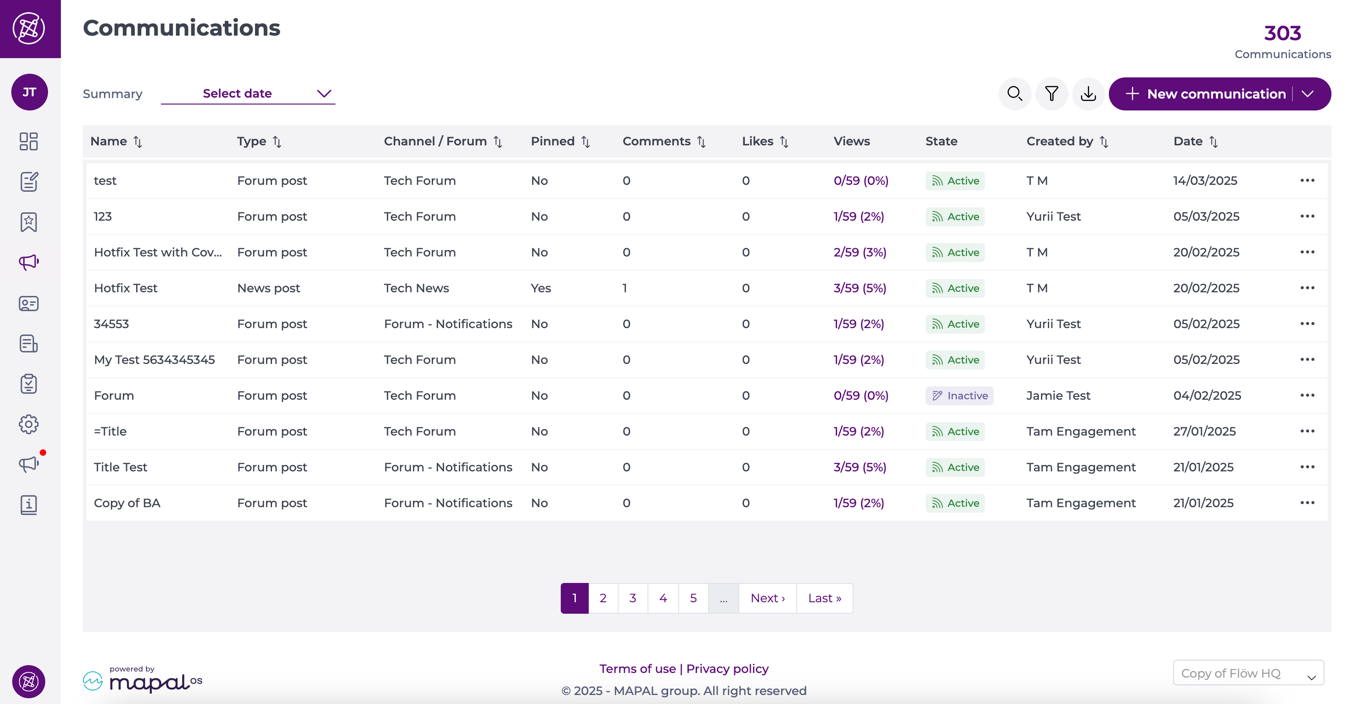
Navigate to Communications > Publications.
You will see a list of all published posts.
Use any of the following tools to quickly locate the publication:
Summary: Filter posts based on a specific timeframe.
Filter: Narrow down the list by post type or publication category.
Search: Enter the post title directly to find it faster.
Locate the Views column in the publications list.
Each post will display two key metrics:
Total Viewers: The number of employees who have seen the post (e.g., 2/59).
Engagement Percentage: The proportion of the audience that has viewed the post.
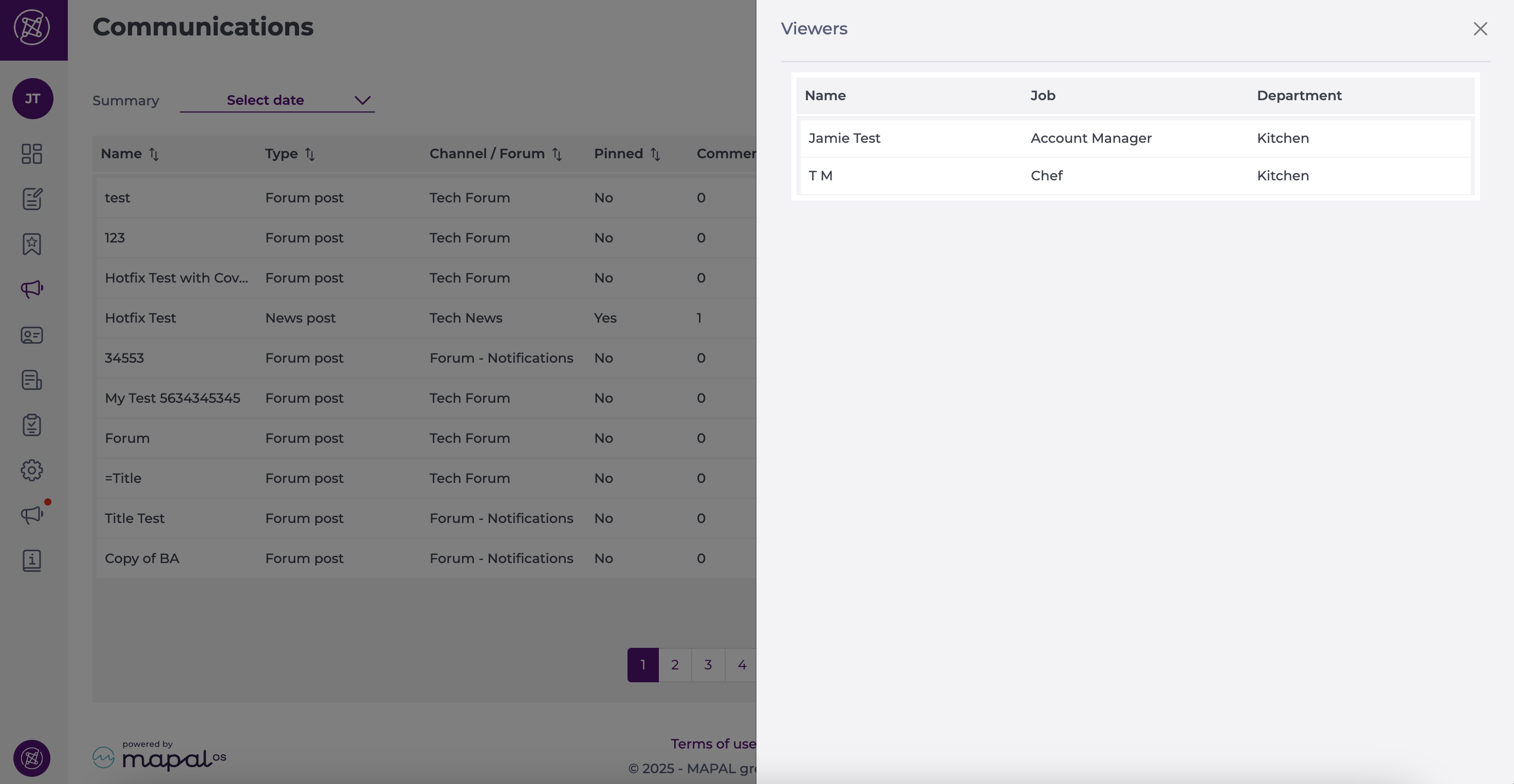
Click on the viewer count in the Views column of your selected post.
A side panel will open, displaying a detailed list of employees who have viewed the publication.
Use channels and forums effectively
Start from: The Engagement dashboard.
Navigate to Communications > Channels and forums.
Channels
Channels are spaces where only the company can publish items such as news articles from the management system. They are listed to all users, but not all users will be able to see all the contents published in it, as each news article must be configured individually, indicating its recipients by levels. Users cannot publish content in a channel, but they can like, dislike and comment on the news article if these options are set up.
Some examples of news channels you could create are 'Internal news' or 'Product news', or perhaps you could create channels to let employees know about 'Successes', 'Financial reports', etc.
Unlike channels, they allow users to publish posts (with a title, body text and optional photo/video), as well as interact with other posts by the company or other colleagues.
Access to forums is configured for a group of people and to the whole forum and its contents, rather than for individual publications. You can add or remove specific members later. Administrators can also control whether likes/dislikes are available in each forum. By default, reactions are enabled, but admins can disable them if they prefer. When disabled, existing reactions are hidden from view.
See Create a forum for more information on how to set up forums.
Viewing, editing or removing news channels and forums
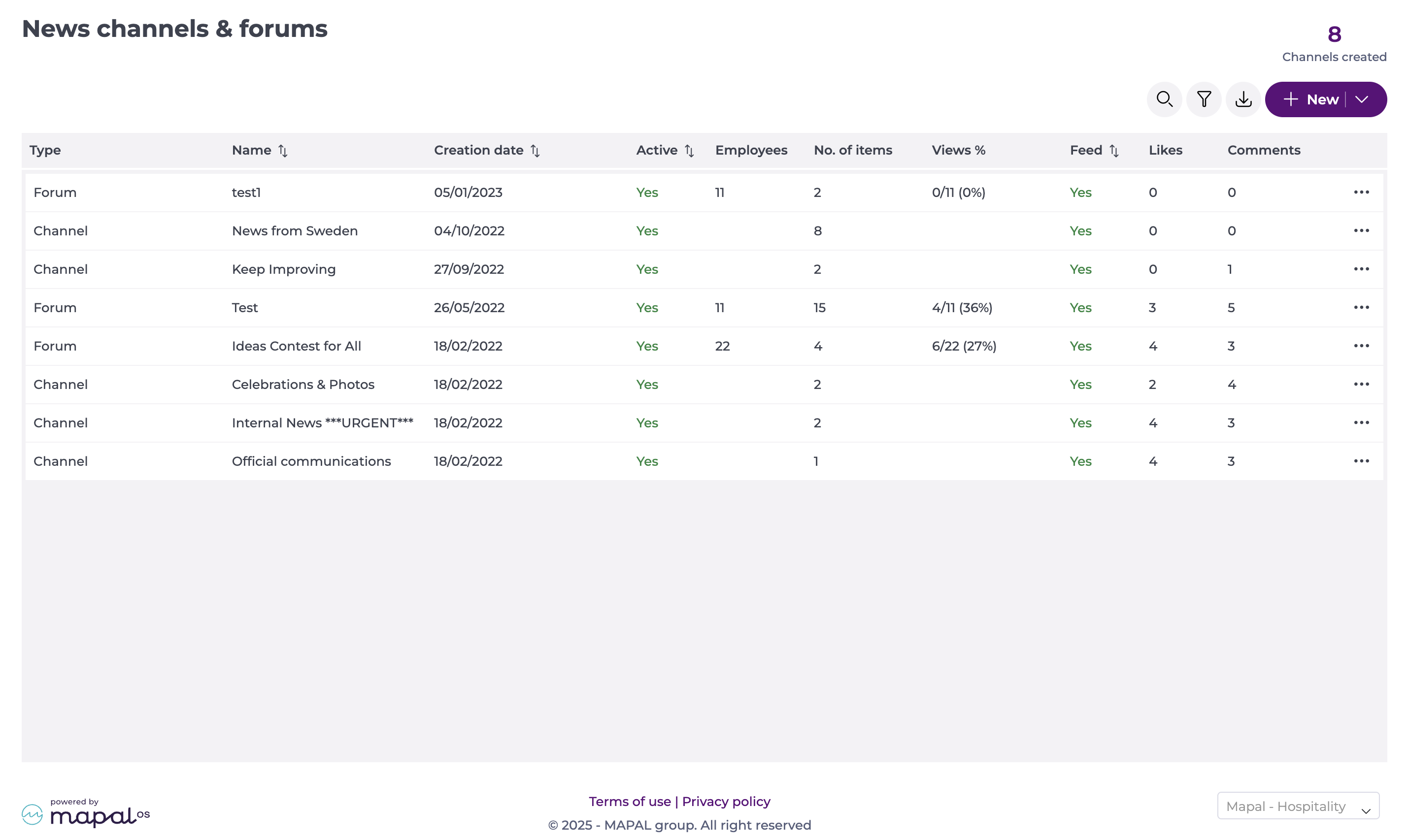
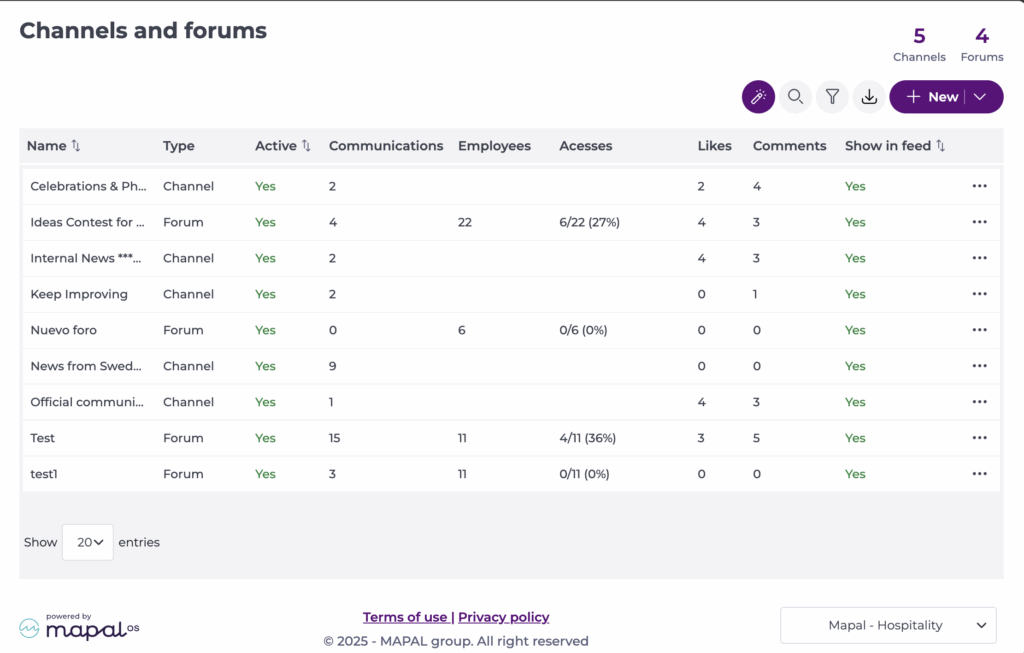
Select Communication > News channels & forums.
You’ll see a list of all news channels and forums created.
Select Actions (the three dots) next to a channel or forum to edit or remove it.
Ideas for news channels and forums
You can create channels and forums for a wide range of purposes, depending on whether you’d like employees to interact with your posts, or whether they’re purely informative. Here are some ideas on how to get the most out of this feature:
Official communications: get memos and other important official information across to all employees at once.
Repository: a place to store information or documentation that your employees can access easily and at any time. You can configure who has access to it, so employees only have access to information that is relevant to them.
Brainstorming or generating conversations: involve your team in company decisions by asking for their opinion and encouraging idea-sharing. You could even submit their ideas to a vote by asking colleagues to like their favourite idea.
Competitions: like the previous brainstorming ideas above, you could ask employees for their ideas on a topic and make a competition out of it. For example, create a forum for World Environment Day (5th June), where employees can submit their ideas for making the company more sustainable, and reward the best idea and implement it in your company.
Latest news: share interesting company news with everyone (opening of new locations, new clients, etc.)
New products or services: keep everyone up to date and aligned with your company’s product and service offering.
Protocols: a place where you can keep information on official company protocols so that employees can refer to them whenever they need. As in the repository idea, you can assign this channel to specific groups of people so the information is relevant to them.
New hires: announce and introduce new additions to the company so your employees can welcome them and get in touch.
Events: keep everyone up to date with upcoming events and share photos and videos of past events.
Recognitions and successes: give your team members the merit and recognition they deserve by sharing successes, especially if you have the Recognition or Review functionality in Engagement activated.
Check your Mapal One feed for forum updates
Start from: The Mapal One dashboard.
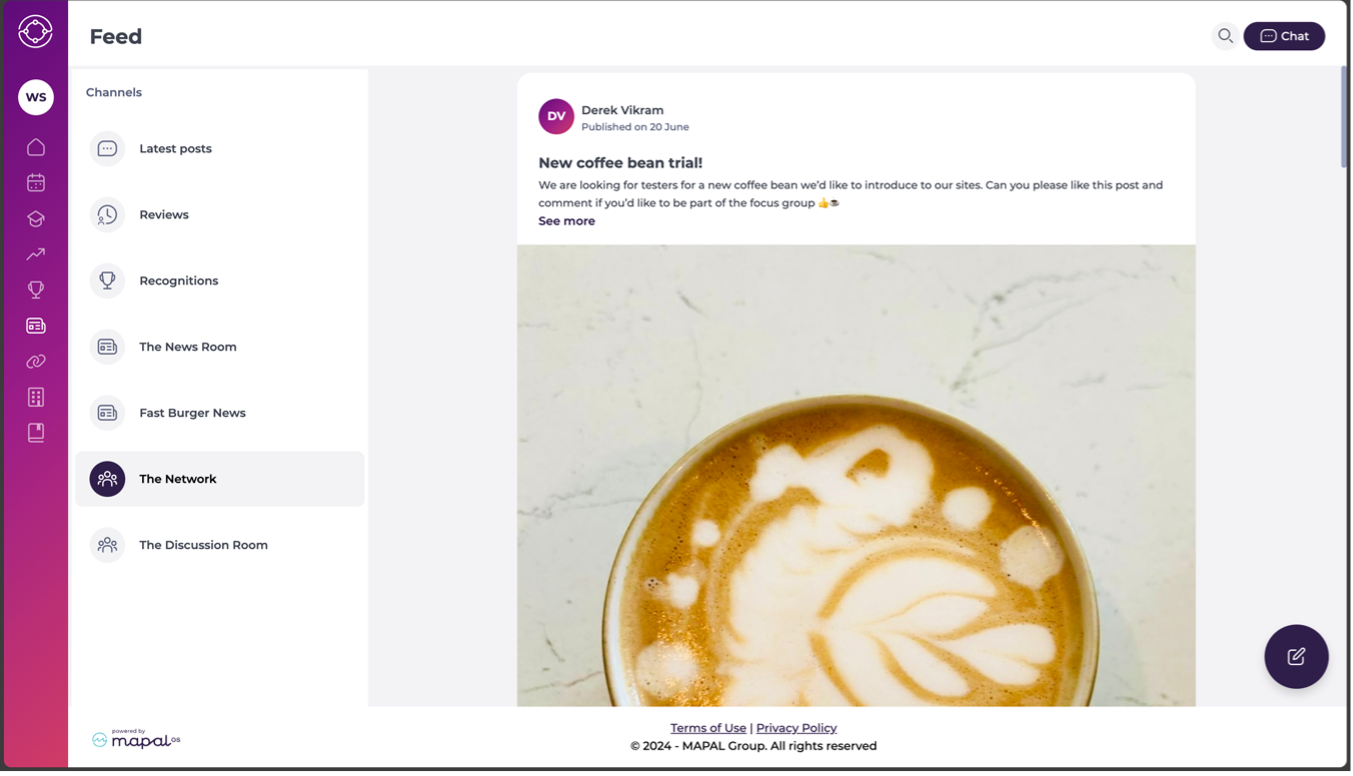
Select Feed from the main menu.
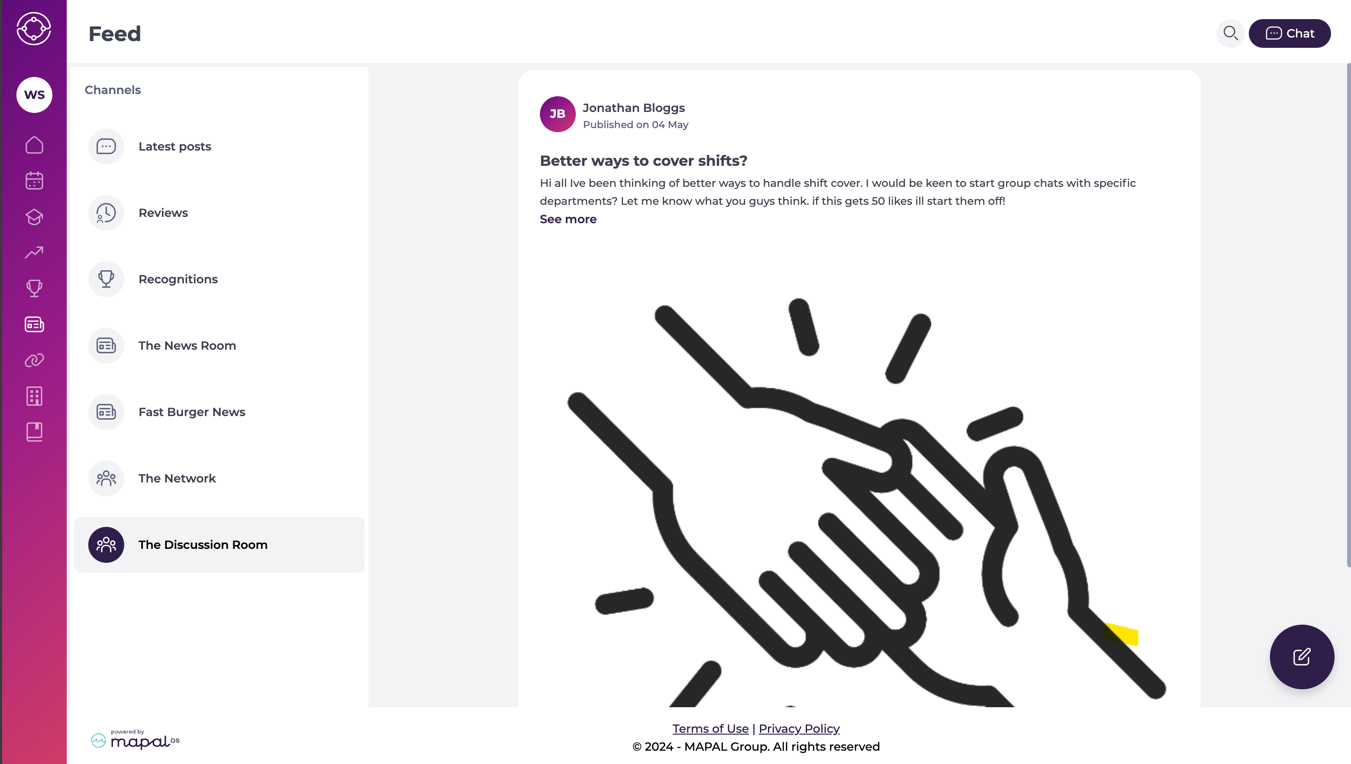
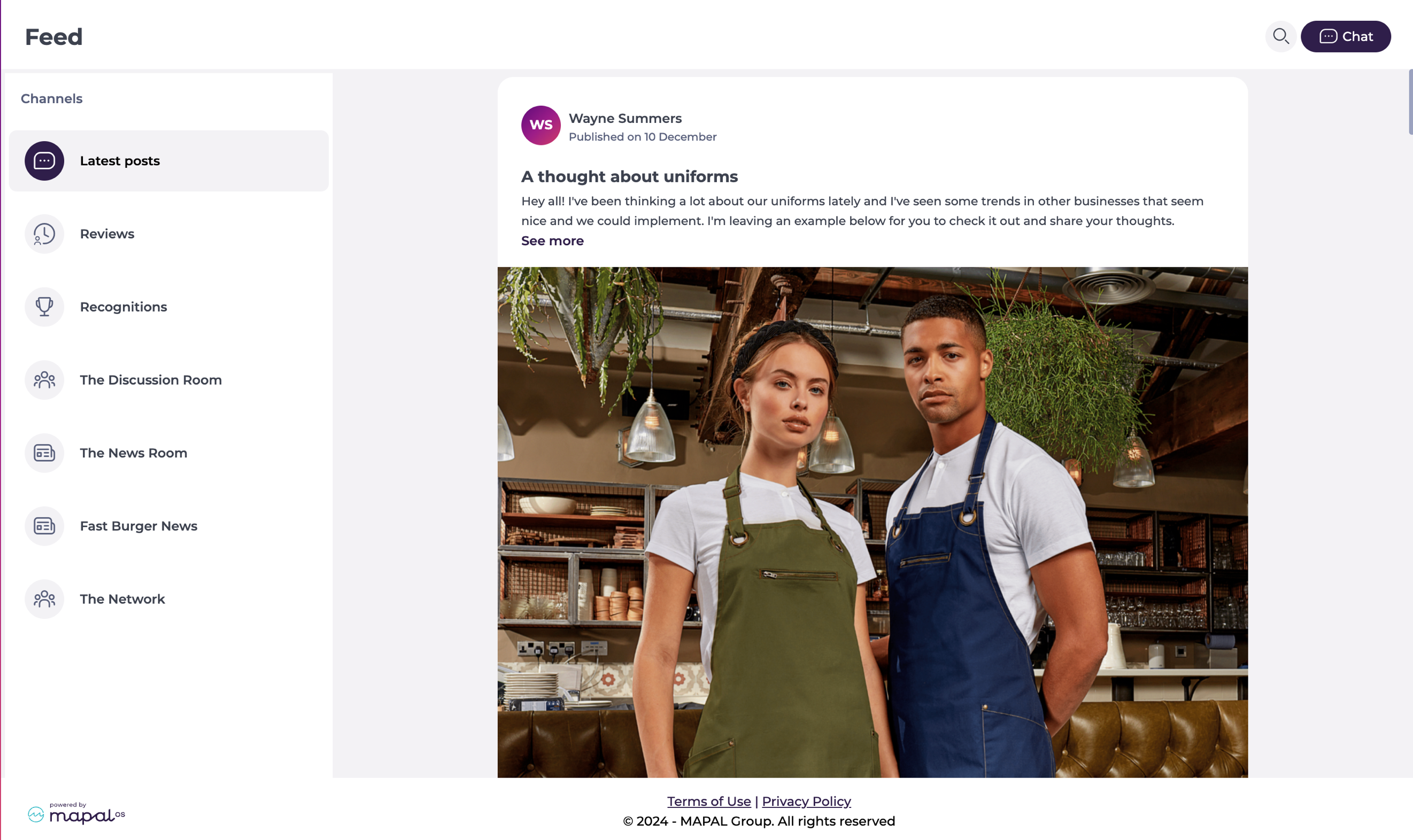
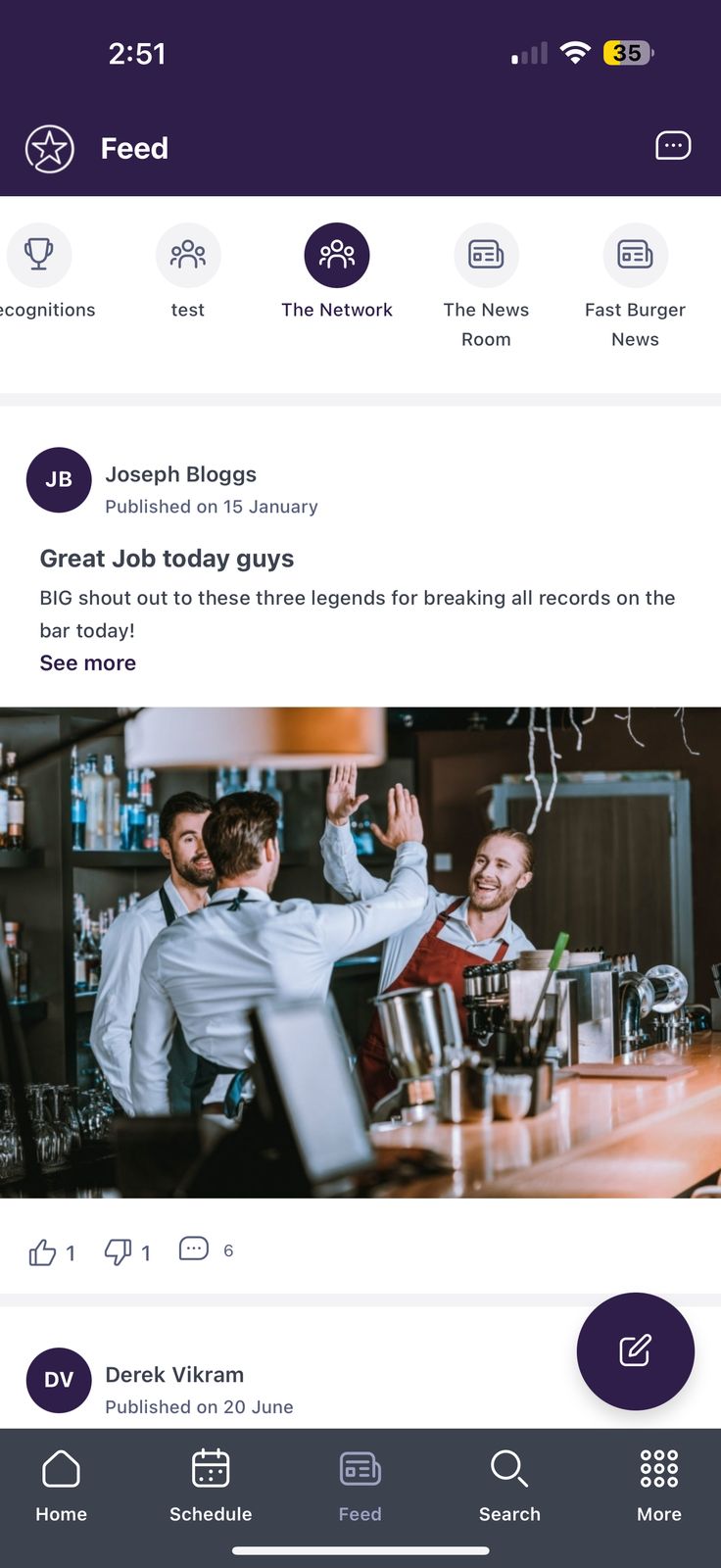
In the Feed screen, you will identify the latest items of interest across the company divided into different channels, such as news posts, forums, reviews, recognitions, and publications around custom topics, such as company areas, events, among others.
To find a Forum, select a channel from the list. Usually, Forums are identified by the icon .
You will see a feed with all the publications of that channel organized chronologically from newest (top) to oldest (bottom).
Interact with the post by using the Likes, Dislikes and Comments button below. You can see who has liked or disliked forum posts or news posts:
On desktop, hover over the Like or Dislike icon and click See all to view the full list.
On mobile, perform a long press to view the list.
Some posts will allow you to open a new window with all the details of the publication in See more. Once inside the publication, you can:
Post Comments on the item. You can use emojis, GIFs, images, and tag colleagues.
React to the content using the Like and Dislike buttons.
Download attached documents.
You can also Flag comments by selecting the three dots (...) menu and pressing Flag.
Notes: When a post has been reported, it will appear to the forum administrator. Only administrators will be able to moderate reported forum posts or comments.
Publish in the forums
You can also post in the forum by selecting the button.
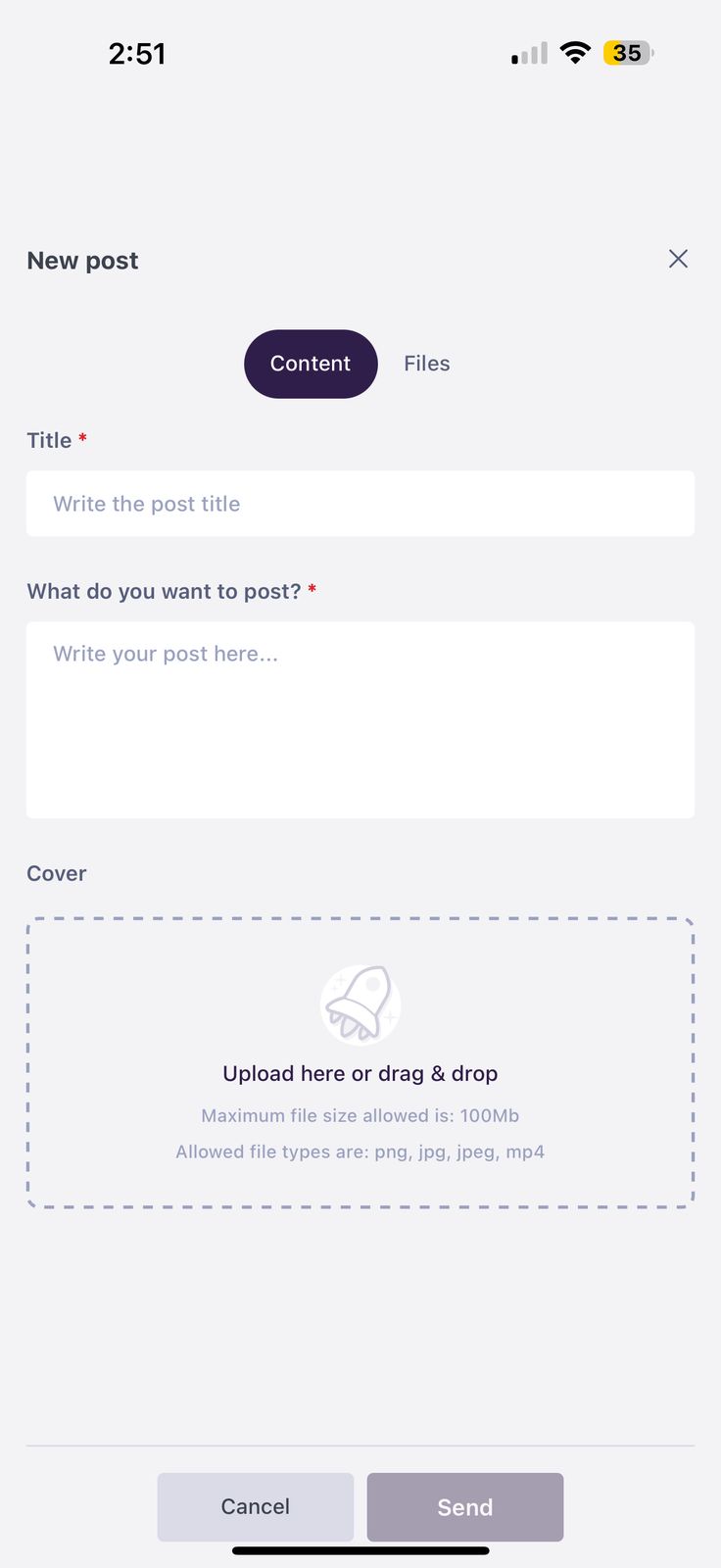
In the New post side tab, assign a Title to your post, write your post in What do you want to post?, and Upload a file if you want to.
Notes: Maximum file size allowed is 100 MB. You can post .png, .jpg, .jpeg, and.mp4 files.
Once you finish building your post, select Send to make it visible to others in the channel.
Create a forum post in Mapal One
Start from: The Mapal One dashboard.
Select Feed from the main menu.
Select the specific Forum channel where you want to create the post.
Notes: Forum channels are the ones signaled with the three people icon.
Once in the channel, select the pencil button at the bottom right corner.
This will open the New post sidebar. Here, you will have two tabs:
Content
In this tab, you will define the key details of your post. The required fields are:
Title*: Enter a clear, engaging title that describes your post and captures attention.
What do you want to post?*: Write a message about the topic you want to discuss. Use this space to encourage conversation and engagement with your team.
Upload fileAttach a file from your device to support your post. Accepted formats include PNG, JPG, JPEG, and MP4.
NoteFields marked with * are mandatory.
Files
Use this tab to upload additional files that your team can download for reference.
The maximum file size per upload is 100MB.
Supported file types include .pdf, .doc, .docx, .xls, .xlsx, .ppt, .pptx, and .csv.
Once you have finished setting up your post, select Send to publish it on the feed.
Your post will now appear in the Forum where you published it, and in Latest posts for those who are part of that channel. Once the post is published, users can:
React to them.
Comment on them.
If an image is attached, they can tap on it to open a zoomable preview for better visibility.
Download engagement metrics for posts and news
Start from: The Engagement dashboard.
Navigate to Communications > Publications from the main menu.
View metrics for news and posts
Locate the news post or forum post you want to analyze.
Click on the Action menu (three dots) next to the item.
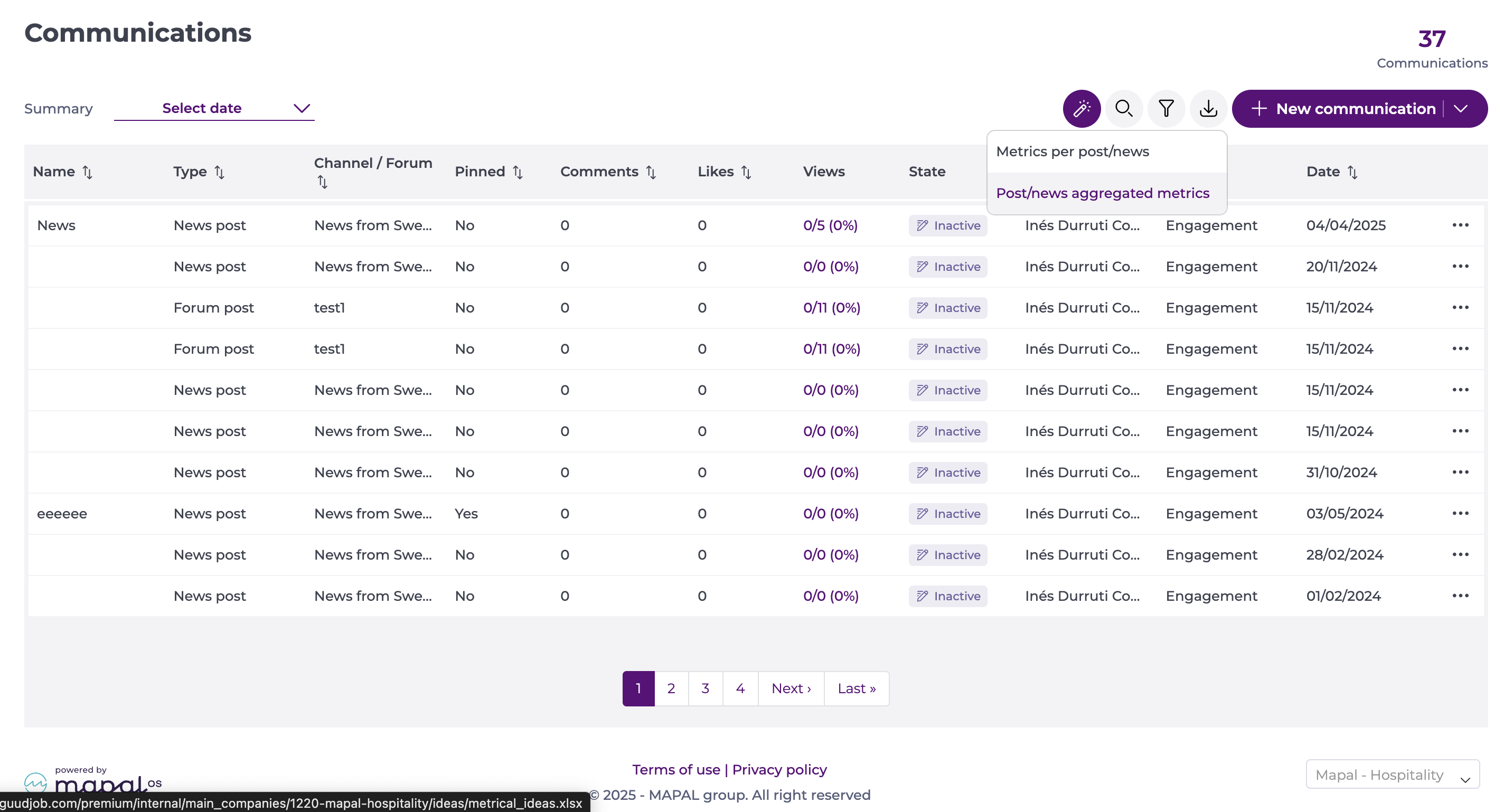
Select Metrics per post/news from the dropdown.
The report will be sent to your email as an Excel file, allowing you to review detailed engagement data.
View aggregated metrics
Navigate to Communications > Publications from the main menu.
Select the Export button at the top of the grid.
Select Post/news aggregated metrics from the dropdown menu.
You will receive an Excel report by email showing overall figures for engagement across posts, including:
Total number of communications sent
% views per statement
% engagement per release
Notes: Exports in Engagement use locale-aware separators for CSV-style data. This means the file will use commas or semicolons depending on your browser language and regional settings, ensuring the data opens correctly in your local spreadsheet tools.
Create a forum post in Engagement
Start from: The Engagement dashboard.
Navigate to Communications > Publications.
Select + New Communication > In Forum.
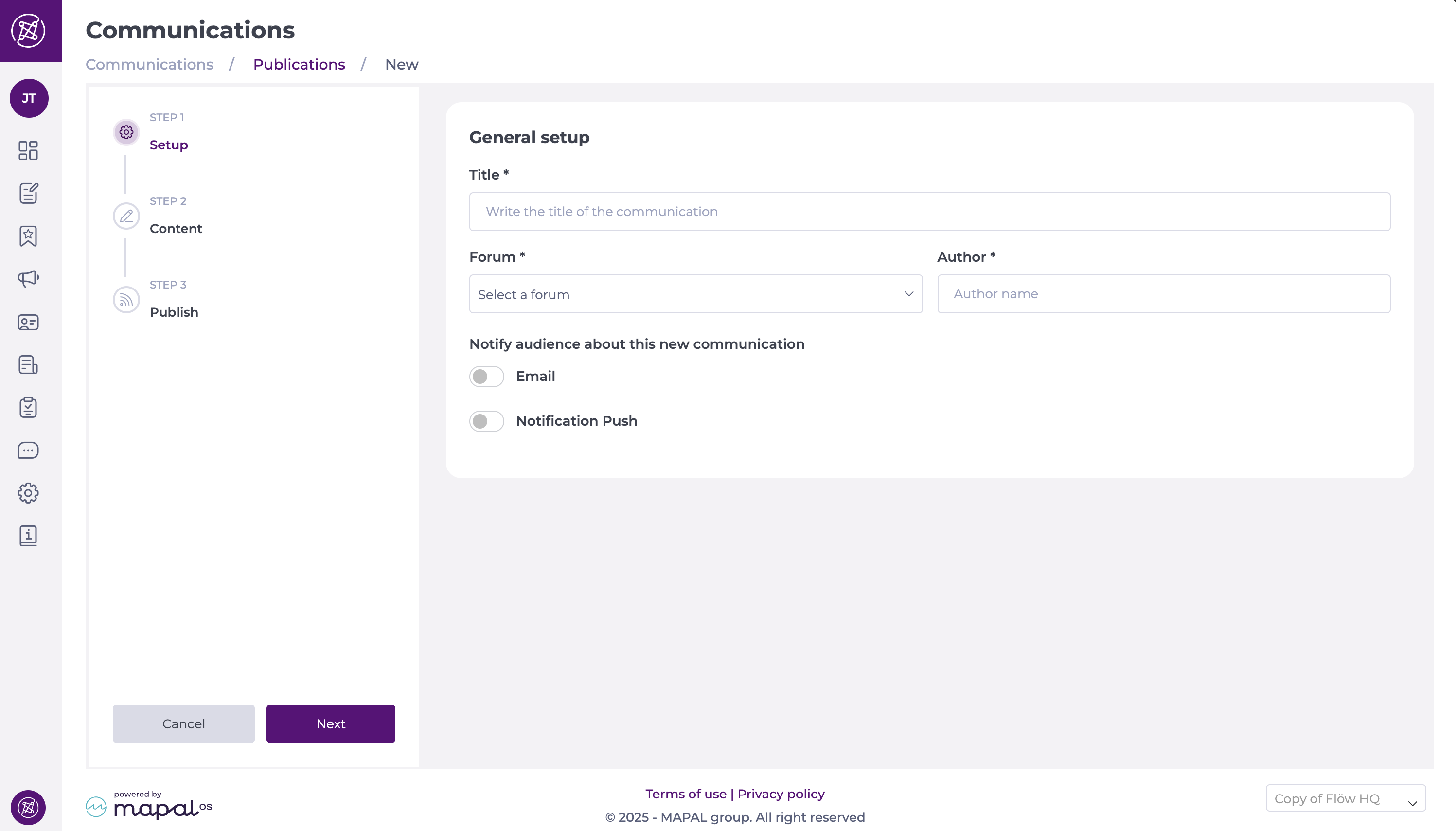
STEP 1 - Setup
Assign a Title* to your forum post.
Select a Forum* from the dropdown list. This is where the post will be published.
Assign a name to the Author*.
Select if you want to Notify the audience about this new communication. You can notify by Email or Push notifications.
Select Next.
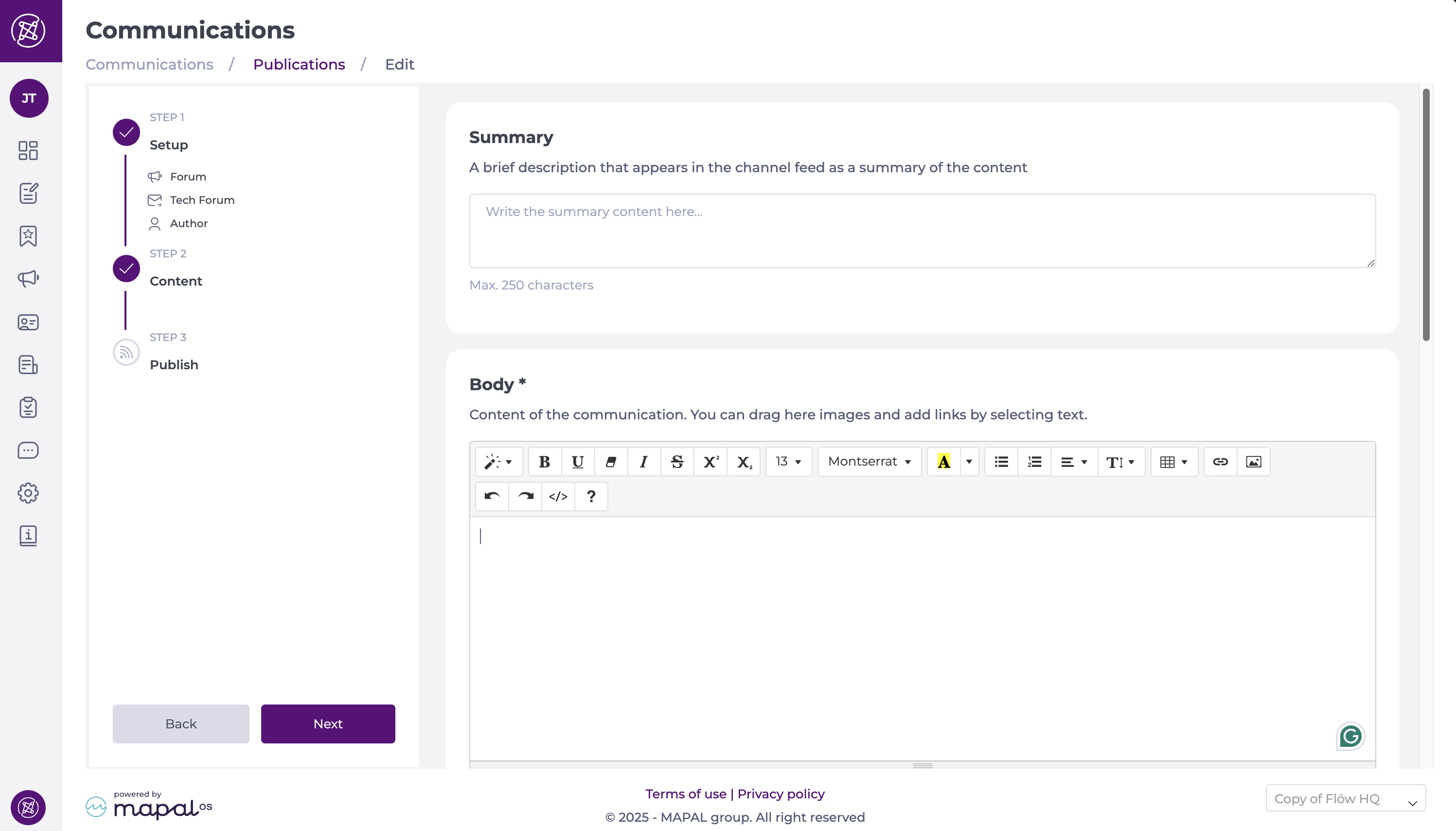
STEP 2 - Content
Write a Summary of your post. This summary can be 250 characters max.
Write the content of the communication in Body*. You can drag images and add links by selecting text.
Select Cover images for your post. You can upload one or multiple images.
Notes: For the best display, we recommend using an image with dimensions between 1024x640 pixels and 800x500 pixels. Please note portrait-oriented images will only display fully in the Mapal One feed. For tiles and carousels, portrait images will be automatically cropped to a 16:9 landscape format, focusing on the center of the image. A maximum of 10 images can be added. The first image added will be used on the tile and carousel in Mapal One.
Upload Attachments if needed. You can upload PDF, DOC, DOCX, CSV, XLS, and XLSX files of 10MB max.
You can upload or embed a Video if needed.
Notes: You can only add one video (by uploading or by embedding). Once you add a video in one way, the other way will be blocked. For the embed option, only valid URLs with https:// are accepted. MP4 filetype is required, maximum 100MB.
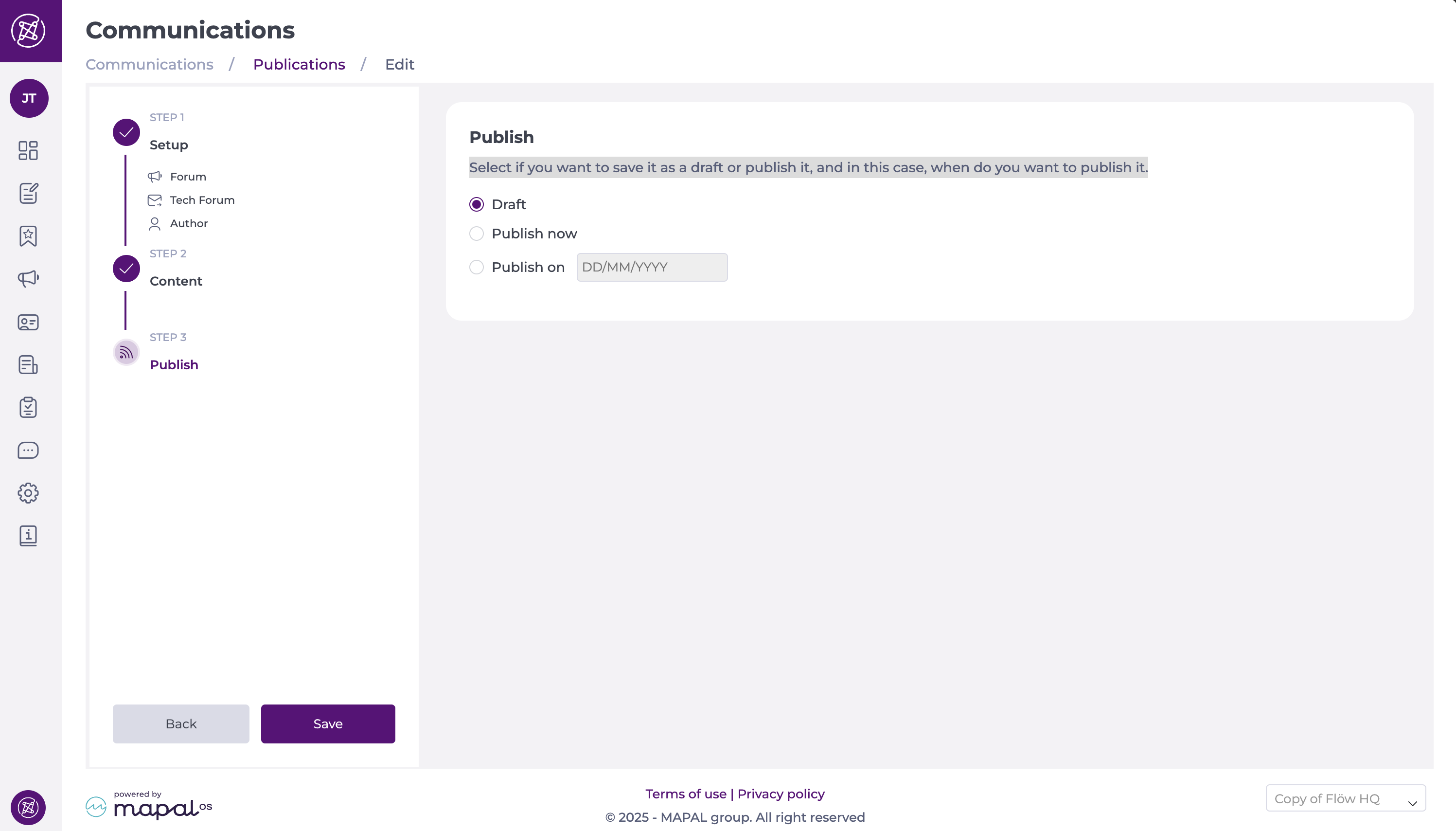
STEP 3 - Publish
Select if you want to save it as a draft or publish it, and in this case, when do you want to publish it.
Note: By default, scheduled posts and surveys will publish at 9:00 AM local time (based on the user’s timezone).
Once your post is created, readers will be able to see it on the selected Forum on their Mapal One Feed.
Create a news channel
Start from: The Engagement dashboard
What are news channels?
News channels are communications designed for companies to broadcast information to employees. Channels are listed to all users, with the ability to control access to news articles - this ensures that access to content can be granted on a per-user basis.
Non-administrators are unable to publish content to channels, but they can interact by liking, disliking and commenting on news articles. These interactions can be enabled on a per-article basis.
News channels can be used in a variety of ways: from business updates like 'Internal news', 'Product news', or 'Financial reports'; to culture updates like 'Celebrations' or 'Social events'.
Create a news channel
Select the Communications tab on the left side menu.
Select News channels & forums.
On the top right, select the Create channel button.
From the Type of resource drop-down, select News channels.
Toggle whether the channel is Active or not (you can activate or deactivate at any time)
Toggle whether the channel will Show in feed.
Add the name of your channel in Resource name.
Specify the correct Language for your channel from the dropdown.
Select + Add translation to add further language versions to your channel.
Select Save.
Manage a forum
Start from: The Engagement Dashboard.
Select Communication > News channels & forums.
Select + New > Forum.
Creating a forum
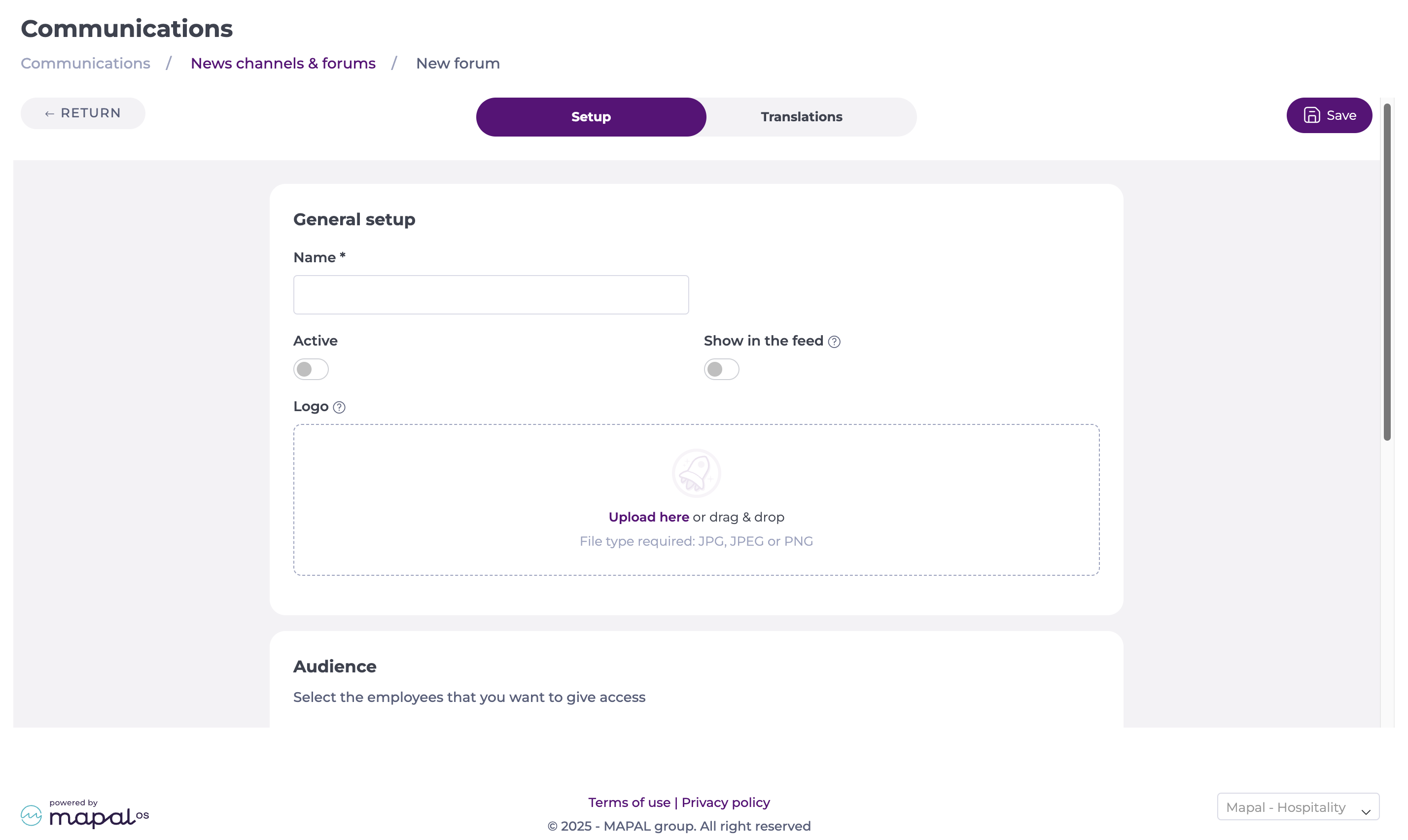
General Setup
This section allows you to provide the general setup for your new forum, such as the name, visibility, and avatar.
Name*: Enter the forum name.
Active: Toggle on to activate the forum.
Show in the feed: Toggle on to make the forum visible in the feed.
Notify the audience: Toggle on to notify members about Mapal One posts in this forum.
Reaction controls: Toggle on/off to enable or disable likes/dislikes for posts in this forum.
By default, reactions are enabled.
If disabled, the reaction buttons are hidden, and existing reactions will no longer be visible.
Only administrators with the appropriate permissions can change this setting.
Logo: Upload an avatar image for your forum.
Max size: 40x40.
Supported formats: JPG, JPEG, PNG.
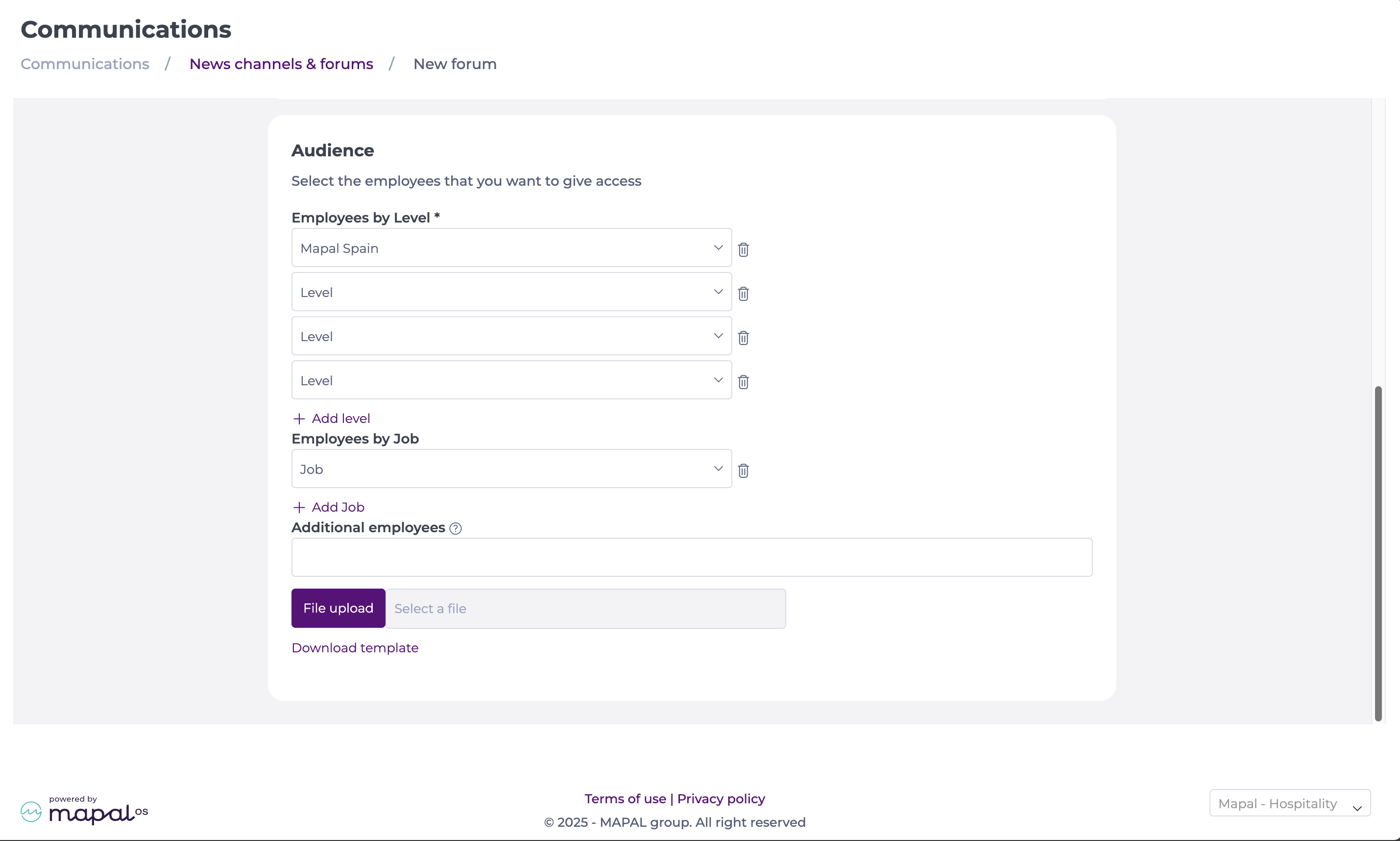
Audience
Here, you will be able to set up the employees you want to give access to this forum.
Select the Employees by Level*. You can add different levels as needed.
Note: Select Remove if you make a mistake when adding a section.
You can then select Employees by Job on the levels previously set up.
Note: You can select multiple Job Roles at the same time. You can also deselect as needed.
You can also add Additional Employees beyond the selected levels. Search them by name and select them from the dropdown list.
Notes: Additional employees can be added in batch by uploading a file. The template is available by selecting Download template.
Translations
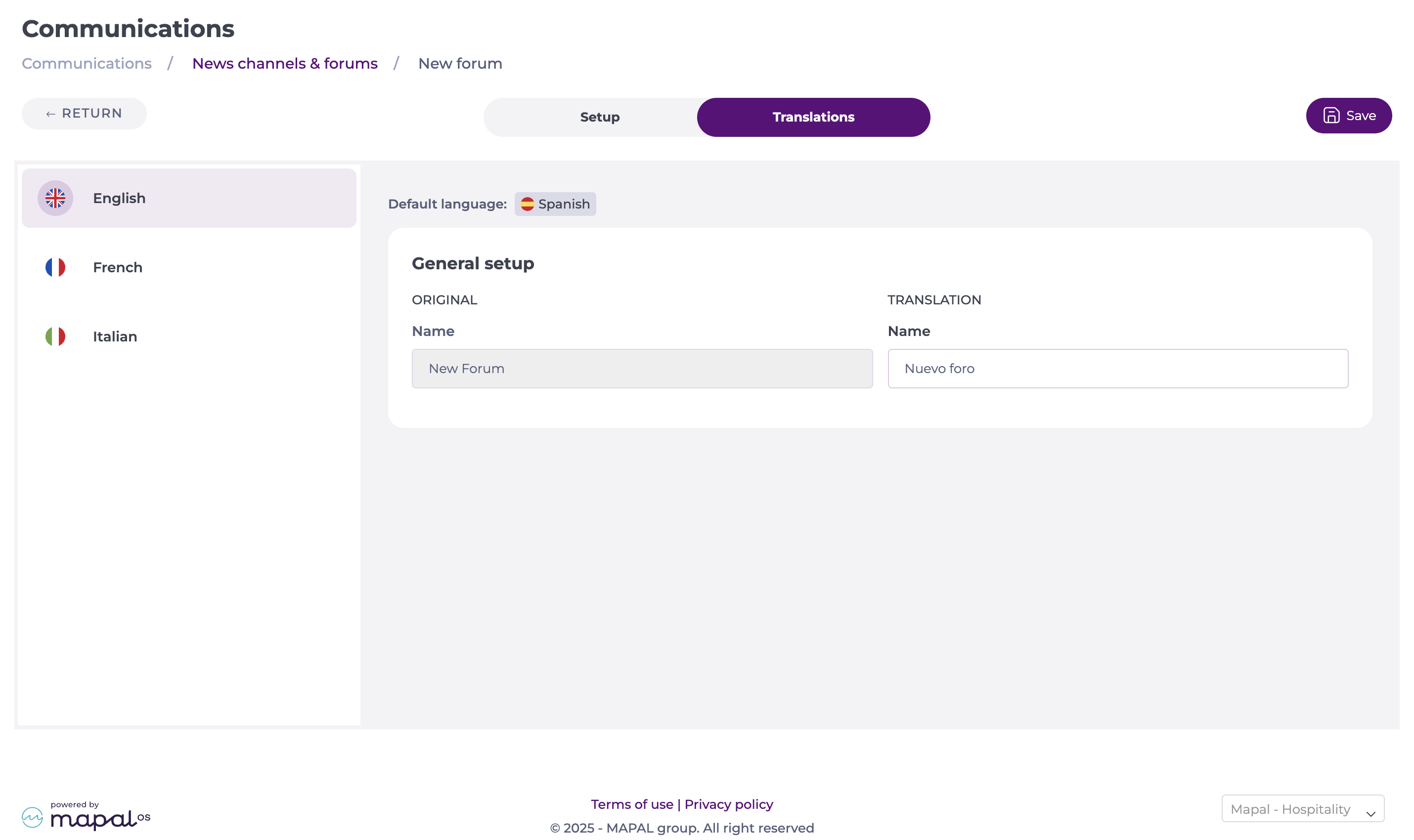
You can translate the forum title into multiple languages. The available languages by default are English, Spanish, French, and Italian.
Select the Translations tab.
Add and review the translations.
Select Save.
Managing a forum
Manage an existing forum
To manage an existing forum:
Go to Communication > News channels & forums.
Locate the forum you wish to manage.
Select the action menu (...) and select the option you with to take:
Edit to make changes to the forum.
Delete to permanently remove the forum.
You can modify forum settings, audience, translations, and notification preferences. Changes will apply immediately unless noted otherwise.
Managing notifications
Administrators can control how users are notified of forum activity.
Navigate to the desired forum and select Edit.
Under General setup, toggle Notify audience about Mapal One posts in this forum. Notification options are:
Email
Push Notification
These settings apply to all posts in that forum unless overridden at the post level. Admins can still manually override notification preferences on a per-post basis, allowing targeted control where specific posts need wider visibility.


 .
.
 button.