Workforce Sales API

The Sales API is a RESTful service for secure server-to-server integration.
It allows you to:

Quick Start

Here’s the typical workflow in five steps:

1. Generate a JWT token

curl -X POST https://login.mapal-os.com/connect/token \
-H "Content-Type: application/x-www-form-urlencoded" \
-d "grant_type=password&username=<your_username>&password=<your_password>&client_id=wf_wap_tp&client_secret=<shared_client_secret> "

2. Start an import session

curl -X POST https://api.workforce.mapal-os.com/sales/api/v1/import \
-H "Content-Type: application/json" \
-H "Authorization: Bearer <token>" \
-d '{ "unitId": 9, "businessDay": "2025-02-06" }'

3. Import sales data (example: total sales)

curl -X POST https://api.workforce.mapal-os.com/sales/api/v1/import/1/total-sales \
-H "Content-Type: application/json" \
-H "Authorization: Bearer <token>" \
-d '{ "TotalSales": [ { "CurrencyId": "EUR", "NetSales": 250, "GrossSales": 270, "NumChecks": 2, "NumGuests": 3, "SalesTypeId": "TAKE", "SalesType": "Takeaway" } ] }'

4. Finish the import session

curl -X POST https://api.workforce.mapal-os.com/sales/api/v1/import/1/finish \
-H "Authorization: Bearer <token> "

5. Retrieve sales data

curl -X GET "https://api.workforce.mapal-os.com/sales/api/v1/business-unit/9/net-sales?start=2025-02-06&end=2025-02-06" \
-H "Authorization: Bearer <token> "

Authentication

The API uses JWT (JSON Web Token) for authentication.

Import Workflow

Endpoint Reference

All endpoints are under: https://api.workforce.mapal-os.com/sales

Sales Retrieval

Import Workflow

Import Endpoints

Error Handling

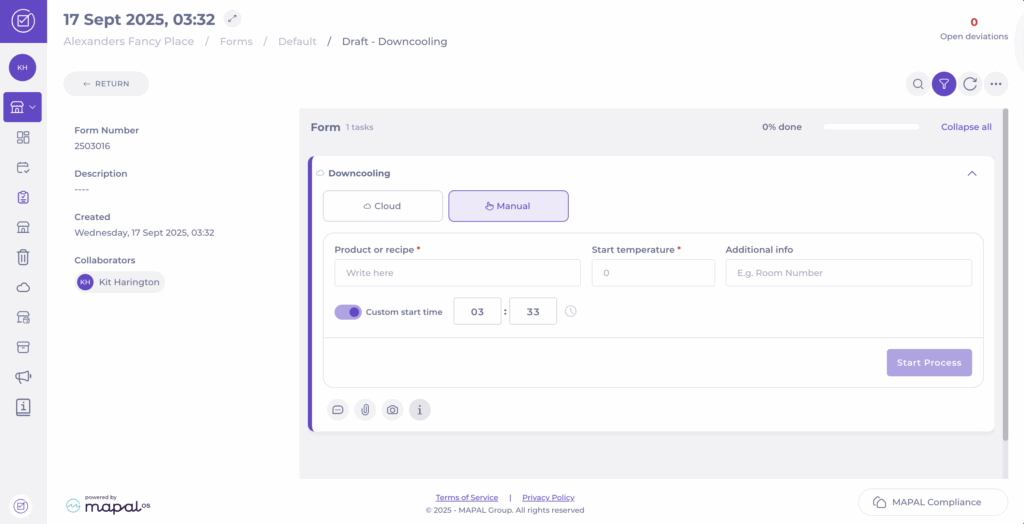
Manually record downcooling data in a form

Start from: The Compliance local overview.

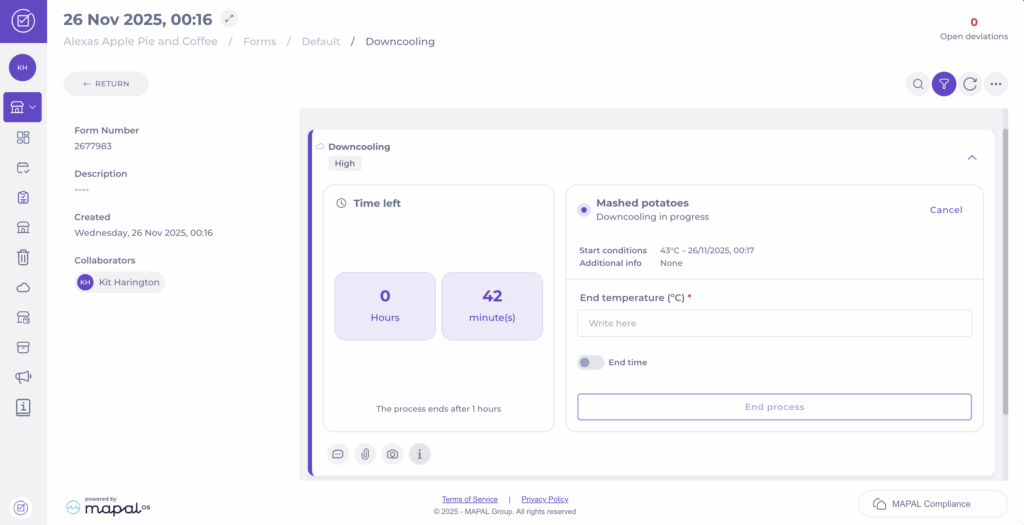
Note: Downcooling forms must be specifically created for that purpose. For more information, see Create a downcooling form.

Note: You can optionally toggle End time to enter the specific time when the process finished. If you leave this off, the system will use the current time as the end time.

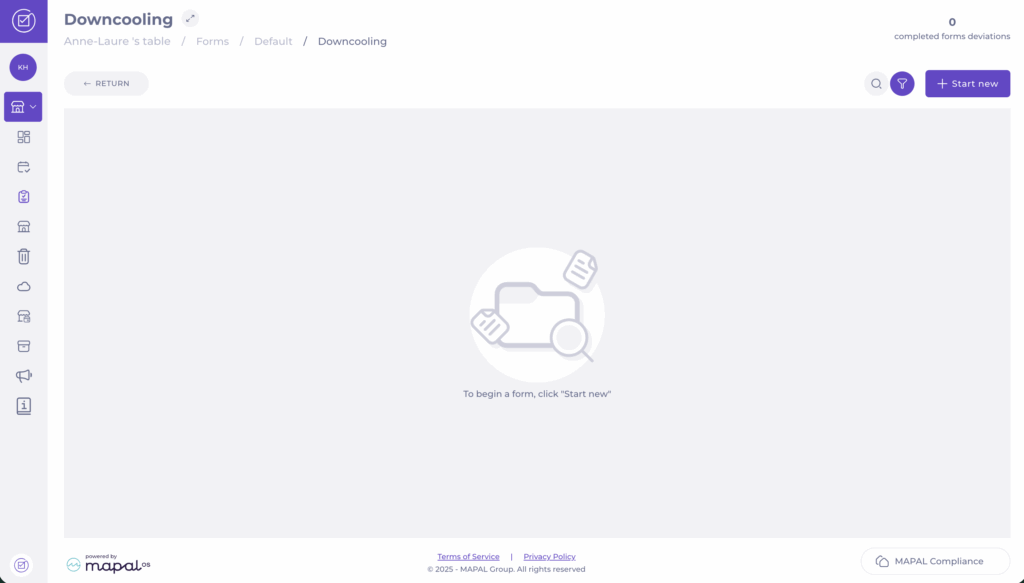
View recorded downcooling data

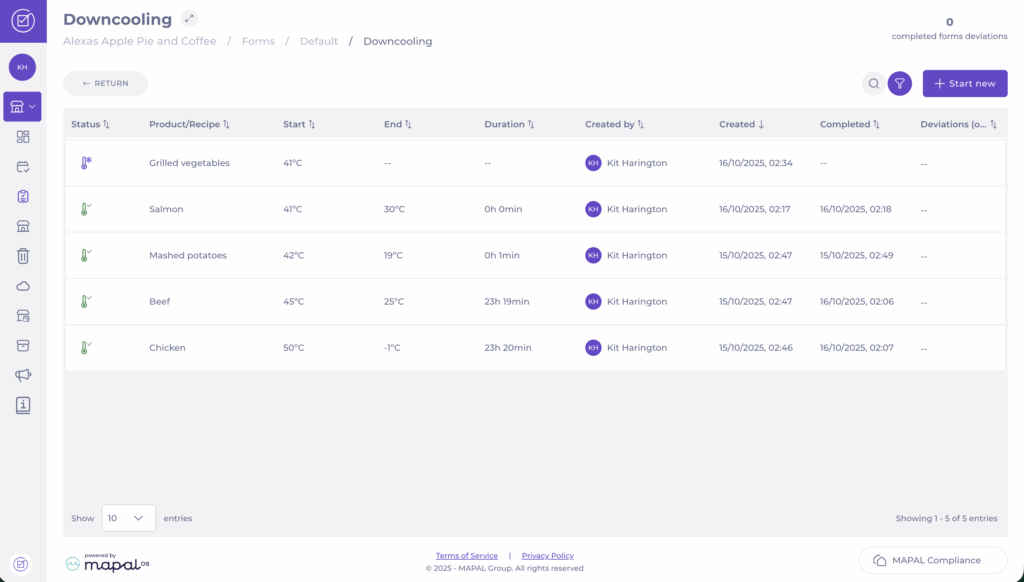
After saving, the process appears in the Downcooling grid for that form. To access it:

Here, you can view all recorded downcooling tasks, including:

This dashboard view gives managers a quick summary of all completed or ongoing downcooling processes and highlights any items linked to deviations.

Note: If a downcooling task raises a deviation, it will appear in your Compliance deviation reports. For instructions on how to review and close these, see Respond to deviation reports.

Connect to Google My Business

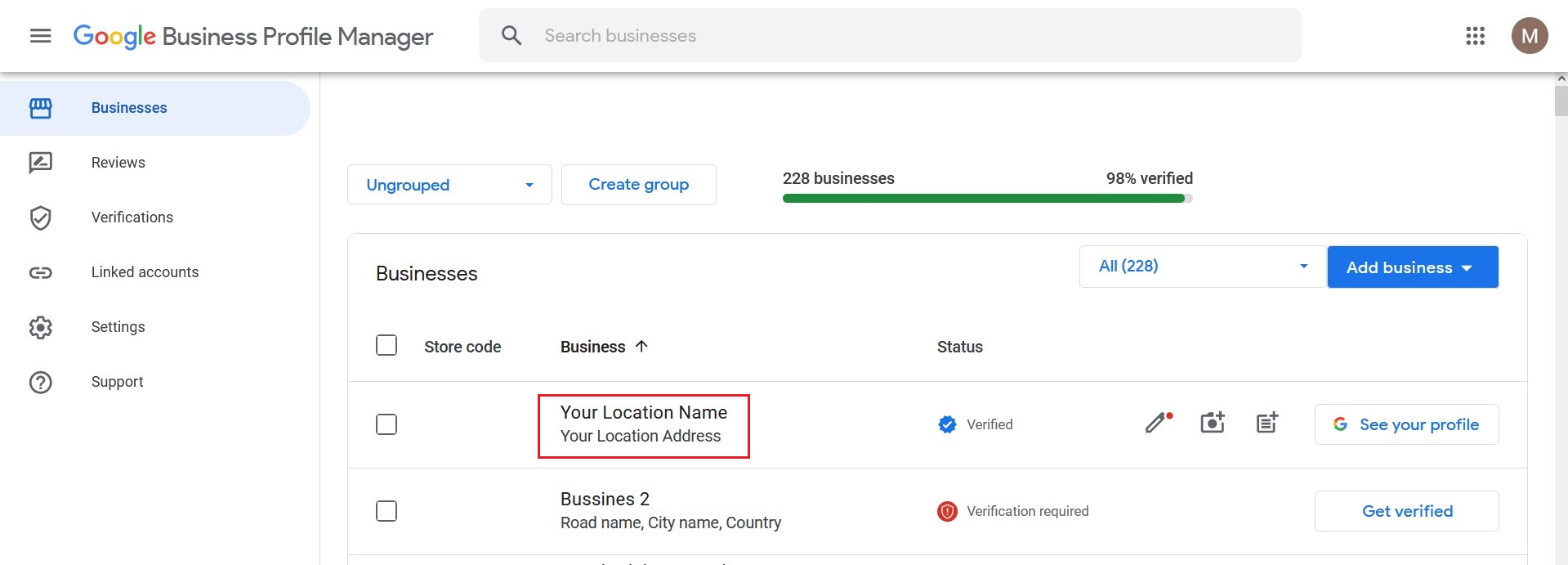
Start from: Google My Business.

Interfaz de usuario gráfica, Texto, Aplicación, Correo electrónico<br><br>Descripción generada automáticamente

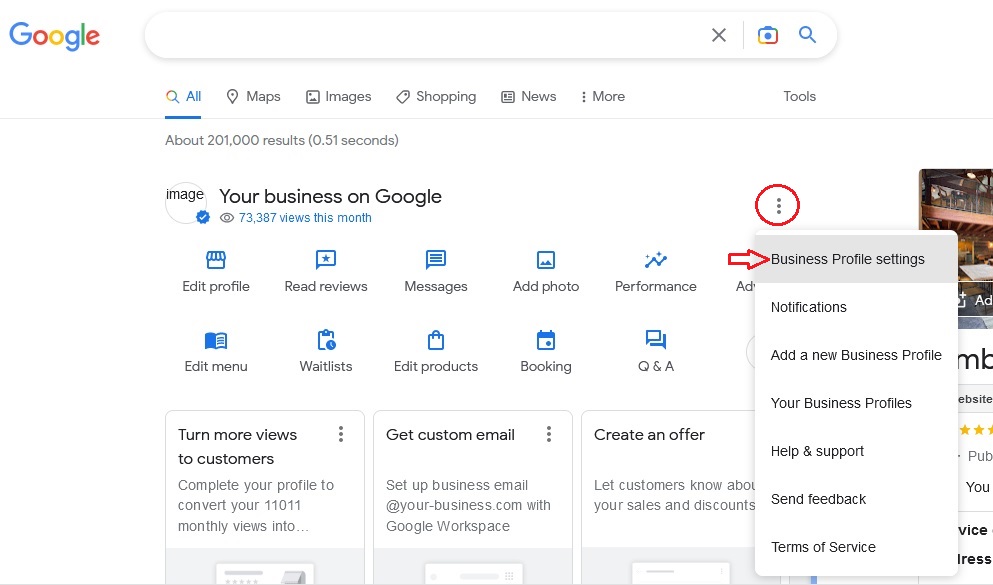
  • Select the 3 dots menu and locate Business Profile Settings.

Interfaz de usuario gráfica, Aplicación, Correo electrónico<br><br>Descripción generada automáticamente

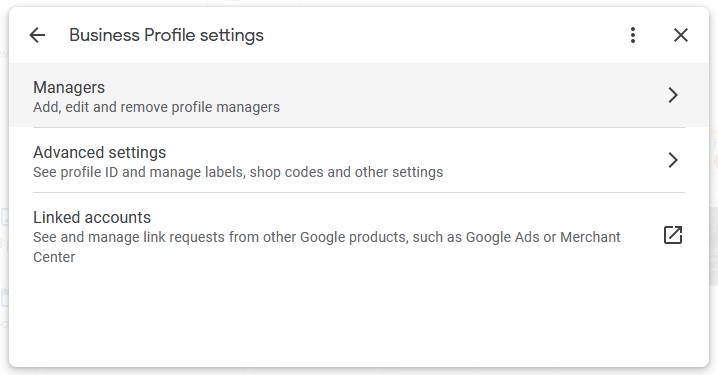
Interfaz de usuario gráfica, Texto, Aplicación, Correo electrónico<br><br>Descripción generada automáticamenteInterfaz de usuario gráfica, Texto, Aplicación, Correo electrónico<br><br>Descripción generada automáticamente

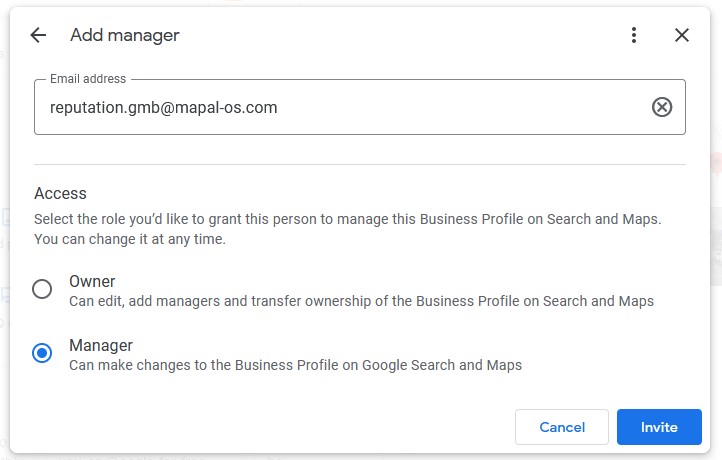
  • Once you add Reputation as user to your location, go back to the Reputation module in Mapal OS.

  • Your business will now appear in the Business Units table. When the location is linked, it is displayed with the red Google icon.


Notes: To properly link the location to Reputation, you need to have the location verified in Google My Business. See Verify your business on Google.

Offline mode in Smarthub

Start from: The main screen of Smarthub.

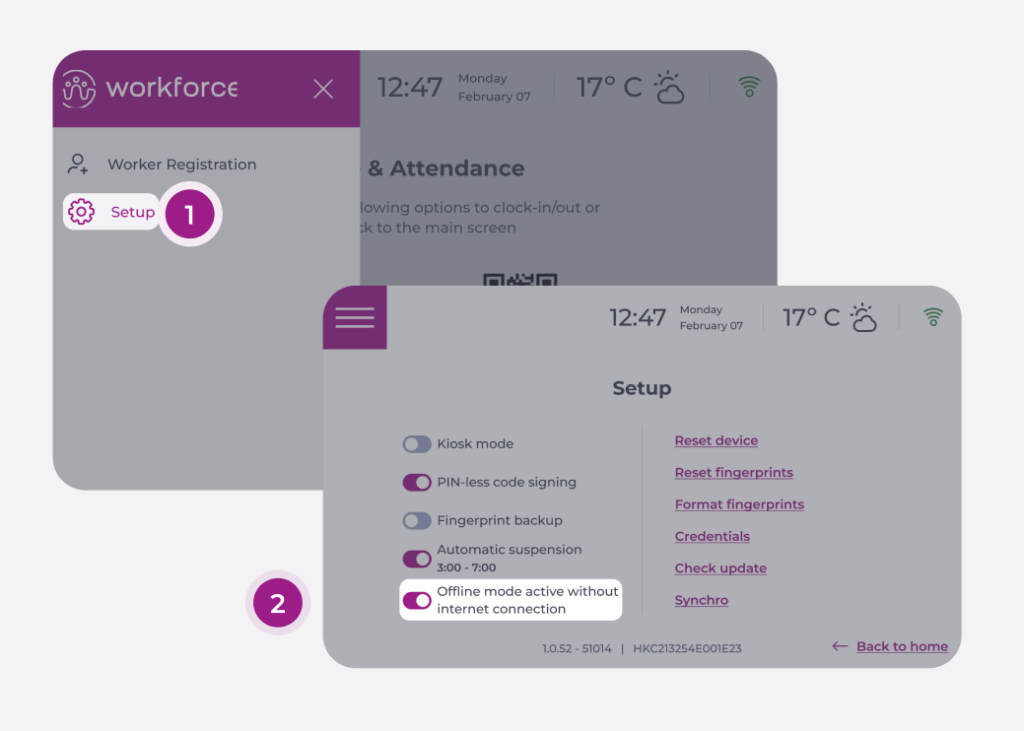
Notes: Only users with roles that allow access to the settings screen will be able to access this option.

Once the offline mode switch is enabled on the Smarthub settings screen, it will be ready to switch between offline and online modes depending on the internet connection status.

When offline mode is enabled

Important recommendations

Keep in mind that although offline mode is a viable solution, you should explore other options before using it directly.

If your case is:

  1. I have a stable internet connection: Use Smarthub with the offline mode switch disabled.
  2. I experience occasional interruptions or micro-outages in the internet connection: Use Smarthub's enhanced connection retry functionality. This will allow you to work smoothly with Smarthub's offline mode disabled.
  3. I experience prolonged internet outages and my employees use GIR Staff: The dynamic QR code on the Smarthub home screen can work without an internet connection. We recommend instructing your employees to use Gir Staff to log in using the QR code when there is no internet connection.
  4. I experience prolonged internet outages and my employees do not use GIR Staff: It is recommended to enable the Smarthub offline mode switch.

        Manage API connections in Compliance

        Start from: The Compliance overview.

        The API Connections page provides an interface for integrating external systems with the Compliance platform. For example, customers using automatic sensors to monitor refrigerator and freezer temperatures can connect these sensors via the API. This ensures real-time data capture, automating tasks like temperature monitoring without manual intervention. Additionally, API connections can integrate with Business Intelligence (BI) systems for advanced analytics and reporting.

        Adding a New API Connection

        Note: Ensure all fields are filled correctly, as they are mandatory for the connection to function.

        Managing API Connections

        Once added, the API connection will appear in the API Connections list. From this page, you can use the Actions menu to:

        Upload learners (as a batch)

        This article shows you how to create a CSV spreadsheet in the correct format so that you can upload multiple learners at once. This function can also be used to update existing trainees.

        Note: This is only possible for companies using the platform manually.


        Starting from: The Flow Dashboard.

        • Select Company > User Settings to open the Configure screen.
        • Locate Import Staff on the Configure screen.

        • Select Settings.

        A pop-up will appear with information on how to Import trainees or update existing trainees from a CSV file.

        • Select Download a template CSV file from the link within the pop-up to see how a CSV file needs to be laid out for the upload to work properly.

        • Select View Upload Tips for further information on uploading the CSV File.

        • Select Download the existing trainees from the link within the pop-up to download existing trainees on the system - you can then edit the existing trainee's information, add new trainees to this file and use this as your master file.

        When your CSV file is ready to upload:

        • Select Choose file to locate the CSV file from your desktop.

        Once you have uploaded it successfully, you must run a test upload to make sure the file will work.

        • Select the Allocate training toggle to off, to import trainees without allocating training.

        • Select the Test feed toggle switch to on, then Select Save. This will test the validity of the data in the CSV file without importing anything.

        If the test feed is successful a notification will let you know. However, If the test is unsuccessful you will have to remove the uploaded CSV, fix the errors, re-upload the amended file and run the test again.

        Only when the CSV file is correct:

        • Select the Allocate training toggle switch to on, to import trainees and allocate training. This will send out training instructions to all staff on the CSV import. 

        Note:You can upload trainees without allocating training, if you wish to do this switch the toggle to off.

        • Select the Test feed toggle switch to off.
        • Select Save. This will result in the trainee data from the CSV file being uploaded to the platform.

        src="src="src="src="src="src="

        Understanding the features of the Imports/Exports screen

        Note: actions performed on the Easilys platform are subject to user access permissions. If you are unable to carry out the actions described in the articles, it may be because you do not have the necessary permissions activated on your user profile. Contact the Support team, or your administrator, for help.


        Start from: The Easilys menu.


        Principle of the Imports/Exports screen

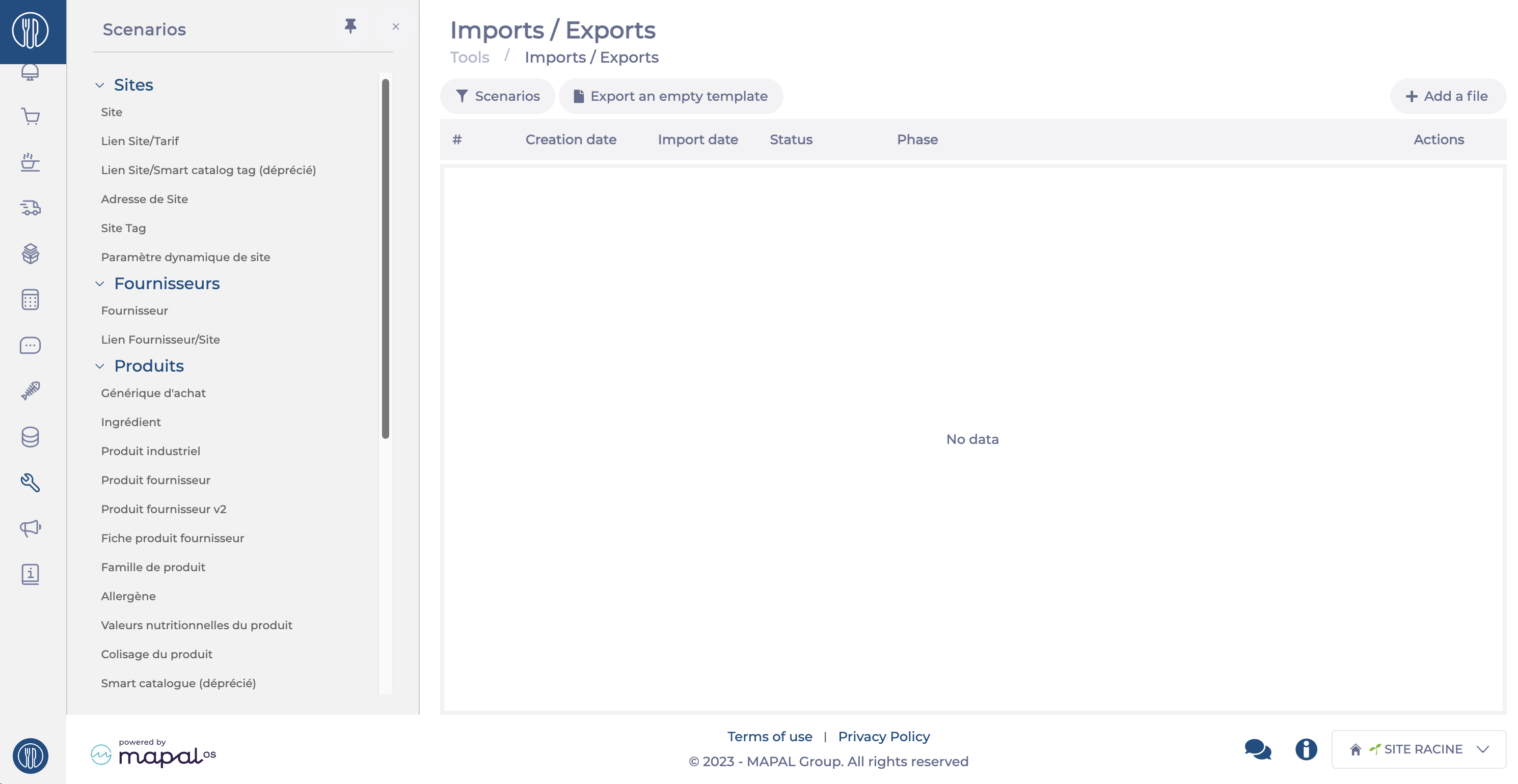
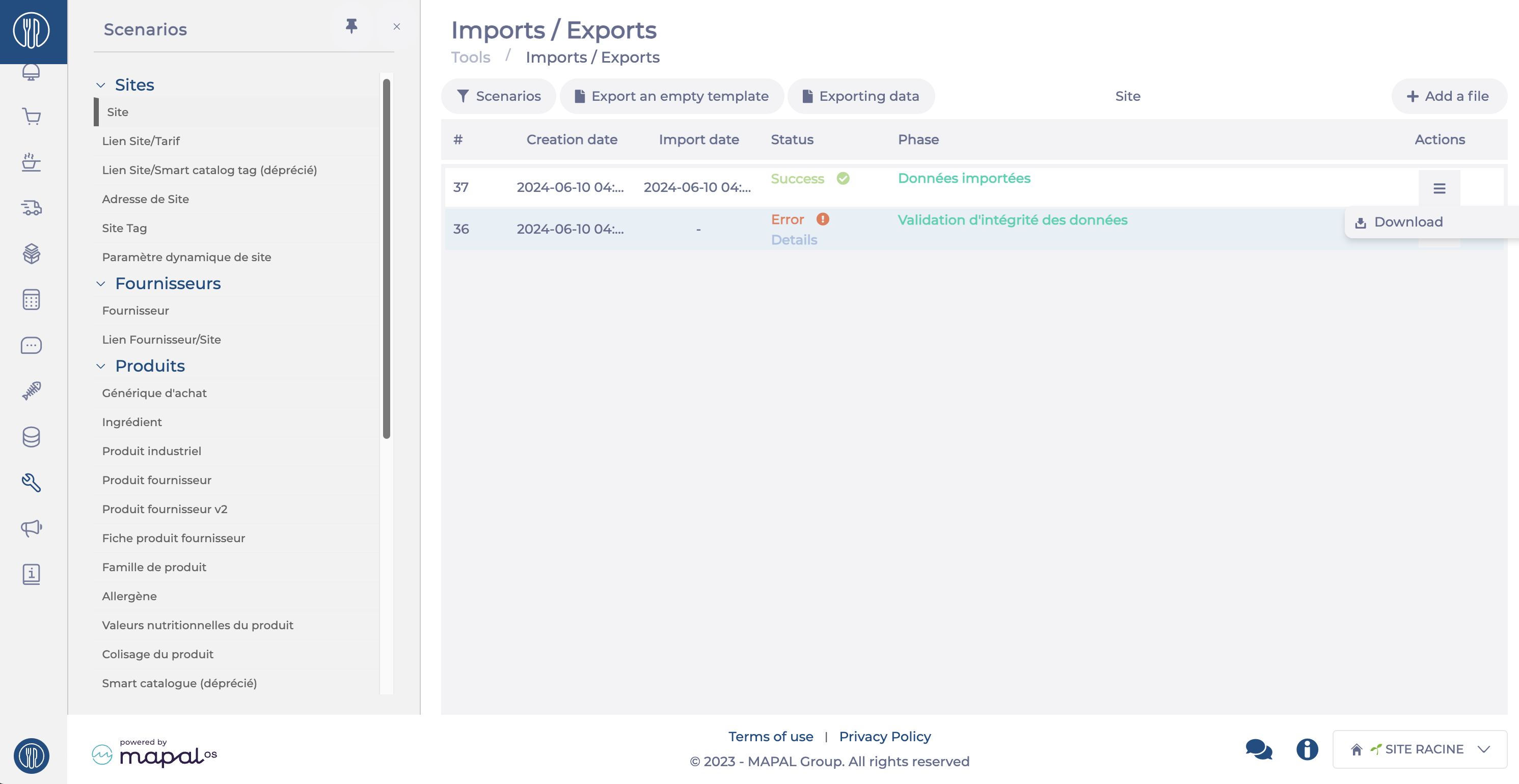
        The Imports/Exports screen shows, for each import scenario, the list of launched imports along with their status. It also allows access to the import scenario documentation, to perform data exports or export empty templates, and to test an import template before requesting an import by our team. This screen is generally used when setting up your data, but it can also be useful later to view the status of your automatic imports if an integration flow has been implemented or to carry out manual imports.


        Note: If you are using this screen for the first time, we recommend contacting the Support team or your administrator.

        Viewing import statuses

        • Select Tools > Imports/Exports

        • Select the desired scenario

        • The list of completed imports (manual or automatic) will appear with their status and phase

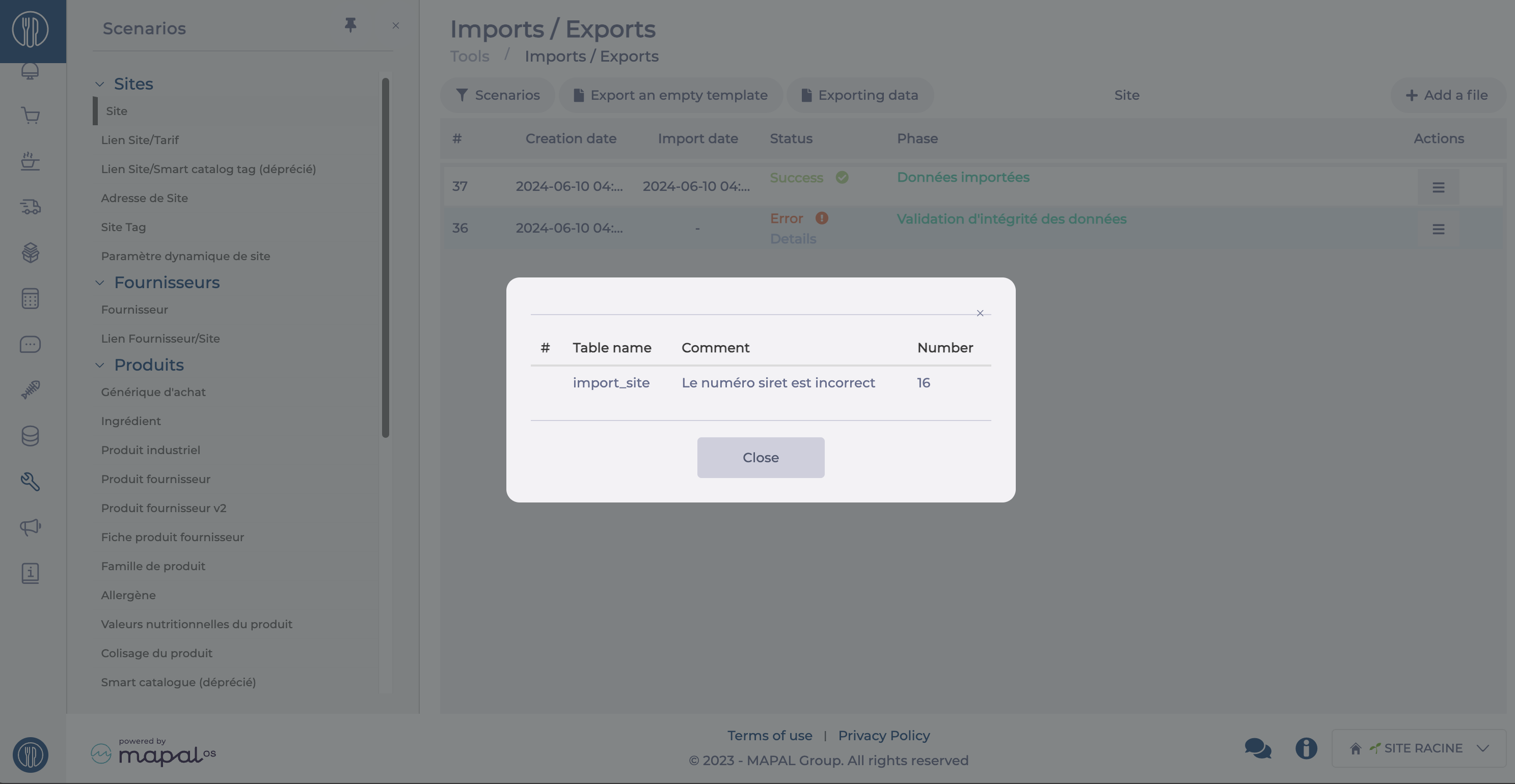
        • If an error is indicated, you can click Details to view it

        • At the end of the row, by clicking the action button, you can Download the import report. This report shows in the “rowStatus” column whether the data is importable (I) or not (N), and in the “error_detail” column the details of any potential errors.

        Performing a manual import

        • Select Tools > Imports/Exports

        • Select the desired scenario

        • For data to be importable, it must follow a structure specific to each scenario. To find out this structure, you can:

          • Click Download documentation to view the data requirements, the rules to follow, and to understand the impact of the import

          • Click Export an empty template to obtain a blank matrix. You will then have a file with the expected structure to complete.

          • Click Export data to get a file containing the current data in Easilys. This allows you to work from the current situation before reimporting it.

        • Complete the Excel file

        • Once your file is ready, you must test it:

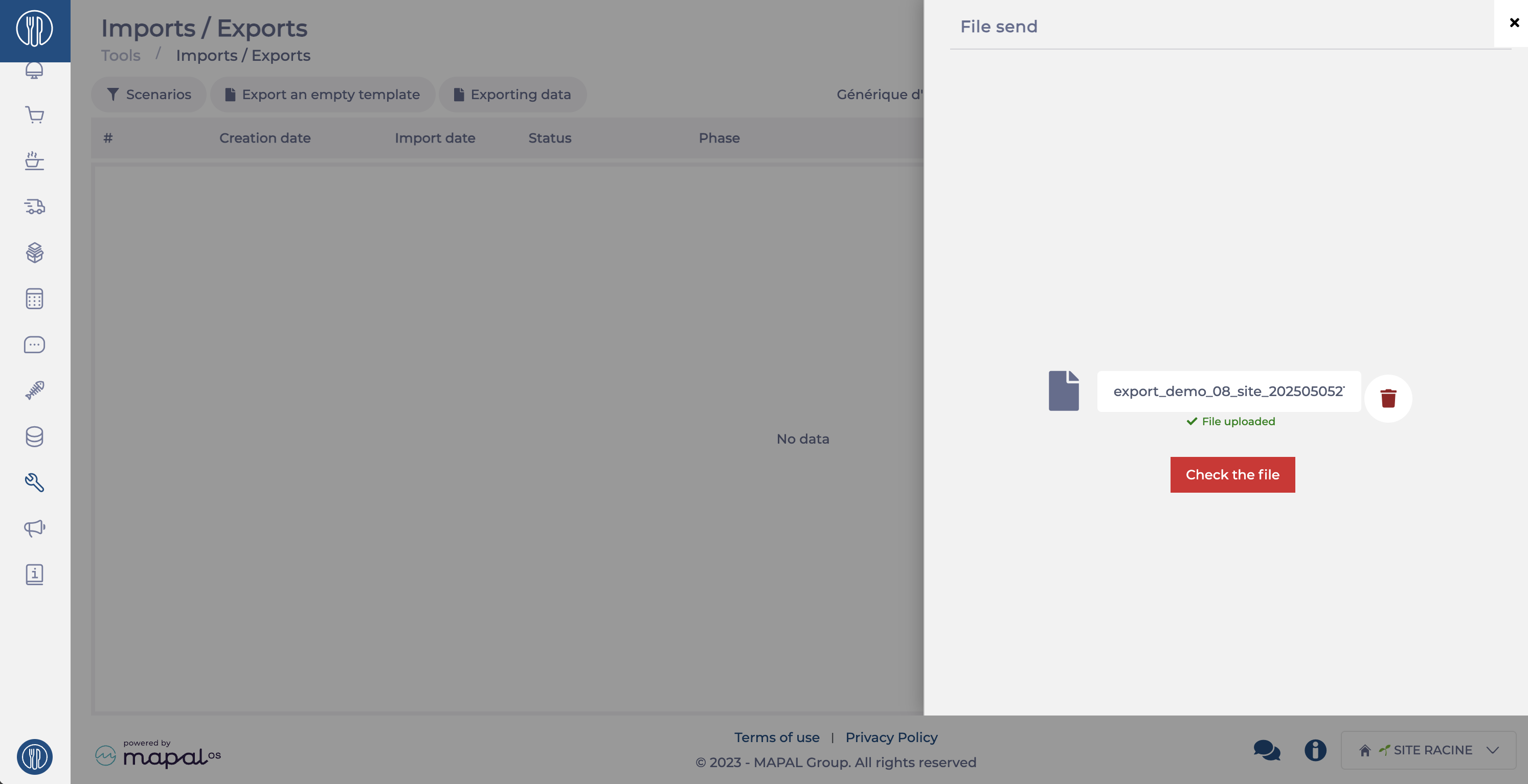
          • Click Add a file

          • Upload your file

          • Click Check the file

        • If the file contains errors, the line status will indicate this, and you must correct them before testing again.

        • When the file is correct, the line will show the status Validated for the Data integrity validation phase, and you can then contact us to have the import carried out.

        src="src="src="src="src="src="src="

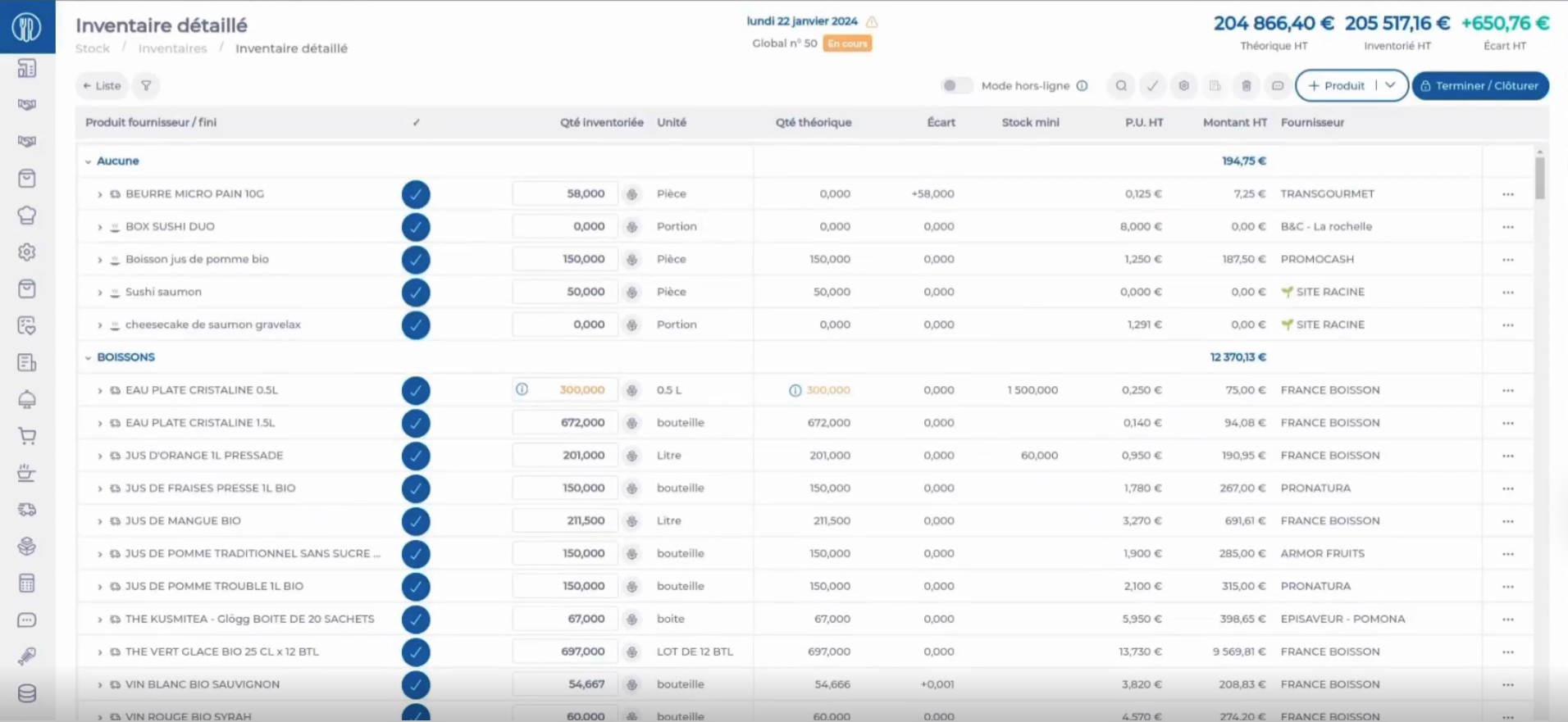
        Enter inventory items while offline

        Start from: The Easilys menu.

        Note: If this option is not available, you may not have the required permissions. Please contact your administrator or the Easilys Support team for assistance.

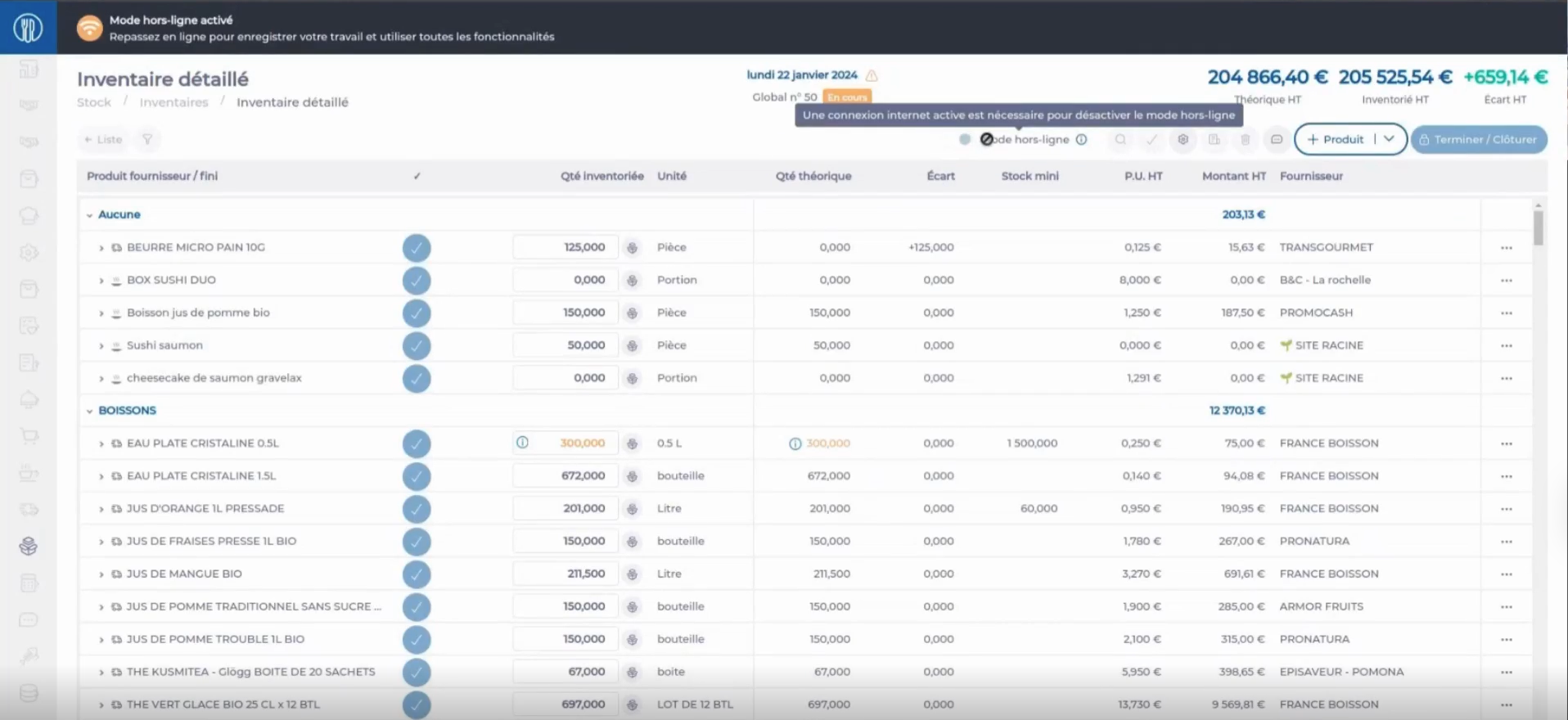
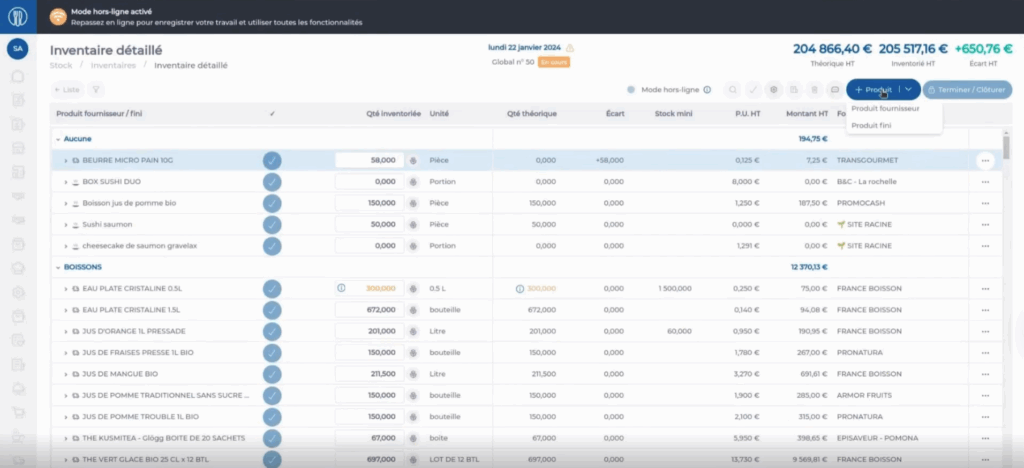
        Notes: In offline mode, navigation is restricted. The only accessible screen is the inventory screen, which will always open the detailed inventory that was previously loaded. All other parts of the platform are inaccessible.

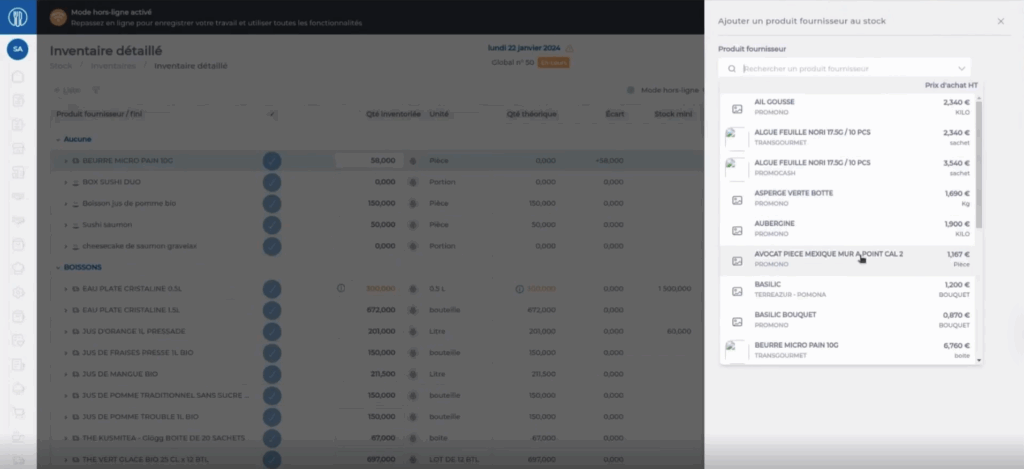
        Available Inventory actions in offline mode

        Once the internet connection is restored, the reactivation button becomes available again. By clicking it, your changes will be synchronised with the online inventory screen.

        Notes: If you close Easilys while in offline mode, do not worry. Reopening the application will bring up the inventory screen again. For convenience, you can also install Easilys directly on your tablet for quicker access.

        Export purchase data to Ma Cantine

        Note: Actions on the Easilys platform depend on your user access permissions. If you are not able to perform the actions below, this may be due to restrictions on your user profile. Please contact the support team or your administrator for assistance.

        Start from: The Easilys menu.

        Before you export: Prepare your data

        Before sending your diagnostic, ensure the following industrial product data is properly configured in Easilys:

        • Categories: Should match the families defined in Ma Cantine.

        • Labels: Must be mapped to product characteristics used by Ma Cantine.

        • Origins: Required to identify local products.


        These fields are essential to generate a reliable diagnostic report.

        Connect to Ma Cantine

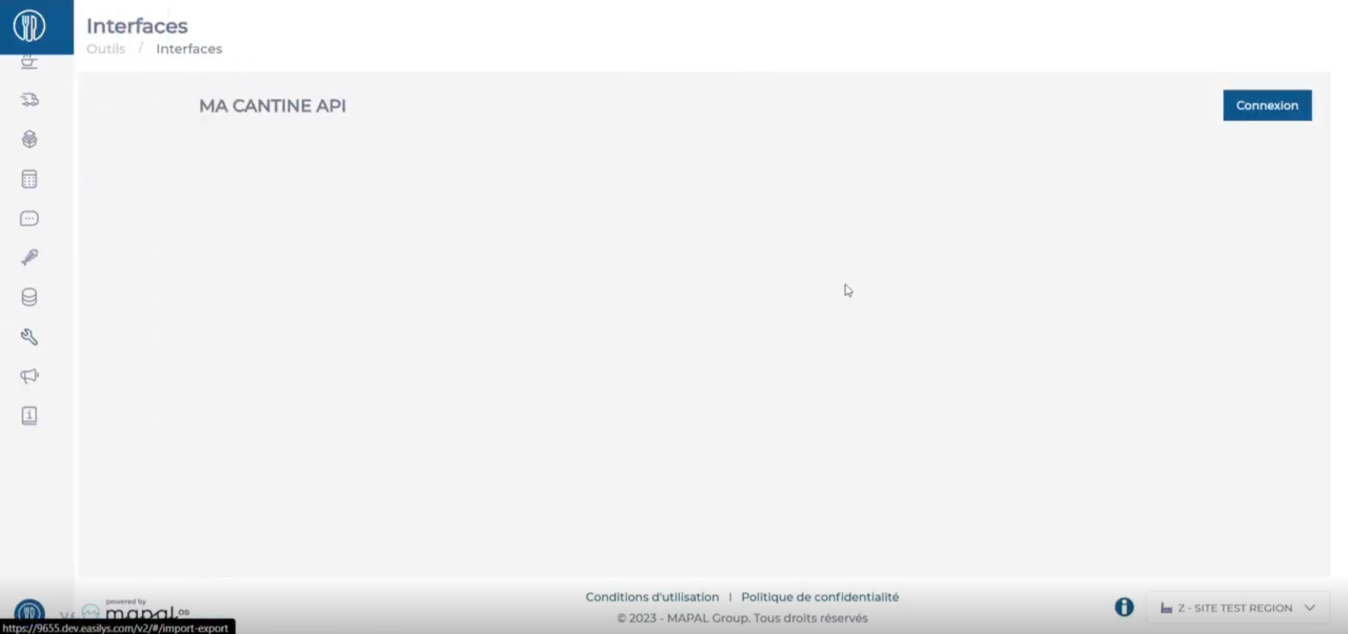
        • Go to Tools > Interfaces.

        • Select Connect.

        • Select Authorise.

        • This authorisation is required only once.


        Once connected, Easilys will be linked to your Ma Cantine account.

        Sending the diagnostic

        Now that the connection is established, here is how to send your diagnostic.

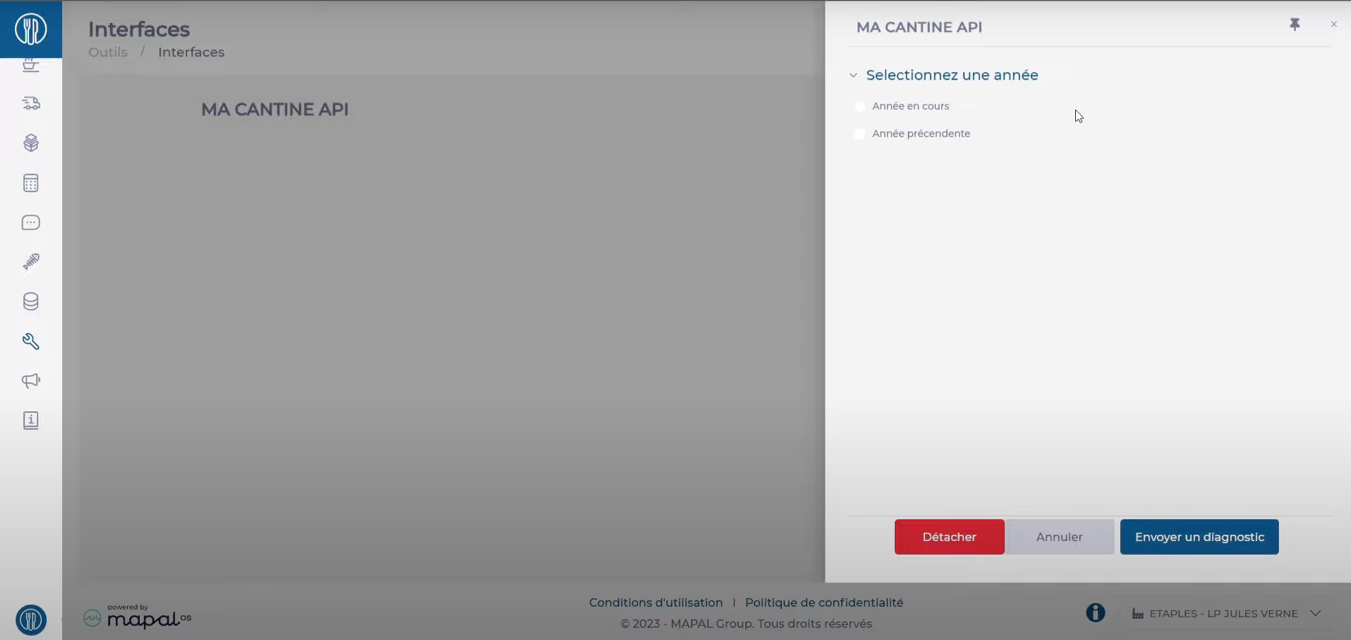
        • From Tools > Interfaces > Ma Cantine.

        • Select Details.

        • Choose the reporting year:

          • Current year: From 1 January to today

          • Previous year: From 1 January to 31 December of the last year

        • Click Authorise to validate and send your data.

        You can repeat this operation as often as necessary, for example, every month or quarte, so that the information is regularly updated in the Ma Cantine dashboards. With each submission during the year, the data from January 1st to today is sent.

        Verification in Ma Cantine

        Once the submission is completed, go to Ma Cantine to verify your data.

        • Log in to Ma Cantine.

        • Select your site.

        • Choose the relevant year to see the products sent.

        • If necessary, adjust the information before declaring.


        Note: Validation and e-submission remain your responsibility. Be sure to check the figures before finalising.

        Common issues and solutions

        Issue

        Solution

        Cannot access Tools > Interfaces

        Contact your Easilys administrator.

        Ma Cantine is not listed in Interfaces

        Check access rights with your administrator.

        Error: “Please enter your SIRET number

        Add the SIRET in your site settings.

        Error: “Your SIRET is not known in Ma Cantine

        Confirm the site exists in Ma Cantine. Create it if needed.

        Remember, proper product configuration is essential for a reliable diagnostic. If in doubt, consult your manager or the Easilys support team.

        Generate an Easilys API Token for Integrations

        Note: actions performed on the Easilys platform are subject to user access permissions. If you are unable to carry out the actions described in the articles, it may be because you do not have the necessary permissions activated on your user profile. Contact the Support team, or your administrator, for help.

        Start from: The Easilys menu. 

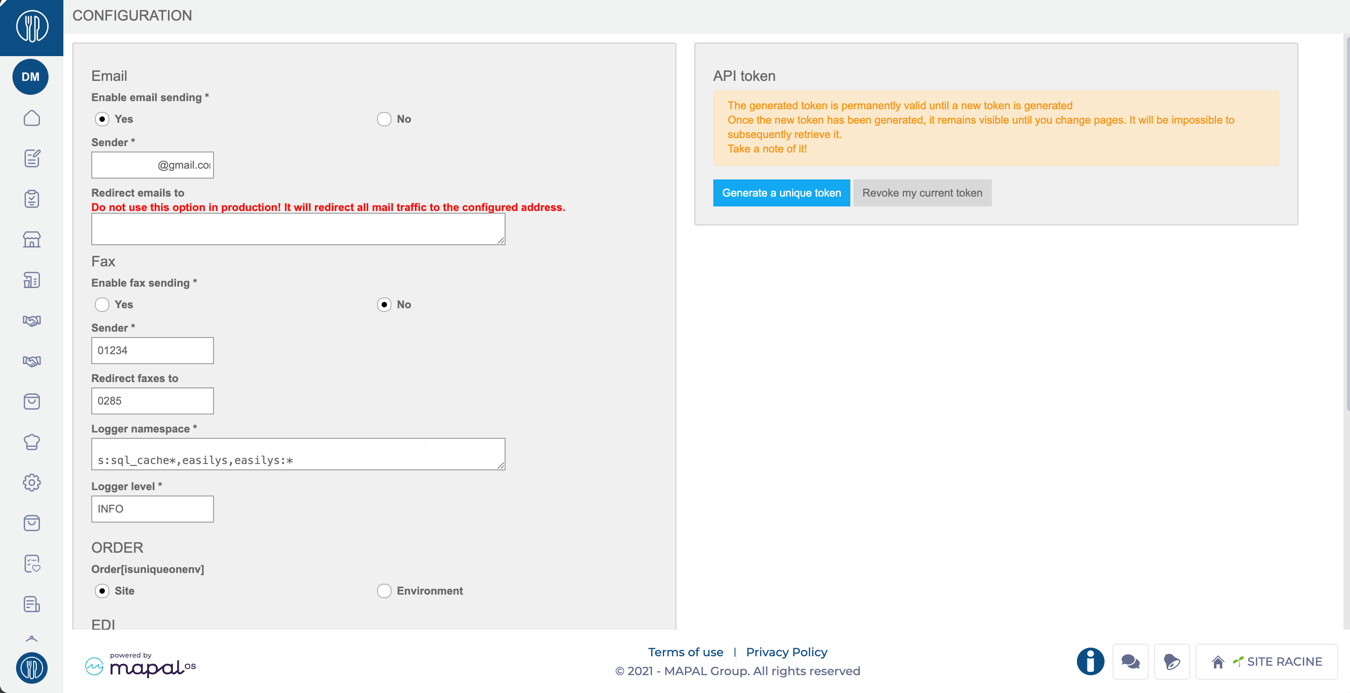
        • Navigate to Tools > Configuration.

        • In the Configuration screen, locate the API Token section on the right-hand side.

        • Select the Generate a unique token button.

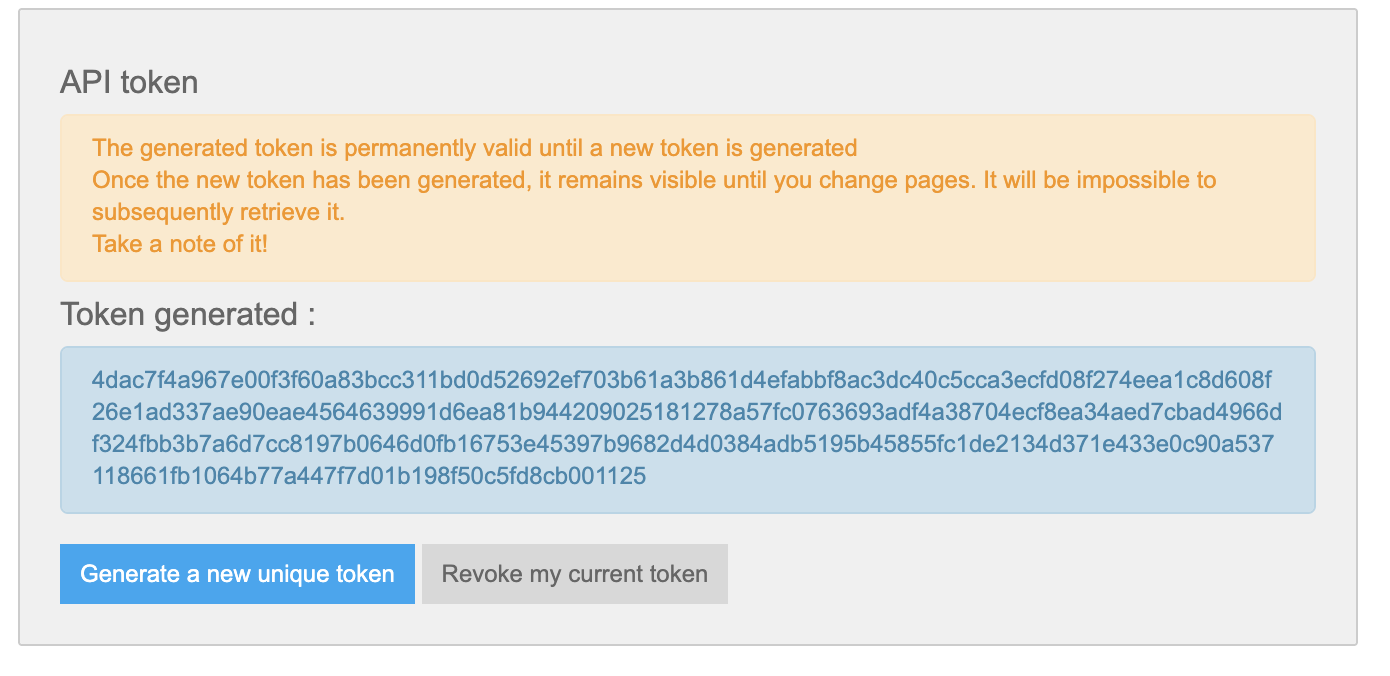
        • A blue box will appear showing the newly generated token.

        • Copy and paste this token into your third-party system where required.

          • If you are using Alise, you can add the token yourself directly into the software.

          • If you are using Turboself, contact the Turboself customer support team once the token is available.

        Note: The token is visible only once and will disappear once you leave or refresh the page. Be sure to copy and store it safely.