Add or remove job titles and departments from a Noticeboard
Start from: the Flow Learning dashboard.
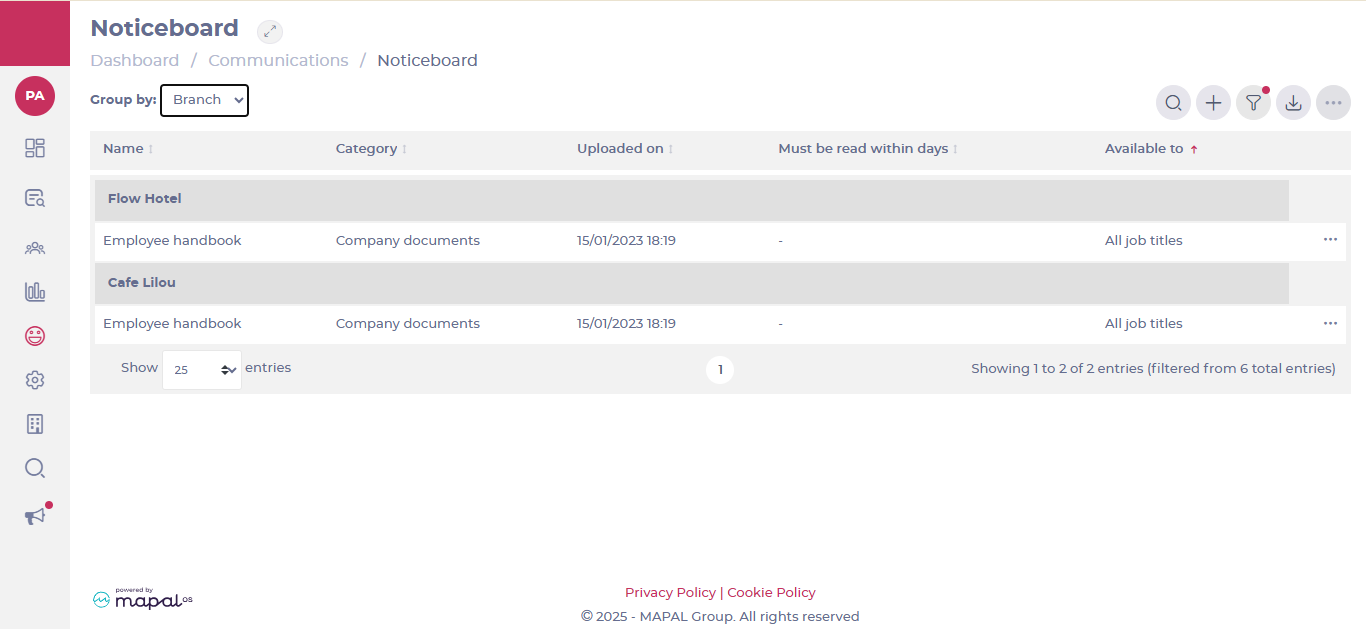
Navigate to Communications > Noticeboard.
Change the Group by view to Branch.
You can use the Filter or the Search function to find the specific noticeboard item you wish to edit.
Adding Job Titles and Departments
To make a noticeboard item visible to more employees:
Locate the desired item.
Select the Options icon (three dots) next to the item.
Select Edit.
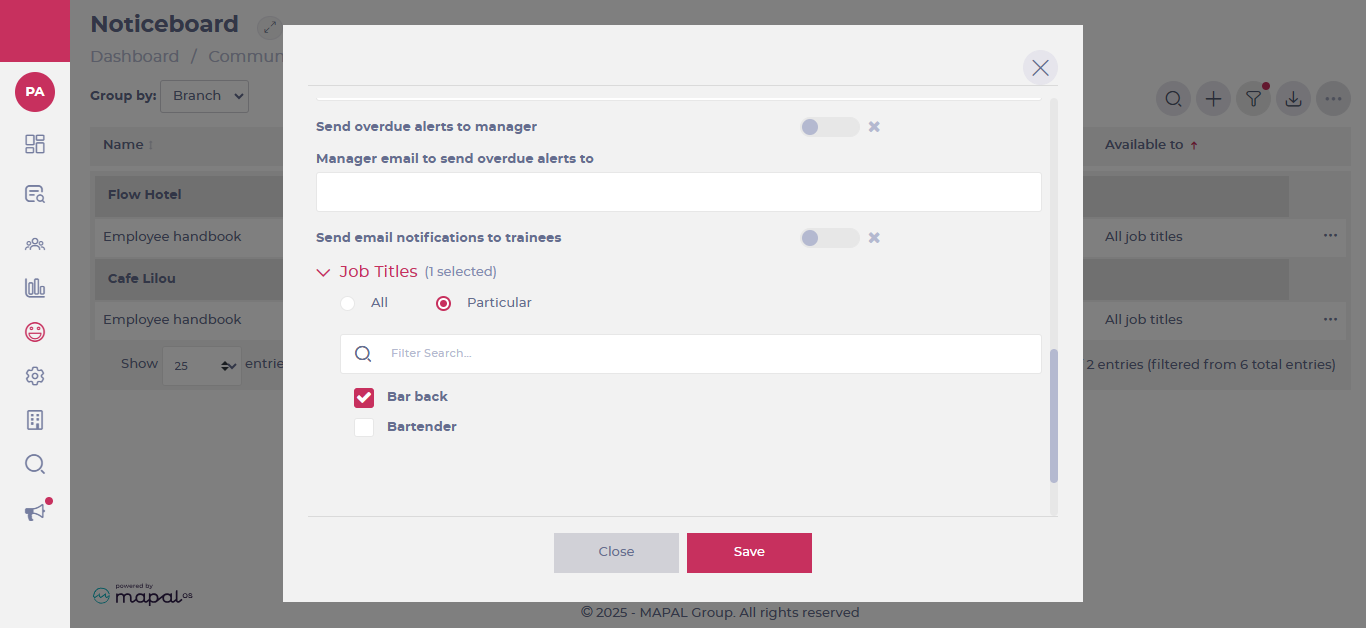
Scroll to the bottom of the editing window to find the Job titles and Departments lists.
Tick the boxes next to the job titles and/or departments you want to add.
Close the window or confirm the action (changes are saved automatically).
The item will now be visible to all learners assigned to any of the selected job titles or departments.
Removing Job Titles and Departments
To restrict visibility of a noticeboard item:
Locate the desired item.
Select the Options icon (three dots) next to the item.
Select Edit.
Scroll to the bottom of the editing window to find the Job titles and Departments lists.
Untick the boxes next to any job titles and/or departments you wish to remove.
Close the window or confirm the action (changes are saved automatically).
Once removed, the item will no longer be visible to learners associated with those job titles or departments.
Note: These changes must be made individually for each branch. If the same message exists across multiple branches, you'll need to update each one separately.
Manage job titles in Engagement
Start from: The Engagement dashboard.
Navigate to Settings > Job Titles.
In the Job Titles screen, you will be able see, delete or edit all existing job titles as well as adding new ones.
The job titles page has a table with 3 columns: Job title, translation, and actions.
Add a new job title
Select Add professions.
A popup window will appear for you to Assign a name to the job title. Write the name in the main company language and the translation for the second language.
Notes: These fields are mandatory.
Once completed, select Save.
The new job title will then be added to the table.
Edit & Delete Job Titles
Edit
Locate an existing Job Title from the list.
Select the Action button (three dots) at the far right of the job title’s row.
Select Edit. In the popup window, change the name of the Job Title and the translation for the second language.
Select Save.
Delete
Locate an existing Job Title from the list.
Select the Action button (three dots) at the far right of the job title’s row.
Select Delete. A confirmation window will appear at the top of the page.
Select Accept to complete the deletion.
Manage job titles in Mapal OS
Start from: The Mapal OS dashboard.
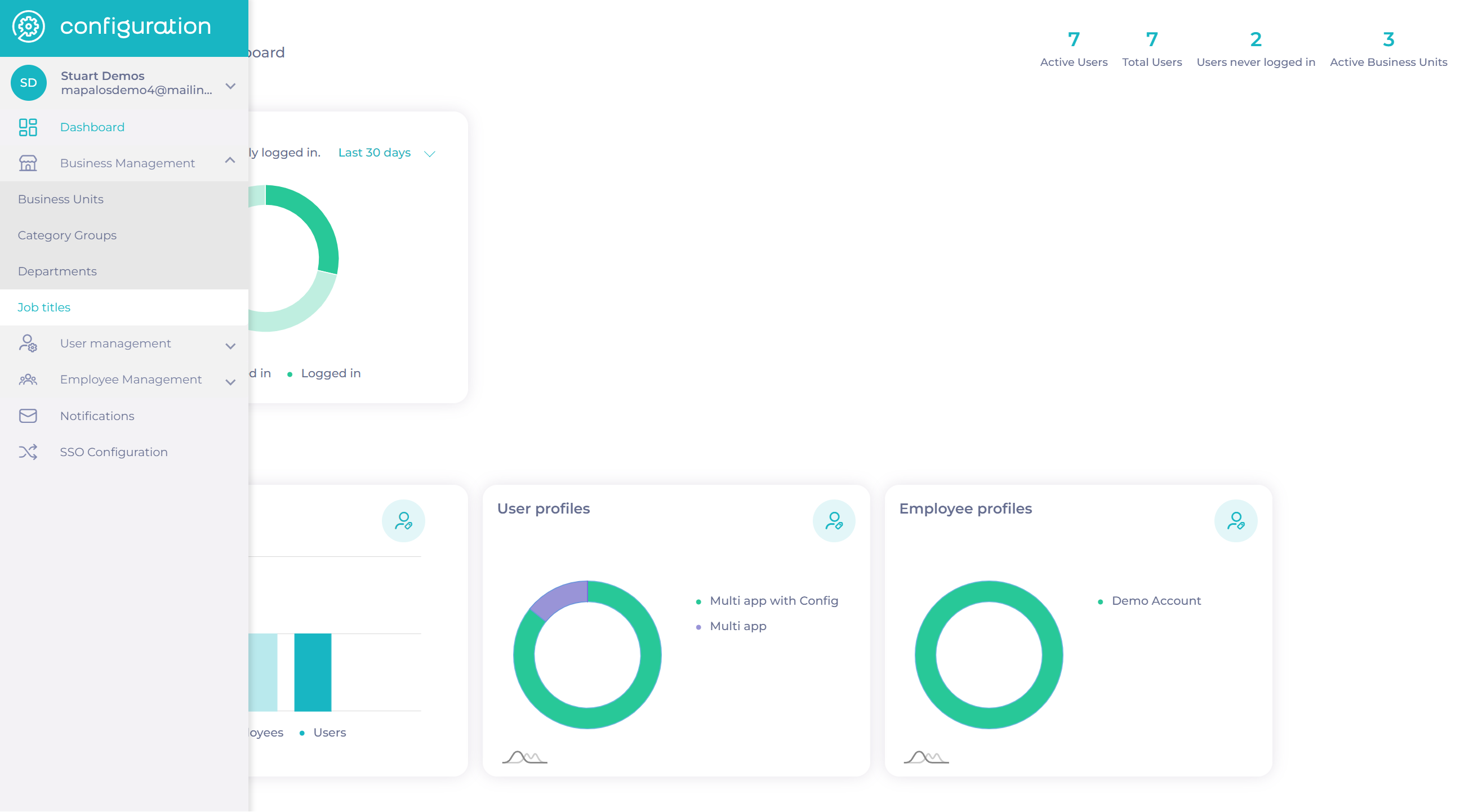
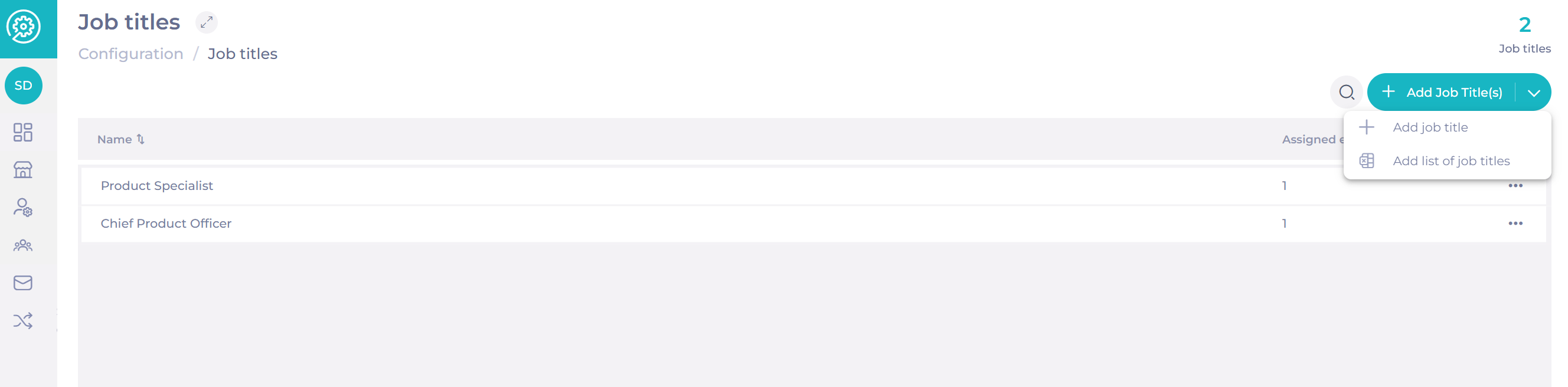
Select the Configuration tool.
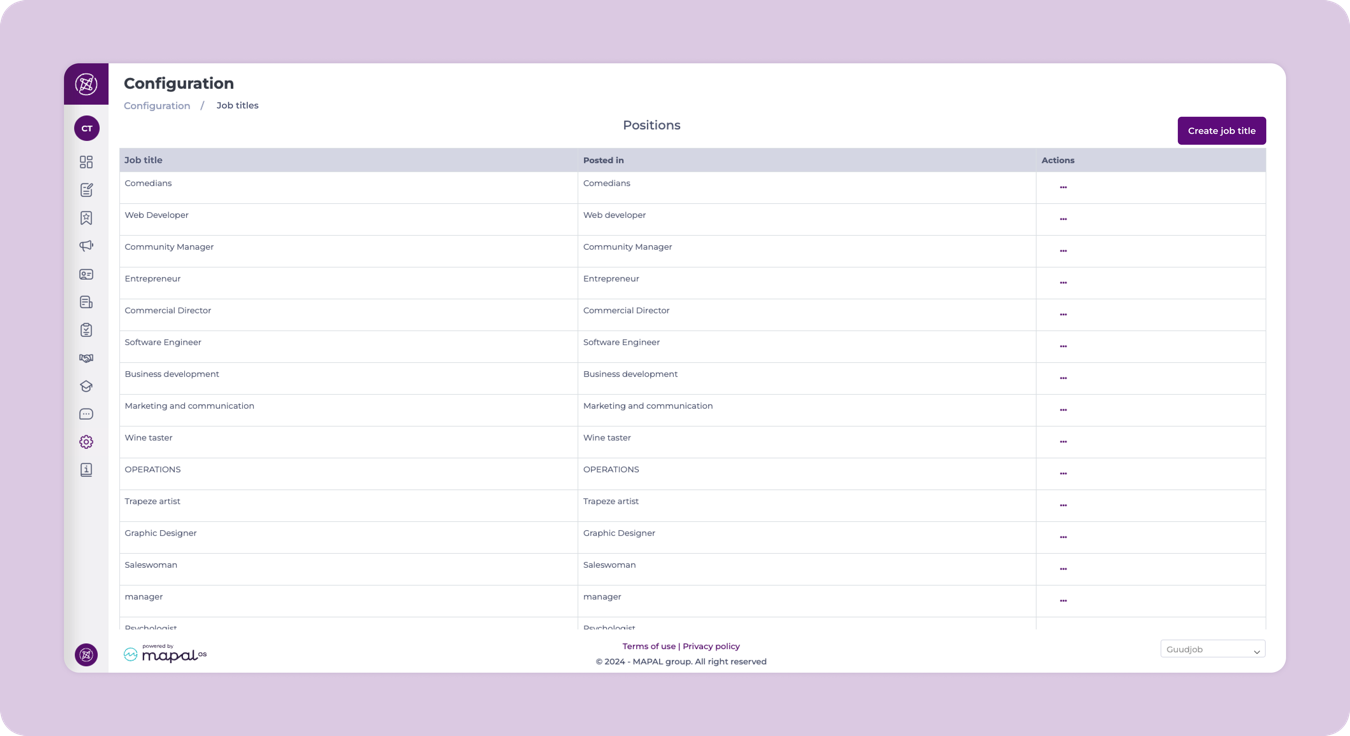
Select Business Management > Job titles.
Searching for job titles
Select the magnifying glass icon and search the job title you are looking for.
Adding a job title
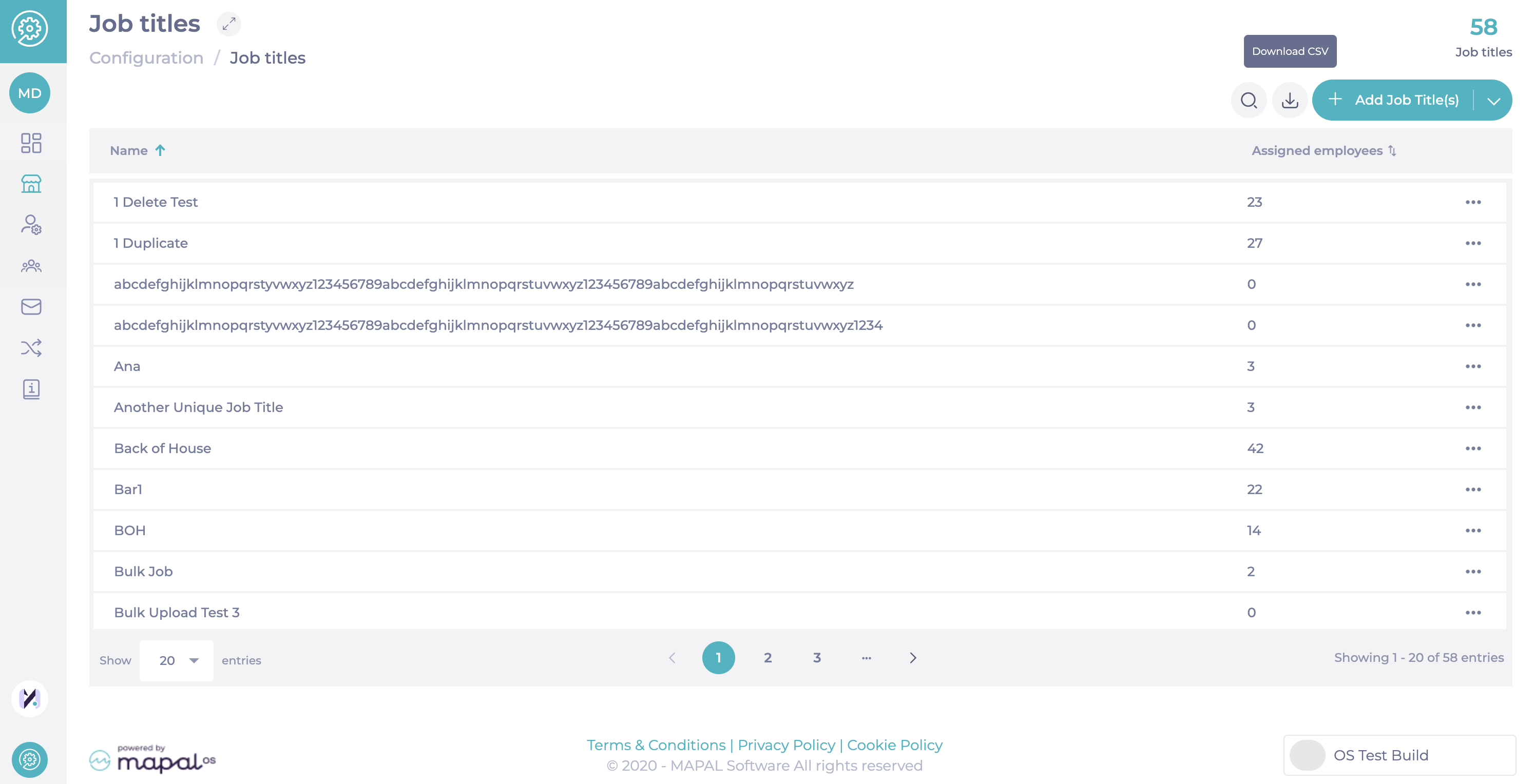
Select + Add Job Title(s)
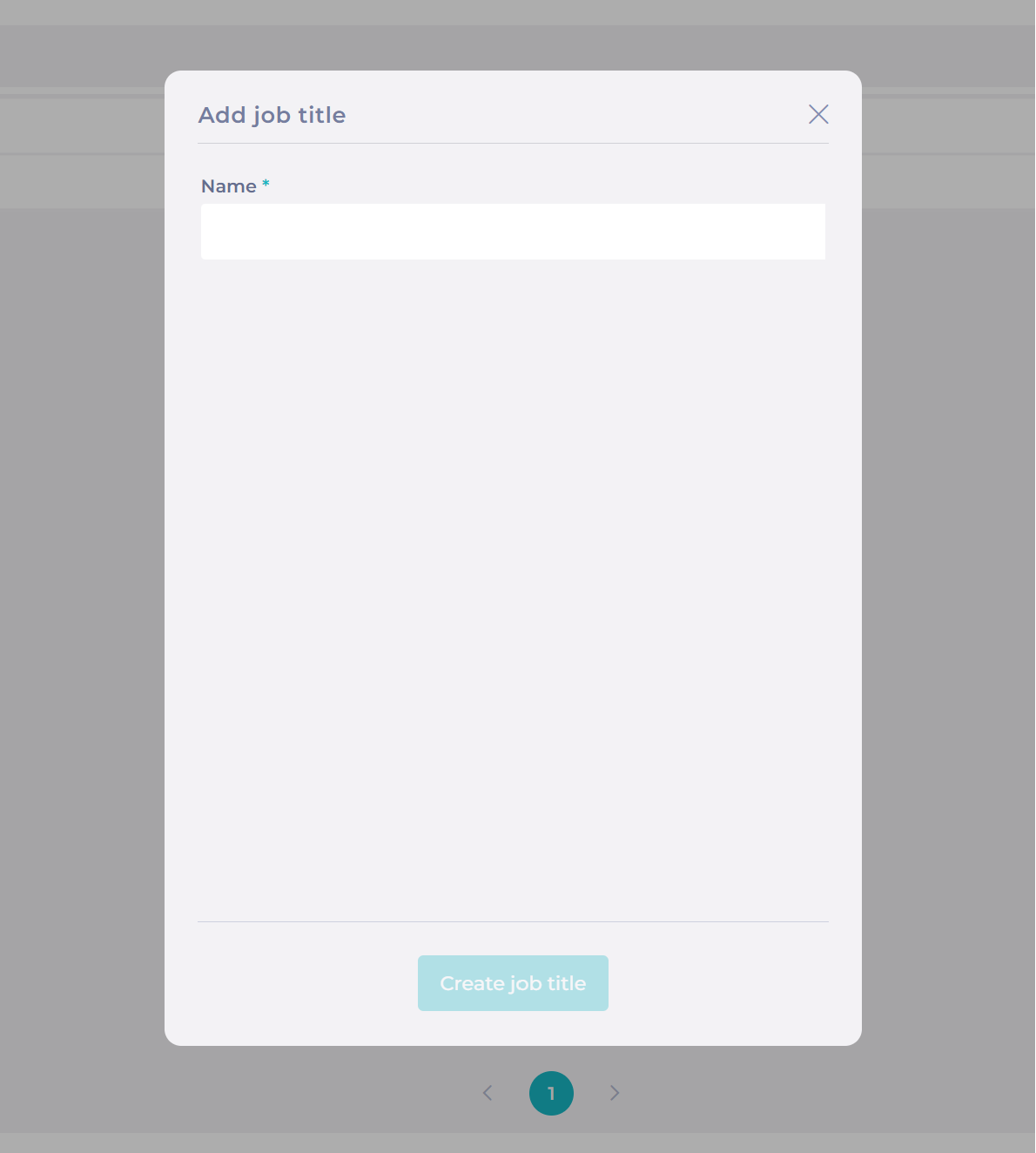
You can add them one by one, by selecting Add job title.
Enter the name of the new job title and select Create job title.
The new job title will be added to the OS and synchronised into Flow platform.
Adding list of job titles
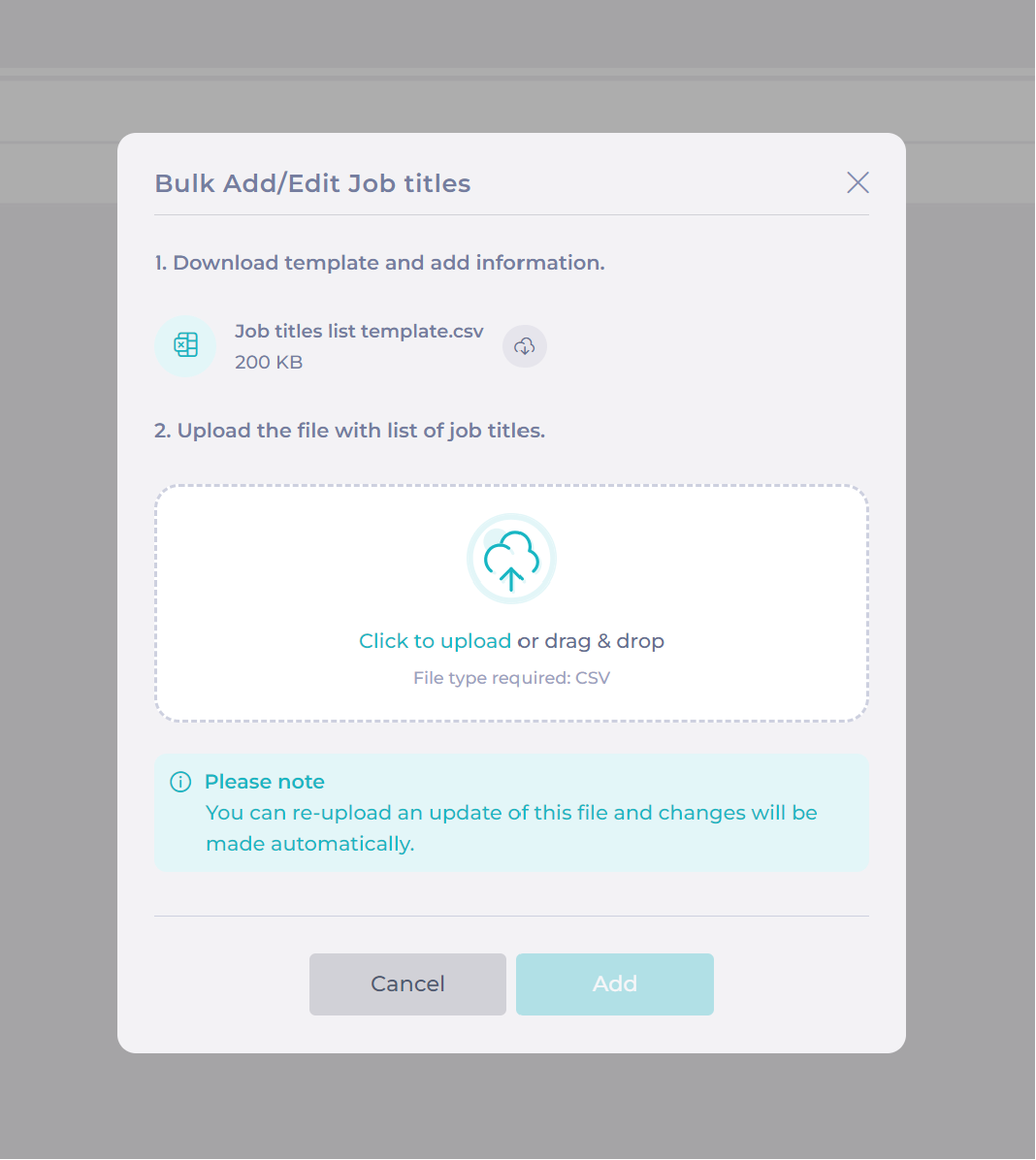
You can also upload a list of job titles using the Add list of job titles option.
You can download the "Job titles list template" to be filled out and re-upload it using the "Click to upload or drag & drop" section.
Select Add.
The new job titles will be added to the OS and synchronised into Flow platform.
Modifying job titles names
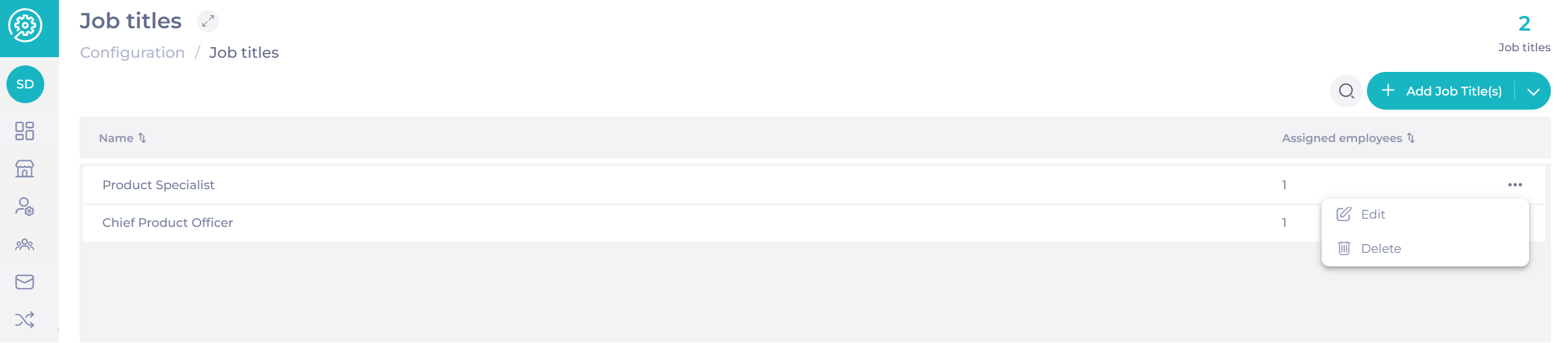
Select the three dots icon and select Edit.
Amend the name and select Save.
The change will apply immediately in Mapal OS and Flow (no changes will be made to the learner's training), and users will be assigned to the new job title name.
Deleting a job title
Select the three dots icon and select Delete.
Permissions of access
Users with access to maintain job titles can also assign job titles to employees and users.
Users with access to view job titles can access job titles via the menu, and search for job titles using the magnifying glass icon. They also can assign job titles to employees and users. However, they can't add new or edit existing job titles.
Users with no access to job titles cannot assign these to users and employees.
Adding attributes in Workforce
Once created, a job title will sync with all contracted Products.
If you're a Workforce customer, you might need to add extra attributes to categories within Workforce.
From the Workforce dashboard, select Configuration from the menu.
Select the Categories tile.
From the list of categories, select the entry you need to update.
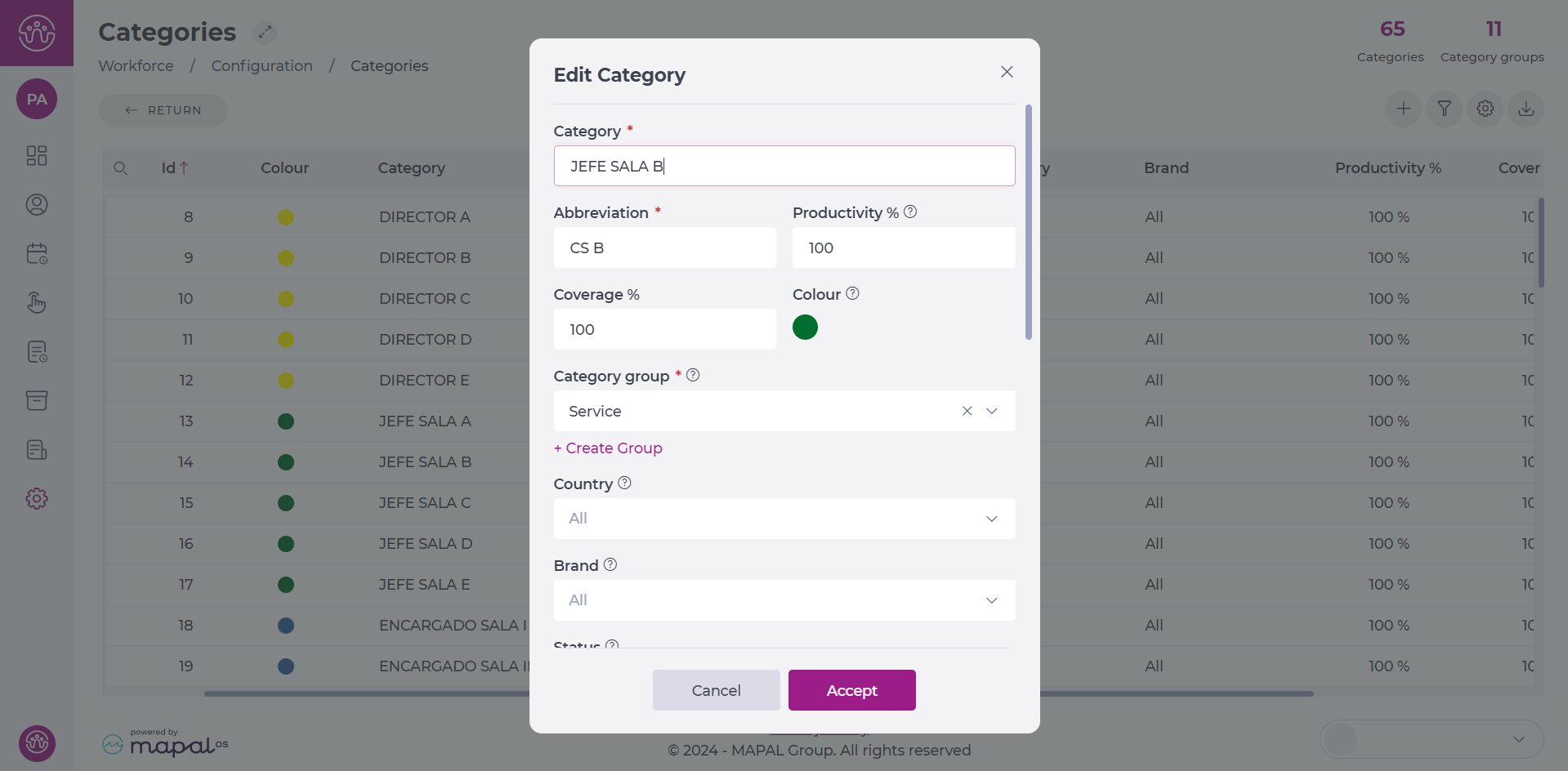
Within the Edit Category popup window, adjust the attributes according to your needs.
Linking Job Titles in Flow Learning
After adding a job title, it’s crucial to link it to a training structure in Flow Learning. Without this connection, learners assigned to that job title won’t receive their relevant training assignments, which could significantly impact their learning and compliance.
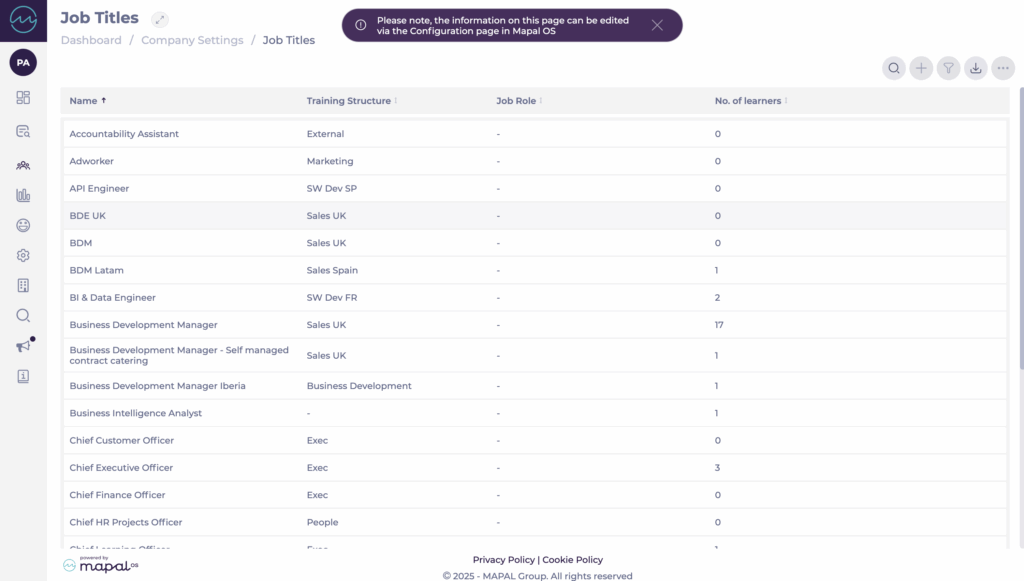
Navigate to Company > Job Titles in Flow Learning.
Select the job title you want to link.
Choose the appropriate training structure from the list.
This ensures that employees with the linked job title are automatically assigned the correct training content. Regularly review and update these links to maintain alignment between job roles and training requirements.
Export Job Titles as a CSV
Go to the Mapal OS Configuration app and navigate to Business Management > Job titles.
Select the Download CSV button at the top of the page.
The system will generate a CSV file containing job titles, departments, and their Mapal OS IDs.
Add and edit job titles
Note: you must create your training structures before you add your job titles.
Start from: The Flow Learning dashboard.
Navigate to Company > Job Titles.
Adding a Job Title
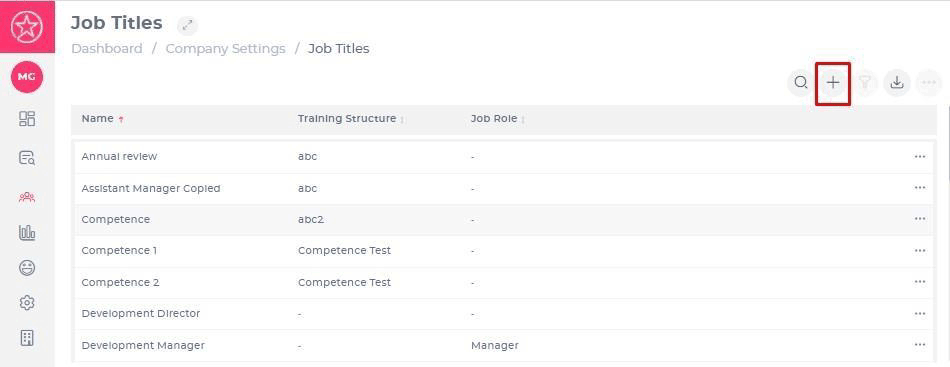
Select Add at the top right-hand corner of the page.
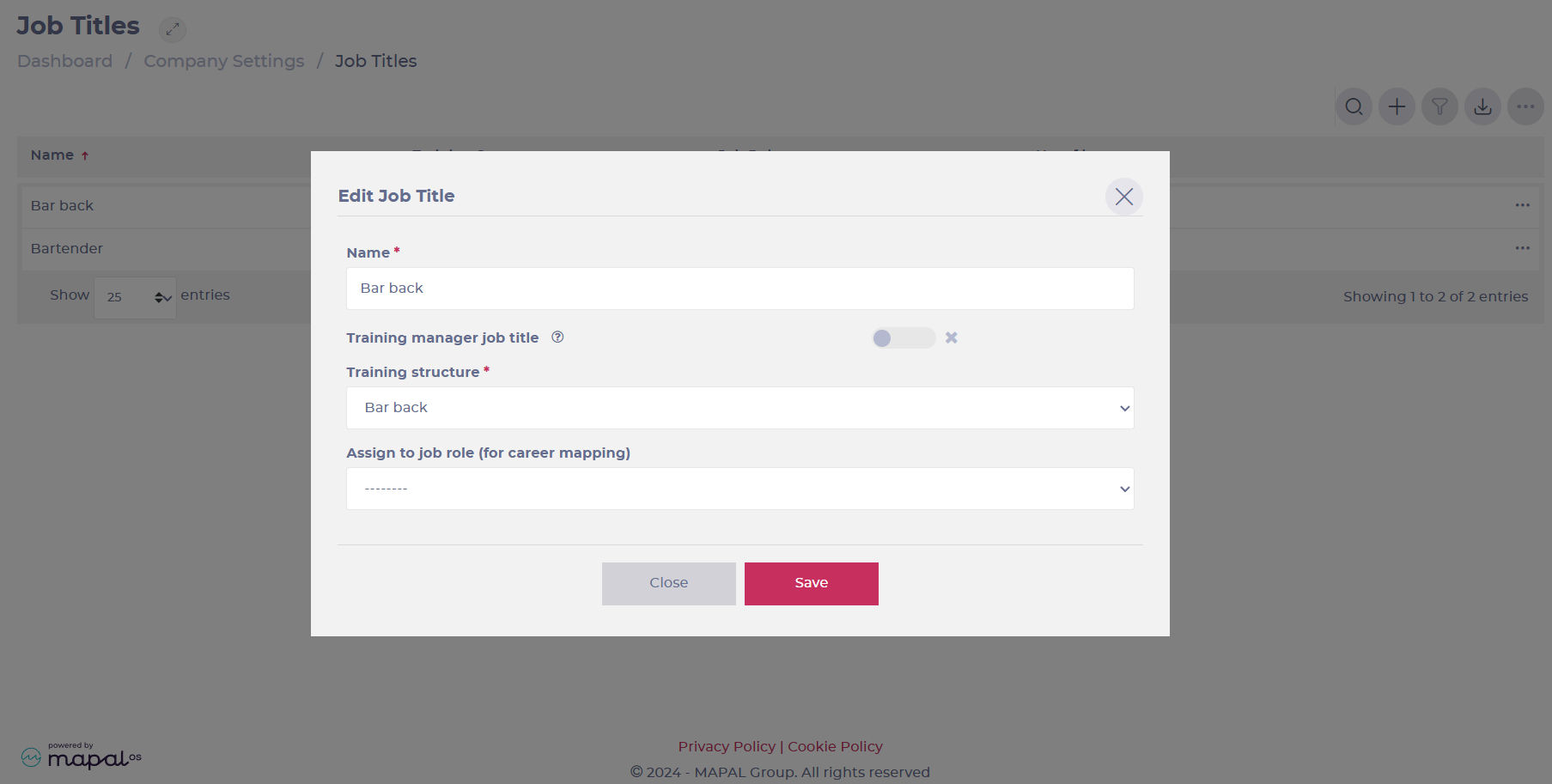
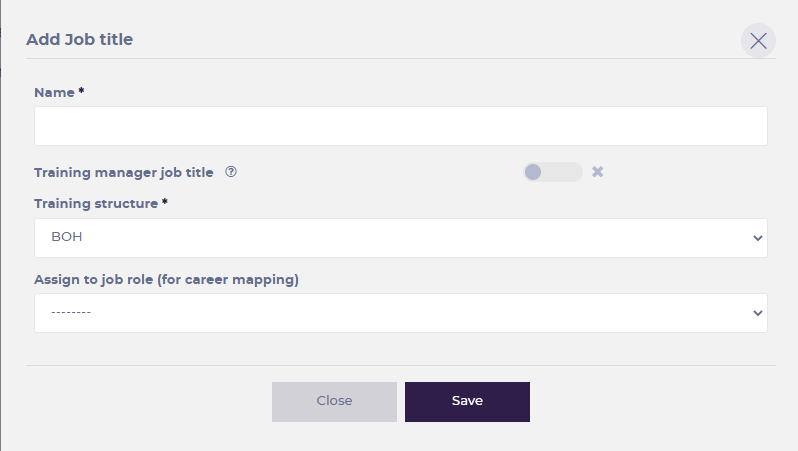
Enter the following details.
Name (mandatory) – what your job title is.
Training manager job title – is this job title associated with a TM? If this option is selected, every single person added to the system with this job title will automatically be made a Training Manager as well as a Learner.
Training structure (mandatory) – which training structure you want this assigned to.
Assign to job role – this is linked to the career mapping functionality in our LXP package.
Select Save to confirm your changes.
Editing job titles
You can also edit existing Job Titles by clicking the name of the job title. Here you can change all fields.
Training Manager job titles
For companies using Mapal OS as the source of truth, Training Manager job titles are configured directly in Mapal OS to ensure data consistency across all systems.
In these cases, the Training Manager Job Titles tile located at Company > User Settings in Flow is read-only. This means changes to Training Manager job titles must be made in Mapal OS, and edits made in Flow will not sync back.
If your company’s setup does not use Mapal OS as the source of truth, you can continue managing Training Manager job titles in Flow as usual.