rong>Overview:: Flow Learning enables you to create custom challenges, offering your learners fully branded and customized learning resources. This article describes how to create these challenges with SCORM content.
Start from: the Flow Learning dashboard.
Custom challenges can be found in the L&D Settings page in Flow Learning.
Select Learning & Development > L&D Settings from the main menu.
Scroll down to find the Leaderboards tile and select the cog icon.
Select the Challenges tab at the top of the leaderboards table.
Select Add (+). The Add Challenge pop-up window will appear.
Select the challenge from the dropdown list and complete the relevant fields. Mandatory fields are marked with an asterisk (*).
The uploaded SCORM challenge will now be available on the list of challenges.
Check your points on the Mapal One leaderboard
Start from: The Mapal One dashboard.
Leaderboards aggregate points earned by employees through various activities and achievements. This system rewards consistent effort and dedication, providing a comprehensive view of an employee's engagement and accomplishments over time.
To see the Leaderboards:
Select Leaderboards from the main menu.
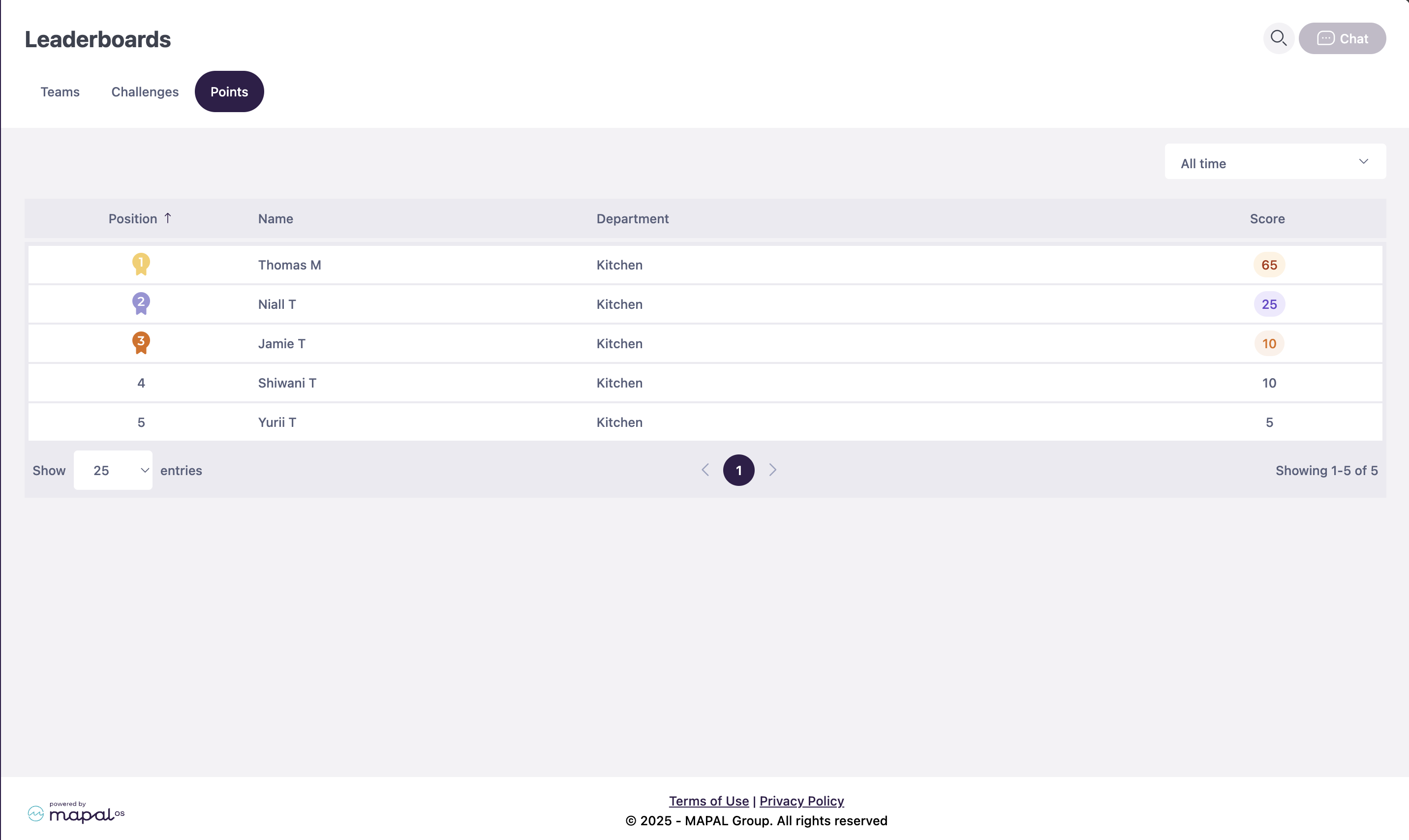
Select the Points tab.
The leaderboard displays a ranking of employees based on their total accumulated points.
Each team member's score is shown alongside their position in the ranking.
This feature enhances visibility into employee achievements and helps track ongoing engagement.
A new dropdown menu allows users to switch between viewing:
Current Month Points: Displays points earned during the ongoing month.
All-Time Points: Shows the total points accumulated over time.
Manage Challenge Leaderboards
Start from the Flow Learning dashboard.
Select Learning & Development > L&D Settings from the main menu.
Select the cog icon on the Configure leaderboards tile.
Select the Challenges tab.
Select from existing challenges. Note challenges can exist on a global or a company level.
Add a company level challenge from this list.
Edit a challenge
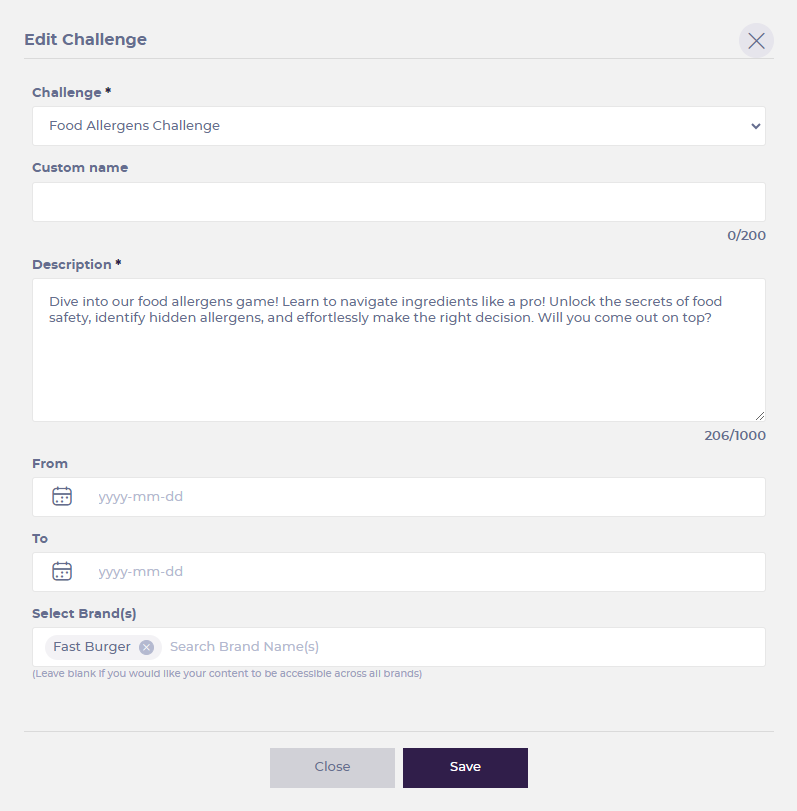
Taking one of the challenges from the list, select Edit from the three dot menu.
Use the Custom name field to assign an alternative to the default name. This will be particularly helpful if there are multiple of the same Challenge.
Select From and To dates to specify how long the challenge should be active.
Assign a brand in Select Brand(s), or just leave this blank to make the content accessible across all brands.
Archive a challenge
Choose anyof the challenges from the list, and select Archive from the three dot menu.
Select Confirm on the pop-up, if you are sure you want to archive the challenge.
View existing challenges
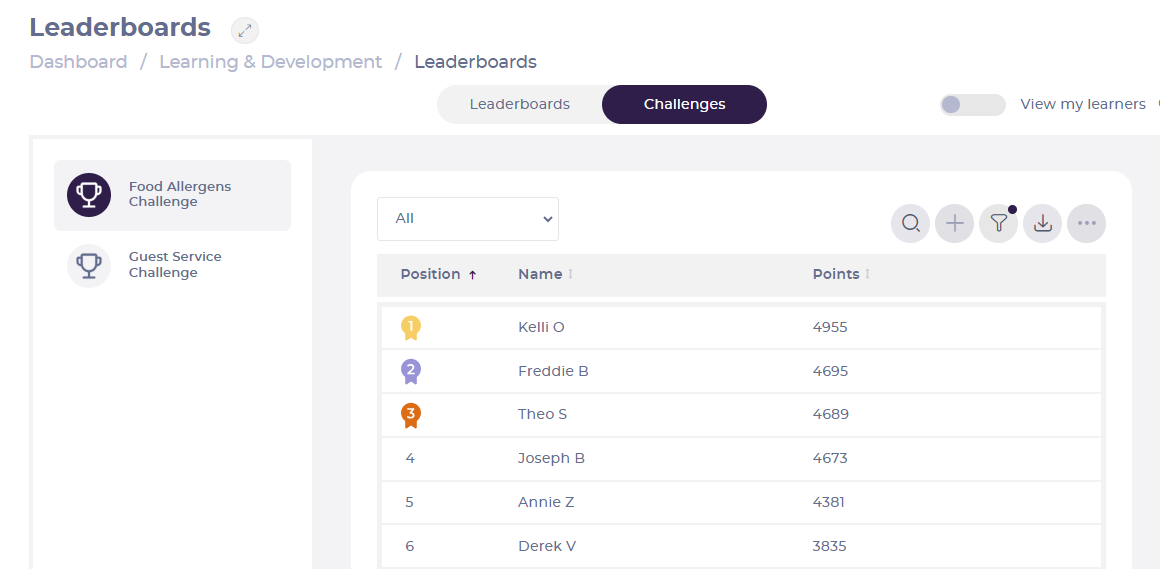
Select Learning & Development > Leaderboards from the main menu, and then choose the Challenges tab.
From this view use the filter control to filter learners by Status, Region, Area, Branch, Job Title and more.
You can also view challenges from Company > Learners > View Learner and select the Challenges tab.
Export challenges
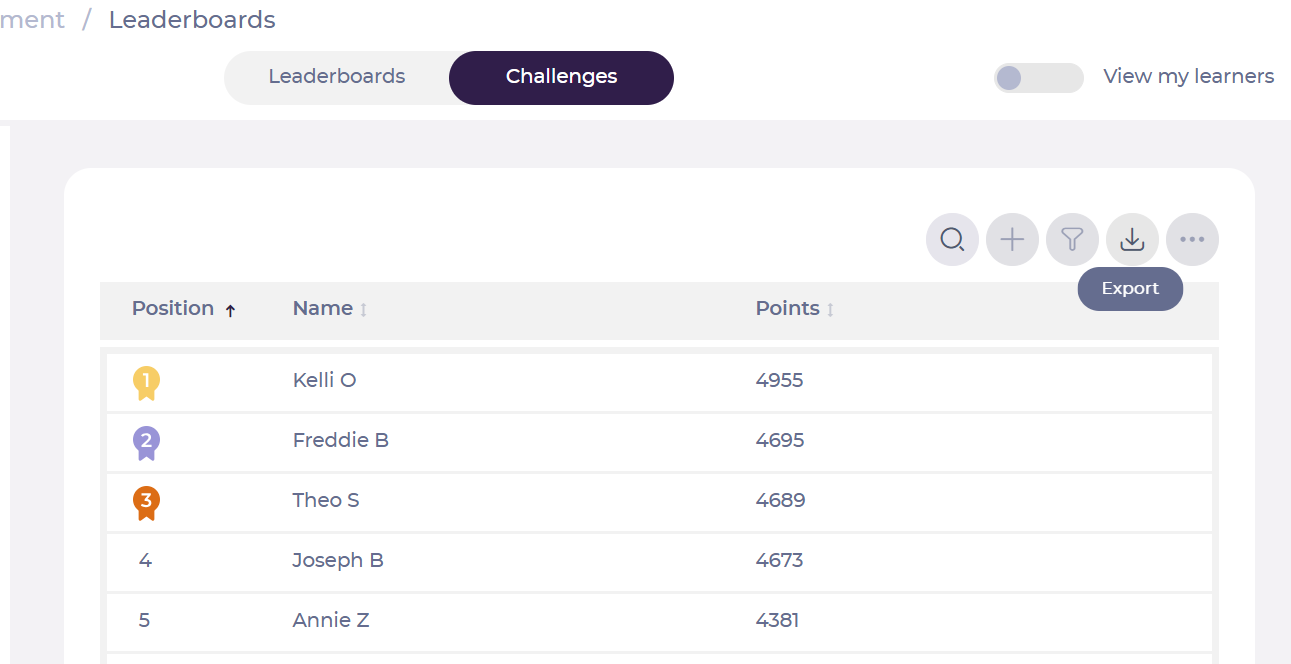
From an existing challenge. select Export on the top right.
The Export results panel will appear, from here select CSV Export.
Check your team's points in the Mapal One leaderboard
Start from: The Mapal One Dashboard.
Leaderboards aggregate points earned by teams through various activities and achievements. This system fosters collaboration and motivation by recognizing collective efforts, providing a comprehensive view of each team's engagement and accomplishments over time.
To see the Teams Leaderboards:
Select Leaderboards from the main menu.
Navigate to the Teams tab.
Select a specific Leaderboard from the list.
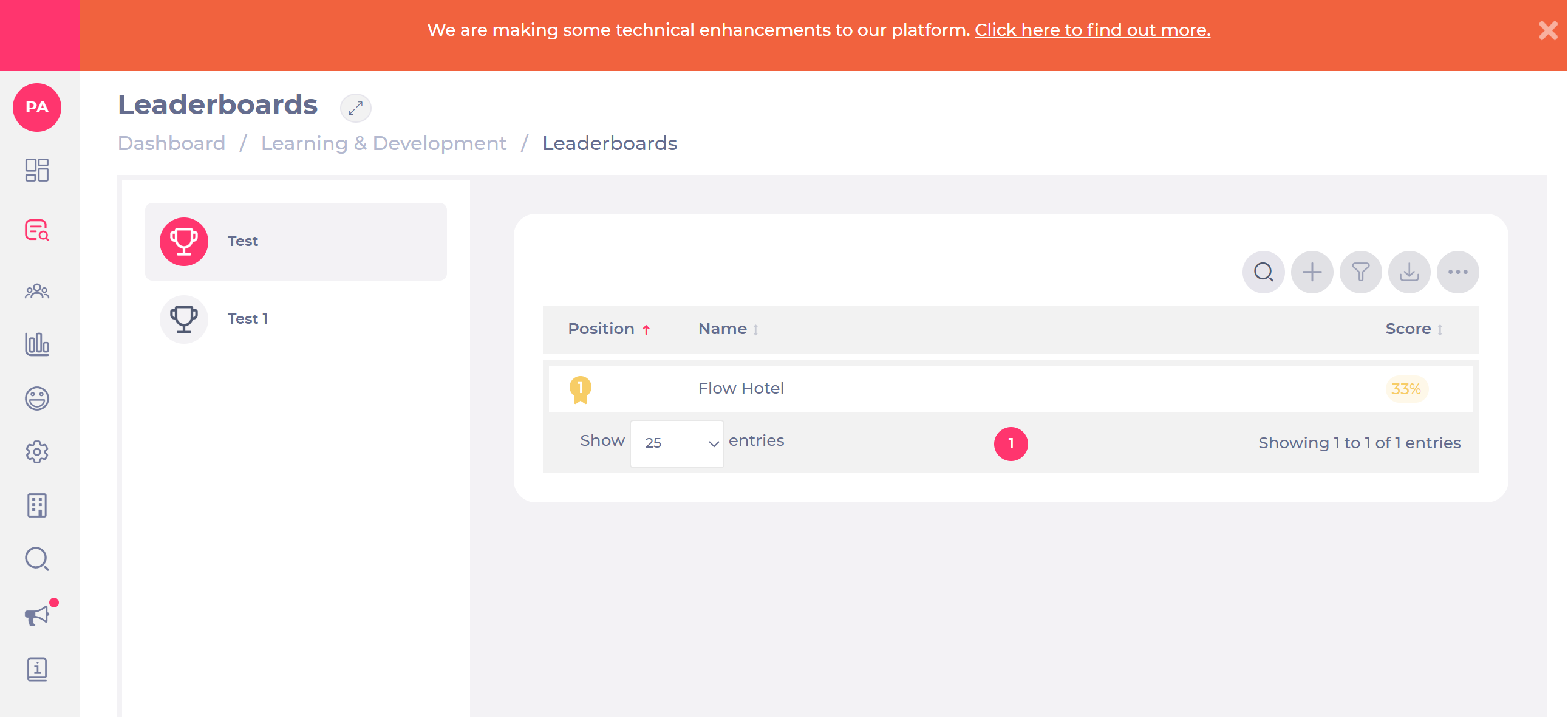
The leaderboard displays a ranking of teams based on their total accumulated score.
Each team's score is shown alongside its position in the ranking.
A dropdown menu at the top of the screen allows users to switch between viewing Branches or Departments.
Manage gamification scenarios for your team
Start from: The Mapal OS configuration dashboard.
Customise gamification configuration
Managers and OS users have control over gamification settings.
Navigate to Gamification Management > Points & badges.
Here, you can enable or disable specific pointable actions and adjust the value of points assigned to each activity.
Earning points
Employees earn points automatically for completing key learning and engagement activities in Mapal One. These actions contribute to company-wide leaderboards and help foster a culture of recognition and participation.
Learning activities:
Completing a Required by You module within the due date.
Completing a Required by You appraisal within the due date.
Completing a Bitesize or Optional Learning module.
Completing a Workbook within the due date.
Passing a Knowledge Check within the due date.
Engagement activities:
Completing a survey
Recognising a colleague (peer-to-peer recognition)
Marking a news or forum post as read
Commenting on a news or forum post
Creating a forum post
Submitting a suggestion
Viewing your points and rankings
To check your current points and ranking:
In Flow Learning:
Go to Learning & Development > Leaderboards.
Select the specific Leaderboard you want to see.
You can also check the rankings for specific Challenges.
Companies can choose how to recognise and reward employees based on their points. Announcements can be made through company news posts to highlight top learners.
This gamification feature helps encourage ongoing learning, healthy competition, and employee engagement across your business.
Introduction to Leaderboards
What are Leaderboards?
The leaderboard function in Flow Learning is designed to foster a motivating and engaging learning environment by enabling learners to compete with their peers. This feature not only drives motivation but also allows managers to track performance and engagement effectively. By integrating leaderboards into learning collections, training managers can make them easily accessible to teams via their Mapal One accounts.
Key Features and Benefits of Leaderboards
Enhanced Engagement and Motivation: Leaderboards introduce a competitive element to learning, encouraging active participation and higher retention of information. Friendly competition boosts motivation, with employees striving to improve their standings.
Performance Tracking and Real-Time Feedback: Leaderboards provide a visual representation of learner performance, helping managers identify top performers and those needing additional support. Real-time feedback allows for timely adjustments to training strategies, ensuring continuous improvement.
Customisable Challenges: Challenges can be tailored to specific training goals, with options to create company-level challenges or select from existing ones. Customisation includes setting names, active dates, and assigning them to specific brands or departments.
Recognition and Rewards: Leaderboards highlight top performers, offering opportunities for recognition and rewards. This acknowledgment can be a powerful motivator, encouraging learners to aim for excellence.
Goal Setting and Achievement: Leaderboards help set clear goals and track progress, driving learners to complete training modules on time and achieve higher scores. This clarity enhances the learning experience and fosters a positive attitude towards ongoing training.
Why Use Leaderboards?
Using Leaderboards in Flow Learning enhances the overall learning experience by introducing elements of competition and gamification. This not only boosts motivation and engagement but also provides a clear method for tracking and recognising top performers. By integrating leaderboards into your training programmes, you can create a more dynamic and motivating environment that encourages continuous improvement.
Next Steps
To further enhance your use of the Leaderboards feature in Flow Learning, explore these related articles:
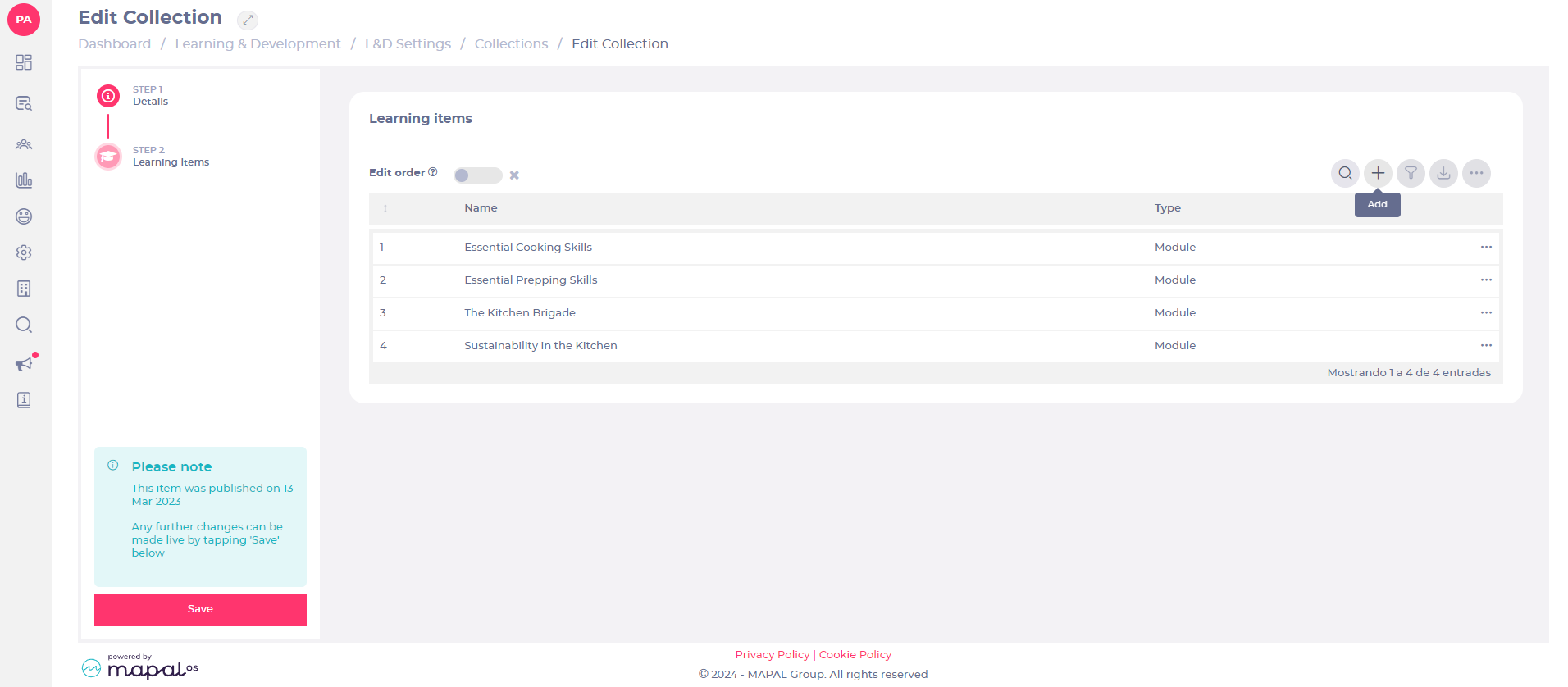
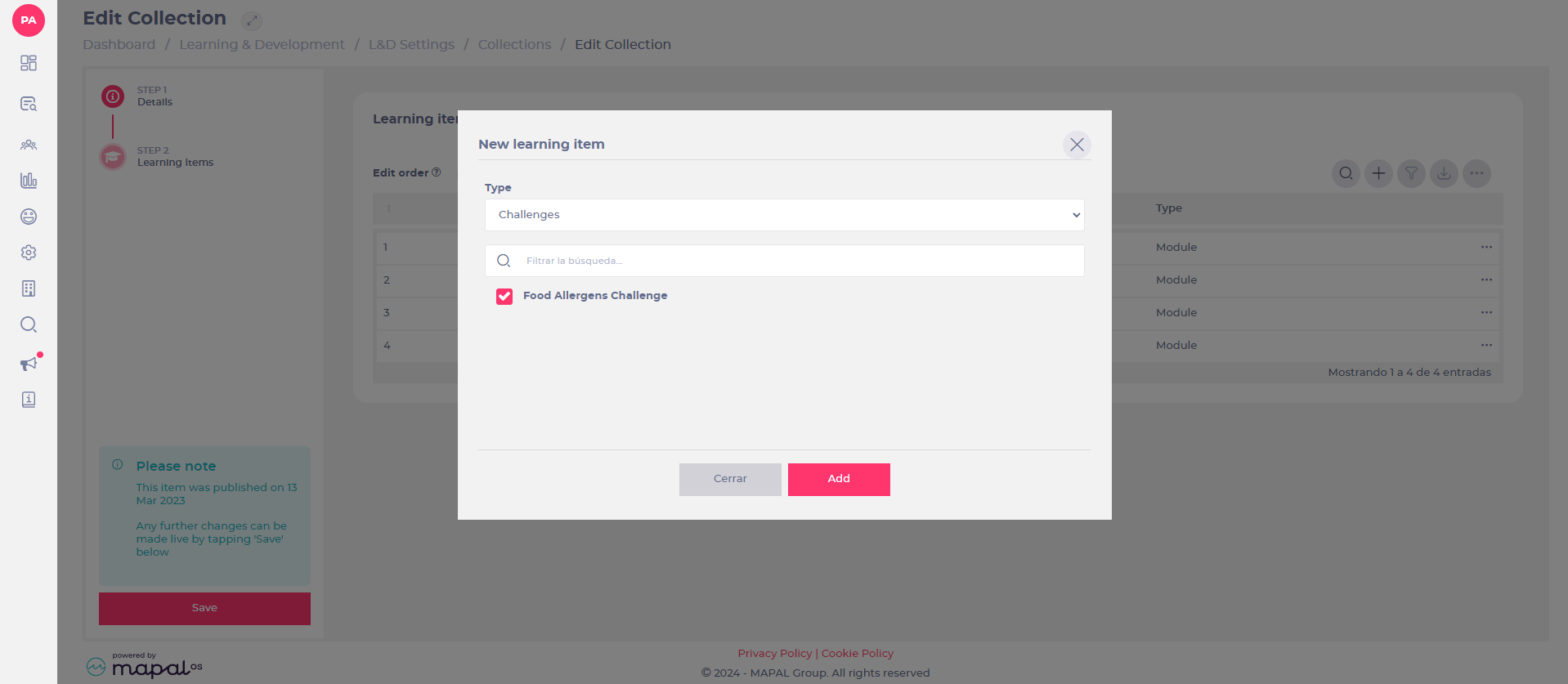
Select the Challenge you wish to add to the collection. Note: you will be able to choose from all challenges on your system that haven’t been archived or haven’t yet expired.
Select Add.
Once your challenge has been added as a learning item, the collection can then be assigned to a learner like any other collection. See Assign a collection for more information.
Set up leaderboards
Start from: The Flow Learning Dashboard.
Creating a Leaderboard category
Select Learning & Development > L&D Settings > Leaderboards from the main menu.
Select Add (+).
Step 1: Details
Enter the name of the category.
Step 2: Add
Select Add (+).
A New Learning Item pop-up window will open:
Choose between these following resource types, in the dropdown menu:
Competences
Workbooks
Module
External Learning
Note: you can add multiple resource types (for example, a workbook and a module) and multiple resources of each type.
Select Save.
View leaderboards as a manager
Start from: The Flow Learning Dashboard.
Viewing Leaderboards in the Management System
Select Learning & Development.
If enabled, select Leaderboards situated between the Collections and Refresher Learning sections.
Select the relevant section to access the data.
You will now be able to see the Leaderboard for that category and the ranking for the company's branches.
Note: You can add up to and including 10 categories, items are also limited to 25 items within the leaderboard category.