Set up and manage T&A alerts in GIRnet

Start from: The Workforce dashboard.

Manage alerts

Available actions

From the Scheduled Alerts screen you can:

Note: alerts that have already been executed cannot be deleted, only deactivated.

Create a new alert

Review executed alerts

Configure notifications and the authorized validation limit for quote management

Starting from: The Easilys menu.

A validator profile subject to the limit is a profile whose right "Accept / Reject an intervention quote under a limited amount" is activated and the right "Accept / Reject an intervention quote" is deactivated.

Notifications in Engagement

Recognitions

News

Agile feedback

Ideas

Operator name in email subject lines

All automated Engagement emails display the operator name at the beginning of the subject line. This helps recipients quickly recognise where the notification is coming from.

Example:
Mapal Coffee Co – Push Survey

This applies to all notification types, including recognitions, agile feedback, news, and ideas.

Branding

Email notifications also support operator branding within the email body. Organisations can customise the appearance of Engagement emails to reflect their identity, including:

These elements are applied consistently across all notification emails to support clarity, professionalism, and brand alignment. Email templates are optimized in formatting and readability to ensure that emails are recognisable, well-structured, and aligned with each organisation’s identity.

Operator-level email notification controls

Administrators have the ability to enable or disable outgoing email notifications at the operator level. This gives organisations more flexibility to manage which notifications are sent by email.

These settings are not configurable by end users. If you need changes to how email notifications are handled for your organization, please contact your Customer Success Manager (CSM) for assistance.

Removing login links from notifications (SSO-only customers)

For organisations that use Single Sign-On (SSO) to access Mapal One, it is possible to remove the standard login links that appear in Engagement email notifications. This option helps prevent confusion for users who log in exclusively via SSO and do not require direct access links.

If your organisation uses SSO and you would like this setting enabled, please contact your Customer Success Manager, who can activate it for your account.

Manage notifications in Mapal OS

Start from: The Mapal OS dashboard.

You will see a table listing all existing notification templates. From here, you can:

Create or edit a template

FieldDescription
Title*Enter the internal name for the template. This title helps identify it later in the notifications list.
Type*Choose the type of message this template will apply to (e.g., Welcome, Password Reset, Training Reminder).
Language*Select the language for this message from the dropdown. You can create different versions of the same template in multiple languages.
Subject*Enter the subject line that will appear in the email message.
DescriptionWrite the main body of the email. Use the editor toolbar to format the text (bold, italics, lists, links). You can also upload images or files directly in this area to include attachments or embedded visuals in your message.

After filling in all mandatory fields, select Accept to save your new template or Cancel to discard changes.

Note: Custom templates override the default system messages for the same notification type. Password setup messages will always include a system-generated setup link at the bottom of the email.

Delete a notification template

You can remove unused or test templates to keep the Notifications list clear and easier to manage.

Once deleted, the template is no longer available for selection or editing, which helps reduce the risk of selecting or sending an outdated template by mistake.

Multilingual notification templates

Mapal OS supports a wide range of languages for email notifications, allowing you to tailor messages to each user’s preferred language. When creating or editing a template, select the appropriate language from the Language dropdown in the New Template window.

Supported Languages

You can create one version per language. If a user’s preferred language does not have a custom version, Mapal OS automatically uses the English template.

Alerts in Smarthub

Start from: The Smarthub main page.

In Smarthub, alerts are generated when specific rules are violated, such as exceeding the maximum allowed work time or not meeting the minimum rest time between shifts.

To configure alerts:

Create a new Reputation alert

Start from: The Reputation dashboard.

Alerts

Reputation's alert system is designed to notify users when specific criteria are met, helping you monitor important metrics like customer satisfaction and reviews in real-time. With customizable options, the alert system ensures you receive timely updates to address any issues proactively. 

Create an alert

  • Navigate to Configuration > General > Alerts.
  • On the Alerts screen, select + New.

A white rectangular object with text<br><br>Description automatically generated

  • A New alert window will pop up, here, you will need to follow 4 steps to create your alert:

1. General Information

  •  Assign an Alert Name*. 

  • Set the Frequency* for the alert. It can be: 

  • Configure how often alerts should be generated:
    • Daily: Receive alerts each day, providing a continuous stream of real-time data.
    • Weekly: Summarize data in a weekly alert for a broader view of customer sentiment trends.
    • Monthly: Review customer feedback over a monthly period for long-term analysis.
  • Choose the scope in Alert by*. The possible scopes are:

    • By Business Unit (BU): Calculate the metric for each BU individually in the filter.

    • By Business Unit Group: Calculate the metric for all BUs in the selected group, allowing for broader monitoring across multiple locations.

    • Per Review: Trigger alerts based on individual review criteria, giving granular control over alerts tied to specific feedback.

  • Toggle the Status button to make it active.

  • Hit the Next button.

2. Define Conditions

  • Select the Alert metrics*. You can set up alerts based on various metrics:
    • ???????NPS (Net Promoter Score): Track customer loyalty and satisfaction by measuring the likelihood that customers will recommend your business.
    • CSAT (Customer Satisfaction Score): Monitor customer satisfaction based on recent interactions.
    • Reviews: Keep track of customer reviews across multiple platforms to understand public perception and address issues promptly.
  • For each metric, you can configure:
    • ???????Operations*: Examples include “Greater than or equal to,” “Less than,” etc.
    • Value*: Set thresholds (e.g., a CSAT score below 3 triggers an alert).
  • Define the days Days without reply*.
  • Hit Next to advance to the following step.

A screenshot of a computer<br><br>Description automatically generated

3. Apply Filters???????

  • Set the Filters to help refine your alerts to ensure they apply to relevant data only. Key filters include:
    • Source: Specify platforms (e.g., Google, TripAdvisor, Yelp) where the reviews are coming from.

    • Language: Define language preferences to focus on feedback in specific languages.

  • Select Next to jump to the last step. 

    A screenshot of a computer<br><br>Description automatically generated

    4. Assign Recipients

    • Choose who receives the alerts to ensure that relevant personnel stay informed:
      • ???????Specific Users: Select individuals who need to be notified.
      • Roles: Assign alerts to user roles (e.g., managers, customer service reps) so the relevant teams are always informed.

    A screenshot of a computer<br><br>Description automatically generated
    Notes: All the fields marked with the * are mandatory.

    • Once you have finished configuring the alert parameters, select Accept to save the alert. It will now appear in the alerts list for easy management and monitoring.

    A screenshot of a computer<br><br>Description automatically generated

    Email notifications in Compliance

    Start from: The Compliance dashboard.  

    Enable and disable email notifications 

    Notes: Only users with registered emails can enable notifications.  

    Available email notifications 

    Central users 

    On a central user you can see the following options for email notifications:  

    Note: This email is turned off by default, and users must manually enable it in their profile.

    Local users 

    On a local user you can see the following options for email notifications: 

    Note: This email is turned off by default, and users must manually enable it in their profile.

    Deviation notifications

    When a deviation is recorded, the user logging the deviation can assign one or more responsible users. Email notifications are sent automatically based on the assignment settings.

    The automatic notification flow works as follows:

    This ensures that everyone responsible for a deviation is informed at the right time, improves communication between teams, and reduces the risk of delays caused by missed notifications.

    Understand if a contract is about to end

    Start from: The Workforce module.

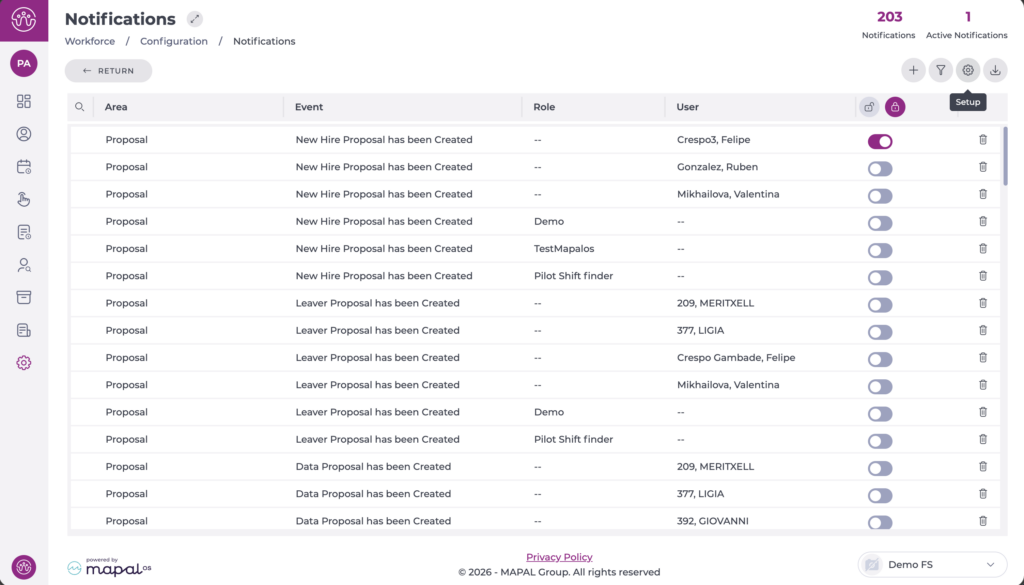
    Through notifications

    • Navigate to Configuration > Notifications.


    Once on this screen, the user will see the main table that lists all the notifications users can configure according to the permissions of their role.

    • Select the New + button to assign new recipients and notifications.

    • A pop-up window will appear with 5 fields, for which you must select:

      • Area: Used to filter the events (notification) that the user associates with the recipients. This field is mandatory. There are 5 areas: Payroll Incidences, ITs, Other Absences, Proposal, and Holidays. In this case, select Proposals.

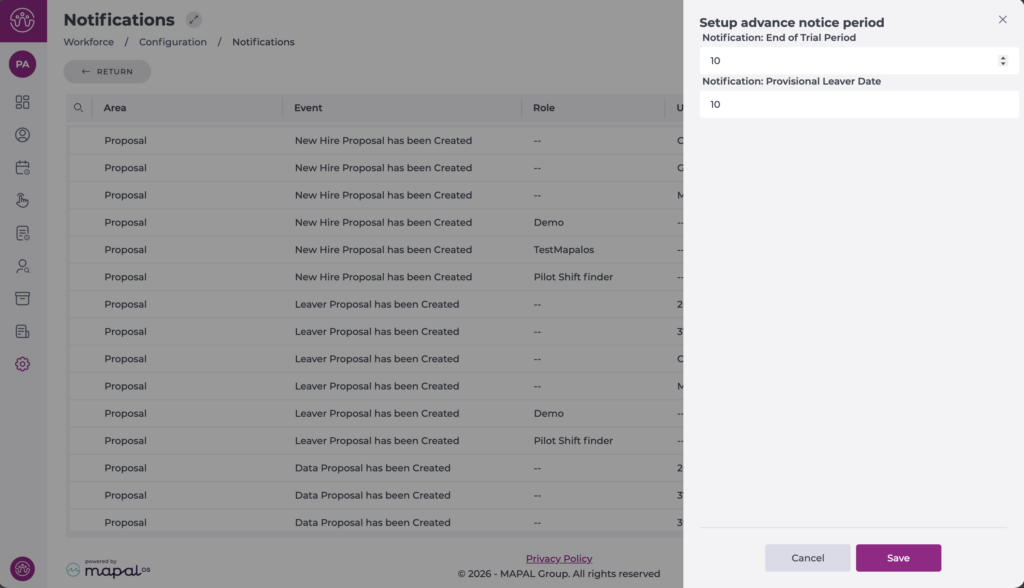
      • Event: Displays the list of different events based on the previously selected area. This field is mandatory. Here you can select as many Proposal events as necessary.In this field, you must select the Notification: Provisional Leaver Date option.

      • Role: Associates users with a specific role as recipients of the selected event(s).

      • User: Associates one or more specific users as recipients of the selected event(s), independent of a specific role.

      • Status: Assign an active or inactive status to your notification.

    Interfaz de usuario gráfica, Aplicación<br><br>Descripción generada automáticamente
    Notes: The Role field is not mandatory if a user is selected, and the User field is not mandatory if a role is selected.

    • By default, notifications will be created with an Active status, so that, from the moment of creation, if any of the associated notification events occur, users will receive the corresponding notifications.

    • Select Accept to generate as many event-role and event-user notifications as have been selected from the event list OR Cancel to discard the changes.

    Through reports

    • Select Reports from the main menu.

    Interfaz de usuario gráfica, Aplicación, Teams<br><br>Descripción generada automáticamente

    • Use the Magnifying Glass icon ? or locate report 160 - Employment History on the list.

    Interfaz de usuario gráfica, Aplicación, Teams<br><br>Descripción generada automáticamente

    • Select whether you want to Group the report by Employee or by Unit.

    • Select the Status of the Employee or Unit between Current and Former.

    • Select the specific Employee or Unit you wish to consult.

    • Select if you want to Show Leaves in the report.

    • Set a Period. It can be All or choose from a Date Range.

    • Select the Excel button to download the report in .XLS format.

    Interfaz de usuario gráfica, Texto, Aplicación<br><br>Descripción generada automáticamente

    • The resulting report shows the Expected Leave Date for each employee of the Center or the individual employee you have selected.


    Set up notifications to send completed shifts to employees via the mobile app

    Start from: The Workforce module.

    • Select Configuration > Employee APP from the main menu.


    In the Profiles tab, you can see the list of profiles already created. The activation of shift notifications is directly linked to the configuration of the profiles, i.e. to activate the notifications, you must edit the configuration of an existing profile or create a new profile.

    • Select the profile row to edit OR select New + to create a new profile.

    Captura de pantalla de computadora<br><br>Descripción generada automáticamente

    • In the Edit Profile or New Profile pop-up window, go to the Shifts section and configure the following settings:
      • Make sure Shifts is selected with a ? .
      • Under Schedule Visibility, set the number of visible past and future weeks.
      • Set the event that will trigger the notification for employees. This can be when the shift is marked as Completed, Reviewed, or Closed.
      • Select Show colleagues on shift if you want the employee to be able to see who will be on shift.
      • Select Request read receipt for schedule if you would like to receive updates on who has viewed the shift.
      • Select Do not show time shift ends to hide this information.

    • Select Accept to save the settings you have configured OR Cancel to discard the changes.

    Configure incident notifications

    Start from: The Workforce module.

    • Select Configuration > Notifications from the main menu.
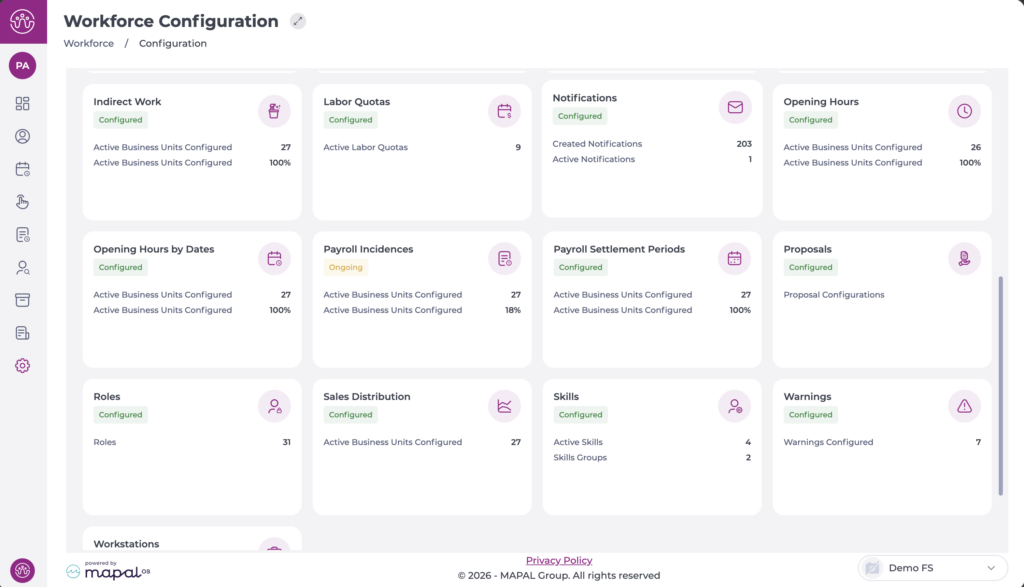
    Once on this screen, the user will see the main table that lists all the notifications users can configure according to the permissions of their role.

    • Select the New + button to assign new recipients and notifications.

    Interfaz de usuario gráfica, Tabla<br><br>Descripción generada automáticamente

    • A pop-up window will appear with 5 fields, for which you must select:

      • Area: Used to filter the events (notification) that the user associates with the recipients. This field is mandatory. There are 5 areas: Payroll incidences, ITs, Other Absences, Proposals, and Holidays.

      • Event: Displays the list of different events based on the previously selected area. This field is mandatory. Here you can select as many absence events as necessary.

      • Role: Associates users with a specific role as recipients of the selected event(s).

      • User: Associates one or more specific users as recipients of the selected event(s), independent of a specific role.

      • Status: Assign an active or inactive status to your notification.

    Notes: The Role field is not mandatory if a user is selected, and the User field is not mandatory if a role is selected.

    By default, notifications will be created with an Active status, so that, from the moment of creation, if any of the associated notification events occur, users will receive the corresponding notifications.

    • Select Accept to generate as many event-role and event-user notifications as have been selected from the event list OR select Cancel to discard the changes.