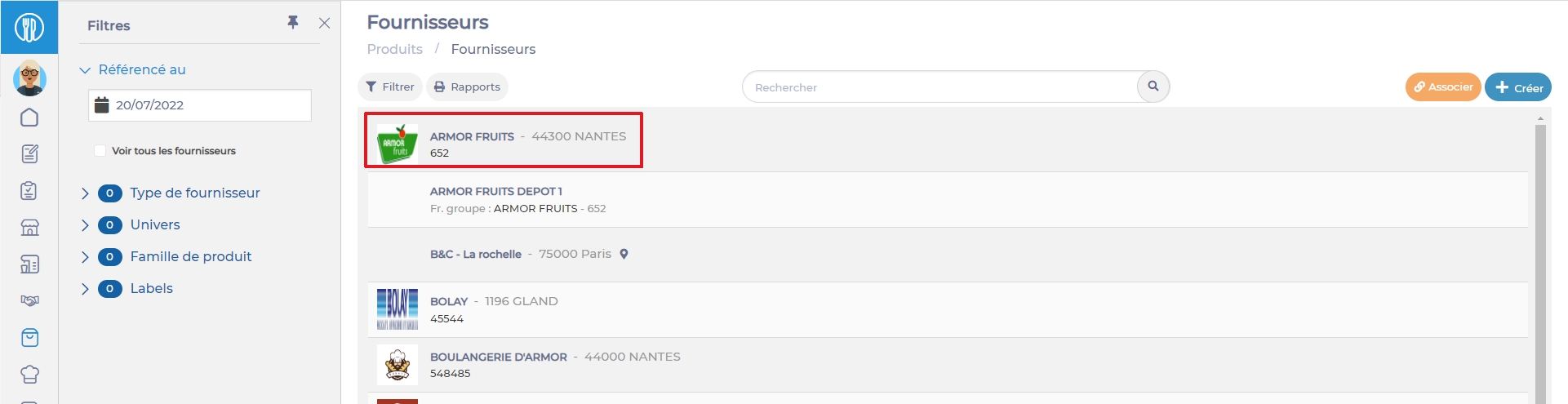
Detach a supplier record administered by a parent site
Start from: The Easilys menu.
Select Products> Suppliers.
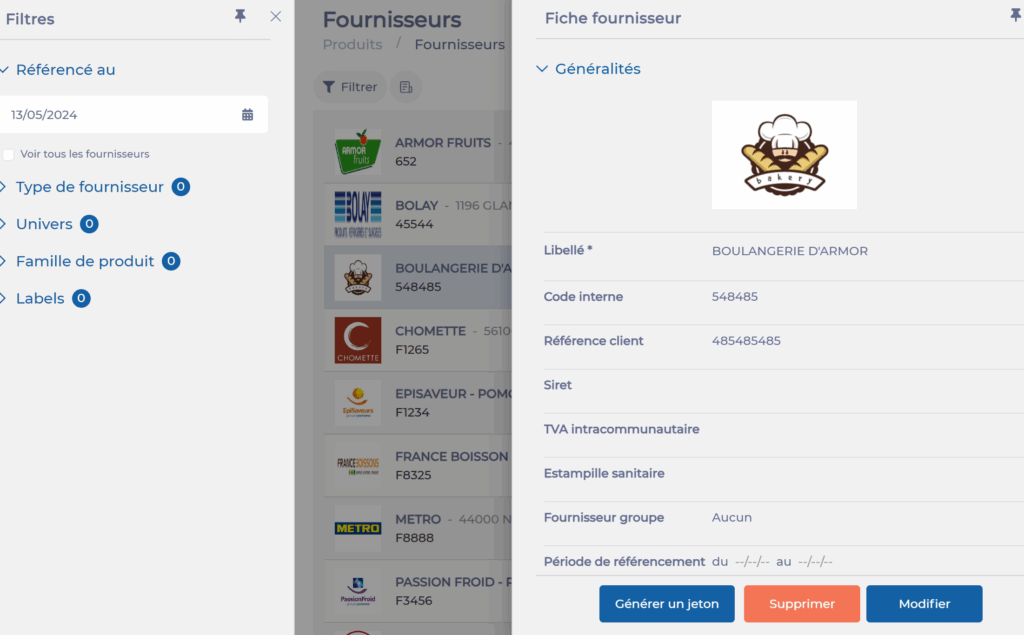
Select, from the list on the left of the screen, the existing supplier record that you want to delete.
The supplier record displays on the right of the screen:
Select Delete, at the bottom right of the supplier record.
Confirm.
Elements inherited from parent site to child site
Start from: Products > Suppliers
When managing supplier records and their associated price lists from a parent site, and then linking these supplier records to child sites so that they can order from them, certain pieces of information and options from the supplier record are inherited, while others are not.
Here is the list of the inherited elements:
Order deadline
Shipping costs
Minimum order amount
Cancel shipping costs if the order is greater than the minimum order
Prohibit an order less than the minimum order amount
Automatically create claims
Activate the claims workflow
Allow a delivery date less than the minimum deadline
Automatic email sending (claims/credit notes)
Automatic fax sending (claims/credit notes)
Minimum deadline between delivery and production
Contact details phone - fax - emails
Website
Display a clickable confirmation link in the order email
Use pre-orders
Automatically close an order at maturity
Note that when a child site makes a modification to an element, the inheritance link is broken. The modification on the original supplier record present on the parent site will then not be reflected on the associated supplier record on the child site. To restore an inheritance link, an action by the technical team is necessary. Contact us to learn more.
Associate the "PARENT SITE NAME" supplier on child sites
Using the Site supply screen, you can associate the "PARENT SITE NAME" supplier to child sites, so that they can order products from the parent site (in the orders screen).
Starting from: The Easilys menu.
Go to each child site to associate the supplier record bearing the name of the parent site.
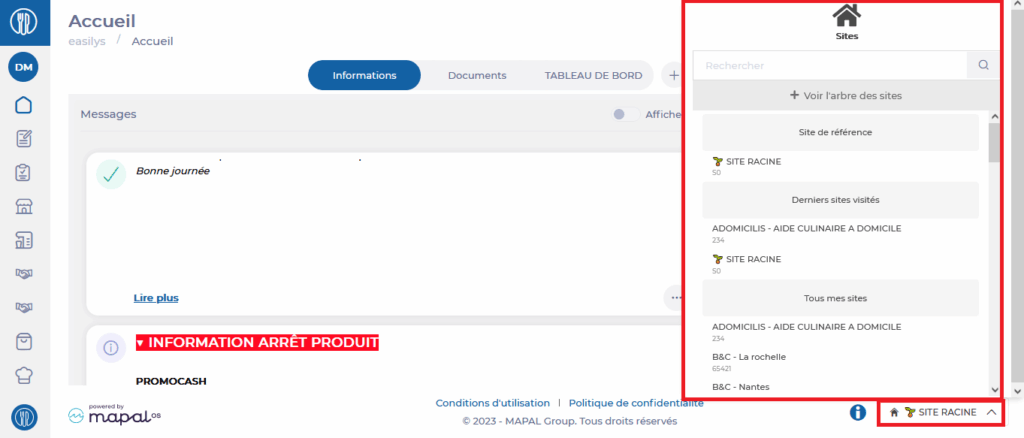
To do this, select Root Site at the bottom of the screen to display the list of your sites and select each of your child sites.
Then select the Products > Suppliers tabs.
Select Associate.
The "Associate a supplier" window appears.
Enter the requested information and select Associate.
As a reminder, by associating a supplier record from a parent site on a child site, you allow the child site to order the products available in the price lists administered on the parent site. It is therefore essential to have not only associated the supplier record, but also created the price list(s) for this supplier.
Create a specific price list on the parent site
If your environment is configured for multiple languages, the multilingual icon appears for some fields. For more information on how to use it, see the article Use Easilys in multilingual mode .
Start from: The Easilys menu.
Once the "Allow recipe storage" option is enabled in the parent site settings, a special supplier record named after this parent site becomes available on the SUPPLIERS screen (PRODUCTS tab) of the parent site.
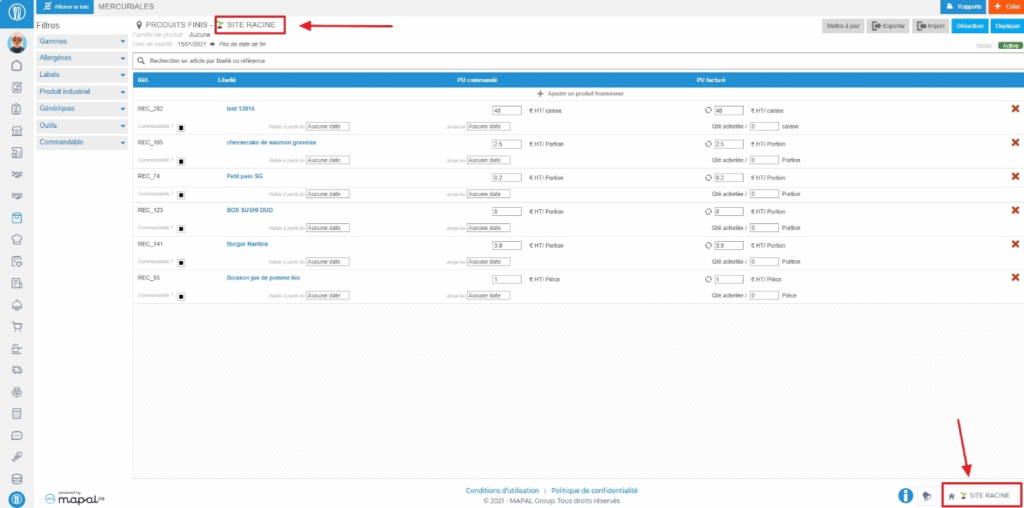
To offer child sites the finished and/or raw products from the parent site for ordering, you must create at least one price list linked to this special supplier record on the parent site. For more information on creating a price list, refer to the article Create a new price list.
Do not specify a product family when creating the price list. The product family for this special price list must always be “None” otherwise you will not be able to add finished products to it.
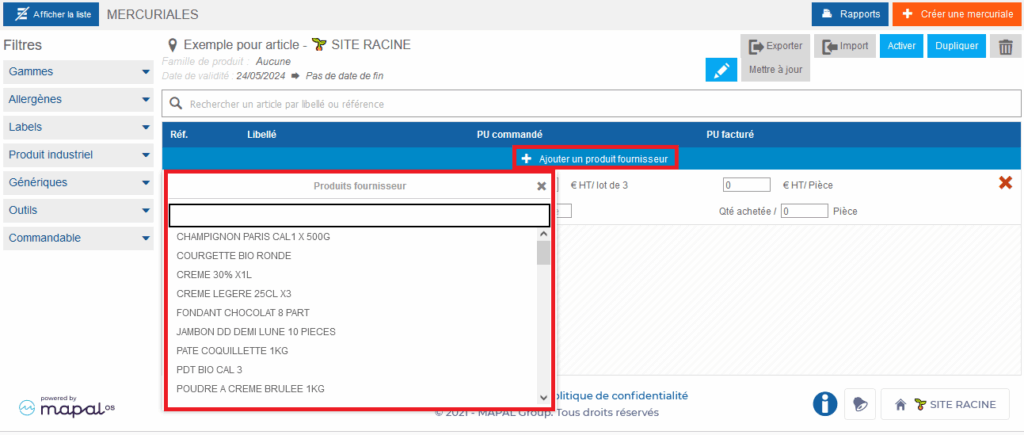
Create the price list by linking it to this supplier record and add products by selecting "+ Add a supplier product".
MANAGE THE SALE OF FINISHED PRODUCTS
You have already enabled the option "Recipes are by default finished products stored when created" in the site settings. You must now indicate to Easilys which recipes are storable and can therefore also be used as finished products.
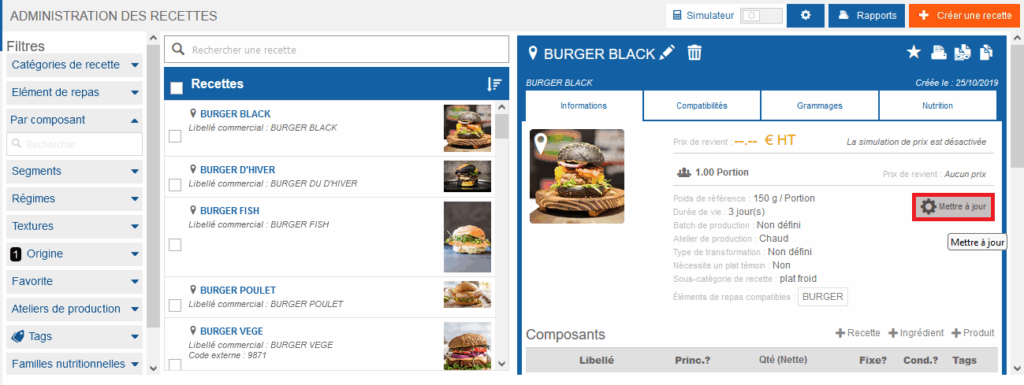
Select the tabs Recipes > Recipe administration.
Select the recipe record you want to make storable and therefore also use as a finished product.
The recipe record appears on the right.
Select Update. (If the button is not visible, make sure you have selected a local recipe record for the site and that the simulator at the top right of the screen is disabled.)
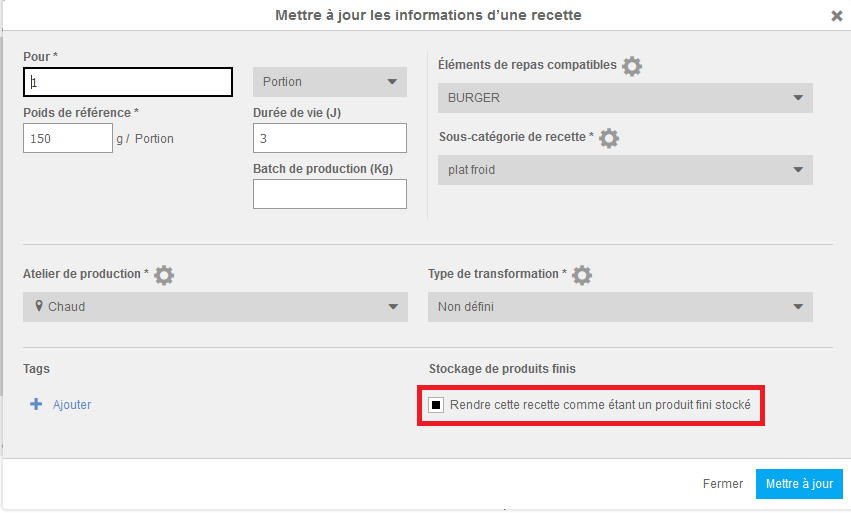
The "Update recipe information" window appears on the screen.
Check the option "Make this recipe a finished product in stock".
Note: This option is checked or unchecked by default, depending on the choice indicated in the site settings (see below).
Select Update to confirm your change.
Once your recipes are made storable, you can add them to the price list. Simply search for the recipe name in the list of products offered by Easilys and select it.
Note: When adding a finished product to the price list, it will have the reference “REC-XXX”. Do not change this reference.
MANAGE THE RESALE OF SUPPLIER PRODUCTS
For Easilys to link an existing supplier product, which the parent site can order, to the product that the parent site resells to its child sites, you must add an existing supplier product to the price list linked to the "Parent site" supplier, and not create a new one.
Simply search for the product name in the list of products offered by Easilys and select it.
When child sites order the product, they will order it from the parent site. The parent site, in turn, will have in stock the product previously purchased from its supplier.
When sending deliveries to child sites, Easilys can remove the supplier product from the parent site’s stock.
Warning! Do not change any information about the product added to the price list linked to the "Parent site" supplier.
If you change, for example, the order unit, Easilys will no longer be able to link the supplier product purchased and stocked by the parent site with the product that child sites order from the parent site.
Without this link, it is impossible to manage deliveries. This is expected to evolve to allow the management of repackaged resold products.
Transfer a recipe from one site to its parent site
Note: Each action performed on the application is subject to user permissions. If you are unable to carry out the recommended actions in the articles you are viewing, this may mean that the necessary rights have not been activated for your user profile. Contact the Support team, or your administrator, to find out more.
Start from: The Easilys menu.
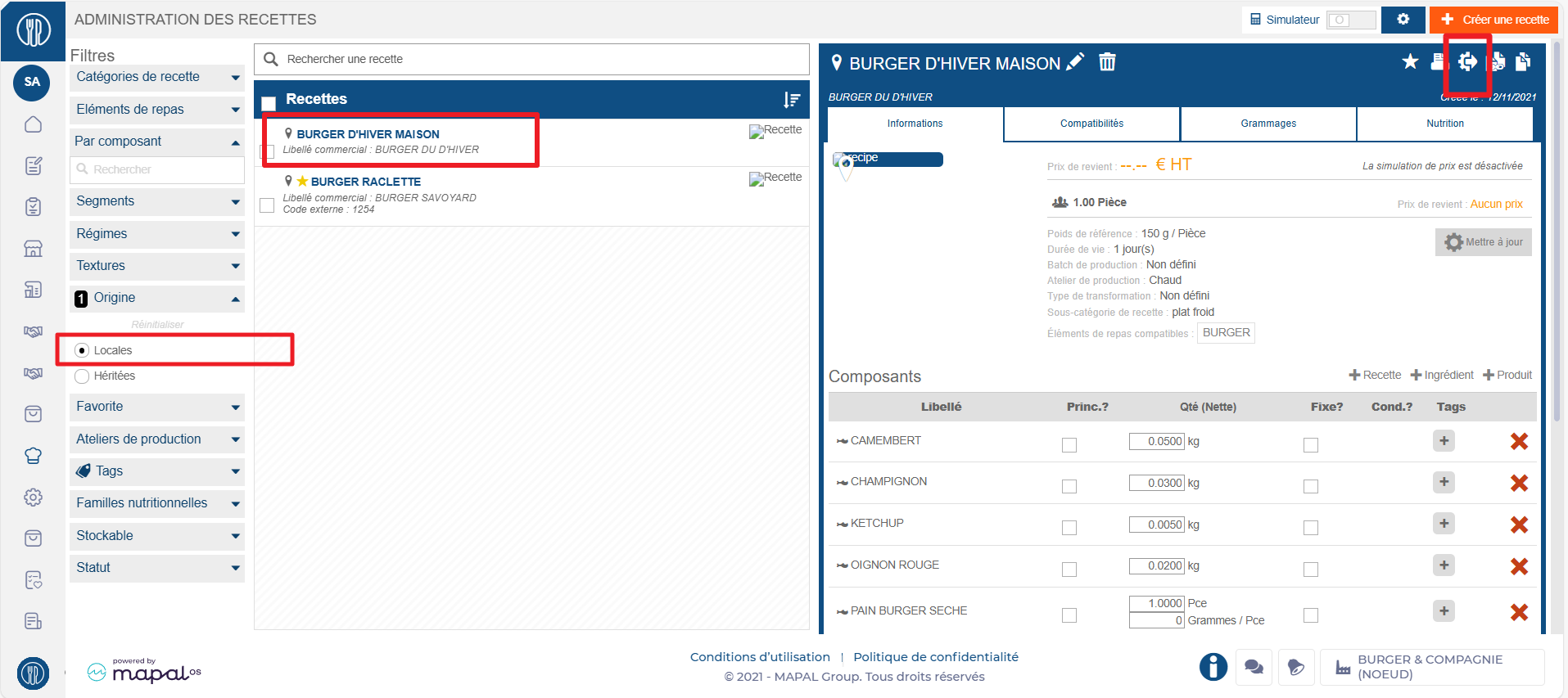
Select Recipes in the main menu > Recipe management.
Select the local recipe you wish to transfer.
The recipe card is displayed:
Select the transfer icon at the top right of the recipe card.
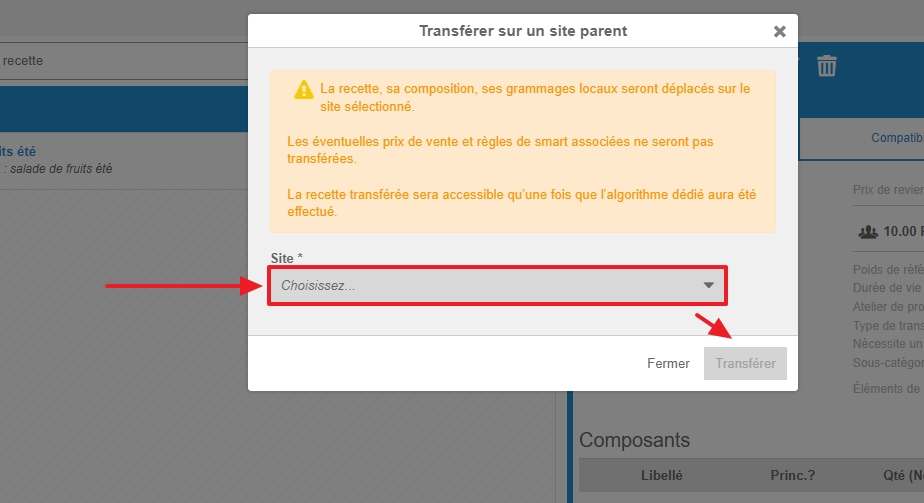
The Transfer recipe to parent site pop-up window appears:
Select the parent site to which the recipe is to be transferred.
Select Transfer.
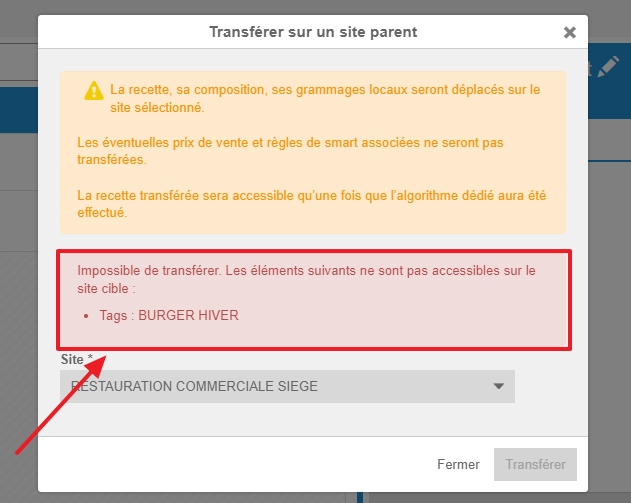
Note: In some cases, recipe transfer may not work: for example, a sub-recipe may not be available on the parent site. This affects the integrity of the recipe, making transfer impossible. Easilys will then provide you with an explanation for its refusal.
GOOD TO KNOW: If the recipe being transferred to the parent site is stockable, then the associated finished product is also transferred to the same parent site. From then on, it can be added to price lists (mercuriales) from that level of the site hierarchy.
Associate a supplier sheet managed by a parent site
Note: each action performed on the application is subject to a fee. If you are unable to carry out the recommended actions in the articles you are viewing, this may mean that the necessary rights have not been activated for your user profile. Contact the Support team, or your administrator, to find out more.
Start from: The Easilys menu.
Associating a group supplier gives you access to orderable products available in a price list managed by a parent site. This makes it possible to order products without having to administer the price lists and product information.
Select the Products > Suppliers.
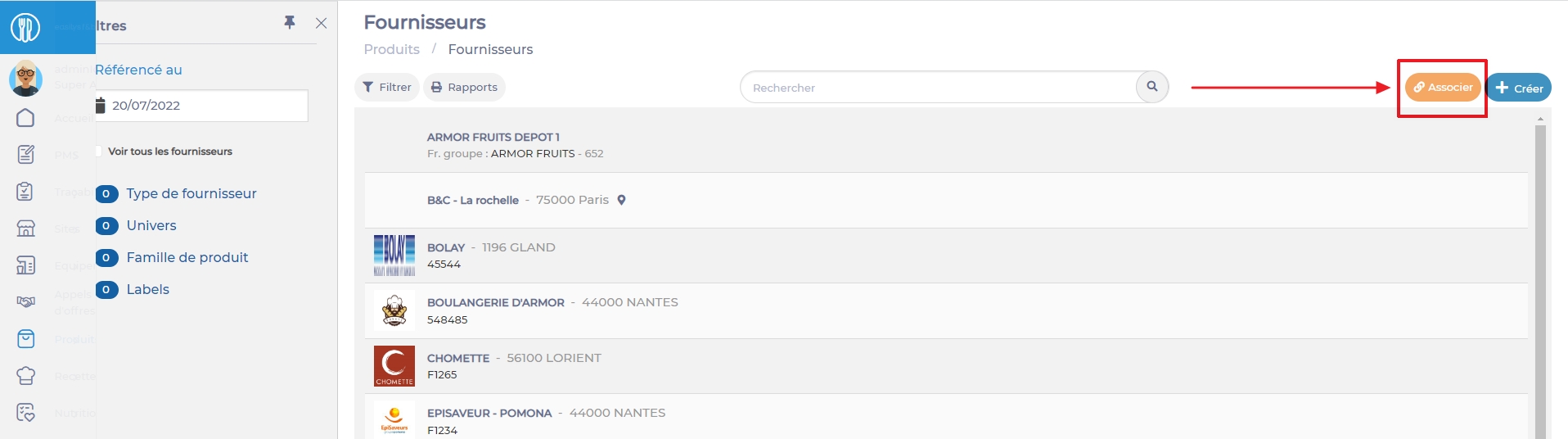
Select Associate.
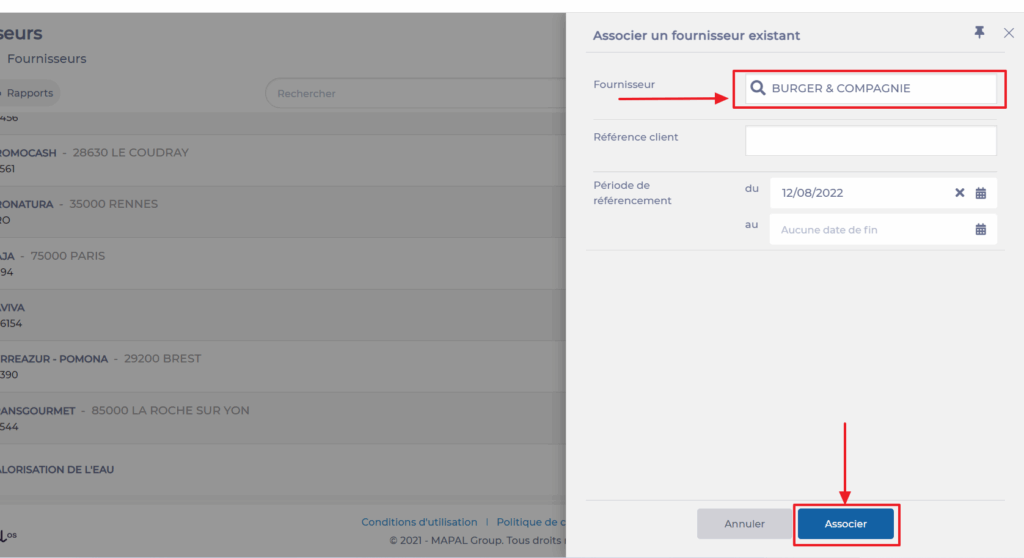
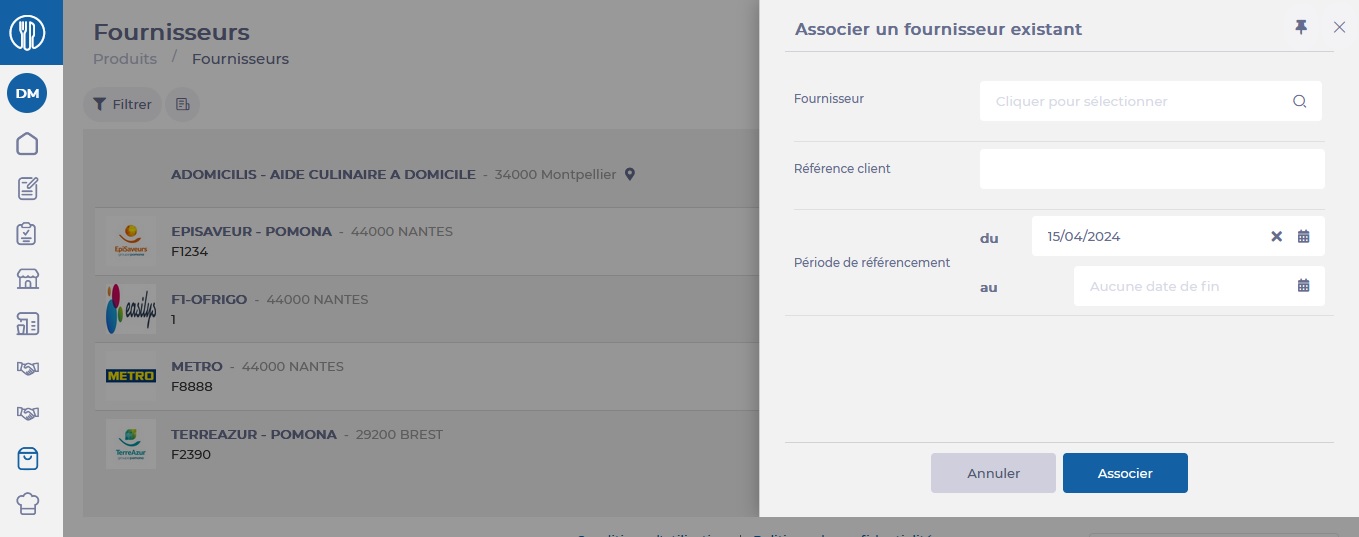
The "Associate an existing supplier" panel appears on the right of the screen.
Fill in the necessary information in the Associate an existing supplier form.
Select Associate in the bottom right-hand corner of the Associate an existing supplier form.
Find the supplier's sheet in the list. You can then select it to update it and modify contacts, contact details, delivery days, etc. as required.
Once the supplier has been associated, you'll need to wait for the daily update of the product database before their products are available to order on the site.