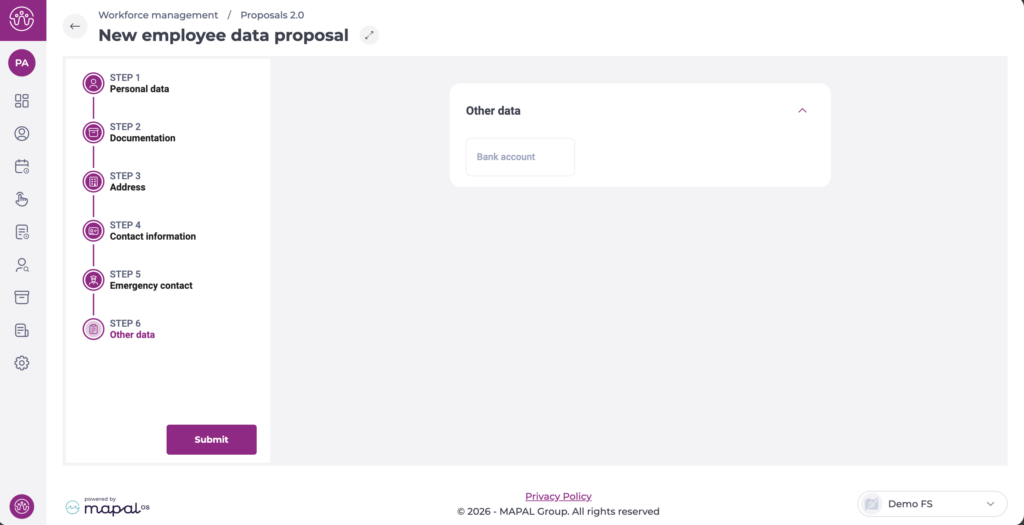
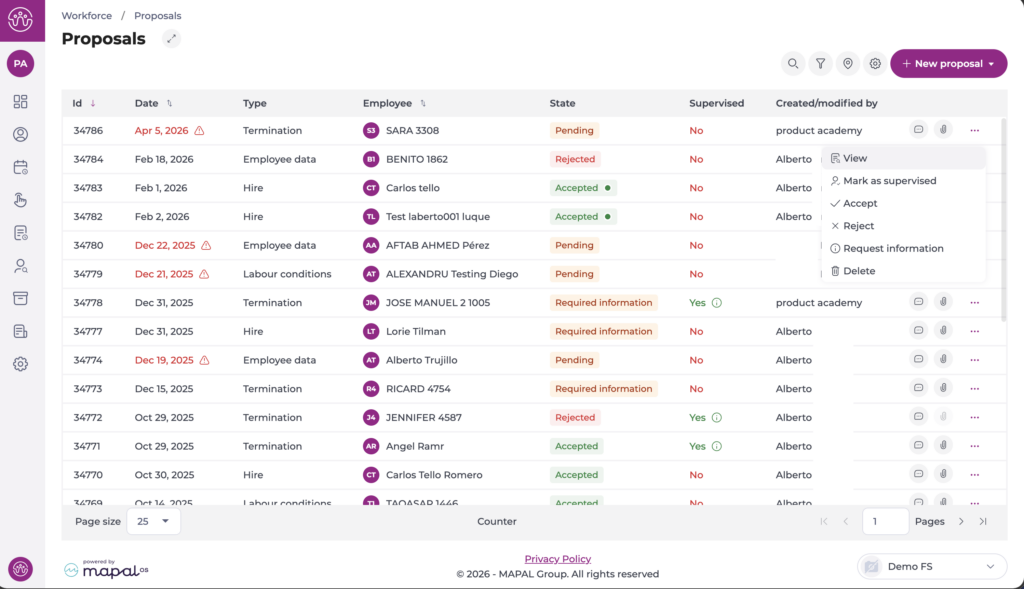
Supervise employee modification proposal

Start from: The Workforce module.

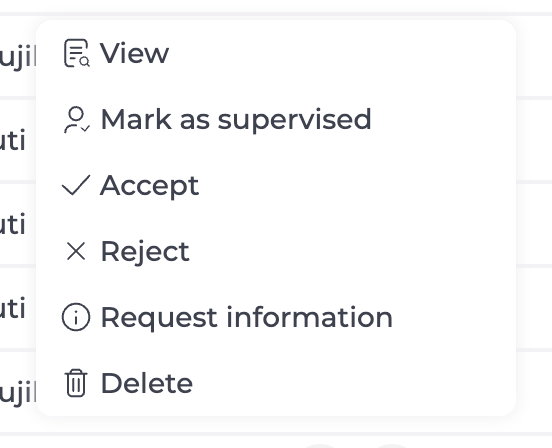
  • Select Workforce Management > Supervise Proposals from the main menu.

  • Choose the Work Center where you want to carry out the supervision of the employment condition modification.
  • Select the Status of the proposal to be supervised.
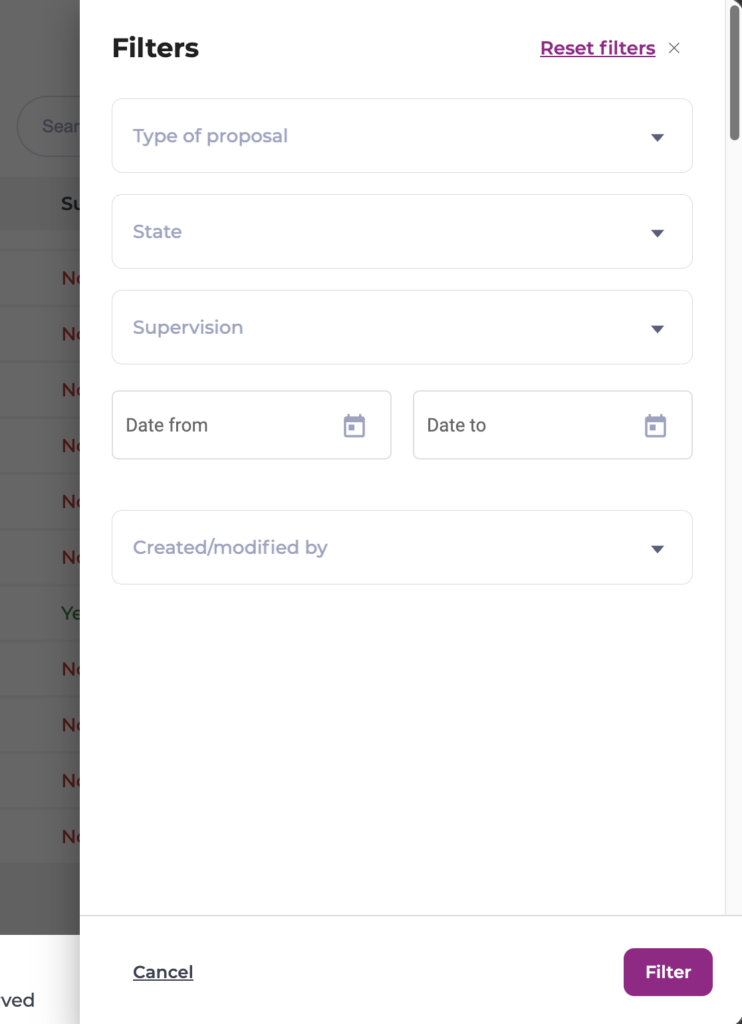
  • Under Supervision, choose between Supervised, Unsupervised, or All proposals.
  • Select Edit if you wish to make any changes to the proposal.
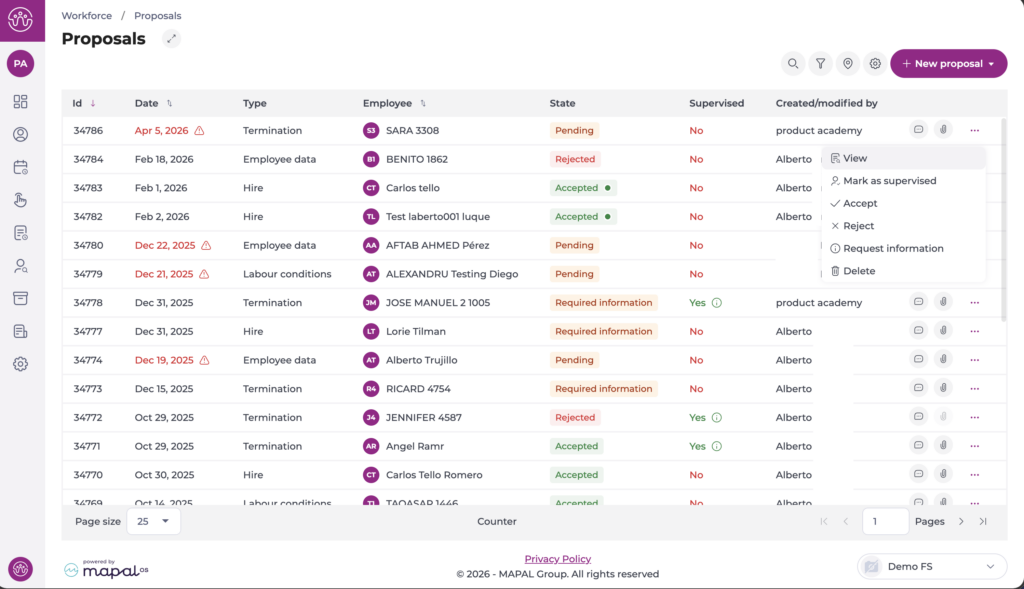
  • If you want the proposal to appear as supervised, you must select the Gray Circle next to the proposal. The circle will change to green, reflecting that the proposal is now Supervised.

Interfaz de usuario gráfica, Tabla<br><br>Descripción generada automáticamente

Assign favourite shifts or sequences to an employee

Start from: The Workforce module.

Notes: To assign favourite shifts and sequences, they must have been created beforehand.

To create new favourite shifts and sequences, see Set up favourite shifts and sequences.

To change or delete existing favourite shifts and sequences, see Manage favourite shifts and sequences.

Assign favourite shifts or sequences

  • Select Shifts > Scheduler 2.0 from the main menu.  

  • Once in the scheduler screen, select the < button to open the favourite shifts catalog and sequences in the side panel.   

  • The catalog is divided into two tabs: one for favourite shifts and the other for sequences. Both tabs work in the same way.

  • Select the appropriate tab.

  • Enter the name of the shift or sequence in the Search field.

  • Indicate how many times the assignment of the selected shift or sequence is to be repeated.

Notes: This functionality is very useful when you must make the same assignment for an employee repeatedly on consecutive days.

  • Select the shift or sequence from the list (the selection is marked with a blue ball).

  • Select in the grid the day and employee to whom you will assign the shift or sequence.

Notes: As long as the catalog panel remains open, the shift or sequence will be assigned the indicated number of times starting from the day and for the employee you have selected in the grid.

FAQs

I am planning for a week, and I have selected a shift to be assigned for 10 days in a row. When I go to look at the following week the days over the last week are not with the favourite shift assigned, why? 

The favourite shifts, when we apply a repetition, are only assigned until it reaches the indicated number of repetitions or the last day of the selected period in parameters, whichever conditions that is met first. 

To assign a shift 10 times we must have the 10 days we want to assign loaded in the planning. 

I've assigned a sequence with time off and it gives me an error, why?  

This is because we don't know the timetable of the time off to apply until we assign it to an employee and it can happen that the employee's time off's business uit timetable, overlaps with other shifts of the same sequence or other shifts already assigned to the employee for the same day where the time off corresponds.

I have assigned a shift or a sequence, but it gives me an error indicating that it cannot be assigned because the day for that center is not in process, why? 

This is because the centre that has the associated favourite shift or sequence for the day where we want to assign this favourite shift is in a different status to "On Going" and therefore cannot be edited.

Create a shift proposal

Start from: The Workforce dashboard.

What is Shift Finder

Shift Finder is a Workforce tool that helps you fill open shifts quickly by matching available employees with a specific shift need. It uses live rota, absence, and permission data so that proposals are only sent to employees who are actually able to work that shift.

How Shift Finder works for managers

As a manager, you define the shift details and, if needed, apply filters to exclude employees on days off or with contractual alerts. What you can do in Shift Finder depends on your permissions:

If a manager has all three permissions, proposals they create are sent directly to the selected employees without requiring additional approval. In this case, employees immediately receive a push notification inviting them to accept or decline the proposed shift.

Create a shift proposal

1. Proposal

2. Candidates

The list will show employees who:

Select employees using:

3. Summary

Notes: If you have authorisation permissions, the proposal is sent immediately via push notification to all selected employees in Gir Staff. If you do not have authorisation permissions, a push notification is sent to managers authorised to approve proposals for that business unit.

Accept or reject proposals and validate a call for tenders

Start from: the Easilys menu.

Once the proposals from the different suppliers have been reviewed, compared, and negotiated, you must indicate which proposals you accept and which you reject. Each proposal must be either accepted or rejected to be able to close the call for tenders.

Step 1: CREATE THE PRICE LISTS IN WHICH YOU WILL PLACE THE SELECTED PRODUCTS

If you do not place the selected products in a price list created from the call for tenders, then you will need to create these price lists and manually create the products that compose them.

You arrive at the list of calls for tenders.

The detailed sheet of the call for tenders is displayed on the screen.

A blank price list creation sheet is displayed on the right of the screen.

Step 2: ACCEPT OR REJECT THE PROPOSALS RECEIVED FOR THE CALLS FOR TENDERS

You arrive at the list of calls for tenders.

The detailed sheet of the call for tenders is displayed on the screen.

Remember to select proposals from the same supplier to be able to store them in the dedicated price list.

You can facilitate the visualization of your progress in accepting or rejecting proposals by pinning the tracked column of the table in the first column.

Step 3: CLOSE THE CALL FOR TENDERS

Once the call for tenders is closed, you will be able to assign it once all responses are rejected or accepted and associated with a price list. This will create the price lists on the "Price Lists" screen available in the "Products" section. These will be inactive, you will need to activate them manually.

Manage your production plan

Note: each action performed on the application matches a fee. If you are unable to carry out the recommended actions in the articles you are viewing, this may mean that the necessary rights have not been enabled for your user profile. Contact the Support team, or your Admin, to find out more.

Start from: The Easilys menu.

The production plan can be found on the PRODUCTION PLAN screen in the PRODUCTION section. This plan is generated by Easilys and can be modified manually if required.

The production plan matches suitable for multi-site use, since it can take into account the needs of both the production site and its child sites.

  • Select the Production > Production Plan tabs.

The Production schedule page views. The table views the production plan by day.

Filters (1): You can use filters to tell Easilys exactly what you want to see in the production plan. With no filter enabled, the complete production plan is displayed.

Meal types (2): If you select one or more specific meal types, Easilys will display only those items of the production plan that concern the production linked to these meal types.

Production workshops (3): If you select one or more specific production workshops, Easilys will display only those items of the production plan that concern the production linked to these shops.

Menu templates (4): If you select one or more specific menu templates, Easilys will display in the table opposite only those items of the production plan which concern the production linked to these menu templates.

Requirements consolidation (5): This filter lets you tell Easilys if you want it to consolidate your requirements by including the child sites of the site you're at, in order to draw up the production plan. Do you have menus available at several sites, and a single production site? Then consolidate your needs.

Calendar (6): Use the arrows to move a day backwards or forwards in the calendar. Select the calendar to choose which Data to go directly to.

Production workshop (7): This is the production workshop. Below, the total quantity to be produced.


  • Select production plan items for more details.

Une image contenant texte, logiciel, nombre, Icône d’ordinateur<br><br>Description générée automatiquement

Recipe (8): This is the recipe to be produced; below it, the total quantity to be produced. Details (9) show the meal type(s) concerned. Below, the consumption date and information on the number of days between the production Data and the consumption date.
The relevant menu template(s) are displayed in the service details (10). Below, the total quantity to be produced per menu template.

Une image contenant texte, logiciel, nombre, Icône d’ordinateur<br><br>Description générée automatiquement


  • You can modify the production plan by simply dragging and dropping. Only modifications that respect the recipes' shelf life and use-by deadline are allowed. For example, if a recipe is in the May 15 menu and has a shelf life of 3 days, you can only move it to May 14, 13 or 12.

How does Easilys design the production plan?

Easilys relies on the information you provide. It takes into account the recipes placed in the menus, the headcount entered in the menus and any production offset rules you may have set up.

Prerequisites 

1.    Functional recipe cards.
2.    Functional menu templates.
3.    Complete menus: recipes and numbers.

Plus points for optimizing the production plan generated by Easilys

Having set up production shift rules.

Modify a claim or credit request in a delivery note

Note: each action performed on the application is subject to a fee. If you are unable to carry out the recommended actions in the articles you are viewing, this may mean that the necessary rights have not been activated for your user profile. Contact the Support team, or your administrator, to find out more.

Start from: The Easilys menu.

It is possible to modify claims and credit note requests sent to suppliers from a delivery note, in order to correct them or simply to add more detailed information.

Easilys can recognise certain situations that would require a claim or credit request, and therefore generates them automatically.

These situations are identified in Easilys by the acronym NC, for Non-Compliance criteria.

Other situations require manual action on the part of the user.

In both cases, automatic creation by Easilys, or manual creation by you, you can modify them before validating the receipt.

INTERPRET NON-CONFORMING SITUATIONS

In a delivery note (Supplier orders > Reception tabs), you can quickly see if there is a claim or credit note request concerning a supplier product, thanks to the NC button visible to the left of each product name.

Une image contenant texte, capture d’écran, nombre, diagramme<br><br>Description générée automatiquement

Green NC pictogram: There are no claims or credit requests related to the supplier product.

Yellow NC pictogram: There is a claim linked to the supplier's product.

Red NC pictogram: There is a claim that gives rise to a credit request linked to the supplier's product.

MODIFY A CLAIM AND/OR CREDIT REQUEST

  • Select the Supplier orders > Reception.
  • Select the non-validated reception in which you wish to modify claims and/or credit note requests.
  • Select NC visible to the left of the name of the supplier product subject to a credit request.

Une image contenant texte, logiciel, Page web, Icône d’ordinateur<br><br>Description générée automatiquement


  • Supplier product details are displayed. It opens in the "Claims/Credit notes" tab.
  • Make the desired changes and select Save now when finished.

Une image contenant texte, logiciel, nombre, Police<br><br>Description générée automatiquement

 
If your reception is already validated, and you still want to modify a claim or credit request AND you have not set up automatic sending of claims and credit requests on the supplier sheet, you can reopen the reception to modify it. For more information, see the article Reopen a completed reception.

You can also delete a claim and/or credit request. To find out more, see the article Delete a credit note request in a receipt.

Create a shift proposal in Workforce App

Start from: The Workforce App. 

  • Select Shift Finder from the main menu OR navigate to the Shift Finder section in the app's Dashboard


  • Select the three dots button to open the floating menu and press + New request


In the New Request component, you will need to fill out three sections:  

  • Request: Fill in the general details of the shift request, such as:  

  • Business Unit: The location where you need the shift to be covered. 

  • Business Day: Business day on which you will need the shift to be covered.  

  • Start and end time of the proposed shift. 

  • Workstation: Workstation that will cover the shift. It will only be offered to employees with the selected workstation, if any employee could take the shift, the Indefinite option must be selected. 

  • Expiration: Sets how long before the start of the proposed shift the proposal will expire. 

Notes: You may not want to wait until the start of the shift to find out that no employee accepted it. The expiration time can be set, for example, three hours before the start of the shift, so that you can start taking other actions. If the request expires, employees will no longer be able to accept the shift. 

  • Comments: Comments added will be viewed by employees receiving the proposal.  

  • Candidates: this tab will only show the employees who could potentially take the shift, following the rules below: 

  • Contracted employees

  • They have no shifts projected for that day (neither in the business unit of the proposal, nor in other business units). 

  • They do not have all-day absences

  • If the absence is partial, it does not coincide with the shift. 

  • The employee has permission to clock in at the business unit

  • They are qualified to work in the selected workstation (if the workstation is established as permanent, no restrictions apply). 

  • If the employee has a day off or a partial day off, the employee will be shown (if the employee accepted the shift, the shift will be created and the day off will be deleted if it is a full day or partial day off and matches the shift). 

  • Choose Check all to select all proposed employees. 

  • Use the checkboxes to select a subgroup of employees. 

  • Select the Next button. 

  • Summary: shows the summary of all the information filled in the previous steps. 


Once the request is completed, select Publish to submit the proposal OR Back to discard it.  

As soon as a proposal is created and approved, the users selected in the proposal will receive a push notification informing them that the new proposal has been created. 

To learn how to accept a shift proposal, see Accept or reject a shift proposal through the Workforce App

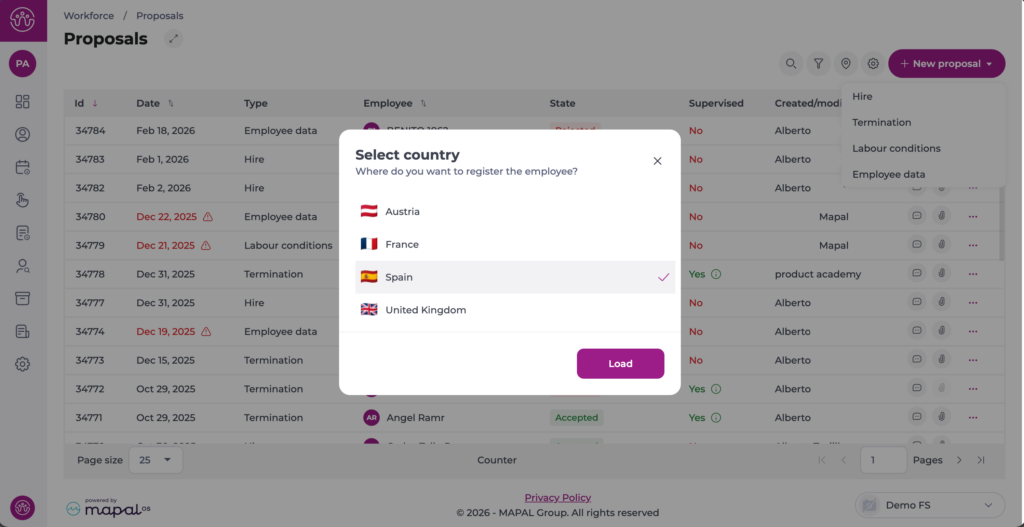
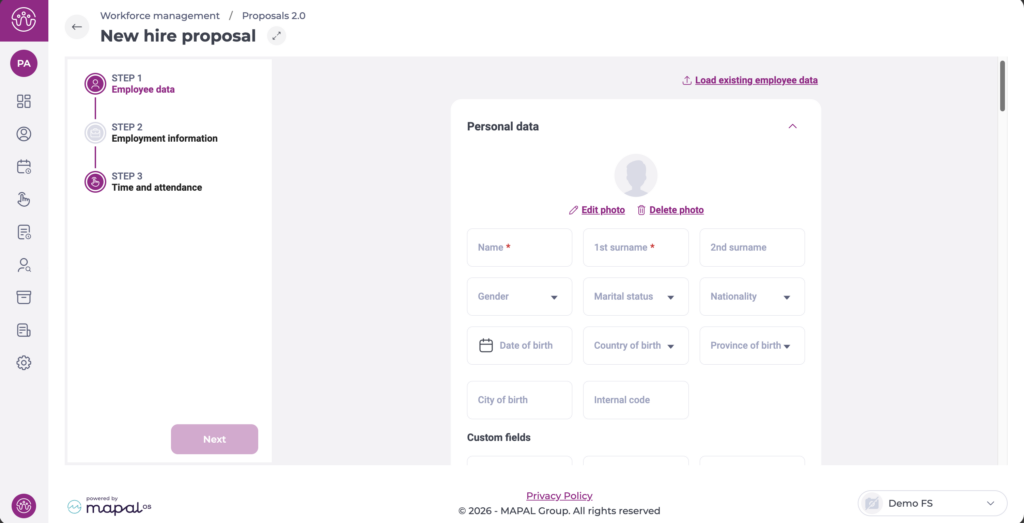
Create employee modification proposal

Start from: The Workforce module.

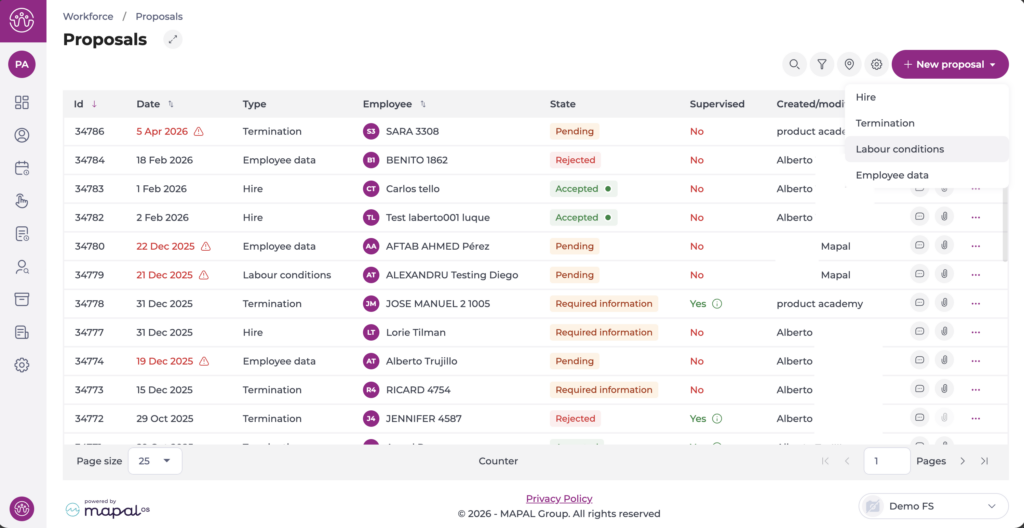
  • Select Workforce Management > Proposals from the main menu.

Interfaz de usuario gráfica, Gráfico<br><br>Descripción generada automáticamente

  • Choose the Work Center where you want to create the modification proposal.
  • Select the Modify button.

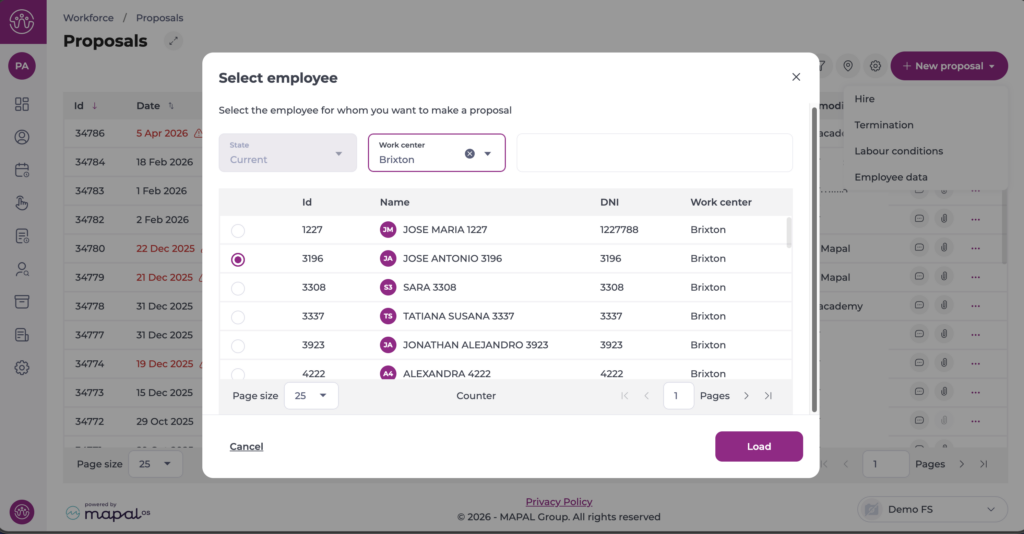
  • When the modification window appears, select the Employee you wish to modify from the drop-down menu.
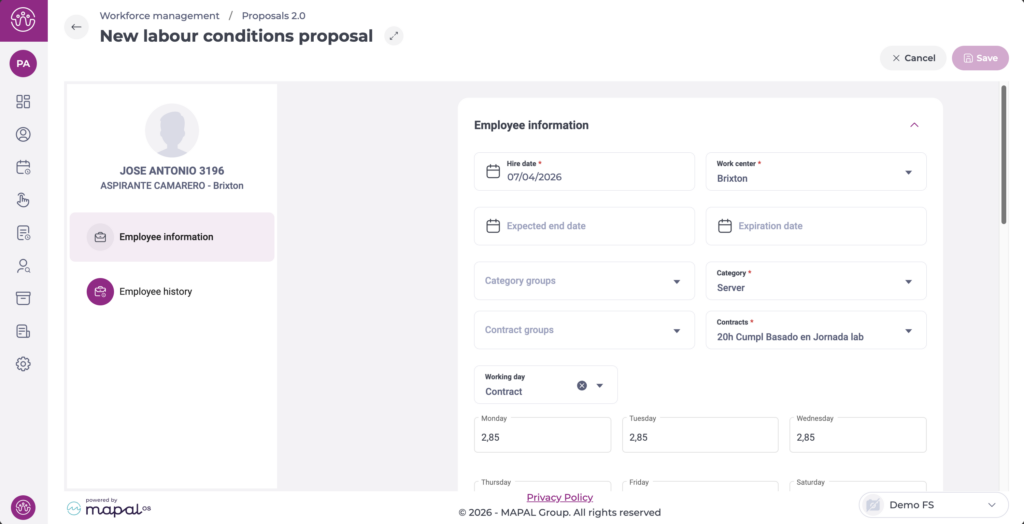
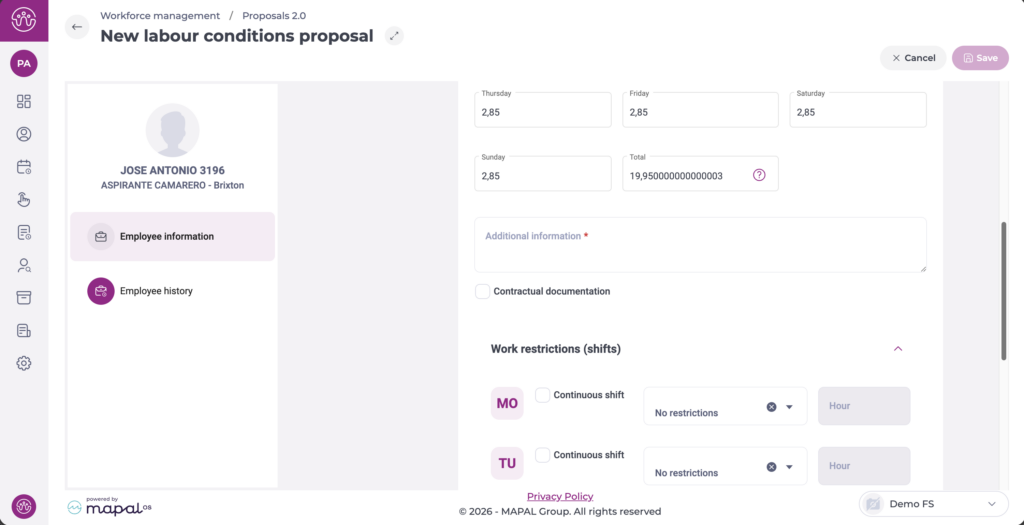
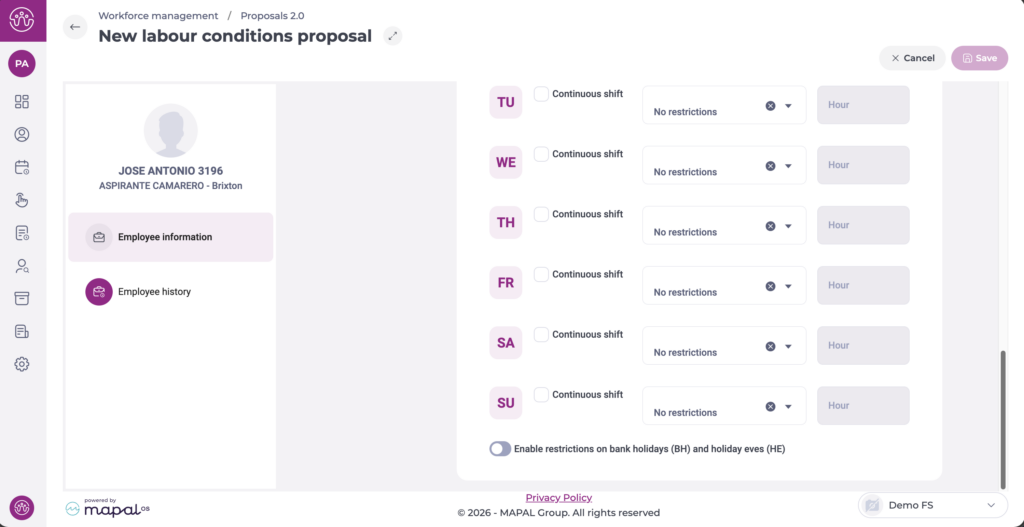
  • Modify the information you want, such as the Effective Date, Work Center, Category, Contract, Expected End Date, among others.

Interfaz de usuario gráfica, Tabla<br><br>Descripción generada automáticamente

  • Select Save to record the modification proposal OR Cancel to discard it.

Notes: You can set an Expiration Date for a proposal to automatically revert to the previously set conditions once the expiration date has passed.

Review employee modification proposal

Start from: The Workforce module.

  • Select Workforce Management > Review Proposals from the main menu.

  • Select the Work Center where you wish to review the discharge proposal.

  • Select the Status of the proposal to be reviewed, choosing between Pending, Accepted, or Rejected proposals.

  • Select Edit to review the selected proposal.

Interfaz de usuario gráfica, Tabla<br><br>Descripción generada automáticamente

  • Edit the information on the modification proposal information if necessary.

  • Select Accept to review the proposal as accepted OR Reject to review it as rejected. You can also select Cancel to not review the proposal, OR Information Required to request more information before reviewing the proposal.

Modify an employee's assigned work center

Start from: The Workforce module.

Direct way

  • Select Workforce Management > Workforce from the main menu.

  • In the Workforce screen, use the following filters to facilitate your search:

    • Status: select between Current, Former or Prospective workers.

    • Work Center: select the specific work center where the employee whose code you wish to search for is located.

    • Enter the text you wish to search for: Enter directly the first or last name of the employee you are looking for.

  • Select Employment Information in the box of the specific worker you wish to add or remove to a work center.

Interfaz de usuario gráfica, Aplicación, Word<br><br>Descripción generada automáticamente

  • In the Labor Period Information table, select New to create a new work period with the new center OR Edit to edit the center in the current period.

Interfaz de usuario gráfica, Aplicación<br><br>Descripción generada automáticamente

  • In the next pop-up window, configure the working conditions for a new period, including the Work Center to which this employee will move.

  • Select Save. In this way, the employee will be released from the previous center and will be transferred to a new one.

Interfaz de usuario gráfica, Tabla<br><br>Descripción generada automáticamente

Through approval flow

  • Select Workforce Management > Proposals from the main menu .

  • In the Workforce screen, use the following filters to facilitate your search:

    • Status: select between Current, Former or Prospective workers.

    • Work Center: select the specific work center where the employee whose code you wish to search for is located.

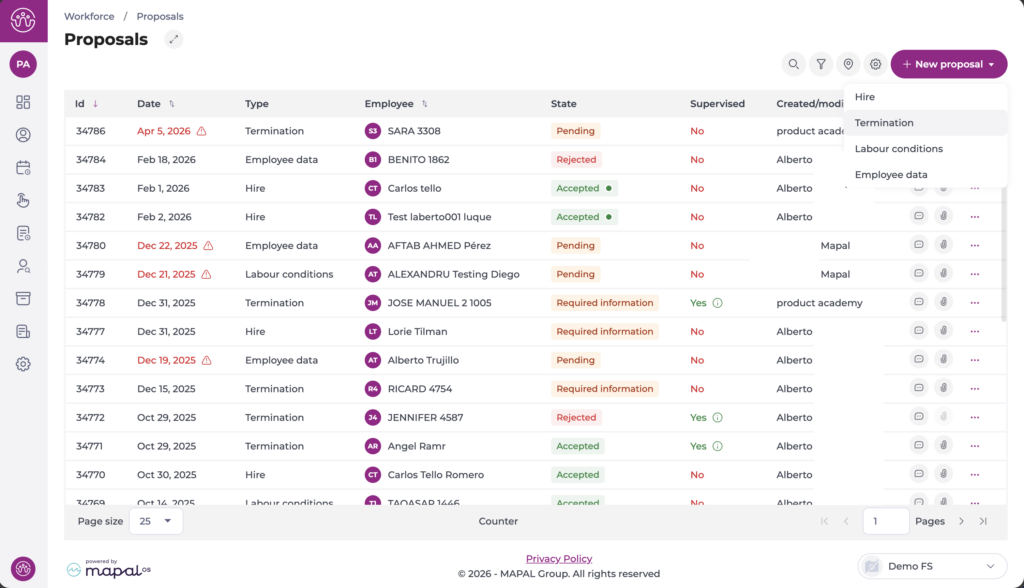
  • Under Create Proposal, select Modify.

  • In the Proposed Work Status section, select the Work Center to which you want to assign the employee.

  • Subsequently, this Proposal will go through Supervision and Review, when it will finally be approved or rejected by the decision-maker.