Use Analytics scenarios in Manager
Start from: The Mapal Manager home screen.
What Sales scenarios are
Sales scenarios are saved views created in the Analytics app. Each scenario stores:
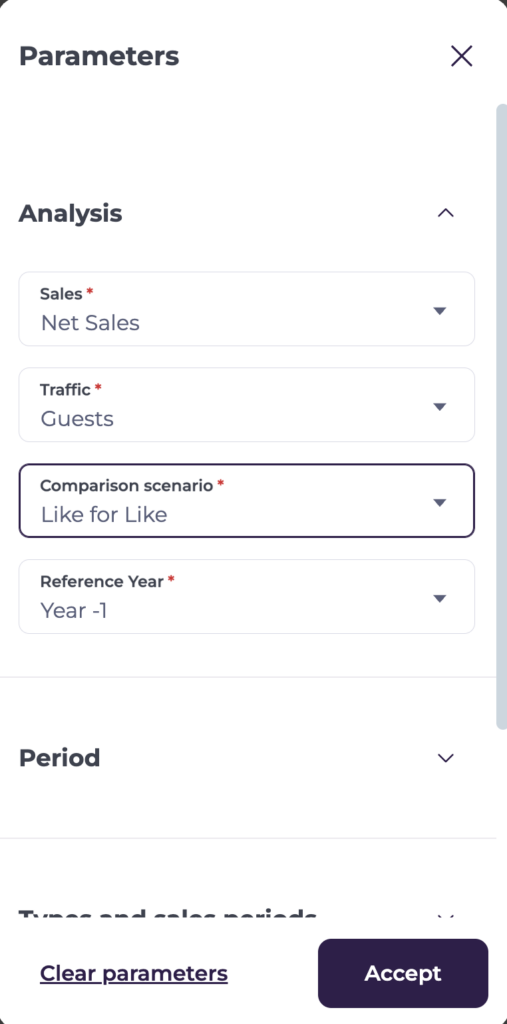
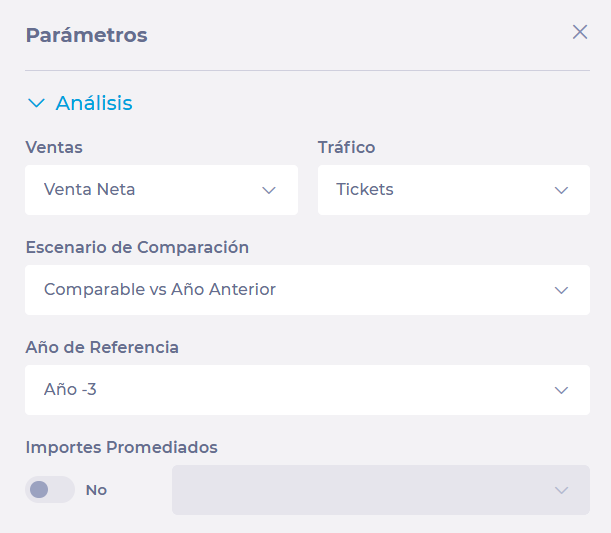
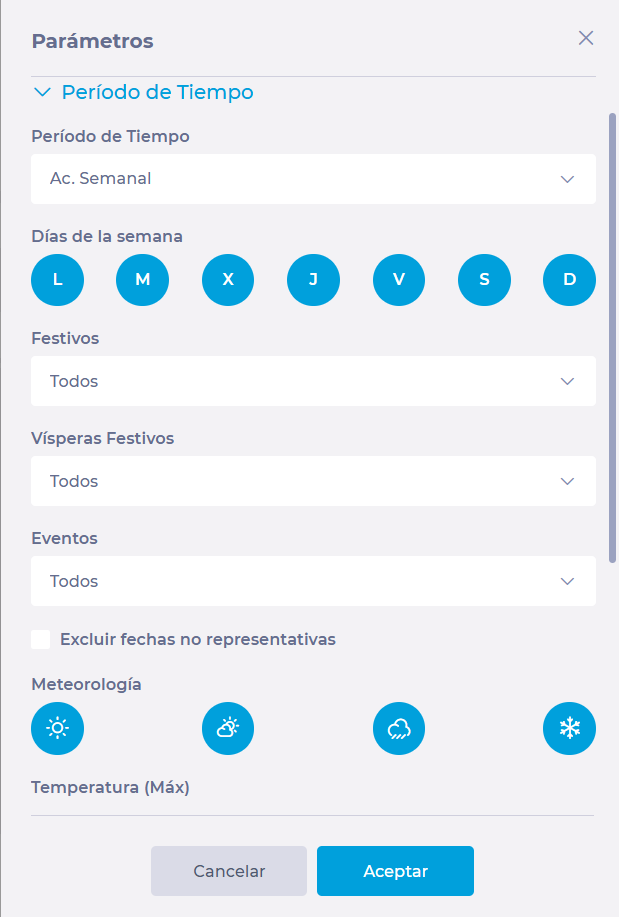
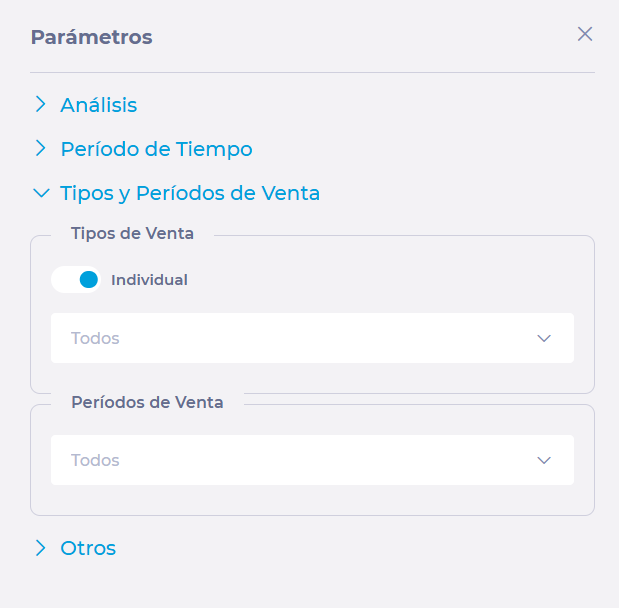
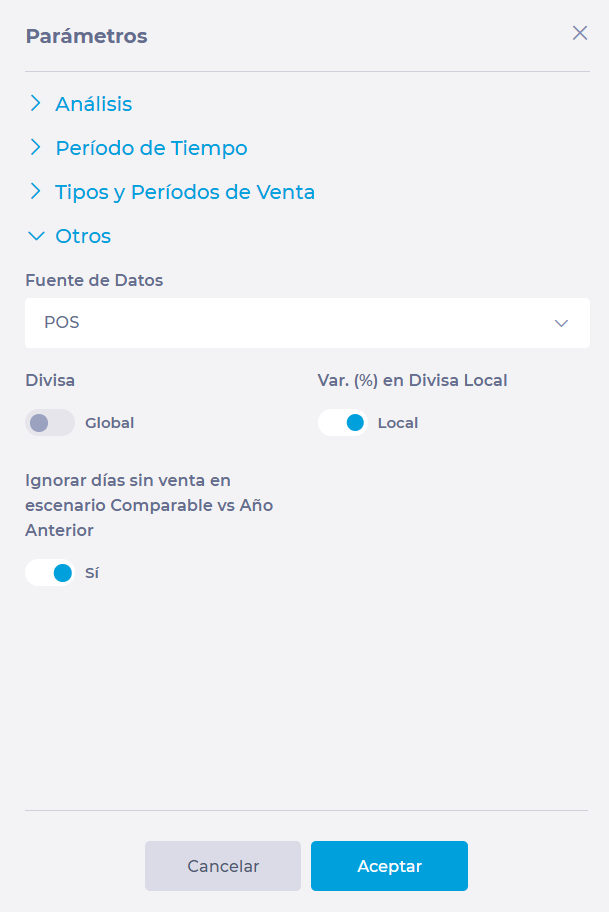
- Parameters (for example, date range, comparison scenario, analysis type).
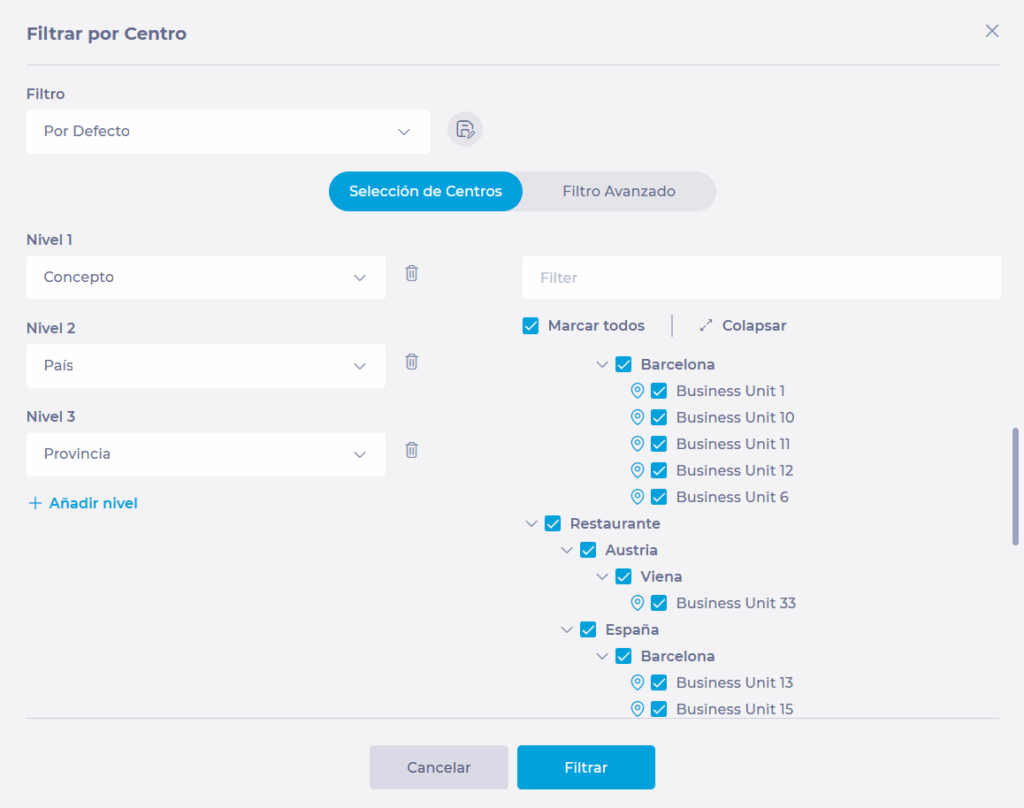
- Filters (for example, business units, brands, regions).
When you load a scenario in Mapal Manager, the Sales screen is configured exactly as it was when the scenario was saved in Analytics.
For instructions on creating scenarios, see Save and load scenarios in Analytics.
View and load a scenario in Mapal Manager
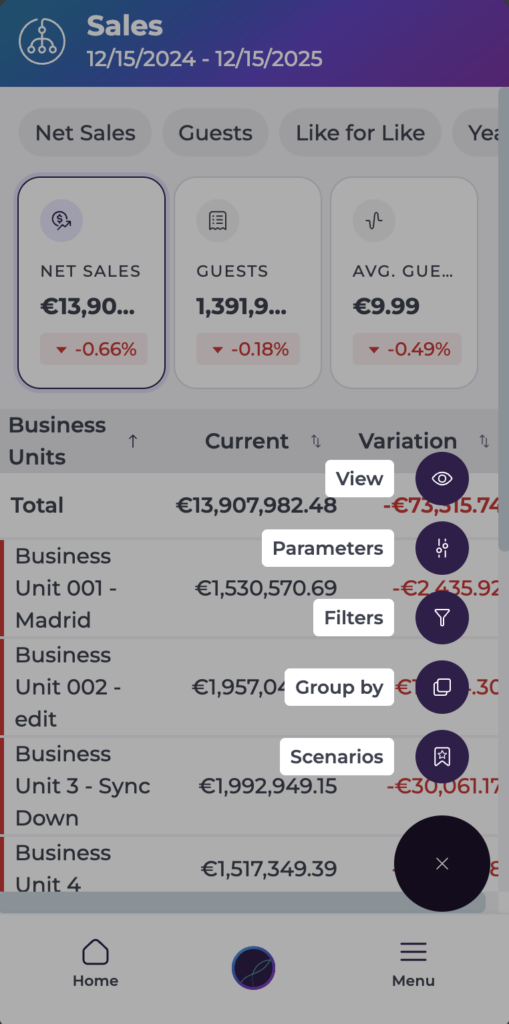
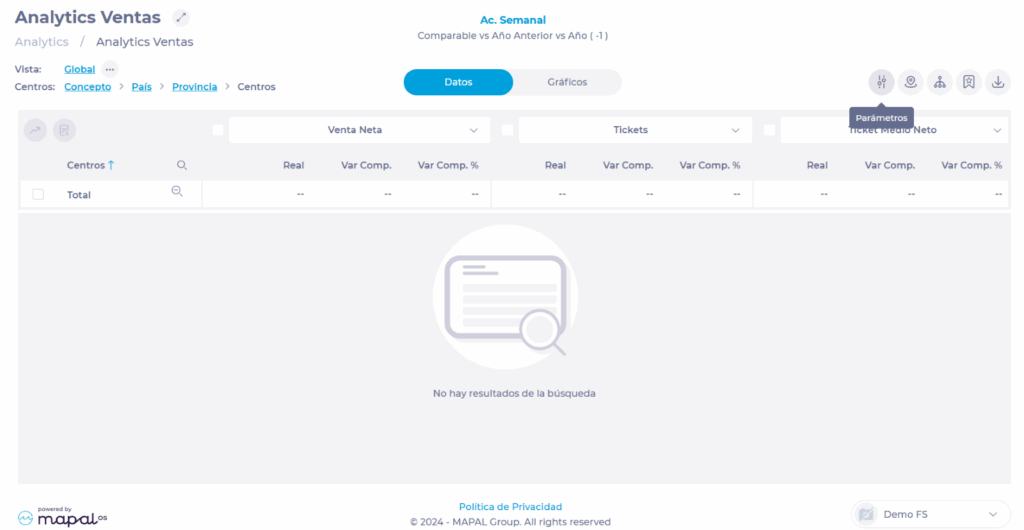
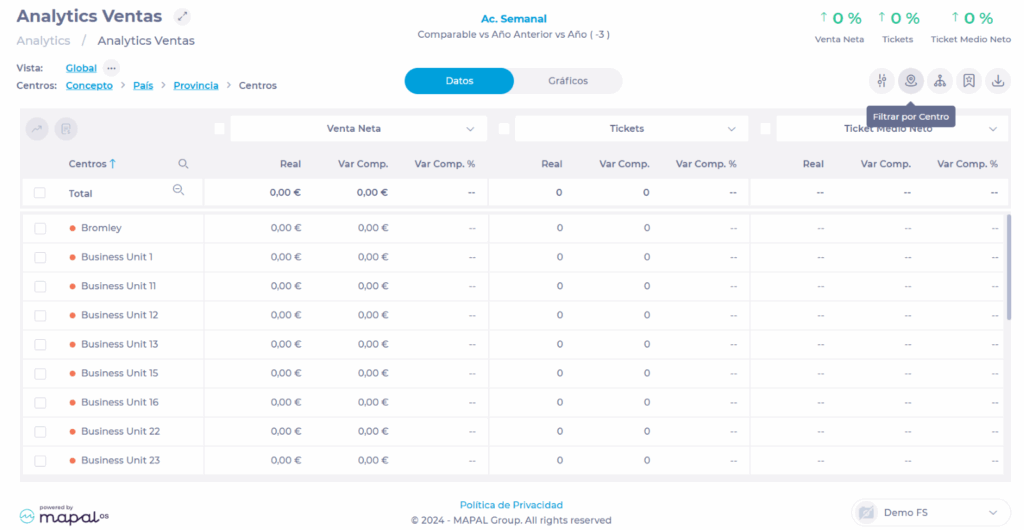
- On the Sales screen, open the More Options button (...).
- Select Scenarios.
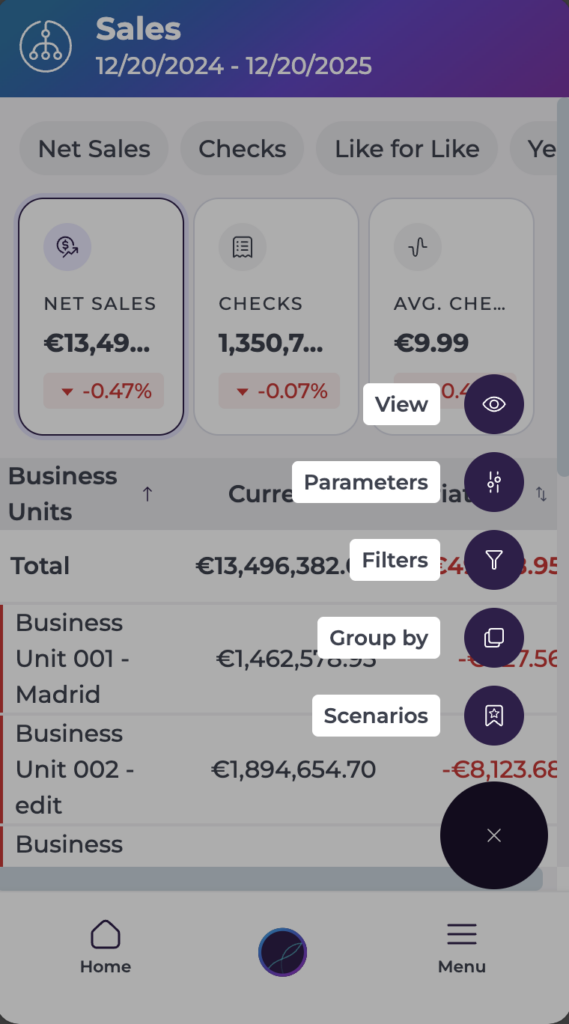
- From the list, select the scenario you want to use.
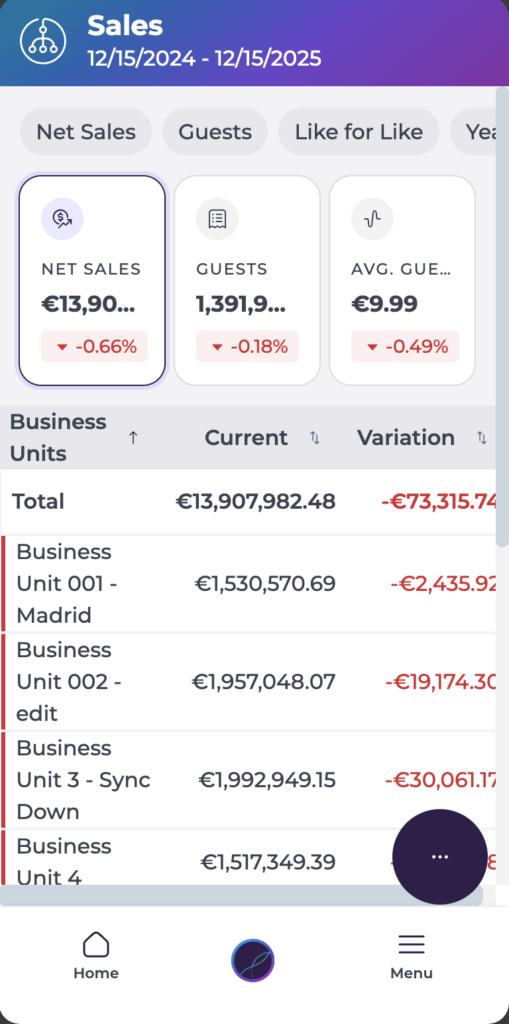
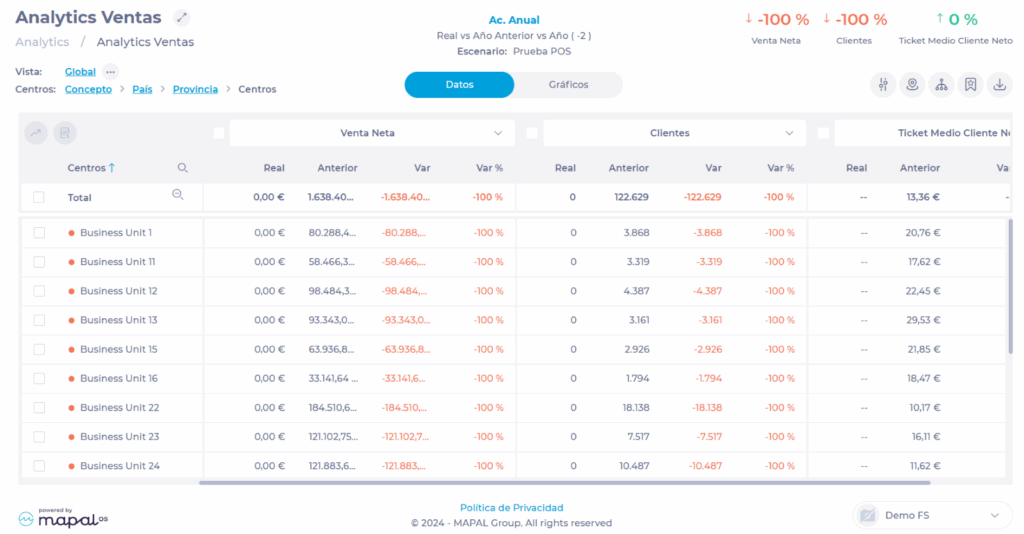
Mapal Manager loads the selected scenario and applies its parameters and filters to the Sales view. The Sales screen (metric cards and breakdown list) updates to match the configuration stored in the scenario, so you can analyse performance without manually setting dates, filters, or comparison scenarios.
Set a default scenario
You can set a default scenario so that your preferred view loads automatically when you open Sales.
- Open the Scenarios list from the More Options button (...).
- Locate the scenario you want to set as default.
- Select the flag icon for that scenario.
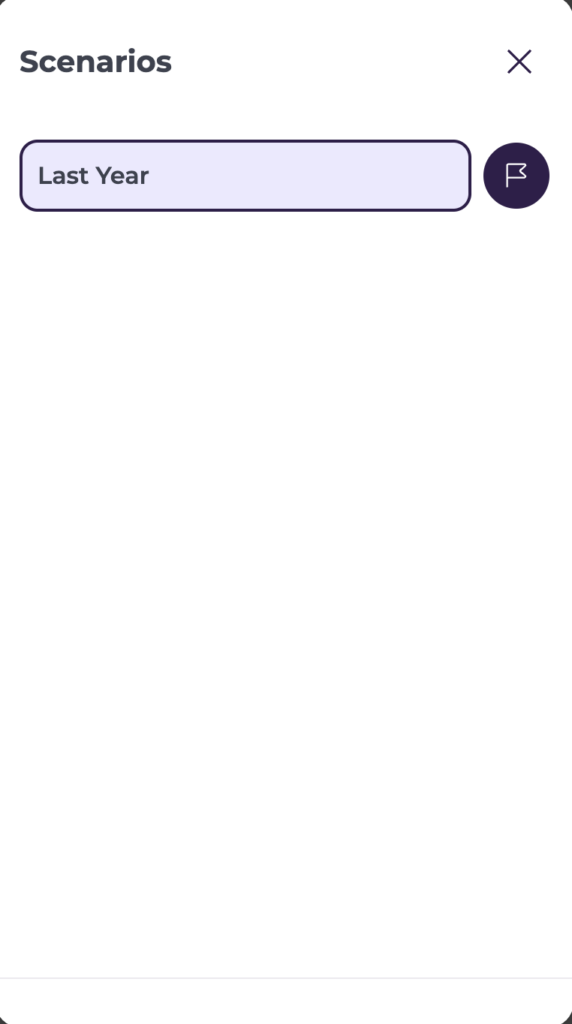
That scenario becomes your default and will load by default when you enter the Sales module.
Note: The default scenario is shared between Analytics and Mapal Manager. If you change your default in one, it updates in both.
What happens when you load a scenario
When you load a scenario in Mapal Manager:
- The Sales view immediately switches to the parameters and filters stored in that scenario (dates, comparison scenario, analysis type, selected units, etc.).
- The configuration stays active while you stay in Sales, even if you close and reopen the app later.
- Any manual changes you make afterwards (for example, changing the business unit or period) override the scenario until you load another one.
- If your permissions change (for example, you lose access to a business unit or brand), the scenario still loads, but you will only see data for the units and filters you are currently allowed to access.

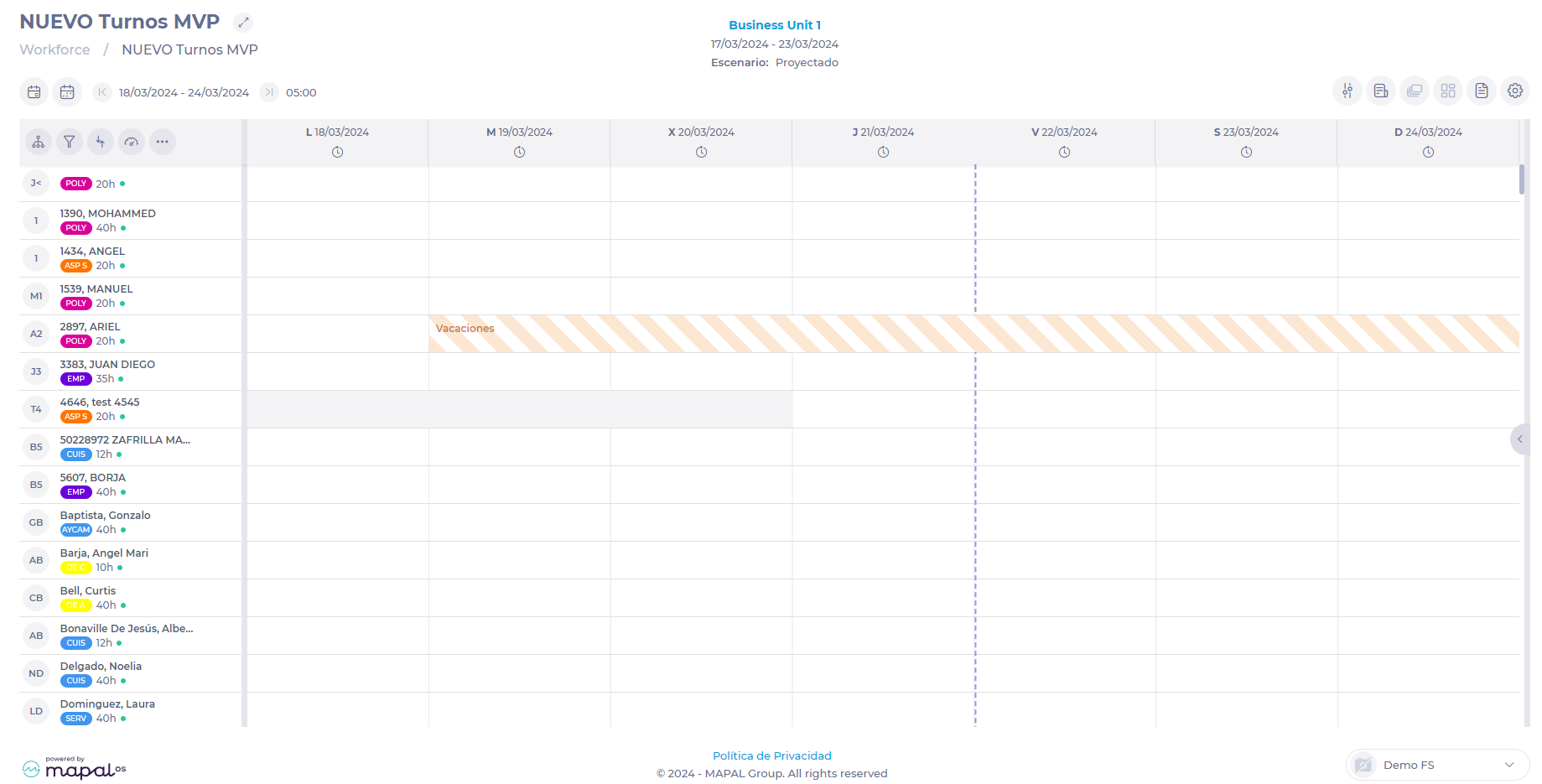
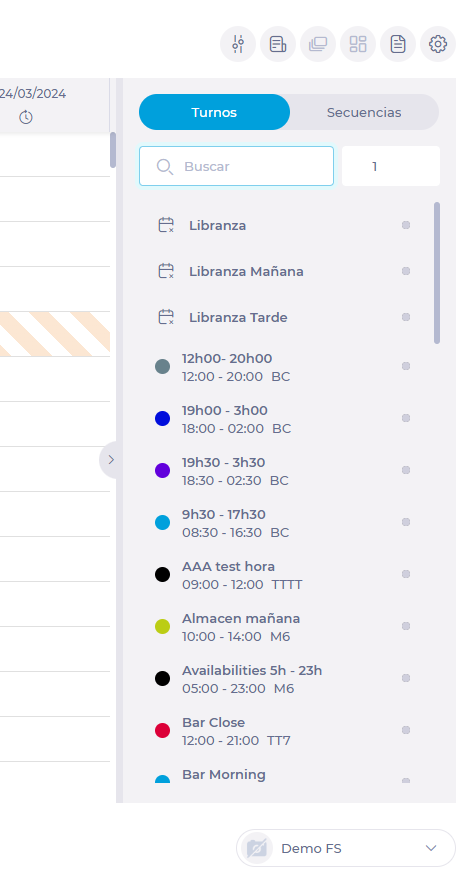
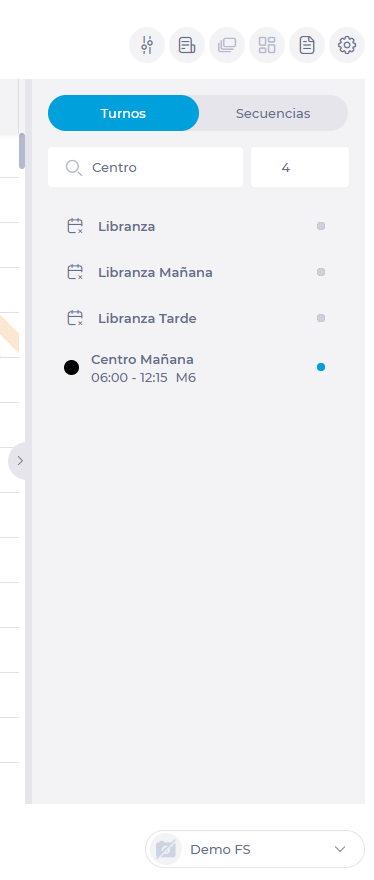
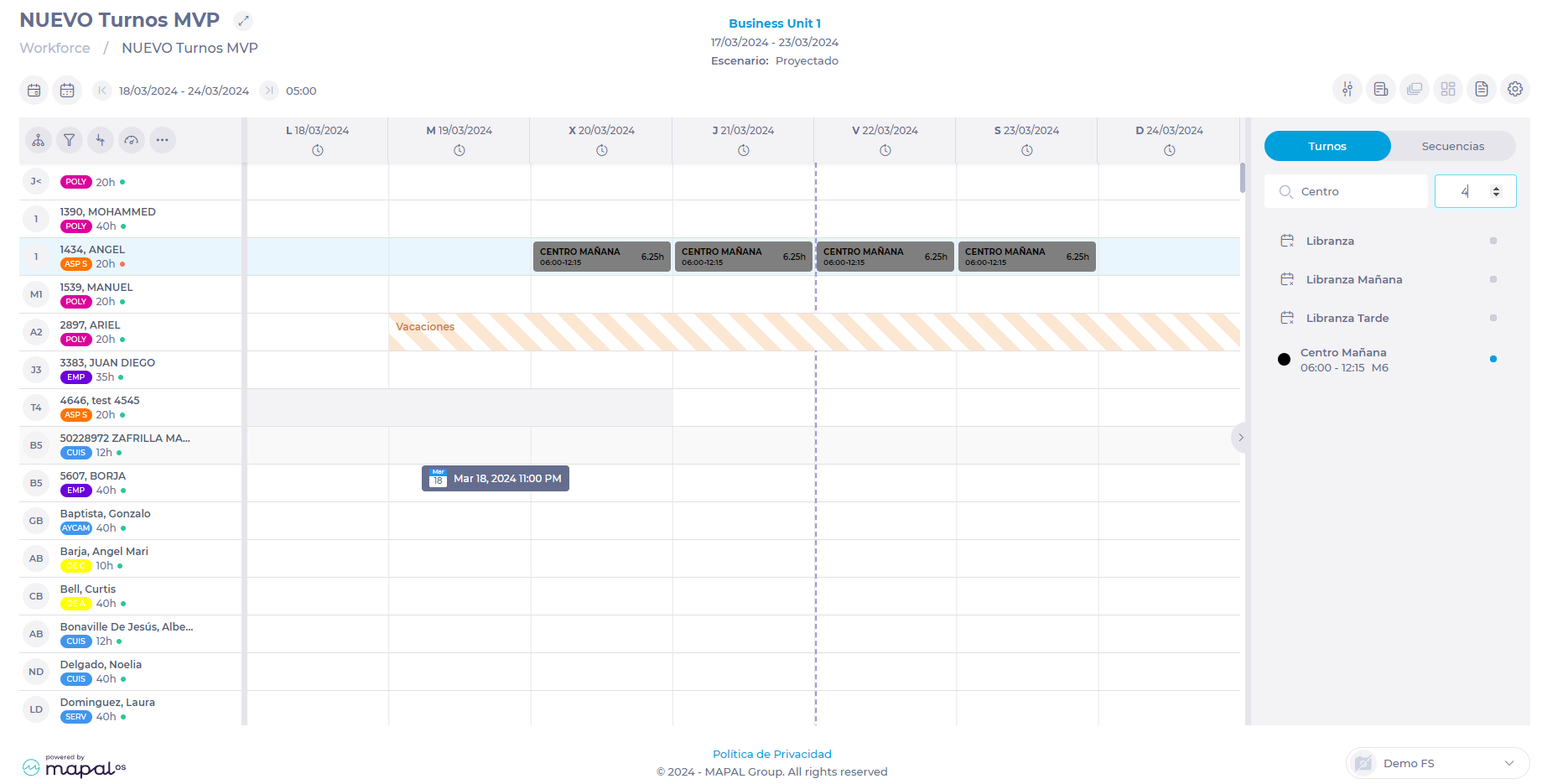 Notes: As long as the catalog panel remains open, the shift or sequence will be assigned the indicated number of times starting from the day and for the employee you have selected in the grid. To create new favourite shifts and sequences, see
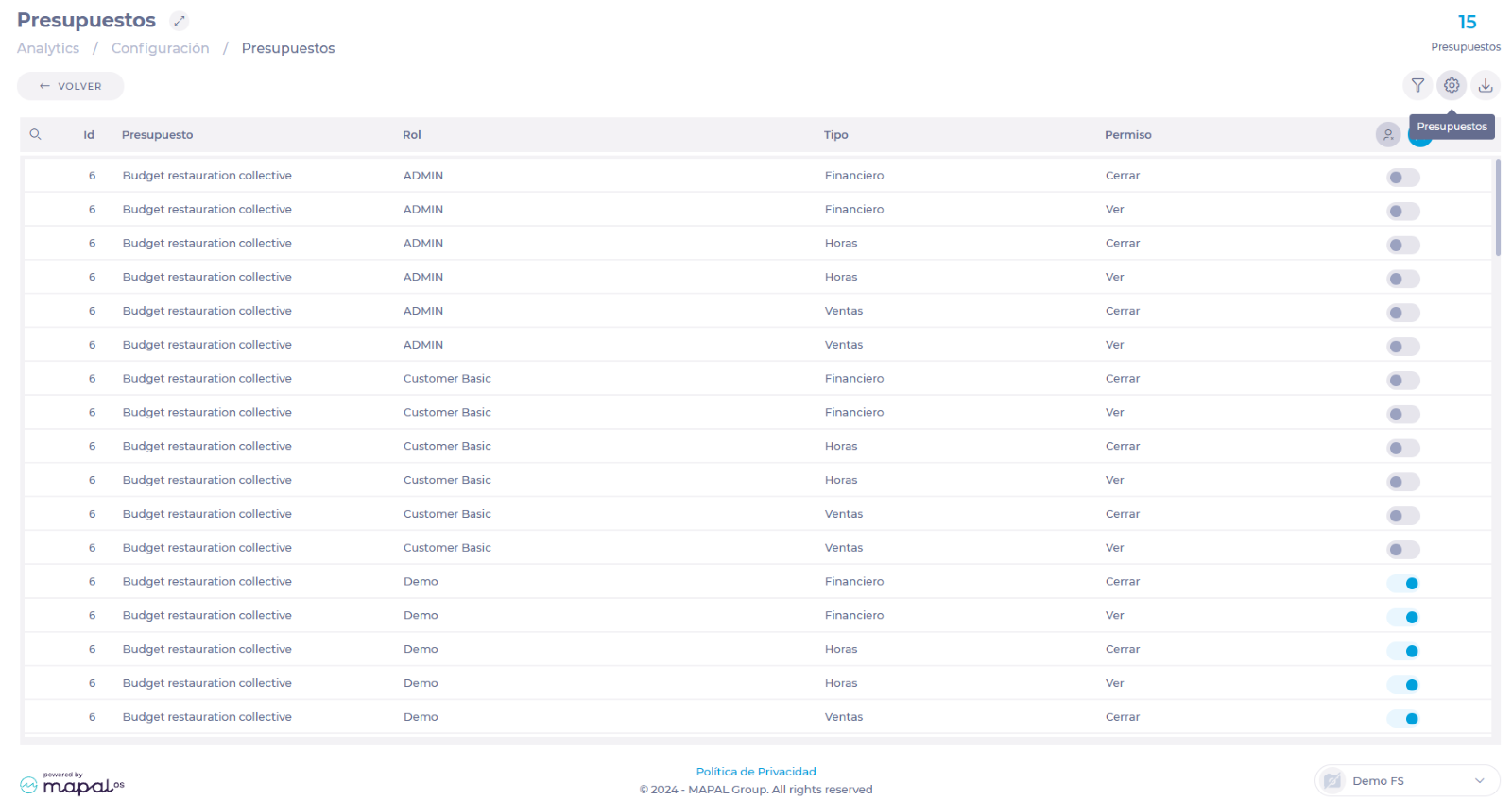
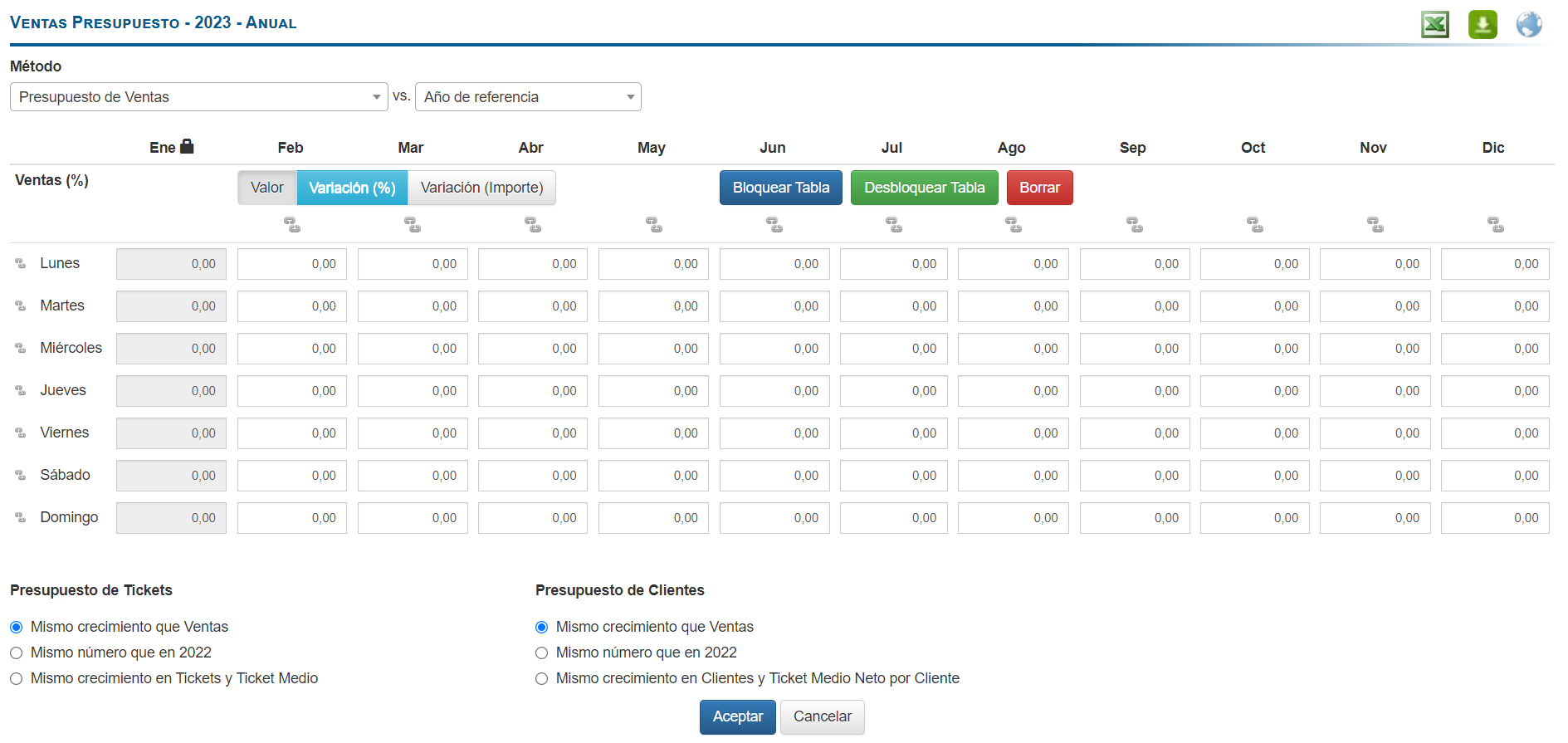 Notes: To make a budget adjustment, you must make sure that the budget has not been Closed. If it is closed, it must be reopened for modifications.