Optimise Smart Selection rules through recipe categories and sub-categories
Start from: The Easilys menu.
A recipe category, as its name suggests, allows you to categorize recipes, grouping them together in the same group. The recipe sub-category further refines this categorization.
The advantage of this categorization is, first of all, that you can filter your recipe list. Looking for a dessert recipe? Well, use the "Recipe category" filter, checking only the "DESSERT" category. You will then see only the recipes in this category.
There's a second, much more interesting interest! Recipe categories and sub-categories can be a criterion for applying a Smart Selection, Smart Grammage, Smart Packaging or Smart Catalogue rule.
If your environment is configured for multiple languages, the multilingual icon appears for some fields. For more information on how to use it, see the article Use Easilys in multilingual mode .
Note: each action performed on the application is subject to access permissions. If you are unable to carry out the recommended actions in the articles you are viewing, this may mean that the necessary rights have not been enabled for your user profile. Contact the Support team, or your Admin, to find out more.
Start from: The Easilys menu.
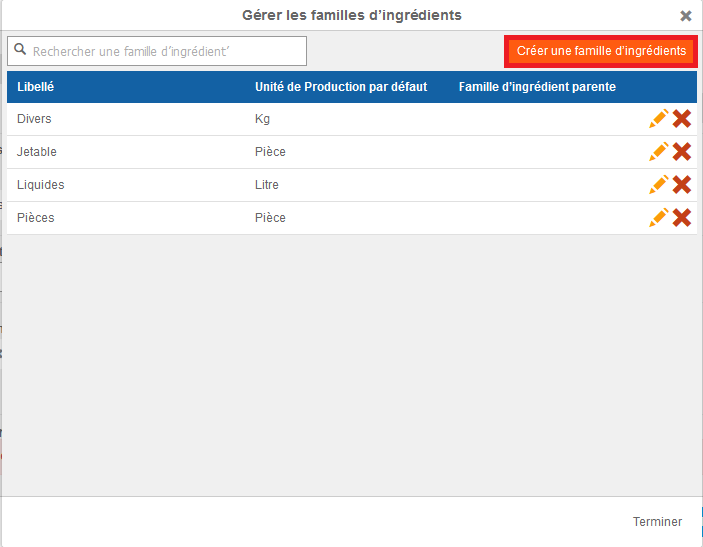
By default, there are three generic ingredient families on Easilys: Various (“Divers”, attached to the Kg production unit), Liquid (“Liquides” attached to the Litre production unit) and Pieces (“Pièces” attached to the Pieces production unit).
These three families may be sufficient to manage your generic ingredients, but you can also create others, mainly to optimise price comparisons in orders, refine ingredient searches via the Ingredient Families filter found on certain Easilys screens, and which users can use to create Smart Selection rules. You can use these to create Smart Selection rules.
Select the Products > Price Lists tabs.
Select an existing price list in which there are already supplier products.
Select the name of a supplier product present in this price list.
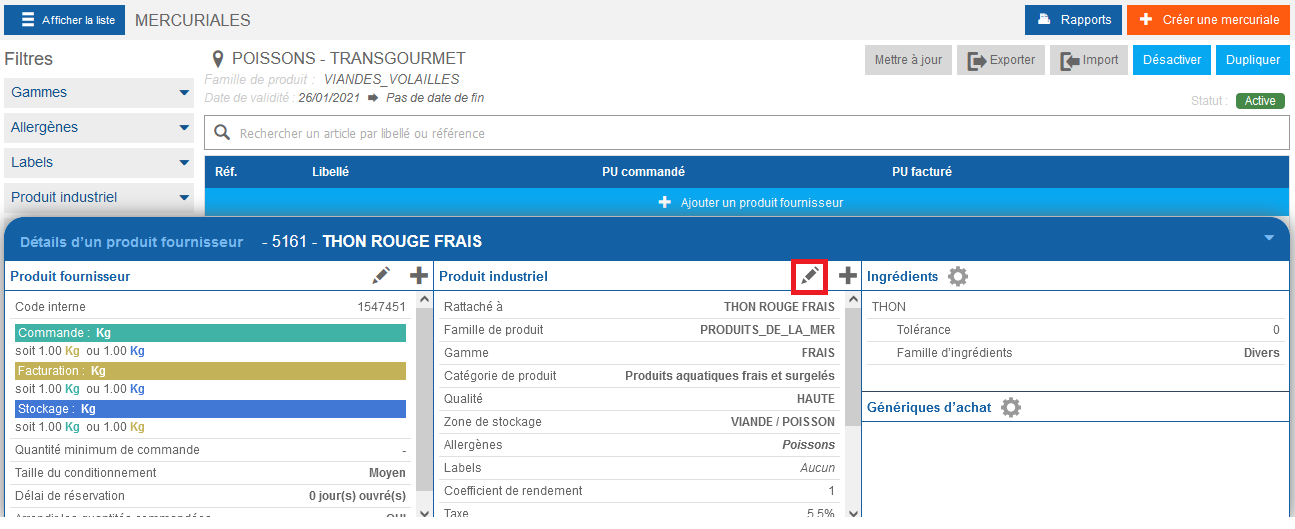
Select the pencil available in the second column of the table.
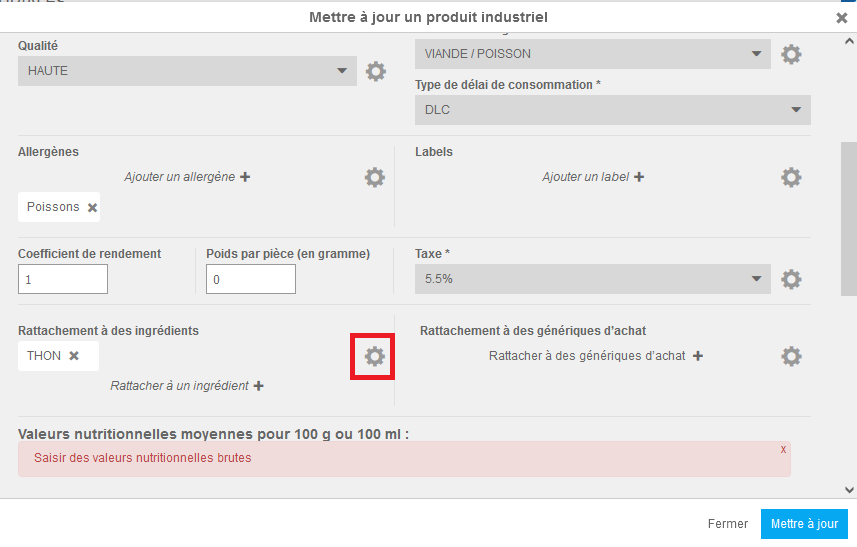
The “Update industrial product” window appears on-screen.
Select the cogwheel available in the “Attach to an ingredient” section.
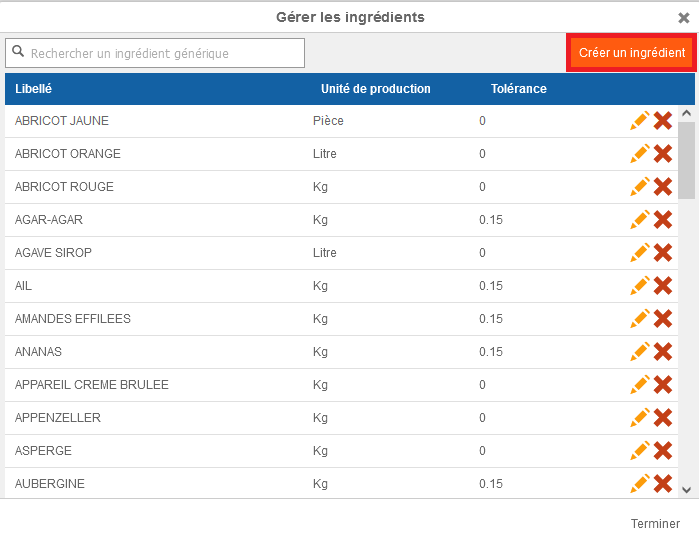
The “Manage the ingredients” window views on the screen.
Select Create an ingredient.
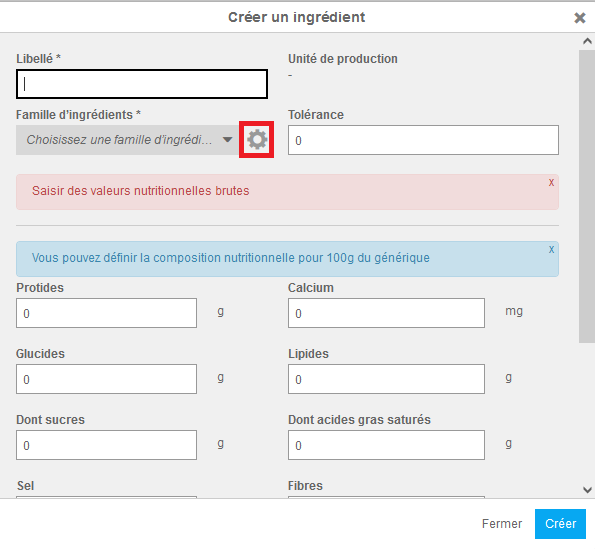
The “Create an ingredient” window appears on the screen.
Select the cogwheel visible under “Ingredient family”.
The “Manage the ingredient families” window appears on the screen.
Select Create an ingredient family.
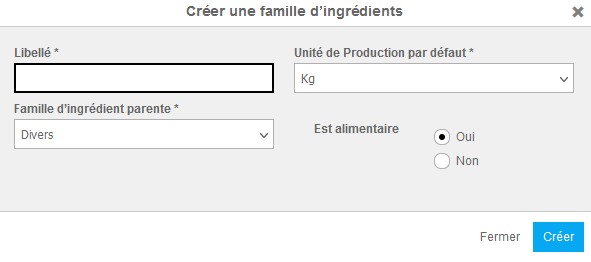
The “Create an ingredient family” window appears:
Fill in the requested information.
Name*: This is the name of the ingredient family.
Default production unit*: Choose from the three proposed units.
Parent ingredient family*: Choose No parent family if you don't want to link your new ingredient family to an existing one.
Is dietary*: This tells Easilys whether the ingredients in this ingredient family are food ingredients or non-food products such as trays and cutlery, which can be added to certain recipes as required.
Select Create.
Set your purchasing preferences for order preparation, create a Smart Selection rule
If your environment is configured for multiple languages, the multilingual icon appears for some fields. For more information on how to use it, see the article Use Easilys in multilingual mode .
Notes: actions performed on the Easilys platform are subject to user access permissions. If you are unable to carry out the actions described in the articles, it may be because you do not have the necessary permissions activated on your user profile. Contact the Support team, or your administrator, for help.
Start from: The Easilys menu.
When preparing a menu on Easilys, the application suggests supplier products corresponding to the ingredients listed in the recipes.
These supplier products are, by default, the cheapest supplier products. But it's quite possible that you'd like to use a higher range for a particular ingredient, or that you'd like to give preference to BIO.
Smart Selection rules then allow you to tell Easilys your preferences.
Thanks to them, you can tell Easilys to give you preference to BIO-labeled supplier products for your Taste Week menu, for example.
Creating a Smart Selection rule
Select Menus > Smart Selection from the main menu.
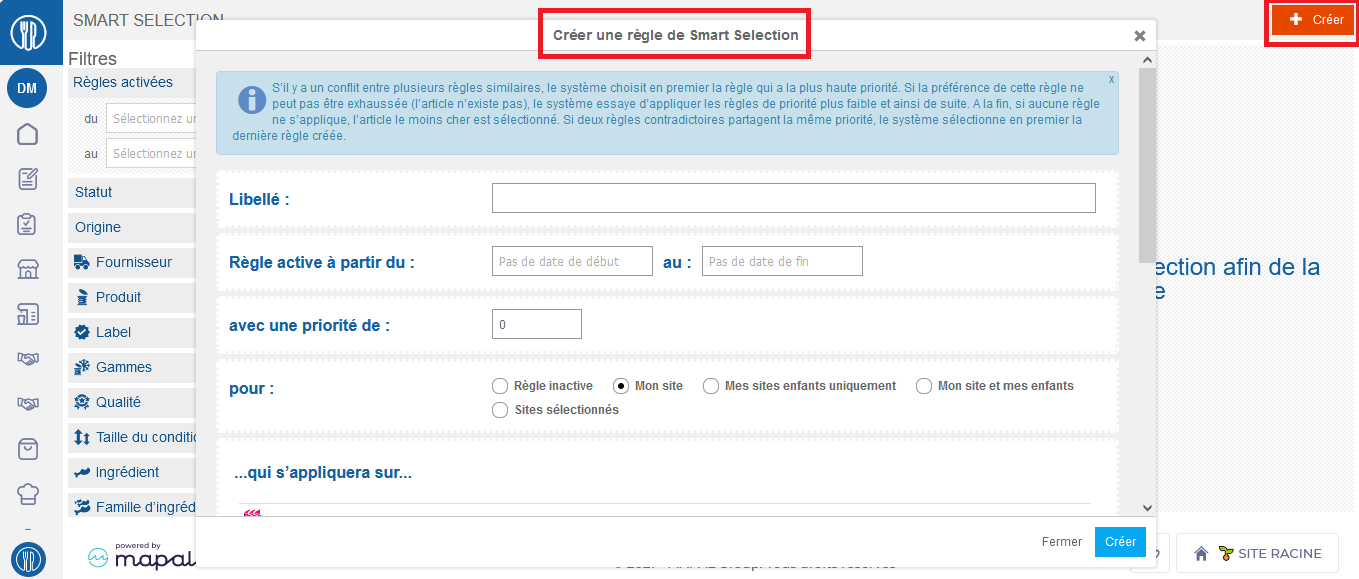
Select Create.
The "Create a Smart Selection rule" window then appears.
Fill in the information to create the rule.
Details of information required to create a rule
Name: Enter the name of the rule here.
Rule active starting from: ... to: Specify here the period during which you want the rule to be effective. It is possible to leave the date blank to let Easilys know that the rule will always remain in force.
with a priority of: Indicate here the priority level of the rule. This enables Easilys to specify which rule should take precedence over another in the event of multiple rules potentially relating to the same criteria.
Example: One rule asks Easilys to give priority to frozen products for the "SEAFOOD PRODUCTS" ingredient family, and another rule asks Easilys to give priority to fresh products for the "HAKE FILLET" ingredient family.
These two rules conflict.
The "HAKE FILLET" rule will be given priority 1, so the "SEAFOOD PRODUCTS" rule will apply EXCEPT when proposing a supplier item corresponding to the "HAKE FILLET" ingredient. So we'll have frozen products on offer EXCEPT for the "HAKE FILLET", which will be fresh.
for: Indicate where the rule is to be applied. The rule can apply only to the site on which it is created (My site - Mon site) and its child sites (My site and my child sites - Mon site et mes enfants). It can be applied only to the child sites of the site on which it is created (Only my child sites - Mes sites enfants uniquement). And it can be applied to a list of specifically selected sites (Selected sites - Sites sélectionnés).
If you select "Selected sites", the "Sites" application criteria will appear in the next section "... which will apply to...", allowing you to add the sites to which the rule is to be applied.
... which will apply to...: Indicate here which elements you wish to apply the rule to by selecting +Add next to each element (Menu frames, Credits, etc.). Here you can add several preferences per element.
... according to these preferences...: Indicate here which preferences Easilys should give priority to for each item (Suppliers, Products, etc.) by selecting+Add. Here you can add several preferences per element.