Close worked time in Workforce

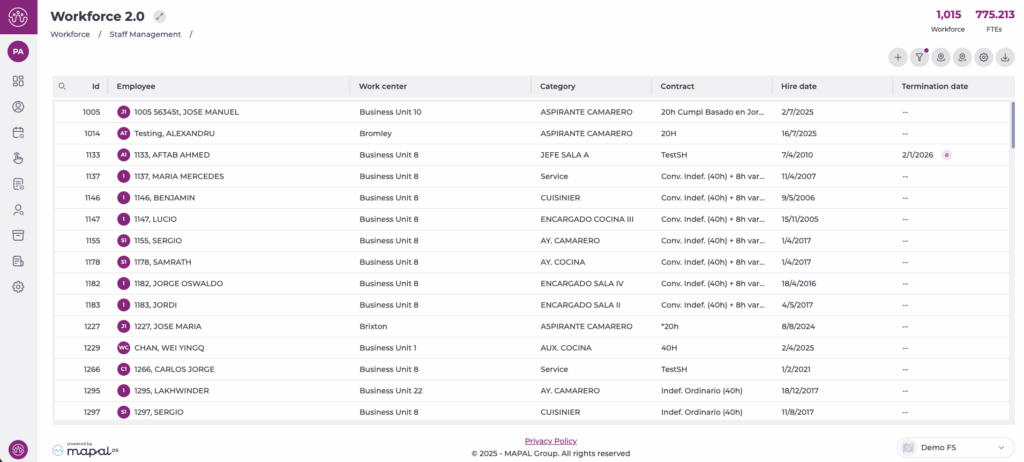
Start from: The Workforce dashboard.

Before you close worked time, make sure you have:

Closing should be the final step, once the week’s timesheets are correct.

Close worked time

Note: Once a week is closed, further changes may be restricted. If you need to correct a closed week, click the padlock icon to reopen it and be able to process new adjustments.

Clock in or out with SmartHub

Start from: SmartHub app

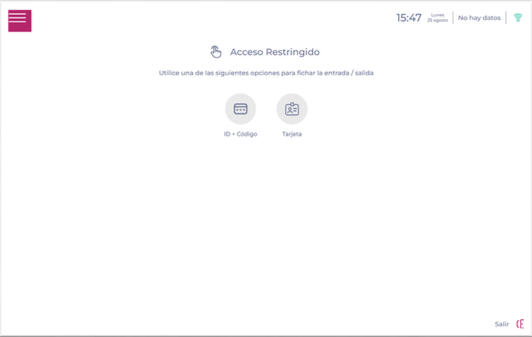
Logging into SmartHub

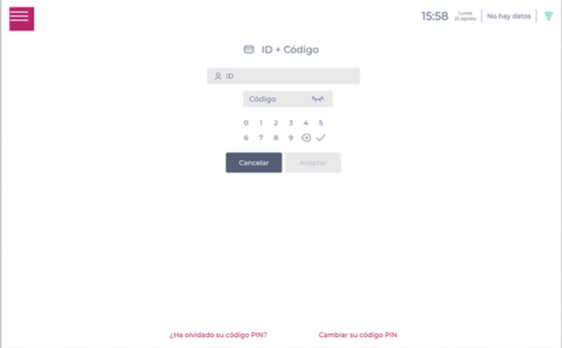
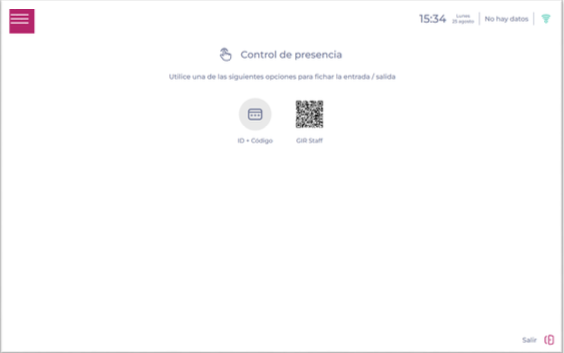
To access SmartHub, employees must enter their credentials using one of the available methods:

Note: If this is your first time using SmartHub, your manager may need to set up your time & attendance sign-in codes.

Clocking in (starting your shift) with SmartHub

The tool records the employee's entry time and closes, allowing another employee to log in next.

Clocking out (ending your shift) with SmartHub

The system does not request a specific position; it simply records that your shift has ended. 

Clock in breaks with SmartHub

Start from: SmartHub app.

Note: To manage the sign-in codes for a new employee, see Manage employee time & attendance sign-in codes with SmartHub.

Once the break is over, log back into the tool and select End Break.

Track your hours on Mapal One

Start from: The Mapal One dashboard.

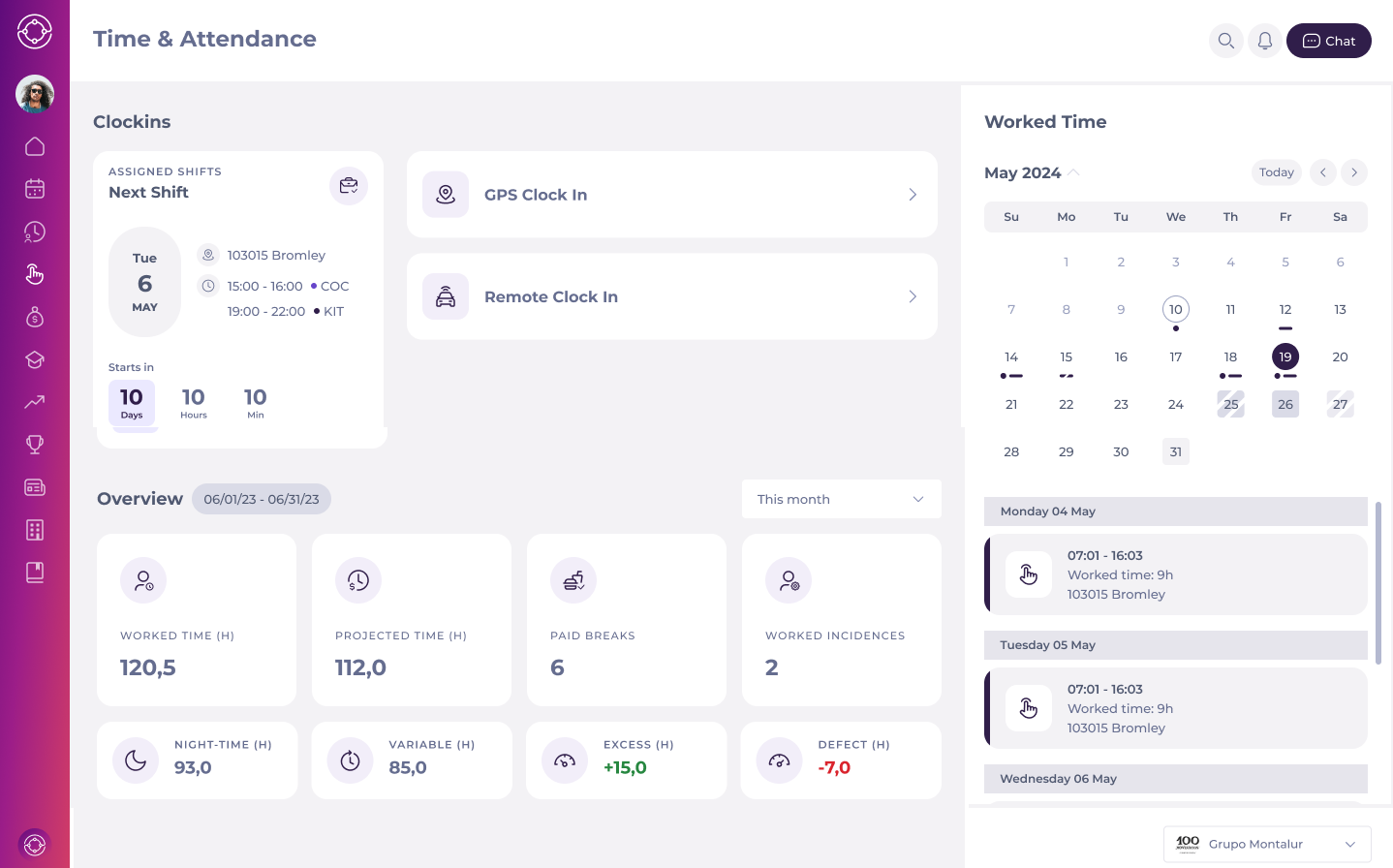
The Time & Attendance interface shows three key sections that allow you to mark and track your worked time easily:

Offline mode in Smarthub

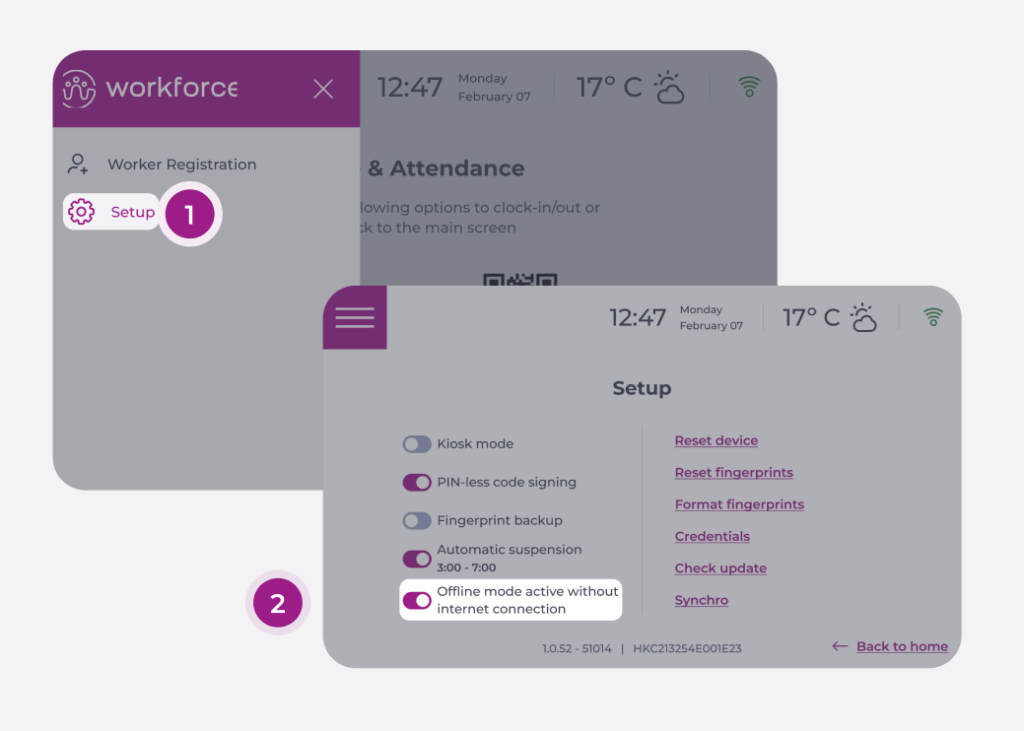
Start from: The main screen of Smarthub.

Notes: Only users with roles that allow access to the settings screen will be able to access this option.

Once the offline mode switch is enabled on the Smarthub settings screen, it will be ready to switch between offline and online modes depending on the internet connection status.

When offline mode is enabled

Important recommendations

Keep in mind that although offline mode is a viable solution, you should explore other options before using it directly.

If your case is:

  1. I have a stable internet connection: Use Smarthub with the offline mode switch disabled.
  2. I experience occasional interruptions or micro-outages in the internet connection: Use Smarthub's enhanced connection retry functionality. This will allow you to work smoothly with Smarthub's offline mode disabled.
  3. I experience prolonged internet outages and my employees use GIR Staff: The dynamic QR code on the Smarthub home screen can work without an internet connection. We recommend instructing your employees to use Gir Staff to log in using the QR code when there is no internet connection.
  4. I experience prolonged internet outages and my employees do not use GIR Staff: It is recommended to enable the Smarthub offline mode switch.

        Register an employee on SmartHub

        Start from: The SmartHub app.

        Authorized user authentication

        Registering an employee is a Restricted Access action and is only possible if the necessary permissions have been assigned from GIR to the user.

        To perform this action, users are required to re-authenticate themselves in Smarthub. Depending on the hardware, they will encounter various methods of identification, including:

        Note: If an error appears when entering the Access Code on the device, it may be due to the center not being enabled. There is the possibility to recover or change the code in case you don't remember it.

        If everything is correct, the menu will be enabled; otherwise, an error message will appear indicating that it is incorrect or that the employee does not have the necessary permissions.

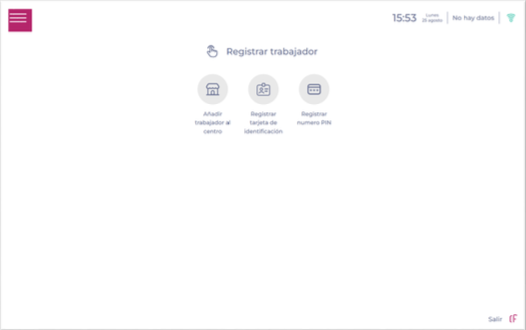
        Employee Registration

        In the Register Employee process, the following options will be available:

        Add employee to a business unit

        First and foremost, it's essential to enroll the employee in the specific center where you wish them to be able to clock in.

        Register the employee's sign-in codes

        Once assigned to a work center, configure the employee’s clock-in method(s):

        To successfully manage and register the sign-in codes for the new employee, see Manage employee time & attendance sign-in codes with SmartHub.

        Supported languages

        SmartHub is available in:

        View who has not clocked in or out

        From GIR

        Start from: The Workforce module.

        • Select Time & Attendance > Timesheets from the main menu.

        Interfaz de usuario gráfica<br><br>Descripción generada automáticamente

        • Select the Work Center you wish to track clockings.

        • Select the arrow icon over the box of the week you wish to review.

        • In the Timesheets screen, you will be able to see the detail of each employee's clockings in the Work Center and the selected week.


        From the Workforce App

        Start from: Workforce App.

        • Tap the Workforce icon in the app to open the menu.

        • Select Staff on Duty from the main menu.

        • The application will display a list of all the centers to which the user has access, providing information on the current status of the centers. In this screen, the user will be able to see:

          • Number of shifts projected at that time (or at another time if set in the parameters)

          • Number of employees who are in the center according to the signing.

        • Use the floating navigation menu to facilitate the search for the center you wish to monitor. Here you can:

          • Open the parameters component.

          • Filter by a set of properties.

          • Group centers.

        • Select the specific center you wish to view to see the details of each of the employees who have a projected shift at that time, who are currently working, or both.

        Notes: Users can change the "current time" in the parameters component.

        • You can add comments for a specific employee to be able to track any type of notes you feel you should add.

        Notes: If a comment has been added for a specific employee, a red dot will be displayed on the employee's image. Comments can be accessed by clicking on the employee's name in the grid.

        Assign or change punch-in code

        Start from: The Workforce module.

        Configure an employee’s clock-in codes

        These codes allow the employee to clock in even when their fingerprint cannot be used.

        Select the business units where the employee may clock in

        The Business Units panel allows you to define exactly where the employee is authorised to record attendance.

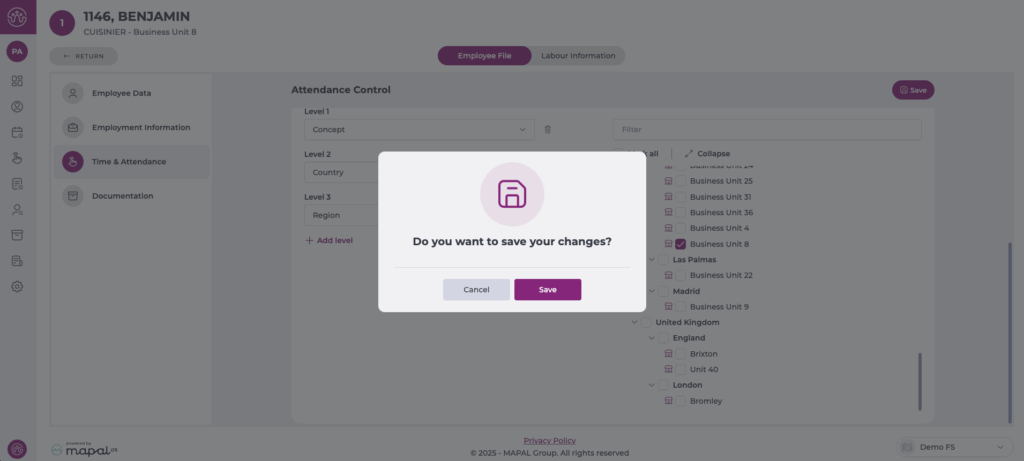
        Save changes

        To learn how to punch in using the assigned code, see Punch in by code.

        Punch in by code

        To learn how to create the punch-in code, see Assign or change punch-in code.

        Start from: Anywhere on the punch-in screen. 

        • The employee positions his finger on the fingerprint reader.

        • If the fingerprint is not recognized, the device will give you the option to press the Password button.

        • Using this option, the employee indicates his or her ID and the code assigned to him or her.

        • The registration ends and is valid when the ID and Code match.

        Enter or adjust worked time on a Timesheet

        Start From: The Workforce Module

        • Select Time & Attendance > Timesheets from the main menu

        • Select the workplace for which you want to take any action regarding worked time. 

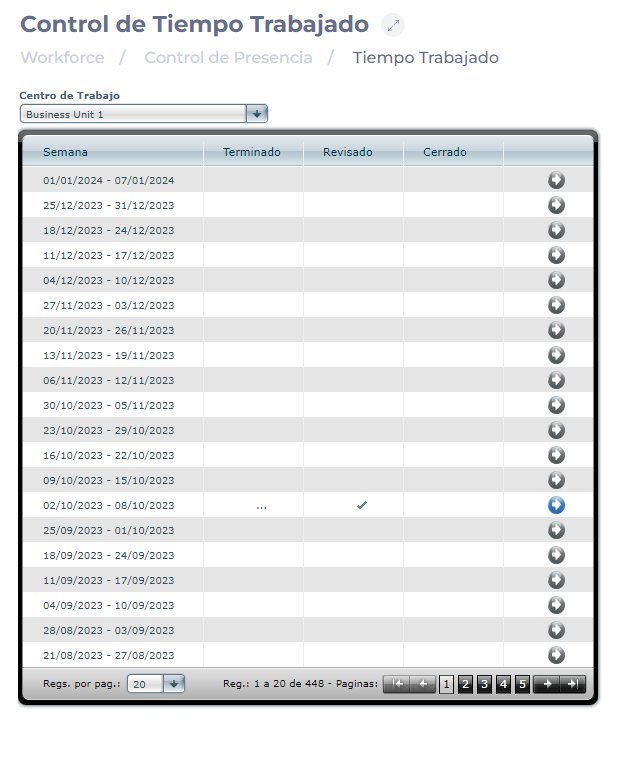
        Note: The screen displays different records for each week, from Monday to Sunday, throughout the year. The three statuses in which worked time activities can be found are Finished, Reviewed, and Closed.

        • Choose the week you want to work on.

        • Click on the gray arrow to access the timesheet template.

        Note: If the record for this week has already been processed, a blue arrow will be visible. This helps distinguish a managed week from an unmanaged one.

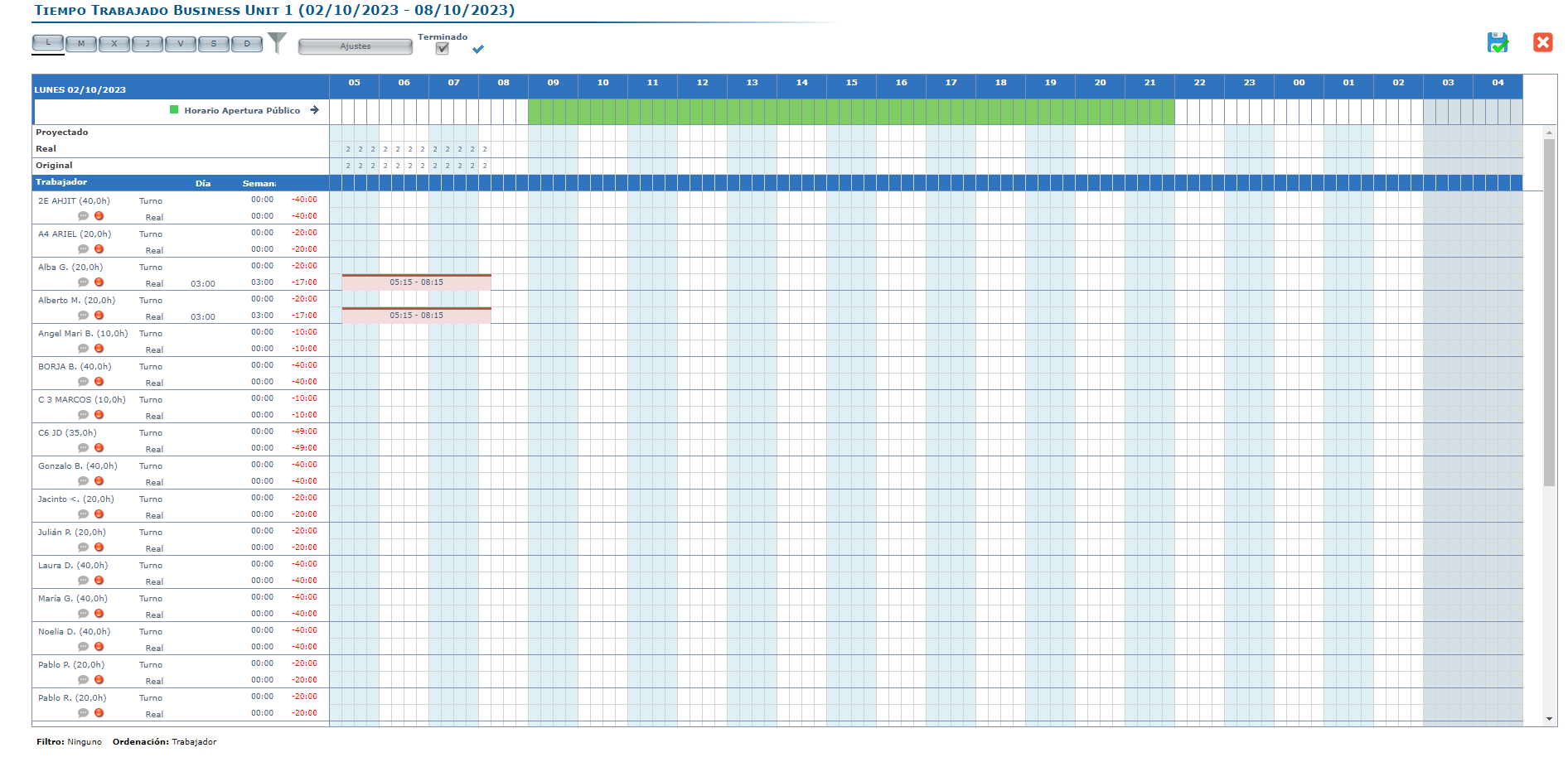
        • Select the day of the week for which you want to view worked time.

        • Filter and organize the information as desired.

        Note: The projected shift appears in blue. Once the employee has clocked in, the real will be displayed in gray.

        When a shift is striped, it means that the employee has clocked in at another workplace, specified within the clock-in bar. This applies to both projected and real shifts.

        Adjustment Methods

        The management of worked time can be handled in two ways: Individual and Collective.

        Start From: The Workforce Module

        • Select Time & Attendance > Timesheets from the main menu
        • Choose the week you want to work on.
        • Click on the gray arrow to access the timesheet template.

        Individual Adjustment

        • Select the chosen employee by hovering over their name and right-clicking.

        • A box will appear; click on T&A Adjustments.

        Collective Adjustment

        • Select Settings to access the complete template adjustment. A popup window will appear.

        • Choose to mark the 'Day' option to adjust the clock-in for the selected day, or you can choose the 'Week' option to adjust the clock-in for the entire selected week.

        Adjustment Types

        Match T&A with Shifts

        The system will calculate worked time exactly according to the projected shift, whether there are clock-ins or not.

        Adjust T&A with Shifts

        The system will calculate worked time according to the projected shift only if there is a clock-in during the shift and will also calculate worked time for a non-projected shift. For example, if a worker had the morning shift from 10:00 to 16:00, clocked in at 9:45, and then clocked out at 16:10, but also returned to cover the night shift, in which there was no projected shift, clocking in again at 20:05 and out at 22:45. Using this option, the system will calculate 6 hours from the morning shift (according to Projected) and an additional 2:40 hours from the night shift (not projected).

        Adjust Early Entries

        This applies to all clock-ins made before the projected shift, ensuring the system calculates worked time from the start of the person's shift. It is common for staff to clock in a few minutes before their shift, and this adjustment prevents those minutes from turning into hours at the end of the month.

        Courtesy Adjustment (In and Out)

        This adjustment allows us to provide courtesy in clock-ins and outs for workers who arrive or leave a few minutes late from their shift. We must define how many minutes of courtesy we want to apply so that all workers who, even arriving late, have clocked in within that courtesy time, the system will calculate the time from the start of their projected shift.

        Adjust Late Exits

        This adjustment applies to all clock-outs made after the projected shift ends, ensuring the system calculates worked time until the shift's end time. It is common for staff to clock out a few minutes after their shift, and this adjustment prevents those minutes from turning into hours at the end of the month.

        Manual Adjustments on the Lines

        If any worker cannot clock in due to a justified reason, you can adjust the hours by clicking and dragging the line.

        You can also adjust the clock-ins and outs of the staff's shift by dragging the clock-in lines to the left or right, always trying to avoid overlapping shifts. When there is an overlap of shifts, the following message will appear, notifying that it was not possible to make the changes:

        Adjustments to clock-ins can be made on the current day, up to the closest past quarter-hour segment or you can also adjust the exact minutes by using the right click and selecting Modify