Track and reduce waste

Start from: The Compliance general overview.

Module setup

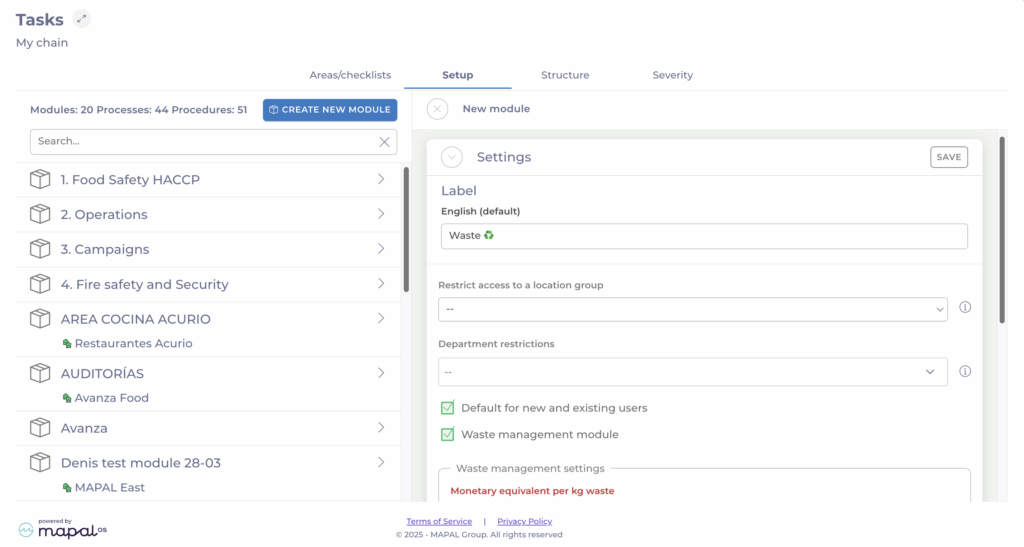
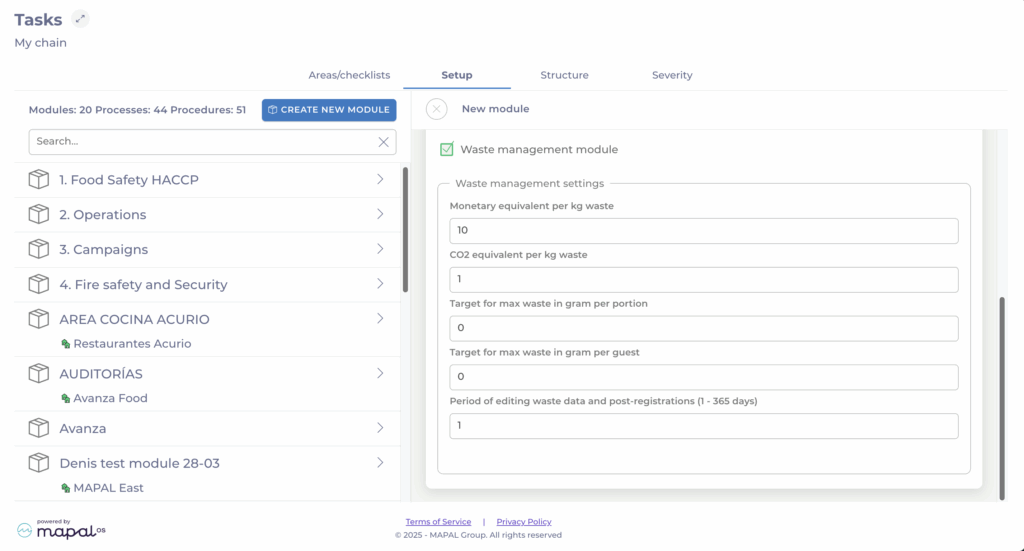
To begin using the Food Waste module, it must first be configured at module level.

FieldDescription
Monetary equivalent per kg wasteDefines the cost value assigned to each kilogram of waste. This helps estimate the financial impact of food waste. Example: 10 = €10 per kg wasted.
CO2 equivalent per kg wasteSpecifies the environmental cost of waste in kilograms of CO? per kilogram of food waste. This value supports sustainability reporting. Example: 1 = 1 kg CO? per kg waste.
Target for max waste in gram per portionSets a target threshold for the maximum amount of waste generated per portion served. Use this to monitor portion control efficiency.
Target for max waste in gram per guestSets a target threshold for the maximum amount of waste generated per guest. Useful for comparing sites of different sizes or guest volumes.
Period of editing waste data and post-registrations (1–365 days)Defines how long users can edit or add waste entries after the initial record date. Example: 1 = data can be edited for one day after entry.

Task configuration

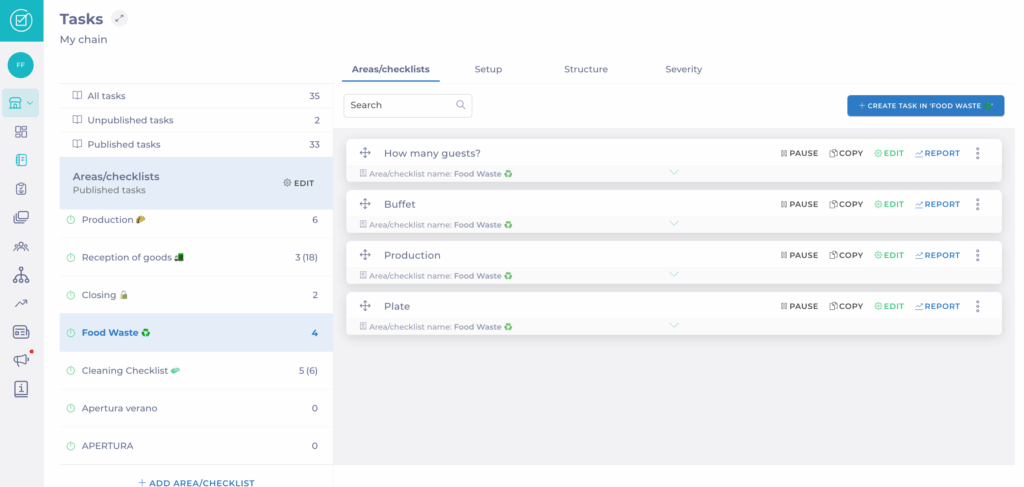
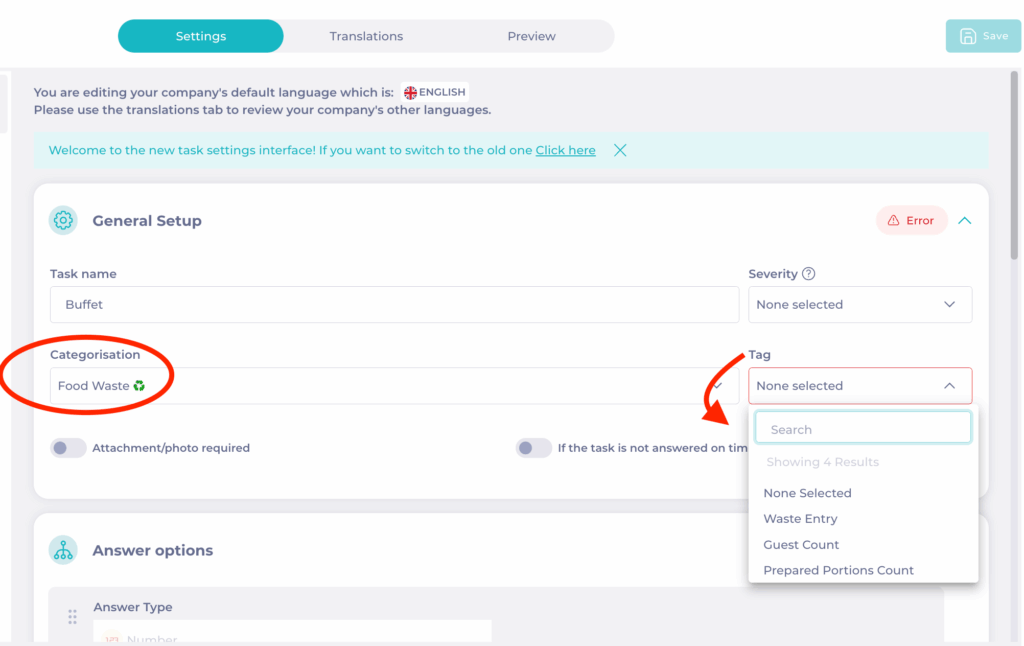
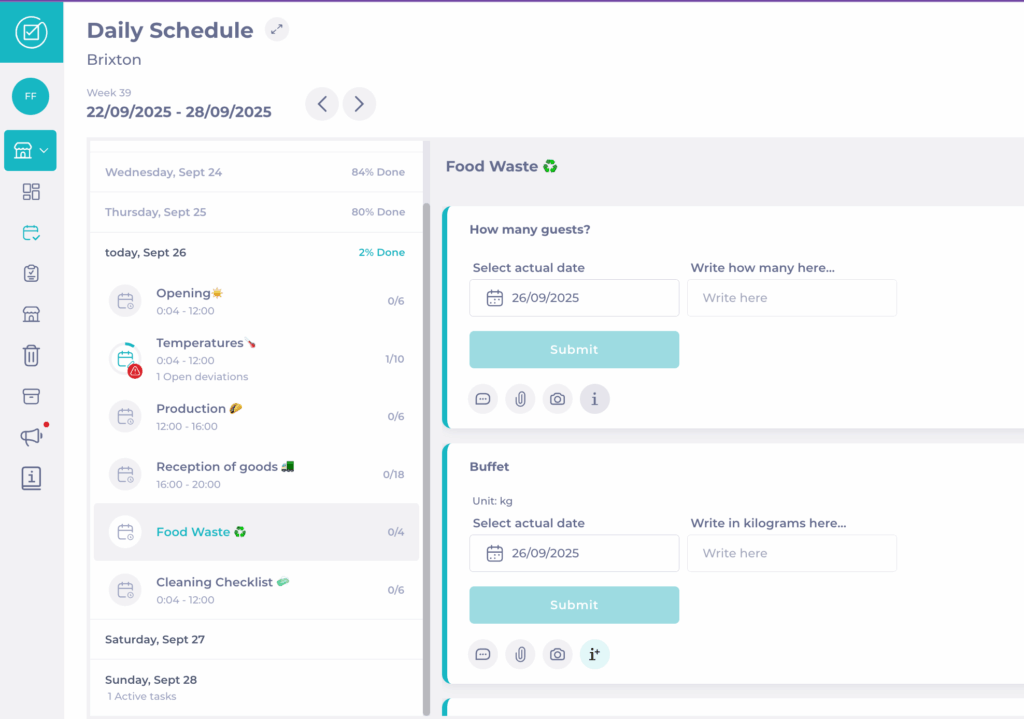
Once the module is active, create the waste tracking task.

Note: It is not possible to use both guest count and portions in the same module. Once the task is saved, the selected tag is locked.

Response Options

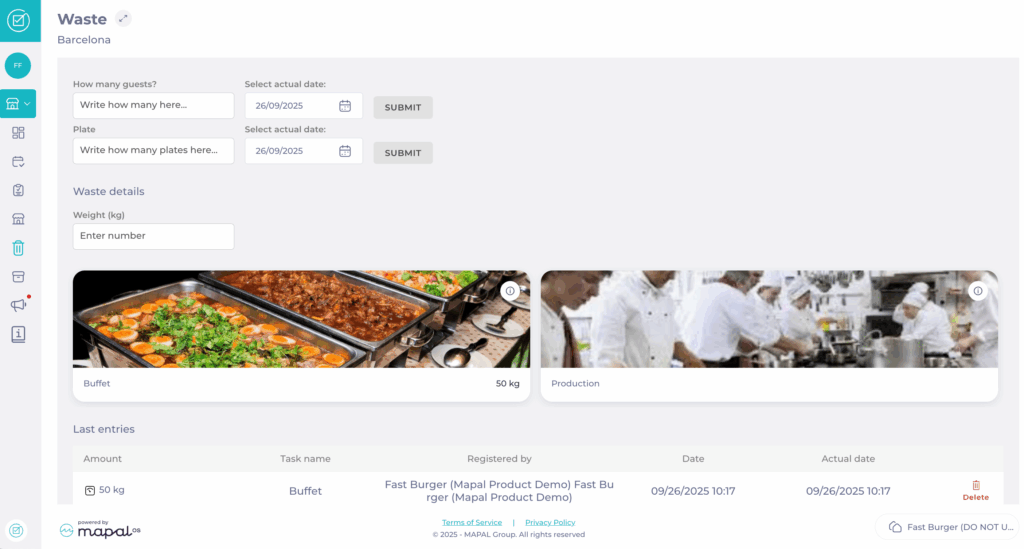
Record waste

Waste tracking tasks can be completed multiple times per day. This enables continuous logging throughout daily operations (e.g., morning prep, lunch, dinner).

You can record Waste through:

Backdated entries

Users can log waste retroactively for up to 8 days prior to the current date.

Central level

At central level, activate Allow setting 'actual date' to permit backdated entries. You can also choose whether retroactive entries default to the selected date or today’s date.
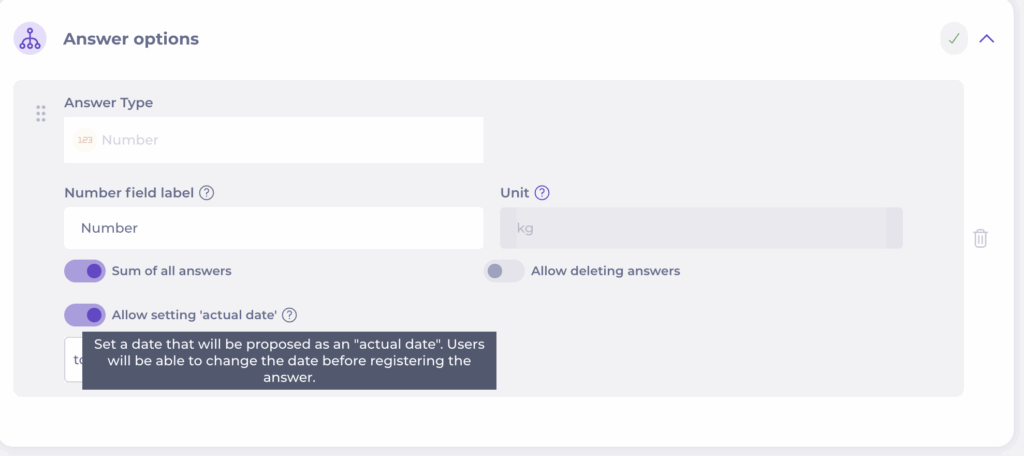
Local level

At site level, users can freely select the date they want to assign to the waste record.

Reporting

Local Level

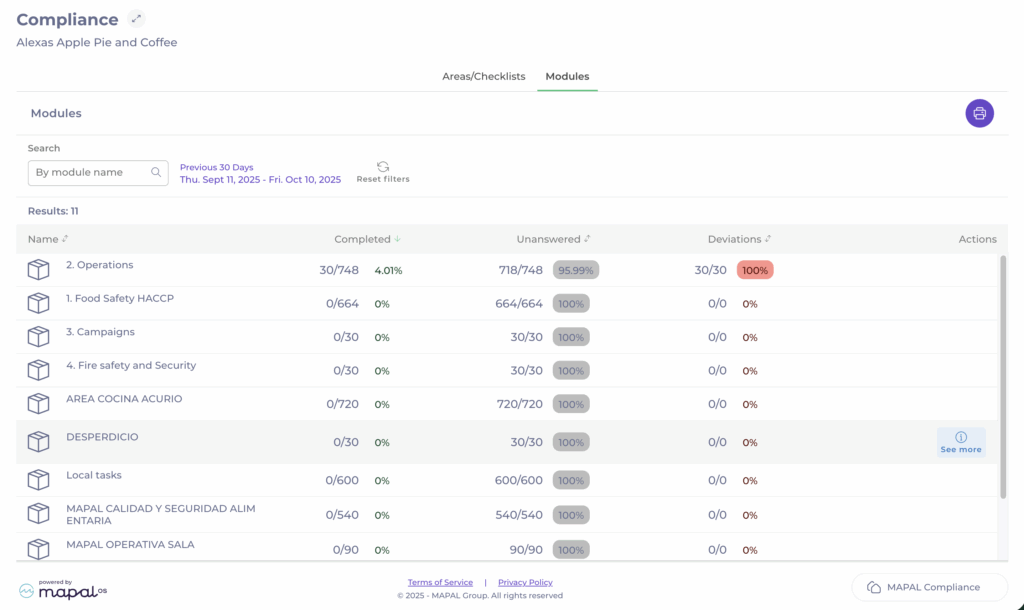
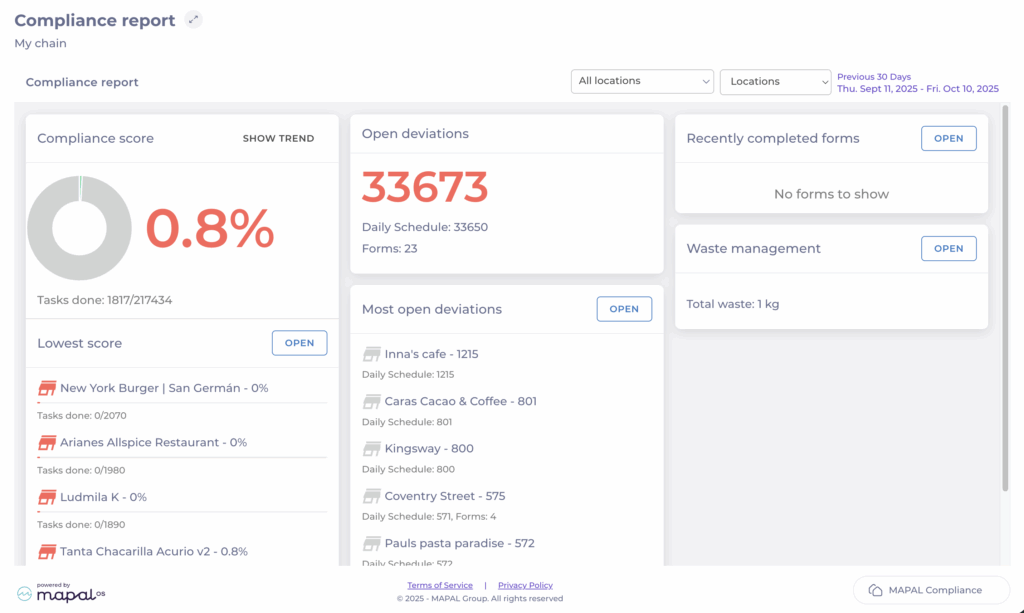
Central Level

Insights and sustainability impact

Smart Analysis in Easilys

Start from: The Easilys menu.

Notes: Smart Analysis is a tool, not a final decision-maker. Always verify key results using the data visible in your system. AI may occasionally provide incomplete or incorrect responses. If in doubt, cross-check with your records or reports.

Smart Analysis in Easilys

Smart Analysis is an AI-powered tool built into Easilys and powered by the PAL Assistant. It helps you interpret your inventory data by summarising results, highlighting trends, and identifying common loss reasons without exporting reports or manually analyzing data. This saves time and supports better decisions in inventory and cost management.

Smart Analysis is available on all dashboard screens in Easilys.

How to access Smart Analysis

Smart Analysis is currently available on the following Easilys screen:

For full instructions, see Access the Mapal AI Assistant.

How it works

Example Use Cases

1. Product Loss Analysis: "Which products had the highest losses during the period?"

2. Loss Reason Analysis: "What are the most frequent loss reasons?"

Business value

Using Smart Analysis in Easilys provides:

Things to keep in mind

An overview of Easilys F&B

Working in institutional catering? Easilys Collective is the management software specifically designed to meet your needs. Efficiently manage your budget, menus, procurement, production, and raw material traceability while staying compliant with regulations. Whether producing on-site or in a central kitchen, using hot or cold links, Easilys adapts to your setup to help you forecast and monitor production costs, and offer optimal control of your foodservice operations.

Key features

Stock Management

  • Accurate tracking: Control your stock with automatic updates based on receipts, production, sales, and inventory control.

  • Cost control: Analyse inventory variances, manage losses and markdowns, and ensure budget compliance.

Cost Management

  • Profitability analysis: Identify and promote your most profitable menu items.

  • Recipe costing: Get accurate, real-time cost prices.

  • Forecast management:

    • In commercial catering: Use historical data to define and optimise your sales forecasts.

    • In institutional catering: Easily create menus that meet your budgets, legal requirements, and consumer needs.

  • Centralised control: View and analyse all your sites through dashboards.

Waste Management

  • Tracking: Precisely measure food waste.

  • Integrated BI tool: Analyse and highlight waste trends. Identify cost-saving opportunities.

Production Management (Adapted to Your Operations)

  • On-site production: Plan, streamline, and manage all your locations.

  • Centralised production (Commissary Kitchen or Lab): Efficiently manage centralised production for multiple distribution sites. Optimise packaging and delivery based on orders from your outlets or satellite restaurants.

Next steps

Easilys f&b by Mapal OS is an essential tool for hospitality businesses aiming to optimise their food and beverage operations. Its comprehensive features and user-friendly interface ensure efficient, sustainable, and profitable management.

For more, visit our Getting started category, or select from the articles below.

Administer the various information qualifying weighings waste families, waste, locations, stages, and services

If your environment is configured for multiple languages, the multilingual icon appears for some fields. For more information on how to use it, see the article Use Easilys in multilingual mode .

Note: each action performed on the application is subject to access permissions. If you are unable to carry out the recommended actions in the articles you are viewing, this may mean that the necessary rights have not been activated for your user profile. Contact the Support team, or your administrator, to find out more.

Start from: the Easilys menu.

What do you want to control?

By clearly defining your objectives, you can then create the various pieces of information that will qualify your weighing.

The information in question is as follows: waste family (e.g. food excluding bread, bread, non-food), waste (e.g. peelings, bread, leftovers), stage (e.g. end of service, cold preparation), location (e.g. cold preparation workshop, dining room A) and service (e.g. lunch, dinner).

The first step in implementing the Easilys "Waste measurement and analysis" module is to clearly define your objectives.

The principle is simple: to create an element, simply select the cogwheel.

A little subtlety: to create a waste family, you have to go through the cogwheel of the "Waste" element, because a waste family is not linked to a manual weighing device or a collector, but to a waste item.

Une image contenant texte, capture d’écran, nombre, logiciel<br><br>Description générée automatiquement
Une image contenant texte, capture d’écran, Police, nombre<br><br>Description générée automatiquement
Une image contenant texte, Police, capture d’écran<br><br>Description générée automatiquement

A blank "Weighing sheet" form is displayed on the right of the screen.

Une image contenant texte, capture d’écran, logiciel, Icône d’ordinateur<br><br>Description générée automatiquement

By selecting one of these cogwheels, a small administration window appears on the screen: to modify an element select the small pencil icon, to delete select the cross and to create a new element select + Create.
(It is not possible to delete services).

Une image contenant texte, capture d’écran, logiciel, Page web<br><br>Description générée automatiquement

Create Smart Packaging Rules

Note: actions performed on the Easilys platform are subject to user access permissions. If you are unable to carry out the actions described in the articles, it may be because you do not have the necessary permissions activated on your user profile. Contact the Support team, or your administrator, for help.

Start from: The Easilys menu.

  • Navigate to Shipment > Smart Packaging.

  • Select the + Create button at the top right of the screen.

Configure rule settings

  • In the Create screen, fill out the following fields:

    • Name: Enter a name for the rule

    • Active starting from: Set a start date and, optionally, an end date

      • If no start date is added, today’s date will be used by default

      • If no end date is provided, the rule will remain active indefinitely unless manually disabled

    • With a priority of: Assign a priority level, if needed

    • Concerning: Choose the sites to which this rule will apply. Note: For more on tagged sites, refer to the article Tag "Packaging sites".

    • Which can be grouped: A recipe that has several compatibilities and/or concerns different guests will have its contents grouped together, where possible, within the same package.

    • Rounded up: When the remaining quantity is greater than the specified percentage (100%) compared to the total capacity of the package at the end of the line, then the system will calculate the amount of material required to fill the package.

Define application criteria (Which applies on)

You can choose one of two options when creating a rule:

Option A: General criteria

Select General criteria to apply the rule based on multiple attributes:

  • Menu items

  • Guests

  • Meal types

  • Recipe categories

  • Production workshops

  • Diets

  • Segments

  • Textures

Note: If you select multiple general criteria, the rule will only apply to recipes that meet all the conditions. Avoid making rules overly complex, as this may reduce effectiveness.

Option B: Specific recipe criteria

Select Recipe criterion to target specific recipes:

  • Recipe: Choose one or more recipe sheets

  • Diets: Apply the rule only if the recipe is suitable for selected diets

  • Segments: Limit the rule to applicable segments

  • Textures: Filter by texture compatibility


Define packaging types

Once your application criteria are set, define the types of packaging to be used:

  • Select a packaging type (you may need to create one if you have permissions)

  • Choose a unit (e.g. portion, litre) on the far right

  • Enter the allowed quantity per packaging unit

Note: You can define multiple quantities for the same type of packaging. For example, a GASTRO TRAY x20 could be used for 10, 15, or 20 portions. Easilys will use this flexibility to optimise packing. If you have 35 portions to pack, the system may suggest using two trays, one filled with 20 portions and the other with 15.

  • Use Add packaging to include more types and improve the rule's flexibility

Example:
You have:

  • GASTRO TRAY x20 (10, 15 or 20 portions)

  • TRAY x5 (2, 3, 4 or 5 portions)

If you need to pack 47 portions, Easilys may suggest using:

  • 2 x GASTRO TRAY x20

  • 2 x TRAY x5 (one containing only 2 portions)

Save the rule

  • Once you have configured all settings, select Create to save the Smart Packaging rule.

  • The rule will now appear in the list and will be Active by default. You can Deactivate it by using the toggle button.

src="src="src="src="src="src="

Advanced waste tracking with Zoho

Start from: The Compliance overview.

  • Select Analytics > Dashboard from the main menu.

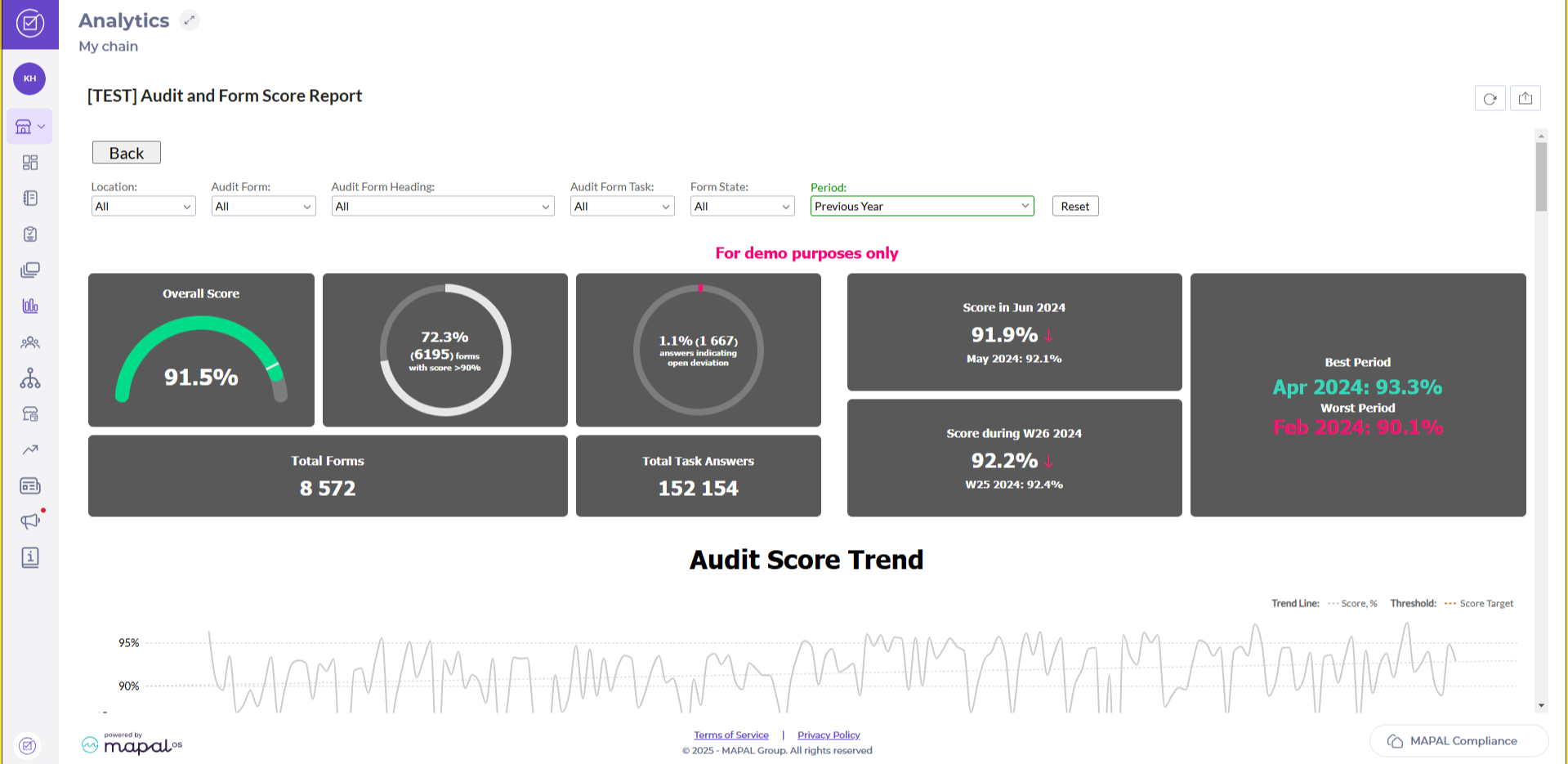
The Analytics page in Compliance is an advanced tool available to select customers, offering enhanced data insights and reporting capabilities. This feature, powered by Zoho Analytics (https://www.zoho.com/analytics/), is designed for businesses requiring deeper analytical functionality to support informed decision-making.

Who is it for?

The Analytics page is tailored for customers who demand advanced reporting and data visualisation tools, particularly those utilising the Food Waste Module. By integrating analytics, these businesses gain access to detailed metrics that can help drive efficiency, sustainability, and strategic decisions.

Notes: This feature is currently available to a limited number of customers as part of an integrated analytics solution.

Key Features

  • Zoho Analytics Integration: The Analytics page leverages Zoho Analytics to provide a powerful platform for data analysis, custom reporting, and visualisation.

  • Comprehensive Metrics: Access in-depth data to track waste levels and patterns.

Benefits

  • Data-Driven Decision-Making: Advanced analytics enables businesses to identify trends, uncover inefficiencies, and optimise their operations.

  • Improved Sustainability Efforts: For Food Waste Module users, analytics helps reduce waste by identifying problem areas and implementing more effective processes.

  • Enhanced Reporting: The integrated solution allows teams to present comprehensive data in a professional, easy-to-understand format.

Manage batches and their expiration or use-by dates

Note: each action performed on the application is subject to a fee. If you are unable to carry out the recommended actions in the articles you are viewing, this may mean that the necessary rights have not been enabled for your user profile. Contact the Support team, or your Admin, to find out more.

Start from: The Easilys menu.

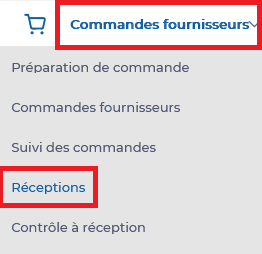
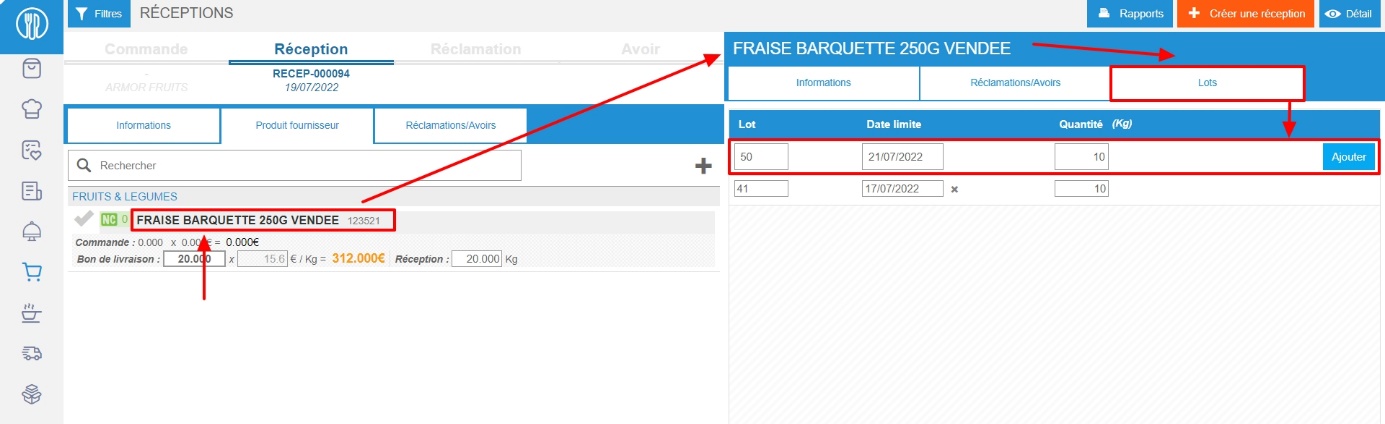
  • Select the Supplier orders > Receptions tabs.


  • Select the delivery note on which to save batches and their deadline for consumption.
  • Select the name of the batch product.

Details of this product are displayed. This detail is made up of three tabs: go to the “Batches” tab.

  • Add the batch number, the deadline for consumption and quantity.
  • Select Add.
  • Repeat the action until you have created one line per batch.

Une image contenant texte, capture d’écran, logiciel, ligne<br><br>Description générée automatiquement


Once the reception is validated, Easilys enters each batch into stock. You can find the details of the stock entries of each batch, with the indication of the deadline for consumption (DLC) in the details of the stock movements of the product.

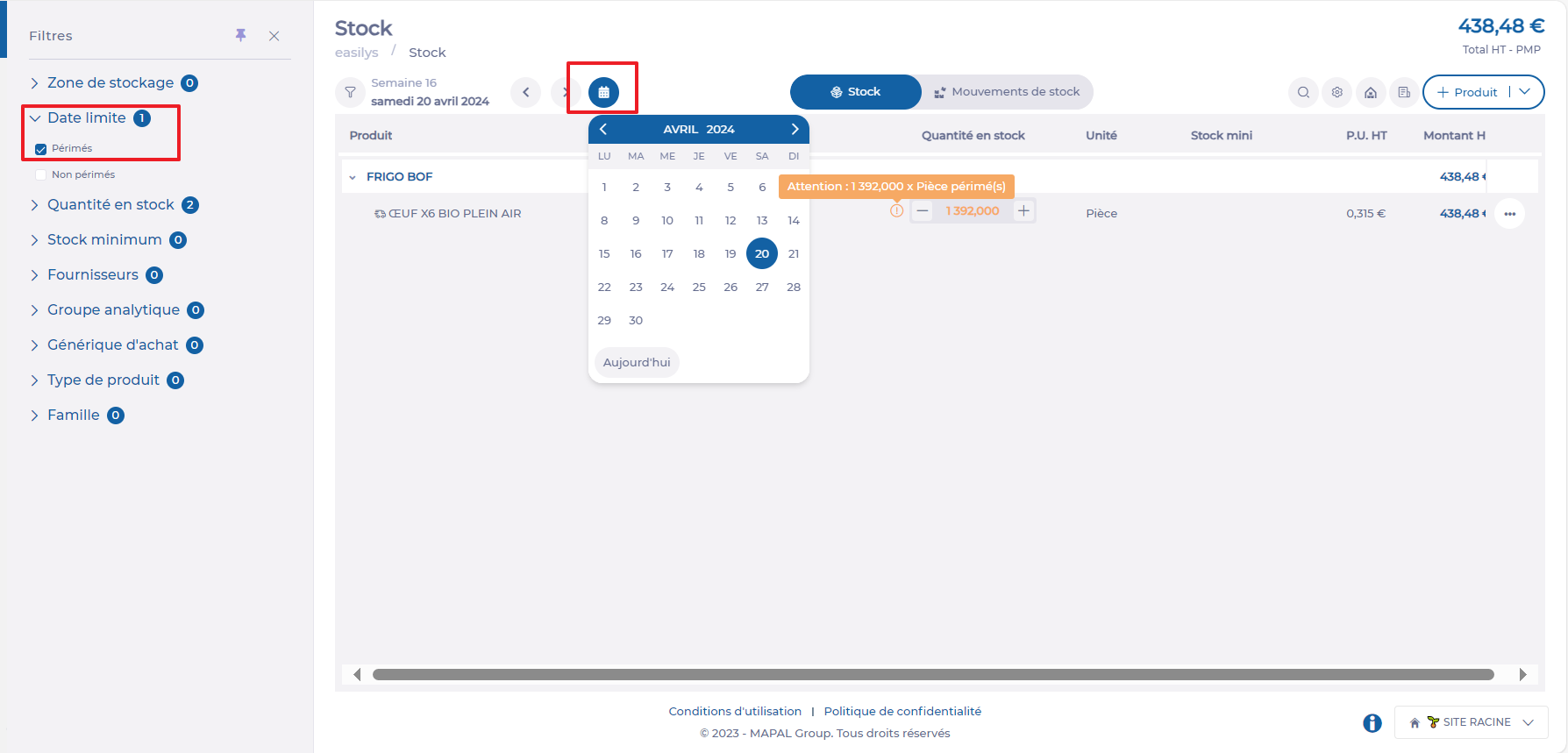
Note that you will not be alerted by an expiry message, but that you can monitor stock that is close to expiry (or out of date) using the “Deadline” filter available on the STOCK (V2) screen (Stock > Stock (V2) tabs). If, for example, you want to see which products will reach their sell-by date by a certain date, you can do so:

  • Select the Stock > Stock (V2) menu.
  • Select the date in the calendar for which you wish to see the products that will be expired.
  • Select the “Expired” option in the “Deadline” filter, and you will then see all expired products related to the deadlines for consumption entered at reception.

Find your waste history

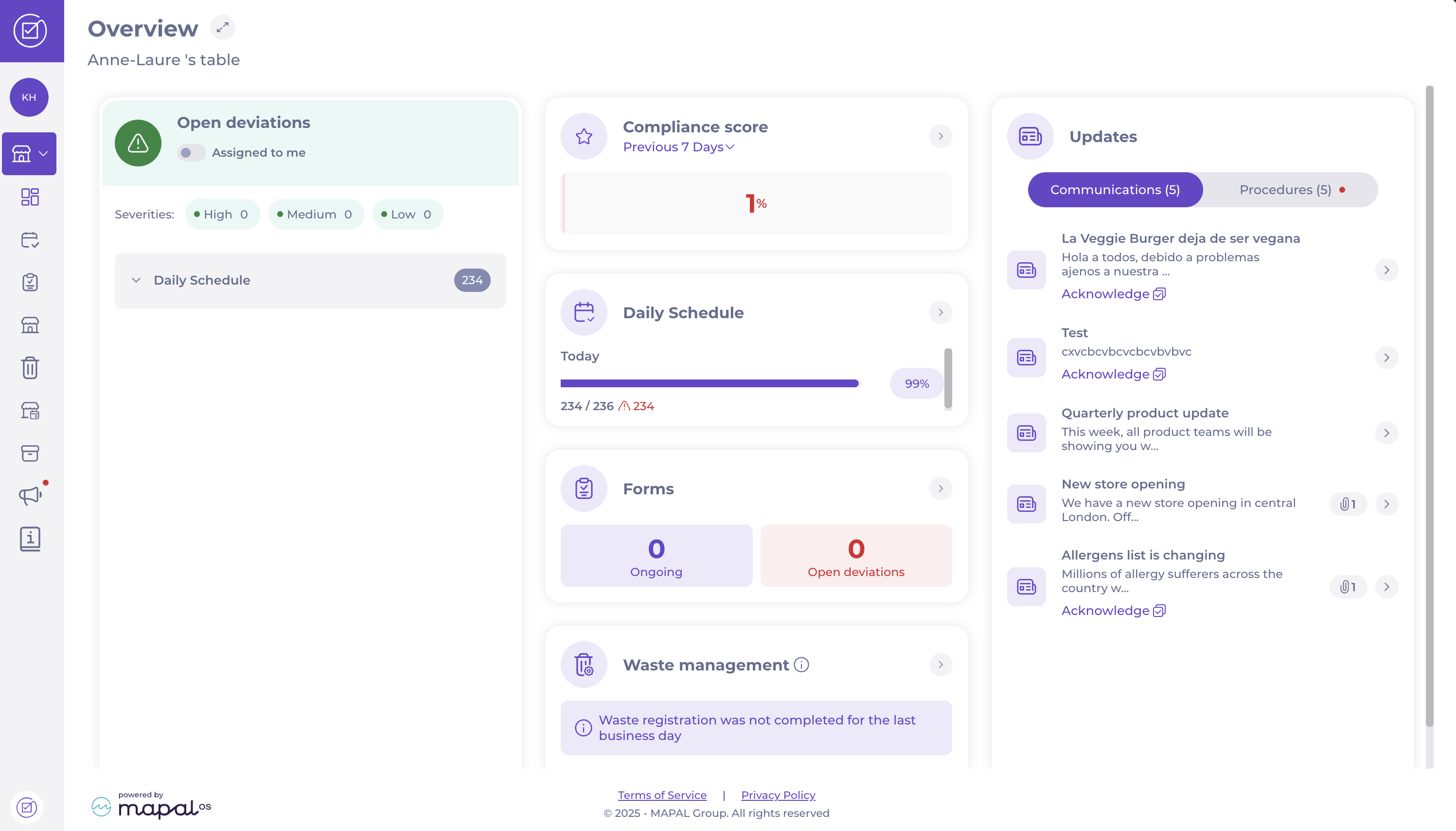
Find waste history through the Local Overview

You should be able to see a section names Waste management showing a number of total waste in grams per guest and a indicator of whether this is more or less than your average.

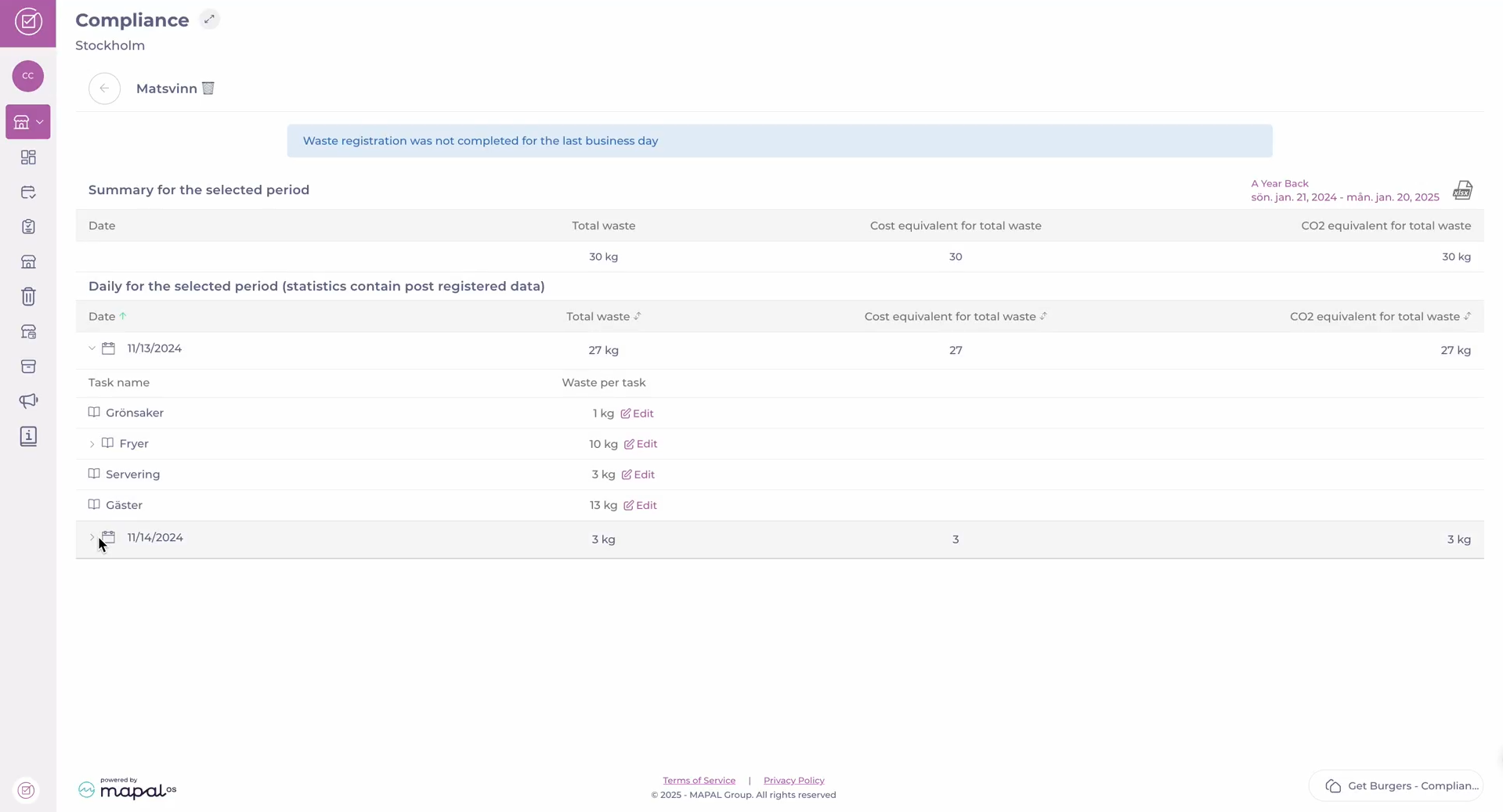
Find the Waste module

You can sort the information presented in this grid using the arrows on the list's header. You can also export your waste history by selecting the XLXS icon at the top of the page.