


Start from: The Cashrec dashboard.
Open the daily cash sheet review screen
- Navigate to Cashrec > Review Cashrec.
- The screen shows a list of cash sheets by date and location, with review indicators for each day.
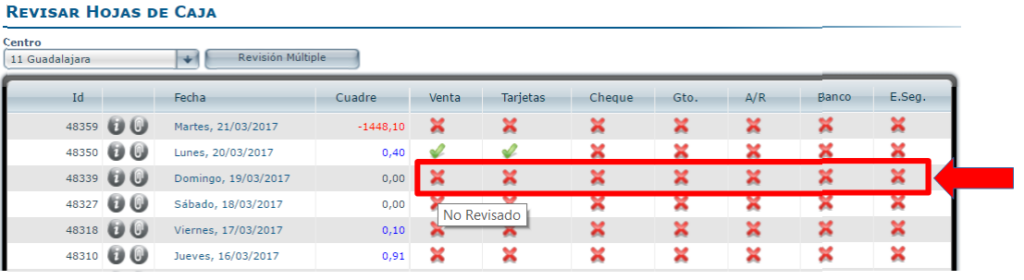
You can review cash sheets in two ways:
- Day-by-day and by section.
- Multiple review for a period and section.
Review a single day and section
Use this method when you want to check a specific day in detail.
- In Review Cashrec, locate the day you want to review.
- Select the review icon (cross/mark) for that date to open the cash sheet.
- Inside the cash sheet, select the tab you want to review, for example:
- Sales
- Cards
- Meal vouchers
- Expenses
- Cash movements
- Bank deposits
- Security company
- Cash
- For each section, select the review icon to confirm that the data entered from the restaurant is correct.

- Once reviewed, the icon changes to a green tick to show that section has been validated.

When all relevant sections for the day have been reviewed, the cash sheet is considered checked for that date.
Use Multiple Review for periods
Use Multiple Review to validate several days at once, for a given section and period.
- In Review Cashrec, select Multiple Review.
- A window appears where you can define:
- Start date and End date for the period you want to review.
- The Section you want to apply the action to (for example, Sales, Cards, Expenses).
- The Action:
- Review: marks the chosen section as reviewed for the selected period.
- Remove review: clears the review status for the chosen section and period.
- After selecting the dates, section and action, select Accept.

Cashrec applies the chosen action to all cash sheets in that period for the selected section, streamlining the review process when you need to validate several days together.
How review status appears in cash sheet creation/editing
Once a cash sheet has been reviewed:
- A green tick icon appears next to the date on the Create and Edit Cash Sheets screen.
- This indicates that head office has checked the data entered from the restaurant for that day.
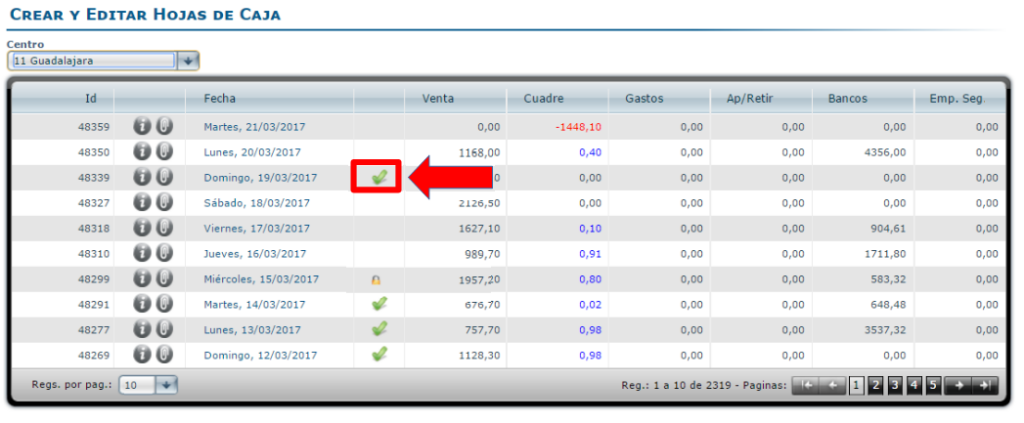
If review is removed (for example, via Multiple Review with “Remove review”), the green tick disappears and the day can be reviewed again after further changes.
