Set up Content locking in Evolve modules

Start from the Editor view in the Evolve module for which you wish to set up Content locking.

How to set up Content locking

  • Navigate to Extensions (the puzzle piece icon) on the vertical, left-hand toolbar and select the Content locking checkbox to enable it.
  • Navigate to Content (the list icon) on the vertical, left-hand toolbar and select the page or article that you want to lock. 
  • Select Content locking from the right-hand drop-down list and select the Lock Page? Or Lock Article? Toggle button. 
  • Select how you’d like the learner to unlock the content in the Unlock Page/Article by drop-down list.
  • Select the components you want to unlock your locked content in the field below.

You can also add text that notifies when the article is locked until the learner completes all components.

Note please pick components that appear before the locked section, or else the learner won’t be able to finish or complete the course. You can also select whole pages to unlock your section. However, for more robust functionality we recommend selecting individual components.

Hide/show using logic

You can create a similar effect by using triggers within the Logic functionality. You can hide content within courses and set up a trigger to reveal it once another component is complete.

  • Navigate to Logic (the lightning icon) on the vertical, left-hand toolbar.
  • Select the Plus icon (Add trigger).
  • Name the trigger (ie. Reveal Question 2) and apply the following settings:
    • Event: Component completed
    • Condition:Select the component that should be completed for the next to reveal
    • Action: Show hidden article > then select the article you want to reveal
  • Navigate back to the Content functionality (the list icon) on the vertical, left-hand tool bar.
  • Select the article within the course that you’d like to hide and select the eye icon.

Note about Content locking

Regardless of how you set your course up, always test that the settings are working as expected using the full Live Preview button (the blue triangle in the top-right corner), then upload and test on Mapal One.

Content that has been hidden will still show up on the quick preview. Always use the full Live Preview mode when hiding or locking content so you can see a more accurate representation of what your learner will see.

src="src="src="src="src="src="src="src="src="

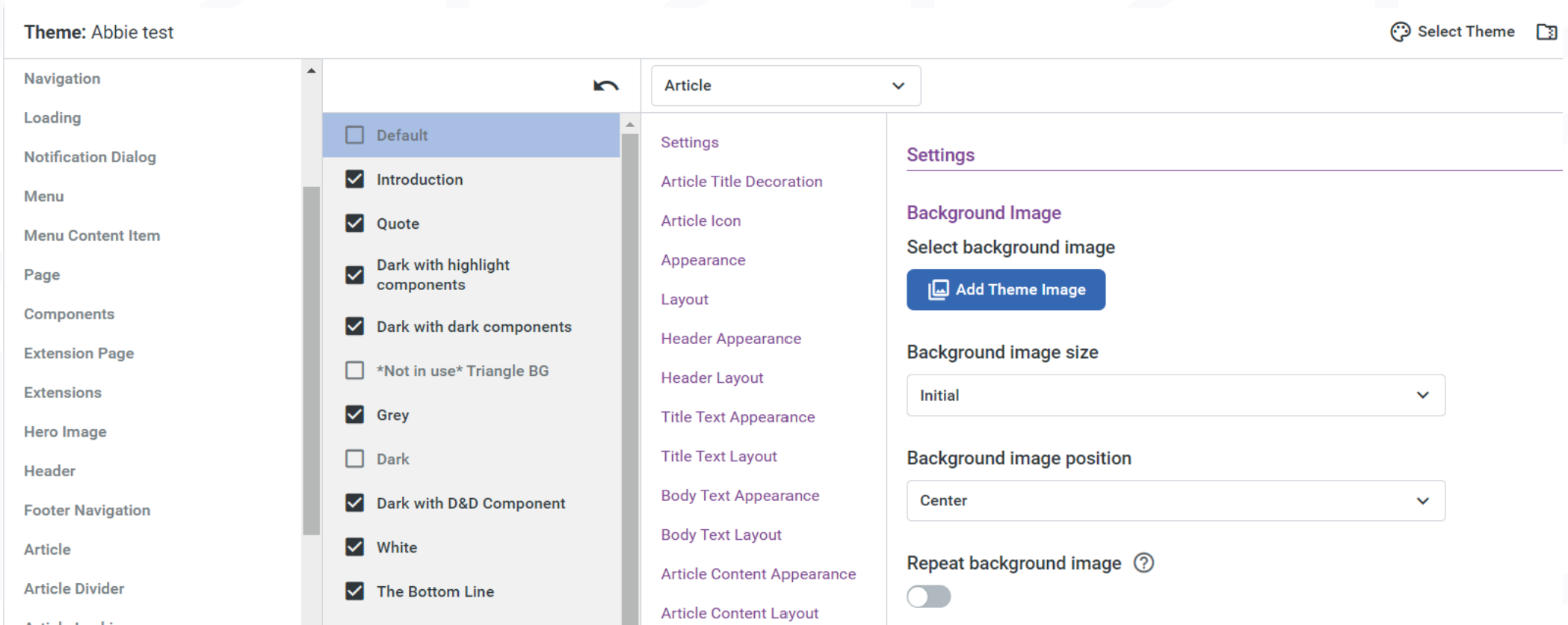
Create themes for Evolve modules

Start from: any existing course in Evolve.

Note: you can view your themes on the main page of Evolve. How, you can only make updates within a course.


Duplicating a theme.

  • Select the Theme icon.
  • Select Create Theme.
  • Select the theme you want to duplicate.
  • Select Create.

Your theme is ready to update.

Note: it's always best to duplicate a theme to ensure you keep the version we created as an original.


Apply a different theme to a course

  • Select the Theme icon.
  • Select Select Theme.
  • Choose your new theme from the existing list.
  • Select Select Theme.

Note: Evolve themes are very adaptable and have been created so you can easily switch them over. However, always make sure that your theme is working as expected with all components on your course. For that, review your new theme in Live Preview.


Change de colour palette

  • Select the Theme icon.
  • Select Default colours.

Note: if you need to make an update to one colour, it will update across the whole theme. You can update one or all the colours: however, please make sure to use the same brightness when swapping colours. For example, if you are changing a dark colour, make sure your new colour is just as dark, this will ensure good contrast and legibility.


Change fonts

Evolve is synced with Google Fonts, therefore we can use font in the library.

  • Select the Theme icon.
  • Select your new font from the drop-down menu.

Note: in general, Font 1 has been used for Headers, Font 2 for Body text and Font 3 for introduction text. Replacing any of these three will update across the course. You can add up to 7 fonts and cans elect them within the Article Style.


Change logo

Note: to add a new logo to your navigation bar, you must add it to the asset library first.

From the main Evolve page:

  • Select your logo.
  • Upload Asset.

Then, navigate to your course:

  • Select Theme > Images > Add theme image.
  • Select your logo.
  • Select Add.

Finally, you can add this to your Navigation.

In your theme:

  • Select Navigation > Navigation logo.
  • Toggle on Navigation logo.
  • Add your logo to Navigation Logo Large Image and Navigation Logo Small Image.

You can then change the size of the logo and colour of the navigation bat in the settings.


Updating an article style

Note: within a theme, there are multiple article styles so you can vary the design of your course, but also because styles can work better with some components than others. For instance, we have created a Quote and Introduction styles that have been created to display text in different ways. There are a maximum of 20 article styles you can create. You can make specific changes to every element within an article style by following the steps below. However, thus is quite advanced, so please, reach out if you need help.


Within your theme:

  • Select Article Styles.
  • Select the article style you want to update.

At first, you will see the settings for Article:

  • You can change the style of anything you add to an Article.
  • By using the dropdown, you can select further into the style layers to update and change any article.

For example, if you want to change the button style, you select Button from the drop-down, you will then see all the styles for the buttons within this article. You can change anything from colour, font, hover colour, border colour etc.

Note: We recommend when changing a theme you also have a preview screen up of what you are changing and do one thing at a time. If you change multiple elements and something doesn't look right, you will have to manually fix it, since there is no undo button.


Add questions to Evolve modules

Start from: any existing course in Evolve.

Setting up the Question Bank/s Extension

Within your course:

  • Select the Extensions tab (the puzzle piece) in the left menu bar.
  • Find the Question Banks extension and tick to enable.
  • Select the title Question Banks to edit.

You will be taken into the Question Banks settings, where you can build the question banks to your requirements.

  • Select the + icon to add a new question bank.

A pop-up will then show, where you can title the question bank and choose the type of multiple choice questions (MCQs) you want to use for this question bank and hit the Select button.

  • You can select either a Multiple Choice Question or a Graphic Multiple Choice Question.
    • A Multiple Choice Question allows you to set multiple answers to a single question.
    • A Graphic Multiple Choice Question allows you to set multiple answers with added images to a single question.
  • You can only have one type of question per question bank.

Note: You can have as many question banks as you prefer for your assessment. If you want all your assessment questions to come from one pool of questions, we suggest you use one question bank overall. However, if you want to split your question banks by topic or type of questions, you can have a question bank for each.

Using a Multiple Choice Question Bank

  • Your titled question bank will then show in the column underneath the ‘+’.
  • Select the title to reveal the settings to add your questions.

To add a question:

  • Select the + icon next to the question bank title. Then select each question in the second column to edit the question.
  • Starting with the General tab, here you will be able to add the question and any instruction text.
    • Add a Title for each question. We like to add the whole question into this title, as this will help you find the question for edits in future.
    • Add the main question to the Question area.

Note: We DO NOT add a Display Title here, as this will be taken from the MCQ components on the assessment page.

On the Answers tab, this is where you add the various answer choices the learner will see. You can add as many answers as you prefer.

  • Select Add Answer, then select the item to see a dropdown which includes an Answer text area and a toggle to specify if the answer is correct.
  • Add your Answer text and toggle on If the answer the correct option? for each, as is relevant.

Note: The number of answers you can mark as correct will be based on how you set the question behaviour.

On the Behaviour tab, this is where you set the number of question attempts, randomization of answers, how many selectable items and individual item feedback. As this is for a general assessment, we suggest the following settings:

  • For Attempts, choose 1 — this is important for the completion of the assessment.
  • Toggle off Display Attempts Counter.
  • Toggle on Randomize Answers — this will show the learner the answers in a different order each time.
  • Select the number of Selectable Items – this is the number of answers you want the learner to be able to select. This can be multiple if it’s a ‘Select all that apply’ question, if it’s a normal question select 1.
  • Toggle off Use custom item prefix.
  • Toggle off Individual item feedback — for assessments, we use the general feedback settings.
  • Toggle on Auto Submit the Question?

On the Feedback tab, this is where you can add in feedback. As this is a final assessment, we suggest not providing any feedback, as this ensures your assessment remains intensive, and the learner isn’t given the answer.

On the Appearance tab, this is where you set how the answers display to the learner based on their device type. We set the number of Items per row as the following:

  • Desktop — 2
  • Tablet — 2
  • Mobile — 1
  • Follow steps 2-8 for every question you want to add to your question bank.


Using a Graphic Multiple Choice Question Bank

This will be very similar to the settings for a Multiple Choice Question, however there will be further steps when adding your answers.

On the Answers tab, this is where you add the various answer choices the learner will see. You can add as many answers as you prefer.

  • Select Add Answer, then select the item to see a dropdown which includes an Answer text area, an Item Image, advanced settings per device for the image, Alt Text and a toggle to specify if the answer is correct.
  • Add your Item Image by selecting the + icon and choosing from your asset bank, by searching in the top bar, or by adding a new image with the top right-corner ‘+’.
  • We suggest you toggle off the Set Image Per Device Size? area underneath Item Image Advanced Settings.

Note: The images will display as the same size as the image you selected. We suggest that you size your images to 512 pixels wide and no larger than 512 pixels high to ensure the best viewing experience by all learners on all devices.

  • Add Alt Text in the area provided, to describe the image to learners who are using screen reader technology to work through your course.
  • Add Item Text in the area if it’s required to understand the answer image.
  • Toggle on If the answer the correct option? for the answer, as is relevant.

Note: The number of answers you can mark as correct will be based on how you set the question behaviour.

Setting the Multiple Choice Questions (MCQs) to Use the Question Bank/s

This is how you can link the set multiple choice questions on your assessment page to the relevant question bank.

You will need to set up your assessment page with the relevant multiple choice question components or graphic multiple choice question components first. These act as a target for the relevant question bank.

Please see our guide on ‘Evolve Course Completion’ to see the steps to set up this page.

These following steps are relevant to both types of question banks, the multiple choice question and the graphic multiple choice question banks.

  • Once your assessment page is set up, navigate to the first multiple choice
  • question component.
  • Select the component to open the settings column.

In the General area:

  • Add a Display Title for the question. We suggest numbering your questions on the page, so that the learner knows which question they are on, such as ‘Question 1’. Ignore all the rest of the areas, these will be filled in by the questions in the bank.

At the top of the third column, use the dropdown to navigate to Behavior.

Once the Behavior screen is showing, use the following settings:

  • Toggle on Use Question Bank.
  • Under Select Question Bank, choose the relevant question bank you want this question to show.
  • Mirror the rest of the settings you set as the behaviour in your question bank, as on steps 5 above.
  • Ignore the rest of the dropdown settings and move on to the next component.
  • Follow steps 2-6 on every question component on your assessment page.
Create and optimise graphics for Evolve modules

Evolve courses can feature a hero image (a large image at the beginning of the course that sets the tone and gives a visual preview of the module) and graphics within the course. It’s important to optimise imagery to ensure that courses load quickly, as this is a key factor in learner engagement.

You can use free image optimisers like Tinypng.com.

Hero image sizing

The Image Advanced Settings toggle that is available in the Graphic dropdown menu (when selecting an existing graphic item in a course) allows more control over image sizes per device. You can set any size image per device, meaning that you can set a super high resolution hero image for desktop, but a lower resolution image for mobile devices. Here are the optimal image sizes for each type of image:

Hero Desktop image size: 1920 x 750 pixels

Hero Tablet image size: 1024 x 800 pixels

Hero Mobile image size: 800 x 800 pixels

You can use free image resizing tools such as: https://www.adobe.com/express/feature/image/resize.

How to upload hero images

Main Page Hero Image

  • Select the course you wish to edit.
  • Select Couse settings (the cog icon).
  • Select the Box Menu tab.
  • Upload your optimized hero image in the Hero Image section by selecting the + icon (Select Asset).
  • Select the Set Image Per Device Size toggle button to be able to set different image sizes for each device type.

Box Menu Item Image

  • Select the course you wish to edit.
  • Select Content (the list icon).
  • Select the page you wish to edit.
  • Select the General dropdown menu on the right-hand side of the editor view.
  • Scroll down to the Box Menu Item dropdown menu.
  • Upload your optimized Box Menu Item Image by selecting the + icon (Select Asset).

Page Hero Image

  • Select the course you wish to edit.
  • Select Content (the list icon).
  • Select the page you wish to edit.
  • Select the General dropdown menu on the right-hand side of the editor view.
  • Scroll down to the Page Hero Image dropdown menu.
  • Select the Add Hero Image toggle button.
  • Scroll down to the Hero Image section and select the + icon (Select Asset).
  • Select the Set Image Per Device Size toggle button in the Hero Image Advanced Settings section.

Creating a thumbnail for Mapal One

To create a thumbnail for your course on Mapal One, we recommend using Adobe Express: https://new.express.adobe.com/sp/.

  • Select the Create button and navigate to Custom size.
  • Add the custom size 400x225 and select Create new file.
  • Upload your photo by selecting the photo icon on the left-hand panel > Upload photo.
  • Resize the image and select Download > PNG.
  • Rename the image to one_thumbnail.png.

Check your Evolve module before launch

Start from the Evolve module you wish to launch.

Before export

Check your Course Completion Settings are correct:

  • Navigate to Course settings (the cog icon) on the left-hand vertical toolbar.
  • Select the Behaviour tab.
  • Ensure that the Select How Your Course Should Set a Status dropdown menu is set to either Course Completion or Assessment completion. See Set up course completion for Evolve modules for more information on these two settings.

Check your relevant Extensions are set up correctly

  • Navigate to Extensions (the puzzle piece icon) on the left-hand vertical toolbar.
  • Ensure that the Course Attainment option is ticked if you previously set your completion as Course Completion (in the Course Settings, as described above) OR the Course Assessment option is ticked if you previously set the completion as Assessment Completion. Note you should only have one of these selected at a time.

Go through the course as a learner

  • Select the Live Preview button (the play icon) to view the course as a learner.
  • Check the following:
    • That any content locking and/or hidden content isn’t prohibiting course progression.
    • That Multiple Choice Questions are set up correctly and feedback and attempts are displayed as expected.
    • That all components linked to completion function as expected.
    • That progress bars on the homepage are correlating correctly with course progress (the content you set for course or page completion).

Check that the content adapts to different device sizes

  • Select F12 on your keyboard while in Preview mode or right-click and select Inspect. Choose the device size for the screen under Dimensions in the top bar.

Note if an image or activity doesn’t look as expected, you may need to adjust the article style or the item’s Appearance settings.

During export

Check that the right elements are selected in the Advanced publishing settings

  • Select the Publish button within the relevant module. The Publish Course Package pop-up window will appear.

See Upload Evolve modules as SCORM files for more information on recommended settings for export.

After export

Assign the course to a test learner account on your LMS/Mapal One. Check the following:

  • That you can work through the course as a learner and the content performs as expected.
  • That, before completing the course, it shows as In Progress on your LMS/Mapal One.
  • That, after completing the course, it shows as Complete in your LMS/Mapal One.

Troubleshoot issues

In Evolve:

  • Check content locking, triggers or component behaviour settings if there are issues working through the content as expected.
  • Check the course completion settings, extensions and export settings if the course does not complete as expected.

Using a third-party LMS platform:

  • Upload the same SCORM file on a third-party LMS platform like SCORM Cloud if there are no issues with any of the settings above. You can sign up for a free test account with SCORM Cloud to test SCORM files under 100MB.
  • Test the same file for all of the above items on the After export checklist using SCORM Cloud. Work through the content as a learner and test that the completion works.

If the completion and settings work as expected on SCORM Cloud, this could be a platform issue. If you use Mapal One, please raise contact our support team and include screenshots of the errors and any browser/device details.

If the completion and settings are not working as expected, it may be an Evolve issue. Contact the Learning Solutions team or raise a support ticket with Evolve and include screenshots of the errors, browser/device and any other platform details you can provide.

src="src="src="src="src="src="src="src="src="

Upload Evolve modules as SCORM files

Start from: an existing course in Evolve.

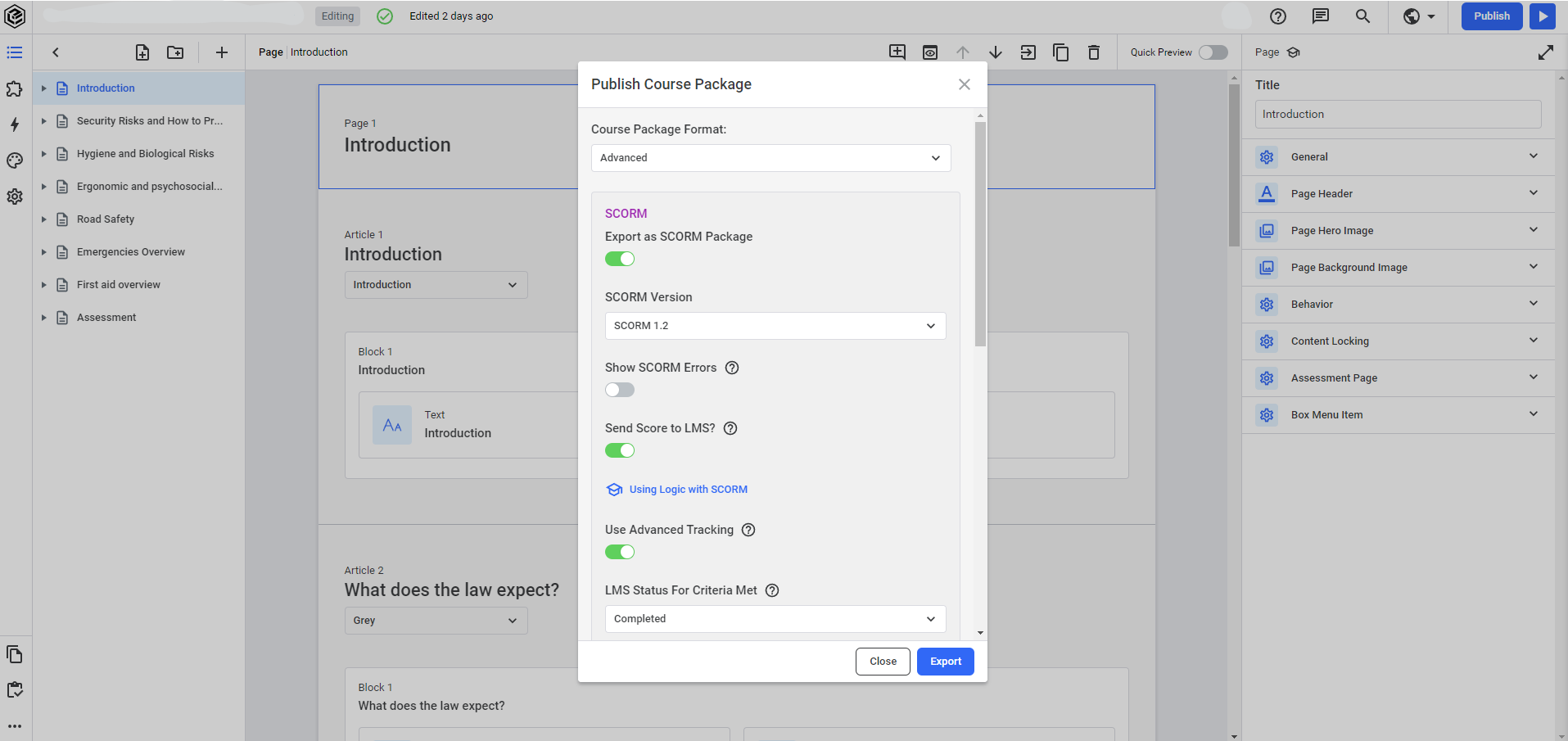
  • Select the Publish button on the tab at the top of the course page. The Publish Course Package pop-up window will appear.

  • Ensure that the Advanced option is selected on the Course Package Format drop-down list.
  • Set the publish settings to match the list below. These are the recommended settings to optimise the content on the Flow Learning system.
SCORM     Response
Export as SCORM Package Enabled
SCORM Version 1.2
Export Package in a Popup Disabled
Use iFrame Scroll Fix for Mobile Devices Enabled
Show SCORM Errors Disabled
Send Score to LMS? Enabled
Use Advanced Tracking Enabled
LMS Status For Criteria Met Completed
LMS Status For Assessment Failed Incomplete
CMI Exit Value auto
Remove CDATA in the imsmanifest.xml file Disabled
Use Alternate Window Close Method Disabled
Learner Name Format Comma Separated
Tracker Response
Enable Advanced Tracking Disabled
Offline Mode Response
Enable Offline Mode Disabled


Adding the course to Flow Learning

Once the upload process has finished, you should be able to see your course on the SCORM Modules list accessed previously.

The next step would be to assign the course to your learners. You can do this by navigating to Learning & Development > Assign learning.

Set up course completion for Evolve modules

Start from: a course on the Evolve platform.

Course completion by assessment

In this setting, a learner completes a course only when they have passed a final assessment. This is generally the best option for compliance courses, to ensure learners have understood the information in the course.

  • Select Extensions (the puzzle piece icon) on the vertical, left-hand tab when in the chosen course.
  • Select Course Assessment in the Enabled Extensions section on the left-hand side.
  • Complete the fields in the Course Assessment settings that appears:
    • General: set up the feedback that the learner will see when they have finished the assessment. Scroll down to Assessment Feedback and insert the feedback text. For example:
    • Passed feedback: “You have scored the _% required to pass your ___ resource. Congratulations! You have now successfully completed this resource. Its key learning points are summarised in each of the Bottom line sections…”
    • Behaviour: set up the assessment questions, the pass score and how the learner interacts with the assessment:
  • Set up the Pass Mark Percentage: this is the minimum score required to pass the course.
  • Select your questions showing on the Assessment Page.
  • Select the Disable show answer toggle button to ensure your assessment remains intensive and the learner isn’t given the answer.
  • Select the Allow Assessment Retakes? Toggle button to enable the learner to try again if they fail the assessment.
  • Set the number of Retake Attempts to 0 and then select the Allow Unlimited Retake Attempts to ensure learners can try the assessment as many times as they need to pass.
  • Select the Hide Retake on Assessment Passed to ensure the learner doesn’t receive a fail mark after they have received a pass mark.
  • Set the Retake Navigation dropdown to First Assessment Question Page.
  • Scroll down and ignore the rets of the settings until Assessment Completed Dialog, as these settings refer to standalone assessment results page, which we don’t use. 
  • Select the Disable Course Assessment Completed Dialog to remove the standalone assessment results page.
  • Scroll to the Assessment results section and select the Show Score as Percentage and ensure that the Questions Completes Counter, the Questions Correctly Answered Counter and the Attempts Taken Counter are all marked as Show.
  • Ignore the Hero Image and Appearance tabs, as they both refer to the standalone assessment page, which is not used in this case.

Course settings

Once you have set up the Course Assessment extension as needed, you must ensure that the course settings are correct.

  • Select Course settings (the cog icon) in the vertical, left-hand tab in your course.
  • Navigate to the Behaviour tab.
  • Select Assessment Completion in the Select how your course should set a status drop-down menu. This will se the course as complete in the system once the assessment has been completed and passed.

Course Attainment

You can also set up a course to be marked as complete only once the learner has completed all of the interactive components in the course.

Set up the Course Completion button (own article)

  • Add an Action button component at the end of the course. Complete the fields in the following tabs:
    • General: add a button description to the Body field.
    • Button: add button text (Confirm completion)
    • Behaviour: apply the following settings;
      • Set Button action to No action.
      • Set Completion status on Click.
      •  Set Disable Button on Click? To Keep Active.

Locking the completion button

  • Go to the Extensions tab (the puzzle piece on the left-hand tool bar).
  • Enable Content Locking.
  • Navigate back to the Completion Button article. Select Content locking in the dropdown menu and apply the following settings:
    • Select locking type > Components.
    • Select all interactive components you want the learners to read for the completion button to unlock.

Set up the Couse Attainment Extension

  • Go to the Extensions tab (the puzzle piece on the left-hand tool bar).
  • Select the Course Attainment extension and select the checkbox to enable it. You will be taken to the Course Attainment settings.
  • Select the Should Hide Summary? and the Disable notification popup toggle buttons in the Behaviour tab.
  • Set the Course Attainment Method option to Components and then select the Course completion action button, also in the Behaviour tab.

Course settings

  • Go to the Course settings tab (the cog icon) on the left-hand vertical tool bar.
  • Choose Course completion in the Select how your course should set a status dropdown menu in the Behaviour tab. This will set the course as complete in the system once the course has been completed

Course progress bars

Also within the Course settings > Behaviour tab, under the Page Completion Display Method dropdown, you can choose the settings of how to show the progress completion for each page of your menu. We recommend Set in Individual Pages, as this allows us to set the completion based on specific components for each page.

Set page progress bars

  • Navigate to each page and select the top box that contains the page header.
  • Select Behaviour > Set Page Completion Display Method to Selected page components, on the right-hand dropdown list.
  • Set Select Page Components to all interactive components on that page. Ideally, these should match the components you have selected above for the Attainment Method.

Edit compliance modules with Evolve

The editable modules include:

  • Food Allergens Essentials (available in English UK, English EU, English ROI, 
  • English US) 
  • Food Safety Essentials (available in English UK, English EU, English ROI, English 
  • US) 
  • Health and Safety Essentials (available in English UK, English EU, English ROI, 
  • English US) 
  • Fire Safety Essentials (available in English UK, English EU, English ROI, English US) 
  • Data Privacy Essentials (available in English UK, English EU, English ROI)

How to make edits

Once the Learning Solutions team has added the editable modules to your Evolve platform, you can start editing them.

  • Log in to your Evolve account.
  • Select the dropdown arrow next to the Create course button.
  • Select the Import Course option.
  • Select the Course Type as Evolve.
  • Select the Choose file button to upload the relevant file from your local drive.

Note: the course may take several minutes to upload. It will then be available in your course list as normal.

Important: please do not change any of the completion settings, as they have been set to work with your Mapal One platform. Any changes could cause issues in the functionality of the courses.

Contact [email protected] if you have any questions.

Notes about editable modules

MAPAL undertake regular reviews of all compliance modules. We will notify you when we make updates to any of the five modules. Please note that it is your responsibility to make the relevant updates to your own customised versions. 

While the information in our editable modules has been endorsed by our usual awarding bodies, the accreditation status will not apply to your own version of any module. It is your responsibility to obtain accreditation for your own versions.
 

Standard image sizes for Evolve modules

Hero images

Hero images are those introductory, visual preview images at the top of every page.

  • Select the Add Hero Image toggle button under the General tab on a page in an Evolve module to activate a Hero Image for that page.

Standard sizes for Hero Images

Desktop 1920x750px | Tablet 1024x800px | Mobile 800x800px

Course menu images 

These are the images that are placed within the course menu (i.e. box menu).

  • Select Box Menu Item tab on a page in an Evolve module to manage Course menu image settings.

Standard sizes for Course menu images

All devices: 512x320px 

  • Select the the Set Image Per Device Size toggle button and add the image to the Desktop, Tablet and Mobile fields if you find that menu images look pixelated.

Flip cards

These are the images used in Flip card components.

  • Select the Graphic tab when selecting any Flip card component in an article in an Evolve module.

Standard Flip card sizes

All devices:
2x cards on a line: 512px wide and any height 
3x cards on a line 340px wide and any height 

Media carousels

These are the images used in Media carousel items.

  • Select the Graphic tab when selecting any Media carousel component in an article in an Evolve module.

Standard Media carousel image sizes (especially when they are shown side-by-side with text)

All devices:
Half width 512px wide and any height 
Full width 1024px wide and any height 

Background Images

Background images can be added to Articles, which gives the imagery more space by allowing it to span the entire width of the screen. This technique can be used to make a key statement really stand out, such as an important rule or an inspirational quote.

  • Select the Background image tab when selecting any article on an Evolve module.

Standard image sizes for Background images

All devices: 1920 x 720 pixels 

Note: many of the image sizes are relevant to the component you are using and what you want it to look like. See Evolve’s own image size guide for more information.

Use the Game component in Evolve

Start from: a course on the Evolve platform.

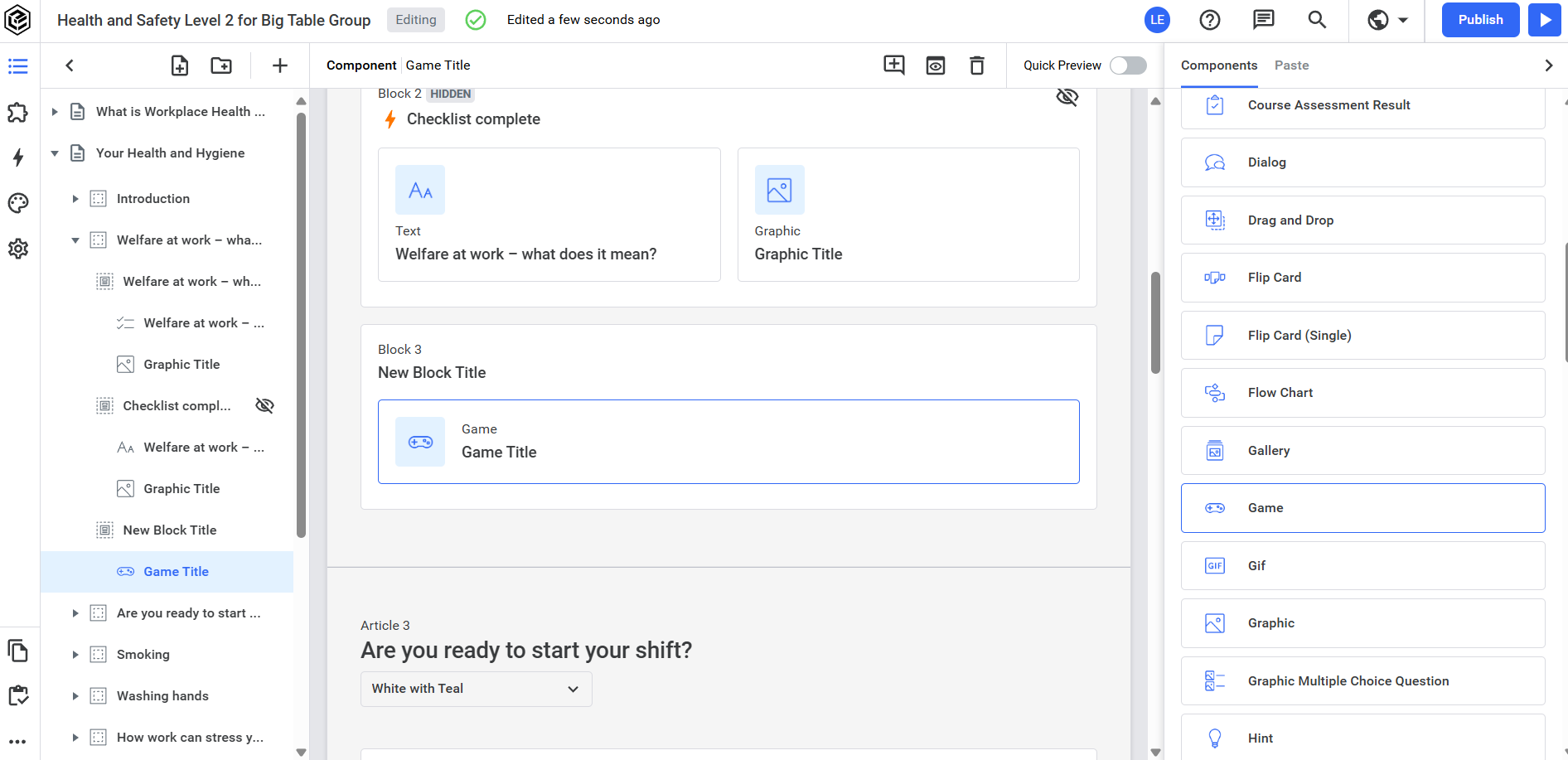
  • Navigate to Content (the list icon) on the vertical, left-hand toolbar.
  • Select Add / Paste + at the top of the Blocks list.
  • Select Game from the Components list. 

A screenshot of a computer<br><br>Description automatically generated

Creating a Multiplayer mode game

A screenshot of a computer<br><br>Description automatically generated

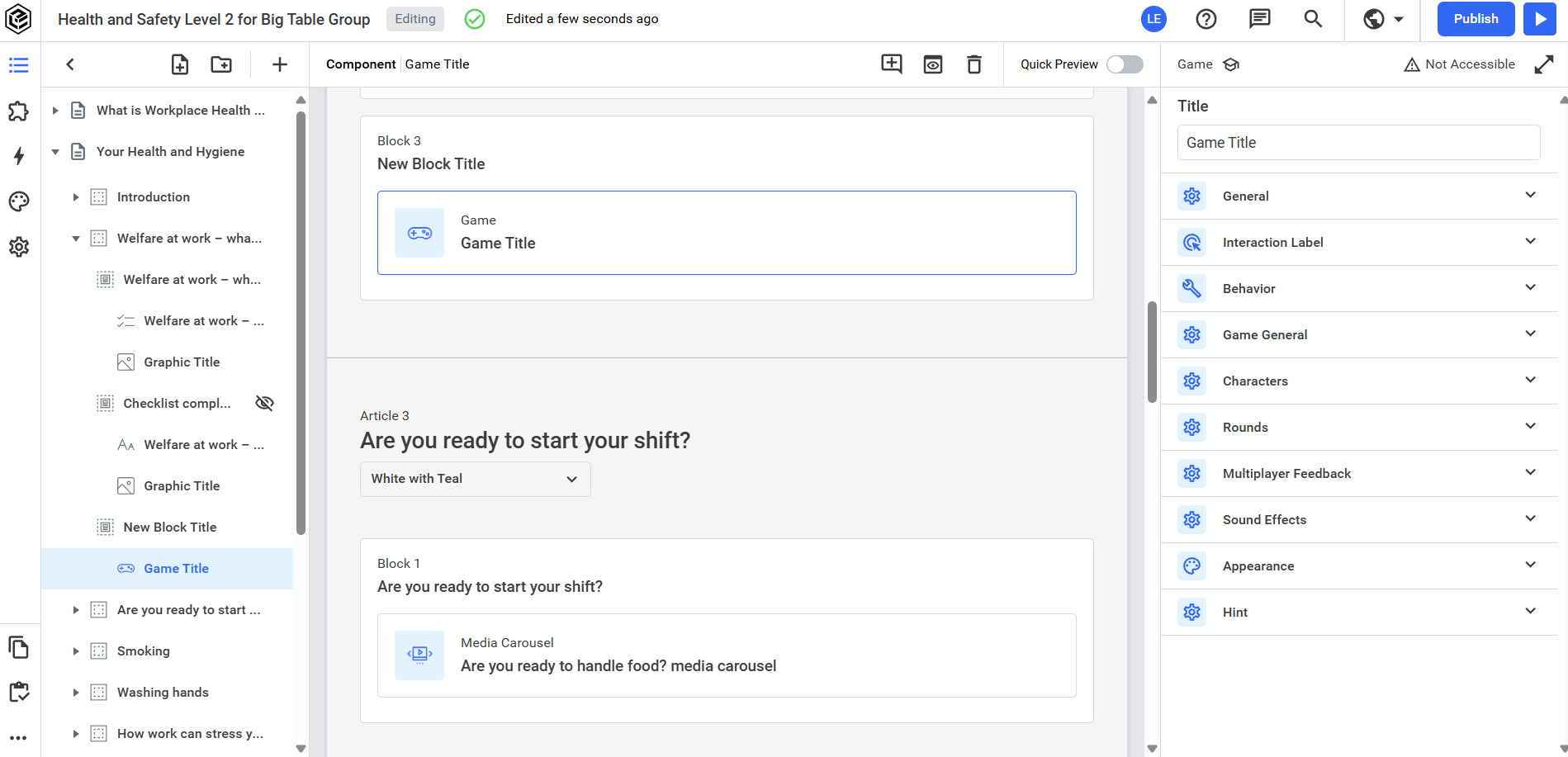
  • In the Game configuration sidebar (right), navigate to Behavior and choose Multiplayer from the dropdown. Once this is chosen, you’ll see more options in the sections to choose from.
  • Select a number for the Default Points Awarded. This is the number of points the player will get per correct question answered.
  • Select a number for the Multiplayer Points Required. This is the cumulative number of points a player can get throughout the game.

Notes: The number of questions is usually multiplied by the Default Points Awarded for this total. Points from Streaks are not normally included.

Adding Streaks

These are for the player to get a few extra points when they get a set number of questions correctly in a row.

  • Under Streaks, toggle on Enable Streaks.
  • Choose the number you want for Required Streak Amount, this is the amount of questions the player would need to get correctly to get a streak bonus.
  • Choose the number you want for Streak Points, these are bonus points, so they are usually less or half the amount of Default Points Awarded.

Settings

Under Settings, toggle off the following:

  • Disable Skip Question: When disabled, it removes the Skip Question button that appears for each question.
  • Skip Game Start Screen: When disabled, it removes the additional start screen that appears at the beginning of the game, as we use the Round Start Screen instead.
  • Skip Character Select Screen: When disabled, it removes the character select screen. This screen will not display unless you also enable the Skip Game Start Screen.
  • Resume on Revisit: This remembers the progress of the player in the game when revisiting the page. We disable as this can affect course/page progress settings.
  • Reset Game: When enabled, it allows the player to reset their progress on the game and play again. We suggest the opportunity for multiple play-throughs. This will reset the progress of the component in your course/ page progress settings.

Power-Ups

Under Power Ups, you can toggle on to enable the following power-ups for your player:

  • Enable “Stop Time” Power Up: If using a time and this is enabled, this allows the player to stop the timer once per round.
  • Enable “Show Answer” Power Up: If enabled, this will automatically answer the question for the player with the correct answer.
  • Enable “Hint” Power Up: If enabled, this will simplify the question, usually by removing answers, for example.

Titles and Buttons

  • Navigate to the Game General section. This is where you can change any of the set game language you require, such as titles and buttons.

Notes: The game will already have suggested phrasing throughout, so you don’t have to change these if you don’t wish to.

Characters

  • Scroll down to the Characters section to create your game avatars.
  • Select Add character for as many characters as you want. It is recommended to create three characters in multiplayer mode, providing one for your player and two AI characters to play against.
  • For each character, you can add the following:
    • Character Name
    • Character Avatar Image: It is suggested an image that is 430x430 pixels, as this will reduce in size and still be legible on different device sizes.
  • Toggle on Is AI Character? if you prefer that character to be an AI.
  • A dropdown will then display to choose the Multiplayer AI Difficulty Level.

Notes: Out of the two AI characters, it is recommended to make one Easy and the other Hard as this allows a bit of competition to your player.

Rounds

The rounds are where your questions will be housed. Here, you can also configure pre-game and after round information screens.

  • Scroll down to the Rounds section.
  • Select Add Round.
  • Select the newly added round to go into the further settings.
  • Under General, set the beginning screen language, media, and buttons, including:
    • Round Title: Usually used as the main title of the game.
    • Round Body: This is the body text that is shown on the main game screen. Set up the challenge, what to expect, and what points to expect per question.
    • Round Start Media: This includes the Round Start Media Type, Game Start Image, and Round Start Media Alt Text.
    • Round End Title: This is the title of the final screen after the round.
    • Round End Body: This is the body text for the final screen after the round.
    • Round End Media: This includes Round End Media Type, Round End Image, and Round End Media Alt Text.
    • Begin Round Button Text and Next Round Button Text: This is normally already written but can be changed if required.
  • To set up the round behaviour settings, scroll up to the Behaviour section.  Here you can set up question randomization, question limits, and points awarded if desired. We suggest the following settings:
    • Points Awarded: If set to zero, this will pick up the Default Points Awarded. However, if you’d like an individual round to have different points per question, you can override the default by this setting.
    • Enable Round Timer: If enabled, you can set the duration of the round timer. For accessibility and differing language/learning needs, we suggest that remains disabled.
    • Randomize Question: This allows the questions in the round to be randomized.
    • Enable Question Limit: If you want to use the questions in the round as a form of a question bank, you can enable this.
    • Questions Limit: This will allow you to set the limit of questions that are shown to the player.

Questions

Every round must contain questions to be completed. To configure questions:

  • Select the specific round to which you want to add questions.
  • Scroll down to Questions and select the Add Question button.
  • There are five question types that can be chosen. The types include:
    • Multiple Choice: Simple multiple choice question, where you can choose how many answers can be chosen. The top answer is normally the correct answer choice.
    • Graphic Multiple Choice: Simple multiple choice question with a graphic alongside the question, can choose how many answers can be chosen, with the top answer being correct.
    • True and False: Similar question to the multiple choice ones above, the answers are only True or False.
    • Drop: This is a mobile-friendly drag-and-drop question, where there can only be an incorrect and correct drop answer zone. The text in each zone can be anything you want. You can have multiple questions/drop answers by selecting Add Drop Item, but they count as one question to the points.
    • Ordering: The question is set where the answers need to be ordered (for example, from largest to smallest). There can only be up to four items to order.

Game Feedback

  • Go to the Multiplayer Feedback section.
  • There are only four ‘places’ of feedback that you can set. For each ‘place’ feedback, you can include:
    • # Place Feedback Title: This is the title the player sees on the first screen of the feedback carousel.
    • # Place Feedback Body: This is the text the player will see on the second slide of the feedback carousel.
    • # Place Feedback Image: This image will show on top of the body text on the second slide of the feedback carousel.
    • # Place Feedback Image Alt Text: Alt text for the image, if required.
  • There is a final screen to the feedback carousel that shows the player their stats, for example, points gained, correct questions answered, etc.

Notes: You can change the language to these statistics but cannot remove or amend them.

Sound Effects

Under the Sound Effects section, you can add background music or correct and incorrect sound effects. We advise adding this sparingly, as it is not played on mobile devices and can have some accessibility issues.

Interaction Label

You can also set the Interaction Label, which acts as the instruction before the Play game button, before entering the game screen. It is suggested to set the same instructions for the Incomplete Interaction Label and the Completed Interaction Label.

General Settings

The General settings act as the body text and title before entering the game screen, we suggest this is added at the article level instead.

Creating a Rank mode game

  • When creating the game, navigate to Behavior and choose Rank from the dropdown. Once this is chosen, you’ll see more options in the sections to choose from.
  • Select a number for the Default Points Awarded. This is the number of points the player will get per correct question answered.
  • Follow the same instructions as the multiplayer game to set up your desired Streaks, Settings, and Power ups.

Notes: The biggest differences in the setup of the game in Rank mode are related to the configuration of characters and the Ranks settings. All other settings are the same as those specified in the multiplayer mode.

Characters

To set your characters, you can follow the same steps as with the multiplayer. Although, you’ll have less choice. It is advised to only set one character for a game in Rank mode. As the character moves through the various ranks they gain points.

Ranks

Under the Ranks section, you can set the different ranks that can be achieved by gaining points in the game.

  • Select Add Rank to add the number of ranks desired. The suggested number is three.
  • Select a rank to edit its settings, the settings are:
    • Rank Name: This is the name of the rank that is displayed to the player in the top heading of the game.
    • Rank Feedback Title: This is the title of the rank displayed to the player in the first slide of the feedback carousel.
    • Rank Feedback Body: This is the body text displayed to the player in the second slide of the feedback carousel.
    • Rank Feedback Image and Rank Feedback Image Al: This is the image and alt text displayed to the player in the second slide of the feedback carousel.
    • Points Required: This is where you set the number of points required to achieve this rank.
    • Correct Rank: You can toggle this on to set a rank as Correct. It is suggested to keep it disabled, as it can affect your course/page progress settings.