Assign users to business units

Start from: The Configuration module.

Manage users through Mapal OS

For Companies in Mapal OS, you must manage users in the Mapal OS Settings module.

Note: if you're not sure whether you are on Mapal OS, contact your customer success manager.

Manage users through GIR

  • Select Users > Administration from the main menu.
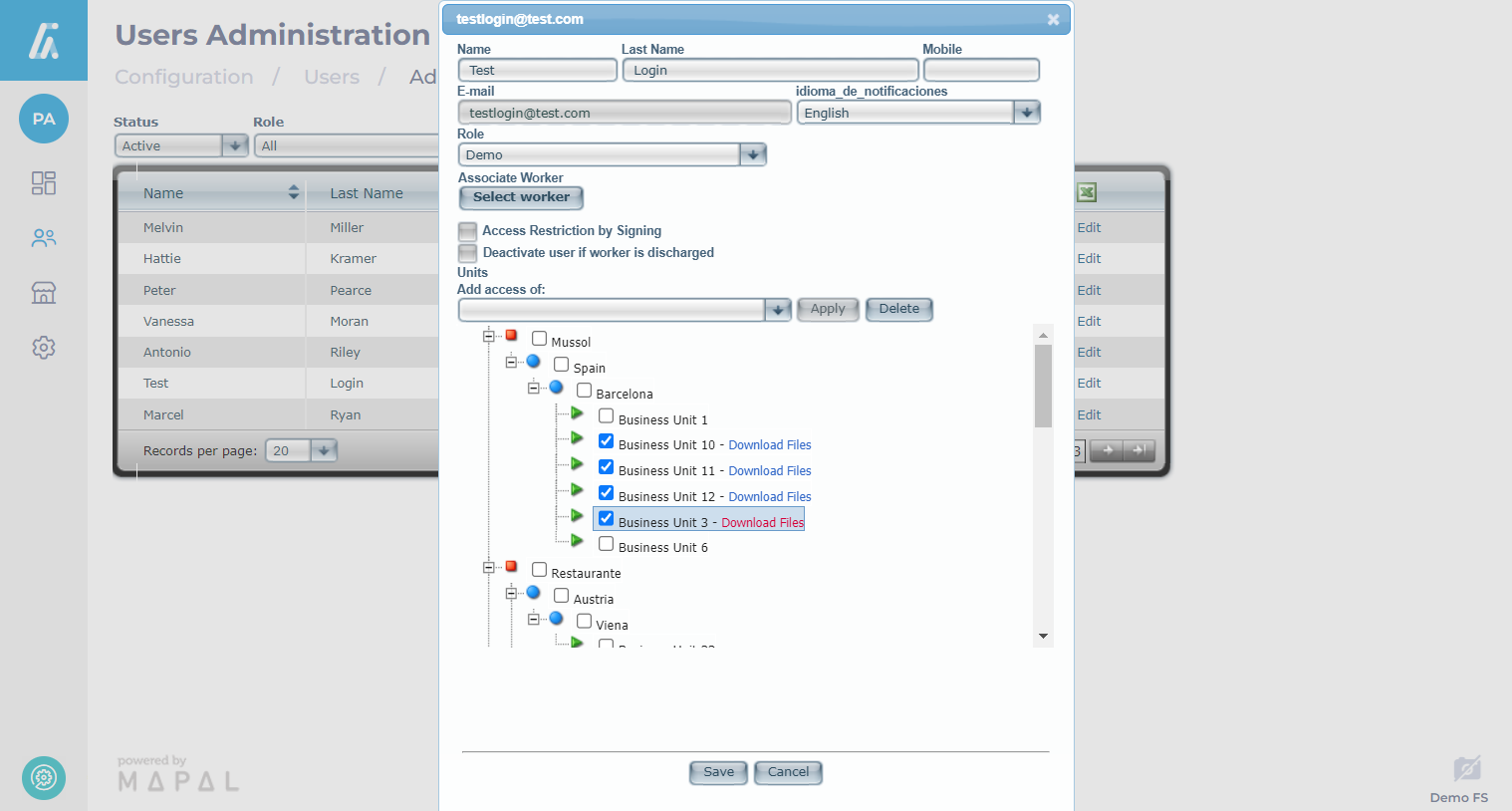
  • Find the relevant User on the list and select Edit to open the Edit User panel.
  • Check the boxes in the main list for each Business Unit you want to assign the user to.

Note: You can assign all of the business units assigned to another existing user by using the Add access of dropdown menu at the top of the business units list. Select the User you want to match and select Apply. This will check all the boxes for the business units assigned to that existing user.

  • Select Save to save all changes and return to the Users Administration page or select Cancel to discard the changes and return to the Users Administration page.

The selected business units have been assigned to the user, granting them access according to the associated role.

Assign business units to users

Start from: The Configuration module.

Assign Business Units through Mapal OS

For companies in Mapal OS, you must manage access to the centers in the Mapal OS Settings module.

  • Select Settings > Center Management > Centers from the main menu
  • Select the center you want to manage > Users.
  • Here you can add the user you want to grant access to.

Note: if you're not sure whether you are on Mapal OS, contact your customer success manager.

Assign Business Units through GIR

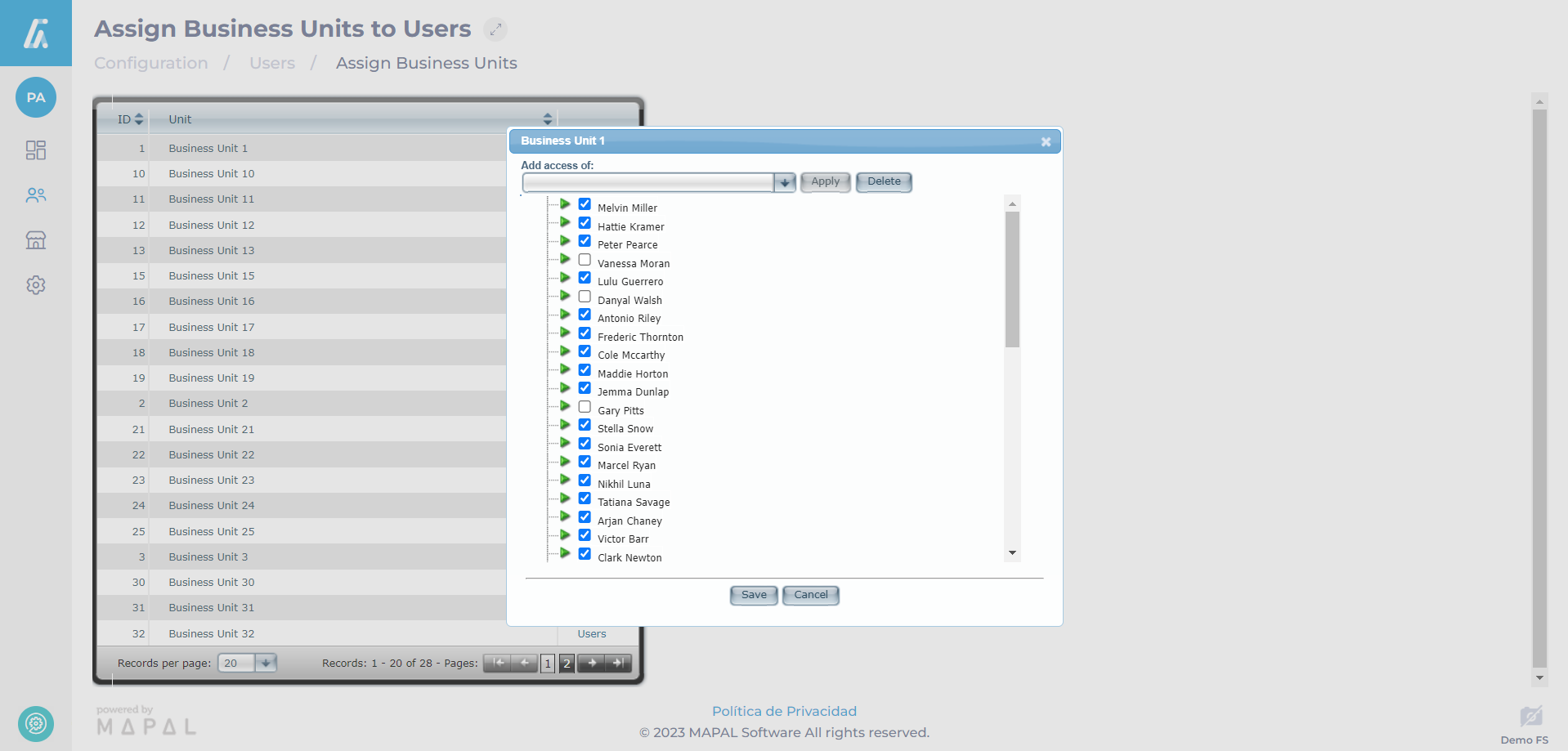
  • Select Users > Assign Business Units from the main menu.
  • Find the relevant Business Unit on the list and select Users to open the Users panel.

  • Check the boxes for each User’s name you want to assign this business unit to.

Note: You can add all of an existing business unit’s users to the current selection by using the Add access of dropdown menu at the top of the list. Select the Business Unit you want to match and select Apply. This will check all the boxes for the users assigned to that existing business unit.

  • Select Save to save all changes and return to the Assign Business Units page OR select Cancel to discard the changes and return to the Assign Business Units page.

Note: All assigned users for each business unit can be edited here, so checking or unchecking Users from this list will assign those Users to, or remove them from the selected business unit.

The selected users have been assigned to the business unit, granting them access according to the role assigned to each user.