Configure public holidays in Workforce (GIR3)

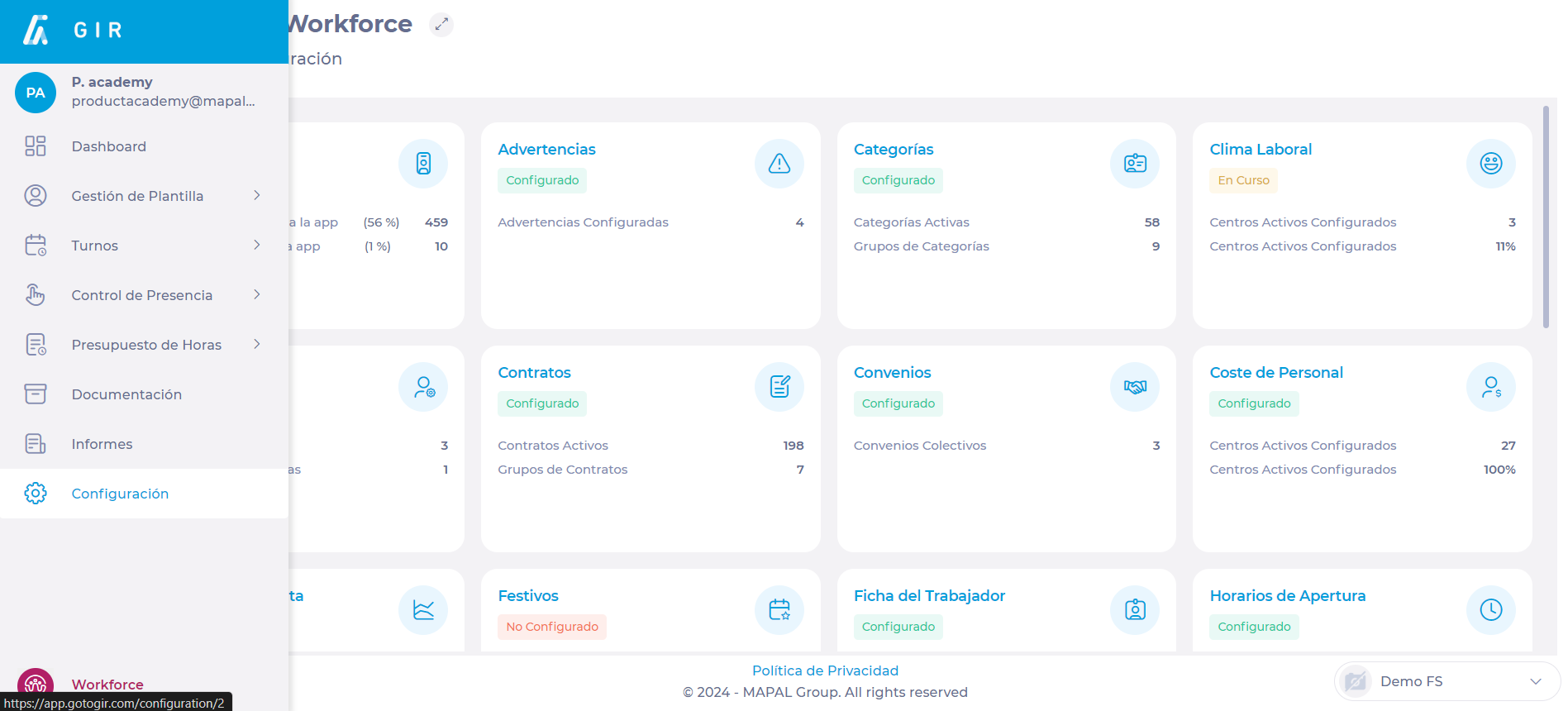
Start from: The Workforce dashboard.

Bank holidays screen

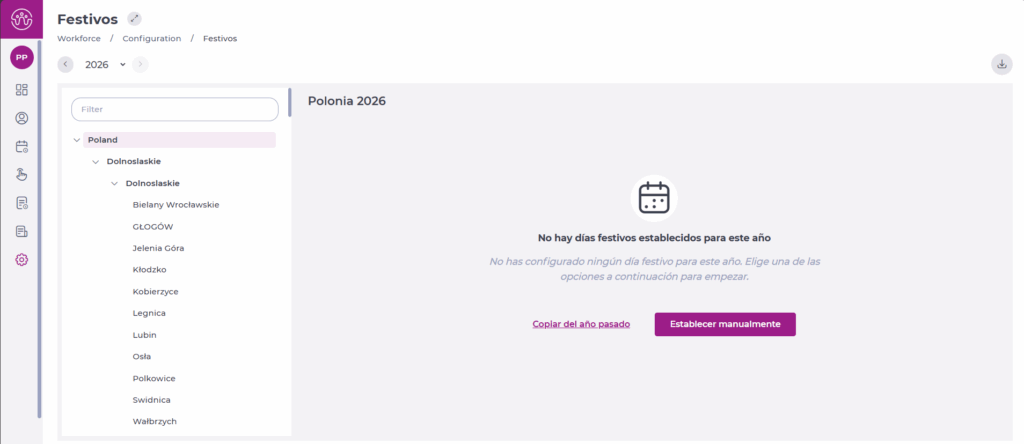
Initial view (unconfigured year)

Note: This screen only appears if no holidays have been saved for that year.
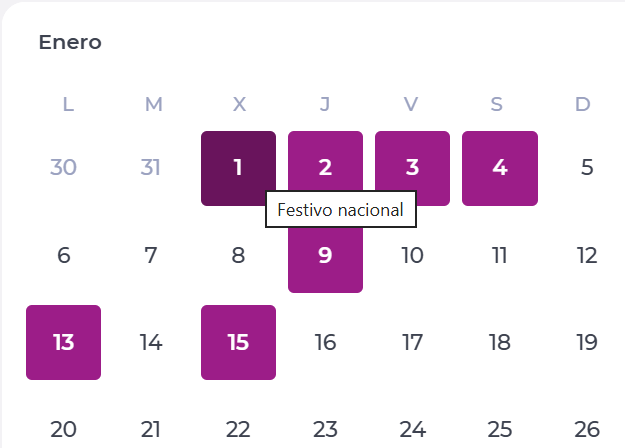
Calendar view

Example: If you are at the Country level (e.g. Spain), only national holidays will appear. If you select a lower level, such as Locality (Madrid), the calendar will display all holidays for that locality plus those from the higher levels: Province > Region > Country.

Holiday types

You can register and view four types of holidays depending on their geographical scope:

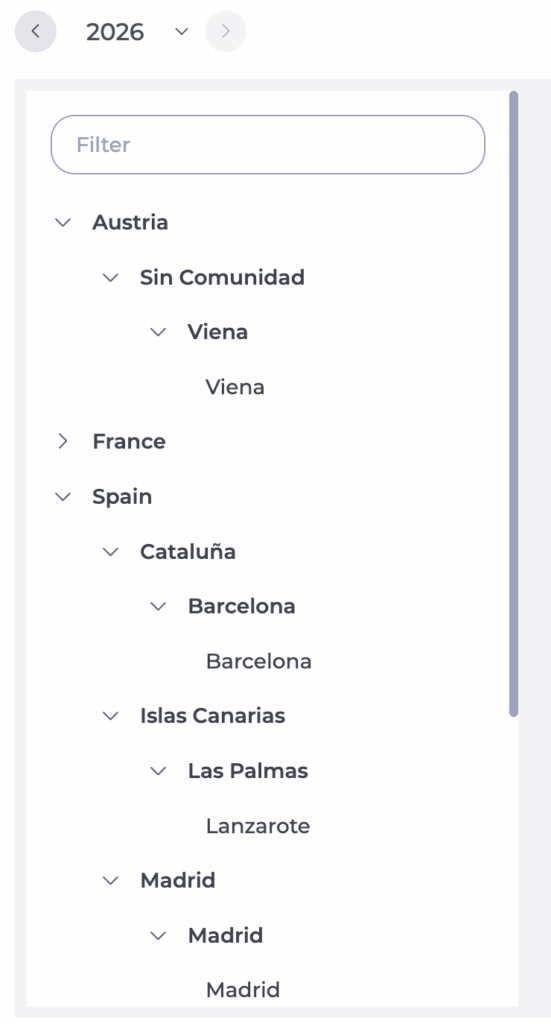
Location filters

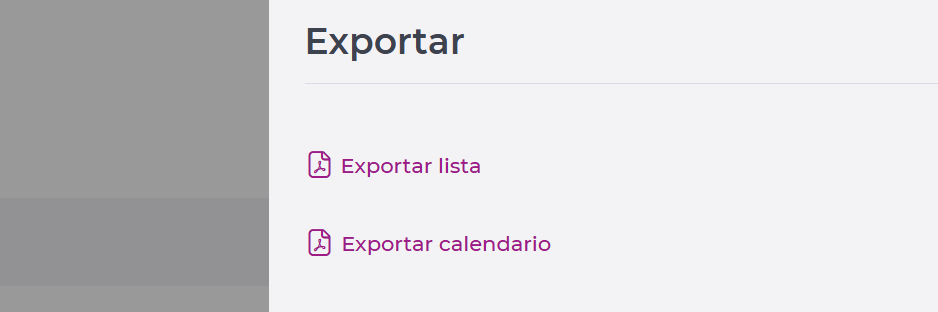
Export holidays

You can export the holiday calendar for a specific location and year.

Location tag

Start from: The Easilys menu.

To learn more about tags, refer to the article What is a tag and what is it used for?

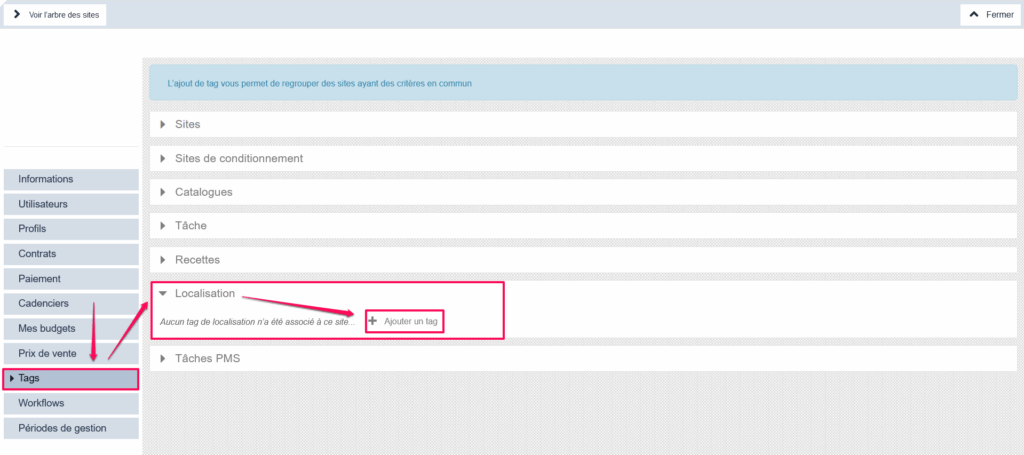
"Location" type tags allow you to define which location a site is attached to. You must add the "Location" tag in the site settings, "Tags" tab.

These tags allow you to categorize periods from the CALENDARS screen (SITES tab) and thus define which periods can apply to menu templates of sites bearing the same tag. This allows, for example, to manage school holiday periods according to the geographical area of establishments and allows you to manage forecast staffing and uptake rates according to the period.

Do you want to learn more about period management?

Managing different periods or how to make Easilys adapt to calendar uncertainties.

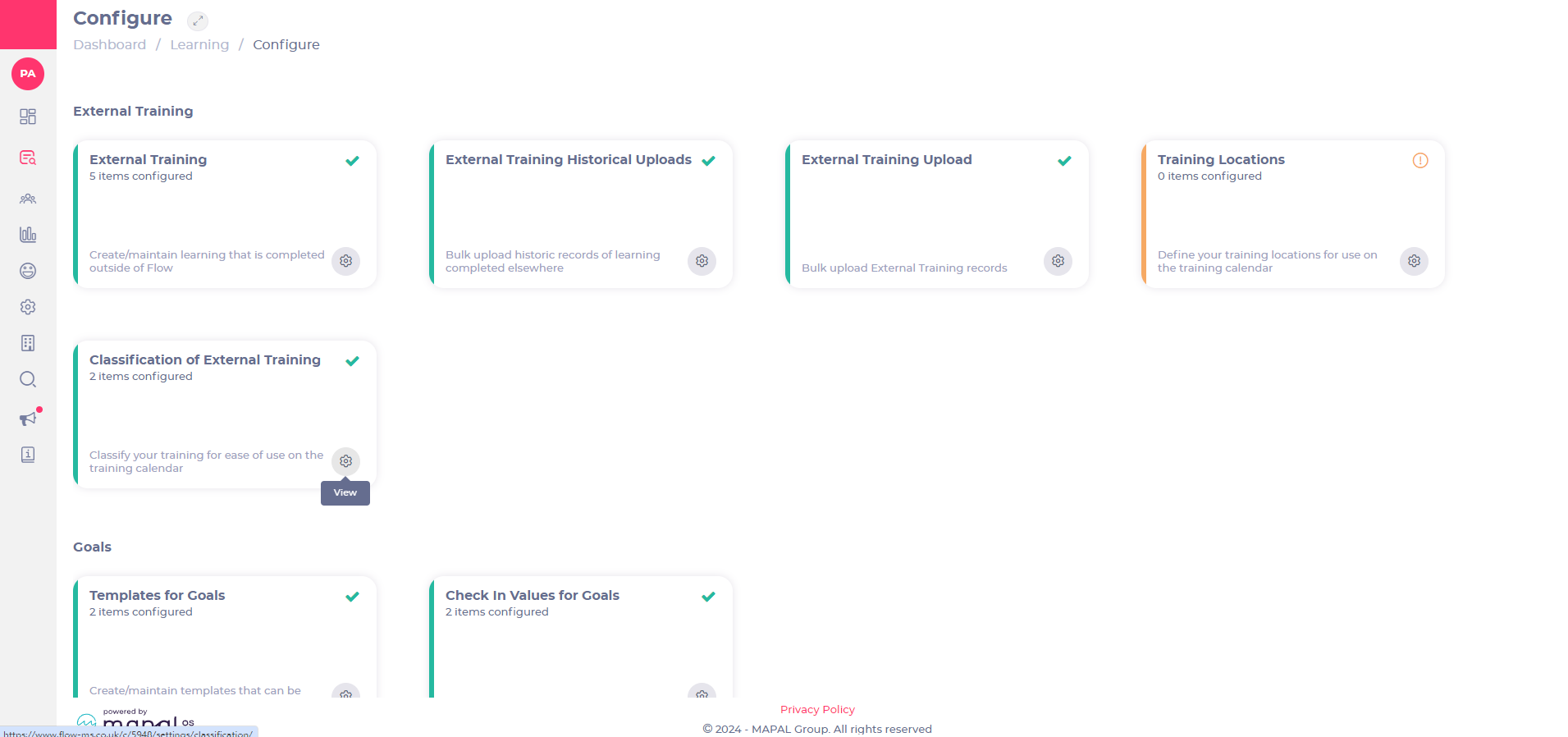
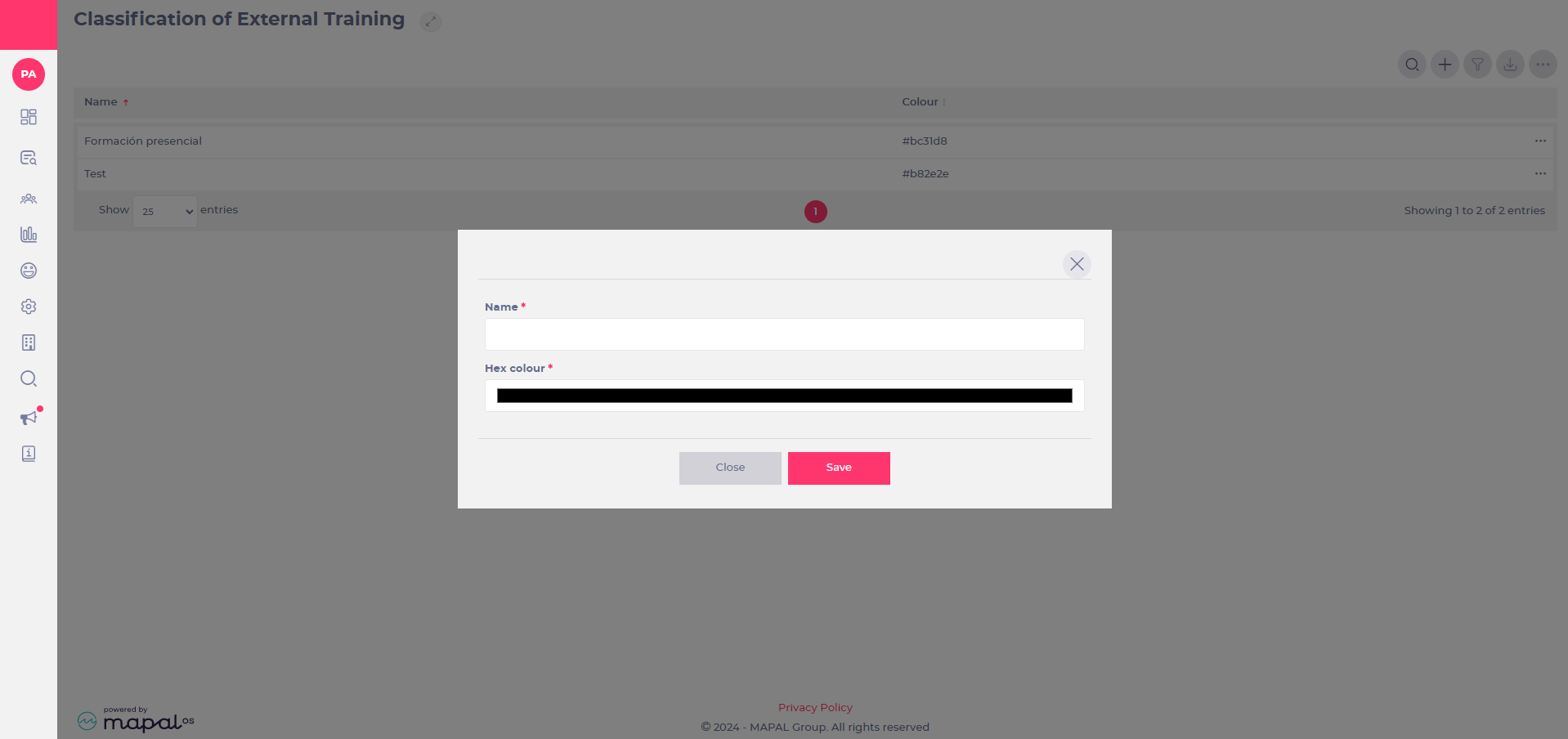
Manage classifications for External Training

Start from: the Flow Learning dashboard.


Note: mandatory fields are marked with an asterisk (*).

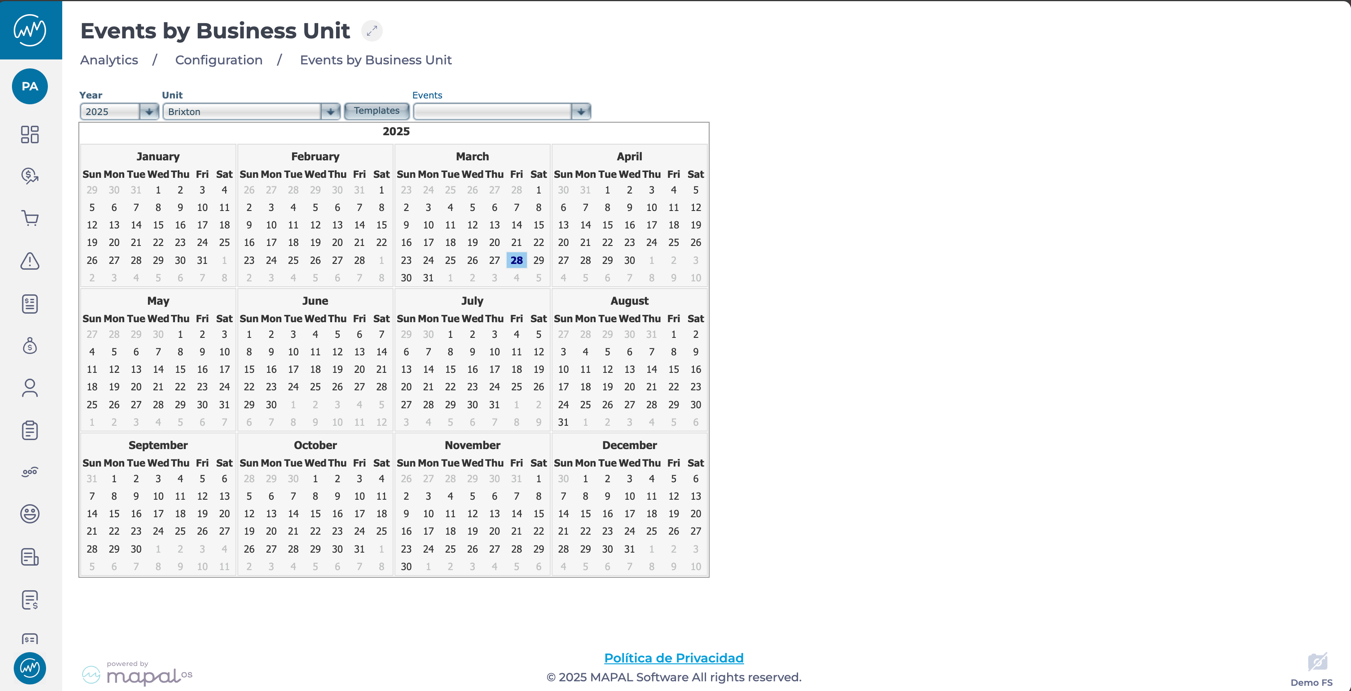
View and manage events by Business Unit

Start from: The Analytics dashboard

  • Navigate to Configuration > Events by Business Unit from the main menu.

  • You will see an interactive calendar that displays business-related events across a location.

  • Apply filters to narrow down the calendar view to match your planning needs:

    • Year: Select the year you want to view.

    • Business Unit: Choose a specific business unit to see only its associated events.

    • Templates: Filter by predefined event templates (e.g. national holidays, regional events).

    • Events: Focus on particular types of events (e.g. closures, milestones).

Notes: Combine filters for more specific results, such as viewing only regional holidays for one business unit in a particular year.

  • The filtered events will appear in the interactive calendar.

  • Each event is displayed clearly, making it easy to identify important dates.

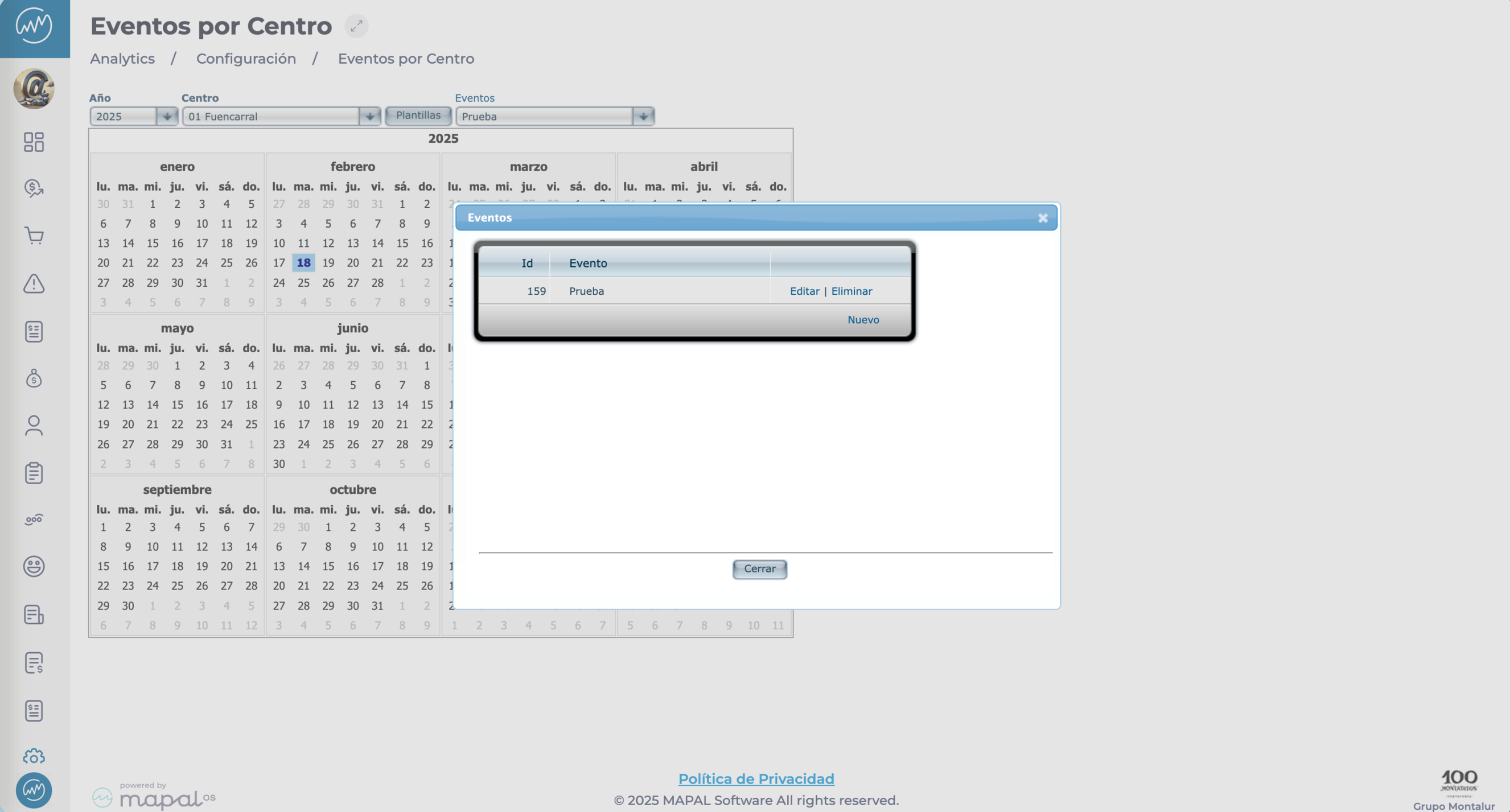
  • Click on any event to view more details.

Customise templates

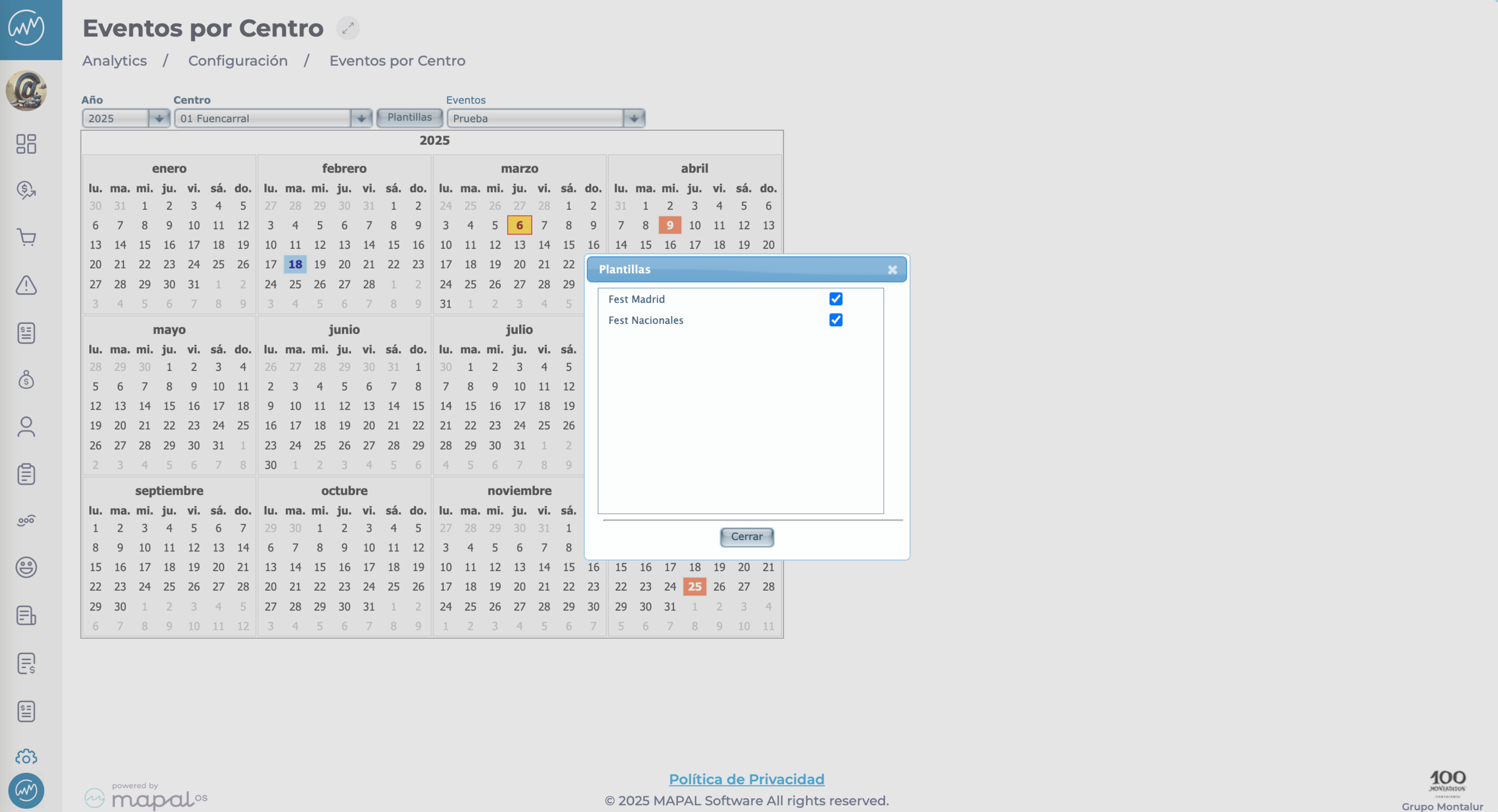
  • Select the Templates button to open a pop-up window.

  • Tick or untick templates to adjust what appears in the calendar view.


This helps tailor the event list to what’s most relevant for the selected business unit.

View and manage business-related events

Start from: The Analytics dashboard

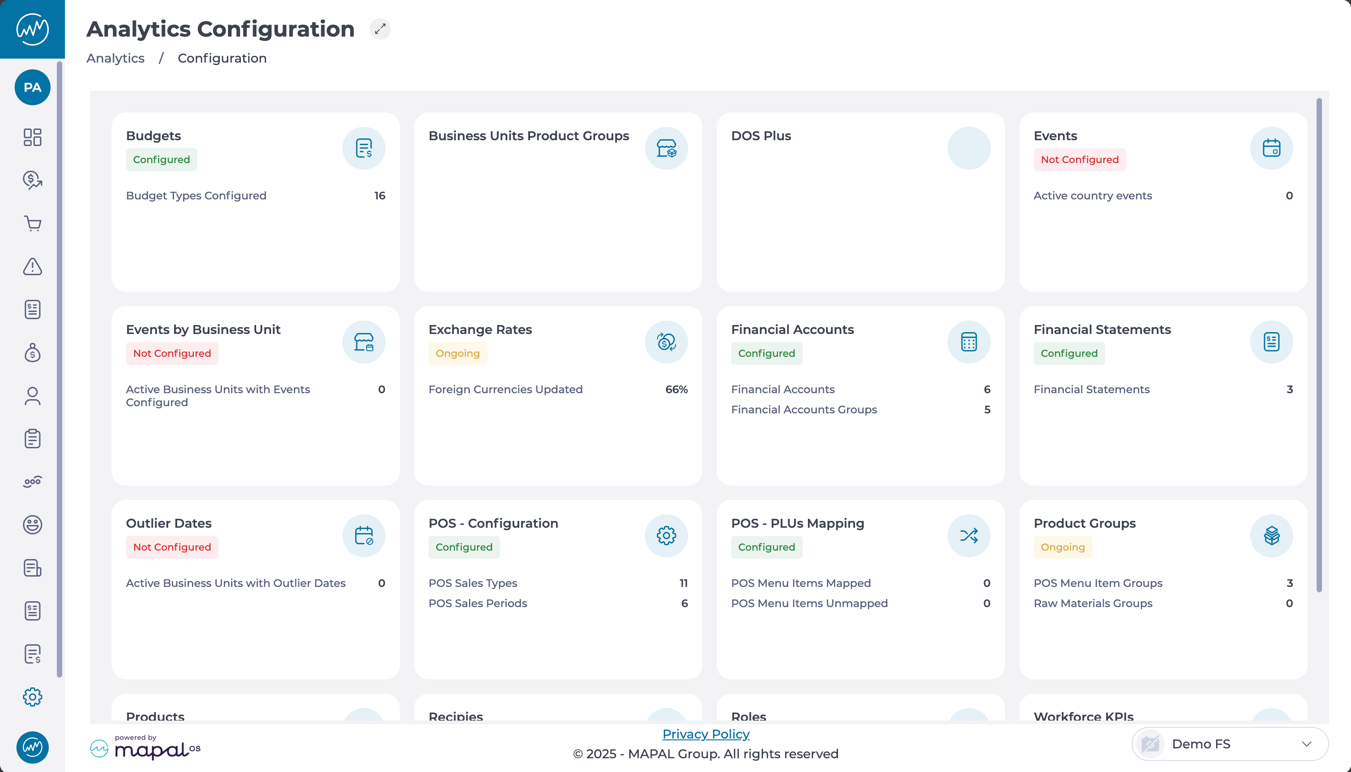
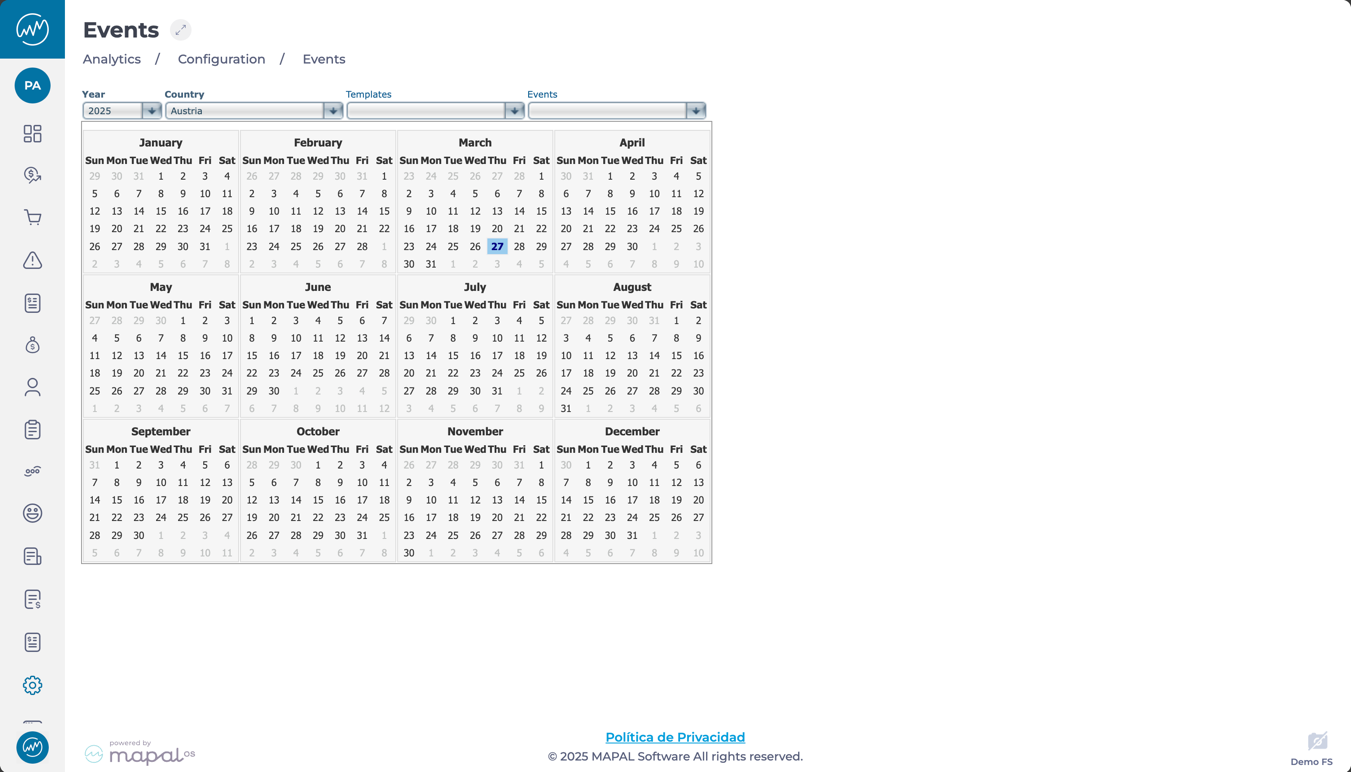
  • Navigate to Configuration > Events from the main menu.

  • You will see an interactive calendar that displays business-related events across your organisation.
  • Events will display in the calendar and can include public holidays, internal milestones, or any other business-relevant dates.

  • Use the filters at the top of the calendar to refine what is shown:
    • Year: View events for a specific year.
    • Country: Narrow results by country to see location-specific dates.
    • Template: Filter based on templates used for recurring event types.
    • Event: Focus on specific events like holidays, closures, or custom events.
  • Click on an event within the calendar to see more details.

Change GIR Staff Configuration

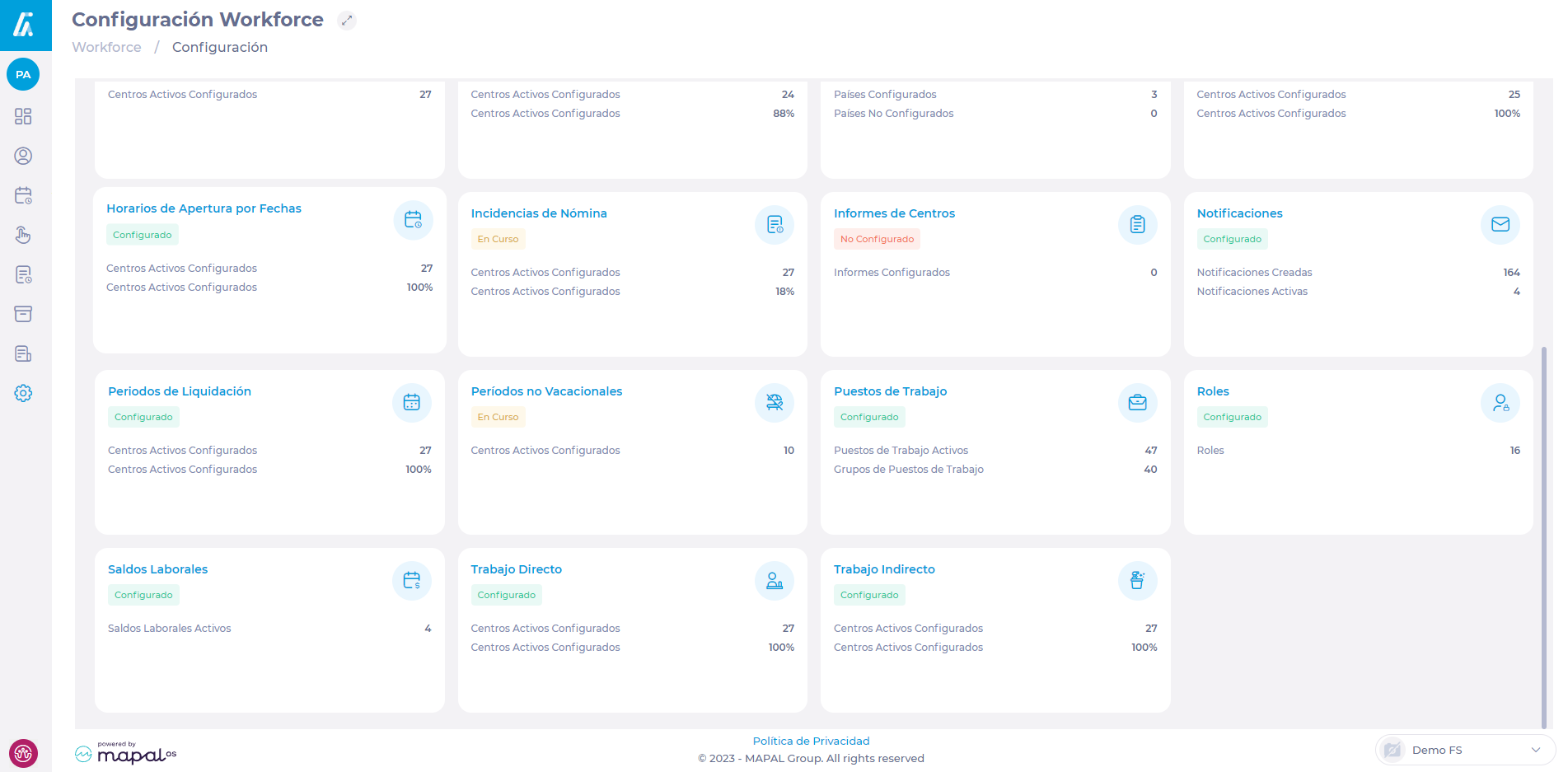
Start from: The Workforce module.

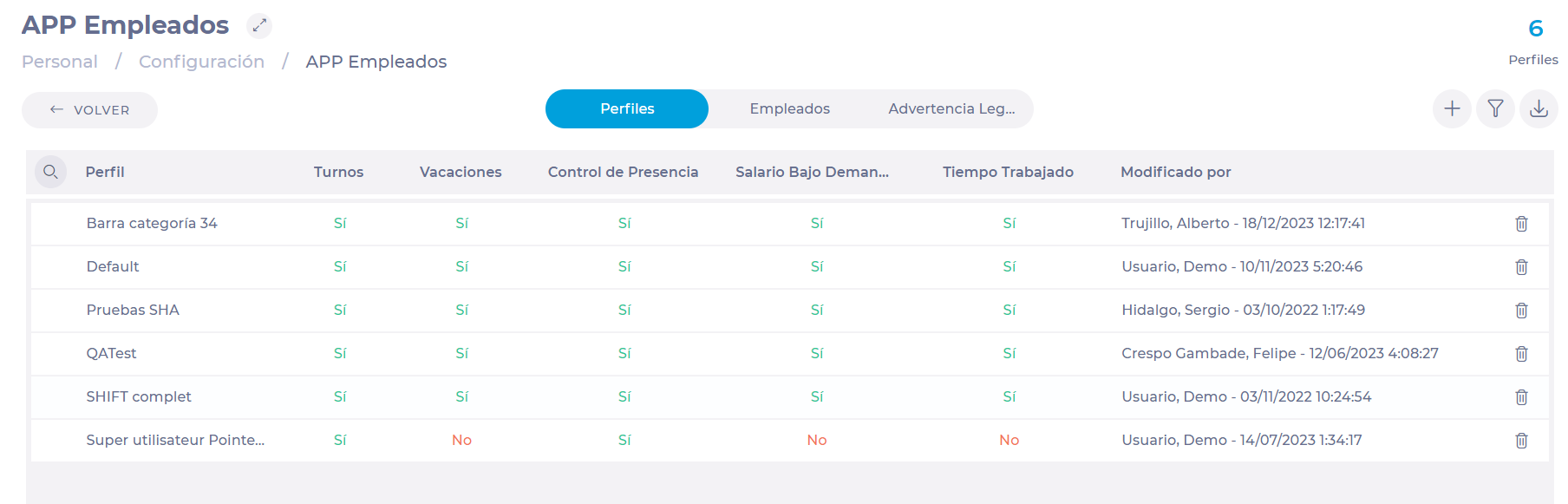
  • Navigate to Configuration > Employee APP.

  • In the Settings screen, you will see three tabs that allow you to adjust settings in three different aspects of the app:

    • ProfilesIn this tab, you can configure the options available in GIR Staff for workers, including permissions, functionalities, notifications, among others.

To learn more about how to create and configure profiles, see Edit GIR Staff profile.

    • EmployeesThis section is intended for assigning profiles to employees, either individually or in batches.

To learn more about assigning profiles to employees, see Mass activate employees with a profile on GIR Staff or Assign a GIR Staff profile to an employee.

    • Legal WarningThis tab is where you can indicate the legal warning that employees must accept before using GIRStaff. This warning is editable and can be adjusted according to the company's needs and legal parameters.

Captura de pantalla de computadora<br><br>Descripción generada automáticamente

Manage different periods or how to make sure that Easilys adapts to the uncertainties of the calendar

Note: each action performed on the application is subject to a fee. If you are unable to carry out the recommended actions in the articles you are viewing, this may mean that the necessary rights have not been enabled for your user profile. Contact the Support team, or your Admin, to find out more.

Start from: The Easilys menu.

Periods allow certain items in Easilys to be adapted to these periods.

For example, different take rates can be set for the same menu template, depending on the period selected.

So, if you offer two inputs, in your period A you'll set a Proposal rate of 50% for input 1 and a Proposal rate of 50% for input 2. In your period B, the catch rates will be 25% and 75%. It's not necessary to create two different menu templates to manage your two periods.

CREATE A NEW PERIOD

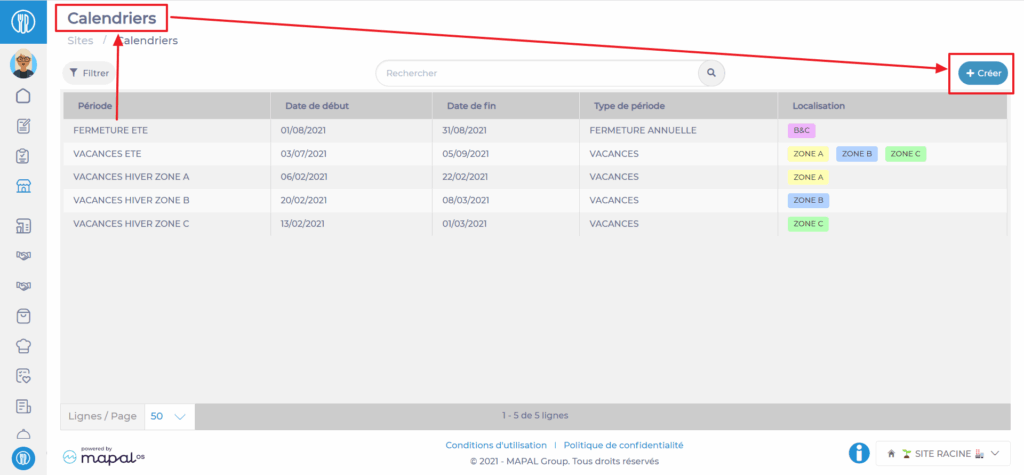
  • Select the Sites > Calendars tabs.
  • Select + Create.

Une image contenant texte, logiciel, Icône d’ordinateur, Système d’exploitation<br><br>Description générée automatiquement


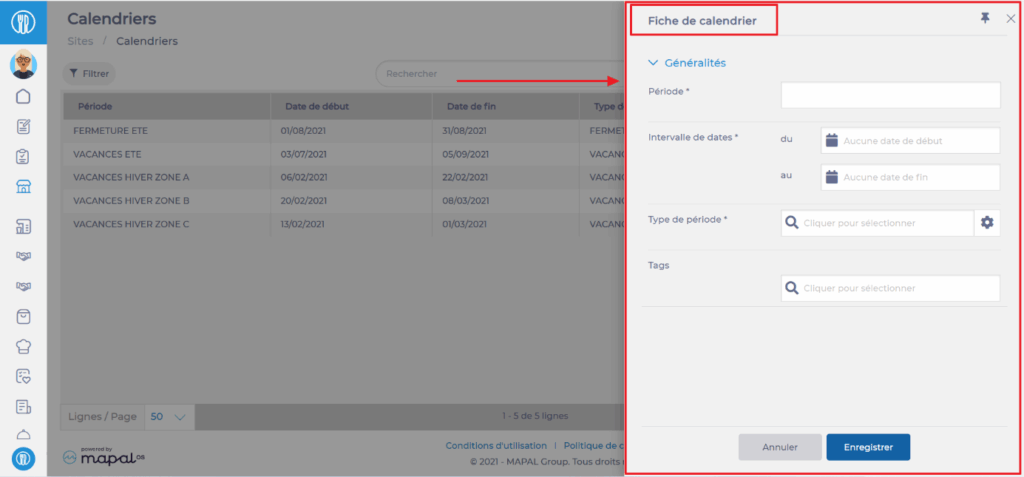
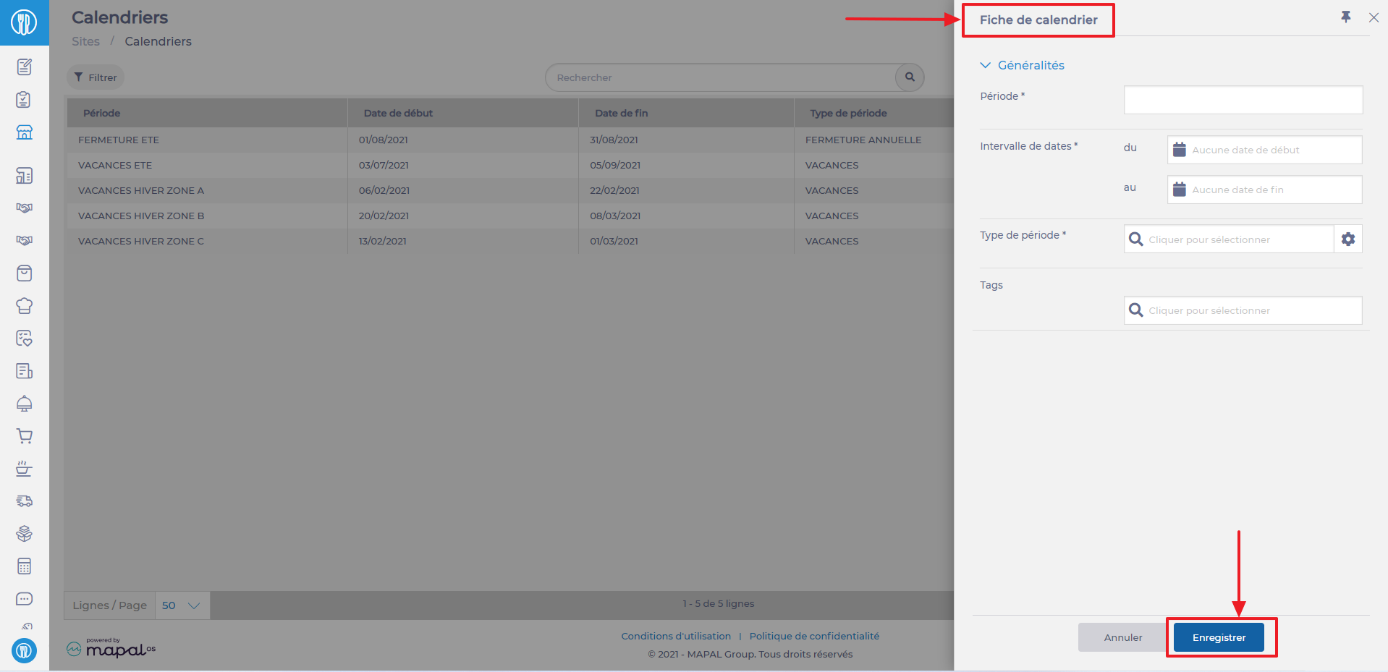
A blank “Calendar sheet” appears on the right-hand side of the View.

  • Fill in the requested information. Fields marked with an asterisk (*) are mandatory.

If you don't have any period types available, you can create them by selecting the small cogwheel. A period type matches, as it were, to a storage categorization for your periods. 

Example: The SHORT HOLIDAYS period type allows you to link all the periods defined to manage short school holidays throughout the territory. We can then link all vacation periods for each school zone to this type of period. 

  • Add a location tag if you wish the period to be used only by sites bearing the same location tag. Location tags can be created from the TAGS screen (SITES section).
  • Select Save to finalise period creation.

Une image contenant texte, capture d’écran, logiciel, Icône d’ordinateur<br><br>Description générée automatiquement

USE PERIODS

Once your periods have been created and attached to period types, you can go to the administration screens that can use the notion of period types. By entering a period type, the associated periods will be applied (respecting, of course, the location tags associated with the sites).

At present, period types can be used on:

- The “Menu template” screen (Menus > Menu template tabs)

- The “Tours” screen (Shipment > Tours tabs)

MODIFY AND/OR DELETE A PERIOD

  • Select an existing period. 

The “Period sheet” appears on the right of the screen.

  • Select Modify to change the period.
  • Select the trash can icon to permanently delete the period.

Modifications or deletions can only be made from the site where the period was created.

External Training and training calendar FAQs

Note: the invitation email will not contain any attachments - the learner can find these within their Mapal One external training area.

Will learners receive a notification if details of the training session change?

Yes, trainees will get notifications when date / time / location changes and if the session gets cancelled.
 

Can I have waiting lists if the maximum capacity is reached?

Yes, check with your account manager if you have waiting lists enabled. If not, you can request this feature to be enabled.
 

What happens if the maximum capacity is reached?

Once the maximum capacity is reached, learners won't be able to book onto this session (this depends if the company has the waiting list functionality enabled). Capacity is measured by booked learners, as waiting list are for public sessions only. If a session if fully booked, the learner will see 0 available spaces. The learner will need to click the Join the waitlist button > confirm. They will then get a position on the waiting list and will automatically get notifications when slots become available.
 

Can I send reminders to learners regarding a certain training session?

Yes, reminders can be sent regarding a certain session. 
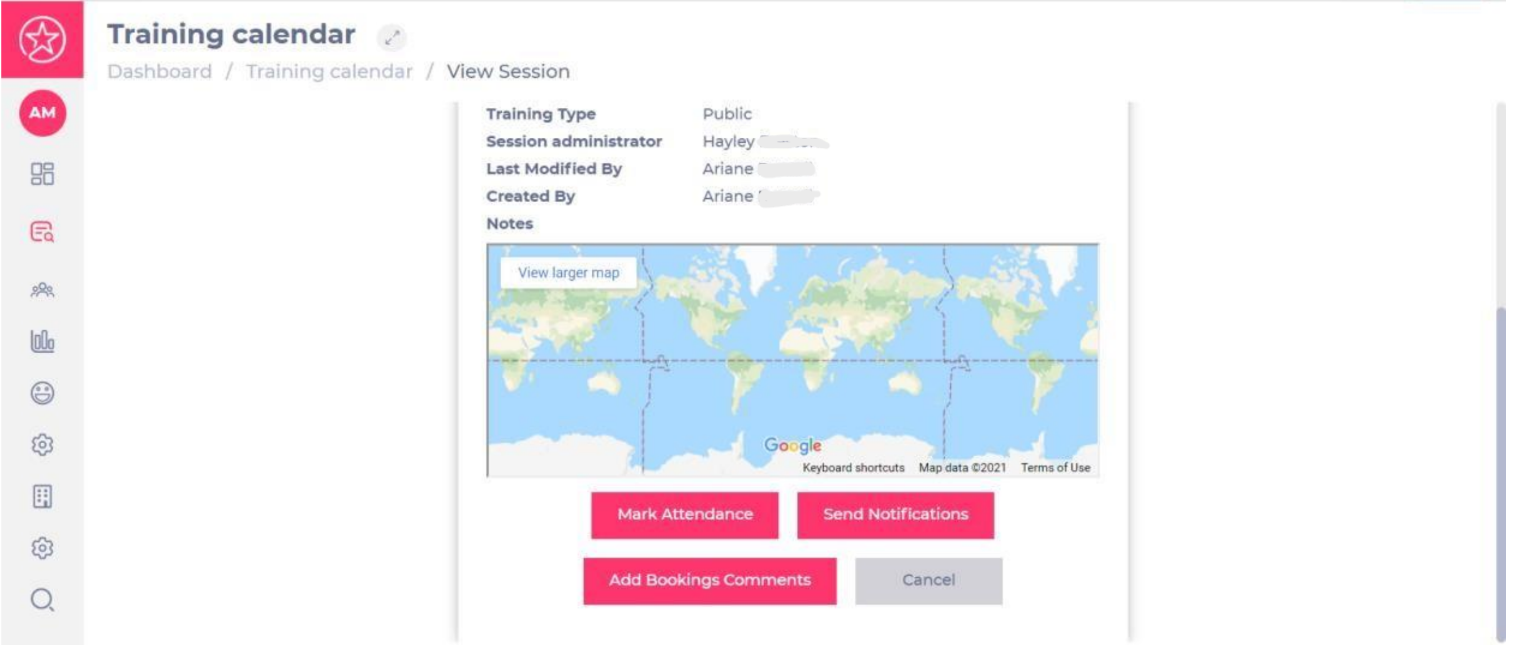
  • Navigate to Learning & Development > Training Calendar.
  • Select the relevant session and then, More details.
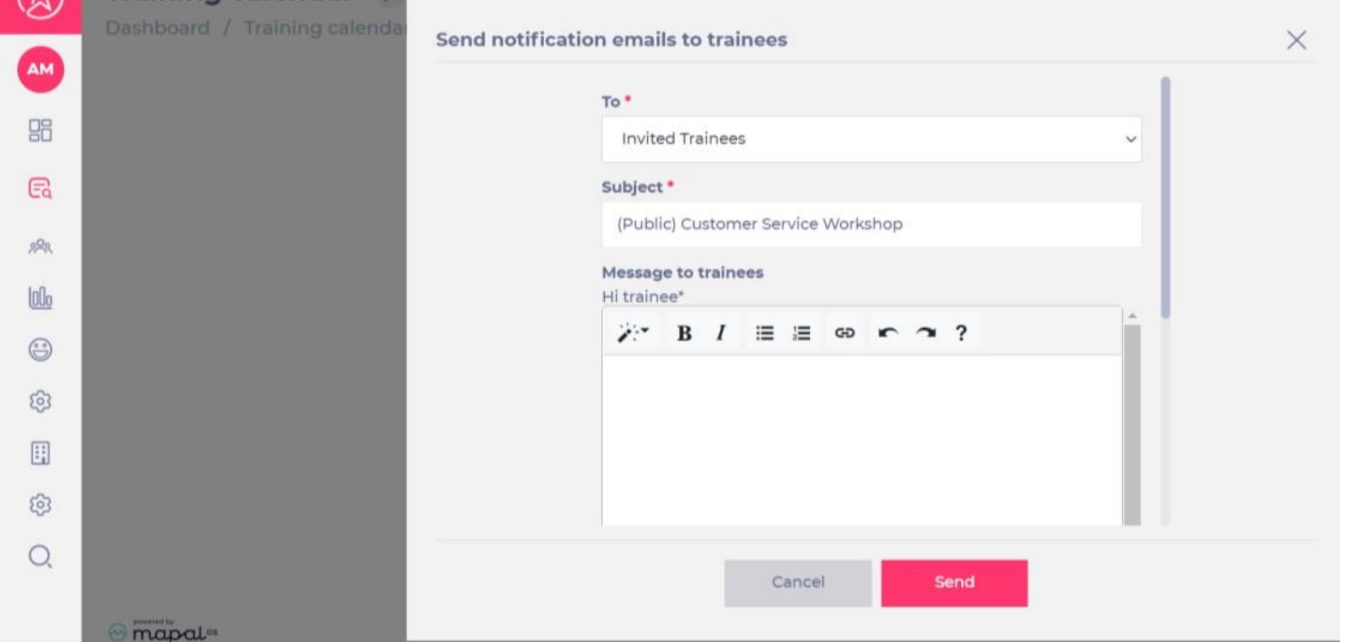
  • Select the Send Notification button.

 Notifications can be sent to attending learners, all learners and/or invited learners. 
  • Select the appropriate audience from the dropdown list (under To):

Do session administrators get notified when a learner confirms, declines or cancels a session?

Yes, session administrators will get an email notification in these cases.
 

How can I mark attendance?

As a session administrator, you can mark attendance by following this process:
  • Navigate to Learning & Development > Training Calendar.
  • Select the relevant session and then, More details.
  • Select the Mark attendance button.

Assign opening hours by date

Start from: The Workforce module.

  • Select Configuration > Opening Hours by Date from the main menu.

Two types of schedules can be established by date: general or by year. Note that, to assign opening hours by date in either of the two ways, you must have created one or more Opening Hours for the Work Center.

To learn how to create opening hours, see Set up working hours.

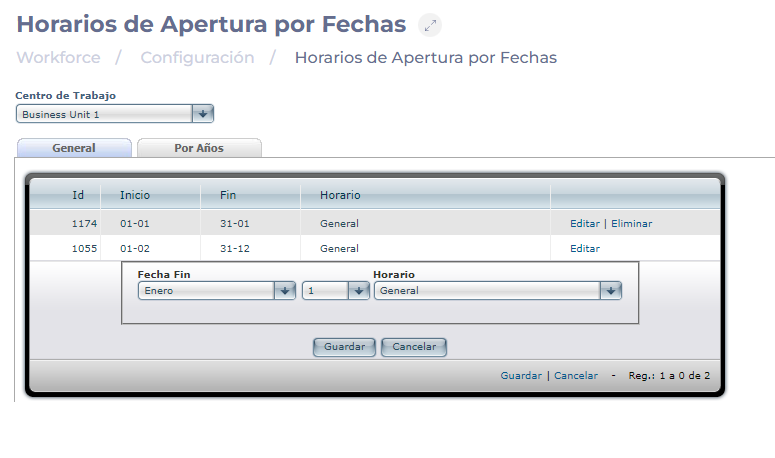
Schedules by dates - General

  • On the Opening Hours by Dates screen, select the General tab.
  • Choose the Work Center you wish to work on.
  • Select Edit if you want to modify an existing type of timetable by date.
  • Select Delete if you want to delete a recorded type of timetable by date.
  • Select New to create a timetable by dates.

When you create a new schedule, you must generate the periods according to calendar periods and assign a previously created opening time to each period. To this end:

  • Indicates the end date of the last calendar slot and assigns an opening time to the list.
  • Indicate the end date of the next calendar slot with its respective schedule type.
  • Repeatedly perform this action until all time slots and schedule types covering the entire calendar year are completed.

Interfaz de usuario gráfica, Aplicación, Word<br><br>Descripción generada automáticamente

Notes: The general schedule will apply by default when there is no calendar per year created.

Schedules by dates - By years

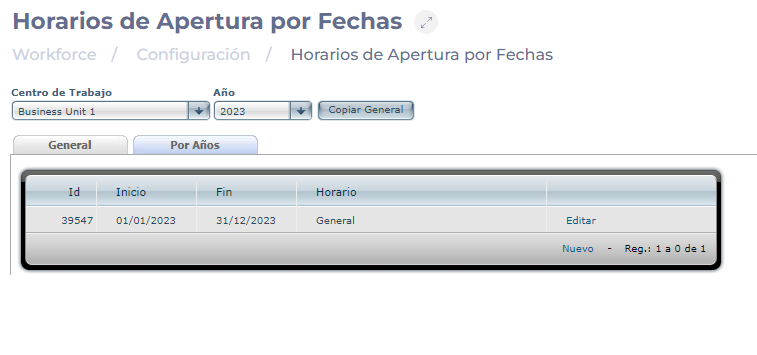
  • On the Opening Hours by Dates screen, select the By Year tab.
  • Choose the Work Center you wish to work on.
  • Choose the Year for which you want to create or modify the schedule ranges.
  • Select Copy General to copy the calendar sections and link timetables previously created in the Timetables by Date General tab to the selected year.
  • Select Edit if you want to modify an existing type of timetable by date.
  • Select Delete if you want to delete a recorded type of timetable by date.
  • Select New to create a timetable by dates.

When creating a new yearly timetable, you must define the time slot of the year and the timetable to be assigned to it. The process is the same as when defining the calendar legs of the general schedule.

Interfaz de usuario gráfica, Aplicación, Word<br><br>Descripción generada automáticamente

Understand the training calendar

Start from: the Flow Learning Dashboard.

Training calendars enable you to:

  • Schedule all your classroom or online training sessions that are happening across your business.
  • Keep all training records contained within the platform (rather than using other external systems).
  • Mark directly attendance records and notes through the system.
  • Use various permission levels and access to fit the business structure.
  • Work in conjunction with External Training.
  • Team members can directly book themselves onto training calendar courses made available to them, or managers can directly book team members onto courses.

Set up a training session in your training calendar

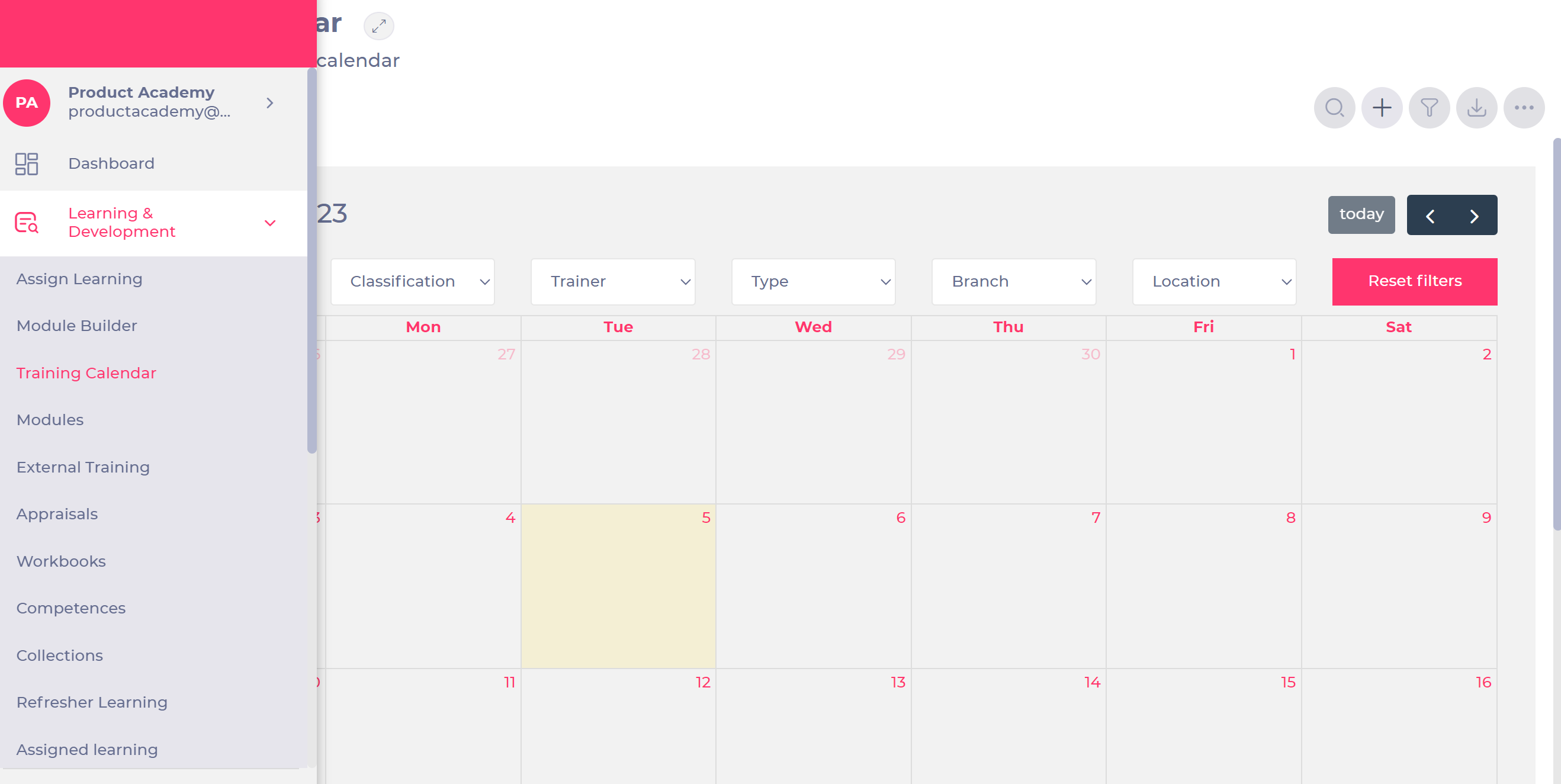
  • Select Learning & Development > Training calendar.
  • Select + Add.

A pop-up window will open.

You can follow these steps:

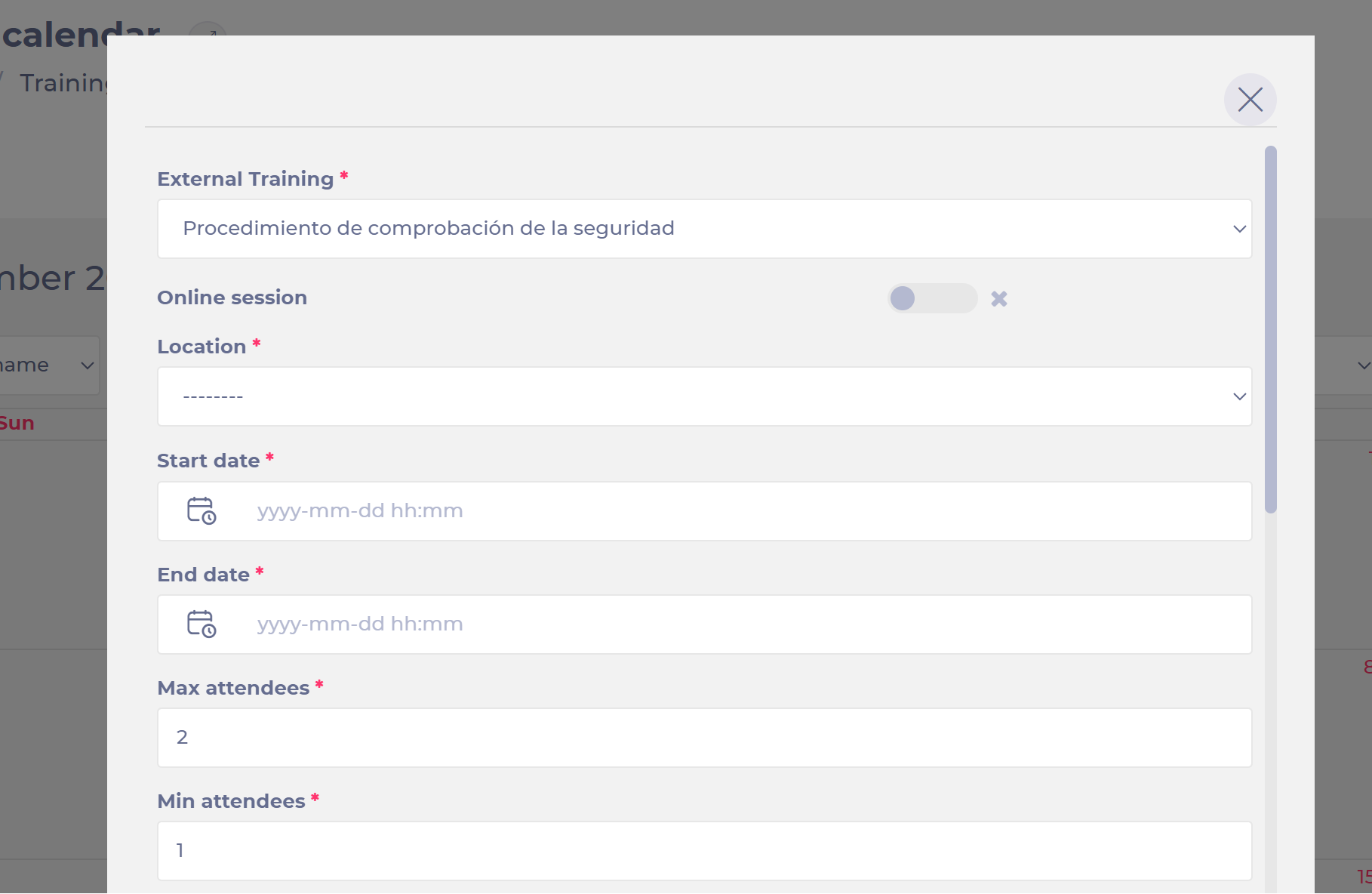
  • Select the relevant external training record from the External training dropdown menu
  • Activate the Online session toggle switch if you want the session to be held in an online environment.

Note: when the Online session toggle is activated, please do not forget to enter the online session link (Zoom, Teams, Google Meet etc.). Learners will see the link on their Module Manager so they can join directly.

  • Populate the Start/End dates.
  • Fill the Max/Min attendees fields.

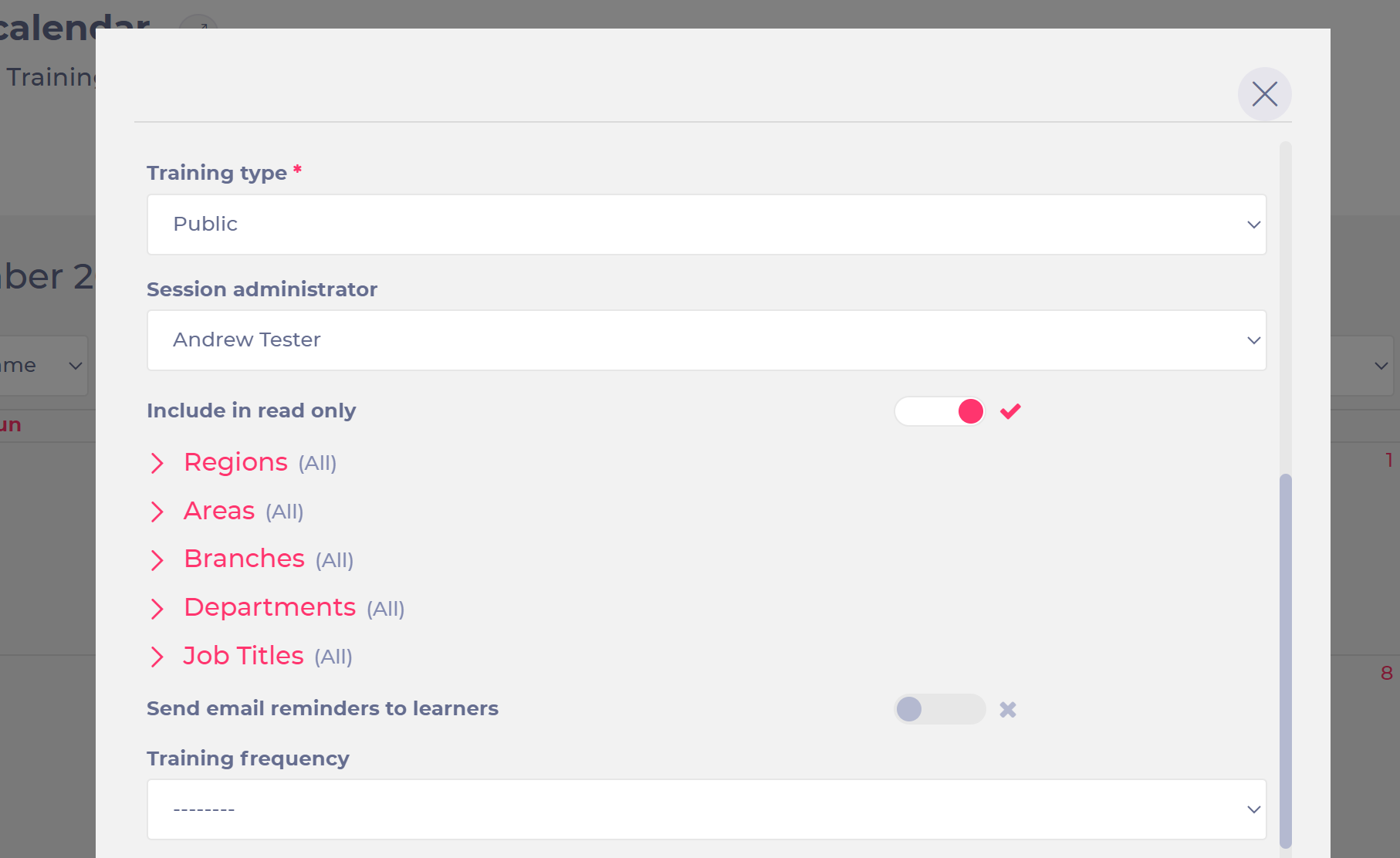
  • Choose whether you want this session to be public or private.

Note: public sessions are open to all learners, who will be able to see the sessions posted in their training calendar, whereas private invitations will be sent to certain learners. Learners who are not invited will not be able to see these sessions within their training calendar. Learners can confirm whether they will attend or decline attendance.

  • Choose the session administrator in the dropdown menu.

Note: it is usually a training manager who has the relevant training calendar permissions enabled.

  • Use the include in read only toggle switch to choose whether you want it to be in the read only version of the calendar. This is designed for situations where you don't want employees to be able to add sessions or edit current sessions
  • You can select the relevant learners who are supposed to receive the training calendar invitations, depending on their job title, department, branch, etc.
  • Use the toggle switch to choose whether you want to send email reminders to learners.
  • Choose the training frequency in the dropdown menu (daily, weekly, monthly).

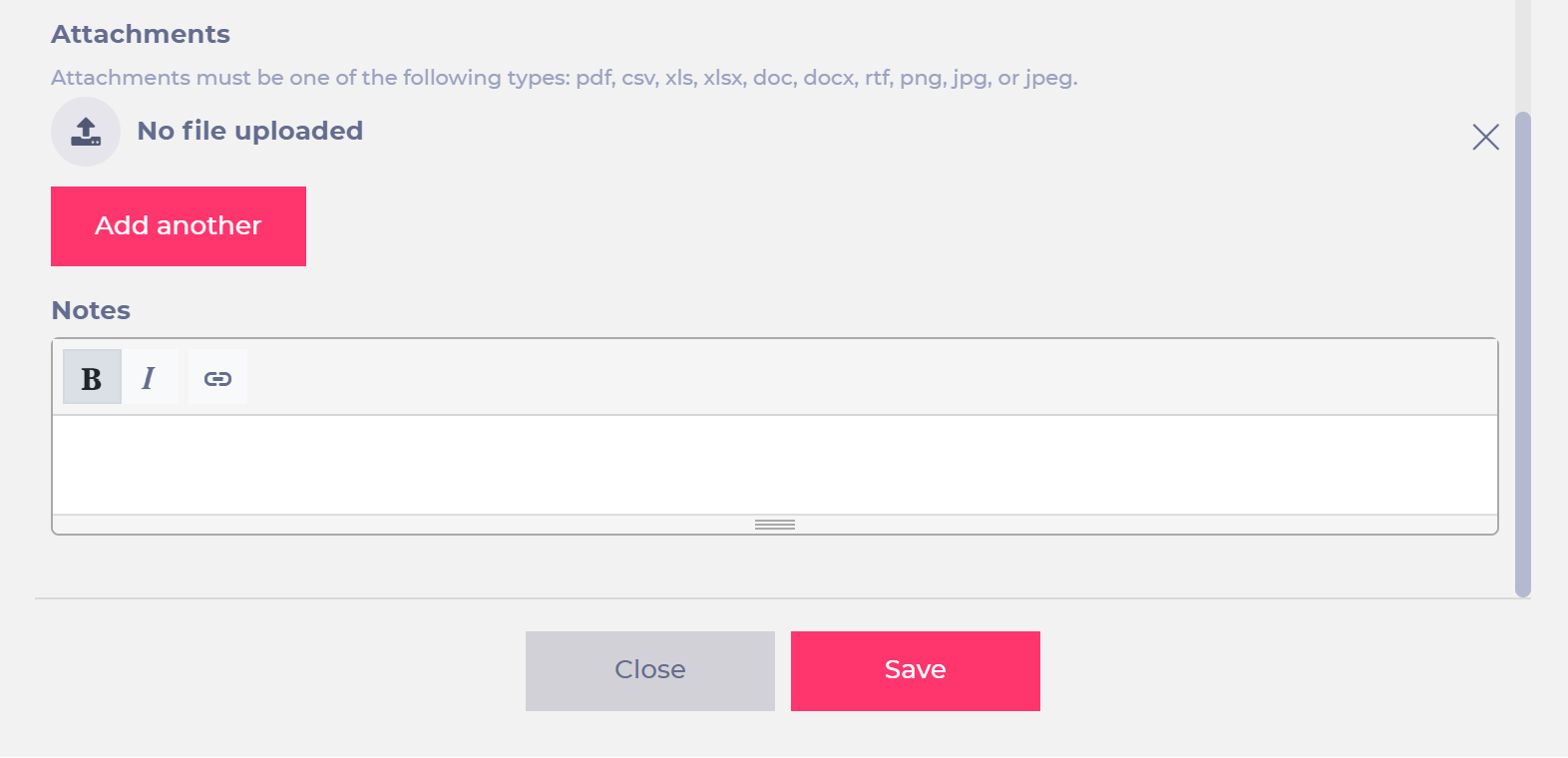
  • Attach any relevant files for the training session.

Note: you can attach as many files as needed.

  • Add any relevant notes.

  • Select Save.