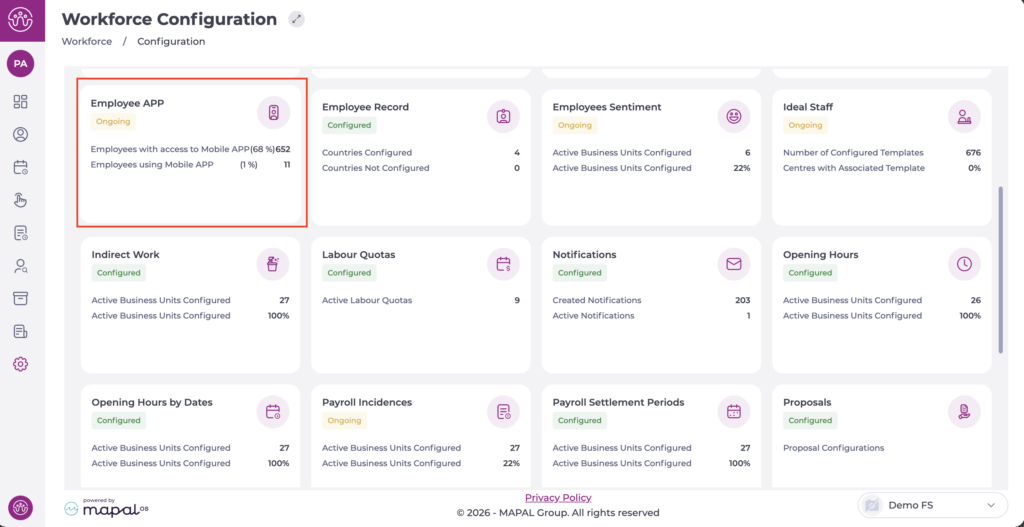
Select Configuration > Employee APP from the main menu.
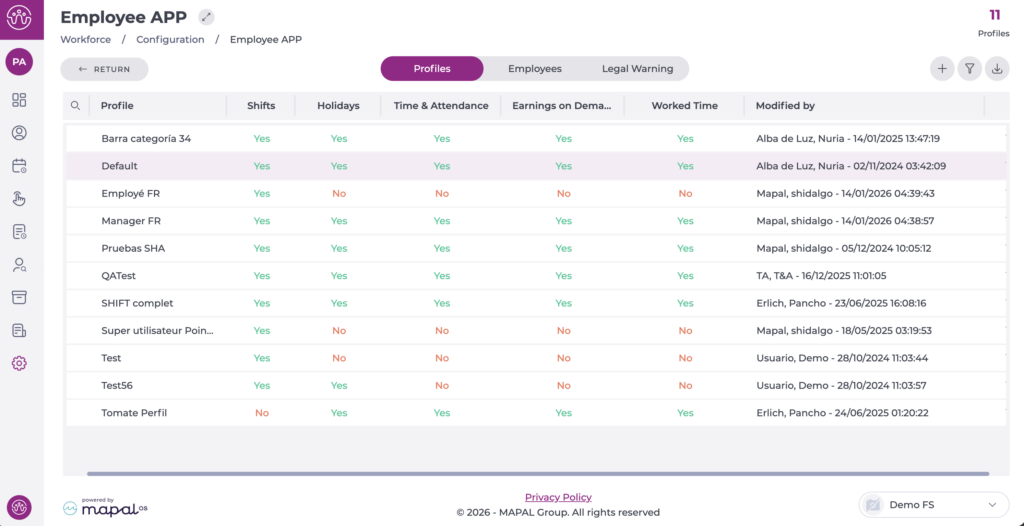
On the Profiles tab, you can see the list of profiles already created.
Select the profile you want to edit.
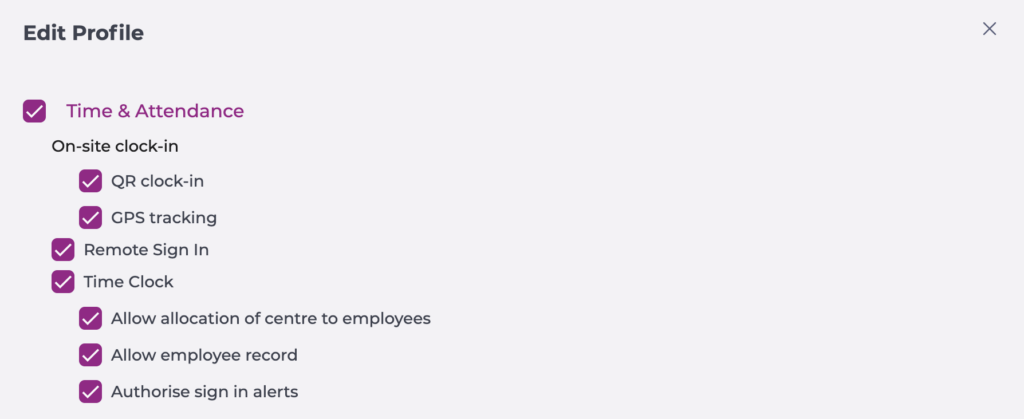
In the pop-up window, begin editing the Time & attendance section by enabling the corresponding checkbox.
Select QR clock-in if you want the employee to be able to clock in/out by scanning the QR code with their mobile app.
Select GPS tracking if you want the employee to clock in/out based on their geolocation.
Enable the Remote sign in option to allow shift recording from any location.
Enable the Time Clock section on profiles that need permission to register employees on the Smarthub.
Allow allocation of centre to employees.
Allow employee record, either by code or fingerprint registration.
Authorise sign in alerts: To validate a clock-in even when it breaches an alert established in contracts or collective agreements.
Select Accept to save the configuration you have defined OR Cancel to discard the changes.
Clock-in models
There are different clock-in models for recording shift entry and exit. Below is a description of each of the available systems and their different methods.
Smarthubs
This is a standalone clock-in device whose request must be managed through the Onboarding Consultant or the Account Manager, as it requires special processing.
As additional configuration, it must be connected to the internet, either by cable or network. If you have any questions, you can review the Configure network settings on Smarthub.
It has different clock-in methods:
Fingerprint reader.
Clock-in with DNI/NIE number (as indicated on the employee record; this is a numeric-only field).
Clock-in with DNI number and PIN code (in this case, configurable on the employee record).
QR code scanning*: the employee must use a mobile phone to scan the code.
*The QR code is a dynamic code that changes every 30 seconds.
POS App
To use the clock-in system, the application must be installed on the client's device. It is recommended to consult with the Onboarding Consultant or the Account Manager, as it may require a special request.
Note: The device can be a computer or tablet, but it must have Windows 10 or 11. Additionally, TeamViewer credentials will be required to carry out the installation.
It has different clock-in methods:
Fingerprint reader: a fingerprint reader connected to the terminal will be required.
Clock-in with DNI/NIE number (as indicated on the employee record; this is a numeric-only field).
Clock-in with DNI number and PIN code (in this case, configurable on the employee record).
QR code scanning*: the employee must use a mobile phone to scan the code.
*The QR code is a dynamic code that changes every 30 seconds.
Mobile application
It is possible to download the Mapal One (or GIR Staff) application on a mobile phone to use this functionality.
It has different clock-in methods:
GPS clock-in.
Remote clock-in.
QR code scanning*: a Smarthub or POSAPP must be installed.
*The QR code is a dynamic code that changes every 30 seconds.
Note: In the case of the mobile application, the configurations in Workforce must be carried out according to the selected method.
Assign or change punch-in code
Start from: The Workforce module.
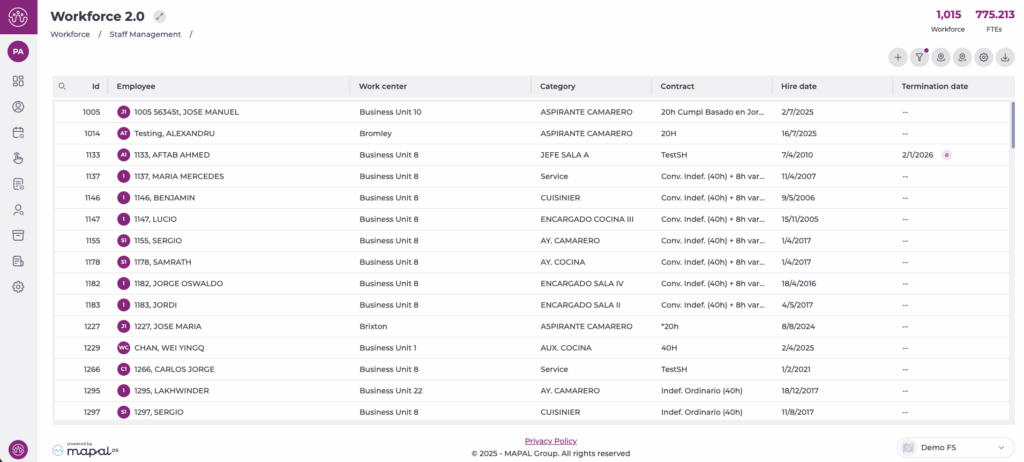
Select Workforce Management > Workforce2.0 from the main menu.
Use the filters at the top of the screen to refine the employee list. For full filtering guidance, see Filter the employee grid.
Select the specific employee from the grid.
Choose Time & Attendance from the left-hand menu.
Configure an employee’s clock-in codes
In the Code panel, you can configure all identification methods used in T&A applications:
PIN Number: enter a four-digit code of your choice or select the arrow button to automatically generate a random code.
Card code: enter or scan the magnetic or NFC card identifier assigned to the employee.
These codes allow the employee to clock in even when their fingerprint cannot be used.
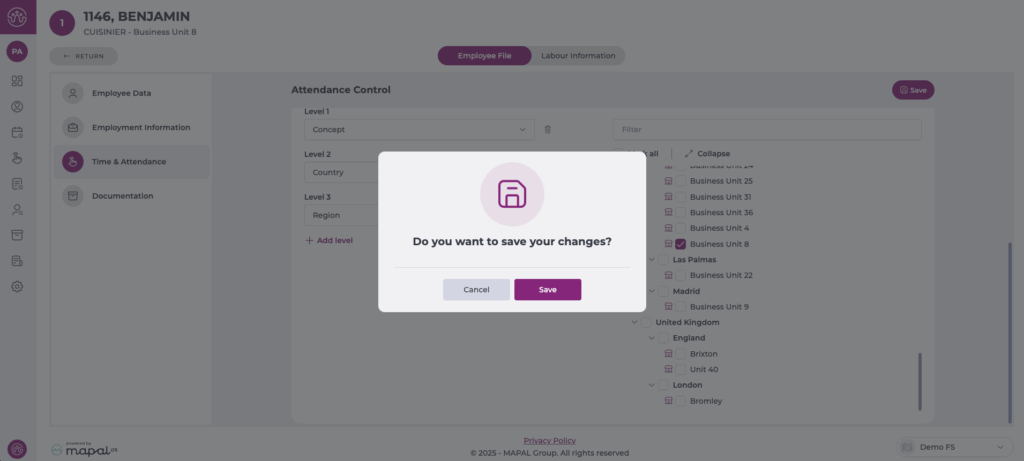
Select the business units where the employee may clock in
The Business Units panel allows you to define exactly where the employee is authorised to record attendance.
Use the Selection of Units tab to choose business units manually, or use Advanced Filter to filter by country, concept, or other hierarchy levels.
Tick the business units where the employee is allowed to clock in.
Save changes
Once all codes and eligible business units have been configured, select Save at the top right of the screen.
A confirmation window will appear; select Save again to apply the changes.
To learn how to punch in using the assigned code, see Punch in by code.
Configure clock-in expiry
Start from: The Workforce module.
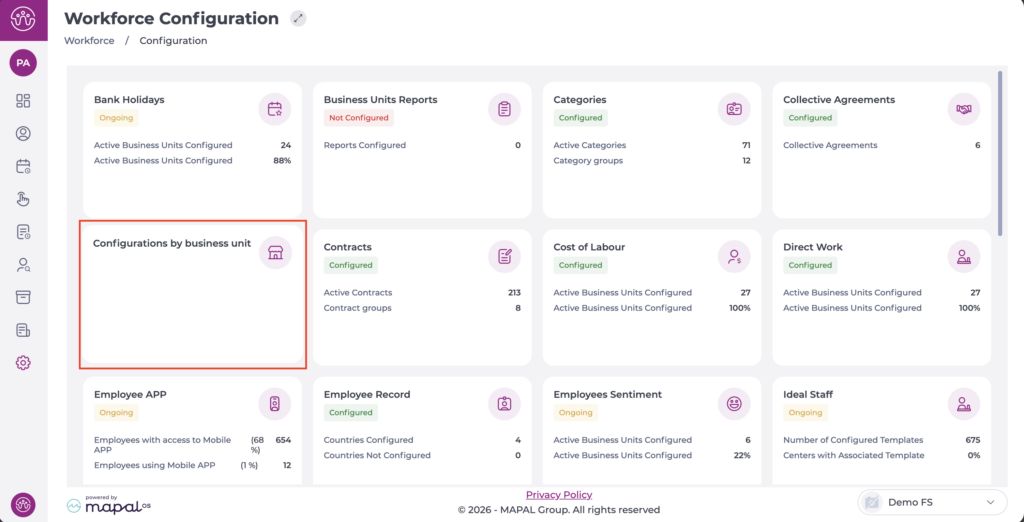
From the main menu, go to Configuration > Configurations by business unit.
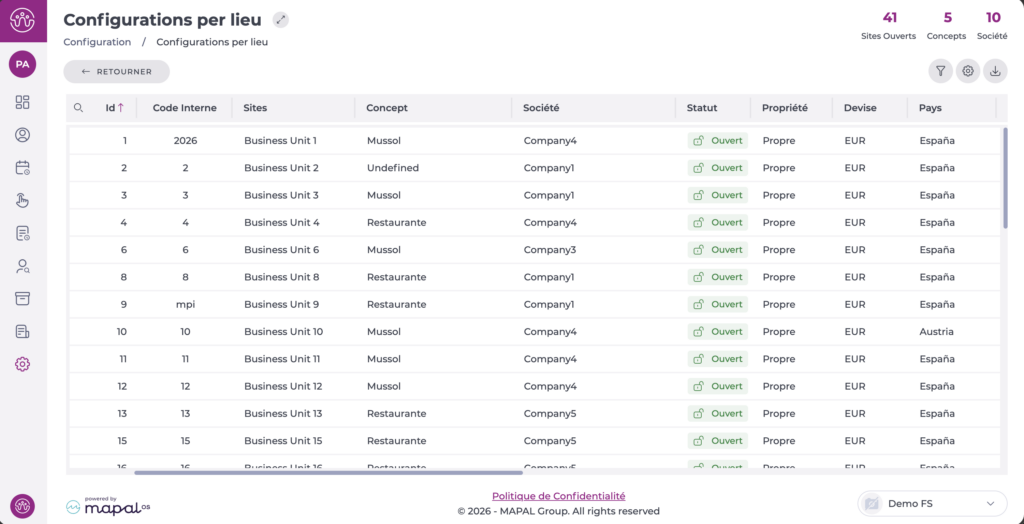
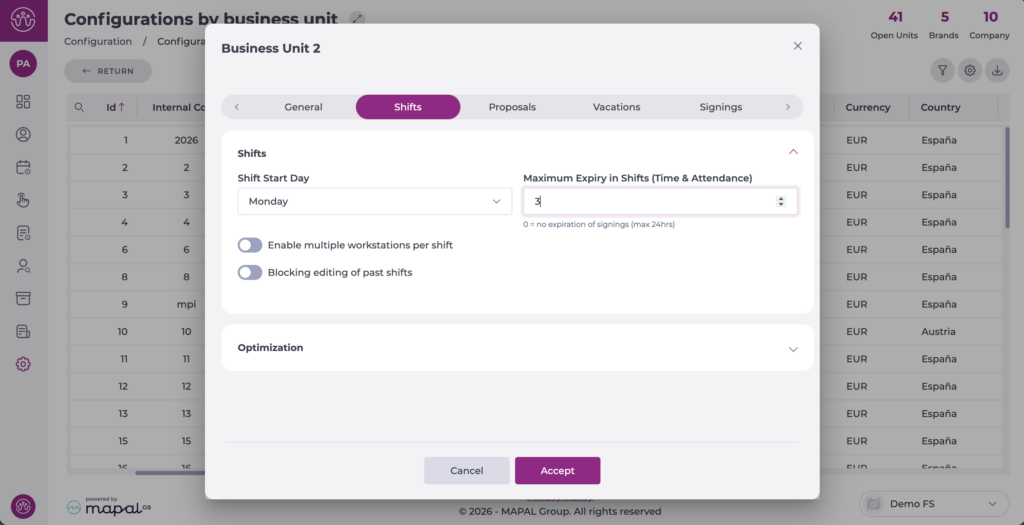
Select the Business Unit you want to configure. A pop-up window will open.
Select the Shifts tab.
Locate the Maximum Expiry in Shifts (Time & Attendance) field and select the desired value, up to a maximum of 24 hours.
Select Accept to save your changes.
From this point on, if employees at the configured business unit forget to clock out, their clock-in will be automatically cut off after the configured number of hours.
In these cases, both the Worked Time Screen and reports will show the same value for the clock-in and clock-out, preventing the entry from carrying over to the next day and logging more hours than appropriate.