Track and reduce waste

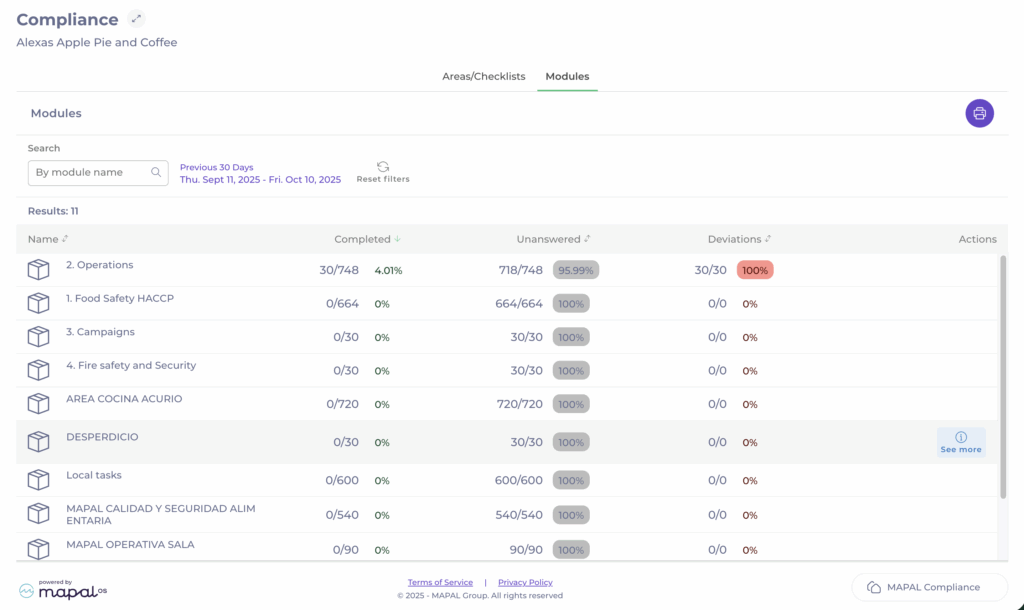
Start from: The Compliance general overview.

Module setup

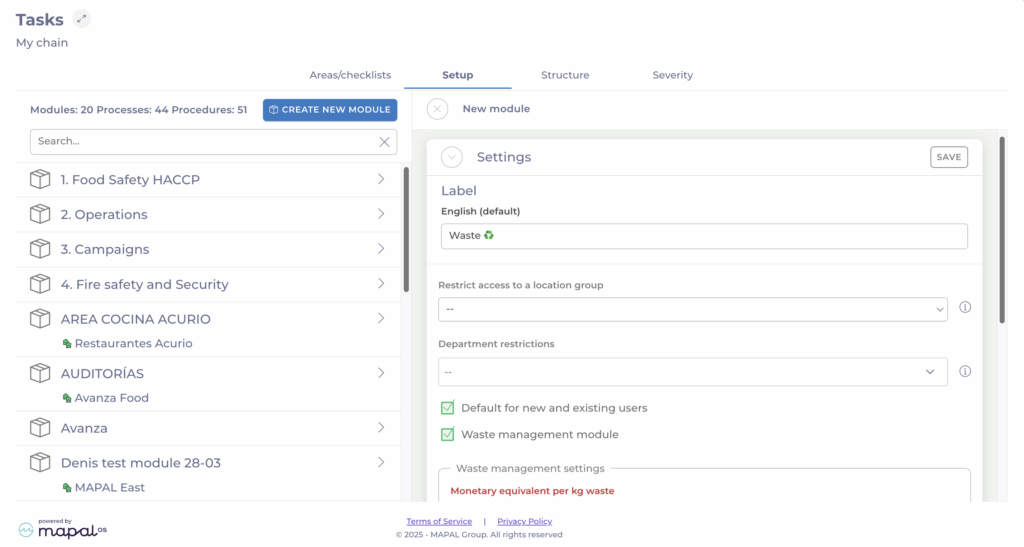
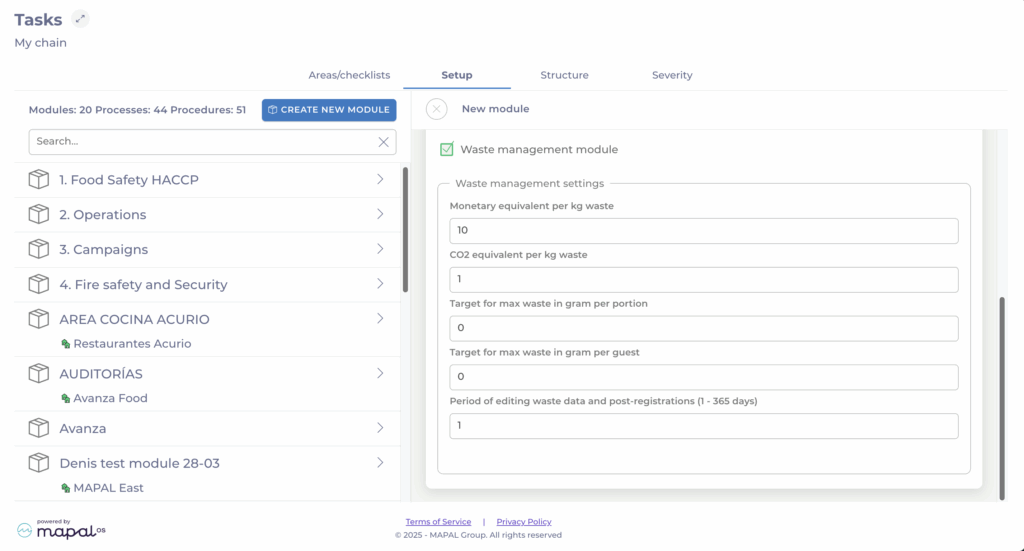
To begin using the Food Waste module, it must first be configured at module level.

FieldDescription
Monetary equivalent per kg wasteDefines the cost value assigned to each kilogram of waste. This helps estimate the financial impact of food waste. Example: 10 = €10 per kg wasted.
CO2 equivalent per kg wasteSpecifies the environmental cost of waste in kilograms of CO? per kilogram of food waste. This value supports sustainability reporting. Example: 1 = 1 kg CO? per kg waste.
Target for max waste in gram per portionSets a target threshold for the maximum amount of waste generated per portion served. Use this to monitor portion control efficiency.
Target for max waste in gram per guestSets a target threshold for the maximum amount of waste generated per guest. Useful for comparing sites of different sizes or guest volumes.
Period of editing waste data and post-registrations (1–365 days)Defines how long users can edit or add waste entries after the initial record date. Example: 1 = data can be edited for one day after entry.

Task configuration

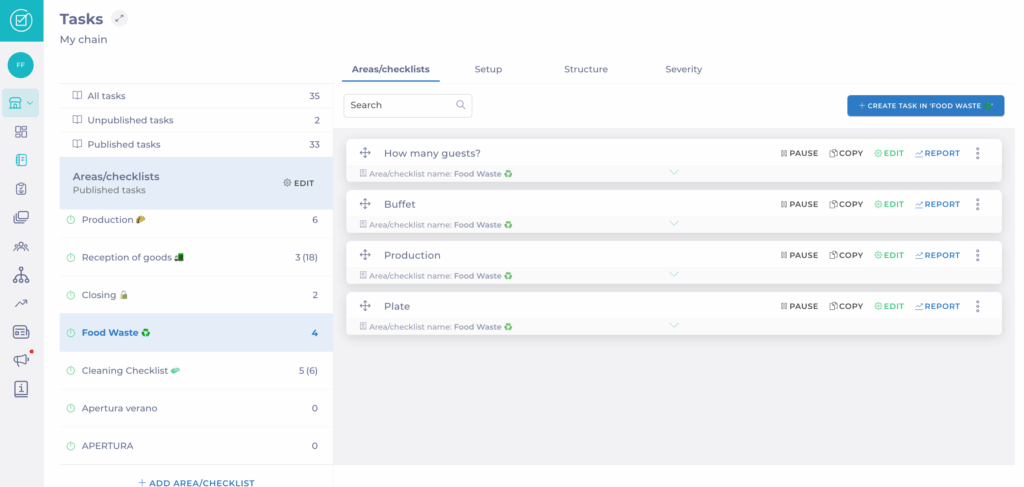
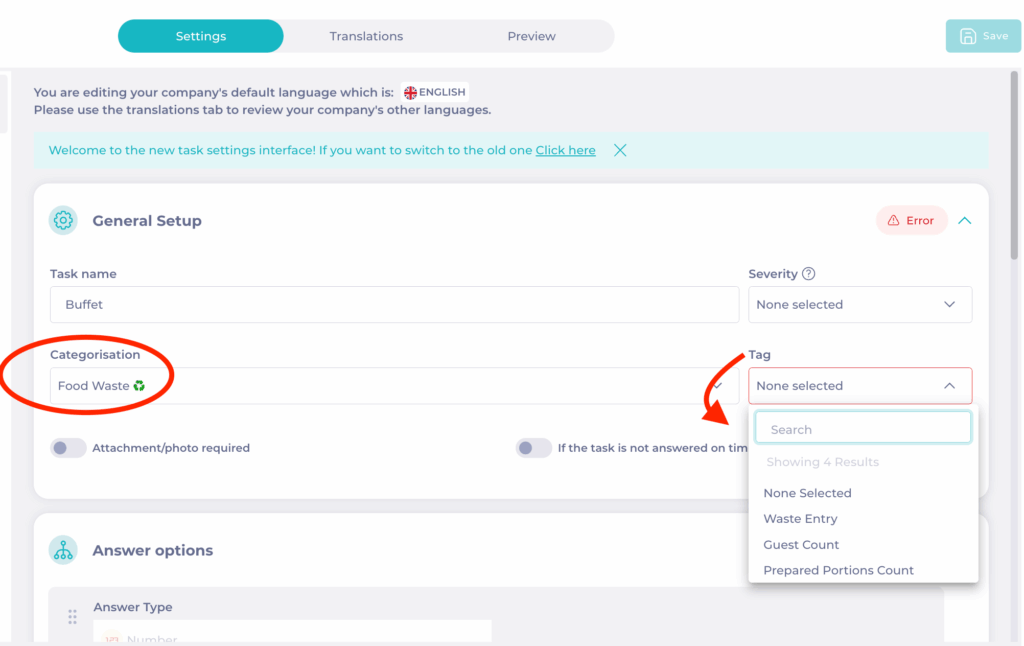
Once the module is active, create the waste tracking task.

Note: It is not possible to use both guest count and portions in the same module. Once the task is saved, the selected tag is locked.

Response Options

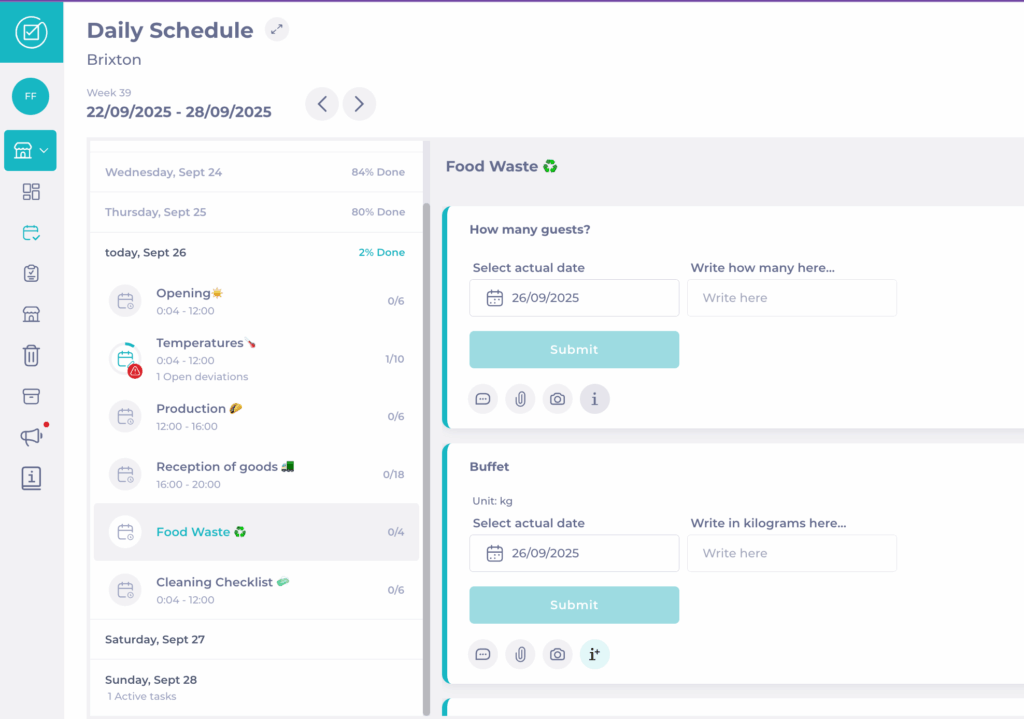
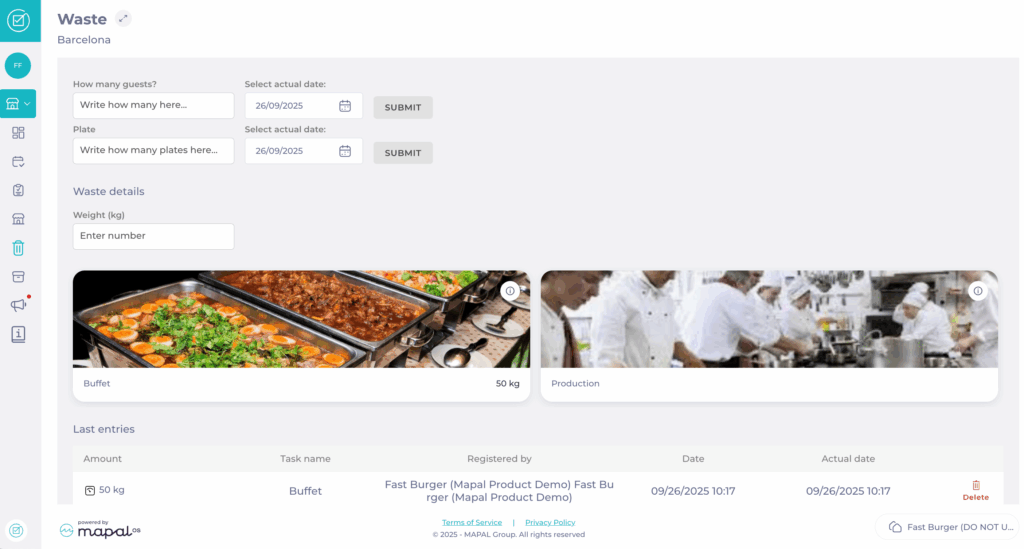
Record waste

Waste tracking tasks can be completed multiple times per day. This enables continuous logging throughout daily operations (e.g., morning prep, lunch, dinner).

You can record Waste through:

Backdated entries

Users can log waste retroactively for up to 8 days prior to the current date.

Central level

At central level, activate Allow setting 'actual date' to permit backdated entries. You can also choose whether retroactive entries default to the selected date or today’s date.
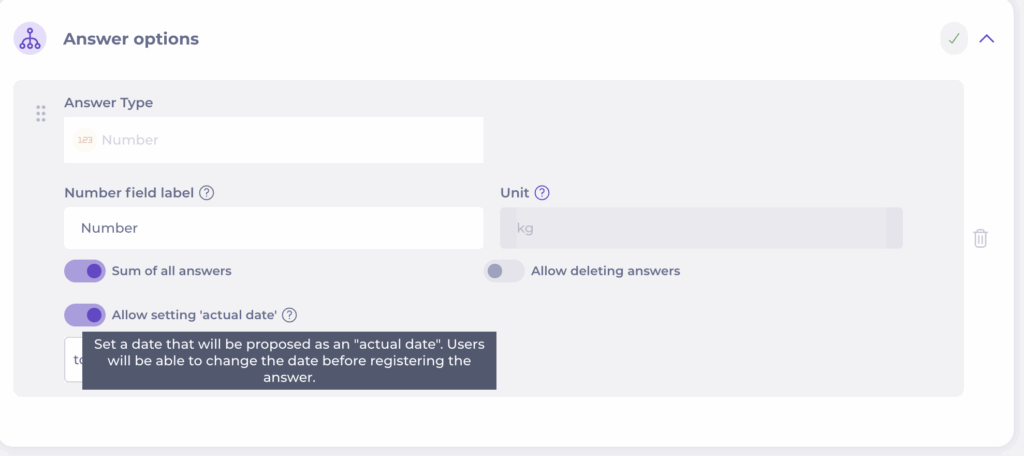
Local level

At site level, users can freely select the date they want to assign to the waste record.

Reporting

Local Level

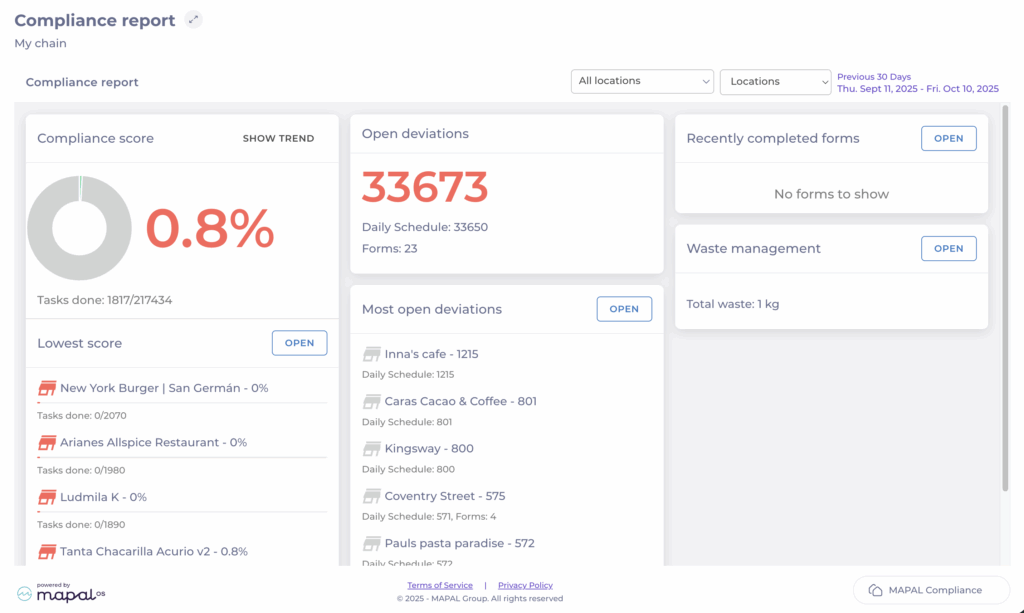
Central Level

Insights and sustainability impact

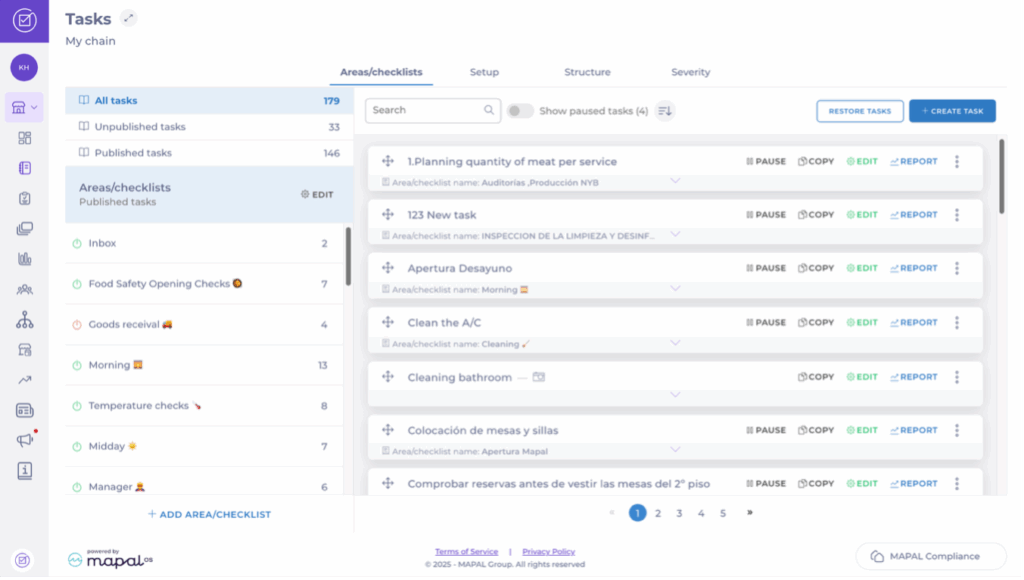
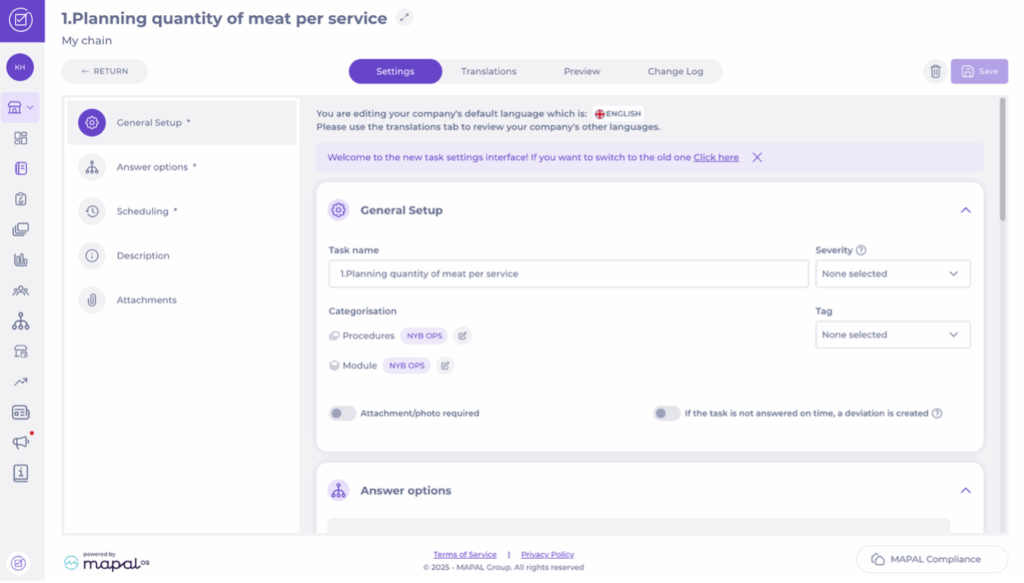
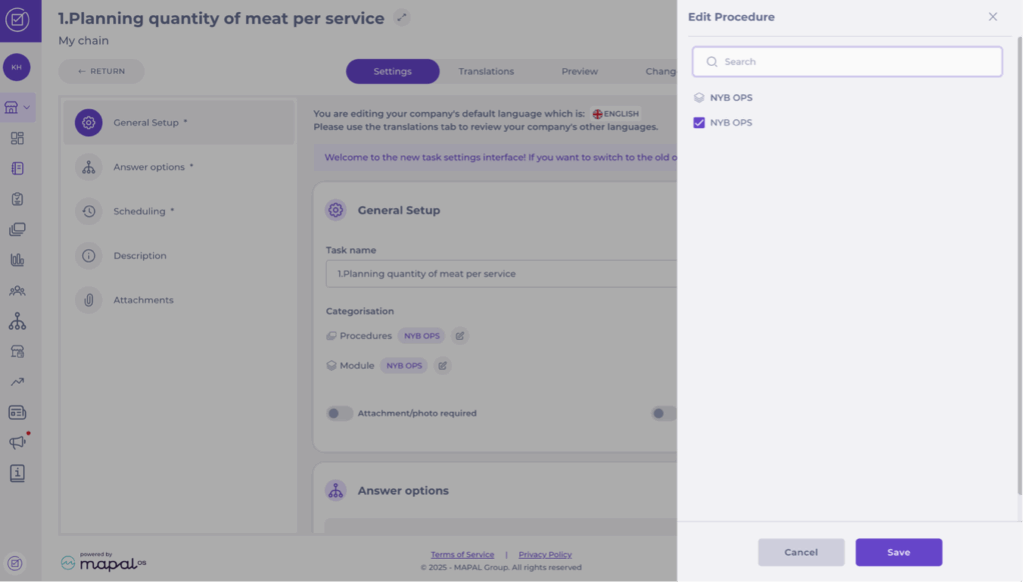
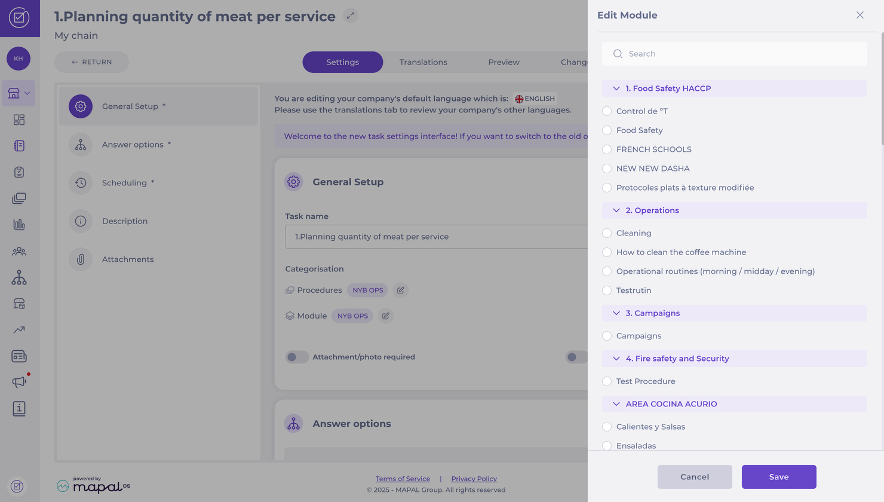
Change the procedure or module of a task

Start from: The Compliance Central Overview.

Change Procedure

Change Module

Set up new training structures

Start from: The Flow Learning Dashboard.

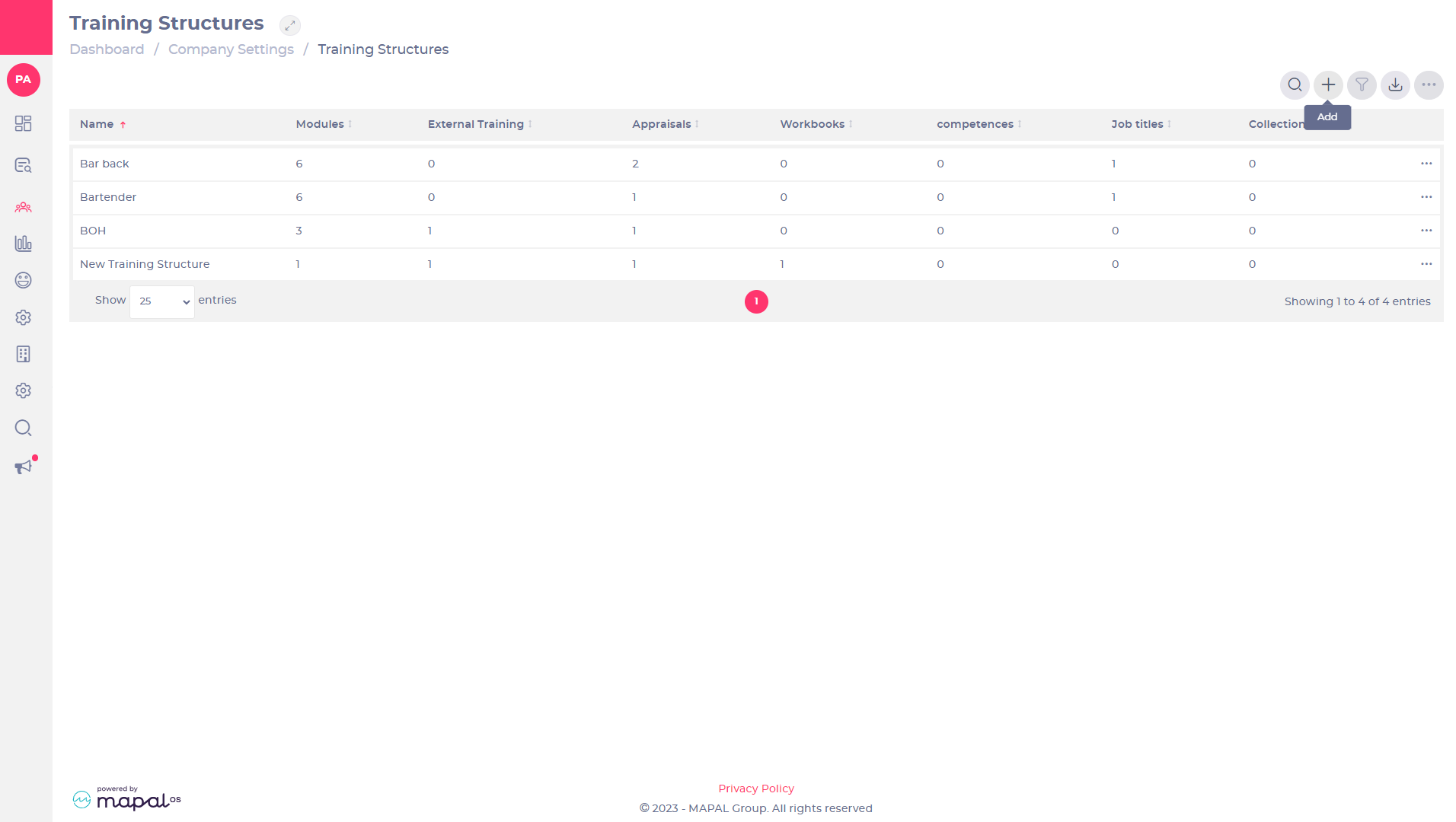
Training Structures

Training Structures enable you to define specific sets of training content tailored to different job roles within your organisation. These structures can include various learning items such as online modules, external training, appraisals, workbooks, and competencies. Training structures ensure that each learner receives the appropriate training content based on their job role, and they automatically assign relevant items whenever a learner is created, changes their job role, or moves to a different branch. This tool helps streamline the training process, ensuring consistency and relevance in employee development.

Set up new training structures

  • Select Company > Training Structures from the main menu.

  • Create a new training structure by selecting Add at the top of the Training Structures list. Alternatively, clone an existing training structure using the menu on a list entry > Clone.

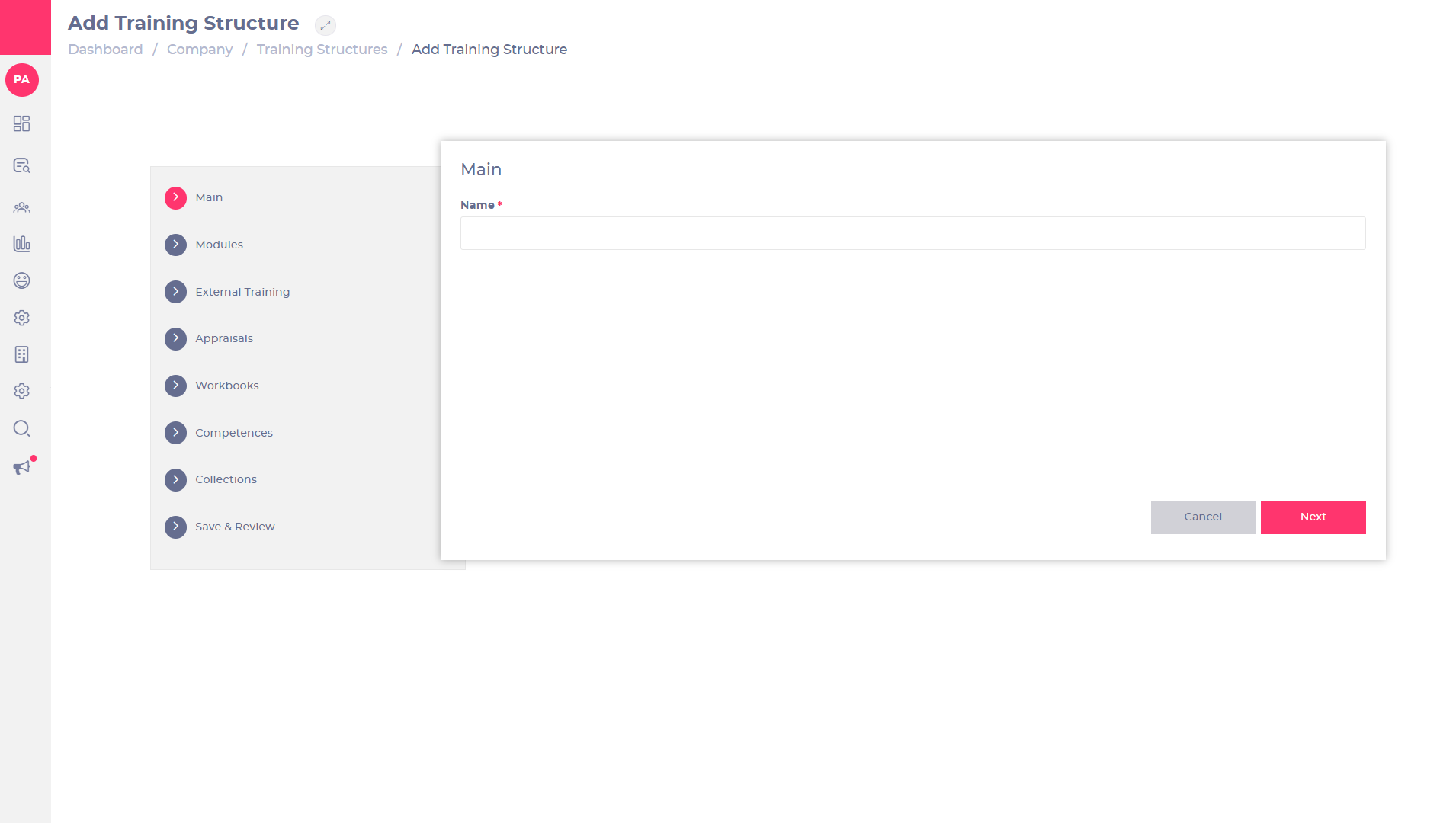
  • Configure the sections in the Add Training Structure page by selecting the section links. The sections can be configured in any order.
  • Use Next, Previous, and Cancel at the bottom of each section to navigate the training structure or cancel the process and return to the Training Structures list.

How Due Dates Are Calculated

Due dates for training items in a structure are determined based on the following criteria:

  • If the learner has a start date: The due date will be calculated from the learner’s start date.
  • If the learner does not have a start date: The due date will be calculated from the "Added to system" date. This ensures that all assigned training items have a defined timeline, even if the start date is not provided.

This calculation method ensures that due dates are consistently aligned with each learner’s timeline and circumstances.

Main

  • Enter the name of your new training structure in the Name field.

Modules

Selection

Use the search bar or scroll through the list to find modules. Drag modules to the Selected list to add them to the training structure. Drag modules back to the Available list to remove them from the training structure.

Select individual items in the Selected list and use the fields to set availability and due dates for that item:

  • Can start after

Set the delay in days from a learner’s start date before this training structure item will be available to them.

Notes: If you use this field, you must also take it into account when setting the due dates. For example, if you want a learner to start after 7 days and complete the item within 30 days from that point, you need to enter 37 days as the due date (7 + 30).

  • Due days from Launch date

Set the number of days allowed to complete this item after a new customer’s launch date. This only applies to new customers and has no effect on customers who have already launched.

  • Due Days for New Learners

Set the number of days allowed to complete this item after new learners are assigned the item by the training structure.

  • Due days for Existing Learners

Set the number of days allowed to complete this item after existing learners are assigned the item by the training structure.

  • Available to
  • All Learners: Make this item available to both new and existing learners.
  • New Learners: Make this item available only to new learners that are added after the training structure is created.
  • Existing Learners: Make this item available only to learners who already exist when the training structure is created.

Restrictions
Allows items to be included or excluded from the training structure depending on a learner’s branding or jurisdiction. Find out more about restrictions.

External Training

Selection

Use the search bar or scroll through the list to find external training items. Drag items to the Selected list to add them to the training structure. Drag items back to the Available list to remove them from the training structure.

Select individual items in the Selected list and use the fields to set availability and due dates for that item:

  • Due Days for New Learners

Set the number of days allowed to complete this item after new learners are assigned the item by the training structure.

  • Due days for Existing Learners

Set the number of days allowed to complete this item after existing learners are assigned the item by the training structure.

  • Available to
    • All Learners: Make this item available to both new and existing learners.
    • New Learners: Make this item available only to new learners, added after the training structure is created.
    • Existing Learners: Make this item available only to learners who already exist when the training structure is created.

Restrictions

Allows items to be included or excluded from the training structure depending on a learner’s branding or jurisdiction. Find out more about restrictions.

Appraisals

Selection

Use the search bar or scroll through the list to find appraisals. Drag items to the Selected list to add them to the training structure. Drag items back to the Available list to remove them from the training structure.

Select individual items in the ‘Selected’ list and use the fields to set availability and due dates for that item:

  • Due in

Set the number of days the learner has to complete this item.

  • Available to
    • All Learners: Make this item available to both new and existing learners.
    • New Learners: Make this item available only to new learners, added after the training structure is created.
    • Existing Learners: Make this item available only to learners who already exist when the training structure is created.

Restrictions

Allows items to be included or excluded from the training structure depending on a learner’s branding or jurisdiction. Find out more about restrictions.

Workbooks

Selection

Use the search bar or scroll through the list to find workbooks. Drag items to the Selected list to add them to the training structure. Drag items back to the Available list to remove them from the training structure.

Select individual items in the ‘Selected’ list and use the fields to set availability and due dates for that item:

  • Due in

Set the number of days before this item is assigned by the training structure.

  • Available to
    • All Learners: Make this item available to both new and existing learners.
    • New Learners: Make this item available only to new learners, added after the training structure is created.
    • Existing Learners: Make this item available only to learners who already exist when the training structure is created.

Restrictions

Allows items to be included or excluded from the training structure depending on a learner’s branding or jurisdiction. Find out more about restrictions.

Competences

Selection

Use the Add Another button to add a Competence to the training structure. You can add as many as necessary.
Use the first two dropdown lists in each entry to select a Competence List, and a Competence from that list.

Set the due date and availability using the remaining fields and dropdown list:

  • Due days for new trainees

The number of days allowed to complete this item after new learners are assigned the item by the training structure.

  • Due days for existing trainees

The number of days allowed to complete this item after existing learners are assigned the item by the training structure. Existing learners may need to complete training from a new straining structure due to, for example, a change in job title.

  • Available to
    • All Learners: The item will be available to both new and existing learners.
    • New Learners: The item will be available only to new learners, added after the training structure is created.
    • Existing Learners: The item will be available only to learners who exist when the training structure is created.

Restrictions

Allows items to be included or excluded from the training structure depending on a learner’s branding or jurisdiction. Find out more about restrictions.

Restrictions

Each section allows restrictions to be added, which define items to be included or excluded from the training structure depending on a learner’s branding or jurisdiction.

  • Use Add Another to add a restriction. You can add as many as necessary.
  • Check the box in the Exclude column to exclude the item when a learner’s if Condition column parameter matches the Value column OR uncheck the box to only include the item when their if Condition column parameter matches the Value column.
  • Select the item to be restricted using the dropdown list in the ModuleExternal trainingAppraisalWorkbook or Competence column.
  • Select either a branding or jurisdiction from the if Condition column to test that parameter for the restriction.
  • Check the box in the Matches column to restrict the item if the branding or jurisdiction matches the selection in the Value column OR uncheck the box to restrict the item if the selection does not match.
  • Use to remove the restriction.

Save & Review

Selecting this section will save the training structure.

If it’s a new training structure, this will make it available in the training structure s list. You will be prompted to enter a name in the Main section if you haven’t already.
If there are errors in any of the configuration sections, these sections will be highlighted and no changes will be saved until the errors are corrected.

Setting parameters in the Training Structure order and Branch dropdown lists will update the preview area below to show the items that will be available to the relevant learners.

  • Training Structure order
    • Select New Learners from the dropdown list to show which items in the training structure will be available to learners added after the training structure is created.
    • Select Existing Learners from the dropdown list to show which items in the training structure will be available to learners who already exist when the training structure is created.
  • Branch
    • Select a branch from the dropdown list to show items in the training structure that will be available to learners attached to that branch.
  • Select Save & Close to save the training structure and return to the Training Structures list.

Once you have used the Save & Review section to correct any errors and reviewed the content that the training structure will assign to learners, select Save & Close to save the training structure and return to the Training Structures list.

Training structure assignments

Items in a training structure are not assigned immediately when the training structure is created or changed.

Assignments will happen for any learners matching the configuration settings, whenever that learner is created, changes job role, or moves branch.

If an end date is removed from a learner (this is commonly the case when employees are re-hired) and there are new learning items in the Training Structure they are assigned to, these will automatically be issued to the learner.

To assign a Training Structure:

  • Navigate to Company > Job Titles.
  • Select the specific Job Title you want to assign the Training Structure to OR create a new job title.
  • Select the specific structure from the Training Structure dropdown.
  • Select Save.

Close financial budgets

Start from: The Analytics dashboard.

Accessing the budget closure module

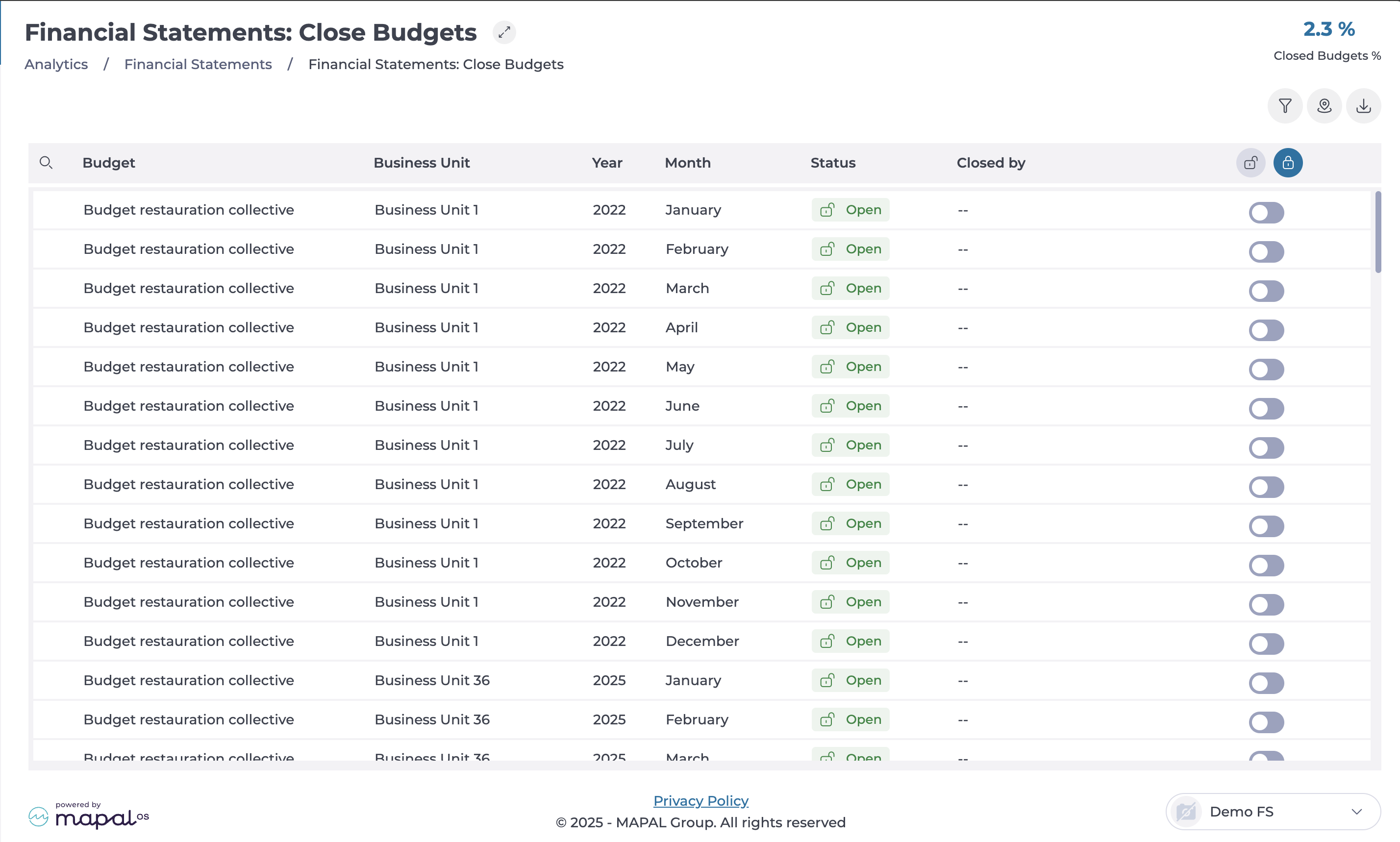
  • Navigate to Financial Statements > Close budgets.

  • A table will display all registered budgets along with their details. The table consists of the following columns:

    • Budget: Displays the name and purpose of the budget.

    • Business Unit: Identifies the associated business unit.

    • Year: Specifies the year of the budget.

    • Month: Indicates the applicable month.

    • Status: Shows whether the budget is Open or Closed.

    • Closed by: Identifies the user who locked the budget (only visible if closed).

    • Open or Close Budget: An interactive toggle allows switching the budget status.

Closing a budget

  • Locate the budget you want to close. You can use the Filter or Filter by Business Unit to narrow down the search.

  • Select the toggle in the last column to change the status to Closed.

  • The Closed by column will now display your name and the date of the closure.


Closing multiple budgets at once

  • Select the Close all button at the top of the table.

  • All budgets in the list will be locked simultaneously.

Reopening a budget

  • Select the toggle to open an individual budget.

  • If necessary, select the Open all button to revert the closure.

  • The budget(s) will return to an editable state.

Apply a department to a module

Start from: The Compliance overview.

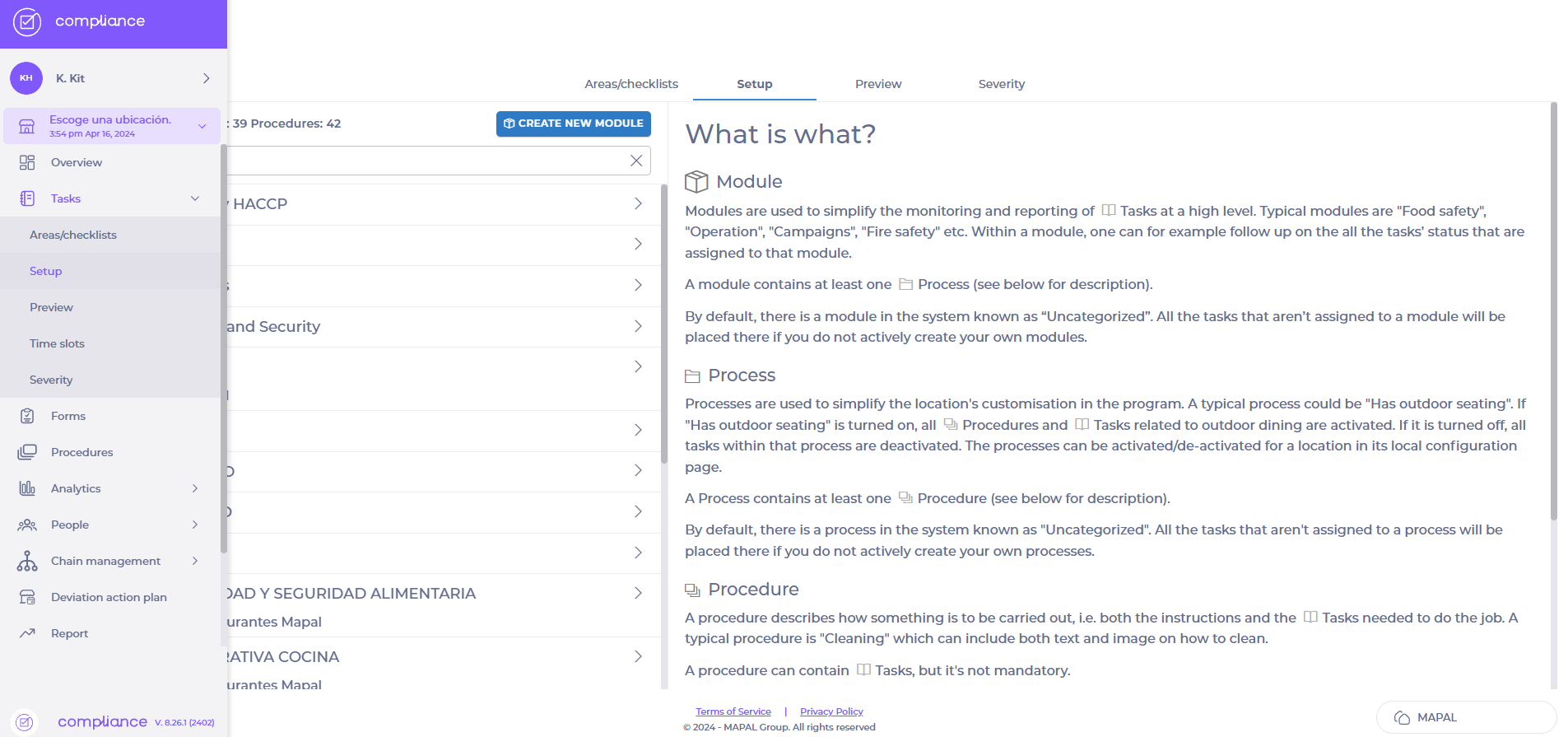
  • Navigate to Tasks > Setup.

  • Locate and select the specific Module to which you want to apply a department.

  • In the module, scroll down to Department restrictions.  

  • Choose the relevant department(s) from the dropdown list.

  • Select Save to apply the changes.

Note: If no department is assigned, the module remains visible to all users with access permissions.

Add questions to Evolve modules

Start from: any existing course in Evolve.

Setting up the Question Bank/s Extension

Within your course:

  • Select the Extensions tab (the puzzle piece) in the left menu bar.
  • Find the Question Banks extension and tick to enable.
  • Select the title Question Banks to edit.

You will be taken into the Question Banks settings, where you can build the question banks to your requirements.

  • Select the + icon to add a new question bank.

A pop-up will then show, where you can title the question bank and choose the type of multiple choice questions (MCQs) you want to use for this question bank and hit the Select button.

  • You can select either a Multiple Choice Question or a Graphic Multiple Choice Question.
    • A Multiple Choice Question allows you to set multiple answers to a single question.
    • A Graphic Multiple Choice Question allows you to set multiple answers with added images to a single question.
  • You can only have one type of question per question bank.

Note: You can have as many question banks as you prefer for your assessment. If you want all your assessment questions to come from one pool of questions, we suggest you use one question bank overall. However, if you want to split your question banks by topic or type of questions, you can have a question bank for each.

Using a Multiple Choice Question Bank

  • Your titled question bank will then show in the column underneath the ‘+’.
  • Select the title to reveal the settings to add your questions.

To add a question:

  • Select the + icon next to the question bank title. Then select each question in the second column to edit the question.
  • Starting with the General tab, here you will be able to add the question and any instruction text.
    • Add a Title for each question. We like to add the whole question into this title, as this will help you find the question for edits in future.
    • Add the main question to the Question area.

Note: We DO NOT add a Display Title here, as this will be taken from the MCQ components on the assessment page.

On the Answers tab, this is where you add the various answer choices the learner will see. You can add as many answers as you prefer.

  • Select Add Answer, then select the item to see a dropdown which includes an Answer text area and a toggle to specify if the answer is correct.
  • Add your Answer text and toggle on If the answer the correct option? for each, as is relevant.

Note: The number of answers you can mark as correct will be based on how you set the question behaviour.

On the Behaviour tab, this is where you set the number of question attempts, randomization of answers, how many selectable items and individual item feedback. As this is for a general assessment, we suggest the following settings:

  • For Attempts, choose 1 — this is important for the completion of the assessment.
  • Toggle off Display Attempts Counter.
  • Toggle on Randomize Answers — this will show the learner the answers in a different order each time.
  • Select the number of Selectable Items – this is the number of answers you want the learner to be able to select. This can be multiple if it’s a ‘Select all that apply’ question, if it’s a normal question select 1.
  • Toggle off Use custom item prefix.
  • Toggle off Individual item feedback — for assessments, we use the general feedback settings.
  • Toggle on Auto Submit the Question?

On the Feedback tab, this is where you can add in feedback. As this is a final assessment, we suggest not providing any feedback, as this ensures your assessment remains intensive, and the learner isn’t given the answer.

On the Appearance tab, this is where you set how the answers display to the learner based on their device type. We set the number of Items per row as the following:

  • Desktop — 2
  • Tablet — 2
  • Mobile — 1
  • Follow steps 2-8 for every question you want to add to your question bank.


Using a Graphic Multiple Choice Question Bank

This will be very similar to the settings for a Multiple Choice Question, however there will be further steps when adding your answers.

On the Answers tab, this is where you add the various answer choices the learner will see. You can add as many answers as you prefer.

  • Select Add Answer, then select the item to see a dropdown which includes an Answer text area, an Item Image, advanced settings per device for the image, Alt Text and a toggle to specify if the answer is correct.
  • Add your Item Image by selecting the + icon and choosing from your asset bank, by searching in the top bar, or by adding a new image with the top right-corner ‘+’.
  • We suggest you toggle off the Set Image Per Device Size? area underneath Item Image Advanced Settings.

Note: The images will display as the same size as the image you selected. We suggest that you size your images to 512 pixels wide and no larger than 512 pixels high to ensure the best viewing experience by all learners on all devices.

  • Add Alt Text in the area provided, to describe the image to learners who are using screen reader technology to work through your course.
  • Add Item Text in the area if it’s required to understand the answer image.
  • Toggle on If the answer the correct option? for the answer, as is relevant.

Note: The number of answers you can mark as correct will be based on how you set the question behaviour.

Setting the Multiple Choice Questions (MCQs) to Use the Question Bank/s

This is how you can link the set multiple choice questions on your assessment page to the relevant question bank.

You will need to set up your assessment page with the relevant multiple choice question components or graphic multiple choice question components first. These act as a target for the relevant question bank.

Please see our guide on ‘Evolve Course Completion’ to see the steps to set up this page.

These following steps are relevant to both types of question banks, the multiple choice question and the graphic multiple choice question banks.

  • Once your assessment page is set up, navigate to the first multiple choice
  • question component.
  • Select the component to open the settings column.

In the General area:

  • Add a Display Title for the question. We suggest numbering your questions on the page, so that the learner knows which question they are on, such as ‘Question 1’. Ignore all the rest of the areas, these will be filled in by the questions in the bank.

At the top of the third column, use the dropdown to navigate to Behavior.

Once the Behavior screen is showing, use the following settings:

  • Toggle on Use Question Bank.
  • Under Select Question Bank, choose the relevant question bank you want this question to show.
  • Mirror the rest of the settings you set as the behaviour in your question bank, as on steps 5 above.
  • Ignore the rest of the dropdown settings and move on to the next component.
  • Follow steps 2-6 on every question component on your assessment page.

Create custom challenges with SCORM content

rong>Overview:: Flow Learning enables you to create custom challenges, offering your learners fully branded and customized learning resources. This article describes how to create these challenges with SCORM content.
Start from: the Flow Learning dashboard.
Custom challenges can be found in the L&D Settings page in Flow Learning.
The uploaded SCORM challenge will now be available on the list of challenges.

Create and optimise graphics for Evolve modules

Evolve courses can feature a hero image (a large image at the beginning of the course that sets the tone and gives a visual preview of the module) and graphics within the course. It’s important to optimise imagery to ensure that courses load quickly, as this is a key factor in learner engagement.

You can use free image optimisers like Tinypng.com.

Hero image sizing

The Image Advanced Settings toggle that is available in the Graphic dropdown menu (when selecting an existing graphic item in a course) allows more control over image sizes per device. You can set any size image per device, meaning that you can set a super high resolution hero image for desktop, but a lower resolution image for mobile devices. Here are the optimal image sizes for each type of image:

Hero Desktop image size: 1920 x 750 pixels

Hero Tablet image size: 1024 x 800 pixels

Hero Mobile image size: 800 x 800 pixels

You can use free image resizing tools such as: https://www.adobe.com/express/feature/image/resize.

How to upload hero images

Main Page Hero Image

  • Select the course you wish to edit.
  • Select Couse settings (the cog icon).
  • Select the Box Menu tab.
  • Upload your optimized hero image in the Hero Image section by selecting the + icon (Select Asset).
  • Select the Set Image Per Device Size toggle button to be able to set different image sizes for each device type.

Box Menu Item Image

  • Select the course you wish to edit.
  • Select Content (the list icon).
  • Select the page you wish to edit.
  • Select the General dropdown menu on the right-hand side of the editor view.
  • Scroll down to the Box Menu Item dropdown menu.
  • Upload your optimized Box Menu Item Image by selecting the + icon (Select Asset).

Page Hero Image

  • Select the course you wish to edit.
  • Select Content (the list icon).
  • Select the page you wish to edit.
  • Select the General dropdown menu on the right-hand side of the editor view.
  • Scroll down to the Page Hero Image dropdown menu.
  • Select the Add Hero Image toggle button.
  • Scroll down to the Hero Image section and select the + icon (Select Asset).
  • Select the Set Image Per Device Size toggle button in the Hero Image Advanced Settings section.

Creating a thumbnail for Mapal One

To create a thumbnail for your course on Mapal One, we recommend using Adobe Express: https://new.express.adobe.com/sp/.

  • Select the Create button and navigate to Custom size.
  • Add the custom size 400x225 and select Create new file.
  • Upload your photo by selecting the photo icon on the left-hand panel > Upload photo.
  • Resize the image and select Download > PNG.
  • Rename the image to one_thumbnail.png.

Delete items in Flow Learning by batch

  • Select Delete.
  • Confirm your deletion by selecting Save.
Note: this is irreversible and items will be deleted permanently.
 

Copy a module at a central level

Start from: the Compliance Overview page.

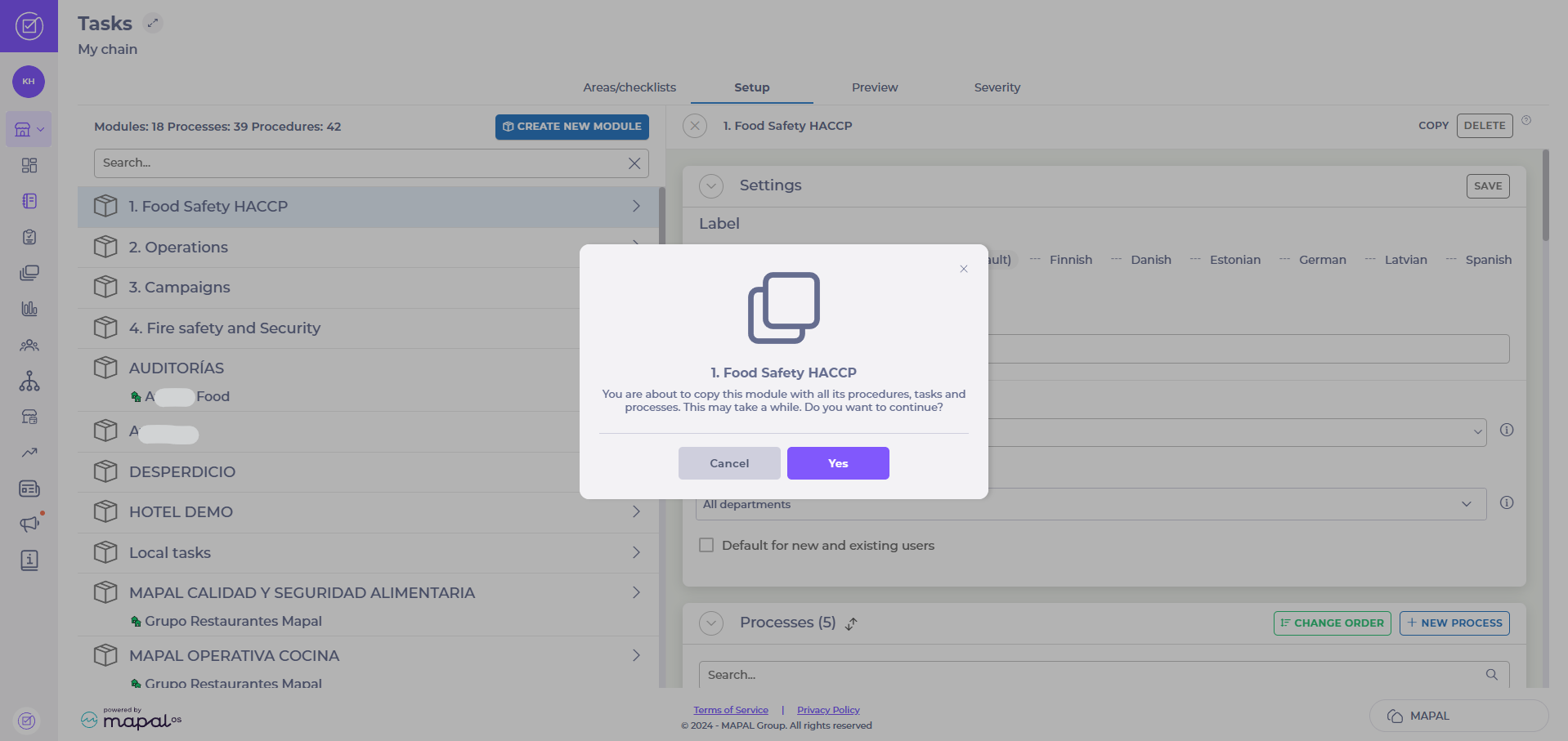
  • Select Tasks > Setup from the main menu.

  • Select the module you’d like to copy from the list.
  • Select the Copy button.
  • Select Yes to confirm.

Note: this function will copy all processes, procedures, and central tasks (these will not be published). The process may take a little while.