An overview of Mapal OS Configuration

Key features

  • User profile management: Add, edit, and manage user profiles and their permissions within the system.
  • Department management: Set up and organise departments to reflect your business structure.
  • Job title configuration: Create and manage job titles to ensure accurate role assignment and tracking.
  • Bulk actions: Assign roles and permissions in bulk to save time and reduce manual errors.

Benefits

  • Streamlined operations: Centralised control of user profiles, permissions, and system settings enhances operational efficiency.
  • Customisation: Tailor the system to meet specific business needs, ensuring all settings align with organisational requirements.
  • Improved accuracy: Bulk actions and organised management reduce errors and save time.
  • Enhanced security: Manage access and permissions effectively to ensure data security and compliance.

Next steps

The Configuration app by Mapal OS is essential for hospitality businesses seeking efficient management and customisation of their system settings. Its comprehensive features ensure a streamlined setup and enhanced operational efficiency.

For more, visit Getting started on Mapal OS, or select from the articles below.

Configure user roles in Analytics

Start from: The Analytics module.

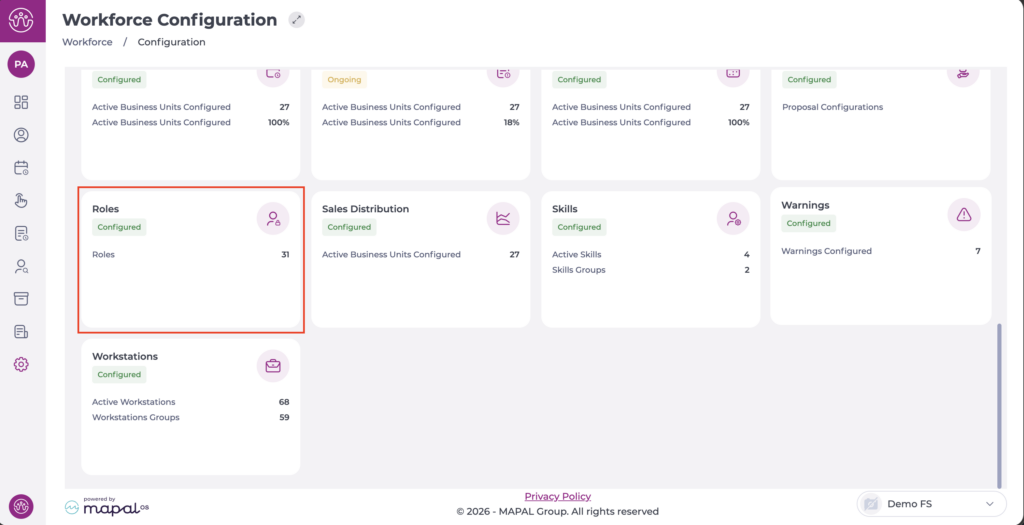
  • Navigate to Configuration > Roles.

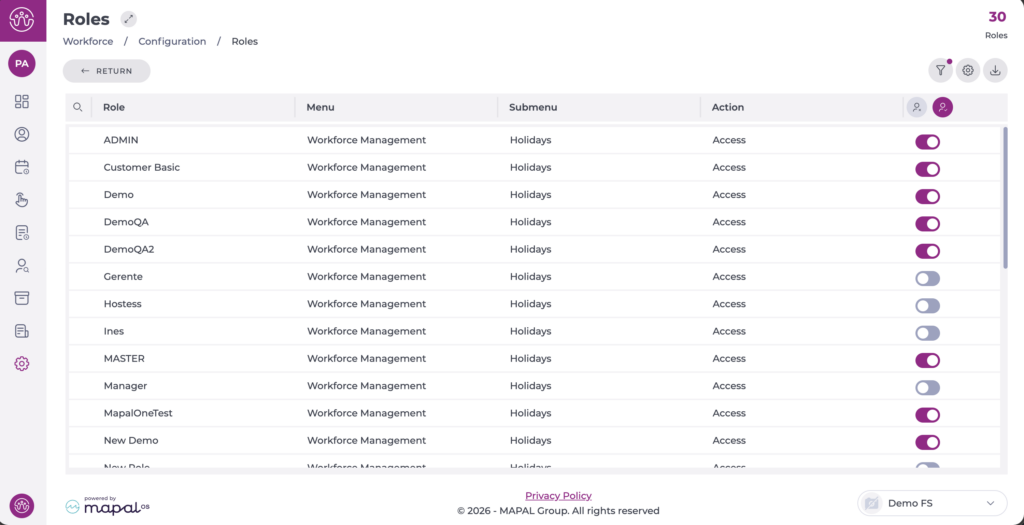
In the Roles screen, you will find a list where you can view each of the roles created (Role), the areas they could access (Menu and Submenu), and the permissions (Action) they could have for each of them. The switch at the end of the row indicates whether the action is active (blue switch) or inactive (gray switch).

To create a new role:

  • Select the Roles button.

  • Type a name for the role in the text field and click the Add + button.

  • Back in the list of roles, search the list for the new role or use the Filter function to facilitate your search.

Notes: The Filter functionality allows you to narrow your search not only to roles, but to specific areas and actions you wish to edit.

  • Find the areas you want to give access to and locate specifically the type of access you will give.
  • Select the switch to enable or disable access.


Notes: You can use the Activate All or Deactivate All button to do a mass activation according to the filter you have set.  

Manage permissions for modules, forms and checklists

Notes: To set up a profile in Compliance, you will first need to create a Mapal OS profile in the Configuration tool and enable it for Compliance.  

To know more about this process, see Manage user profiles in Mapal OS

Start from: The Compliance dashboard. 

  • Select People > Profiles from the main menu.  


Here you will see the profiles created in Mapal OS and enabled for Compliance.  


  • Select the name of the specific profile you want to grant accesses to.  

  • A list with all possible permissions will unfold.   


  • To grant access to modules, forms, and checklists, toggle the following options:  

    • Manage forms centrally, access to "Forms" page 

    • Manage modules centrally, access to "Setup" page 

    • Manage tasks centrally (create, copy, delete, restore) 

    • Manage tenant tasks 

    • Manage re-opening form 

    • Manage tasks locally ("management mode"), manage actions with location (create, copy, activate/deactivate). Can see and acknowledge procedure updates is available to your tenant. 

When you are done granting accesses to that profile, you can go back to Mapal OS and assign the profile to the respective user or users.   

To know more about how to assign profiles in Mapal OS, see Assign user profiles in bulk on Mapal OS


Configure permissions for workforce management

Start from: The Workforce module.

On the Roles screen, you will find a list where you can view each created role, the areas they can access (Menu and Submenu), and the permissions (Action) they may have for each. The switch at the end of the row indicates if the permission is active (blue switch) or inactive (grey switch).

To create a new role:

Notes: The Filter function allows you to narrow your search not only to roles, but also to specific areas and actions you wish to edit.

Notes: You can use the Enable All or Disable All buttons to perform a bulk activation according to the filter you have set.

Permissions

Action Description 
Access Grants access to the employee management page.
Create/Edit/Delete Warnings Permissions to view and edit the Warnings section, located in Employment information.
Create Permissions to create employees.
Create Work Period Permissions to create work periods.
Access Employment Information Allows access to the employee's employment information, including work periods and employment situations.
Delete Work Period Permissions to delete employment situations.
Edit Start Date Allows editing the start date of a work period.
Delete Employment Situation Allows deletion of an employment situation.
Edit Termination Allows only the editing of the termination date of a work period. If it does not have a defined date, it cannot be set unless you have an additional permission.
Create Employment Situation Permissions to create new employment situations.
Assign Termination Date Allows only setting a termination date for a work period that does not have one.
Edit Employment Situation Permissions to edit employment situations.
Edit Work Period Permissions to edit work periods.
Edit Personal Data Permissions to edit personal data.

Manage permission profiles

Start from: The Flow Learning dashboard.

For information on how to adjust permissions at an individual level, head to user profile permissions in Mapal OS.

Create a profile

Edit an existing profile

Permissions

The following permissions are available from the permission profile screen:

Access your profile in Compliance

Start from: The Compliance overview.

  • On the main menu, select Your Name > My Profile.

A screenshot of a computer<br><br>Description automatically generated
Your profile page will appear, featuring four tabs with various options and functionalities:

Main information

This is the primary tab where you can view and update your personal details, such as:

  • First Name
  • Last Name
  • Contact information
  • Time zone
  • Preferred language

Additionally, you can change your password for accessing Compliance from this tab.

A screenshot of a computer<br><br>Description automatically generated

Profiles & Notifications

  • Notifications: Enable or disable email notifications, such as weekly dashboards, to do lists, monthly summaries, etc.

To know more about email notifications, see Email notifications in Compliance.

  • Profiles: Enable or disable specific profiles associated with your account.

For more details on setting up profiles, refer to the article Manage permissions for modules, forms and checklists.

A screenshot of a computer<br><br>Description automatically generated

Privacy Information

This tab provides a record of when you gave consent to Compliance's Privacy Policy. It is purely informational and cannot be edited.

Access Rules

This tab displays a list of forms available for your account. Use the toggles beside each form to enable or disable their visibility, ensuring easy access to the forms relevant to your role.

A screenshot of a computer<br><br>Description automatically generated

Users and Employees in Mapal OS

Defining Users and Employees

User

A User is anyone who can log into Mapal OS. This includes team members, managers, administrators, and other personnel who need to interact with the system for various management and configuration tasks. Users can access various Mapal OS apps, depending on their permissions.

A User record exists for everyone on the Mapal OS system.

Employee

An Employee is a non-managerial member of staff who interacts with the employee-focused Mapal apps. Employees have access to features such as learning resources, news items, documents, shift patterns and group chat.

It’s important to note that not all Users have an Employee record, even though Employees will always have a User record, granting them access to the Mapal OS system.

Common Tasks for Users and Employees

Mapal OS has a range of functionality, and the experience on the system can be quite different for the various types of users.

Example tasks for User-only accounts

Example tasks for Employee accounts

How Users and Employees access Mapal OS

User-only access to Mapal OS

Management tasks - on User-only accounts - are primarily performed within Mapal OS apps such as Flow Learning, Workforce, Easilys, Compliance, Reputation, Engagement, and Analytics.

Employee access to Mapal OS

Non-managerial tasks – requiring Employee accounts - are carried out in team-focused apps, such as Mapal One, Gir Staff and the SmartHub clocking system app.

Find out more

For detailed instructions on user management, including how to work with User profiles and permissions you can find links to more resources below.

Sync permissions in Mapal OS and Flow Learning

Mapal OS are aligned with Permission Profiles in Flow Learning.

  • Profiles are established during migration or initial onboarding, ensuring all Flow Learning profiles are accessible in Mapal OS.

  • Some Mapal OS profiles, like employees and account managers, do not translate back to Flow Learning.

  • Centralised Management: Profile linking ensures all team management activities can be centralised within Mapal OS.

User Profiles in Mapal OS

  • Access the User management menu and select User profiles.
  • View all established user profiles for the operator in Mapal OS.
  • Add a permission profile in Flow Learning to update this list.

Managing Permissions in Mapal OS

  • Control solution access through the 'Solution access' setting, where available Mapal apps are determined by your subscription.
  • Default settings, such as the Employee profile being the default with limited permissions, ensure basic access is managed appropriately.

Permissions in Flow Learning

  • From the Flow dashboard, navigate to the Company menu and select User settings.
  • Manage permissions through the Permission Profiles section, ensuring alignment with Mapal OS configurations.

For more information about this workflow, see the related articles below. 

We also have more guides to Flow Learning user management on Mapal OS:

Edit GIR Staff profile

Start from: The Workforce module.

  • Select Configuration > Employee APP from the main menu.

  • Once on this screen, the user will see a table listing the different profiles created.

  • Select any point on the profile line you want to edit.

Interfaz de usuario gráfica, Aplicación<br><br>Descripción generada automáticamente

  • Selecting the line will display an Edit Profile pop-up window.

  • Modify the points to which the profile will have access according to your needs. You can edit details such as:

    • Profile name

    • Shifts: Shift visibility, show details of colleagues on shifts, shift requests.

    • Holidays

    • Time & attendance control

    • Worked time

    • Earnings on demand

  • Select Accept to save the changes to the profile OR Cancel to discard the changes.

Interfaz de usuario gráfica, Texto, Aplicación<br><br>Descripción generada automáticamente

Manage Easilys user account profiles

Note: Every action that can be carried out in the application is subject to permissions. If you are unable to perform the actions recommended in the articles you are reading, it may be because the required permissions are not activated for your user profile. Contact the Support team or your administrator for more information.

Start from: The Easilys menu

Access the profile list

Create / edit / delete profiles

In general, profiles are set up by the Easilys team and cannot be managed from within Easilys; the buttons will be greyed out. If your permissions allow it, you can manage them from Mapal OS. Refer to Manage user profiles in Mapal OS for more information.

If your configuration allows profile management from within Easilys, you can:

Set profile permissions

You can manage the authorised pages and authorised actions for each profile:

Note: When managing profiles, you can only enable or disable permissions that you yourself have. Other existing permissions on Easilys are not visible.