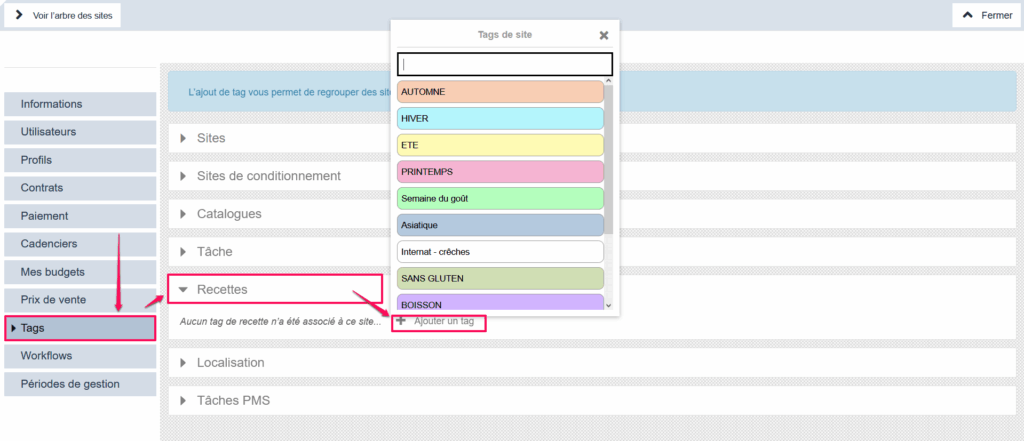
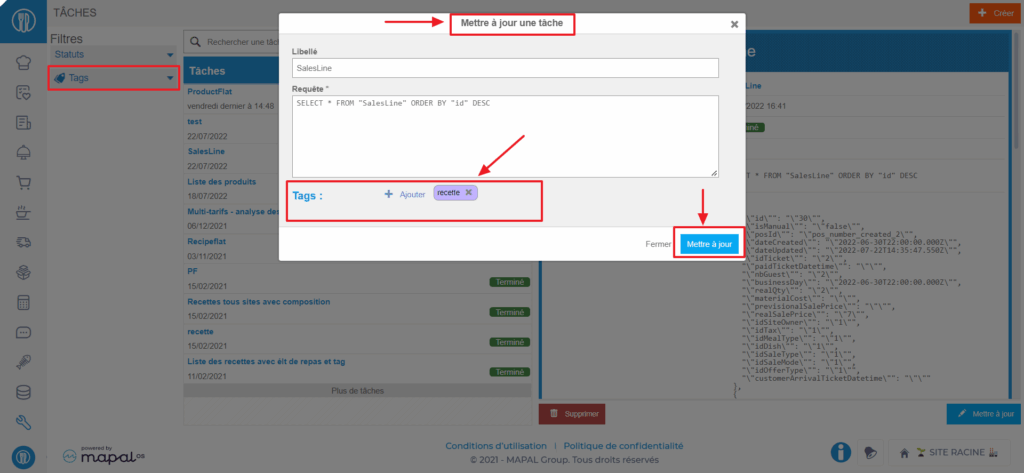
Use the "Recipes" tag to limit the visibility of certain recipes on certain sites. The tag allows you to filter the list of recipes and especially to set up catalogs to make available to sites bearing the same tag in their settings.
A site bearing the "SUMMER RECIPES" tag will only be able to see recipes from the parent site bearing this same tag. It will be able to see its local recipes in addition. This is therefore indeed a functionality allowing administrators to offer recipes adapted to this or that child site.
Tags of the "Recipes" type apply to recipe sheets from the RECIPES MANAGEMENT screen (RECIPES section) and site settings.
The "Recipe components" tags can be applied in recipe sheets, on each component line (ingredient, industrial product, sub-recipe).
Select Recipes > Recipes management.
Select the desired recipe.
On the line of the relevant component, select the + icon in the Tag column to add the desired tag.
Subsequently, they allow you to configure the editing of reports available on the Production screens (Production section) and Packaging and logistics (Shipment section), as well as order preparation, managed by Easilys, on the Order preparation screen (Menus section).
Simply use the Recipe component tags filter to tell Easilys whether or not to take into account elements bearing such and such tag, in order to edit reports or prepare orders.
Example: If you don't want to order salt and pepper every time they appear in a recipe, add the "Recipe components" "Do not buy" tag to the SALT and PEPPER ingredient. When you prepare your orders, exclude recipe components bearing the "Do not buy" tag and Easilys generates an order list without taking these two ingredients into account.
If your environment is configured for multiple languages, the multilingual icon
appears for some fields. For more information on how to use it, see the article
Use Easilys in multilingual mode
.
Start from: The Easilys menu.
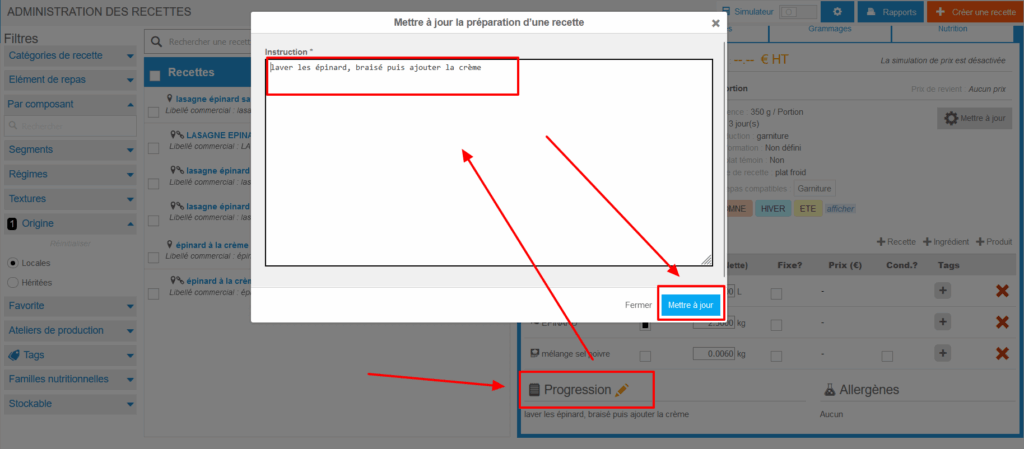
Select Recipes> Recipes management.
In the Progression section:
Select the orange pencil icon.
A pop-up window Update recipe preparation appears:
Fill in the necessary elements.
Select Update.
Duplicate a recipe
Start from: The Easilys menu.
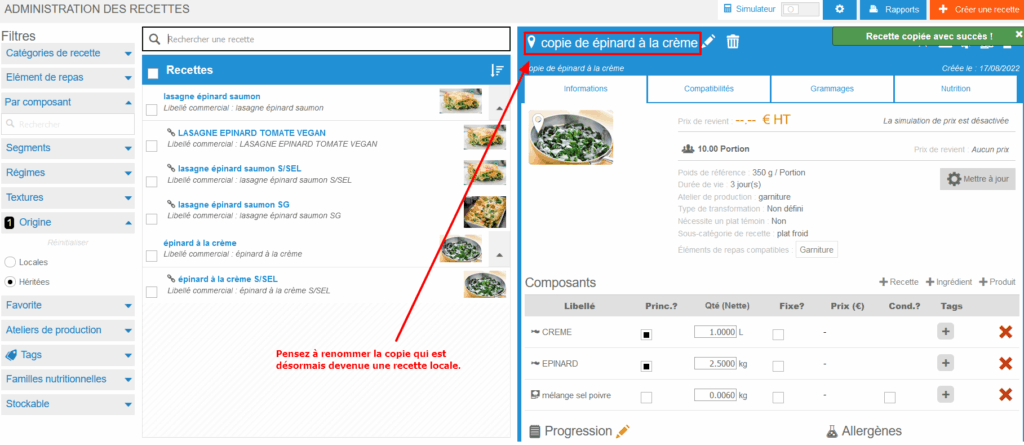
Select Recipes>Recipes management.
Select the recipe you want to duplicate.
Select the icon of two overlapping sheets, at the top right of the section.
The Duplicate window appears on the screen.
Select Duplicate.
A recipe sheet named as follows copy NAME OF THE DUPLICATED RECIPE appears:
The variations resulting from the yield rates will be applied one after the other to the remaining material.
Example case
Below, the last variation is 15%.
After it is applied, 85% of the material remains.
The second variation of 5% is then applied to this remaining 85%. We are then at 80.75%.
Finally, the first variation of 10% is applied to these 80.75%, which brings us to 72.675% of material remaining after the application of the three Smart Yield rules.
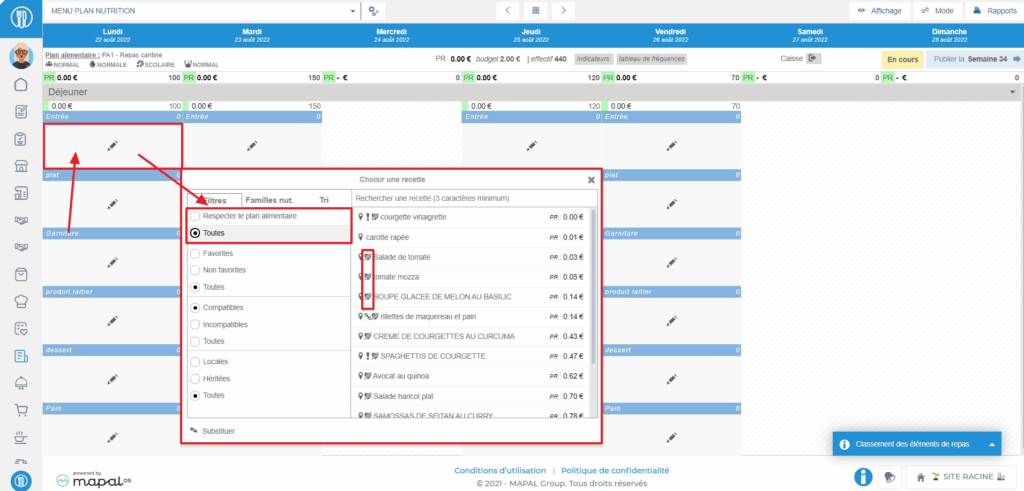
If the Ability to add dishes that do not comply with the meal plan permission is enabled on the user's profile, then they have access to the "Comply with meal plan" or "All" filter in the recipe selection window to be placed in the menu. When the filter is set to "All" and not "Comply with meal plan", recipes that do not comply with the meal plan have a crossed-out heart icon (the symbol of the MEAL PLAN screen crossed out).
Note: If you do not have the necessary permission, contact your administrator or our Support team to check if it is possible to enable the permission on your profile.
Optimize Smart Grammage rules using recipe categories
If your environment is configured for multiple languages, the multilingual icon
appears for some fields. For more information on how to use it, see the article
Use Easilys in multilingual mode
.
Start from: The Easilys menu.
Using recipe categories and subcategories
A recipe category, as its name suggests, allows you to categorize recipes, to group them together in the same group. The recipe subcategory further refines this categorization.
The benefit of this categorization is, first of all, to be able to filter your recipe list.
Example: If you are looking for a dessert recipe sheet, use the Recipe Category filter by checking only the Dessert category. You will then have, on the screen, only the recipe sheets attached to this category.
Finally, recipe categories and subcategories can be a criterion for applying a rule of Smart Selection, Smart Grammage, Smart Packaging, Smart Catalogue, or smart particularity.
Manage your recipes
Start from: The Analytics dashboard.
Navigate to Configuration > Recipes.
The Recipes screen displays a grid where you can view and manage all recipes stored in the system.
At the top of the screen, you’ll find filters to narrow down your results:
Language: Filter recipes by their language version.
Family: Group recipes by family categories.
Subfamily: Further narrow down the results within each family group.
Sale Items: Select sale items to link or review recipe associations.
After selecting your filters, relevant recipes will be displayed in the grid.
The main grid includes the following columns:
ID: Unique identifier for each recipe.
Recipe: Name of the recipe.
Main: Indicates which recipe is the main one within a set. Only one recipe can be marked as primary.
Recipe by Groups: Organises recipes by category or sales group if applicable.
At the bottom, you can adjust how many records display per page with the Records per page dropdown.
Add a recipe
To add a new recipe, select Add New underneath the table.
Note: You must have selected a Sale Item to add a new recipe.
Populate the text field with the name of your new recipe.
Select Save. The new recipe will now appear on the list, where you can Edit it, add Details, or Delete it.
Configure recipe details
Select Details on the recipe’s row.
Select a date to create a new record.
The Raw Materials grid will open. Select Add New to start adding the ingredients and respective quantities.
Select Save. The Recipe details will now be updated.
Edit / Delete recipe
To edit an existing recipe, select Edit in its row and modify the required fields.
To remove a recipe, select Delete in its row and press Accept in the confirmation window.
Note: The Recipes grid will update dynamically based on selected filters and the database of available recipes in your organisation.
src="src="src="src="src="src="
Optimise Smart Selection rules through recipe categories and sub-categories
Start from: The Easilys menu.
A recipe category, as its name suggests, allows you to categorize recipes, grouping them together in the same group. The recipe sub-category further refines this categorization.
The advantage of this categorization is, first of all, that you can filter your recipe list. Looking for a dessert recipe? Well, use the "Recipe category" filter, checking only the "DESSERT" category. You will then see only the recipes in this category.
There's a second, much more interesting interest! Recipe categories and sub-categories can be a criterion for applying a Smart Selection, Smart Grammage, Smart Packaging or Smart Catalogue rule.