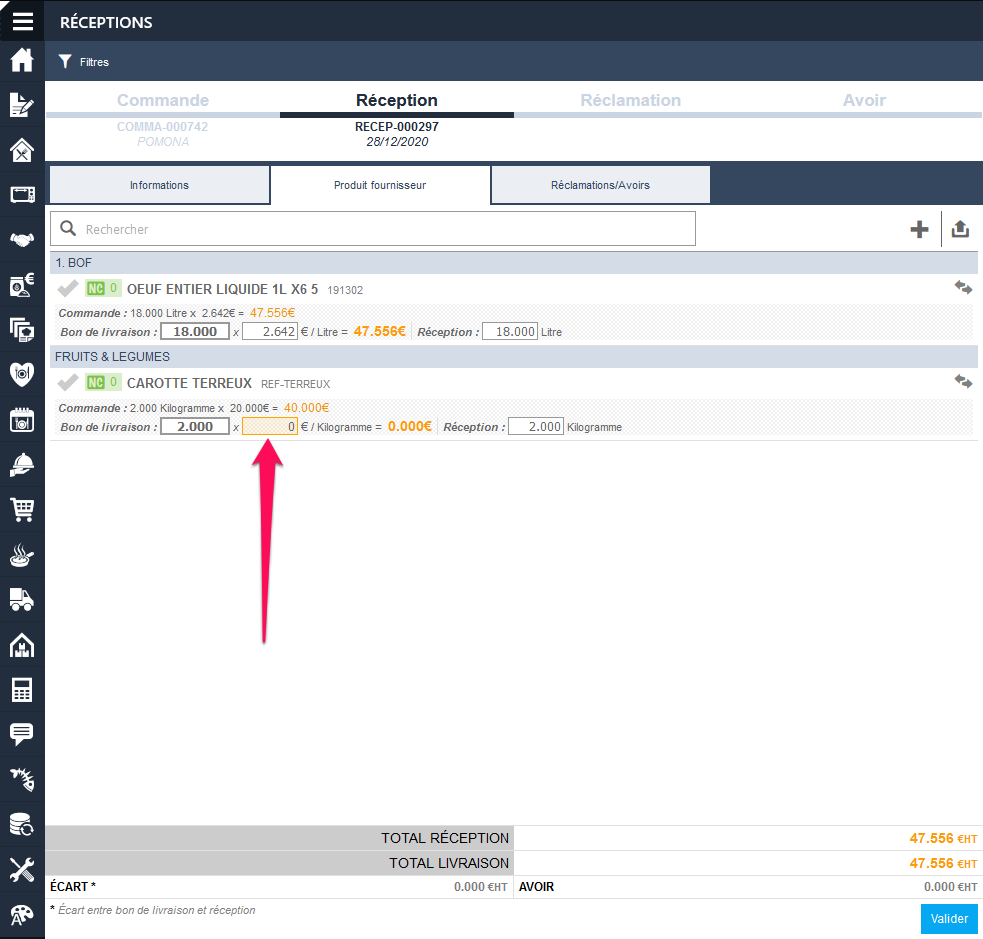
Case #1: The entire delivered quantity of the product is free.
In the Delivery note section, select the correct delivery note:
Change the rate to zero.
Case #2: Part of the delivered quantity of the product is free
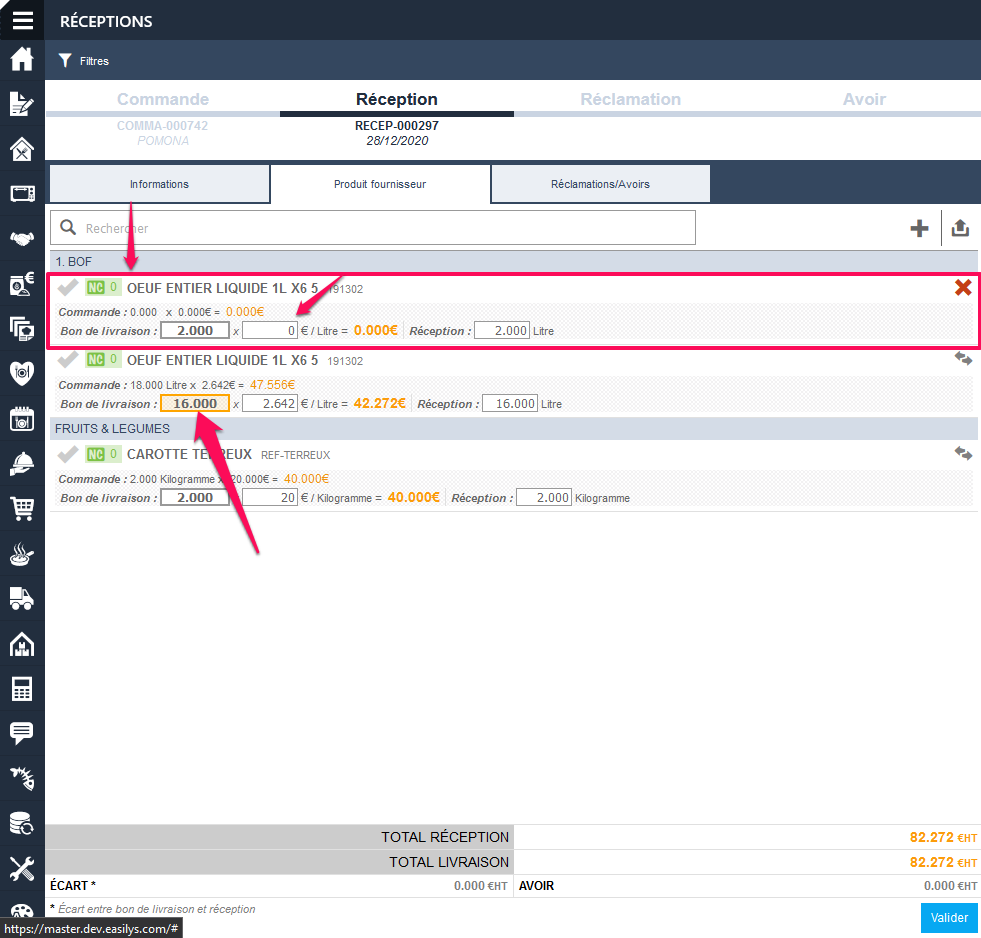
In this scenario, you need to add the product again in the delivery note to have two receipt lines:
Select the + icon to the right of the delivery note search bar.
Select the product for which part of the ordered quantity is free.
Indicate the quantity concerned by the free item.
The product is added to the delivery note. This addition is highlighted, as this new line can be deleted with the red cross.
In the Delivery note section:
Change the rate of this new line to zero.
Note: Finally, remember to change the quantity on the other line of the product to indicate the quantity not concerned by the free item.
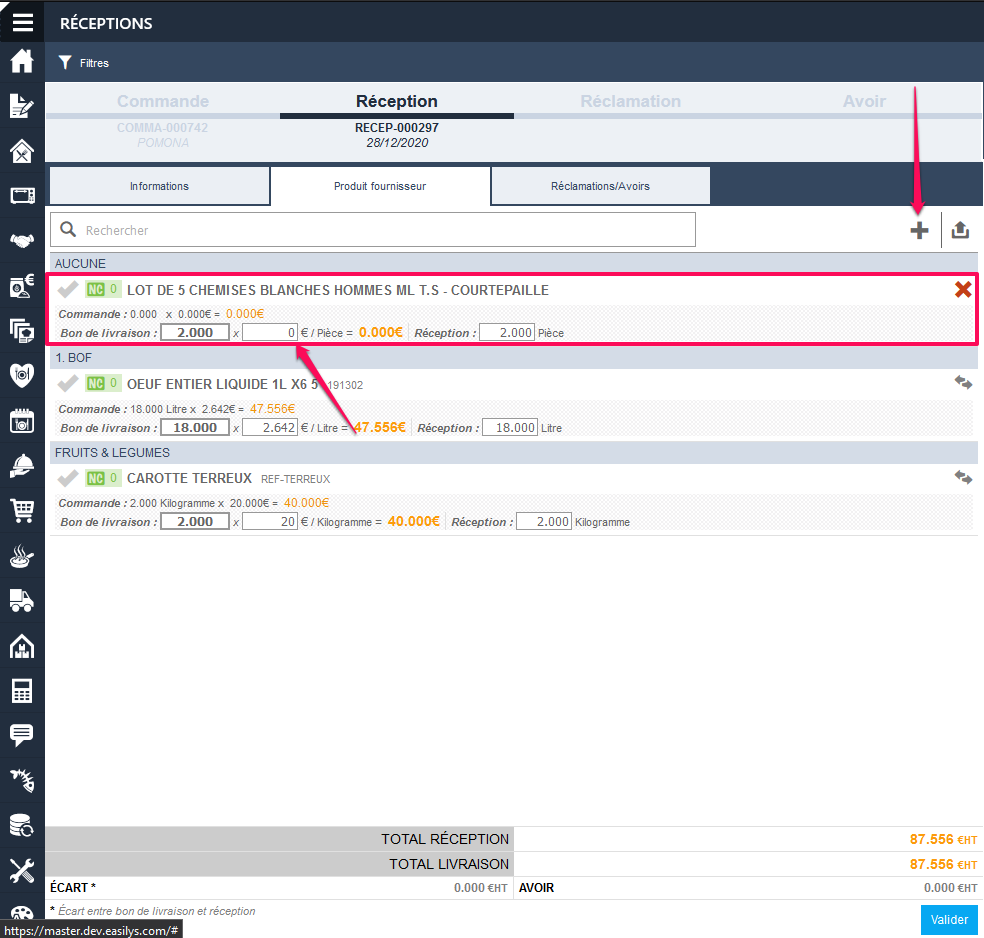
Case #3: An unordered product was offered
In this case, simply click on the + to the right of the delivery note search bar to add the product. Then, simply change the rate to zero in the Delivery note section.
Ensure that the modification of a price list product impacts the stock
To ensure that changes made to a product in the price list, such as unit changes, affect the stock, follow these steps:
Access the Settings and navigate to the Inventory section.
Ensure that the product is correctly linked to the stock management system.
Verify that the Unit settings are consistent across both the price list and the stock system.
Save the changes and monitor the stock levels to confirm the update has been applied.
For further assistance, contact your system administrator or refer to the user manual.
Fifo - stock valuation
BUSINESS NEEDS
The principle of FIFO (First In, First Out) is very simple: products from the first batch entered into stock are the first to be taken out. Stock removals are therefore carried out in the same sequence as product arrivals. The next batch will only be started once the previous batch has been used up. The FIFO method is used for Stock valuation.
(1) Calculation of theoretical PU: stock amount / stock quantity
GENERAL
Setting
The stock valuation method is determined from the Site Parameters screen. It is only possible to change the valuation method after an inventory has been closed and before any product movement. Note that after the changeover from PMP to FIFO, stock removals previously carried out in PMP will be processed in PMP (without distribution in FIFO).
Manage the storage areas from the stock
If your environment is configured for multiple languages, the multilingual icon appears for some fields. For more information on how to use it, see the article Use Easilys in multilingual mode .
Note: At least one product must already be in stock before you can start creating, modifying, attaching or deleting storage zones from stock.
Start from: the Easilys menu
ENTER THE STORAGE AREA OF A PRODUCT
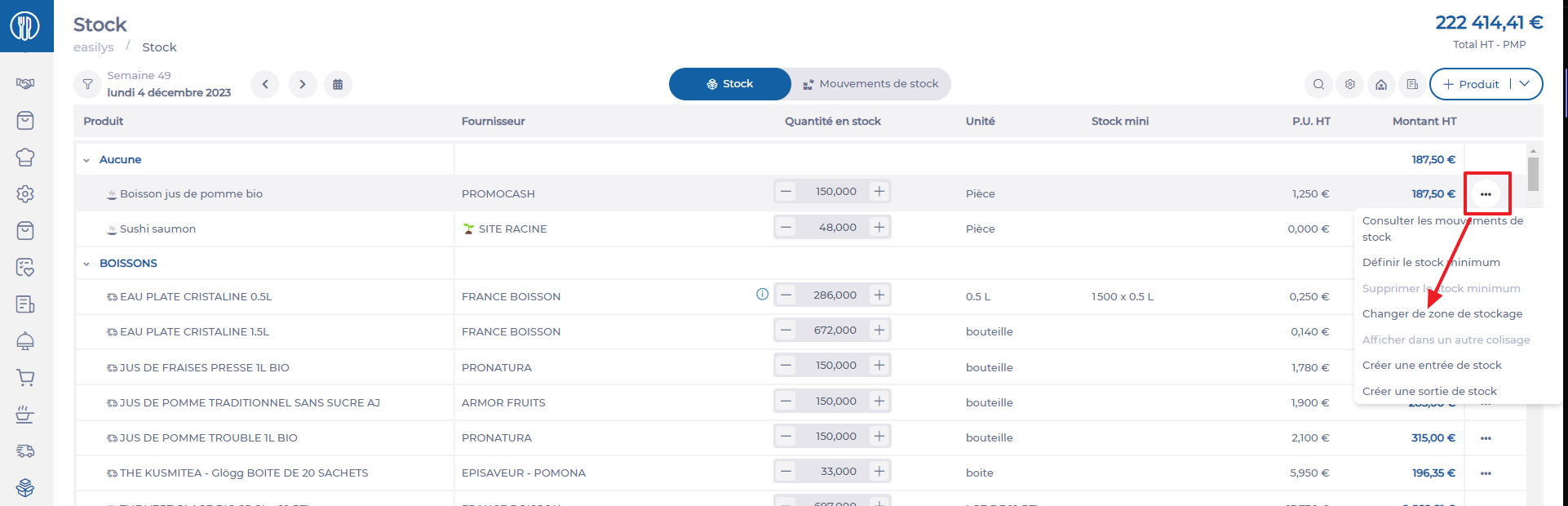
Select the Stock > Stock tabs.
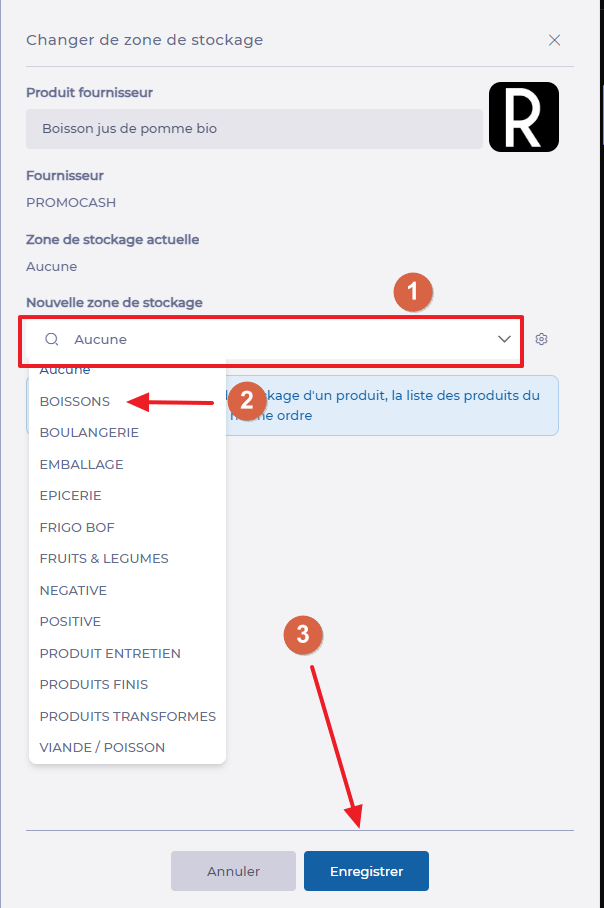
Select the three dots at the end of the product line, then select Changer de zone de stockage (Change storage zone).
The "Changer de zone de stockage" (Change storage zone) window appears on the screen. Select the new product storage area, then select Enregistrer (Save).
The product is now attached to the selected storage area. After an order, receipt or manual entry, you will always find it in this storage area.
MANAGE STORAGE AREAS
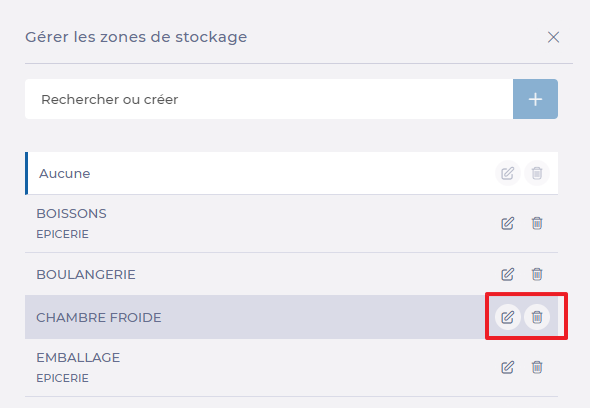
Select the cogwheel from the "Changer de zone de stockage" (Change storage area) window.
Create a new storage zone by entering the name of the new zone in the search bar, then click on + and confirm by selecting the diskette.
Modify a storage area as required, by selecting the pencil to the right of the desired area.
Delete a storage area as required by selecting the trash can to the right of the desired area.
A storage area cannot be deleted if it is still a product storage area.
Perform a stock transfer
Note: Each action performed on the application is subject to a fee. If you are unable to carry out the recommended actions in the articles you are viewing, this may mean that the necessary rights have not been activated for your user profile. Contact the Support team, or your administrator, to find out more.
Start from: The Easilys menu.
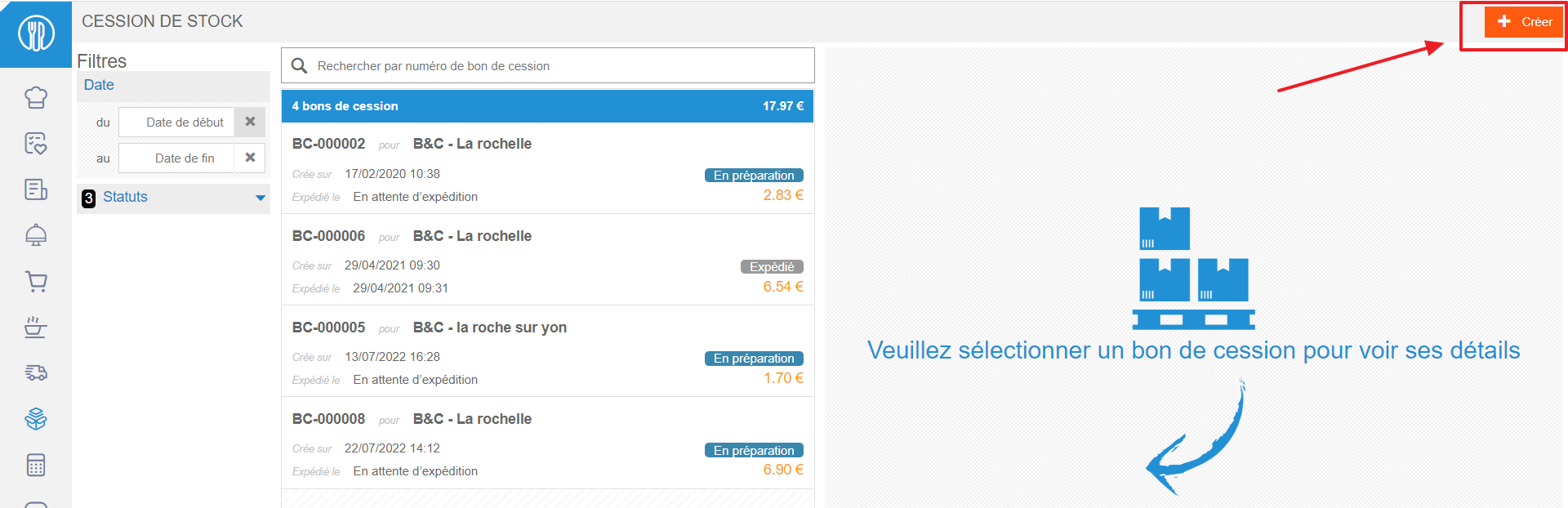
Select Stock > Stock transfer.
Select +Create at the top right of the screen.
A new stock note appears on the right-hand side of the screen.
Select the destination site for the stock transfer.
Note: To view destination sites, the transfer tag must be present on both the transferring and receiving sites.
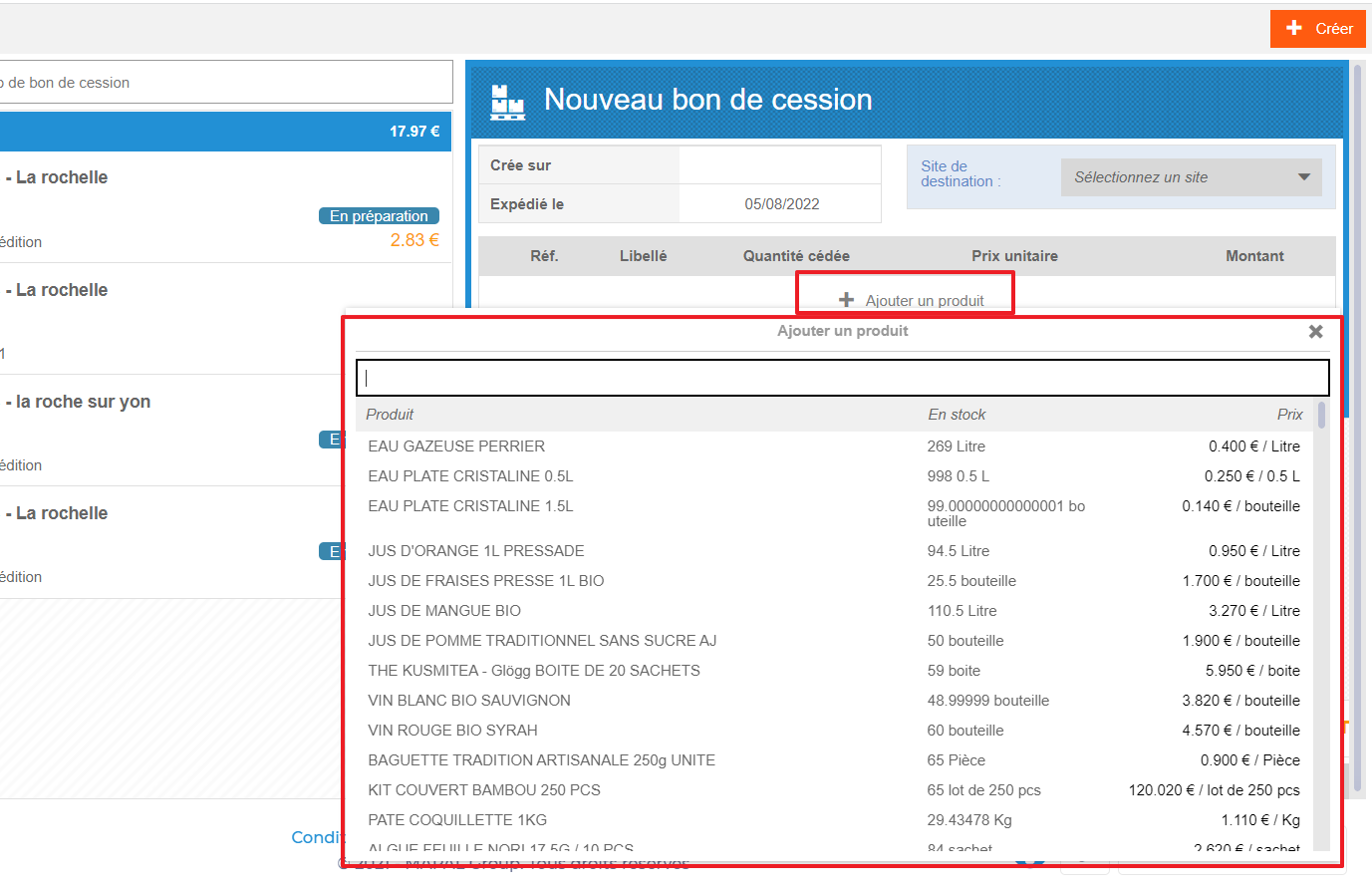
Select + Add a product to search for the item you wish to sell.
In this way, only products currently in stock on the site appear in the list.
Indicate the quantity you wish to transfer in the Qty transferred box.
Modify the unit price if necessary.
Add a comment if necessary.
Select Save at the bottom of the stock note.
The transfer note is created. It appears in the list of available transfer notes on the left of the screen.
Select Dispatch to finalize the stock transfer.
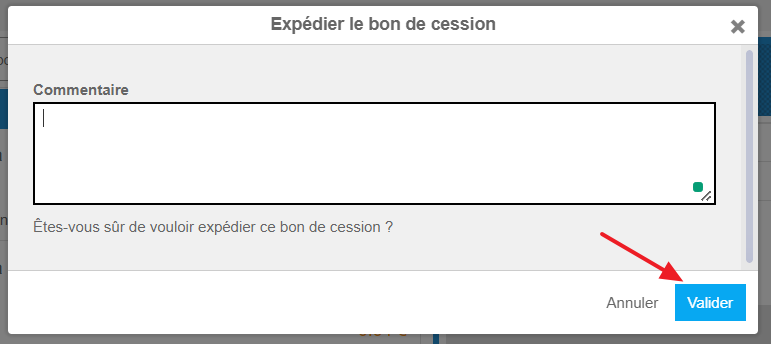
The Send the transfer order window appears.
Add a comment if necessary.
Select Validate.
The products included in the stock transfer note are then removed from the stock of the site transferring them.
A credit invoice is created on the seller's site. On the destination site, a reception note is created with the status In progress.
Validate the receipt when you actually receive the products.
Products go into stock.
Enable the ability to send pre-orders to a supplier
Start from: The Easilys menu.
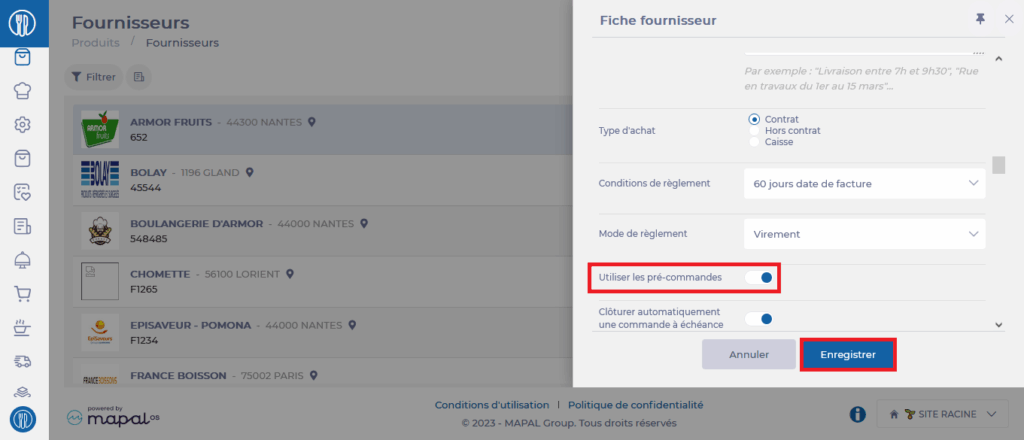
Sending pre-orders is not available by default. It is necessary to enable an option on the supplier record for which you want to be able to send pre-orders.
Select Products>Suppliers.
Select the supplier for which you want to view the information record.
Select Edit at the bottom of the supplier record.
In the "ORDERS" section of the record, enable the Use pre-orders option.
Select Save to confirm the modification.
Warning: if the status does not return to Edit after selecting Save, this means that the application was unable to save your modifications.
This most likely comes from the fact that essential information is missing from your supplier record and the application is asking you to complete it before being able to save. A red indication will show you what information is missing. Generally, this involves a missing email address or generated coordinate fields that are empty (you can complete them or delete them).
You have the possibility to adjust your pre-order by modifying it until the pre-order deadline which is the last available date before exceeding the order deadline.
For example, with an order deadline of A for C, I can modify my pre-order up to three days before the delivery date. This information is indicated in the pre-order slip.
Warning: sending an order just before the deadline closes will not be processed as a pre-order, but as a final order.
Quickly create a missing supplier product to add to an order
If your environment is configured for multiple languages, the multilingual icon appears for some fields. For more information on how to use it, see the article Use Easilys in multilingual mode .
Start from: The Easilys menu.
Usually, creating a supplier product is done from the price lists or product administration. To learn more, see the article Create a product.
However, there is a simpler and faster creation method that we will see in this tutorial, but this one is therefore less complete.
To complete all the information, it is necessary to go through the price lists to update the elements.
ATTENTION: creating a product in a simplified way is subject to a specific permission to be activated if needed, at the level of the profile settings defined for the user concerned. If this permission is not activated, do not hesitate to contact us). To learn more, see the article Modify product information: units, labels, origins, VAT, etc.
Before creating a product, make sure it doesn't already exist. You would risk multiplying duplicates otherwise. These duplicates will impact orders and stock since you will have multiple lines for the same product.
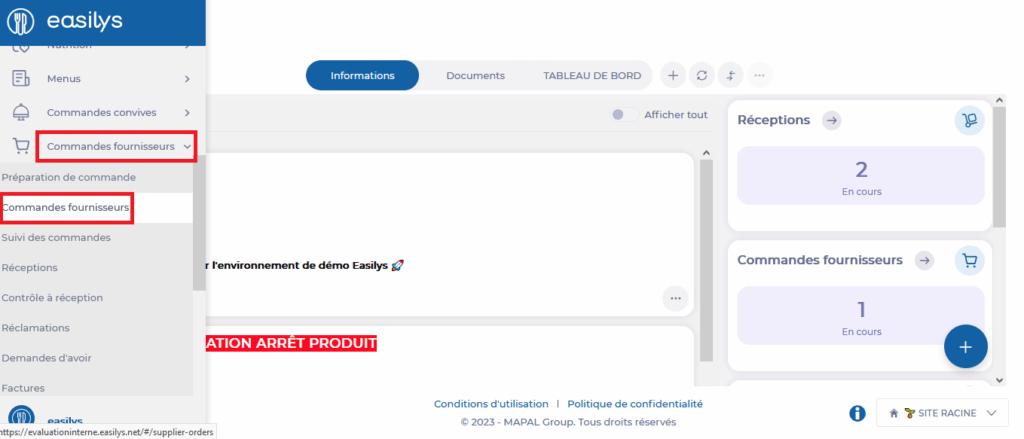
Select the tabs Supplier orders> Supplier orders.
In the search bar, search for "ZZZZZ" (this allows you to view no products in the list and therefore see the button simply) or scroll through the list of orderable products to the bottom to see "Create a supplier product".
Select Create a supplier product.
Note: you can also perform this quick creation from the details of a purchase order being prepared. The orange button is also found in the list of possible supplier products to add to the order.
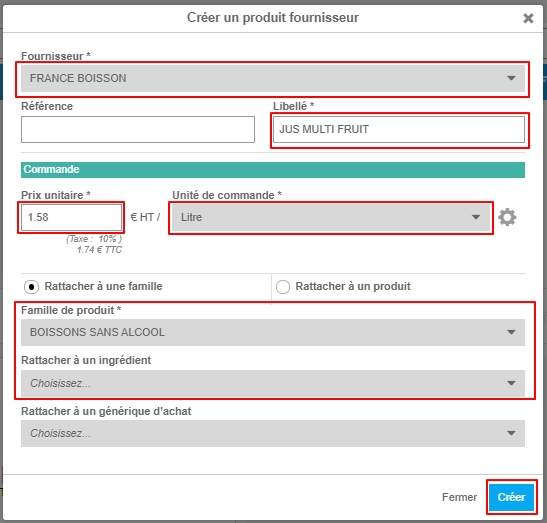
The "Create a supplier product" window appears on the screen.
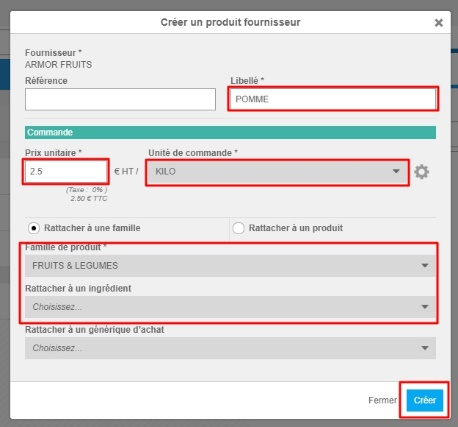
Complete the requested information. Those followed by an asterisk are mandatory.
"Link to an ingredient" is not mandatory to create the product, but if you use recipes and menus on Easilys we strongly recommend making the link.
Select Create.
You can now search for the supplier product in the product list to add it to your purchase order.
To complete all the information, it is necessary to go through the price lists to update the elements.
If your environment is configured for multiple languages, the multilingual icon appears for some fields. For more information on how to use it, see the article Use Easilys in multilingual mode .
Start from: The Easilys menu.
Creating a supplier product normally happens from the price lists or product administration. To learn more, see the article Create a product.
However, there is a simpler and faster creation method that we will see in this tutorial, but this one is therefore less complete.
To complete all the information, it is necessary to go through the price lists to update the elements.
ATTENTION: Creating a product in a simplified way is subject to a particular permission to be activated if needed, at the level of the profile settings defined for the user concerned. If this permission is not activated, do not hesitate to contact us.
Before creating a product, make sure that it does not already exist. You would risk multiplying duplicates otherwise. These duplicates will impact orders and stock since you will have multiple lines for the same product.
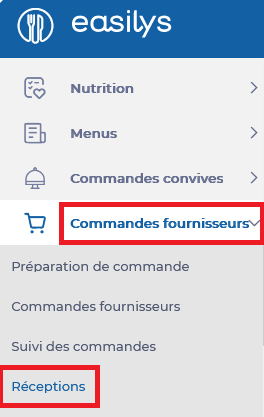
Select the tabs Supplier orders > Receptions.
Select a reception in "In progress" status.
The reception slip details are displayed on the right side of the screen.
Select "+" in the reception.
A list of supplier products is displayed on the screen.
Ignore the existing products, select Create at the bottom of the list.
The "Create a supplier product" window is displayed on the screen.
Complete the requested information. Those followed by an asterisk are mandatory.
Select Create.
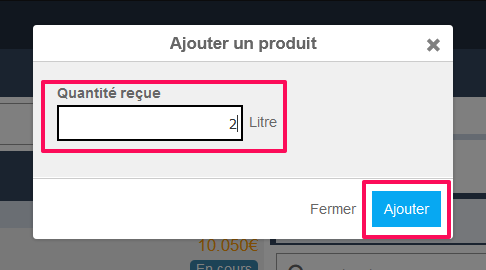
The "Add a product" window automatically appears on the screen.
Indicate a quantity and select Add if you need to add this supplier product to the reception slip. Otherwise, select Close.
The weighted average cost is an accounting concept used to determine the average value of stock.
The WAC is calculated with each stock entry movement. The calculation is as follows: ((Incoming qty * Unit price in) + (Qty in stock before movement * WAC)) / Qty in stock after movement.
Note: the stock valuation for a product using WAC: quantity x WAC unit price may differ from the displayed amount or the amount calculated manually due to rounding to the third decimal place (e.g., a unit price of €2.3125 rounded to €2.313 impacts the valuation).
GENERAL INFORMATION
Settings
The stock valuation method is determined from the Profile > Site parameters.
It is only possible to change the valuation method after closing an inventory and before any product movement (entries, exits).
Note that after changing from WAC to FIFO, stock outputs previously made under WAC will be processed as WAC (without allocation to FIFO).
Substitute recipes in your menus
Start from: The Easilys menu.
Do you need to replace one recipe with another for a specific period in your menus? Rather than making manual changes over several days, use the recipe substitution system!
You can define the period during which a recipe should be replaced by another and Easilys will make the changes for you. This saves time, especially when you do not know exactly where the recipe appears during the period.
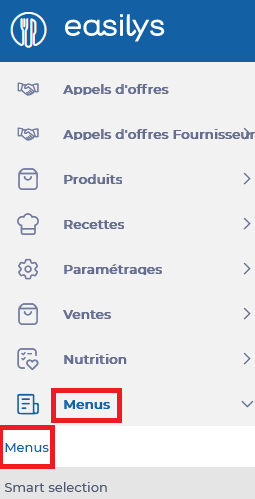
Select the Menus > Menus tabs.
Select the menu template on which you want to perform a recipe substitution.
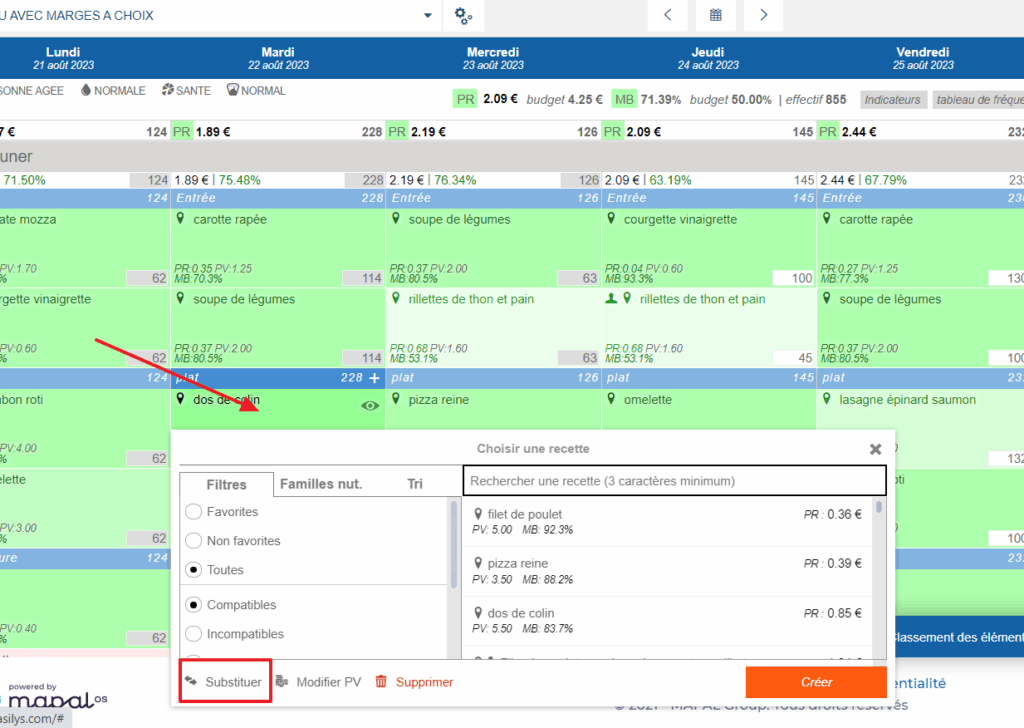
Select a menu box containing the recipe to be substituted for a specific period of time.
The small recipe selection window will then appear on the screen.
On the left side of this window, scroll down to see the different options available to you under the filters.
Select Substitute.
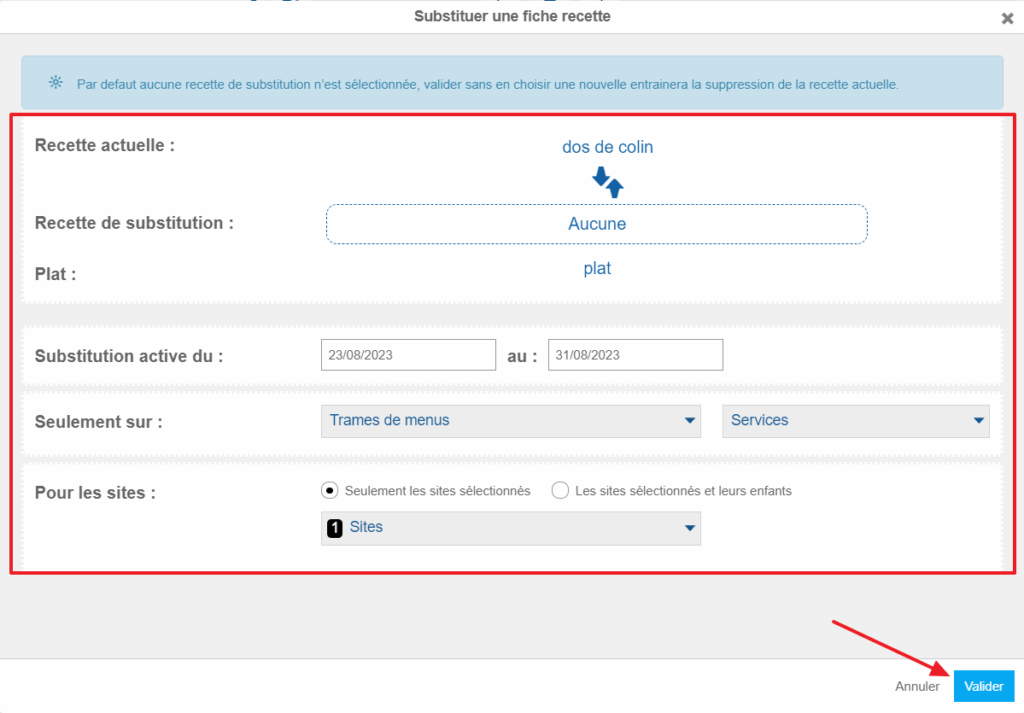
The “Substitute a recipe sheet” window will then appear on the screen.
In the “Current recipe” section, make sure you find the name of the recipe you want to substitute with another.
In the “Substitution recipe” section, select the box to set the recipe of your choice.
Then indicate the period during which the substitution should be effective. You can also indicate to Easilys if the substitution should be made on different menu templates or different sites if you work in multi-site.
Select Validate.
A green message at the top right of the screen will indicate the number of recipes that have been substituted during the period.