Set up new training structures
Start from: The Flow Learning Dashboard.
Training Structures
Training Structures enable you to define specific sets of training content tailored to different job roles within your organisation. These structures can include various learning items such as online modules, external training, appraisals, workbooks, and competencies. Training structures ensure that each learner receives the appropriate training content based on their job role, and they automatically assign relevant items whenever a learner is created, changes their job role, or moves to a different branch. This tool helps streamline the training process, ensuring consistency and relevance in employee development.
Set up new training structures
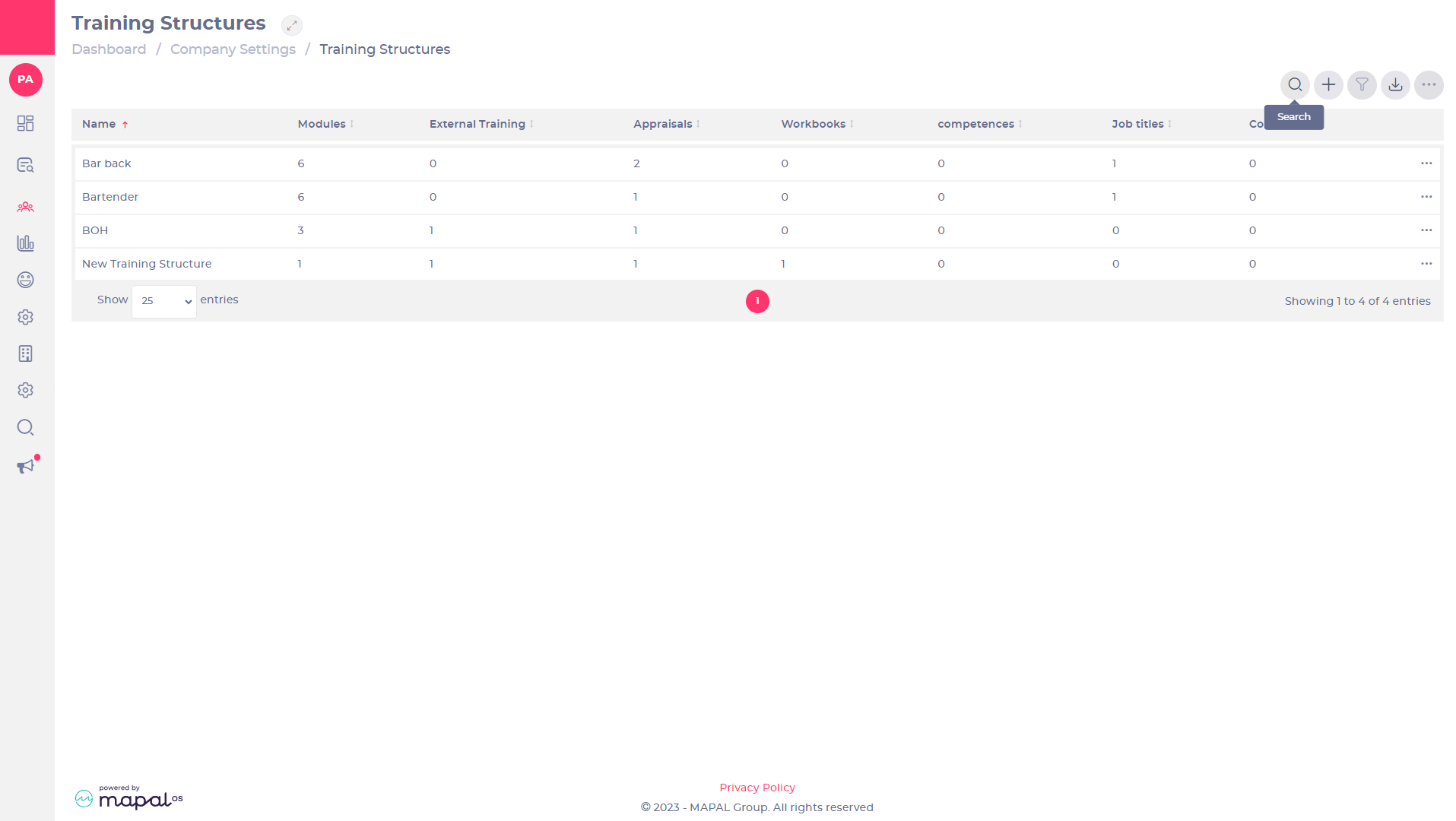
- Select Company > Training Structures from the main menu.
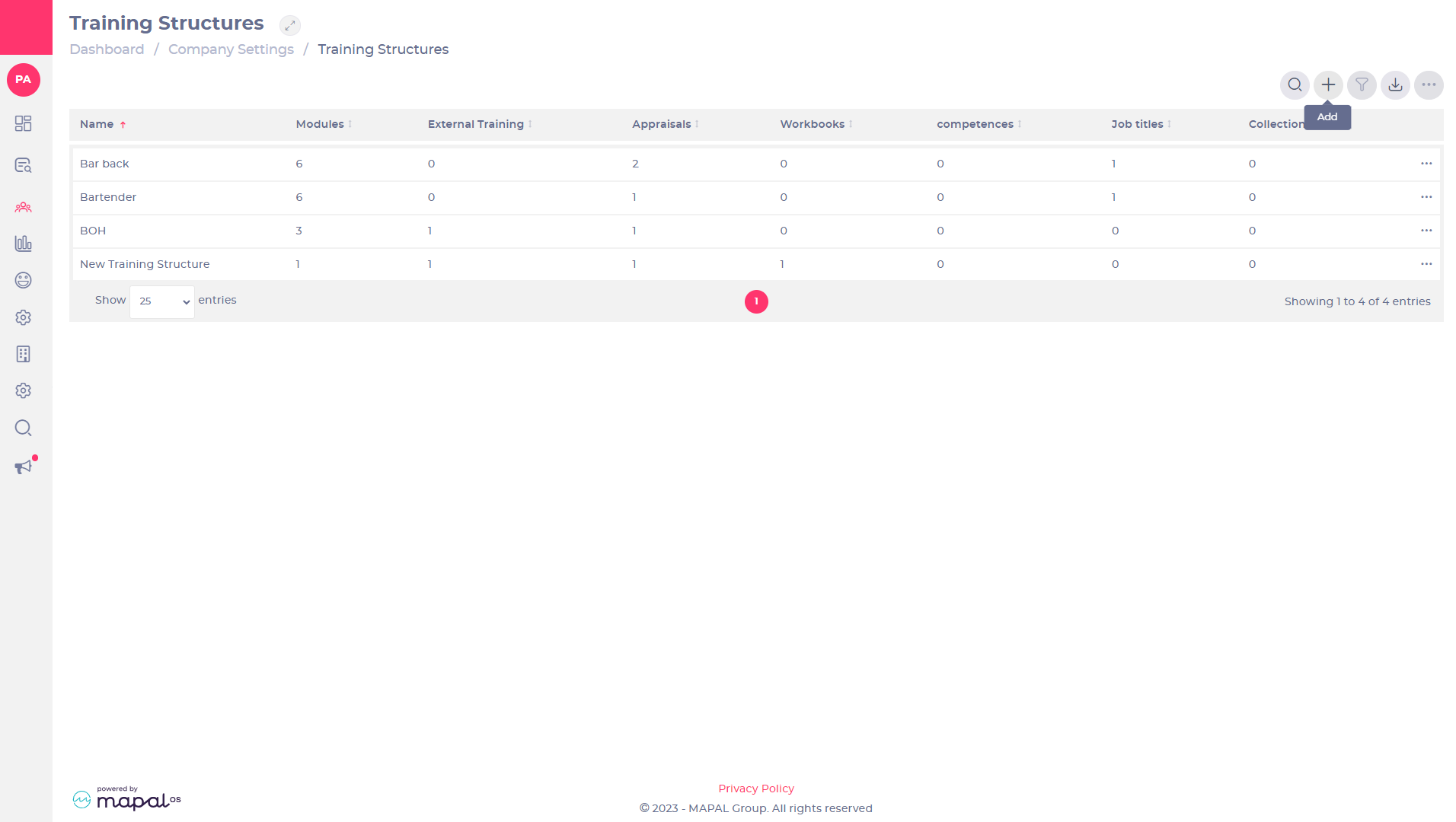
- Create a new training structure by selecting Add at the top of the Training Structures list. Alternatively, clone an existing training structure using the menu on a list entry > Clone.
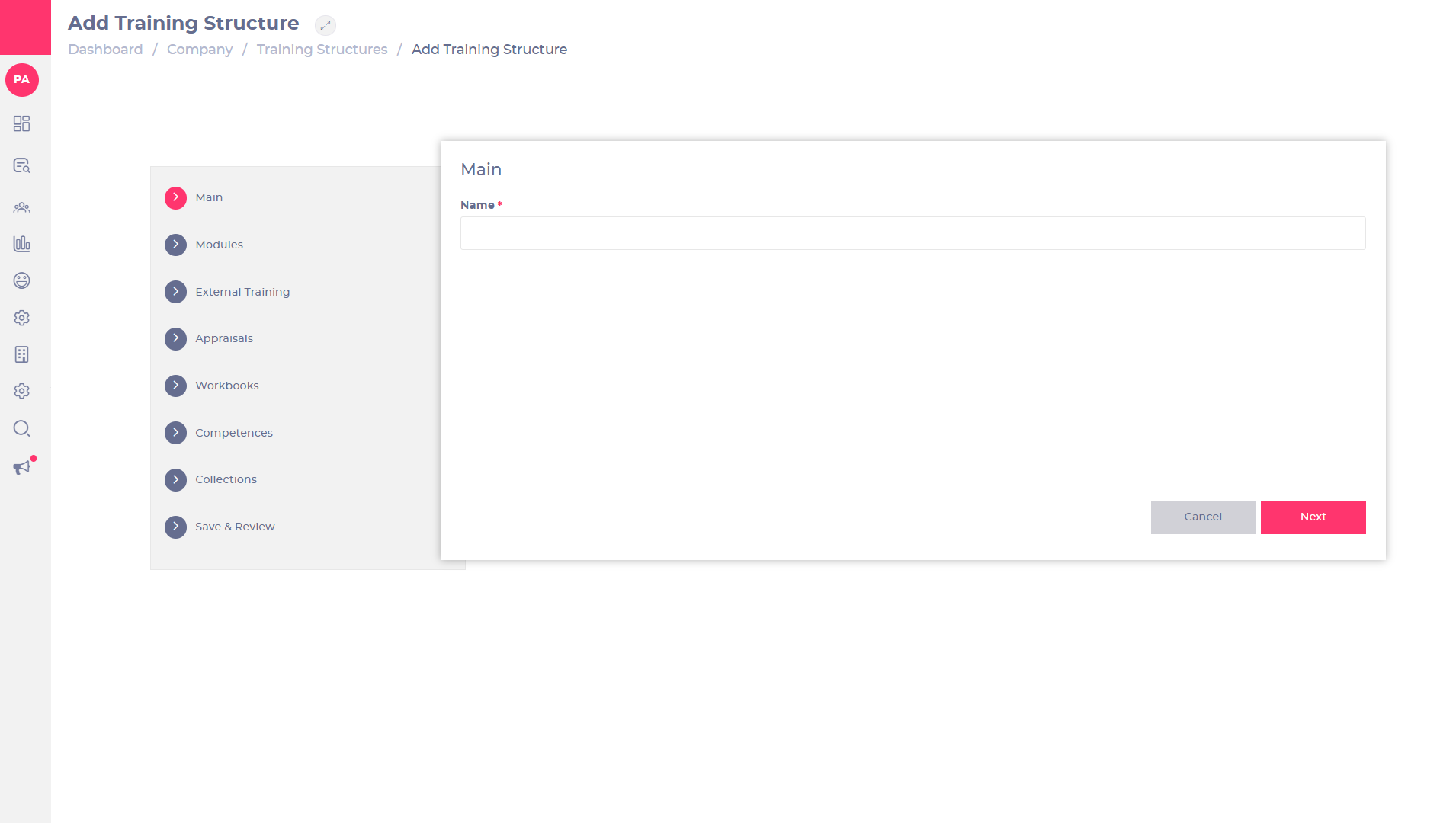
- Configure the sections in the Add Training Structure page by selecting the section links. The sections can be configured in any order.
- Use Next, Previous, and Cancel at the bottom of each section to navigate the training structure or cancel the process and return to the Training Structures list.
How Due Dates Are Calculated
Due dates for training items in a structure are determined based on the following criteria:
- If the learner has a start date: The due date will be calculated from the learner’s start date.
- If the learner does not have a start date: The due date will be calculated from the "Added to system" date. This ensures that all assigned training items have a defined timeline, even if the start date is not provided.
This calculation method ensures that due dates are consistently aligned with each learner’s timeline and circumstances.
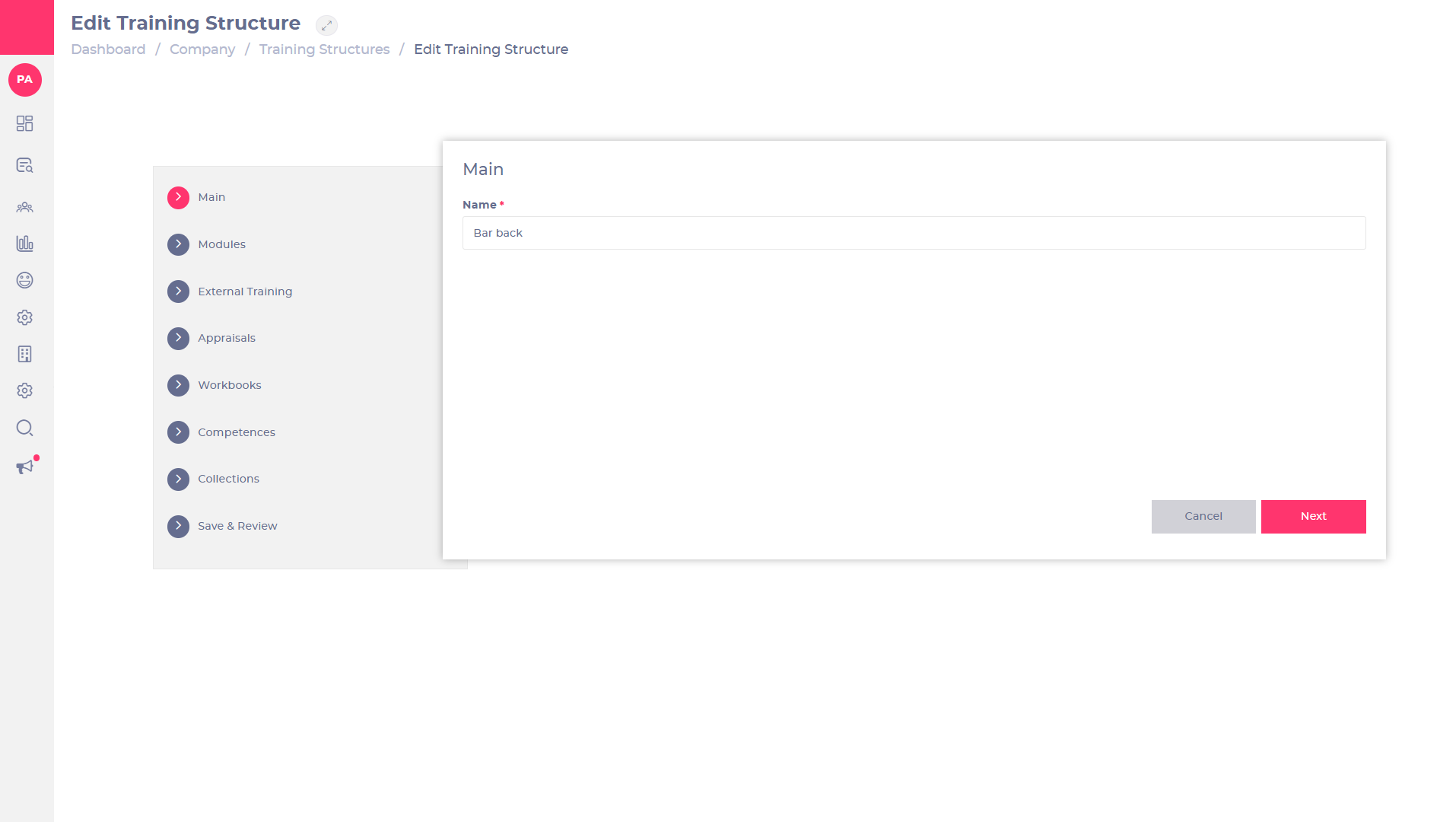
Main
- Enter the name of your new training structure in the Name field.
Modules
Selection
Use the search bar or scroll through the list to find modules. Drag modules to the Selected list to add them to the training structure. Drag modules back to the Available list to remove them from the training structure.
Select individual items in the Selected list and use the fields to set availability and due dates for that item:
- Can start after
Set the delay in days from a learner’s start date before this training structure item will be available to them.
Notes: If you use this field, you must also take it into account when setting the due dates. For example, if you want a learner to start after 7 days and complete the item within 30 days from that point, you need to enter 37 days as the due date (7 + 30).
- Due days from Launch date
Set the number of days allowed to complete this item after a new customer’s launch date. This only applies to new customers and has no effect on customers who have already launched.
- Due Days for New Learners
Set the number of days allowed to complete this item after new learners are assigned the item by the training structure.
- Due days for Existing Learners
Set the number of days allowed to complete this item after existing learners are assigned the item by the training structure.
- Available to
- All Learners: Make this item available to both new and existing learners.
- New Learners: Make this item available only to new learners that are added after the training structure is created.
- Existing Learners: Make this item available only to learners who already exist when the training structure is created.
Restrictions
Allows items to be included or excluded from the training structure depending on a learner’s branding or jurisdiction. Find out more about restrictions.
External Training
Selection
Use the search bar or scroll through the list to find external training items. Drag items to the Selected list to add them to the training structure. Drag items back to the Available list to remove them from the training structure.
Select individual items in the Selected list and use the fields to set availability and due dates for that item:
- Due Days for New Learners
Set the number of days allowed to complete this item after new learners are assigned the item by the training structure.
- Due days for Existing Learners
Set the number of days allowed to complete this item after existing learners are assigned the item by the training structure.
- Available to
- All Learners: Make this item available to both new and existing learners.
- New Learners: Make this item available only to new learners, added after the training structure is created.
- Existing Learners: Make this item available only to learners who already exist when the training structure is created.
Restrictions
Allows items to be included or excluded from the training structure depending on a learner’s branding or jurisdiction. Find out more about restrictions.
Appraisals
Selection
Use the search bar or scroll through the list to find appraisals. Drag items to the Selected list to add them to the training structure. Drag items back to the Available list to remove them from the training structure.
Select individual items in the ‘Selected’ list and use the fields to set availability and due dates for that item:
- Due in
Set the number of days the learner has to complete this item.
- Available to
- All Learners: Make this item available to both new and existing learners.
- New Learners: Make this item available only to new learners, added after the training structure is created.
- Existing Learners: Make this item available only to learners who already exist when the training structure is created.
Restrictions
Allows items to be included or excluded from the training structure depending on a learner’s branding or jurisdiction. Find out more about restrictions.
Workbooks
Selection
Use the search bar or scroll through the list to find workbooks. Drag items to the Selected list to add them to the training structure. Drag items back to the Available list to remove them from the training structure.
Select individual items in the ‘Selected’ list and use the fields to set availability and due dates for that item:
- Due in
Set the number of days before this item is assigned by the training structure.
- Available to
- All Learners: Make this item available to both new and existing learners.
- New Learners: Make this item available only to new learners, added after the training structure is created.
- Existing Learners: Make this item available only to learners who already exist when the training structure is created.
Restrictions
Allows items to be included or excluded from the training structure depending on a learner’s branding or jurisdiction. Find out more about restrictions.
Competences
Selection
Use the Add Another button to add a Competence to the training structure. You can add as many as necessary.
Use the first two dropdown lists in each entry to select a Competence List, and a Competence from that list.
Set the due date and availability using the remaining fields and dropdown list:
- Due days for new trainees
The number of days allowed to complete this item after new learners are assigned the item by the training structure.
- Due days for existing trainees
The number of days allowed to complete this item after existing learners are assigned the item by the training structure. Existing learners may need to complete training from a new straining structure due to, for example, a change in job title.
- Available to
- All Learners: The item will be available to both new and existing learners.
- New Learners: The item will be available only to new learners, added after the training structure is created.
- Existing Learners: The item will be available only to learners who exist when the training structure is created.
Restrictions
Allows items to be included or excluded from the training structure depending on a learner’s branding or jurisdiction. Find out more about restrictions.
Restrictions
Each section allows restrictions to be added, which define items to be included or excluded from the training structure depending on a learner’s branding or jurisdiction.
- Use Add Another to add a restriction. You can add as many as necessary.
- Check the box in the Exclude column to exclude the item when a learner’s if Condition column parameter matches the Value column OR uncheck the box to only include the item when their if Condition column parameter matches the Value column.
- Select the item to be restricted using the dropdown list in the Module, External training, Appraisal, Workbook or Competence column.
- Select either a branding or jurisdiction from the if Condition column to test that parameter for the restriction.
- Check the box in the Matches column to restrict the item if the branding or jurisdiction matches the selection in the Value column OR uncheck the box to restrict the item if the selection does not match.
- Use to remove the restriction.
Save & Review
Selecting this section will save the training structure.
If it’s a new training structure, this will make it available in the training structure s list. You will be prompted to enter a name in the Main section if you haven’t already.
If there are errors in any of the configuration sections, these sections will be highlighted and no changes will be saved until the errors are corrected.
Setting parameters in the Training Structure order and Branch dropdown lists will update the preview area below to show the items that will be available to the relevant learners.
- Training Structure order
- Select New Learners from the dropdown list to show which items in the training structure will be available to learners added after the training structure is created.
- Select Existing Learners from the dropdown list to show which items in the training structure will be available to learners who already exist when the training structure is created.
- Branch
- Select a branch from the dropdown list to show items in the training structure that will be available to learners attached to that branch.
- Select Save & Close to save the training structure and return to the Training Structures list.
Once you have used the Save & Review section to correct any errors and reviewed the content that the training structure will assign to learners, select Save & Close to save the training structure and return to the Training Structures list.
Training structure assignments
Items in a training structure are not assigned immediately when the training structure is created or changed.
Assignments will happen for any learners matching the configuration settings, whenever that learner is created, changes job role, or moves branch.
If an end date is removed from a learner (this is commonly the case when employees are re-hired) and there are new learning items in the Training Structure they are assigned to, these will automatically be issued to the learner.
To assign a Training Structure:
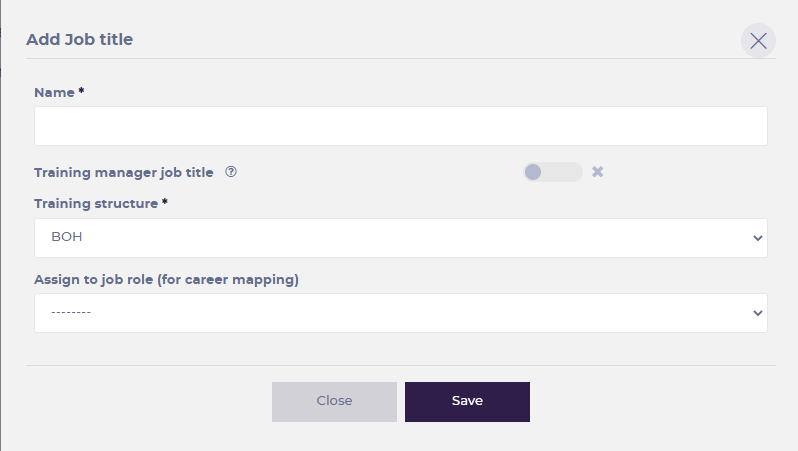
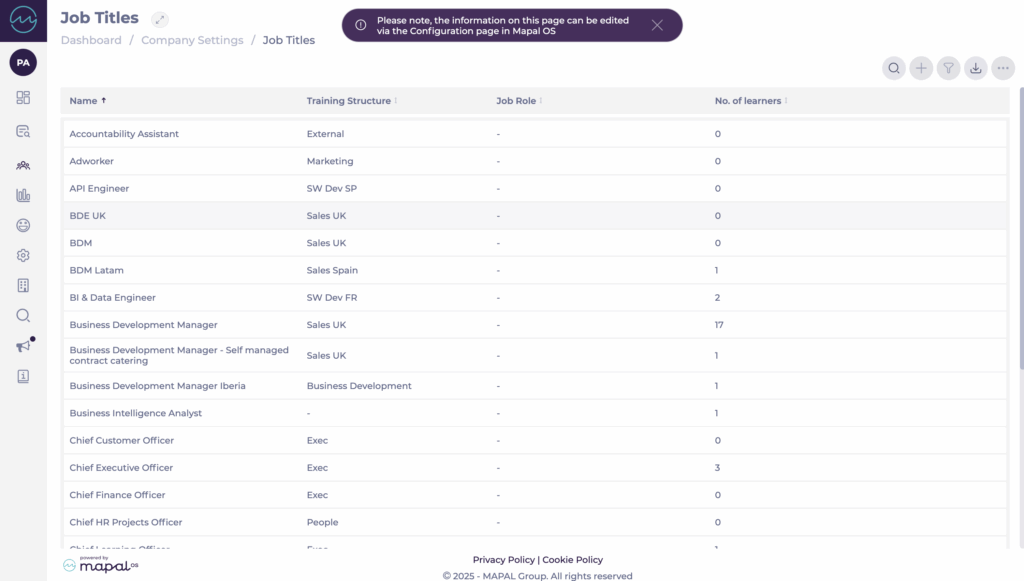
- Navigate to Company > Job Titles.
- Select the specific Job Title you want to assign the Training Structure to OR create a new job title.
- Select the specific structure from the Training Structure dropdown.
- Select Save.


 to add a new training structure. See
 to open the Restrictions panel.
 to remove the restriction.
 to create a group of learners based on categories such as Branch or Job Title.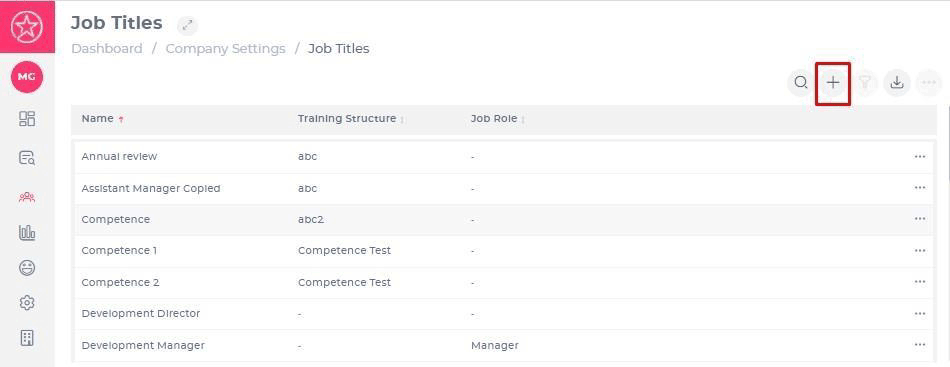
 to find the training structure you want to edit.
 > Edit
  on a training structure to open the Edit Training Structure page.