Manage GIR users

Start from: The Configuration module.

Manage users through Mapal OS

For Companies in Mapal OS, you must manage users in the Mapal OS Settings module.

Note: if you're not sure whether you are on Mapal OS, contact your customer success manager.

Manage users through GIR

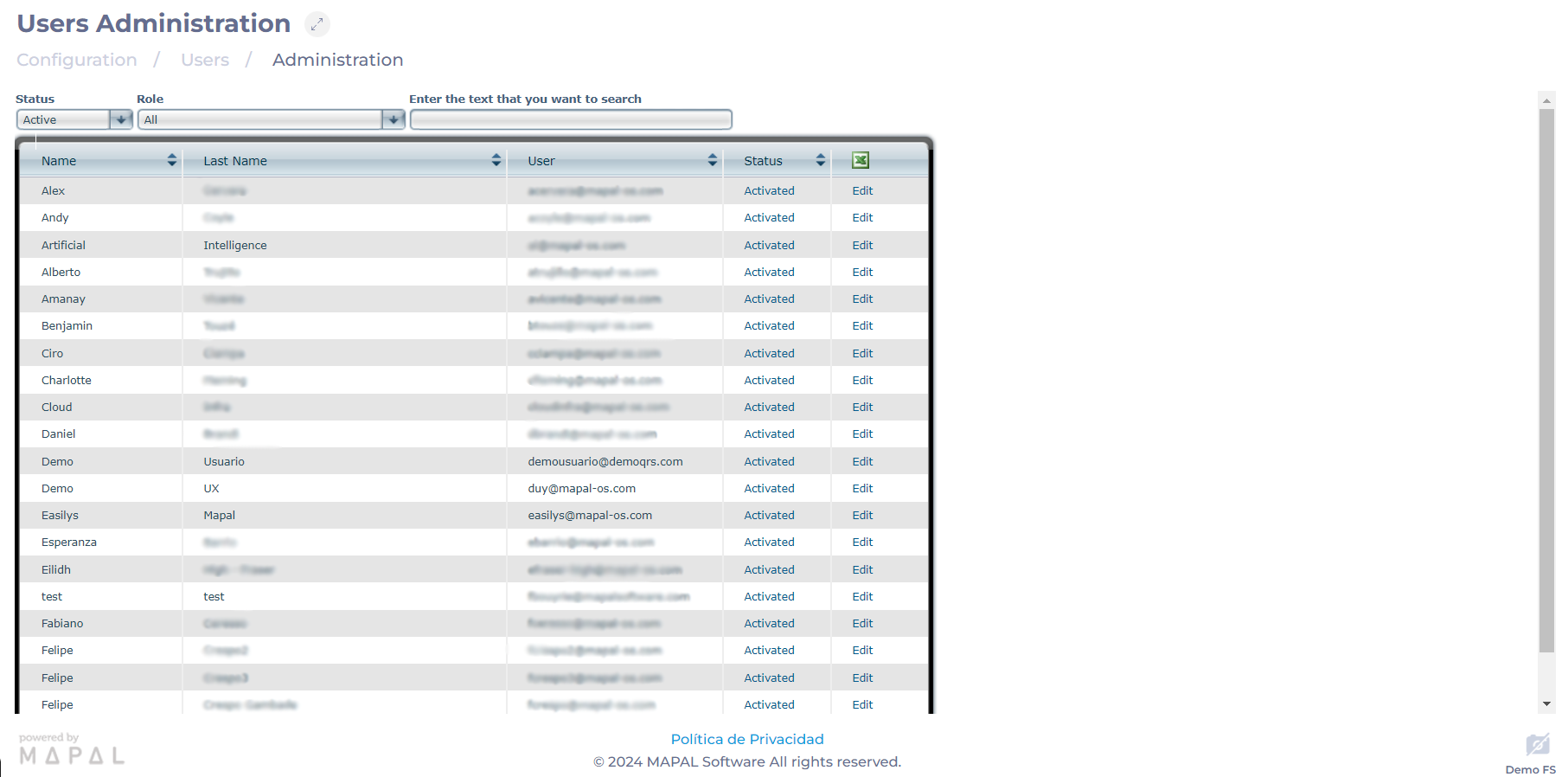
  • Select Users > Administration from the main menu.

In the Administration screen, all registered users will be displayed. To find the specific user to manage, you can filter by Status (Active/Inactive users), by Role, or directly enter the text you want to search for.

Change the status of a User

  • Select Activated/Disabled in the user's Status column.
  • When selecting the status, a pop-up screen will appear to confirm activation or deactivation.
  • Select OK to confirm or Cancel to dismiss.

Edit a user

  • Select Edit in the user's field.
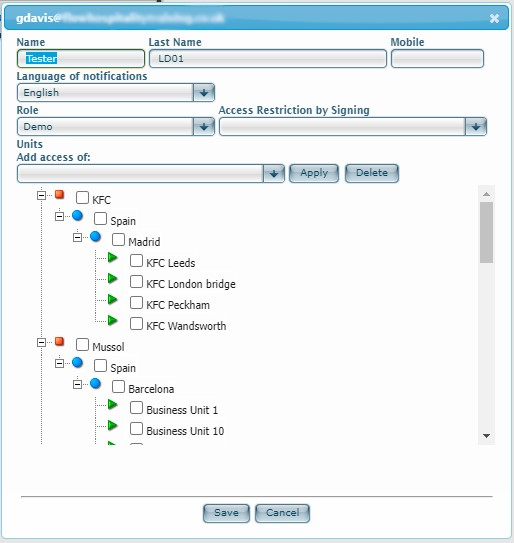
  • In the user's popup window, you can modify aspects such as:
    • First Name
    • Last Name
    • Mobile Phone
    • Notification Language
    • Role
    • Associated Worker

Note: By selecting an Associated Worker, you can mark the Access Restriction by Check-in (The associated worker must be clocked in at the time of logging into GIR) or Deactivate/disable the user if the worker is terminated (This will be done at the end of the day, as the day of termination is worked).

    • Work Centers to which the user will have access.

Note: If a user is selected in add accesses, the accesses of that person will be copied to the same work centers.

  • Select Save to apply the changes or Cancel to dismiss them.

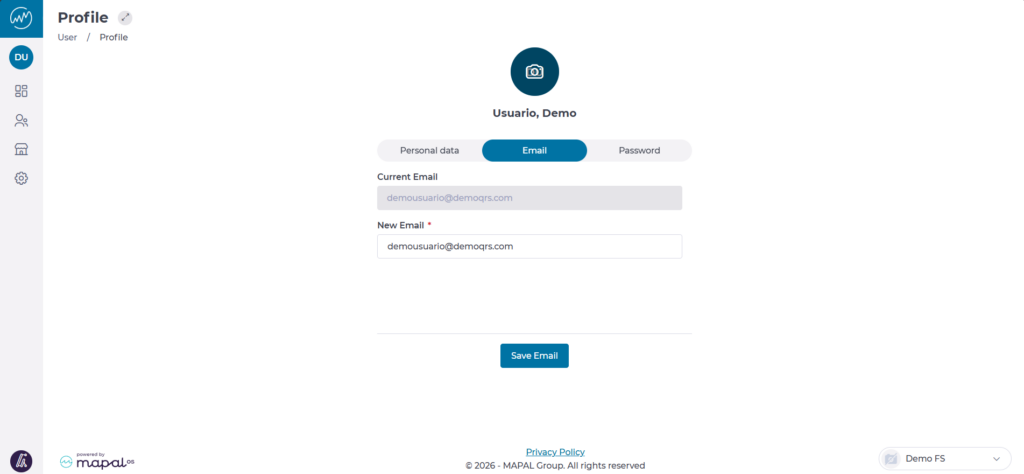
Note: The email address can only be changed by the user themselves. To do so, go to Settings > User Initials > Profile > Email.

Here you will have the option to enter a new email address

Create GIR users

Start from: The Configuration module.

Manage users through Mapal OS

For Companies in Mapal OS, you must manage users in the Mapal OS Settings module.

Note: if you're not sure whether you are on Mapal OS, contact your customer success manager.

Manage users through GIR

  • Select Side Menu > User Initials > Create User from the main menu..

  • Complete the requested user information:

a. Full name (mandatory)

b. Phone number (optional)

c. Email: This will serve as our username for accessing GIR and for password recovery in case it is forgotten. Additionally, it will function as the user login for the mobile application Workforce App.

d. Password: It must have at least 8 characters, including uppercase and lowercase letters, and special characters.
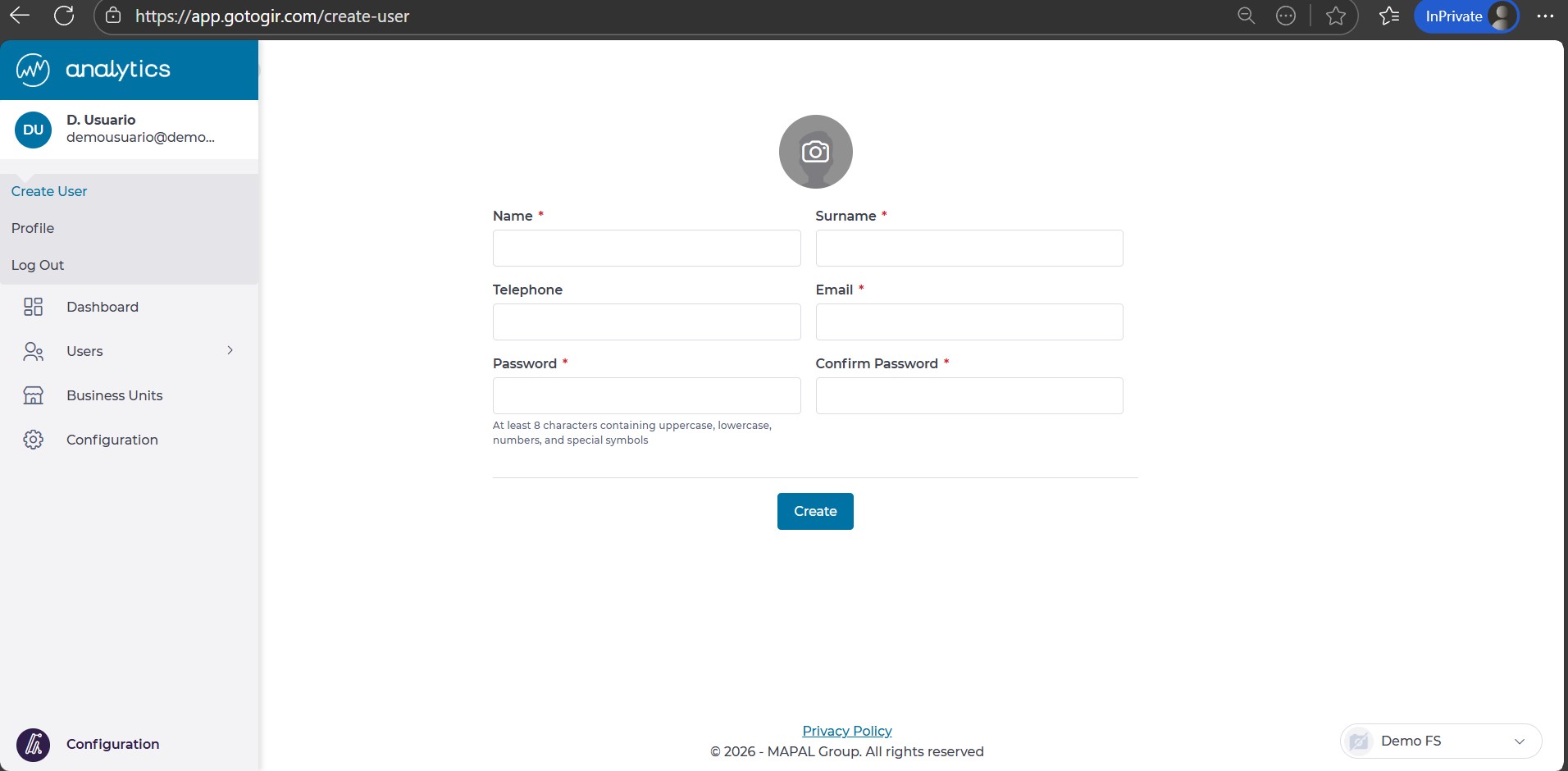
  • Select Create when you finish completing the fields.

To activate your new user, see Activate User.

To edit a user, see Manage GIR users

To assign roles and permissions, see Assign roles to users.

Note: The email submitted during the user creation will become the member’s user login to access GIR. It will also serve as the user login for the Workforce App.

Language in GIR will depend on browser settings, not the language selected in the user’s profile.


Activate GIR user

Start from: The Configuration module.

Manage users through Mapal OS

For companies on Mapal OS, your should activate users on the Mapal OS dashboard.

Note: if you're not sure whether you are on Mapal OS, contact your customer success manager.

Manage users through GIR

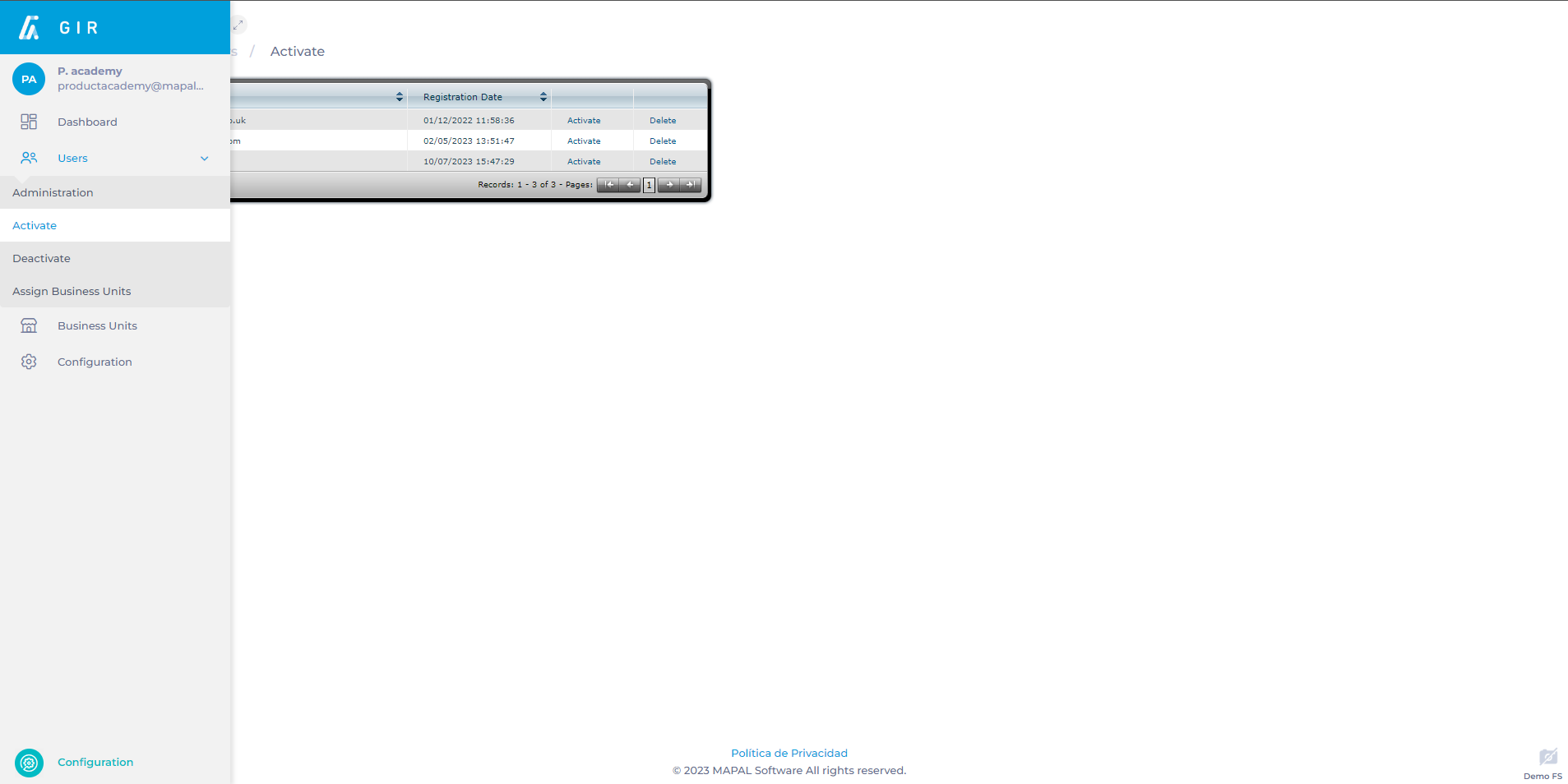
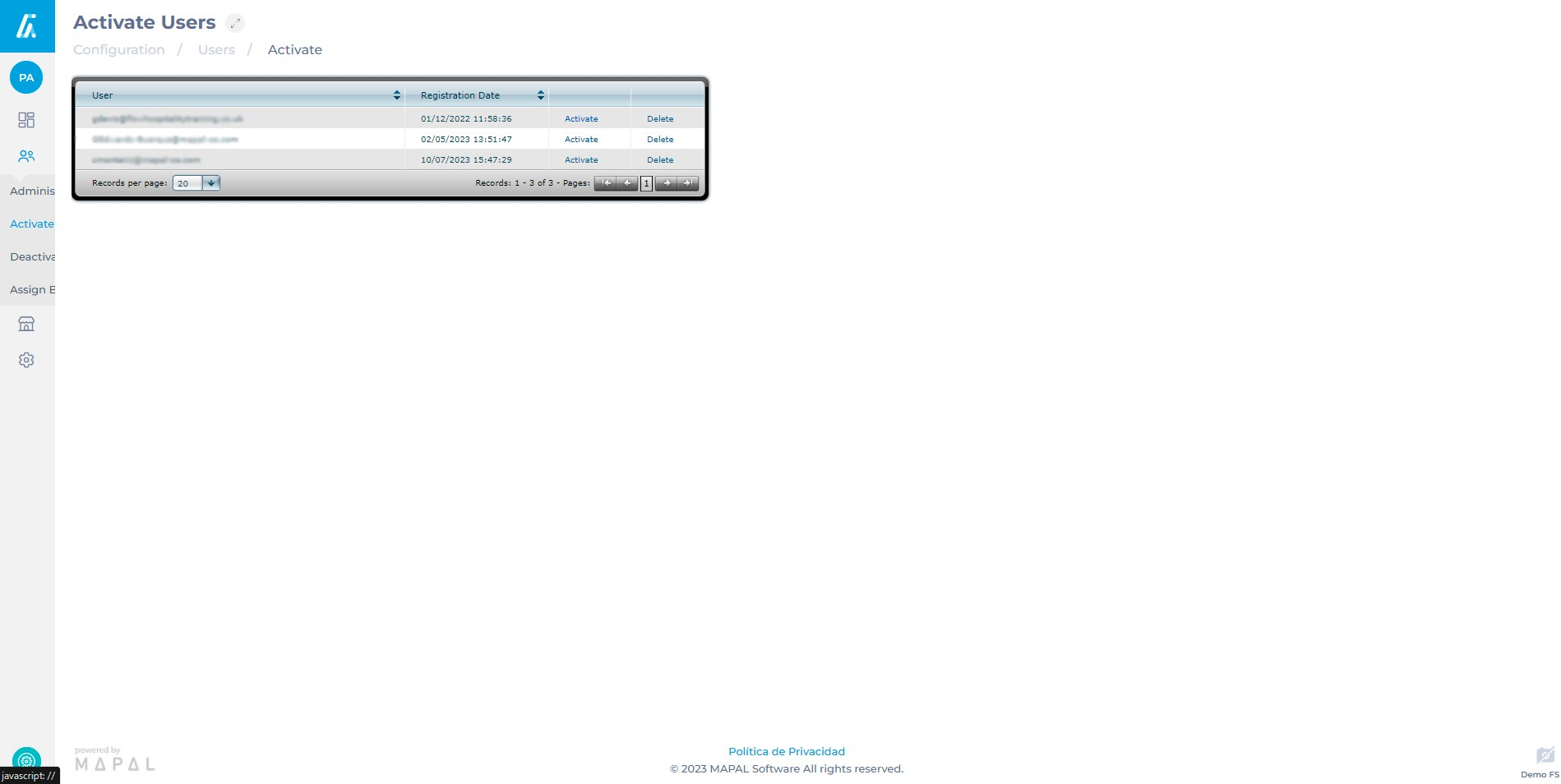
  • Select Configuration > Users > Activate from the main menu

  • The list of pending users for activation will appear. Select the user you wish to activate and click on Activate.

  • Once Activate is clicked, the following screen allows you to complete and correct user details. It is important to consider the following:
  1. User's personal information: name, surname, and mobile phone number.
  2. Language for receiving email notifications.
  3. Assignment of the user's Role, granting permissions for accessing various functionalities.
  4. Access Restriction by Clocking In: condition the user's access to GIR based on the associated worker being clocked in at the time of login. For example, they can only access GIR if they have clocked in at a workplace or deactivate the user if the worker is no longer employed.
  5. Determine the centers to which the user will have access. This can be done by selecting individual centers or by adding access from another similar user (select the user and select Apply).

  • Select Save to finish OR Cancel if you do not wish to save the changes.

Note: The language in which GIR is displayed depends on the language configured in the browser, not the language selected in the profile. To automatically deactivate a user in case the worker leaves the company, mark "Deactivate the user if the worker is no longer employed" when editing the user in the User Administration.

Deactivate GIR user

Start from: The Configuration module.

Manage users through Mapal OS

For companies on Mapal OS, your should deactivate users on the Mapal OS dashboard.

Note: if you're not sure whether you are on Mapal OS, contact your customer success manager.

Manage users through GIR

  • Select Users > Deactivate from the main menu.

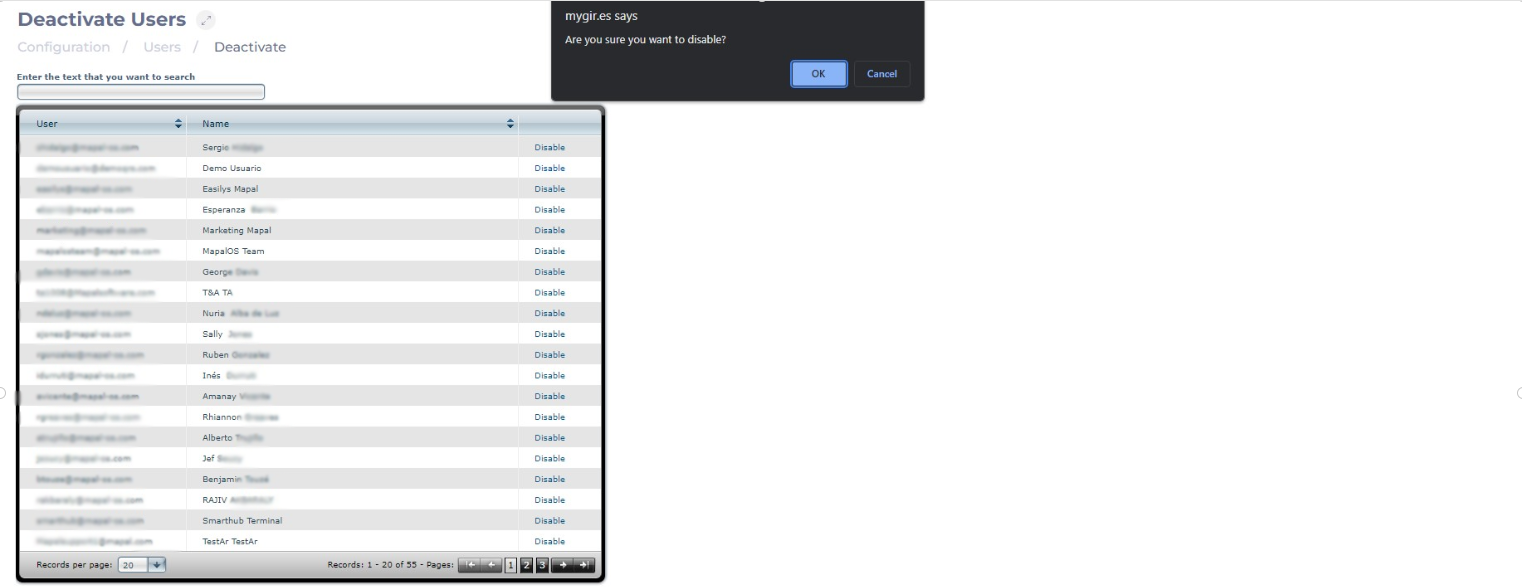
  • The list of users currently active will appear. Select Disable next to the user you wish to remove from the current team.

  • Select OK to deactivate the user and remove them from the team or Cancel to leave them active.

Assign users to business units

Start from: The Configuration module.

Manage users through Mapal OS

For Companies in Mapal OS, you must manage users in the Mapal OS Settings module.

Note: if you're not sure whether you are on Mapal OS, contact your customer success manager.

Manage users through GIR

  • Select Users > Administration from the main menu.
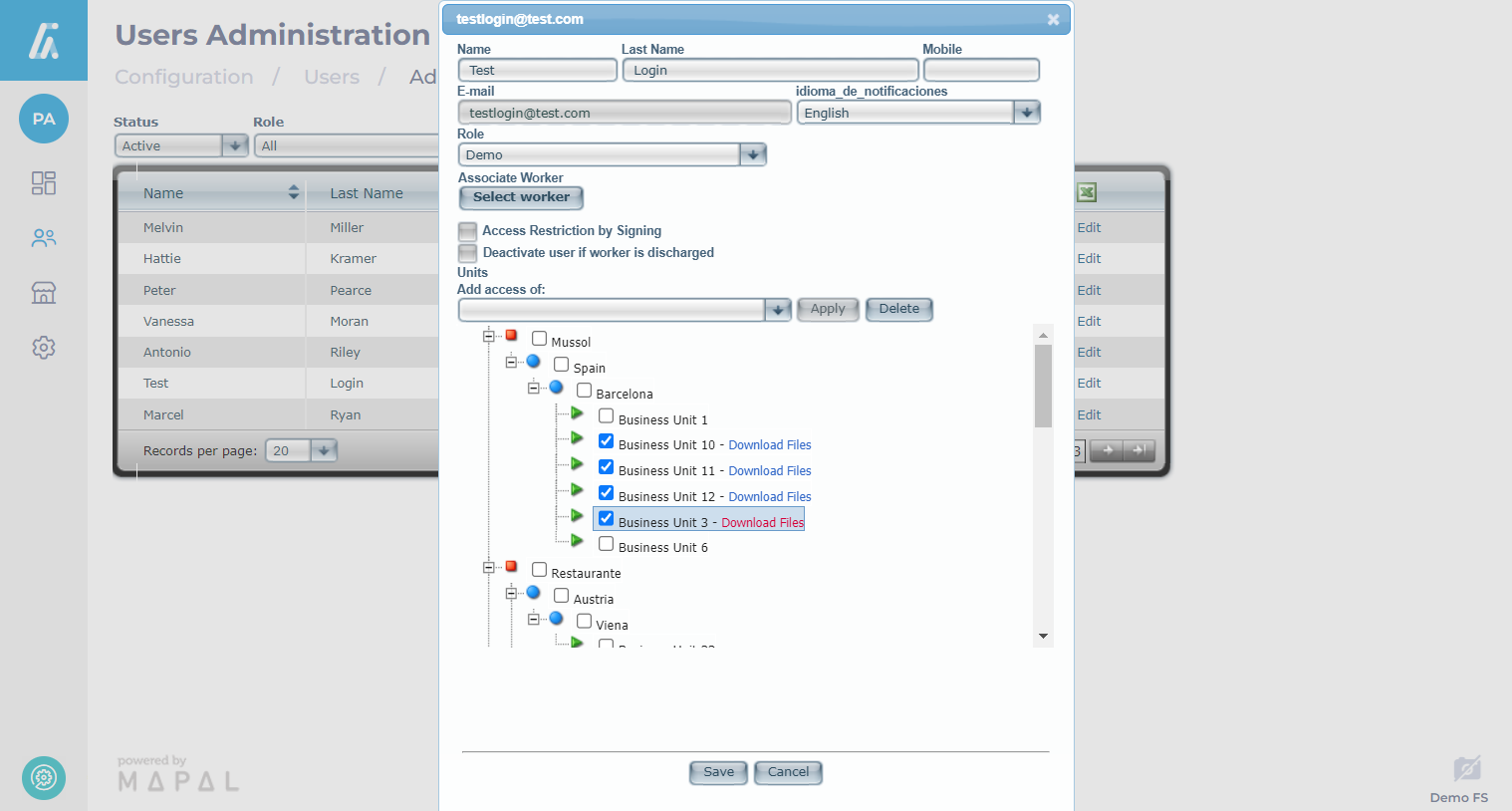
  • Find the relevant User on the list and select Edit to open the Edit User panel.
  • Check the boxes in the main list for each Business Unit you want to assign the user to.

Note: You can assign all of the business units assigned to another existing user by using the Add access of dropdown menu at the top of the business units list. Select the User you want to match and select Apply. This will check all the boxes for the business units assigned to that existing user.

  • Select Save to save all changes and return to the Users Administration page or select Cancel to discard the changes and return to the Users Administration page.

The selected business units have been assigned to the user, granting them access according to the associated role.

Assign business units to users

Start from: The Configuration module.

Assign Business Units through Mapal OS

For companies in Mapal OS, you must manage access to the centers in the Mapal OS Settings module.

  • Select Settings > Center Management > Centers from the main menu
  • Select the center you want to manage > Users.
  • Here you can add the user you want to grant access to.

Note: if you're not sure whether you are on Mapal OS, contact your customer success manager.

Assign Business Units through GIR

  • Select Users > Assign Business Units from the main menu.
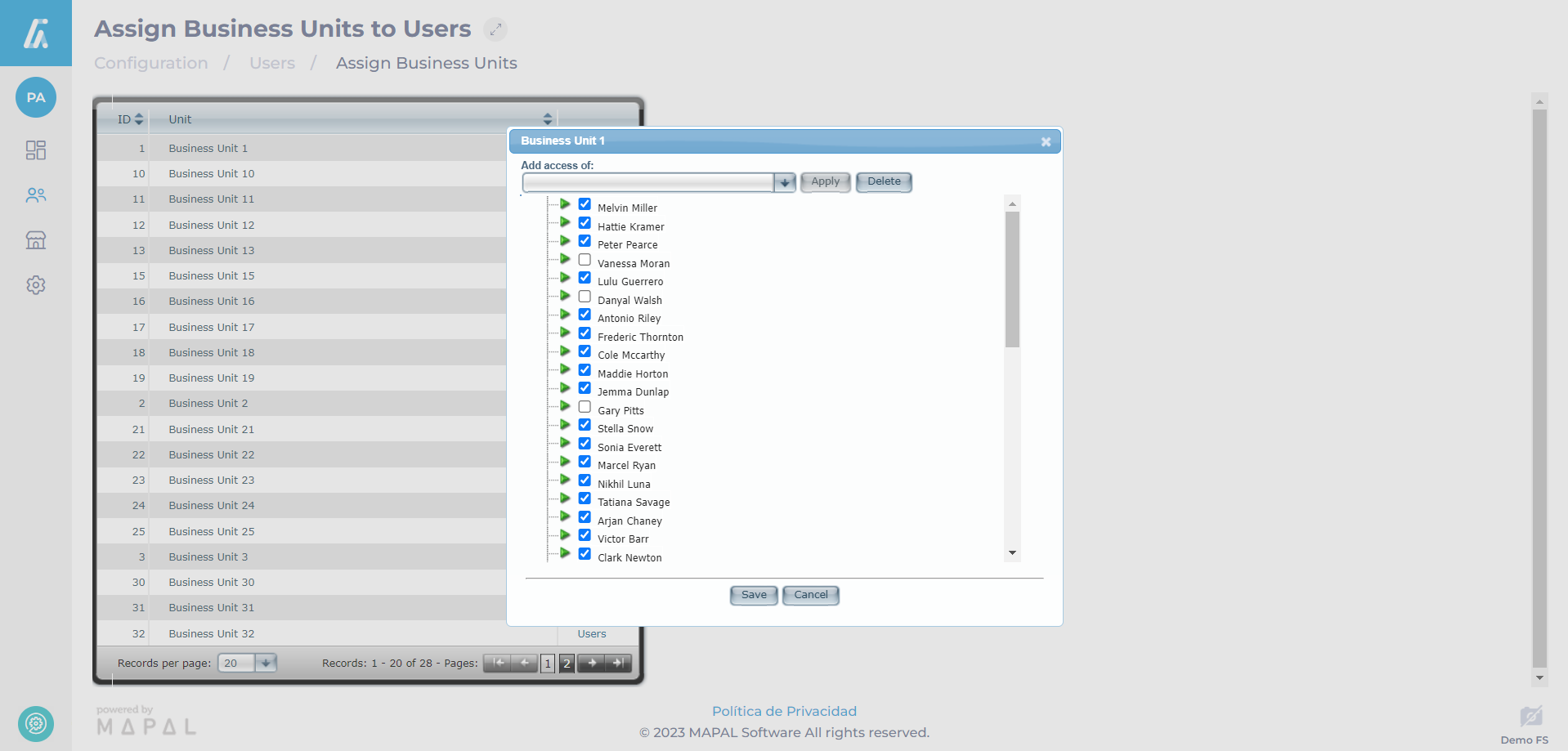
  • Find the relevant Business Unit on the list and select Users to open the Users panel.

  • Check the boxes for each User’s name you want to assign this business unit to.

Note: You can add all of an existing business unit’s users to the current selection by using the Add access of dropdown menu at the top of the list. Select the Business Unit you want to match and select Apply. This will check all the boxes for the users assigned to that existing business unit.

  • Select Save to save all changes and return to the Assign Business Units page OR select Cancel to discard the changes and return to the Assign Business Units page.

Note: All assigned users for each business unit can be edited here, so checking or unchecking Users from this list will assign those Users to, or remove them from the selected business unit.

The selected users have been assigned to the business unit, granting them access according to the role assigned to each user.