


Start from: The Mapal OS dashboard.
- Select User management > User profiles.
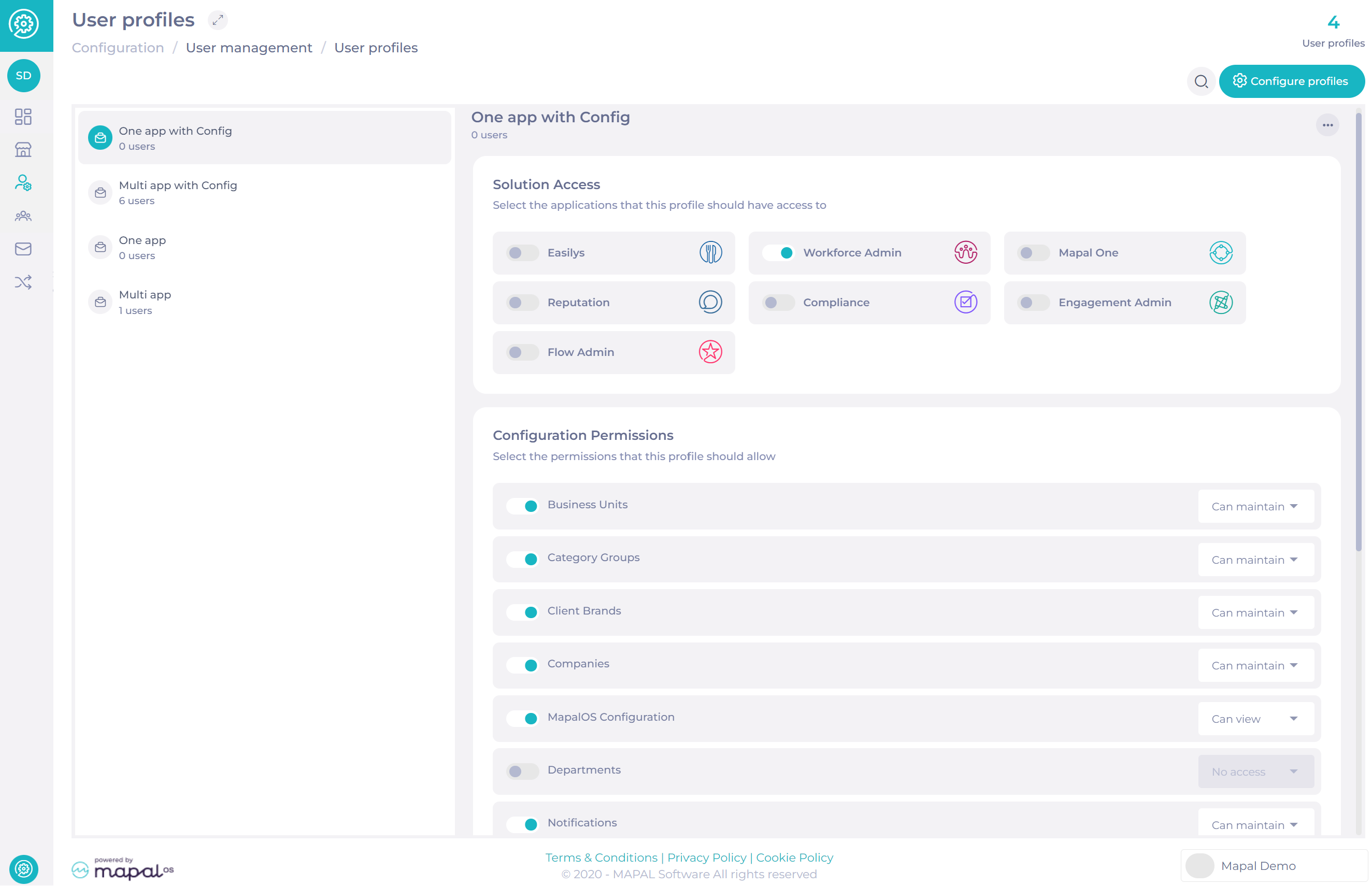
User visibility
User visibility and profile assignment in Mapal OS are determined by each user’s own access level. Users can only edit and assign profiles that include the same or fewer permissions than their own. This ensures data security and prevents the assignment of roles that exceed their permission scope.
Administrators have unrestricted access to all profiles and users. Users without an assigned profile (and therefore no permissions) remain visible to all managers.
When creating or editing users, profiles with higher permission levels do appear in the selection list, but these higher-permission profiles cannot be assigned. If a user attempts to assign a restricted profile, an error message is displayed.
The same visibility logic applies to the bulk assignment tool and to user counters, ensuring that only users within the permitted scope are displayed and managed.
Permission Details
Below are the available permission groups and the areas of Mapal OS they control.
Business Units
Controls access to the Business Management > Business Units section, where Business Unit details and configurations are managed.
Category Groups
Controls access to the Business Management > Category Groups section to view or maintain category configurations.
Branding
Controls access to the OS Branding page in Configuration, where company-wide visual settings such as logos, colours, and theme elements are managed. This permission applies to both Internal and Customer user groups and should be granted only to authorised users responsible for managing the organisation’s branding.
Restricting access to this setting helps maintain brand consistency and prevents unauthorised visual changes.
Companies
Controls access to the Companies dropdown within Business Management > Business Units.
Mapal OS Configuration
Controls access to the general configuration menu within the operator.
Departments
Controls access to Business Management > Departments.
Note: This permission must be enabled to view or edit Employees.
Notifications
Controls access to the Notifications area, where email templates and system alerts can be managed.
Employee Profiles
Controls access to Employee Management > Employee Profiles.
Note: This permission must be enabled to view or edit Employees.
Employees
Controls access to Employee Management > Employees, including the ability to view or edit employee information.
Inactive Operators
Controls access to operators with an inactive status.
Job Titles
Controls access to Business Management > Job Titles.
Notes:
- This permission must be enabled to view or edit Employees.
- The term “Categories” previously used in Workforce corresponds to “Job Titles” in Mapal OS.
Operators
Controls access to User Management > Operators, including the management of profiles and logins.
This permission must be enabled to view or edit Users.
SSO Configuration
Controls access to edit SSO identifiers within the operator.
Users
Controls access to User Management > Users, where user accounts are created, edited, and maintained.
Operator access must also be enabled.
