


Remarque : Chaque action réalisable sur l'application est soumise à un droit. Si vous ne pouvez pas réaliser les actions recommandées dans les articles que vous consultez, cela signifie peut-être que les droits nécessaires ne sont pas activés pour votre profil utilisateur. Contactez l'équipe d'Assistance, ou votre administrateur, pour en savoir plus.
Présentation : ?La gestion des taux de prises permet d’indiquer à Easilys la manière dont il doit répartir les effectifs théoriques de la journée pour chaque plat proposé dans un même élément de repas, dans le menu. Vous préparez trois entrées différentes chaque jour ? Vous pouvez désormais préciser que 25% de l’effectif de la journée prend en général la première option, 25% prend la seconde et 50% se tourne vers la troisième. Les effectifs par plat se renseignent alors automatiquement en respectant ces taux de prises. ?
Activer la gestion des taux de prises sur une trame de menus
- Sélectionnez Menus dans le menu principal > Trames de menu.
- Sélectionnez dans la liste la trame de menus sur laquelle vous souhaitez gérer des taux de prises.
La fiche de trame s’affiche :
- Sélectionnez Effectifs et paramètres de service.
- Sélectionnez Modifier.

Remarque : Si la trame de menus comportant plusieurs services, sélectionnez celui sur lequel vous souhaitez activer la gestion des taux de prises.
- Activez l’option Activer les taux de prises.
- Précisez les taux de prises pour chaque plat composant chaque élément de repas dans le tableau Effectif prévisionnel.
- Sélectionnez Enregistrer en bas à droite de la fiche de trame.

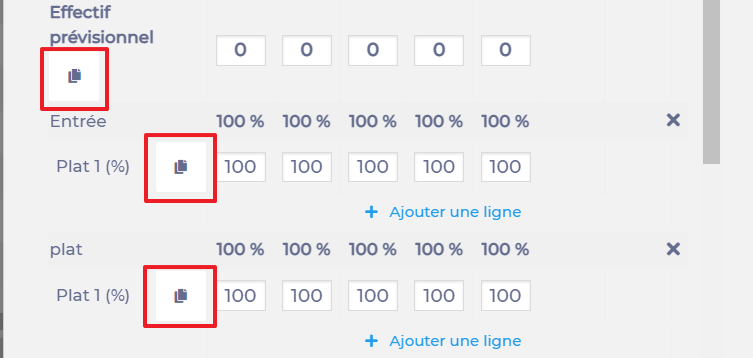
Remarque : Vous pouvez sélectionner l'icône de copie visible à côté des effectifs de la journée du lundi et des taux de prises du même jour. Cela permet d’appliquer les mêmes informations sur tous les jours activés de la semaine.
Dupliquer des menus d'une trame à une autre dans le cas où la gestion des taux de prise est activée
Il est possible de dupliquer des menus d’une trame à une autre sur un même site voir sur un autre site. Par défaut, lorsque la trame de destination (celle sur laquelle vous allez dupliquer les menus d’une autre trame) dispose de taux de prises spécifiques, alors ces taux de prises seront respectés. On obtient donc bien le menu de la trame d’origine, mais les effectifs pourront être différents.
Si vous souhaitez dupliquer les menus ET les taux de prises qui leur sont appliqués sur la trame d’origine, pensez alors à cocher l’option avancée de duplication Copier les effectifs et la structure de la trame d’origine sur la trame de destination.
Remarque : La duplication des menus et des taux de prises paramétrés sur la trame d’origine ne modifie pas les taux de prises paramétrés sur la trame de destination.
Ainsi, si vous modifiez manuellement le résultat de la duplication sur la trame de destination, ce sont les taux de prises de cette trame qui s’appliqueront alors à nouveau sur les éléments que vous modifierez.
