You can reissue an updated Appraisal template directly from the template page. Only learners who have not started their current appraisal will receive the new version.
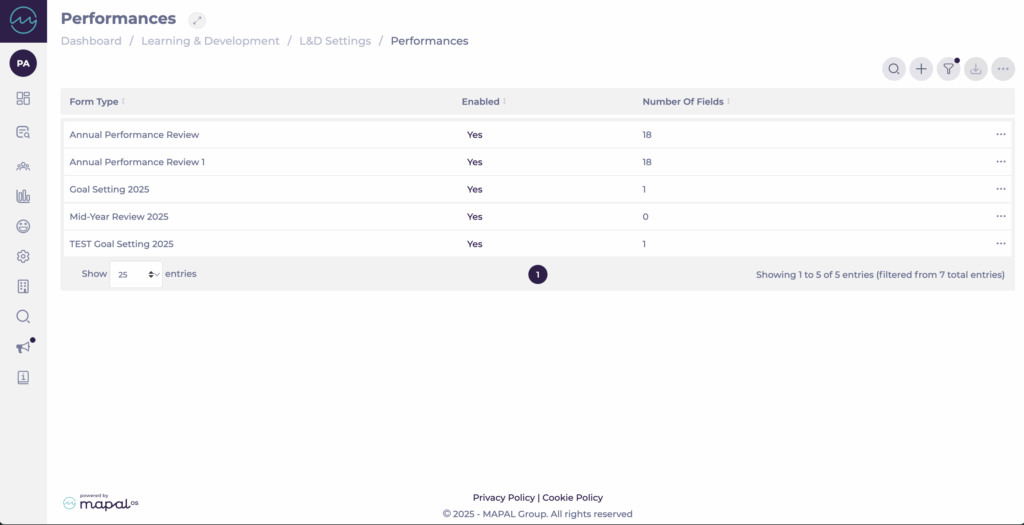
Navigate to Learning & Development > L&D Settings > Appraisals.
Locate the appraisal template you want to reissue.
Select the three-dot menu on the right side of the template.
Choose Reissue to learners.
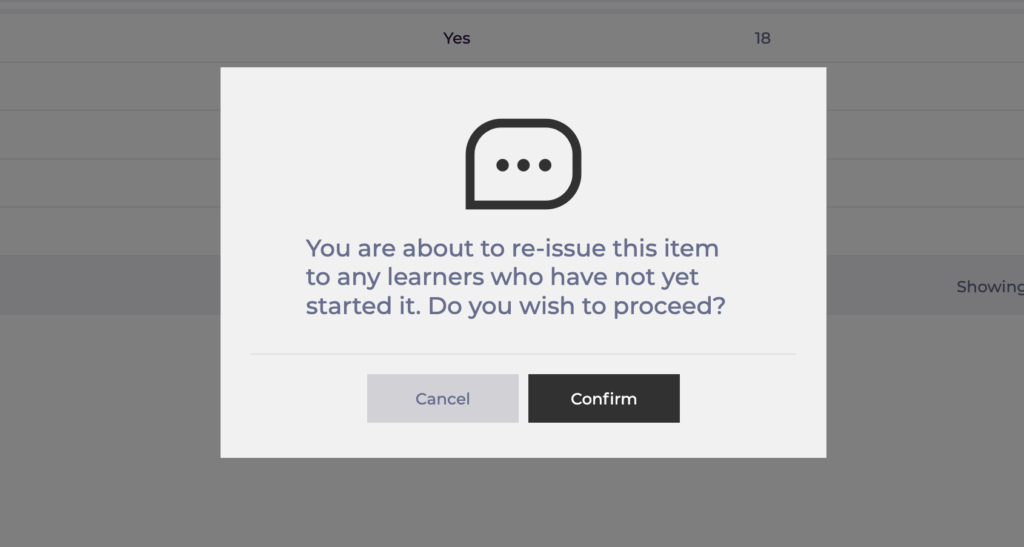
Confirm your action in the pop-up window.
Note: Reissuing a template does not affect learners who have already started or completed the previous version. Always verify changes in the appraisal template before reissuing to avoid confusion among learners.
Set up appraisal reviewers by branch and department
Start from: The Flow Learning dashboard.
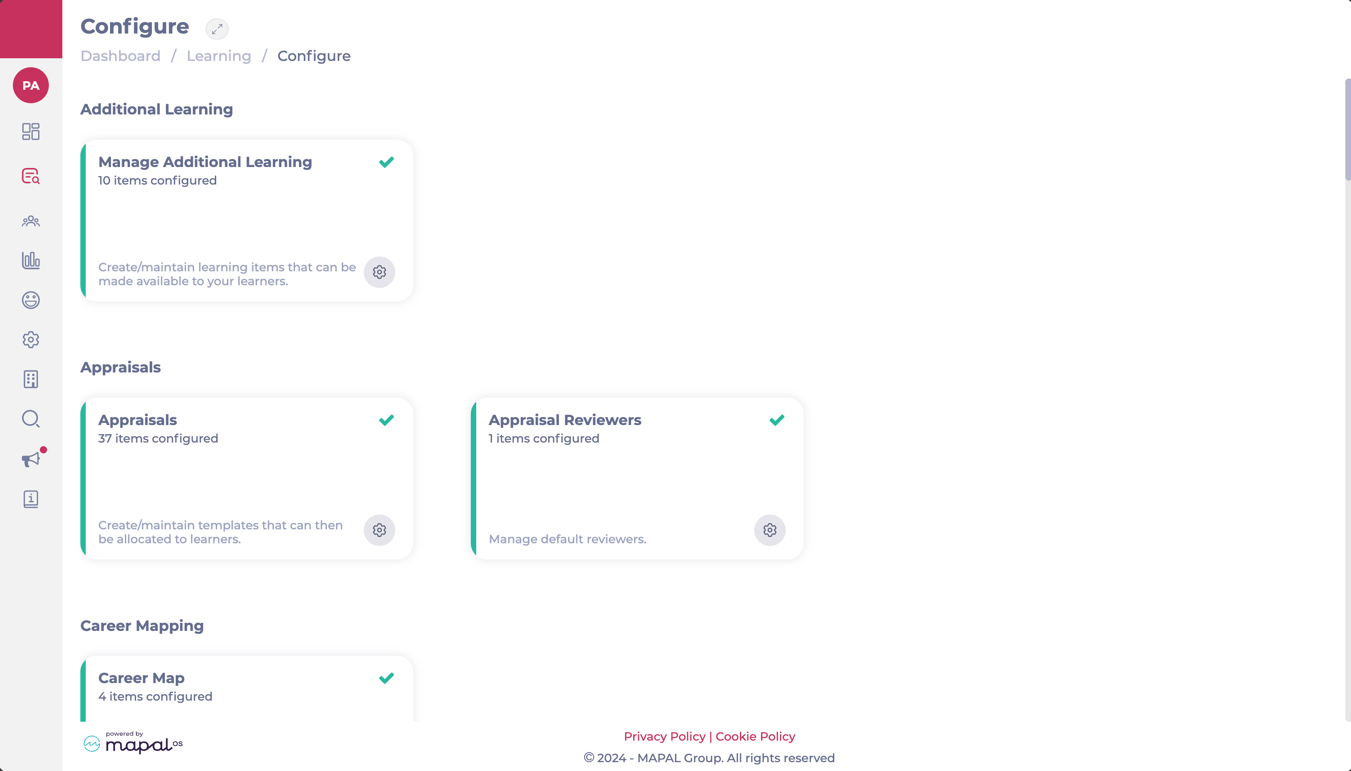
Navigate to Learning & Development > L&D Settings.
Scroll down to Appraisal Reviewers and select View.
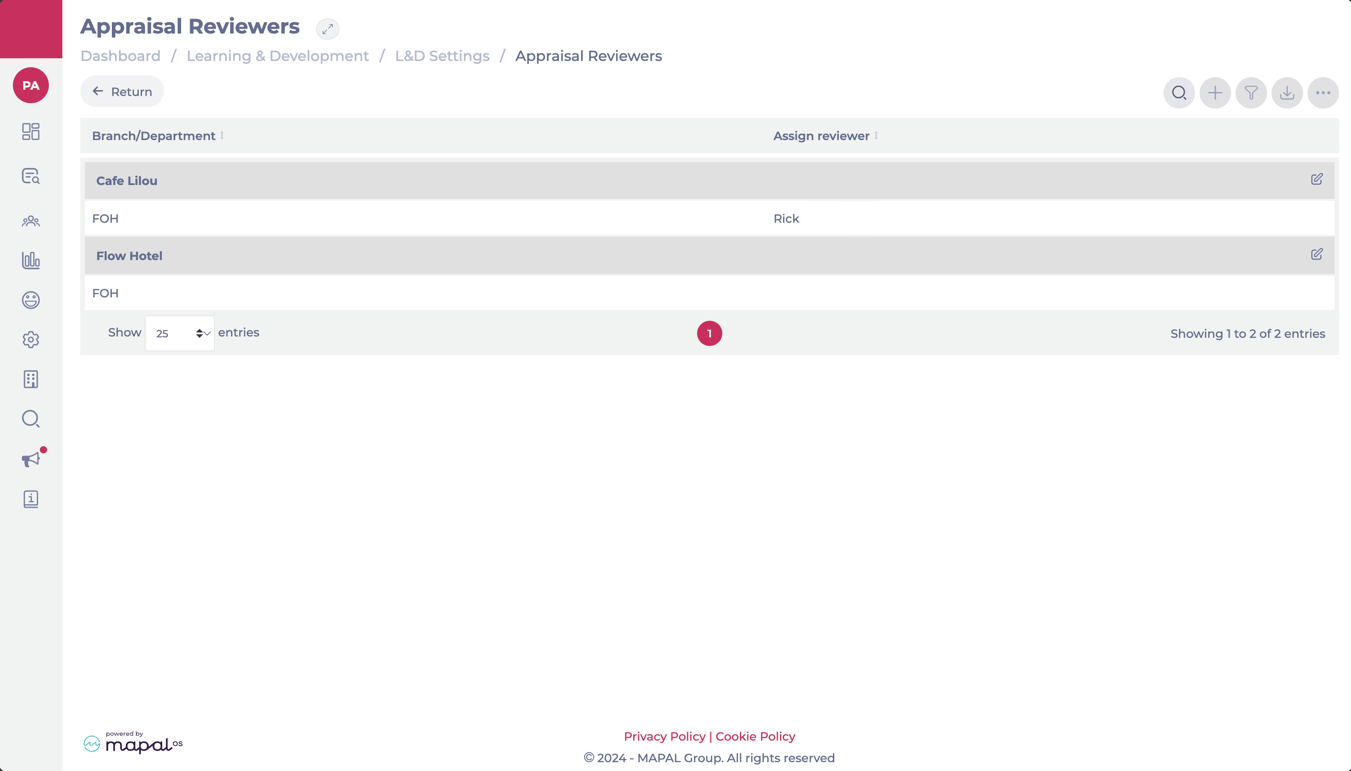
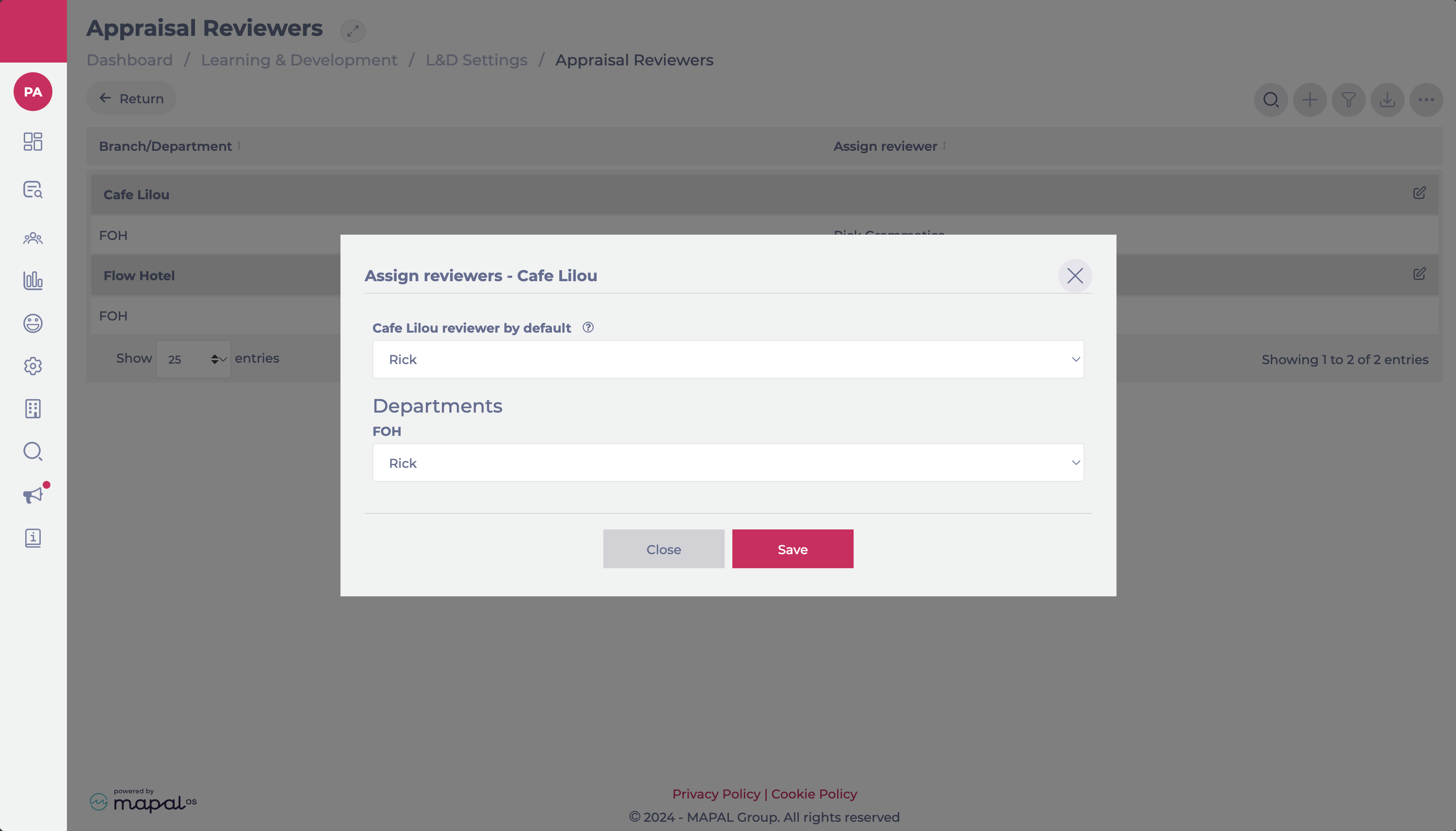
The Appraisal Reviewers screen shows you a grid where all the available branches/departments are listed.
To assign or edit a default reviewer for a branch, select the Edit button at the far right of the branch’s name.
The Assign Reviewers popup window will open. Here, you will be able to assign:
Default reviewer per Branch: A reviewer that will cover all appraisals in the branch if a reviewer for specific departments hasn’t been assigned.
Reviewer per Department: A reviewer specifically assigned to cover the appraisals in a particular department.
Once you have selected the reviewer, select Accept to save your configuration.
Automatic reviewer unassignment when permissions change
If a reviewer’s permissions or branch access are modified so that they no longer meet the criteria to review appraisals, Flow will automatically unassign them from any incomplete appraisals.
When this happens:
The affected appraisals are reassigned to the branch’s default reviewer, if one is configured.
If no default reviewer exists for that branch, the appraisals will appear in the Appraisals requiring reviewer tile on the dashboard, allowing managers to quickly reassign them.
This automatic process ensures that only valid reviewers remain assigned, reducing administrative work and maintaining visibility of appraisals that still require attention.
Track your development with Appraisals
Start from: The Mapal One dashboard.
Select Career > Appraisals from the main menu.
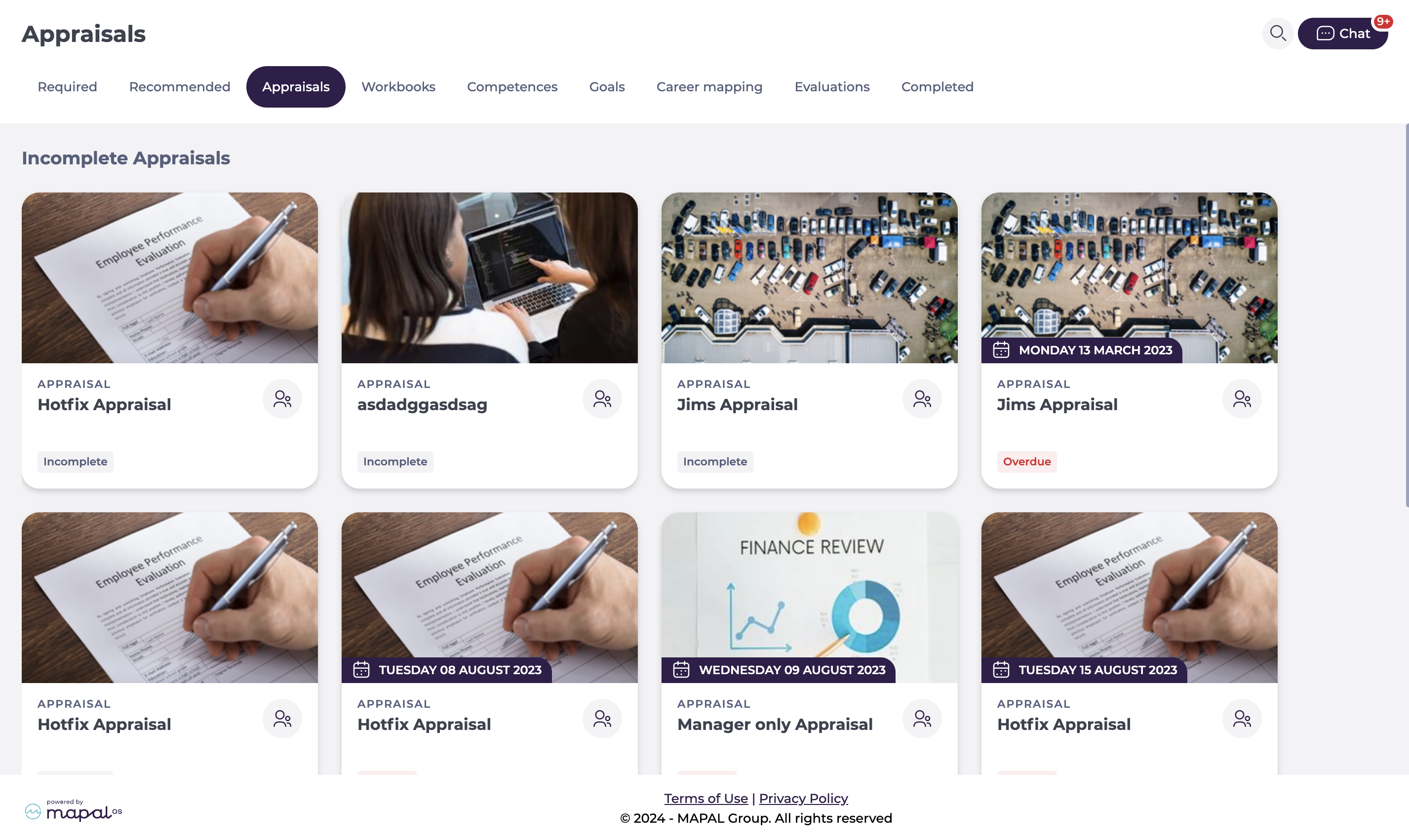
In the Appraisals screen, you will see all the available appraisals organised by tiles and their statuses, which can be:
Complete: the appraisal is finished and signed off.
Incomplete: the appraisal has been started but not yet finished.
Overdue: the appraisal’s deadline has passed.
Awaiting Sign Off: the appraisal has been submitted but not yet signed off.
Awaiting Reviewer Sign Off: the appraisal has been submitted and signed off by the employee, but it is still pending manager/reviewer sign-off. If you see this status, you may need to follow up with your manager to complete the process.
Select the specific tile of the appraisal you want to take.
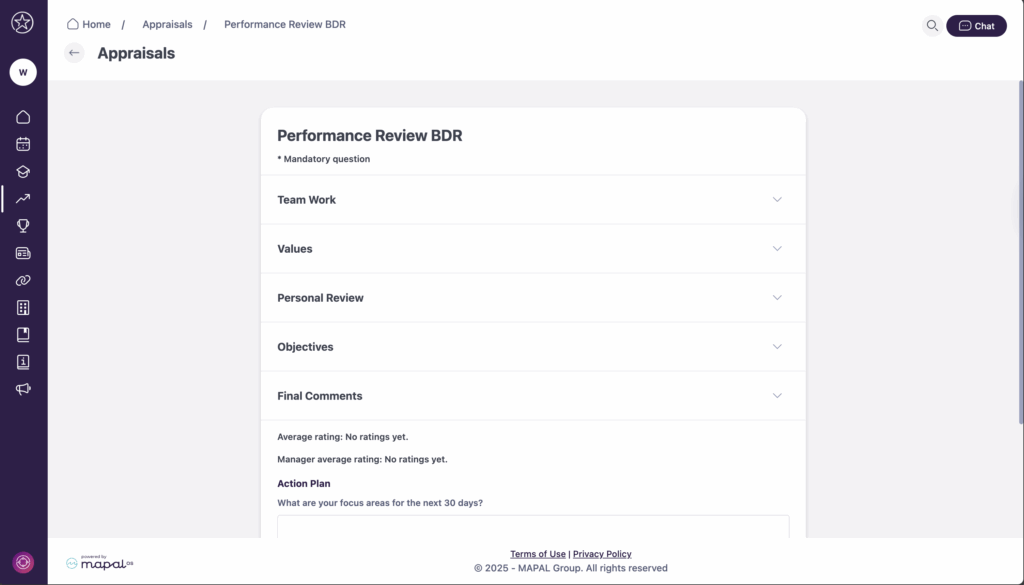
The appraisal details will appear on screen. Fill out the questions and select Sign Off once you have finished.
Categories and questions
Appraisals consist of categories and questions.
Categories: These are the blocks where questions are contained. An appraisal may have multiple categories.
Questions: can be assigned to different categories and set as 'text', 'select', 'file', or 'rating' responses. Select fields require trainees to choose from multiple options, while file fields allow trainees to download provided files and upload their own for review.
Rating an appraisal
After finishing, both learners and managers can see an overall rating for an appraisal. The system calculates an average rating per category and appraisal. This rating updates dynamically and is rounded to the nearest whole value.
These ratings are visible on the appraisal itself and within appraisal reports, subject to sign-off permissions.
Assign default reviewers by branch
Start from: the Flow Learning dashboard.
Select Learning & Development > Company Structure from the main menu.
Head to the Branches tile.
Choose a branch from the list,
To assign the default reviewer, select from the Appraisal Default Reviewer field.
Hit Save to return to the list of branches.
Note: when a default reviewer has been set up, their name will be displayed as the reviewer when an appraisal is assigned to a learner.
Set up goal templates
Start from: the Flow Learning dashboard.
How goals can be used
The manager assigns out a goal template after a yearly appraisal with their staff member.
The learner updates the document with the areas they want to progress on, as agreed with their manager in the appraisal.
Objectives and subsequent tasks are created for each 'check in' throughout the agreed time period.
The manager agrees and signs off on the goal document.
The learner updates their progress using the check in values set up.
Once the goal document is complete, the manager or learner can use it to reflect on the progress made and feed it into the next appraisal.
About weightings
Weightings are a percentage that you put against objectives and tasks. This value allows you to determine the importance or priority of the goals being set. For example, imagine you two objectives. One is more important and takes longer to achieve. So you might choose to give this objective 70% and the other one 30%. Within your tasks they are all equal to achieving the objective, so you give them percentages that add up to 100%.
How to set up a goal template
1. Set up Check in values
Select Learning & Development > L&D Settings from the main menu.
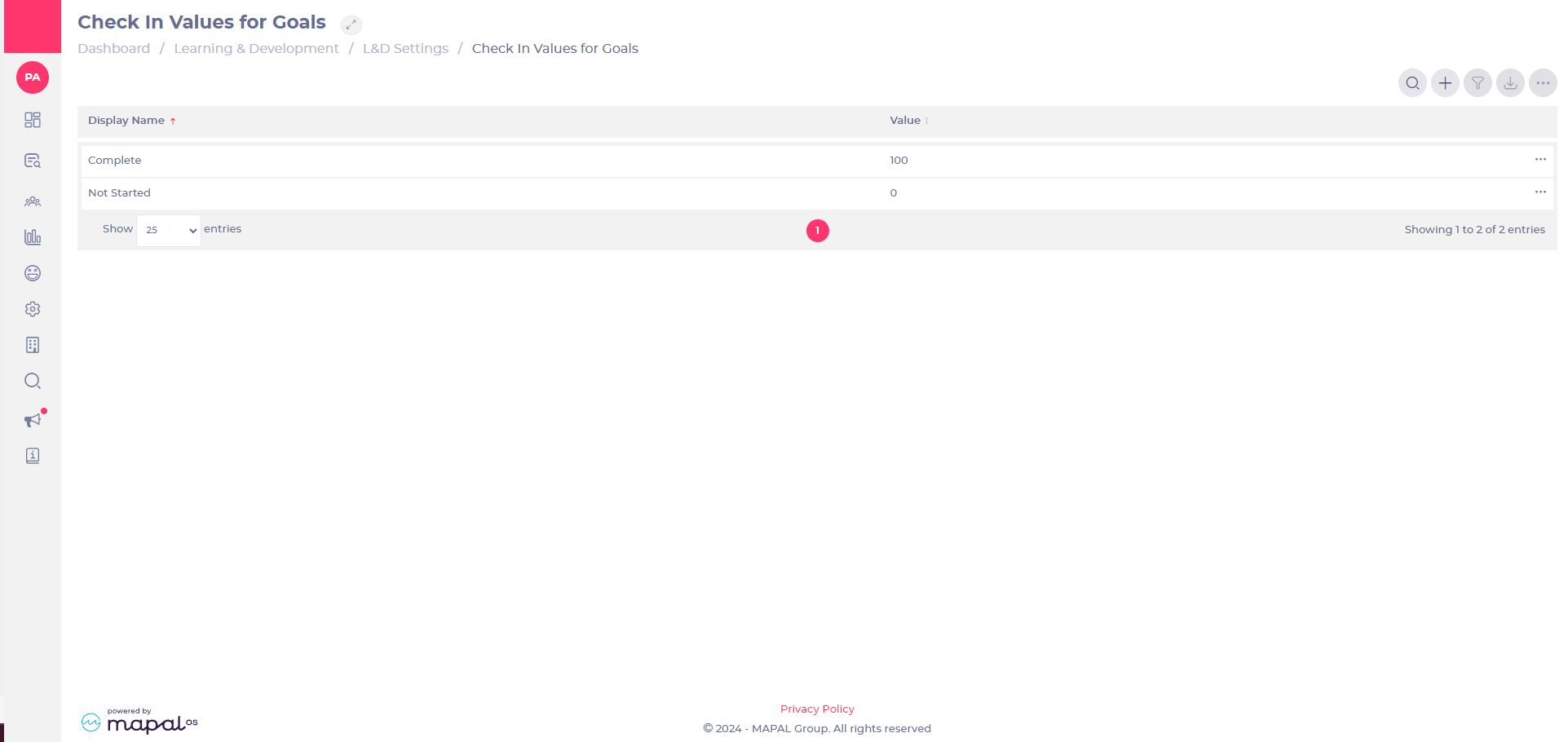
Scroll down to the Goals section and select View (the cog icon) on the Check In Values for Goals tile.
Note: you’ll see two default values: Complete 100% and Not started 0%. You can leave this as is OR you can add more values, such as Started 25%, Half-way there 50%, Almost done 75%, etc., if you’d like more visibility on your learners’ progress.
2. Create your goal template
Select Learning & Development > L&D Settings from the main menu.
Scroll down to the Goals section and select View (the cog icon) on the Templates for Goals tile.
Select Add (+).
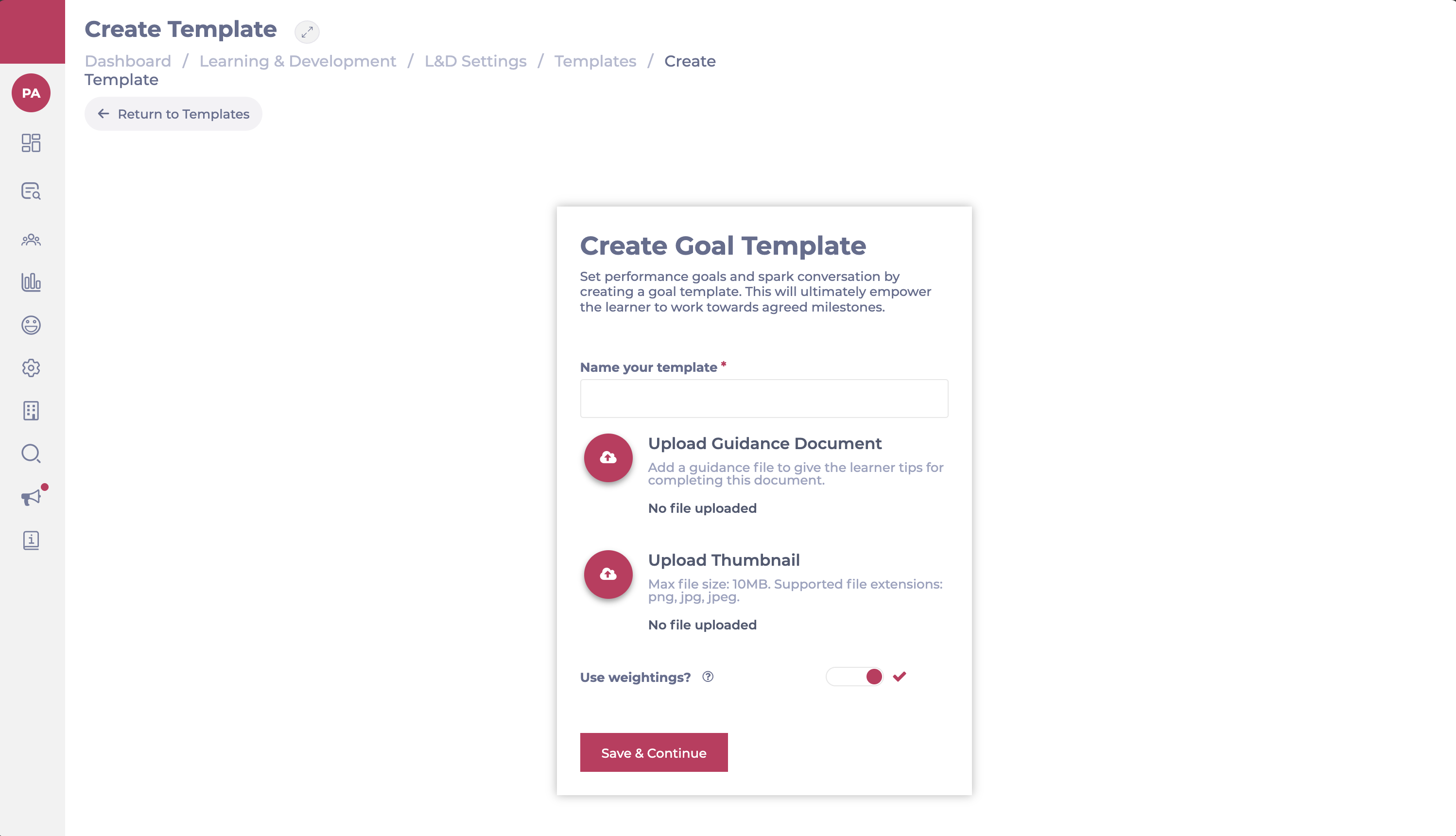
Enter a name for your template. You can also upload a guidance document to give the learner tips on how to complete the goal, and a thumbnail image, if you wish.
Toggle Use weightings? to choose whether or not the goal template includes a weighting system for objectives and tasks.
Select Save & Continue.
3. Create check-ins
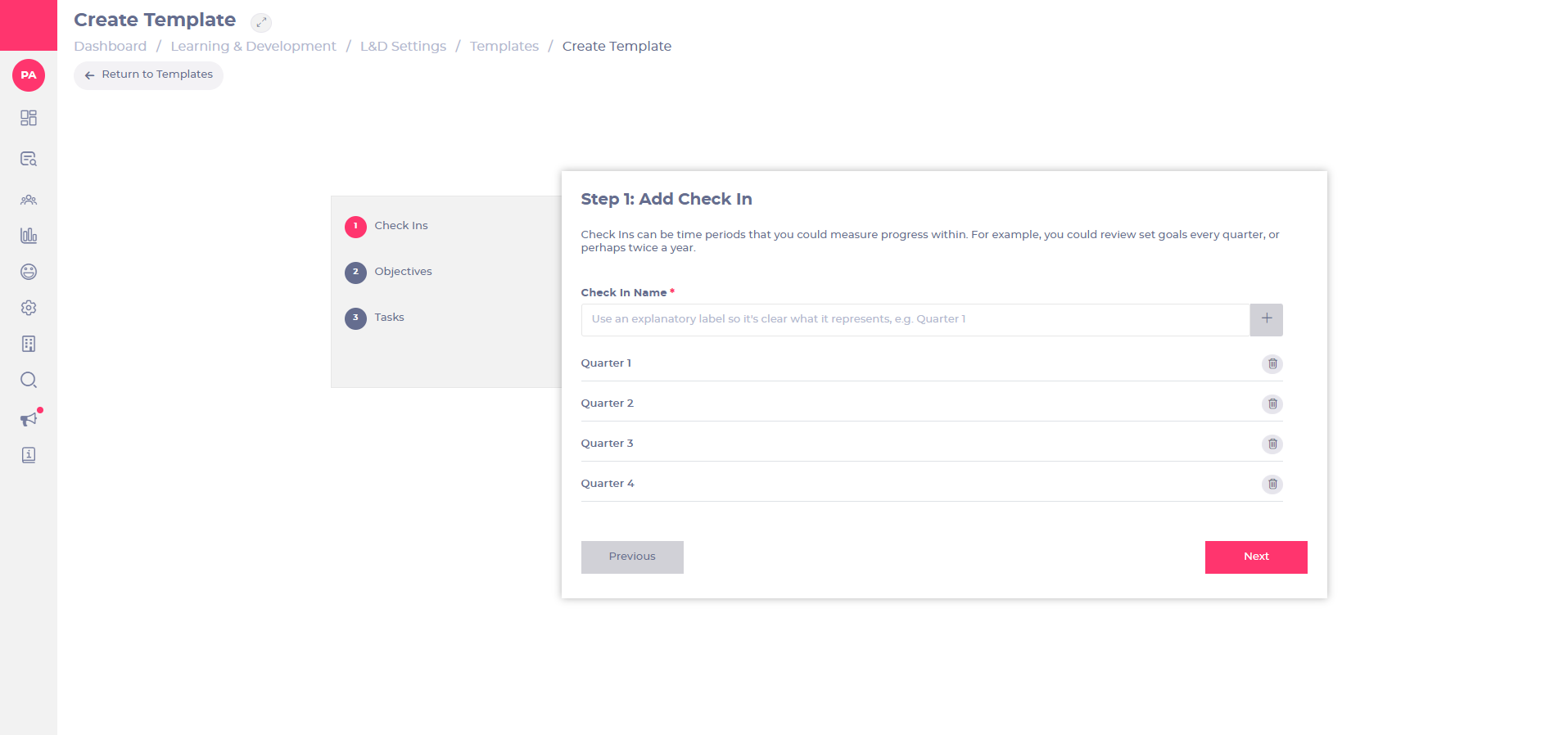
Check-ins are updates on the current progress. You can set these to be weekly, monthly, quarterly, whatever suits best the goal template you’re creating.
Enter a name for your check-in.
Select the plus icon (+) to add as many check-ins as needed.
Select Next when you finish.
4. Build objectives and tasks
Create objectives that will help the learner achieve their overall goal. Objectives are made up of multiple tasks, which are actions that a learner must or should take. We recommend giving the learner the responsibility to set these, as they’re related to their own development and the goals they want to work towards. You could create basic objectives and tasks named Objective/Task 1 2, 3, etc., and leave these for the learner to complete with an appropriate title and description.
Enter a template name for the objectives. Note: select + Add Objective to create as many objectives as needed.
Enter a template description or leave blank for learners to complete.
Choose whether to use Weighting or not for tracking progress.
If Weighting is enabled: Assign a percentage value to each objective/task.
If Weighting is disabled: Progress will be tracked based on completion without specific weighting.
Note: If using weightings, the total must add up to 100%, or an error will appear.
Select the Edit, Move or Delete buttons next to each objective or task if you need to make changes.
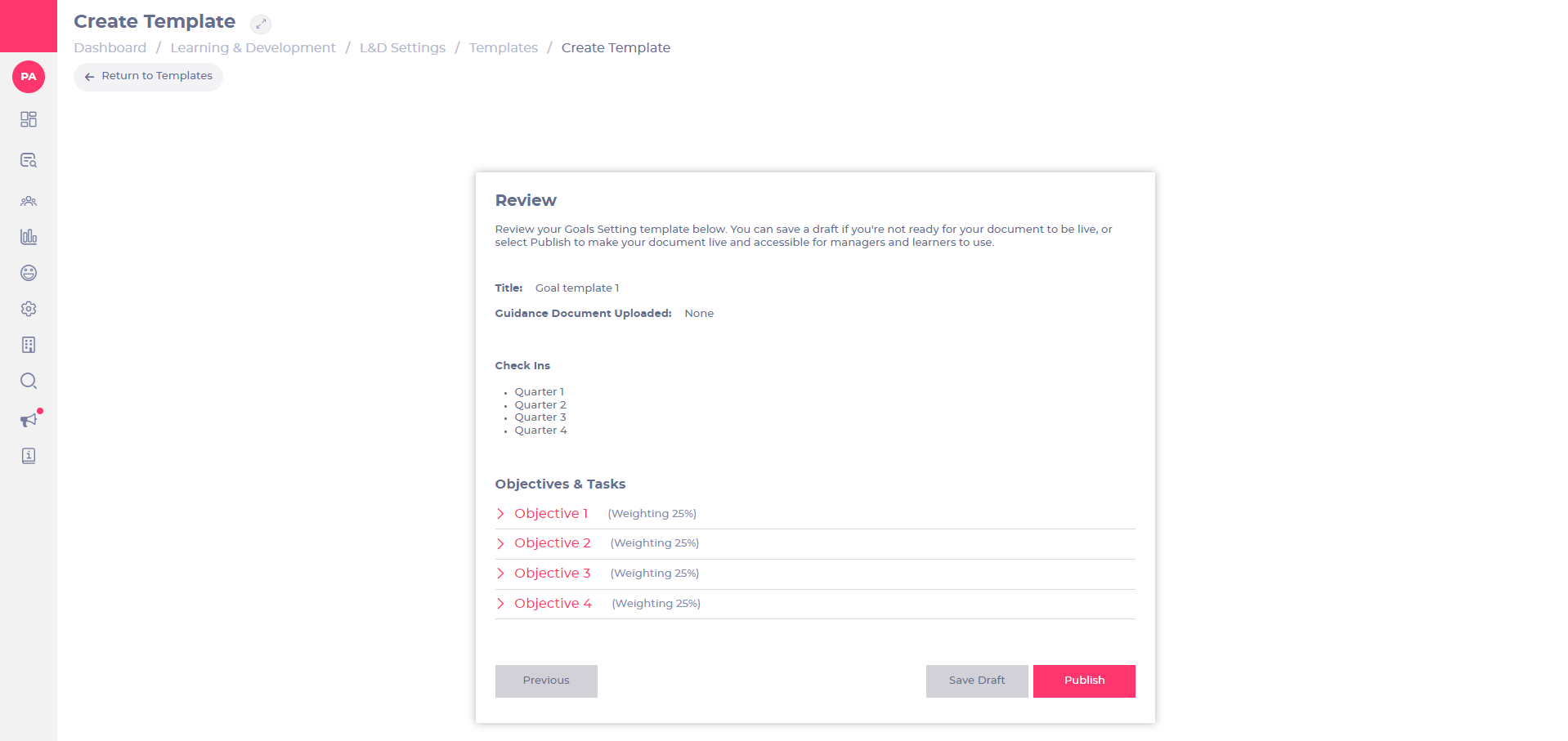
Select Review to see how your objectives and tasks will look like.
Select Save Draft to keep a copy if you’re not ready for the document to be live or Publish to make the document live and accessible for managers and learners to see.
Introduction to Appraisal Forms
What are Appraisals?
Appraisals in Flow Learning are customisable evaluation forms designed to measure and track the performance of learners. These forms can include tailored questions, action plans, or goals, enabling you to focus on specific areas of improvement and achievement. Appraisals can be enhanced with multimedia elements like images and videos, making them more engaging and personalised for each learner.
Key Features and Benefits of Appraisals
Customisable Content: Appraisals can be tailored to address specific training objectives, allowing you to create focused evaluations that reflect the unique needs of your learners and organisation.
Action Plans / Goals Setting: Including action plans or goals within appraisals ensures that learners have clear, actionable steps to achieve their objectives, supporting continuous growth and development.
Engaging Multimedia: Adding images, videos, and other multimedia elements to appraisals can make the evaluation process more engaging and personalised, helping learners connect more deeply with the feedback.
Flexible Sign-Off Process: Customisable sign-off settings allow you to control when learners and reviewers can see each other’s responses, ensuring that the evaluation process is transparent and aligned with your organisation’s policies.
Performance Tracking: Appraisals offer a structured approach to tracking learner performance over time, providing you with insights into their progress and areas for improvement.
Why Use Appraisals?
Using Appraisals in Flow Learning enables you to conduct thorough and focused performance evaluations. By providing structured feedback and setting clear goals, you can help your learners improve their skills and achieve their career objectives. The flexibility and customisation options within Appraisals ensure that your evaluations are aligned with your company’s training strategy, leading to more effective learning outcomes.
Next Steps
To maximise the effectiveness of appraisal forms in Flow Learning, explore some of the recommended articles below.
Understand appraisal sign off settings
Some companies choose to rename 'appraisals' to something that works better for their company. If Appraisals is part of your package and you are having trouble locating it on your system, please get in touch with your Mapal Customer Success Manager.
Start from: A new appraisal form.
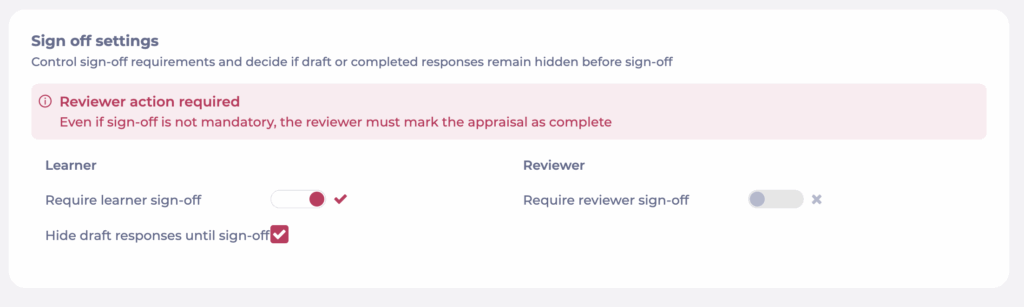
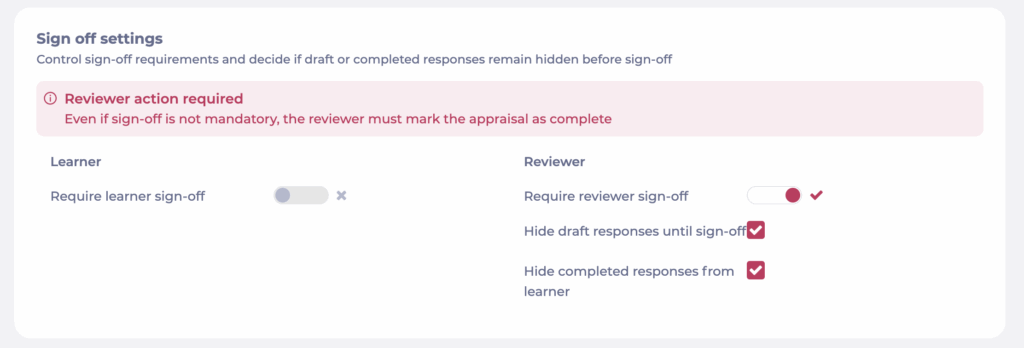
Sign off settings
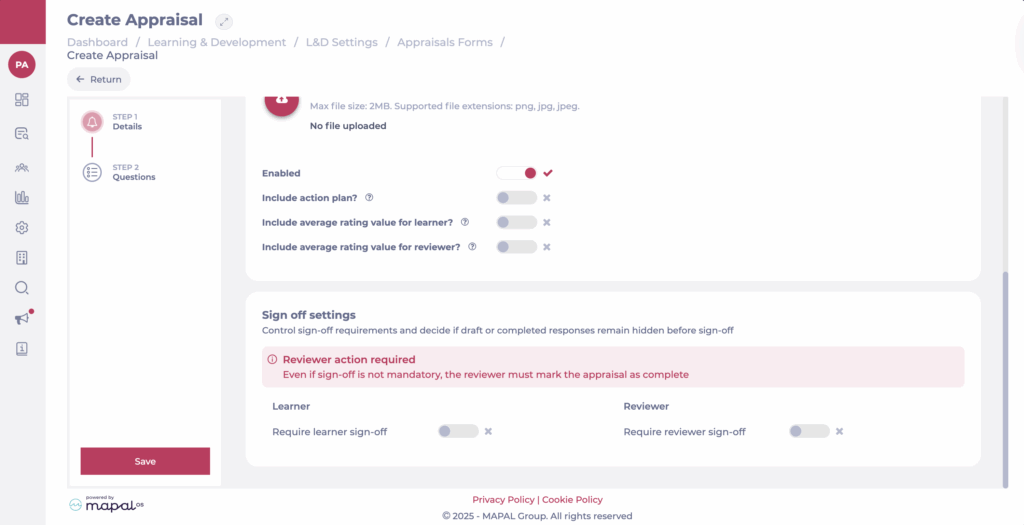
Sign off settings are in Step 1 of the Edit Appraisal page.
Sign off configuration control who needs to sign off an appraisal, and decide whether draft or completed responses remain hidden before sign-off.
Learner
Require learner sign-off: Toggle on if the learner must formally sign off their appraisal.
Hide draft responses until sign-off: When enabled, the reviewer will only see the learner’s answers after the learner signs off.
Reviewer
Require reviewer sign-off: Toggle on if the reviewer must sign off the appraisal before it is marked complete.
Hide completed responses from learner: The reviewer’s responses remain hidden from the learner, even after sign-off.
Hide draft responses until sign-off: When enabled, the learner will only see the reviewer’s answers after they have signed off.
Choosing the right settings
Use no sign-off required for lightweight appraisals where responses can be shared openly.
Use learner sign-off required when you want learners to confirm their input before sharing with their manager.
Use reviewer sign-off required when final validation by the manager is essential.
Combine both toggles for full dual sign-off when accountability on both sides is required.
Note: Even if sign-off is not mandatory, the reviewer must always mark the appraisal as complete.
Assign appraisals (through training structures)
Start from: The Flow Learning Dashboard.
Note: Depending on your permissions, you may not have this feature enabled. Some companies choose to rename 'appraisals' to something that works better for their company. If appraisals is part of your package and you are having trouble locating it on your system, please get in touch with us.
Three ways to assign appraisals
There are multiple ways to assign appraisals. Before you begin, it is important to note that making changes to a training structure will only affect new joiners going forward, and the training structure will not update for existing learners. If you are assigning an appraisal as a one-off addition for a single learner and it does not apply to anyone else with that job role, we recommend you assign appraisals through assigned learning or assign appraisals through a learner profile.
Assign individual appraisals using training structures
Training structures are standardised learning paths created for teams. It’s much more efficient to use training structures to issue a set of learning items to groups of learners all at once than to assign each set separately to many individual Learners.
Select Company > Training Structures.
Note: This will take you to a list of the training structures active within your company. Please note that Training structures are only visible to Account managers, and Training managers will not be able to see this functionality. Direct any questions to your manager or your Flow customer success manager. To find out more, see Set up new training structures.
Select a training structure from the list OR select ...> Edit on the training structure.
Select Appraisals from the Edit Training Structure page.
Select Selection> to open the Selection panel.
Note: Appraisals in this list have already been created and enabled within appraisal forms. To create a new appraisal to add to this list, see Create appraisal forms.
Select the correct appraisal from the Available column and drag it onto the Selected column. The selected appraisal will be highlighted.
Note: All appraisals added to the Selected column will be added to the training structure when you save your changes.
Select a date that the appraisal should be completed by, calculated in days.
Note If the appraisal should be based on the learner's employment start date rather than a change of job title, enter 365 days. This will make the appraisal due on the learner's next work anniversary.
Select from the dropdown menu labelled Available to if you would like the appraisal you are adding to be visible to all learners, new learners only, or existing learners only.
Select > to open the Restrictions panel
Note You can use restrictions to allow items to be included or excluded from the training structure depending on a learner’s branding or jurisdiction.
Setting a restriction
Select the Add Another button to add a restriction. You can add as many as necessary.
Tick the box in the Exclude column to exclude the item when a learner’s if Condition column parameter matches the Value column OR untick the box to only include the item when their if Condition column parameter matches the Value column.
Select the item to be restricted using the dropdown list in the Appraisal column.
Select either a branding or jurisdiction from the if Condition column to test that parameter for the restriction.
Check the box in the Matches column to restrict the item if the branding or jurisdiction matches the selection in the Value column OR uncheck the box to restrict the item if the selection does not match.
Use Delete to remove the restriction.
Select Previous to return to the previous section.
Select Cancel to leave without saving.
Select Next to move to the next learning item in the menu – i.e., Workbooks.
Scroll to the bottom of the menu.
Select Save & Review to open the Review section.
Note: The Review section allows you to check over what you are about to assign, if you need to make any adjustments select Go Back to return to the main menu, from there you can re-visit the Appraisals tab or the Save & Review tab to make any last changes before you save.
Select Save & Close when you are happy with your added appraisal to update the training structure.
The items in a training structure will only be assigned for any learners matching the configuration settings whenever that learner is created, changes job role or moves branch. Items in a training structure are not assigned immediately when the training structure is edited.
Disabled appraisals in training structures
When an appraisal form is disabled in the system, it is automatically removed from any Training Structures where it was previously included. This means that:
Disabled appraisals will no longer appear in the list of selected items within the training structure.
They will not be issued to any new or existing learners going forward.
This behaviour ensures consistency with how disabled modules are handled across Flow Learning, keeping all active training structures up to date automatically.
Link a goal to an appraisal
Start from: The Flow Learning dashboard.
Why should you link goals to appraisals?
Linking goals to appraisals in Flow Learning streamlines performance management for both learners and managers. Learners can update goals directly within the appraisal form on Mapal One, ensuring alignment with feedback and enabling real-time adjustments. For managers, this integration offers comprehensive performance tracking, with goals and appraisals visible in reports, allowing for better assessment of progress and informed decisions on development. This connection enhances accountability and supports continuous improvement.
Link a goal to an appraisal
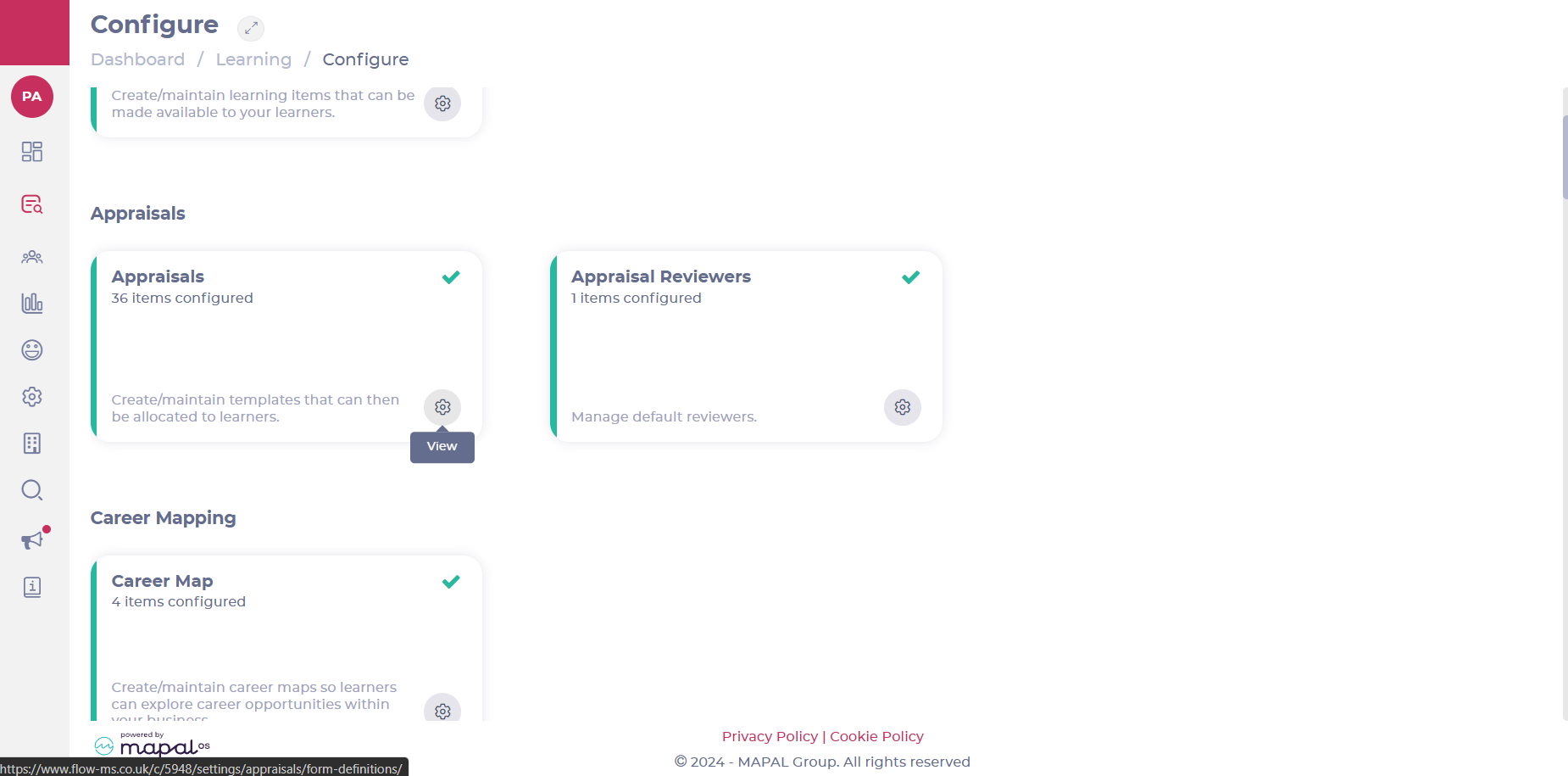
Select Learning & Development > L&D Settings from the main menu.
Scroll down and select View in the Appraisals card.
Create a new appraisal or select an existing one from the list.
Note: The Appraisal must have the Include goal? option active in Step 1 - Details. Otherwise, you won’t be able to link goals to it.
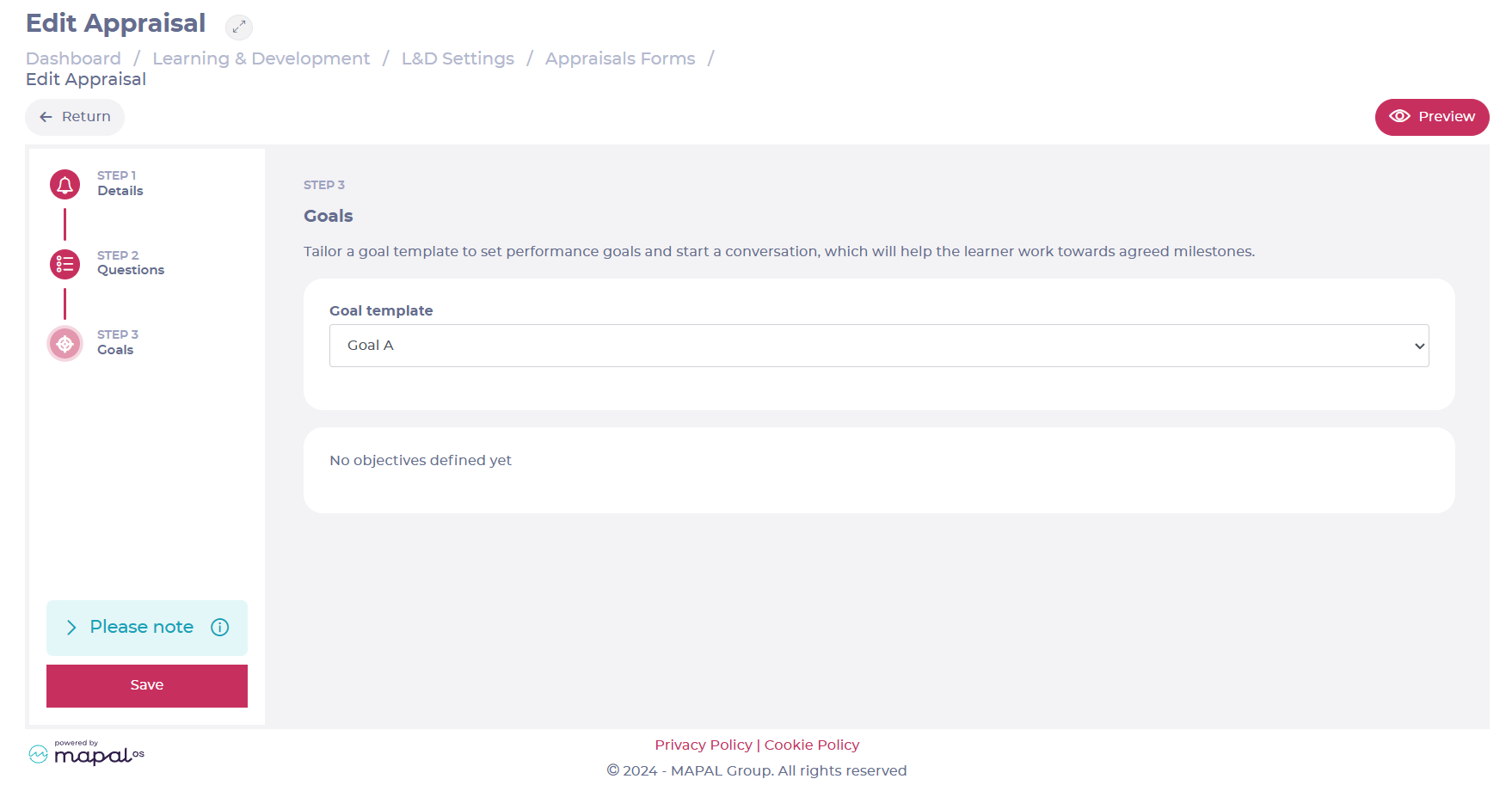
Move to the Goals step in the Appraisal’s set up.
Select the specific Goal template from the dropdown list.
Select Save.
Now, whenever you assign the appraisal through Assign Learning, the two will be linked. Also, when the learner views the appraisal on Mapal One, they should see a link to the goal at the bottom of the appraisal.
Auto assignment of goals
Goals in Flow Learning are automatically assigned to reviewers, ensuring that the reviewer will have access to both appraisal and goals together.
When a goal is linked to an appraisal, the system will check for any existing reviewers. If the appraisal has been assigned to a reviewer, they will be automatically assigned to the goal as well.
Get the most out of annual reviews (webinar)
Key points
Reviewing your annual review forms
Hints and tips on streamlining forms
Introducing our Goals function and how to utilise this
Best practice in managing your Learner and Managers data