Understand Sentiment and Visibility

Start from: The Reputation module.

Sentiment

  • Select Sentiment from the main menu.

Sentiment analyses the written review rather than the score. For example, a customer may make a mistake and post a review that may have a score of 1 and a review that says the restaurant is excellent, in this case, the score is low, but the sentiment is high. 

The following graph analyses the percentage of positive reviews versus total reviews. 

Imagen que contiene Gráfico<br><br>Descripción generada automáticamente  

The following section shows the evolution of the reviews according to their nature, the percentage evolution, and the variation compared to the benchmark.


The following graph shows a general view of the overall sentiment, detailing the total amount of positive reviews versus negative ones.
 

Interfaz de usuario gráfica, Texto, Aplicación, Chat o mensaje de texto<br><br>Descripción generada automáticamente
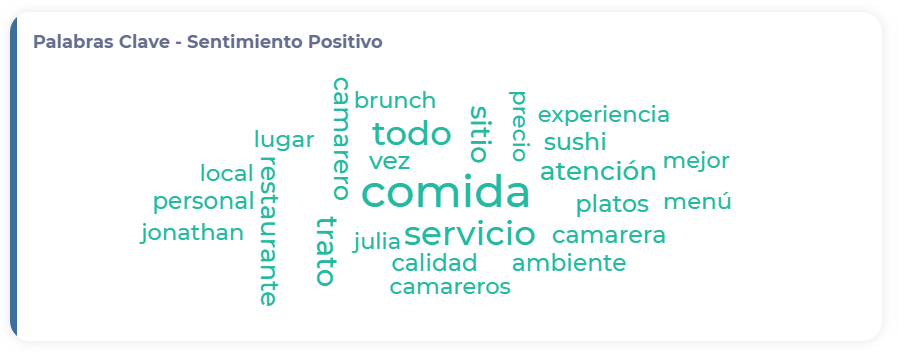
The last graph analyses which words are used most frequently in both positive (green) and negative (red) reviews. 
Texto<br><br>Descripción generada automáticamente 
Visibility

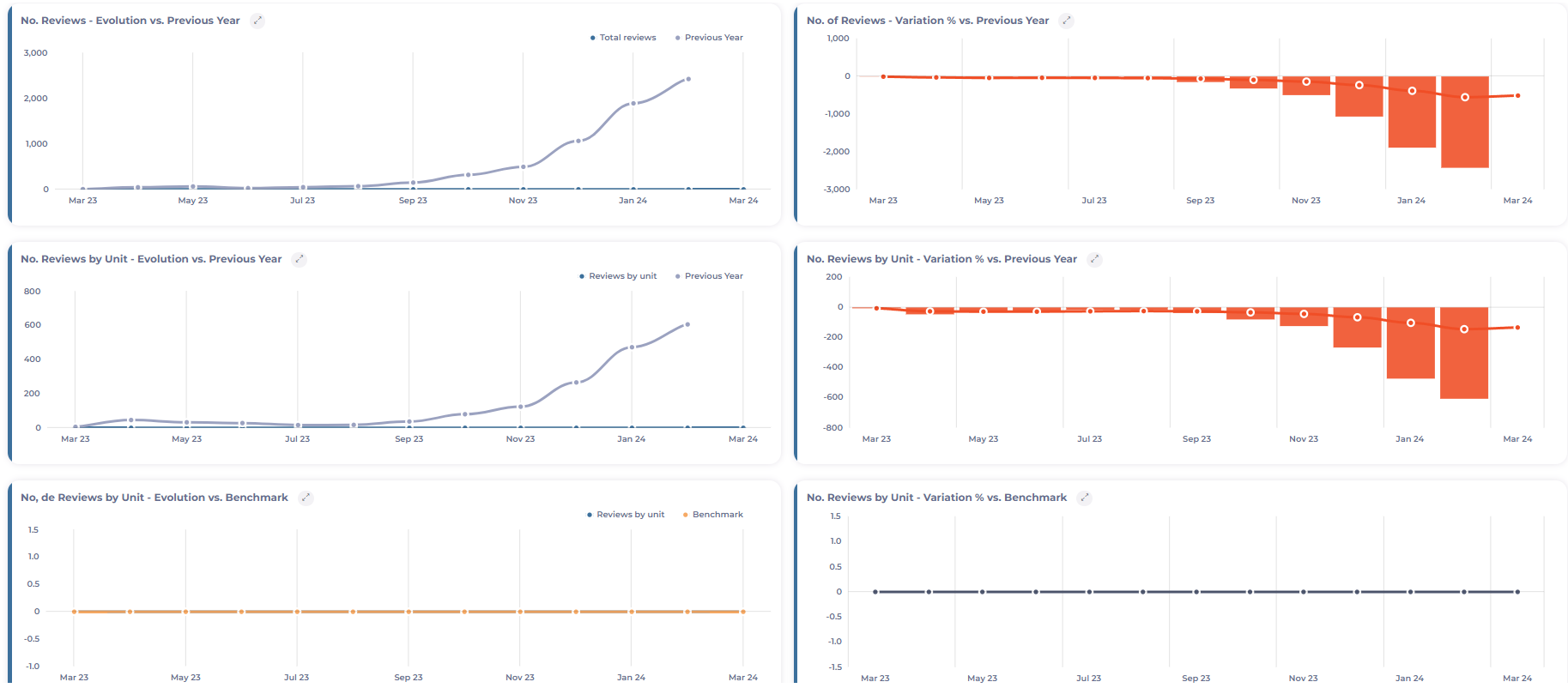
The visibility tool shows the total number of reviews, the absolute and percentage variation over the previous year, and the previous period

  • Select Visibility from the main menu.

Interfaz de usuario gráfica, Texto, Aplicación<br><br>Descripción generada automáticamente 

The following graph shows the evolution of the opinions according to their nature, the evolution percentage, and the variation concerning the benchmark


Understand photo analysis

Start from: The Reputation module.

  • Select Photos from the main menu.

You’ll find two tabs in the Photos menu: Dashboard and Photos.

    • In Photos, you’ll find the photos that have been uploaded.

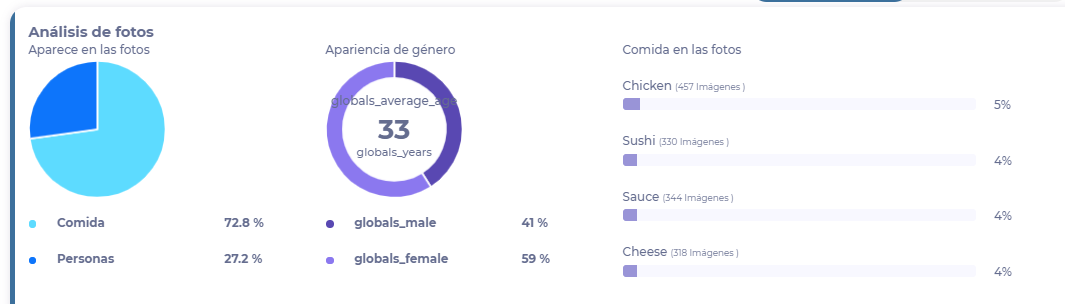
    • The Dashboard shows graphs that analyze the photos in which food or people appear.

The following graph shows the number of men and women that appear in the photos and average age.

 You’ll also find a breakdown of the types of food that appear most in the photos. 
Interfaz de usuario gráfica, Aplicación, Teams<br><br>Descripción generada automáticamente 
 

Set up the Reputation survey app (On Site)

Start from: The Reputation module.

Set up permissions

Once the On Site bundle is activated for an operator, the Permissions have to be set up to allow users to access the functionalities. 

To do this:

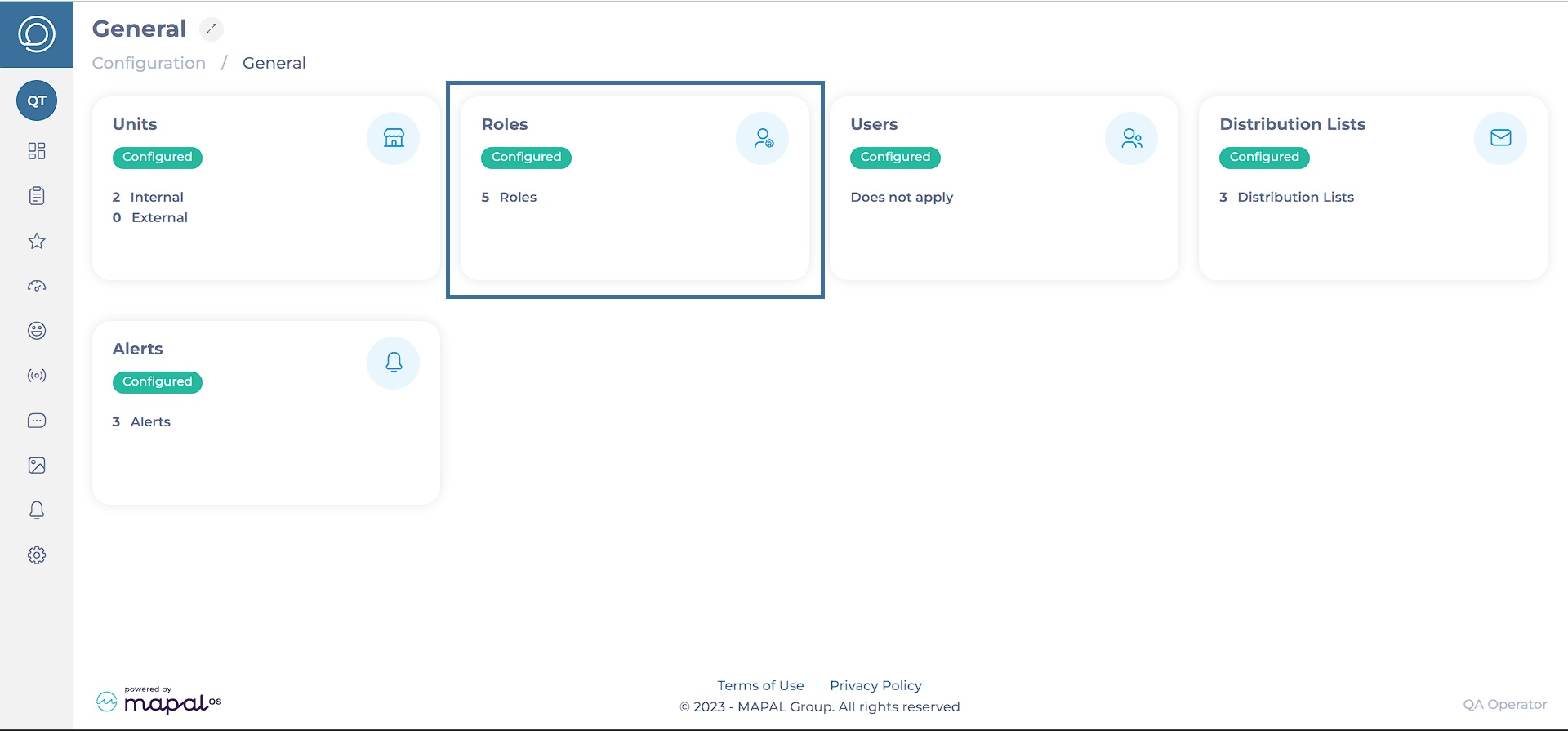
  • Navigate to Configuration > General > Roles.

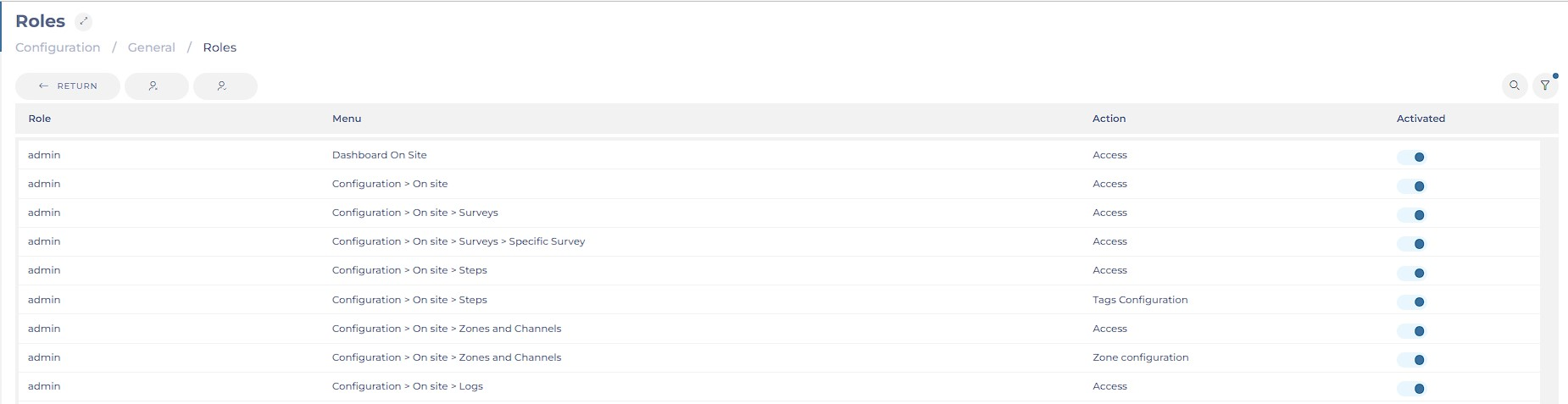
  • On the Roles page, use the switch in the Activated column to enable or disable all the desired permissions regarding On Site.

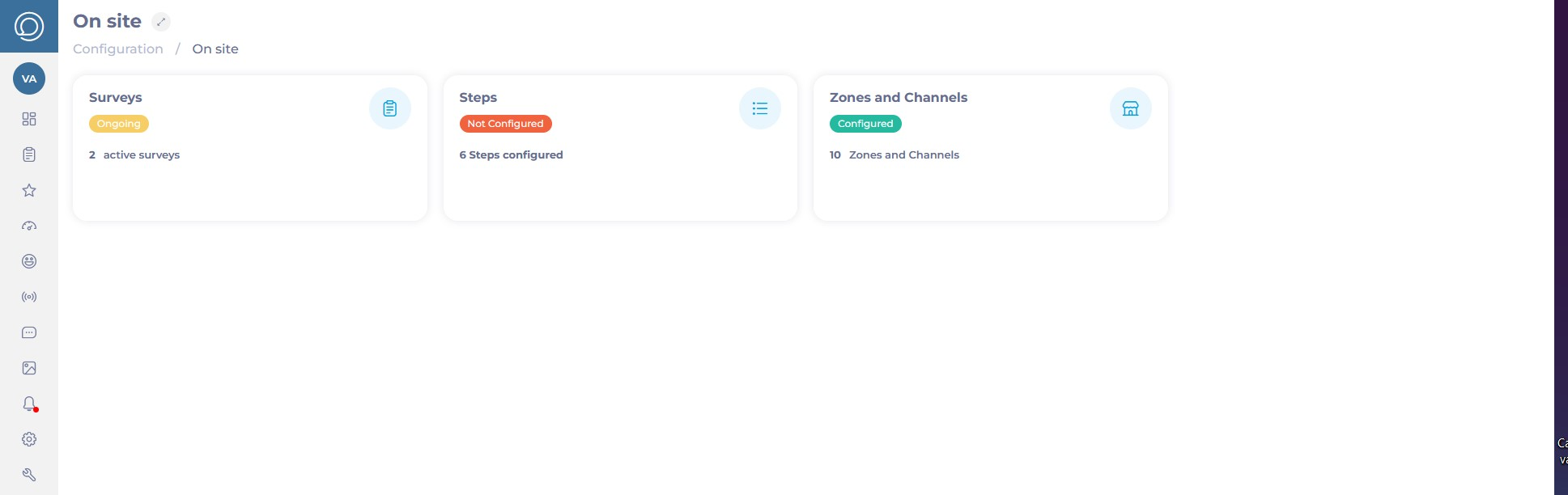
After giving permissions in the operator, the On Site option will be shown under Configuration in the main menu. There, you will be able to set up new surveys, new steps for the surveys, and new zones and channels for distributing the survey.

Set up steps 

To create a structured and efficient survey process in Reputation, you need to manage individual survey steps first. Each step represents a unit within a survey, such as a question, message, image, or interactive element, and can be reused across multiple surveys.  

To learn more about setting up and managing steps in Reputation, see Manage steps in Reputation

Set up surveys 

Reputation allows you to create and customize guest surveys, ensuring they are always relevant and aligned with business needs. You can select specific steps to tailor your survey, set up advanced logic for conditional branching, and add visually appealing designs.  

To know more about setting up and managing surveys in Reputation, see Manage surveys in Reputation

Distribute surveys 

Reputation allows you to distribute surveys effectively to gather guest feedback. You can assign surveys to specific zones within a business unit, such as the kitchen, bar, or bathroom. Managers can also choose the distribution channels for these surveys, including QR codes, emails, or PDFs. 

To know more about distributing surveys in Reputation, see Distribute surveys in Reputation

Substitute recipes in your menus

Start from: The Easilys menu.

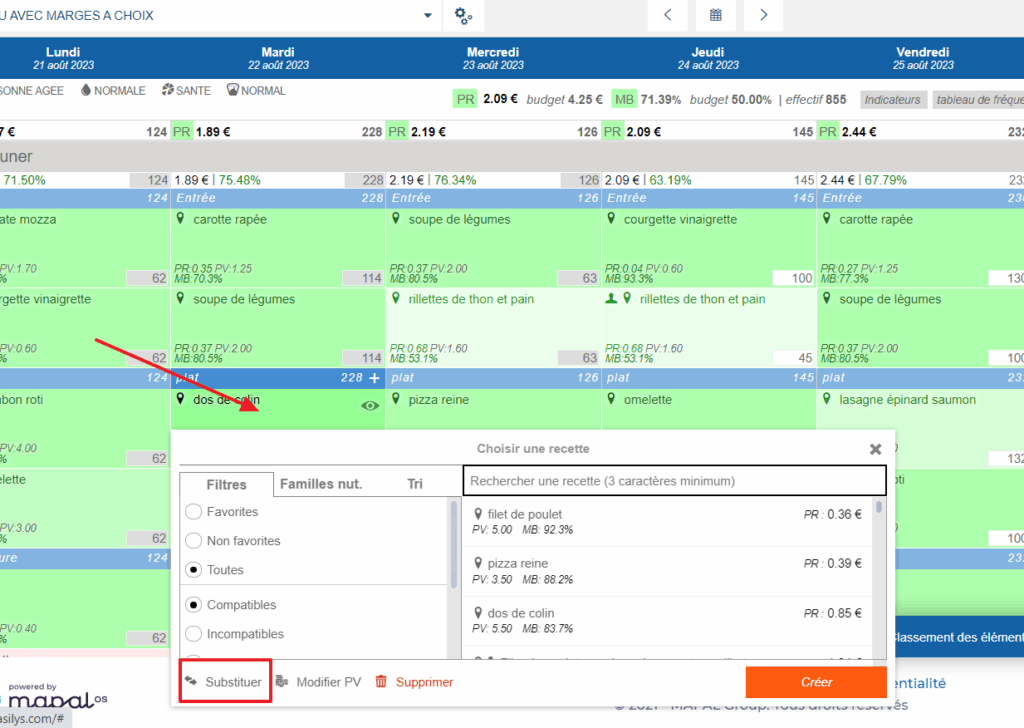
Do you need to replace one recipe with another for a specific period in your menus? Rather than making manual changes over several days, use the recipe substitution system!

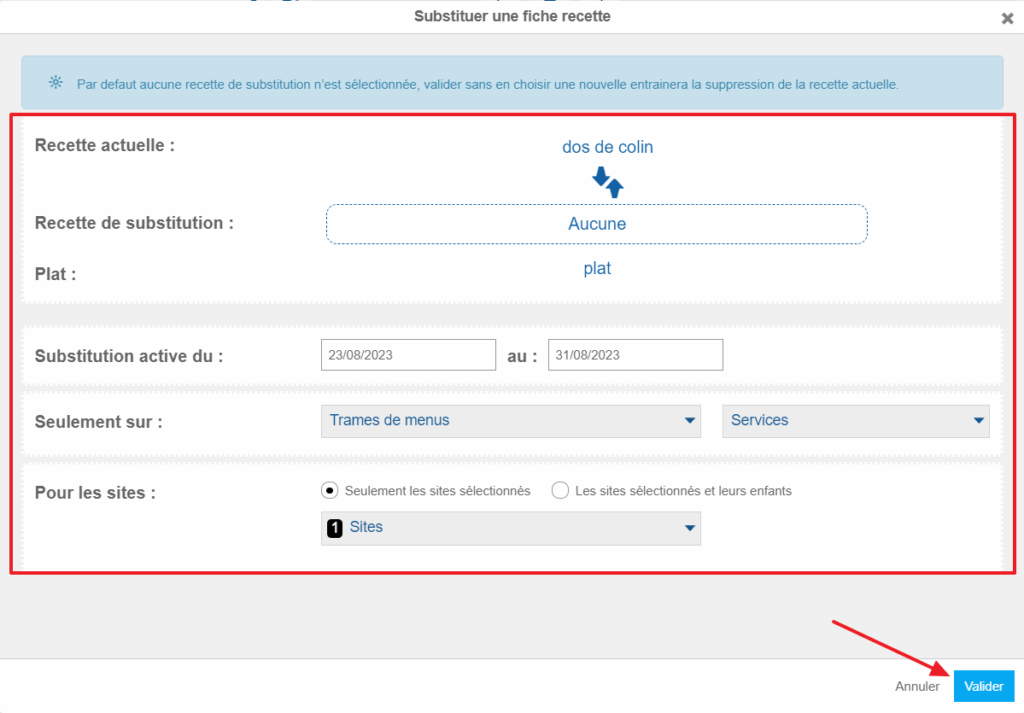
You can define the period during which a recipe should be replaced by another and Easilys will make the changes for you. This saves time, especially when you do not know exactly where the recipe appears during the period.

The small recipe selection window will then appear on the screen.

The “Substitute a recipe sheet” window will then appear on the screen.

A green message at the top right of the screen will indicate the number of recipes that have been substituted during the period.

Managing order delivery

Start from: The Easilys menu.

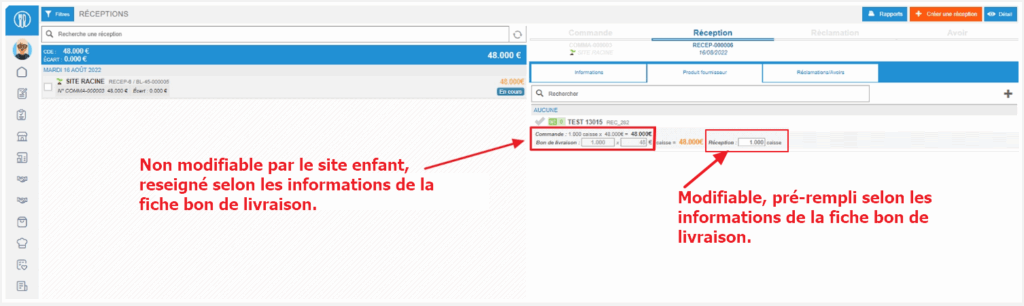
From child sites, users can place orders in the same way as they order from other suppliers. To manage the delivery of their order, you must go to the "Delivery notes" screen on the parent site.

It is possible to deliver the requested products in several shipments. To do this:

A new note containing only the products that have not yet been sent is then created: you can send it when needed.

The unit visible in the “Delivered qty” column corresponds to the billing unit of the finished product.

Note: It may be necessary to edit the delivery note if the total stock of ordered products is not sufficient.
To be able to set the delivery to Sent status, you will need to replenish the stock or change the delivered quantity on the delivery note form.

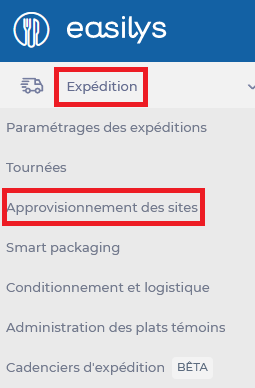
You can track the status of your deliveries from the “Site supply” screen, at any time and for any past or future period.

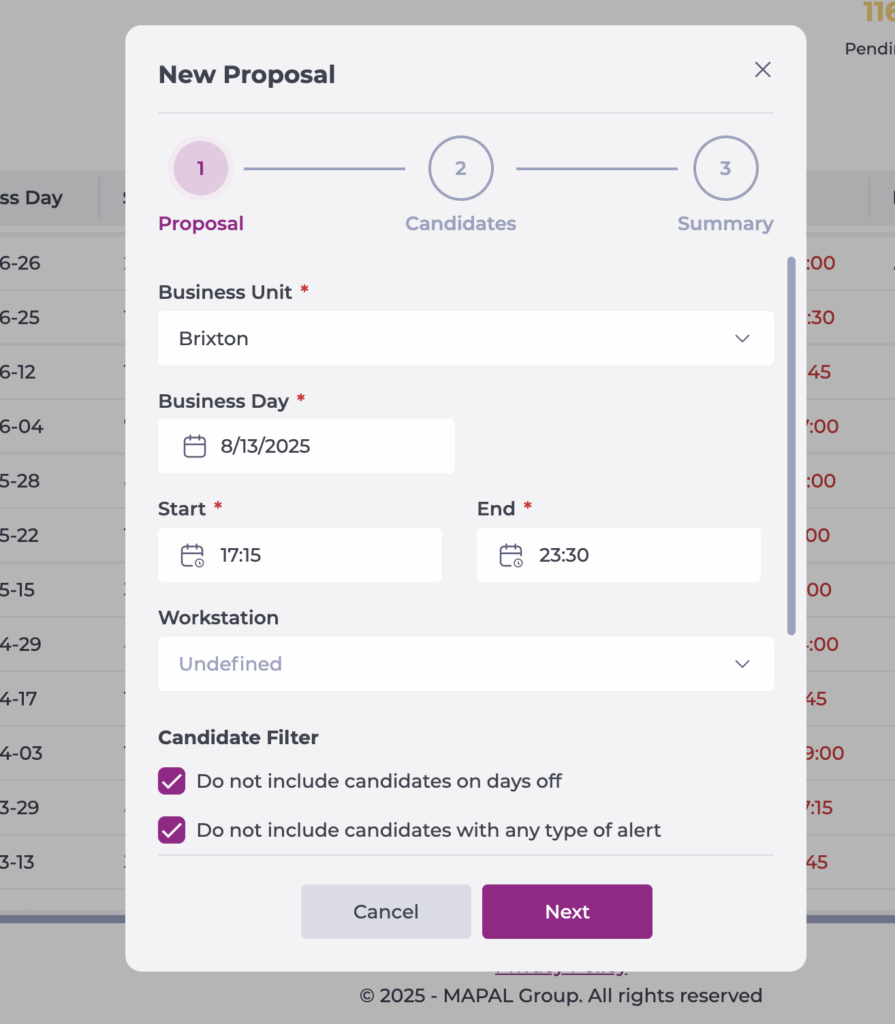
Create a shift proposal

Start from: The Workforce dashboard.

1. Proposal

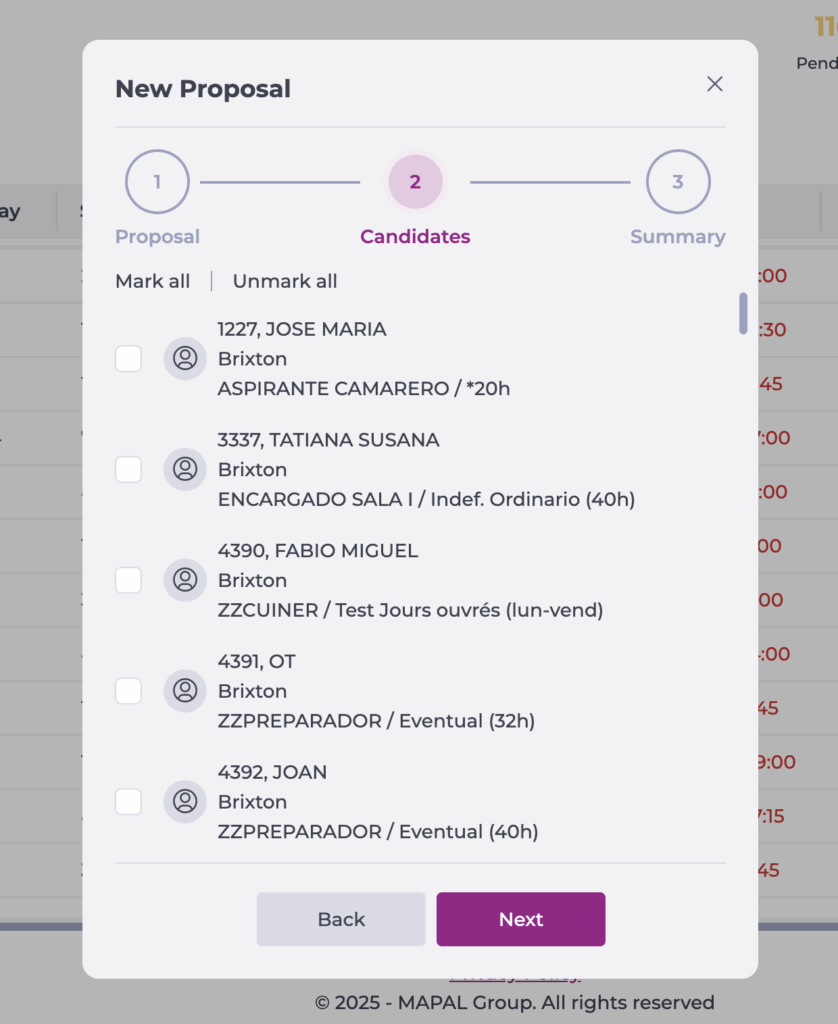
2. Candidates

The list will show employees who:

Select employees using:

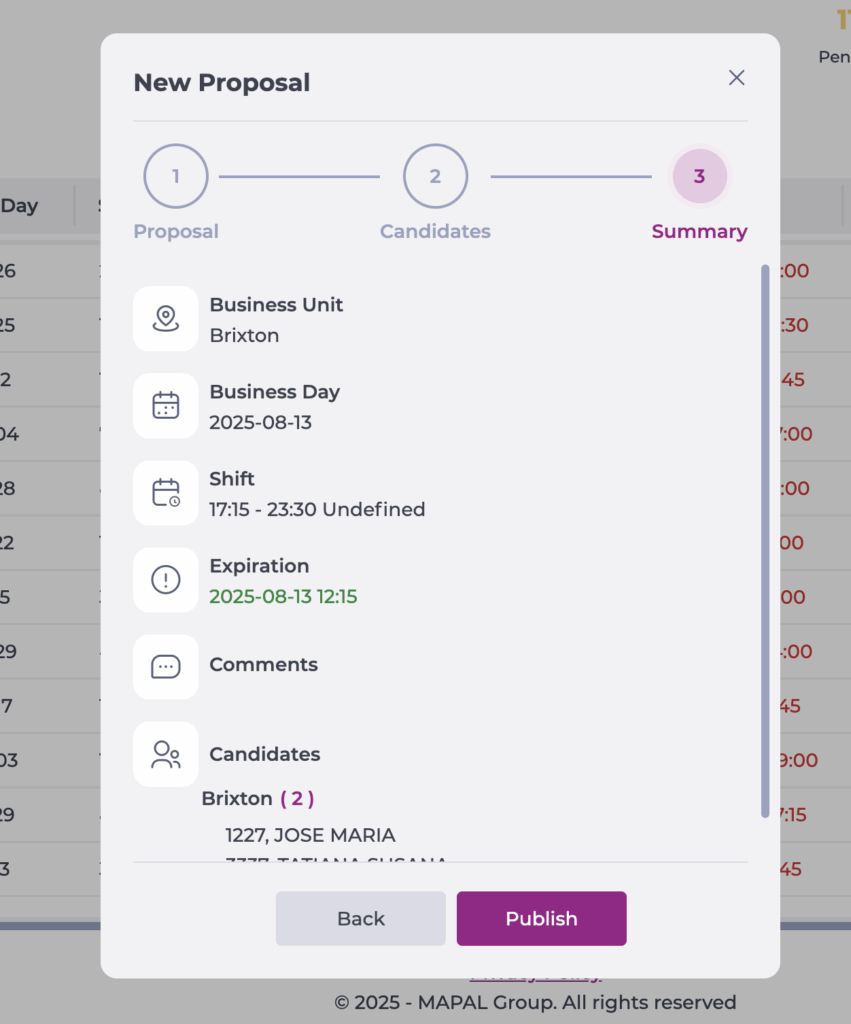
3. Summary

Notes: If you have authorisation permissions, the proposal is sent immediately via push notification to all selected employees in Gir Staff. If you do not have authorisation permissions, a push notification is sent to managers authorised to approve proposals for that business unit.

Print sanitary labels

Start from: The Easilys menu.

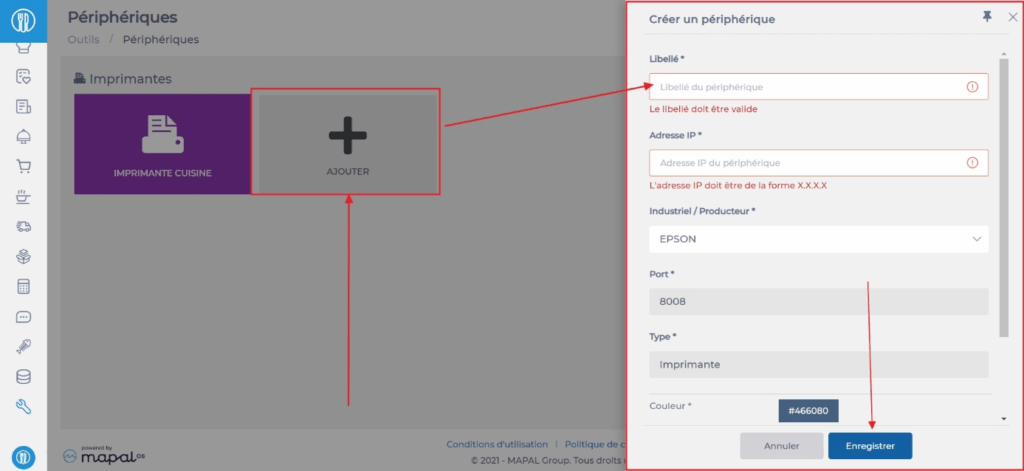
CONNECT EASILYS TO A PRINTER

The “Create a device” panel appears on the right side of the screen.

CREATE A PRINT JOB

The “Create a print job” panel appears on the right side of the screen.

The job details appear on the right side of the screen.

Smart Analysis in Reputation

Start from: a supported page in the Reputation product.

Notes: Smart Analysis is a tool, not a final decision-maker. Always verify key results using the data visible in your system. AI may occasionally provide incomplete or incorrect responses. If in doubt, cross-check with learner records or reports.

Smart Analysis in Reputation

Smart Analysis is an AI-powered tool that helps you explore Reputation data through simple, conversational questions. It highlights trends, patterns, and problem areas instantly, so you can understand performance at a glance—without exporting reports or analysing spreadsheets manually.

Where it is available

Smart Analysis is currently supported on the following Reputation screens:

More pages may be supported in future.

How to access Smart Analysis

The Smart Analysis icon appears next to the filters on supported pages. Select the icon to launch the assistant.

For full instructions, see Access the Mapal AI Assistant.

What you can do with it

Use Smart Analysis to get real-time answers about the data shown on screen. You can:

Things to keep in mind

Create quizzes and exams with Module Builder

Start from Learning & Development > Module builder.
 

End-of-section or end-of-module?

It is important to be aware of the difference between end-of-section (EoS) and end-of-module (EoM) questions within Module builder. 

  • End-of-section (EoS) questions are asked at the end of a section, and are better as a quick "knowledge check".
  • End-of-module (EoM) questions are asked at the end of a module, and they are a good place for a longer - more comprehensive - quiz. 

Both types of questions are taken from an overall bank of questions that are attached to slides. EoM questions are always taken from unused EoS questions. Therefore, the minimum number of EoM questions must always be higher than the minimum number of EoS questions, to ensure there are enough unique questions left in the bank.

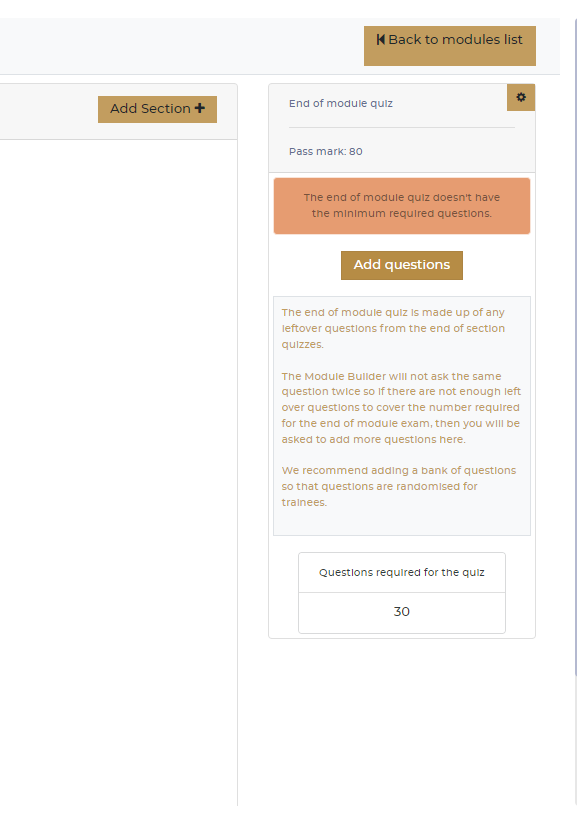
If you set the minimum number of EoM questions to be lower than the combined minimum of EoS questions, you will get the error message "The end of module quiz doesn't have the minimum required questions.".

Always ensure there are enough questions in the shared question bank to cover the end-of-section plus end-of-module tests.

Note:If your module is short (ten slides or fewer), it is usually best to focus on one end-of-module quiz (rather than several end-of-section quizzes), for a better user experience.


Configure an end-of-section quiz

  • On any section within the module overview, select the cog icon to view the Section options window.
  • Under section actions, choose Edit section.
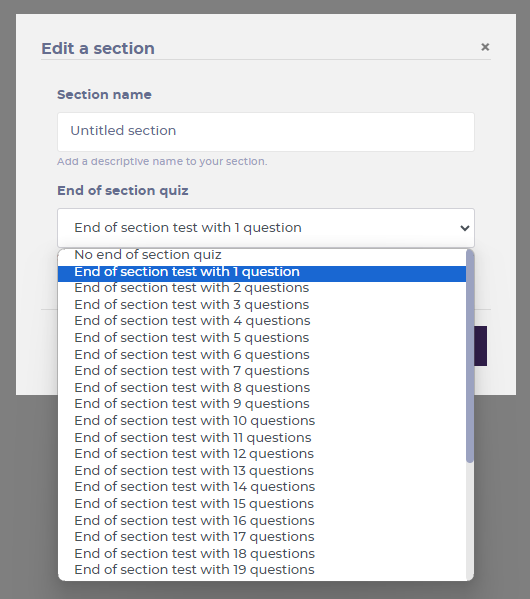
  • From End of section quiz, you can select the number of questions from a dropdown menu.
 

Create an end-of-module quiz

  • From the Modules list page, select the module where you wish to add an exam or quiz.
  • Select Exam/Quiz.

An "End of module quiz" pop-up will appear.
  • Enter a number in the Number of questions field.
Note you can have a bank of up to 60 questions, with the maximum number of questions in the exam being 30. However, we don't recommend more than 10 questions to maintain trainee engagement.
  • Enter the Pass percentage you wish to give your quiz.
Note our Flow standard pass percentage is 80%. However, this is ultimately up to you, depending on what you feel is best for the content of your module.


Add questions via the "end of module quiz" window

  • Select the Add questions button.
  • From the Manage your questions pop-up that appears, select the +Add question button.

Add questions via Slide options

  • On any slide within the module overview, select the cog icon to view the Slide options window.
  • Under Questions management, select View questions.
  • Select the +Add question button.

Question types

There are 3 kinds of questions you can choose from:
  • Single Choice this type of question means that there is only one correct answer that the trainee has to select. It has a maximum of 6 possible answers.
  • Multiple Choice this type of question means that there are multiple answers to the question asked, and has a maximum of 8 potential answers, which includes incorrect answers.
  • Drag & Drop this type of question is similar to match-the-pairs questions. It has 4 pairs of question/answers (e.g., Step 1 = ABC, Step 2 = DEF and so on).
All answers have a character limit of 100 characters.
 
Note make sure that the answer to the question you are asking is within your module content. If a learner receives a question that does not relate to the content you've built, it can lead to confusion and reduce their engagement.

src="src="src="src="src="src="

Manage menu plans for menu pre-design

Start from: The Easilys menu.

Menu plans

Menu plans defined in the Menu pre-design screen allow you to list all the recipes needed to meet the requirements of a group of customers for meals and days within a given period, and to generate customer-specific menus. They serve the following purposes:

Important: Before creating your menu plans, you must configure rules using the Smart Specification screen to indicate if certain products, recipes, allergens, or ingredients must be excluded from menus for certain clients.

Create a menu plan

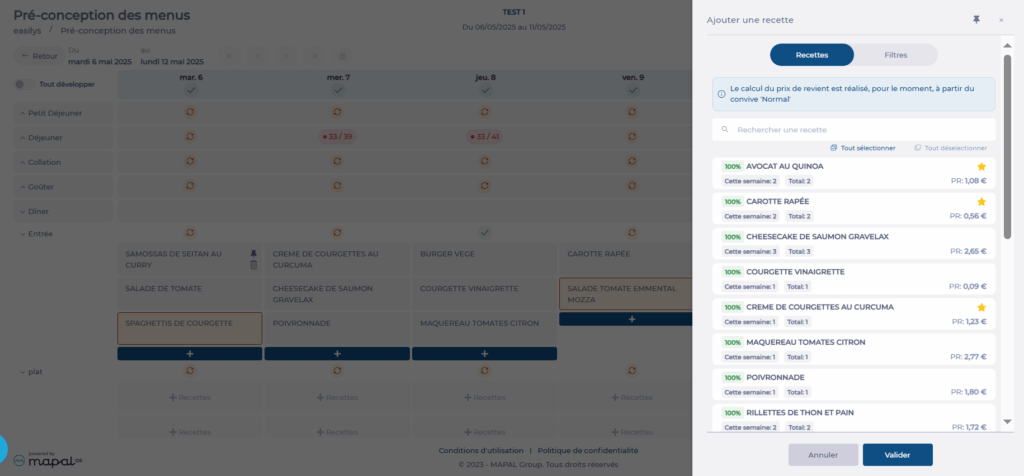
Add recipes to a menu plan

The first week of the plan will display with all relevant services and meal components based on the selected templates. You can now start assigning recipes to each area for all weeks in the plan.

The idea is to place the main recipe first—the one you want most clients to receive. Follow this with alternative recipes for clients who cannot receive the main one due to their smart particularity rules.

Note:

Verify the menu plan

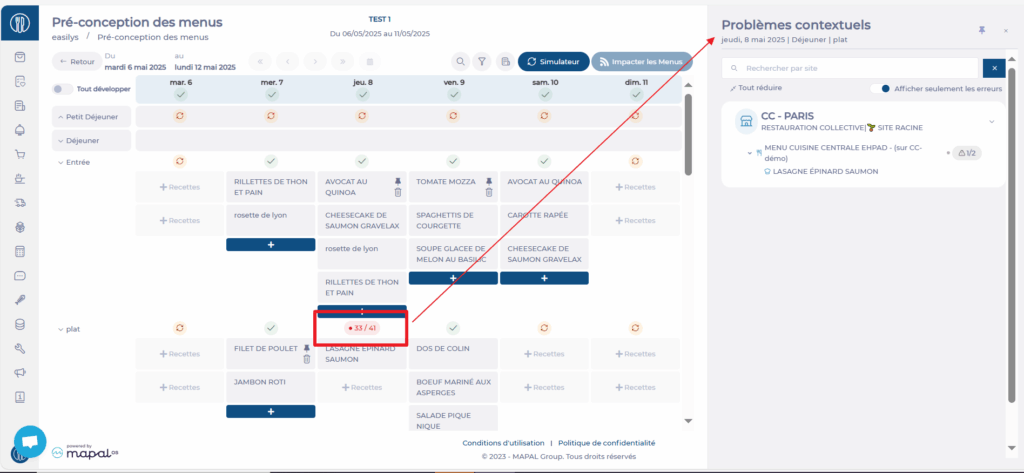
With the simulation function, you can check if the recipes in the plan will generate valid menus for each client site.

To investigate issues:

In the Contextual Issues panel:

Click the eye icon to view or edit the rule.

To fix issues:

Note: Recipes added after a simulation are highlighted with a yellow background. This distinction remains visible as long as a new simulation is not run or the page is not exited.

Apply the menu plan to menus

Once the plan is complete, you must apply it to update the corresponding templates across all relevant sites.

Note: If you change the menu plan after applying it, you must apply it again to update the templates on the child sites. This will overwrite previous versions.