Revise indirect work within the shift

Start from: The Workforce module.

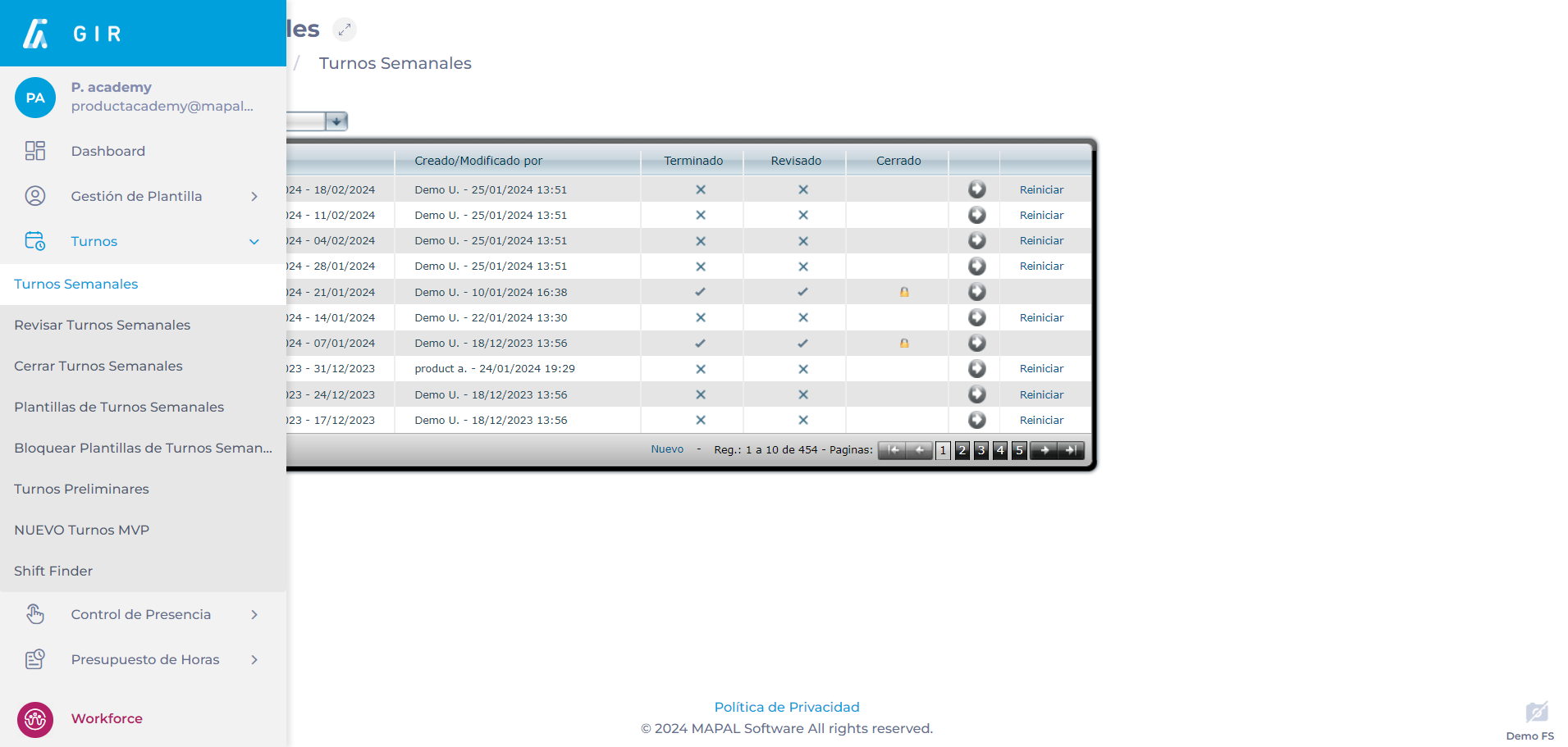
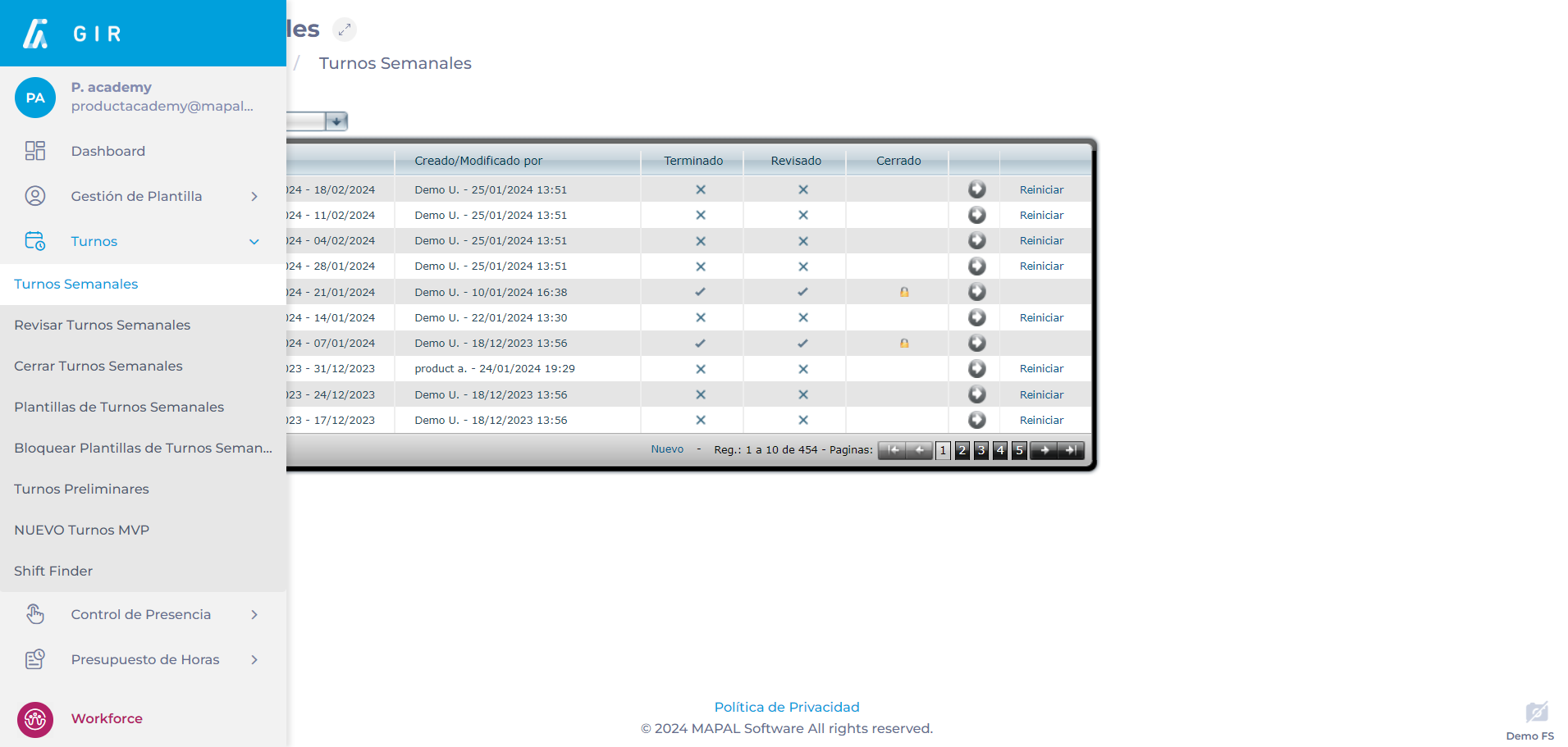
  • Select Scheduling > Weekly ROTAs from the main menu.
Interfaz de usuario gráfica, Aplicación<br><br>Descripción generada automáticamente

  • Select the Work Center where you want to review the indirect labor.

  • Select New to create a new weekly shift or configure a weekly shift that has already been created by selecting the Arrow icon.

Notes: If the icon is blue, it means that there is already data saved in that week.

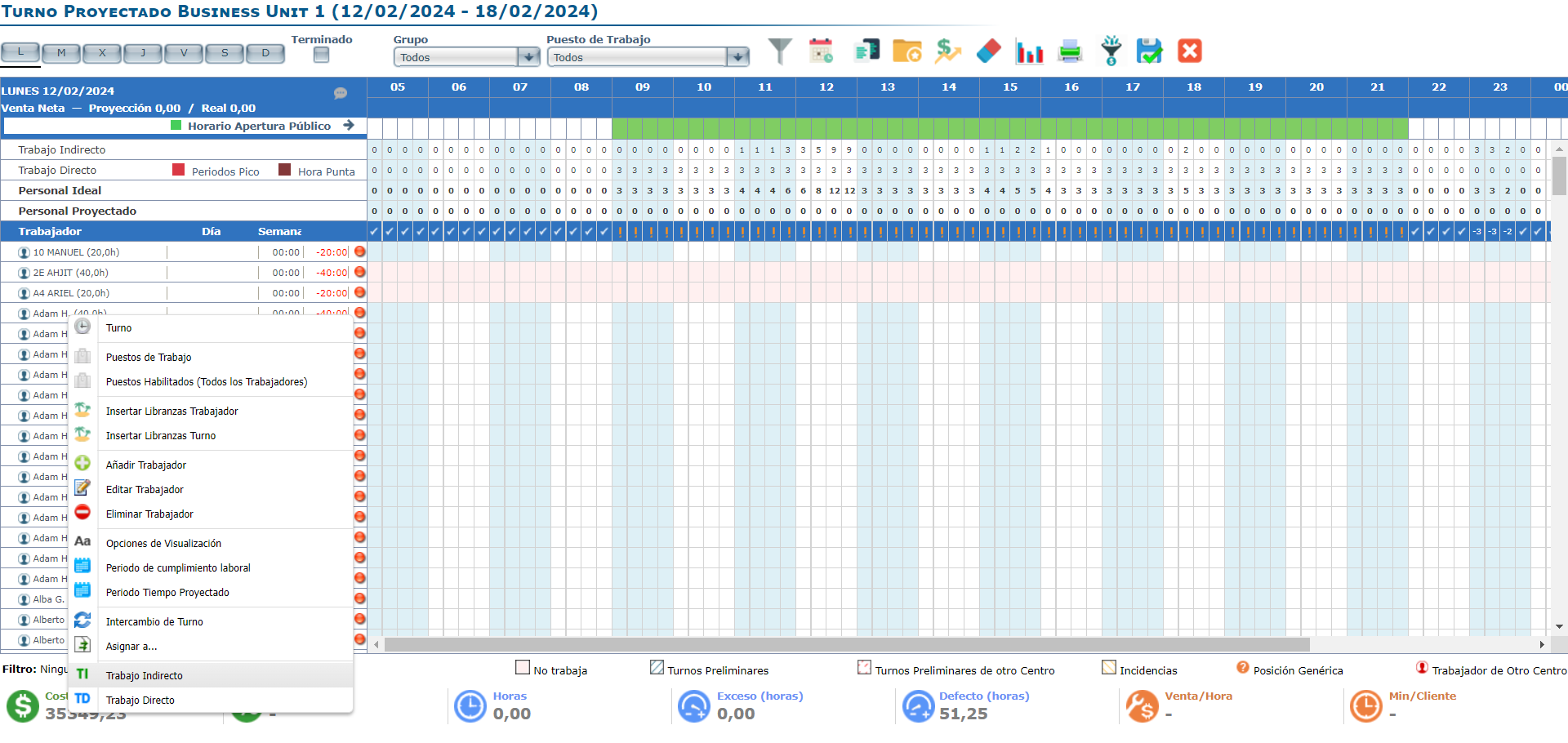
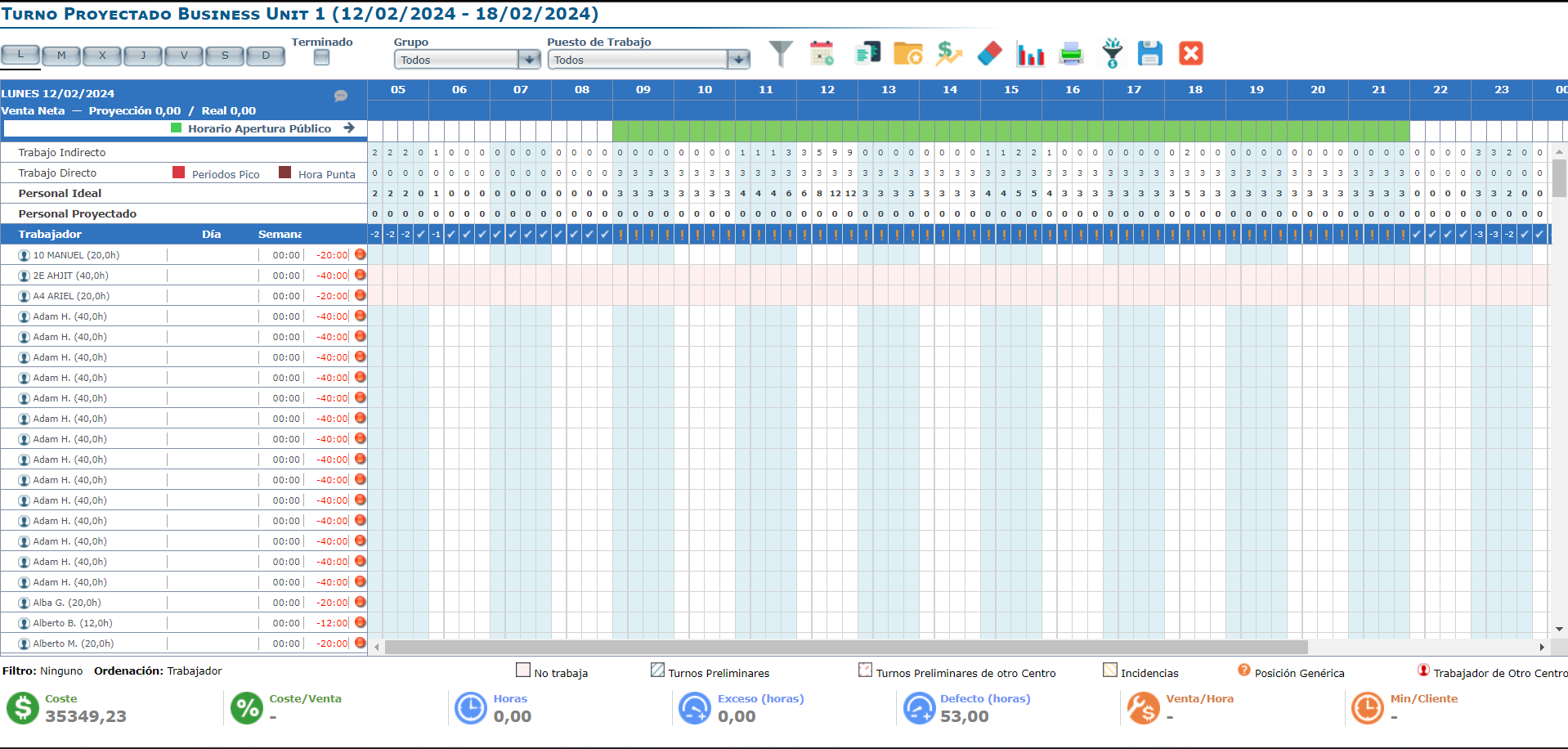
  • Once on the Projected Shift screen, locate the Indirect Labor row in the Net Sales panel.
Interfaz de usuario gráfica, Aplicación, Tabla, Excel<br><br>Descripción generada automáticamente

  • In this table, you will be able to view the Indirect Labor configured as follows:

    • Columns with numbers indicate a time of day.

    • The subcolumns (4) represent a quarter of an hour each. That is, under column 05, there will be four sub-columns: 05:00 - 05:15, 05:15 - 05:30, 05:30 - 05:45, 05:45 - 06:00.

    • The number within each table or sub-column indicates the number of workers assigned for indirect labor in that defined quarter-hour.


To correct any inconsistencies in the configuration or to change any indirect labor requirements, see Configure Indirect Work for a Shift.
 

Set up a personnel report with payroll information

Start from: The Workforce module.

Create custom report

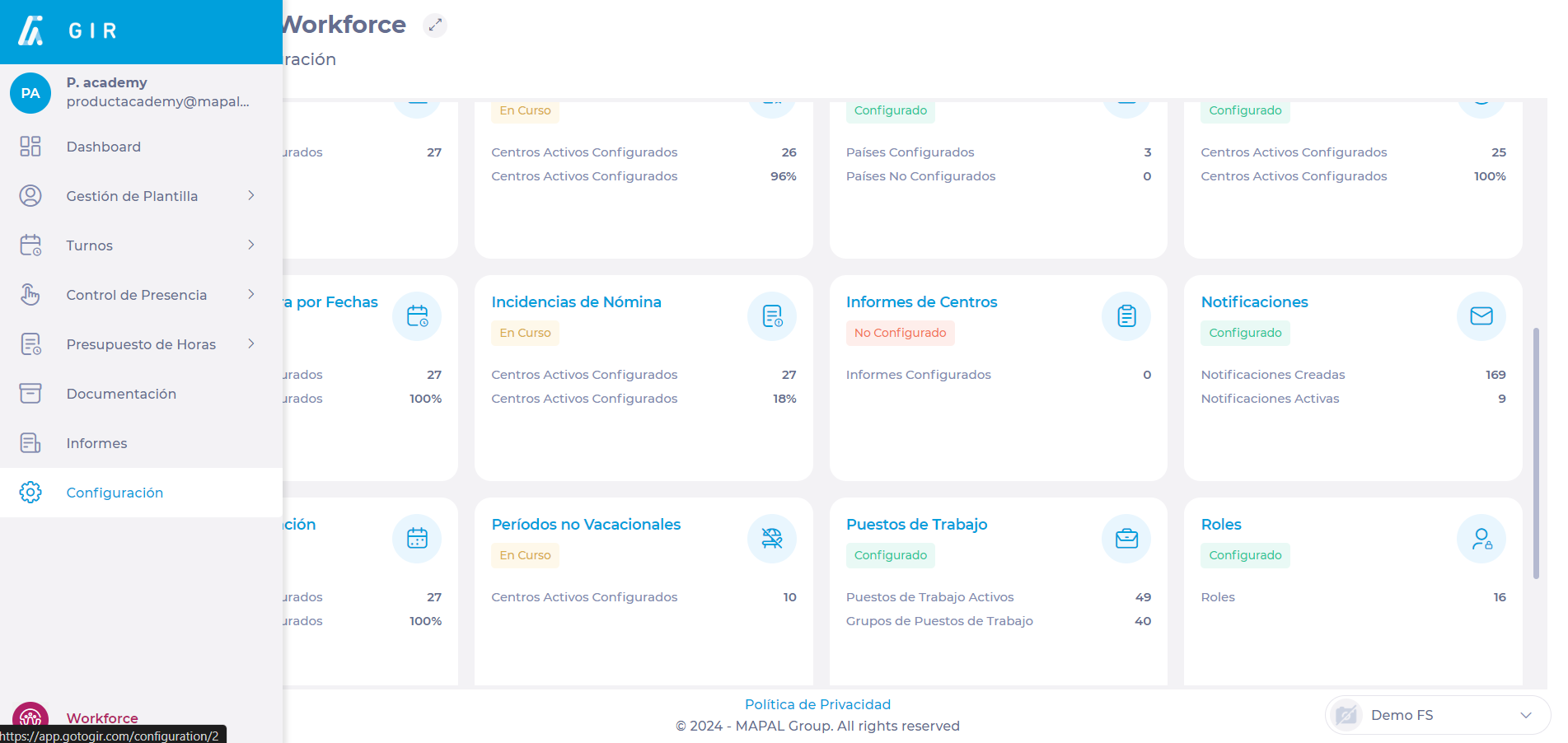
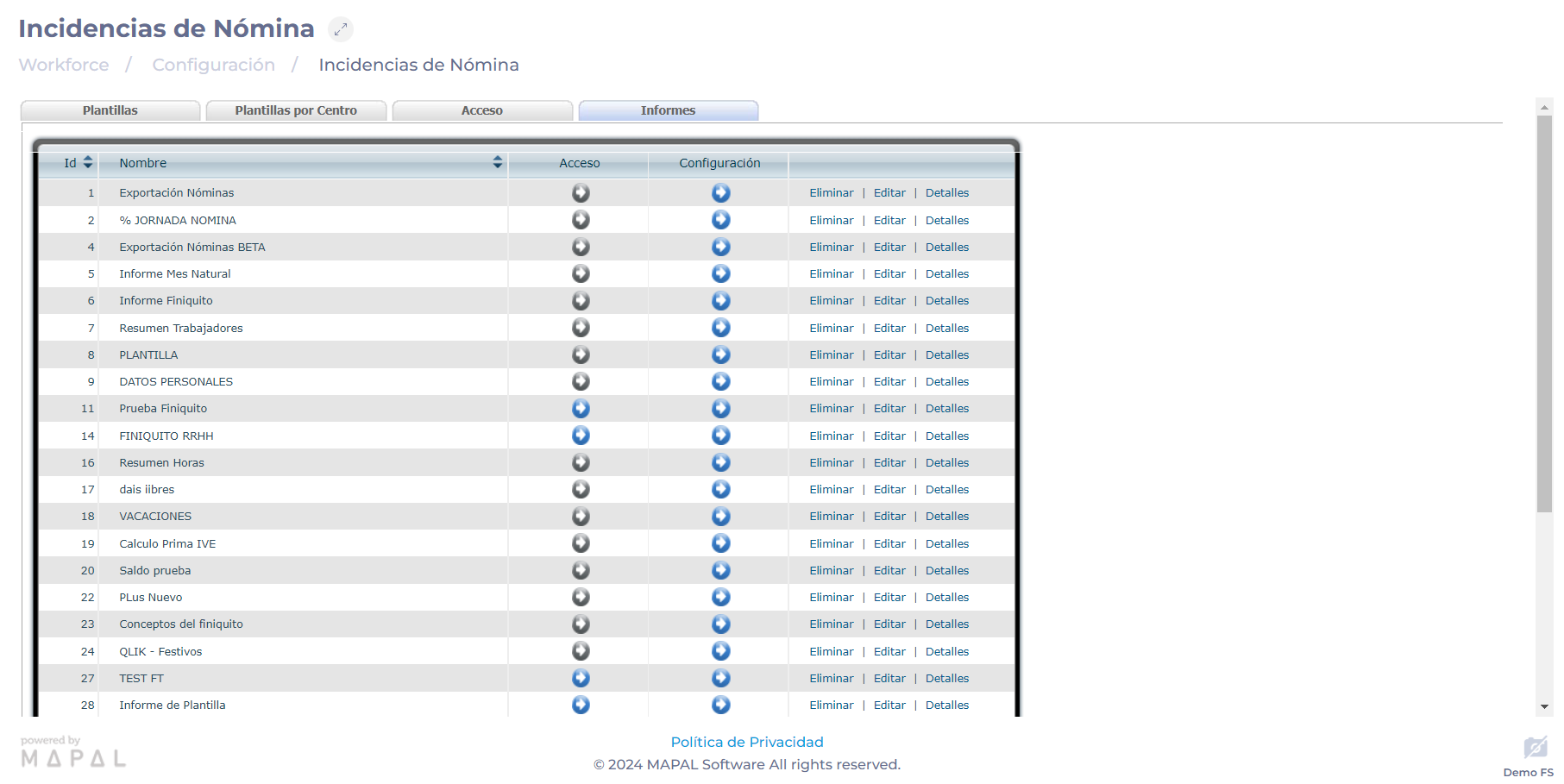
  • Navigate to Configuration > Payroll Incidences.

  • Select the Reports tab.

Tabla<br><br>Descripción generada automáticamente

  • Select New.
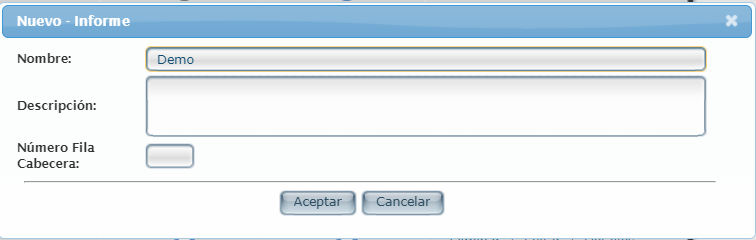
  • Assign a Name and Description to the new custom report, as well as a number of rows for the header.
  • Select Accept to save OR Cancel to discard the new report.

Interfaz de usuario gráfica, Texto, Aplicación<br><br>Descripción generada automáticamente

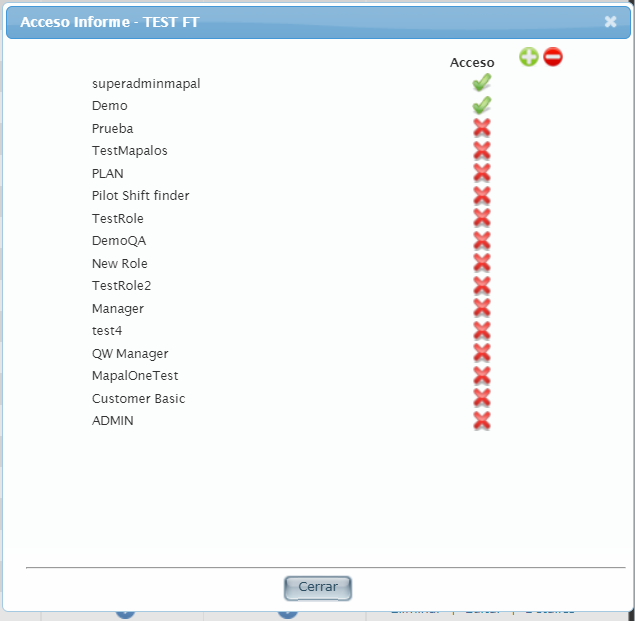
  • Under the Access column, select the arrow icon in the field of the new custom report you have created.
  • In the Access pop-up window, assign specific roles that will be able to access the report.

Interfaz de usuario gráfica, Texto<br><br>Descripción generada automáticamente

  • Under the Configuration column, select the arrow icon in the field of the new custom report you have created.

Notes: When the arrow is blue, it means that you already have information configured for the report.

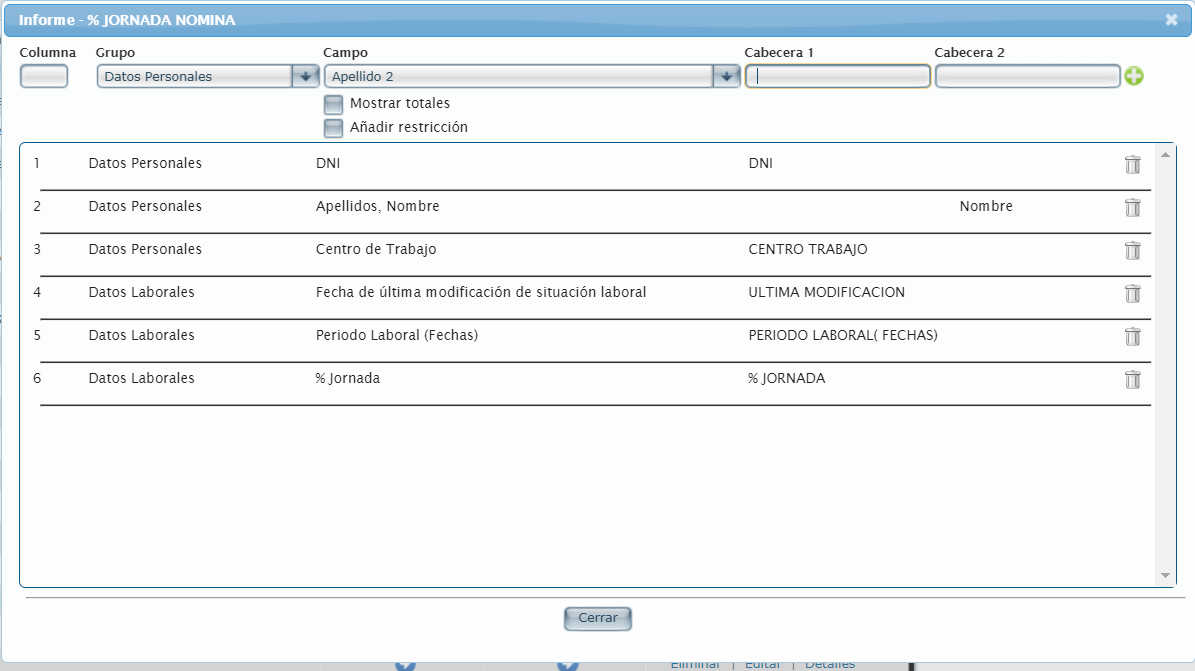
  • In the report configuration screen, you can choose which data you want to display and in which order:
    • In Column you choose the order of the report columns. You cannot have two columns with the same number.
    • In the Group dropdown, you can choose between center data, absence incidents, or payroll incidents.
    • Depending on the group you have selected, you will be presented with Field options to select from.
    • The Header allows you to custom rename the column. If you do not fill in this field, it will appear blank in Excel.
    • The + button adds the configured column to the report.
    • You can delete any column by selecting the trash can icon .
    • Choose whether to Show totals in the report.
    • Select whether you want to Add constraint and then choose what type of constraint.
  • When you complete the report configuration, select Close to close the window and save the customized report.

Interfaz de usuario gráfica, Texto, Aplicación, Correo electrónico<br><br>Descripción generada automáticamente
Note that, in this report, you can add as many data fields as required and available.

Notes: Regardless of the order in which you add the columns, they will be sorted numerically in ascending order. Once the columns have been added, you will not be able to modify them, you must delete them and fill in all the fields again.

Visualize payroll report

  • Select Reports from the main menu.
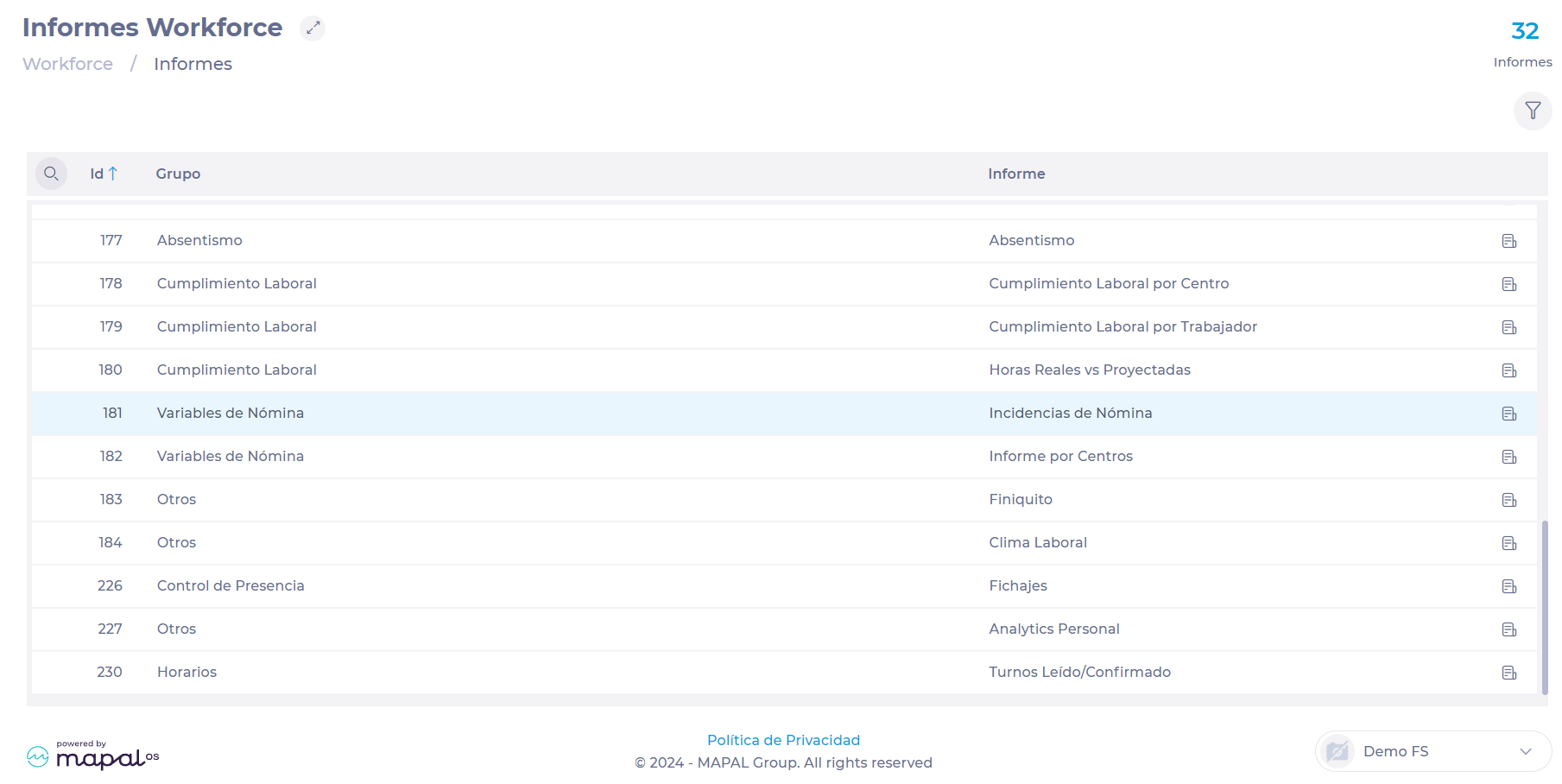
  • Locate in the listing or use the Magnifying Glass icon ? to find report 181 - Payroll Variables - Payroll Incidences.

Interfaz de usuario gráfica<br><br>Descripción generada automáticamente

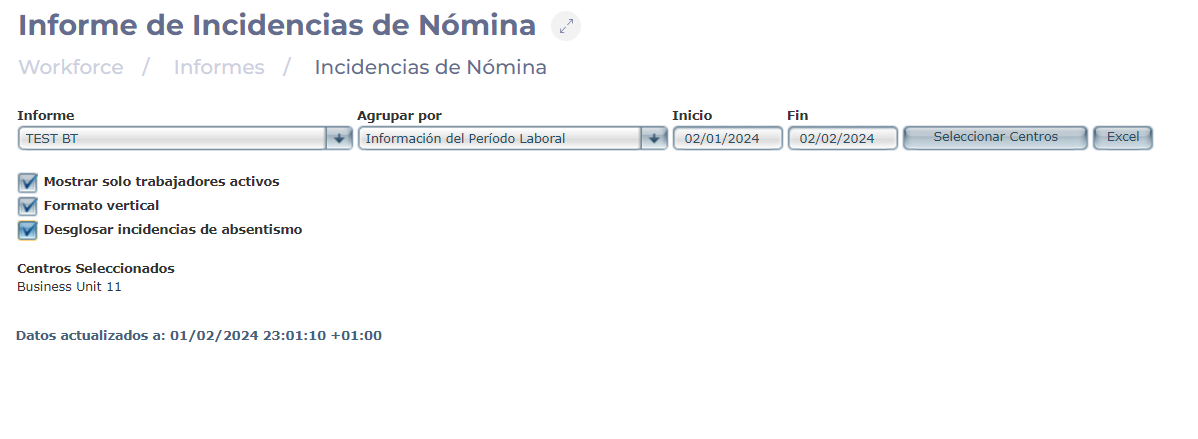
  • In the Report drop-down, select the specific report to be displayed.
  • Under Group by, select a way to group the report data. It can be by Worker, Work Period Information, or Center.
  • Choose the Start and End date of the period you want to consult.
  • In Select Units, choose the work center(s) you wish to consult.
  • Select if you want to Show only Active Employees. You can also choose to view the report in Vertical Format and Breakdown Leaves.
  • Once setup is complete, select Excel to download your custom report.

Interfaz de usuario gráfica, Texto, Aplicación, Correo electrónico<br><br>Descripción generada automáticamente

Configure indirect work for a shift

Start from: The Workforce module.

The base configuration of indirect work is done through the Workforce Configuration module. However, there is a simple way to make changes or additions to this base configuration through the Projected Shift screen, thus allowing a clearer visualization of needs by time slot.

To learn how to perform the standard Indirect Labor configuration, see Configure Indirect Work.

  • Select Scheduling > Weekly ROTAs from the main menu.

Interfaz de usuario gráfica, Aplicación<br><br>Descripción generada automáticamente

  • Select the Work Center where you want to set up indirect labor.

  • Select New to create a new weekly shift.

Notes: You can configure a weekly shift that has already been created by selecting the Arrow icon. If the icon is blue, it means that there is already data saved in that week.

  • Once in the Projected Shift screen, locate the list of workers assigned to the shift under the Employee column.

  • Right-click on any point in the list to open the action menu.

  • Select the Indirect Work option from the drop-down menu.


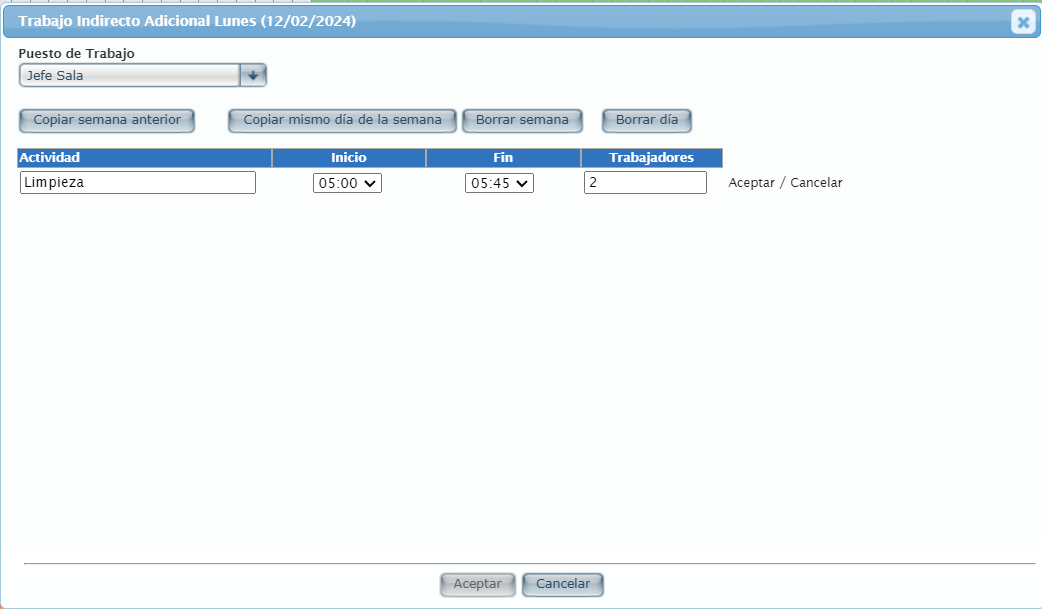
In the pop-up window, you'll be able to assign additional Indirect Work on top of what was previously configured for the day you've selected.

  • Assign a Workstation from those available in the dropdown.

  • You can bring the settings of a previous day or week by selecting Copy previous week or Copy same day of previous.

  • You can also reset the settings by selecting Delete week or Delete day.

  • To add a new indirect work activity, select the green +.

  • In the new row, type the description or name of the activity.

  • Set a start and end time. Note that the times are established per quarter hour.

  • Set a number of workers assigned to the activity in the time you have set.

  • Select Accept next to the row to save the new configuration OR Cancel to discard it.

  • Add as many rows as needed, always following this parameter.

  • Once you are finished, select Accept to save all changes OR Cancel to discard them.

Interfaz de usuario gráfica, Texto, Aplicación, Correo electrónico<br><br>Descripción generada automáticamente
To review the indirect work settings in a shift, see Revise indirect work within the shift.

Configure indirect work

Start from: The Workforce module.


  • Select Configuration > Indirect Work from the main menu.

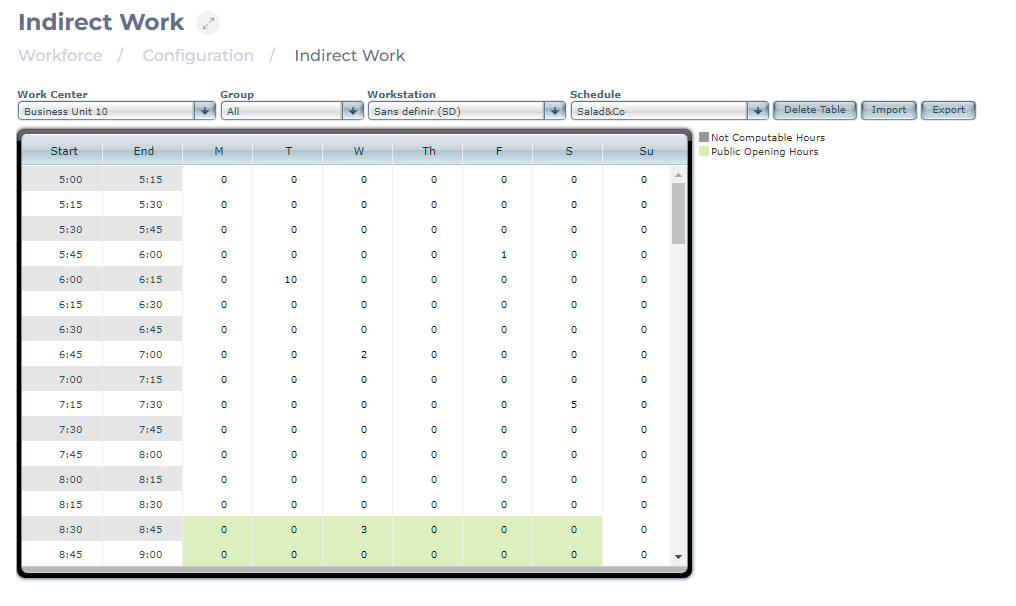
Establishing the Indirect Work table is an essential component of configuring the Workforce module. Indirect work tasks are independent of sales volume and transactions, making them distinct from other types of work. To create an Indirect Work timetable, there are two possible routes available:

Create the indirect work table manually

  • Select the Work Center for which you are creating the estimate of indirect work.

  • Choose the Workstation you want to configure; you can also filter by Group before.

  • Select the type of Schedule previously created for that workplace.

  • Indicate the forecast of employees performing this type of activity for each quarter-hour time slot per day of the week available in the indirect time table.

Note: You can specify the need for workers during the computable hours (white color) and within the opening hours to the public (green color). The system does not allow the introduction of employees during non-computable hours.

  • To reset all manually entered data to zero, select the Delete Table button. This happens for the selected workplace and schedule.

Import indirect work table from an Excel template

  • Export and download an Excel file with the same format as the table in the system, filling in the number of employees per quarter-hour.

  • Once the table is completed, select the Work Center, Schedule, and Workstation to configure.

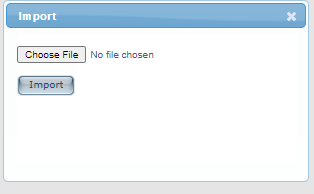
  • Select the Import button, choose the desired file from your device, and load it into the system.

Interfaz de usuario gráfica, Texto, Aplicación<br><br>Descripción generada automáticamente
Note: For the work tables to be reflected in the shifts, it is important that the position is previously registered in Direct Work, even if it is set to zero.