Set up new training structures

Start from: The Flow Learning Dashboard.

Training Structures

Training Structures enable you to define specific sets of training content tailored to different job roles within your organisation. These structures can include various learning items such as online modules, external training, appraisals, workbooks, and competencies. Training structures ensure that each learner receives the appropriate training content based on their job role, and they automatically assign relevant items whenever a learner is created, changes their job role, or moves to a different branch. This tool helps streamline the training process, ensuring consistency and relevance in employee development.

Set up new training structures

  • Select Company > Training Structures from the main menu.

  • Create a new training structure by selecting Add at the top of the Training Structures list. Alternatively, clone an existing training structure using the menu on a list entry > Clone.

  • Configure the sections in the Add Training Structure page by selecting the section links. The sections can be configured in any order.
  • Use Next, Previous, and Cancel at the bottom of each section to navigate the training structure or cancel the process and return to the Training Structures list.

How Due Dates Are Calculated

Due dates for training items in a structure are determined based on the following criteria:

  • If the learner has a start date: The due date will be calculated from the learner’s start date.
  • If the learner does not have a start date: The due date will be calculated from the "Added to system" date. This ensures that all assigned training items have a defined timeline, even if the start date is not provided.

This calculation method ensures that due dates are consistently aligned with each learner’s timeline and circumstances.

Main

  • Enter the name of your new training structure in the Name field.

Modules

Selection Use the search bar or scroll through the list to find modules. Drag modules to the Selected list to add them to the training structure. Drag modules back to the Available list to remove them from the training structure. Select individual items in the Selected list and use the fields to set availability and due dates for that item:

  • Can start after

Set the delay in days from a learner’s start date before this training structure item will be available to them. Notes: If you use this field, you must also take it into account when setting the due dates. For example, if you want a learner to start after 7 days and complete the item within 30 days from that point, you need to enter 37 days as the due date (7 + 30).

  • Due days from Launch date

Set the number of days allowed to complete this item after a new customer’s launch date. This only applies to new customers and has no effect on customers who have already launched.

  • Due Days for New Learners

Set the number of days allowed to complete this item after new learners are assigned the item by the training structure.

  • Due days for Existing Learners

Set the number of days allowed to complete this item after existing learners are assigned the item by the training structure.

  • Available to
  • All Learners: Make this item available to both new and existing learners.
  • New Learners: Make this item available only to new learners that are added after the training structure is created.
  • Existing Learners: Make this item available only to learners who already exist when the training structure is created.

Restrictions Allows items to be included or excluded from the training structure depending on a learner’s branding or jurisdiction. Find out more about restrictions.

External Training

Selection Use the search bar or scroll through the list to find external training items. Drag items to the Selected list to add them to the training structure. Drag items back to the Available list to remove them from the training structure. Select individual items in the Selected list and use the fields to set availability and due dates for that item:

  • Due Days for New Learners

Set the number of days allowed to complete this item after new learners are assigned the item by the training structure.

  • Due days for Existing Learners

Set the number of days allowed to complete this item after existing learners are assigned the item by the training structure.

  • Available to
    • All Learners: Make this item available to both new and existing learners.
    • New Learners: Make this item available only to new learners, added after the training structure is created.
    • Existing Learners: Make this item available only to learners who already exist when the training structure is created.

Restrictions Allows items to be included or excluded from the training structure depending on a learner’s branding or jurisdiction. Find out more about restrictions.

Appraisals

Selection Use the search bar or scroll through the list to find appraisals. Drag items to the Selected list to add them to the training structure. Drag items back to the Available list to remove them from the training structure. Select individual items in the ‘Selected’ list and use the fields to set availability and due dates for that item:

  • Due in

Set the number of days the learner has to complete this item.

  • Available to
    • All Learners: Make this item available to both new and existing learners.
    • New Learners: Make this item available only to new learners, added after the training structure is created.
    • Existing Learners: Make this item available only to learners who already exist when the training structure is created.

Restrictions Allows items to be included or excluded from the training structure depending on a learner’s branding or jurisdiction. Find out more about restrictions.

Workbooks

Selection Use the search bar or scroll through the list to find workbooks. Drag items to the Selected list to add them to the training structure. Drag items back to the Available list to remove them from the training structure. Select individual items in the ‘Selected’ list and use the fields to set availability and due dates for that item:

  • Due in

Set the number of days before this item is assigned by the training structure.

  • Available to
    • All Learners: Make this item available to both new and existing learners.
    • New Learners: Make this item available only to new learners, added after the training structure is created.
    • Existing Learners: Make this item available only to learners who already exist when the training structure is created.

Restrictions Allows items to be included or excluded from the training structure depending on a learner’s branding or jurisdiction. Find out more about restrictions.

Competences

Selection Use the Add Another button to add a Competence to the training structure. You can add as many as necessary. Use the first two dropdown lists in each entry to select a Competence List, and a Competence from that list. Set the due date and availability using the remaining fields and dropdown list:

  • Due days for new trainees

The number of days allowed to complete this item after new learners are assigned the item by the training structure.

  • Due days for existing trainees

The number of days allowed to complete this item after existing learners are assigned the item by the training structure. Existing learners may need to complete training from a new straining structure due to, for example, a change in job title.

  • Available to
    • All Learners: The item will be available to both new and existing learners.
    • New Learners: The item will be available only to new learners, added after the training structure is created.
    • Existing Learners: The item will be available only to learners who exist when the training structure is created.

Restrictions Allows items to be included or excluded from the training structure depending on a learner’s branding or jurisdiction. Find out more about restrictions.

Restrictions

Each section allows restrictions to be added, which define items to be included or excluded from the training structure depending on a learner’s branding or jurisdiction.

  • Use Add Another to add a restriction. You can add as many as necessary.
  • Check the box in the Exclude column to exclude the item when a learner’s if Condition column parameter matches the Value column OR uncheck the box to only include the item when their if Condition column parameter matches the Value column.
  • Select the item to be restricted using the dropdown list in the ModuleExternal trainingAppraisalWorkbook or Competence column.
  • Select either a branding or jurisdiction from the if Condition column to test that parameter for the restriction.
  • Check the box in the Matches column to restrict the item if the branding or jurisdiction matches the selection in the Value column OR uncheck the box to restrict the item if the selection does not match.
  • Use to remove the restriction.

Save & Review

Selecting this section will save the training structure. If it’s a new training structure, this will make it available in the training structure s list. You will be prompted to enter a name in the Main section if you haven’t already. If there are errors in any of the configuration sections, these sections will be highlighted and no changes will be saved until the errors are corrected. Setting parameters in the Training Structure order and Branch dropdown lists will update the preview area below to show the items that will be available to the relevant learners.

  • Training Structure order
    • Select New Learners from the dropdown list to show which items in the training structure will be available to learners added after the training structure is created.
    • Select Existing Learners from the dropdown list to show which items in the training structure will be available to learners who already exist when the training structure is created.
  • Branch
    • Select a branch from the dropdown list to show items in the training structure that will be available to learners attached to that branch.
  • Select Save & Close to save the training structure and return to the Training Structures list.

Once you have used the Save & Review section to correct any errors and reviewed the content that the training structure will assign to learners, select Save & Close to save the training structure and return to the Training Structures list.

Training structure assignments

Items in a training structure are not assigned immediately when the training structure is created or changed. Assignments will happen for any learners matching the configuration settings, whenever that learner is created, changes job role, or moves branch. If an end date is removed from a learner (this is commonly the case when employees are re-hired) and there are new learning items in the Training Structure they are assigned to, these will automatically be issued to the learner. To assign a Training Structure:

  • Navigate to Company > Job Titles.
  • Select the specific Job Title you want to assign the Training Structure to OR create a new job title.
  • Select the specific structure from the Training Structure dropdown.
  • Select Save.

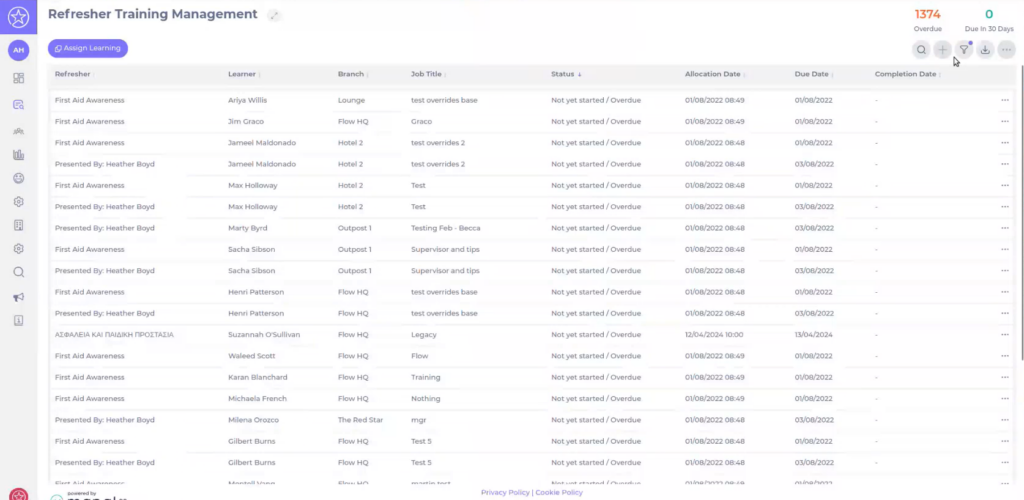
Add and edit refresher rules

Start from: The Flow Learning Dashboard.

How refresher rules work

Refresher rules are triggered by completed items on a learner’s profile. When a learner completes the relevant training, Flow waits the configured number of days and then allocates the refresher module. The refresher module must be included in the learner’s Training Structure for the allocation to happen automatically.

If an External Training (historical training) item is completed and a refresher rule is set, the system automatically assigns the chosen refresher training after the defined number of days. This refresher can be a module, a workbook or another External Training item, depending on how you configure the rule. When an External Training item is included inside a Collection and is subject to a refresher rule, it is also refreshed automatically according to that rule, in the same way as other training items.

Workbooks follow the same logic. When a workbook is included in a Training Structure and subject to a refresher rule, it is issued automatically according to the refresher schedule. You can also use different training types to trigger a workbook refresher: a workbook can be refreshed when the learner completes a module, an External Training item, or another workbook. This gives you flexibility to design follow-up activities and blended refresher paths that combine on-screen training with workbook-based tasks.

View refresher rules in the grid

The Add/edit Refresher rules screen lists one row per rule, with key details in each column so you can quickly see the scope of every refresher rule without opening it individually:

Assign refresher rules

Example: If a learner has completed an external training module “A” and a refresher rule is set for module “B”, the system will automatically assign module “B” (if it is in the learner’s Training Structure).

Note: Ensure that the refresher module is present in the Training Structure, as it is required for the refresher to be automatically issued. There is no mechanism to override the automatic rules by adding a training record mapping.

You can also issue refresher learning manually. To learn more, go to Issue refresher learning manually.

Overriding automated refresher rules

Note: There is no mechanism to override refresher rules by adding a training record mapping.

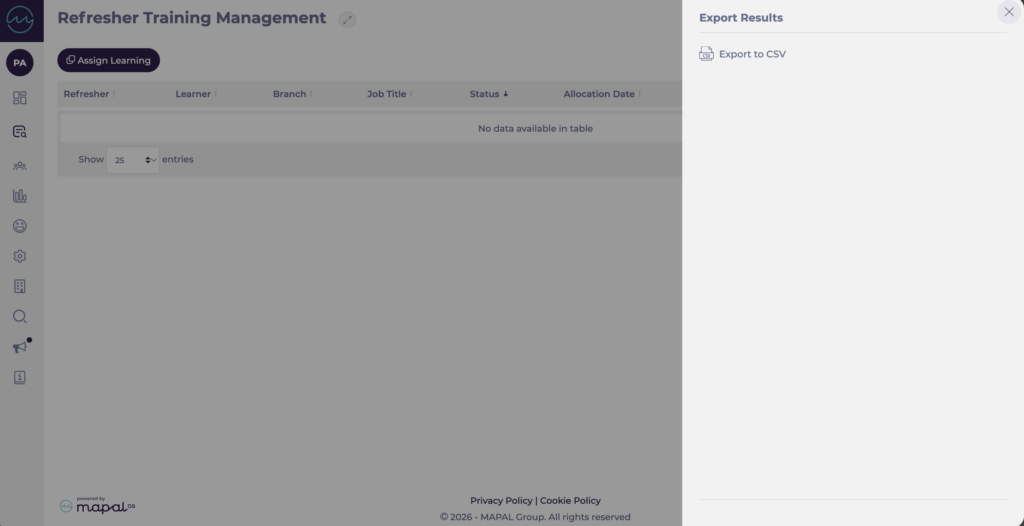
Export refresher rules

Create an "Overall time spent in learning" report

Start from: The Flow Learning dashboard.

  • Navigate to Reports from the main menu.

  • Select Overall time spent in learning.

  • Review the table showing the time each learner spent across:

    • Modules

    • External Training

    • Explore Learning items

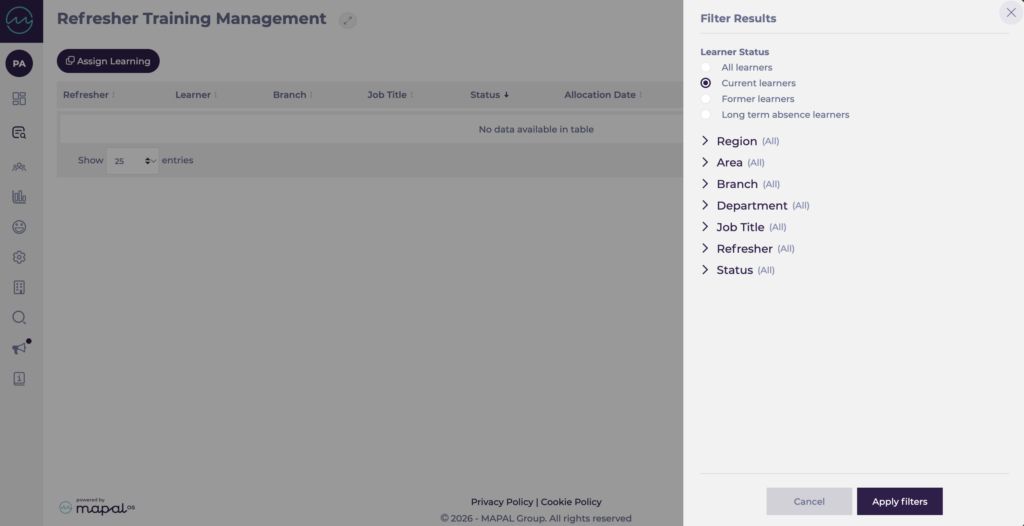
  • You can use the Search functionality or the Filter to refine your results.

  • Select the Export button to download the report as a CSV file.

Add or remove job titles and departments from a Noticeboard

Start from: the Flow Learning dashboard.

  • Navigate to Communications > Noticeboard.

  • Change the Group by view to Branch.

  • You can use the Filter or the Search function to find the specific noticeboard item you wish to edit.

Adding Job Titles and Departments

To make a noticeboard item visible to more employees:

  • Locate the desired item.
  • Select the Options icon (three dots) next to the item.
  • Select Edit.
  • Scroll to the bottom of the editing window to find the Job titles and Departments lists.
  • Tick the boxes next to the job titles and/or departments you want to add.
  • Close the window or confirm the action (changes are saved automatically).

The item will now be visible to all learners assigned to any of the selected job titles or departments.

Removing Job Titles and Departments

To restrict visibility of a noticeboard item:

  • Locate the desired item.
  • Select the Options icon (three dots) next to the item.
  • Select Edit.
  • Scroll to the bottom of the editing window to find the Job titles and Departments lists.
  • Untick the boxes next to any job titles and/or departments you wish to remove.
  • Close the window or confirm the action (changes are saved automatically).

Once removed, the item will no longer be visible to learners associated with those job titles or departments.

Note: These changes must be made individually for each branch. If the same message exists across multiple branches, you'll need to update each one separately.

Issue refresher learning manually

Start from: The Flow Learning dashboard.

  • Navigate to Learning & Development > L&D Settings > Issue refresher learning.

  • Select Get candidates.

  • A new Get Candidates for Refresher Learning will open. Here, follow these steps: 

    • Activate the Show Filters toggle switch if you want to use the filters and filter down to specific areas.

    • Activate the Use today's date for due date calculation if you want to automatically use today's date.

    • Activate All rules toggle switch if you want to select all rules in the list.

    • Select Get Candidates - the popup will close and you'll see all candidates that meet the criteria. 

  • Back in the Issue refresher learning screen, select the three dots (...) menu and press Issue Refresher Learning.

  • Confirm with OK, and the training will be issued to all candidates on the list.

Notes: The new refresher rule will start working from the day it was added.

Required, recommended, and completed learning items

Start from: The Mapal One dashboard.

Learning Items

Learning items in Mapal One are the resources designed to help learners acquire and develop the knowledge and skills needed for their roles.
These items are grouped into categories to ensure easy navigation and prioritisation: Required, Recommended, and Completed. Learners can access these categories to track their progress and focus on what’s most relevant to their development. 

Required Learning

Required Learning includes all the items directly assigned to you by your company or manager. These are mandatory resources designed to meet the needs of your role and ensure compliance with organisational standards.
  • Select Learning > Required by You from the main menu.
  • The screen will display the learning items in this category and a Filter.
  • Use the Filter to find specific items based on their names, statuses, types, or due dates.

Recommended Learning

Recommended Learning contains additional resources suggested for you. These are optional items that provide opportunities for skill enhancement, allowing you to explore topics based on your interests or aspirations.
  • Select Learning > Recommended for You from the main menu.
  • The screen will display the learning items in this category and a Filter.
  • Use the Filter to find specific items based on their names, statuses, types, or due dates.

Completed Learning

Completed Learning helps you keep track of everything you’ve accomplished. This section is useful for revisiting previously completed resources for review or reference.
  • Select Learning > Completed learning from the main menu.
  • The screen will display the learning items in this category and a Filter.
  • Use the Filter to find specific items based on their names, statuses, types, or due dates.

Download your certificates

Start from: The Mapal One dashboard.  

  • Select Library > Certificates from the main menu.  


  • The Certificates module shows you all the available certificates for you.

  • Select the specific tile of the certificate you want to download. 


A PDF file will open, and you will now be able to download this file to your device.  

Managing goods entries in stock

Start from: The Easilys menu.

MANAGING ENTRIES VIA RECEPTIONS

By validating a delivery note, you enter into stock all the products it contained, in the quantities specified.

A delivery note is automatically generated when you send an order from the “Supplier orders” screen, regardless of the sending method chosen. It contains all the products listed on the purchase order.

For more information, see the article Validate a delivery note.

It is also possible to generate a delivery note without an order directly from the “Receptions” screen. This delivery note will not be linked to an order and you will need to manually specify the products to be included.

For more information, see the article Generate a delivery note without an order.

MANUALLY MANAGING ENTRIES FROM STOCK

We do not recommend making all your stock entries this way. This method does not allow for purchase analysis and provides no tracking of the ordering and receipt of products.

This method is also very time-consuming if you use it to enter all the products you receive each day.

Prefer the previous method based on validating delivery notes.

The "Add a supplier product to stock" screen appears.

"Adjustment entry": Stock correction movement. If the product is a food product, it will not be included in the calculation of the food cost price as a purchase. (It will still affect the food cost price for the day as it will change the total stock value on the selected date.)

Example: I notice that my tomatoes are missing from stock even though I actually have them. I don’t know why they’re not there and I don’t know the date they were entered into stock. So I make an adjustment entry.

"Goods entry": Normal stock entry movement corresponding to a purchase for which there is no receipt entered in Easilys. If the product is a food product, it will then be included in the calculation of the food cost price. However, a goods entry from the stock screen will not be included in the purchase dashboards.

The quantity of the product is added to stock on the selected date.

Enter actual service counts in the tracking table

Start from: The Easilys menu.

The information entered here is used in the “Food cost price” tab.
Indeed, the food cost price is calculated by dividing the net consumption by the total service counts, under these three conditions:

To be able to enter the service counts daily, you must first have created your service counts tracking table, as explained in the article Create the service counts tracking table.

Note: if you have several types of services, you must complete all totals before validating the day.

You can see that a day has been validated in the calendar because the day appears in a blue square and when you select it, the "Validate" button is replaced by a red "Delete entered counts" button.

Understand the Mapal One dashboard

Start from: the Mapal One main dashboard.

When you sign in, you’ll see the Mapal One dashboard, which includes:

Dashboard navigation

At the top of the dashboard, the header navigation lets you choose how to view your content:

To know more about how to use the filters, see Using filters in Mapal One.

Required by you

This section lists all the learning items that are mandatory and assigned with a due date. When all required items are completed, this section disappears automatically to reduce clutter and help you focus on what’s next. It reappears whenever new required items are assigned to you.

Recommended for you

Displays assigned learning without due dates. These items are recommended based on your job role and duties, but they are not mandatory.

Feed

Shows recent posts from your company, such as announcements, new starter introductions, or internal news. You can like, dislike, or comment on posts.

Explore learning

Lists all optional learning available to you, ranging from short videos and external links to complete online modules.

External links

This section gathers all external resources that have been shared with you by your company, such as links to external websites, reference materials, or partner platforms.

Search function

Select the magnifying glass icon to search for colleagues. From the search results, select the three dots next to a name to:

See Search Feed, learning, development, people, or links for more information.

Chat function

Use the chat button to send messages to colleagues or start group conversations. You can:

See Chat with your team to know more.