These tags are associated with sites as well as Smart Catalogue rules: this way, Easilys knows which rules should apply for tagged sites and products managed by the parent site, available for ordering from each child site.
"Catalogues" type tags are attached from site settings, in the Tags tab to qualify sites and in Smart Catalogue rules.
Add product labels
If your environment is configured for multiple languages, the multilingual icon
appears for some fields. For more information on how to use it, see the article
Use Easilys in multilingual mode
.
Start from: The Easilys menu.
Labels can be managed from the price lists screen OR from the Products administration - V2 screen.
Method 1: From Price lists:
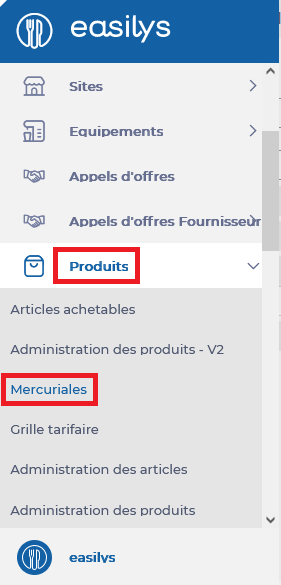
Select Products> Price lists.
Select the price list in which the product you want to add or modify the label(s) is located.
The price list details are displayed on the screen.
Search for the relevant product in the list.
Select the product name.
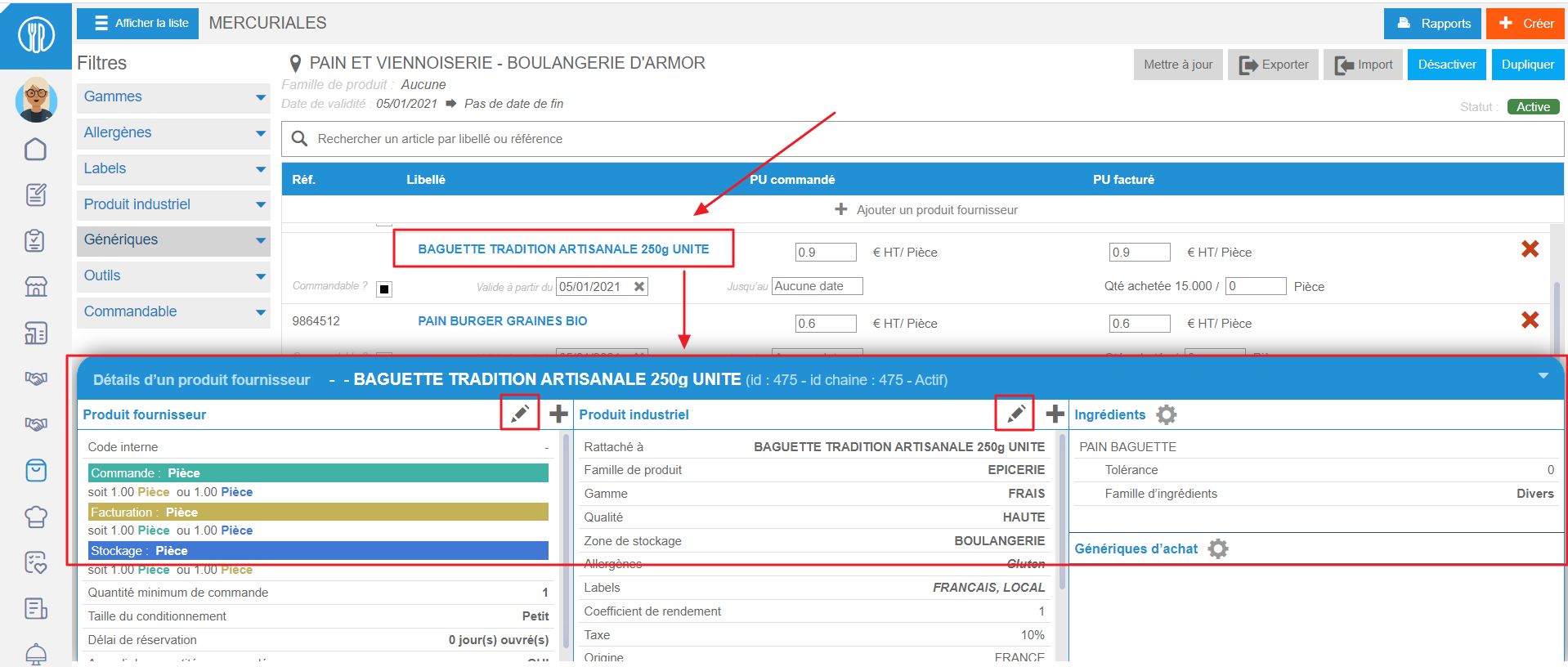
A Supplier product details pop-up window appears. It consists of three columns.
In the Industrial product section, select the pencil icon.
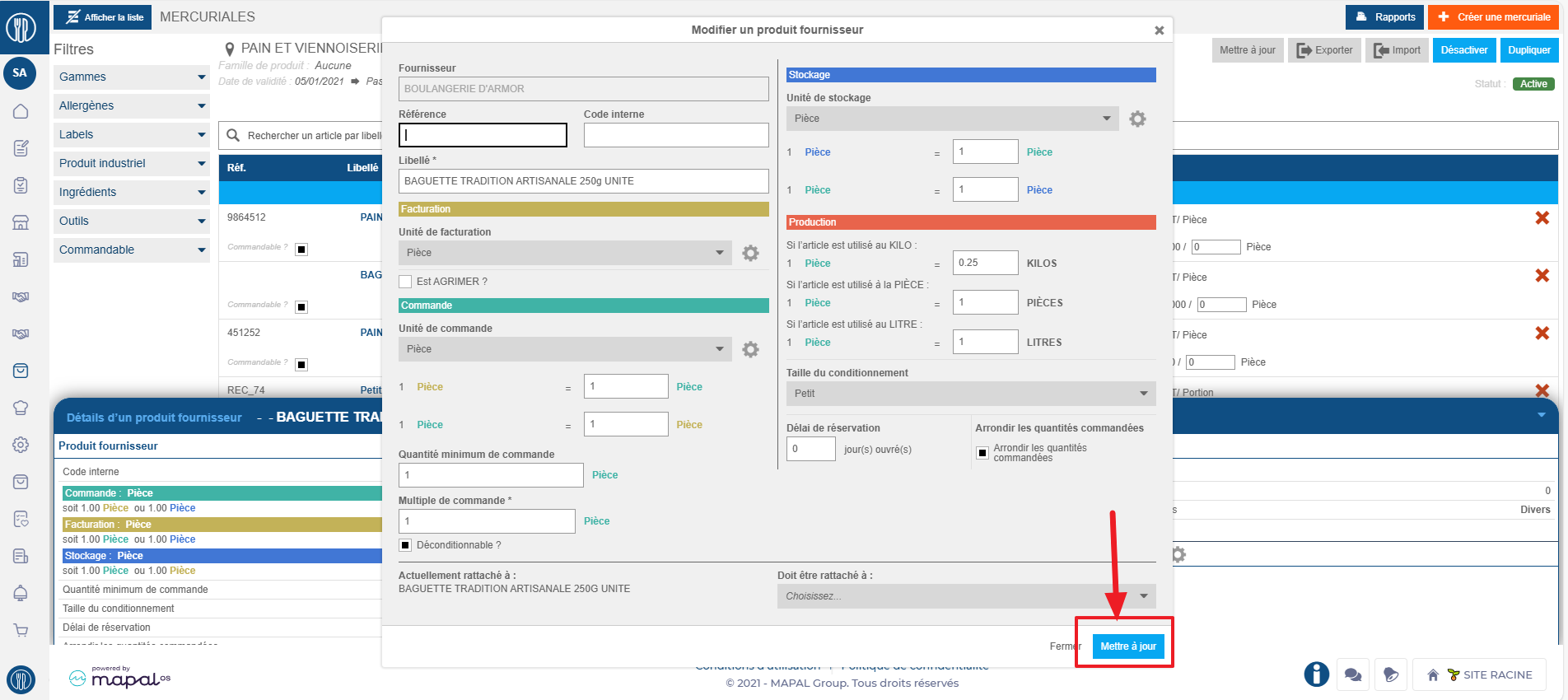
An Update industrial product pop-up window appears.
Add or remove label(s).
Select Update.
Method 2: From Products administration - V2
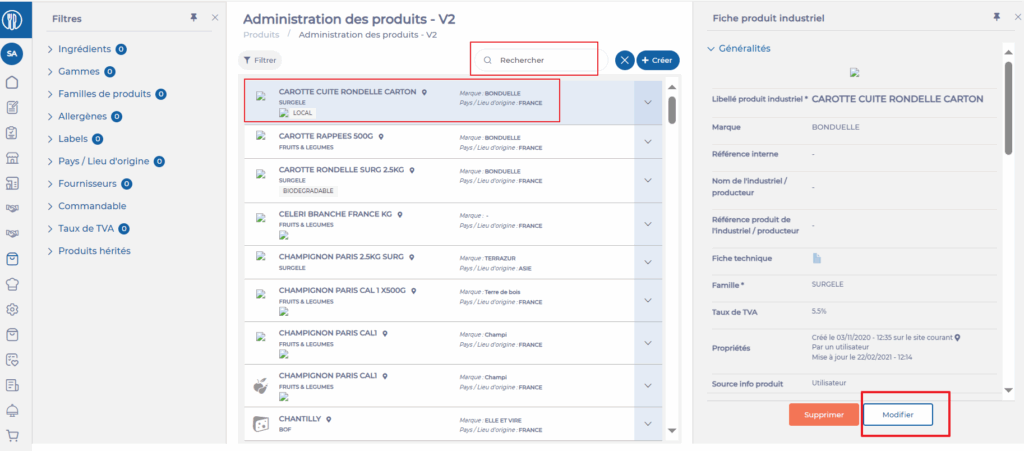
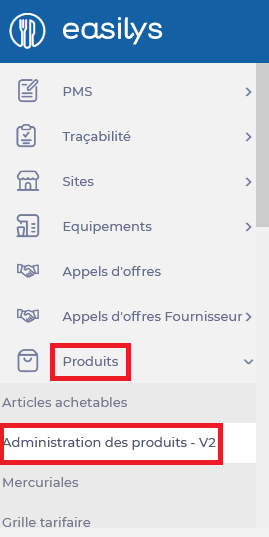
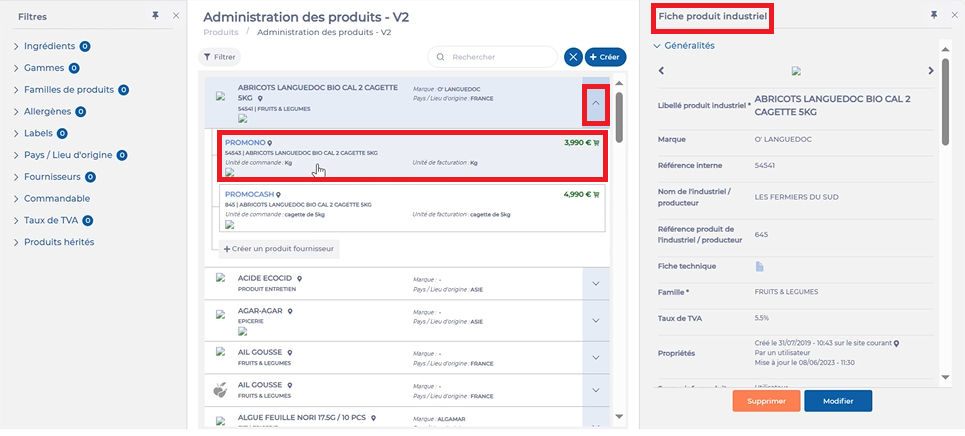
Select Products in the main menu > Products administration - V2.
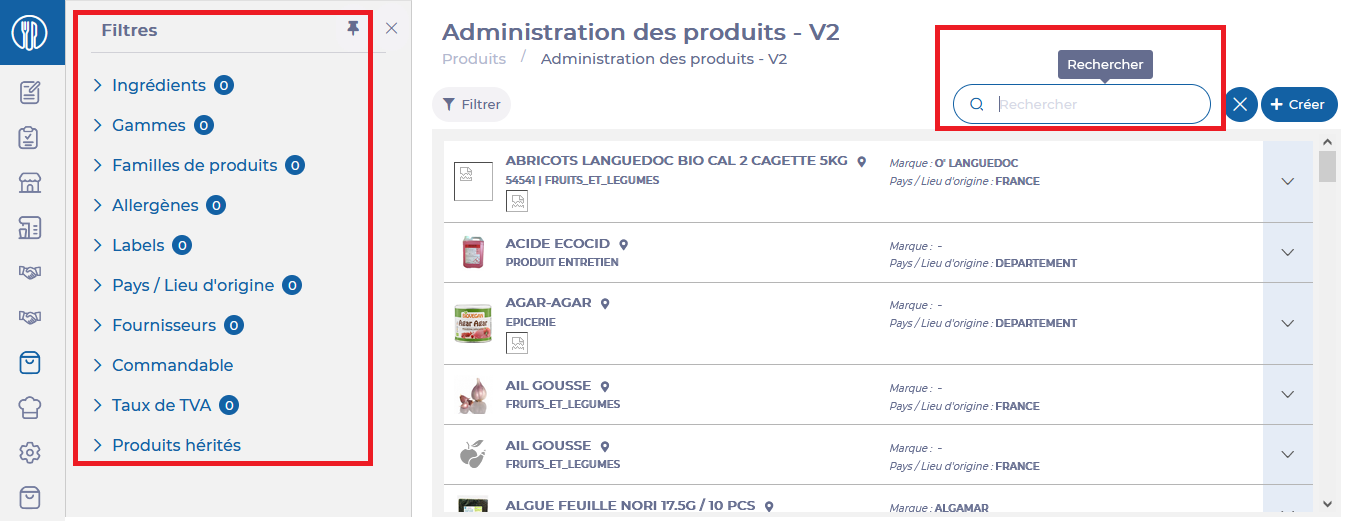
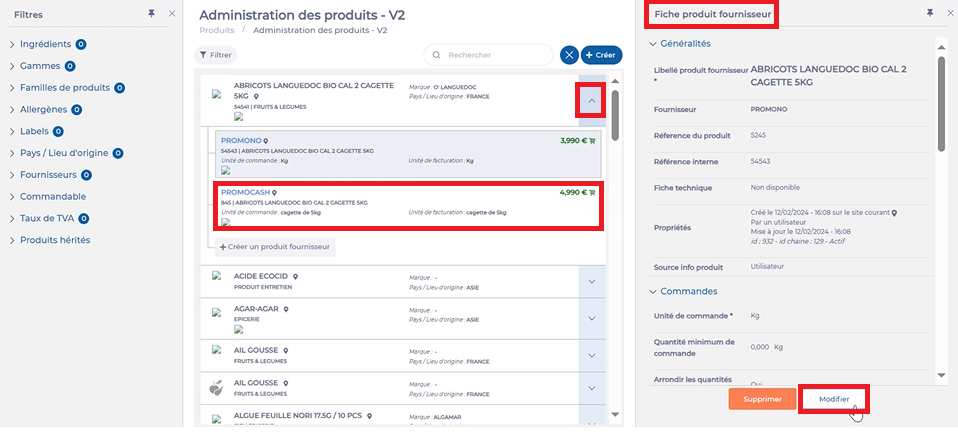
Search for and select the desired product.
Select Edit.
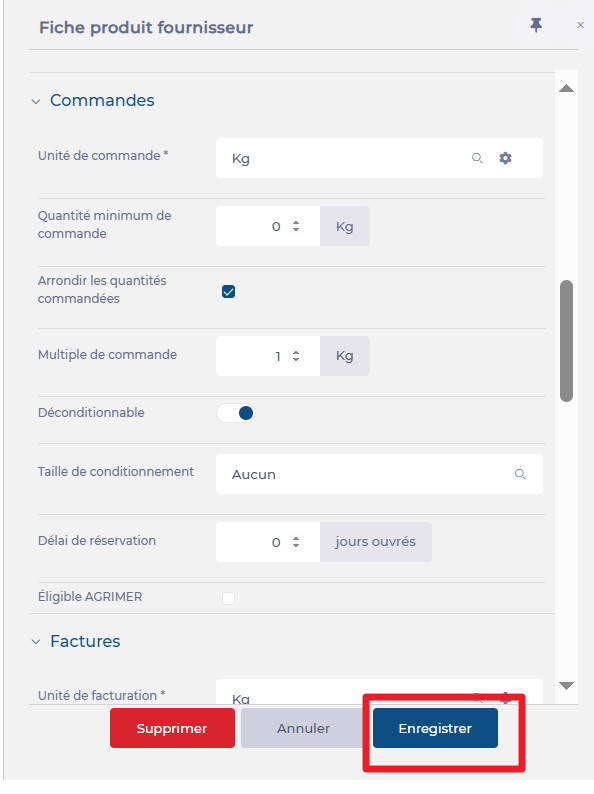
Add or remove the desired labels.
Select Save.
Note: Modifying the labels associated with a product has a retroactive effect on the analysis of your purchases: thus, all orders for this product will feed into the percentage total of your purchases of this or that label that you have saved on the product and will no longer feed into the total of labels that you have removed.
Tracking purchase progress against purchase commitments
Note: Consider duplicating price lists to make it easier to create price lists for different periods without having to recreate all the products.
Starting point: The Easilys menu.
Select Products> Price lists.
Select the price list in which you want to enter purchase commitments for supplier products.
Enter the commitments linked to the validity period of the price list.
Click outside the box.
Regularly save your additions by selecting Save now.
Note: The validity period of the price list corresponds to the period between its start and end dates. If these dates are not entered, you will need to edit the price list to add them, otherwise Easilys will consider your commitments to apply continuously.
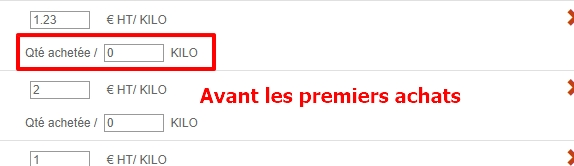
When you complete the box, indicate the purchase quantity for which you have committed for the period.
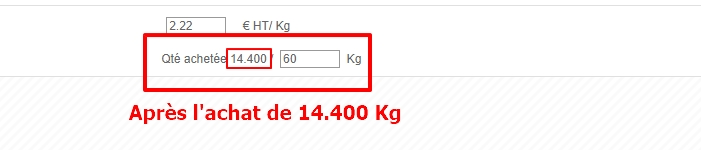
When you place an order and receive the product, the total of your current purchases is displayed in the price list (under Purchased qty) or in the Purchase progress report available in the PRICE LISTS or PURCHASABLE ITEMS section.
Note: The products for which you want to enter purchase commitments are not in your site's price lists? These are products inherited from a parent site that manages the price lists for you. You therefore do not have access to the products in the price list to modify them. You will need to use the PURCHASABLE ITEMS screen (in the PRODUCTS section) to enter purchase commitments.
Ensure that the modification of a price list product impacts the stock
To ensure that changes made to a product in the price list, such as unit changes, affect the stock, follow these steps:
Access the Settings and navigate to the Inventory section.
Ensure that the product is correctly linked to the stock management system.
Verify that the Unit settings are consistent across both the price list and the stock system.
Save the changes and monitor the stock levels to confirm the update has been applied.
For further assistance, contact your system administrator or refer to the user manual.
Understand why it is suddenly not possible to order for the week, month or next year
Start from: The Easilys menu
Hypothesis 1: The supplier does not match the desired delivery period.
To change the listing period :
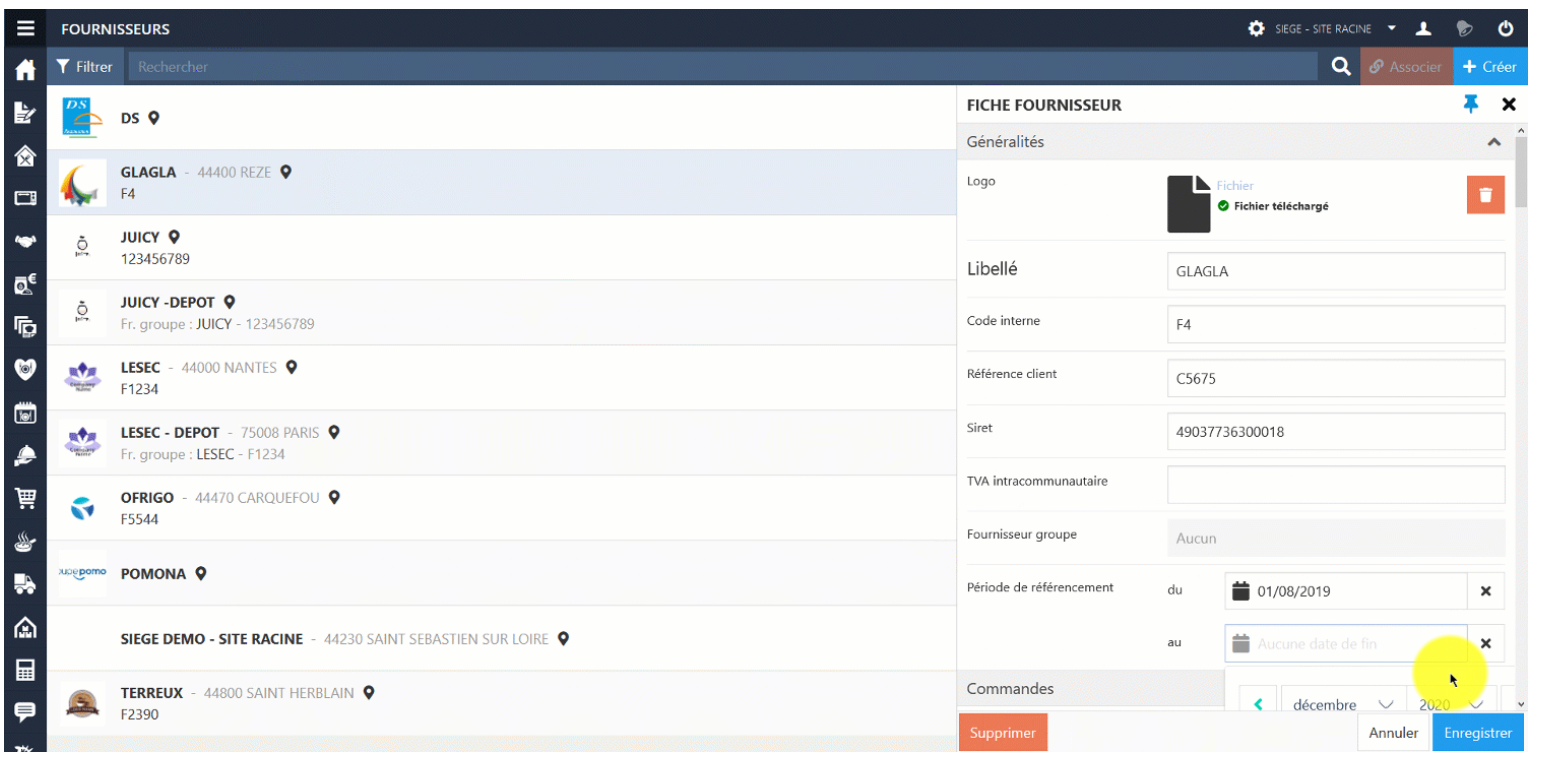
Select Products in the main menu > Suppliers.
Select the relevant supplier record.
A Supplier sheet pop-up window appears. In the Generalities section, check the referencing period:
If you need to correct it, select Modify.
After editing, select Save.
Hypothesis 2: The validity period of the price list does not match the delivery date.
You have two options:
Solution 1: Extend the price list validity period
Select Products in the main menu > Price lists.
Select the desired price list.
Select Deactivate.
Note: By deactivating the price list, you will no longer be able to order the products available there. You'll then need to think about reactivating it, but reactivation is not instantaneous, so you'll need to be patient before you can order products again (usually the day after reactivation).
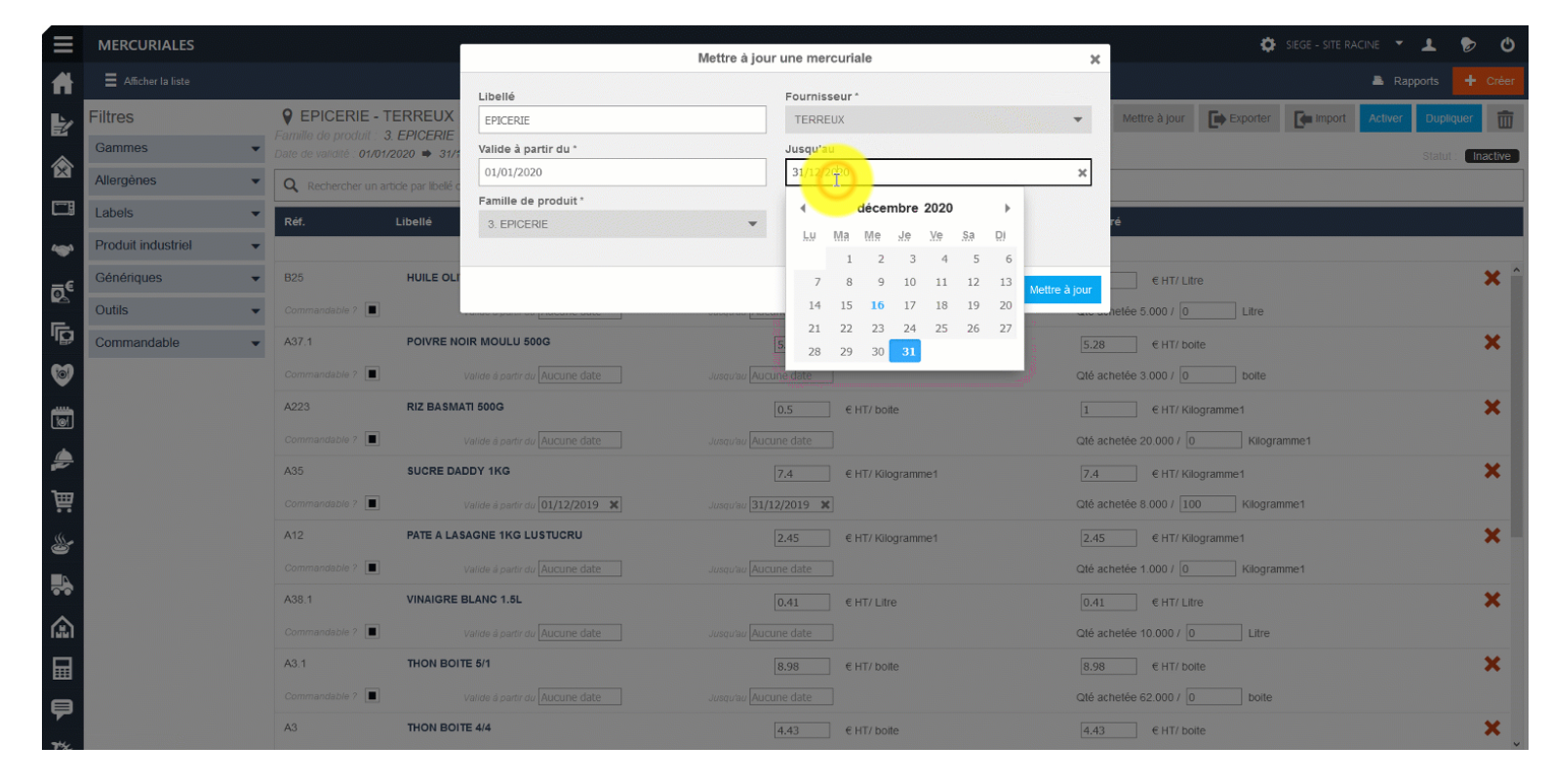
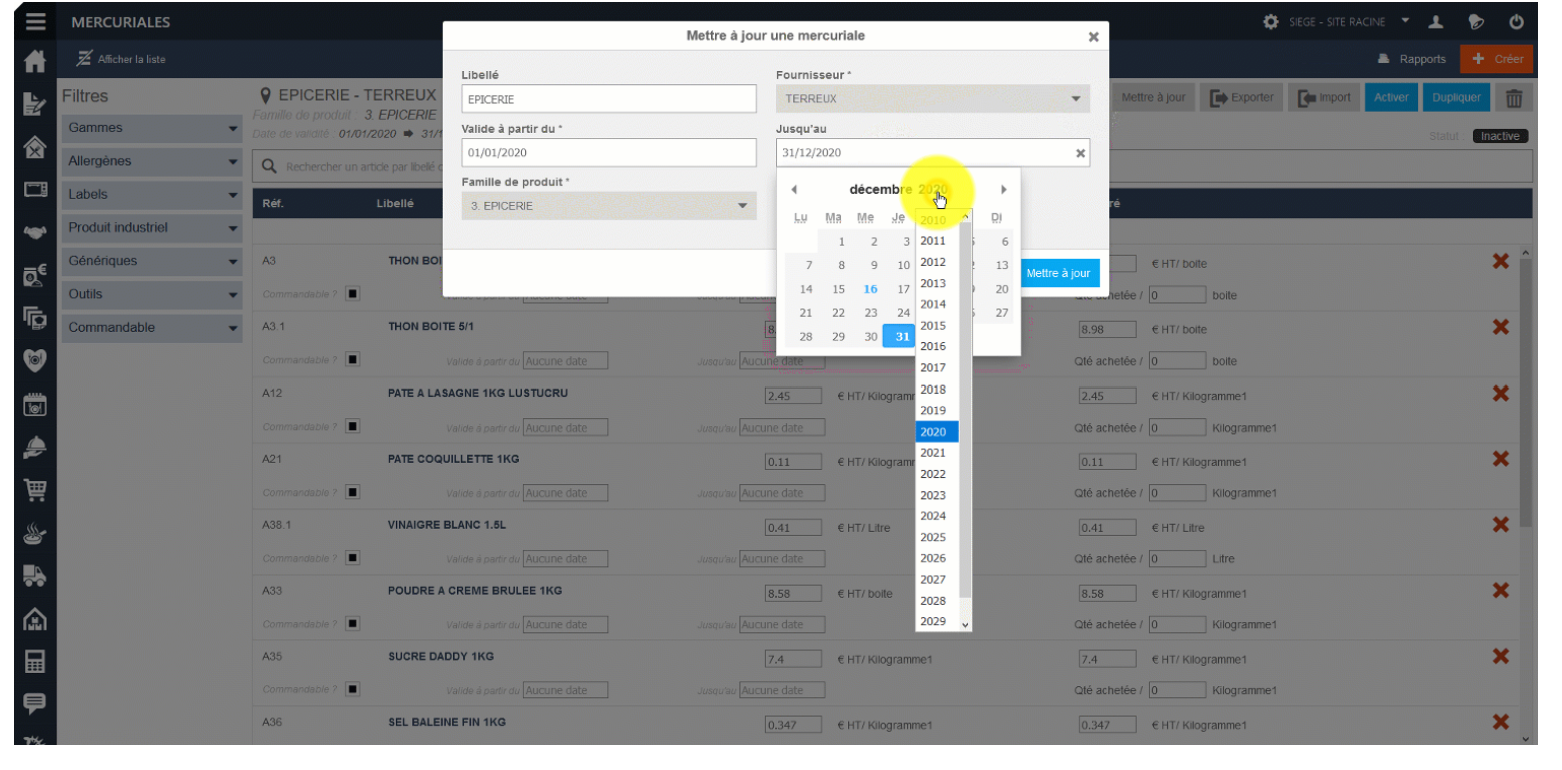
Select the pencil icon.
A pop-up window Update a price list appears.
Change the expiry date.
Select Update.
Select Enable to reactivate the price list.
Solution 2: Duplicate the price list for a new validity period
Select Products in the main menu > Price lists.
Select the desired price list.
Select Duplicate > Confirm.
Select the pencil icon.
A pop-up window Update a price list appears:
Change start and end date.
Note: The validity period of your new price list must not overlap with the validity period of the original price list.
Select Update.
Select Enable to activate the price list.
Note: Activation is not instantaneous. You will need to wait before you can order products again, frequently the day after reactivation.
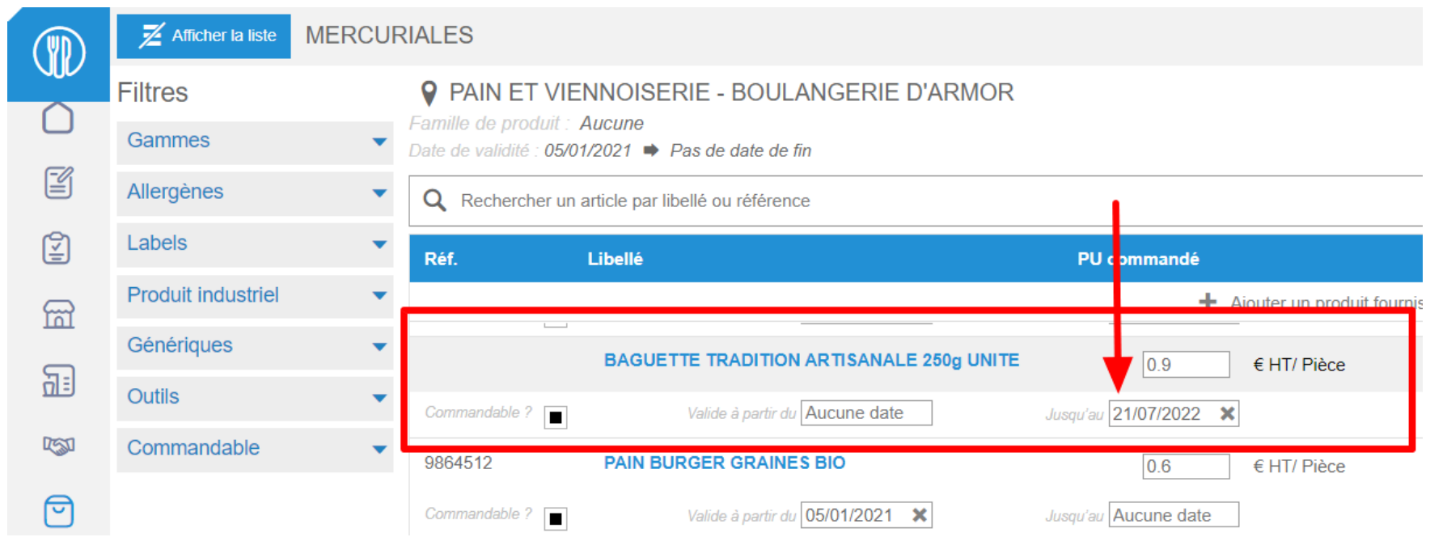
Hypothesis 3: Products have an expiry date that is inconsistent with the desired delivery date.
Select Products in the main menu > Price lists.
Select price list.
Select the product(s) you wish to order.
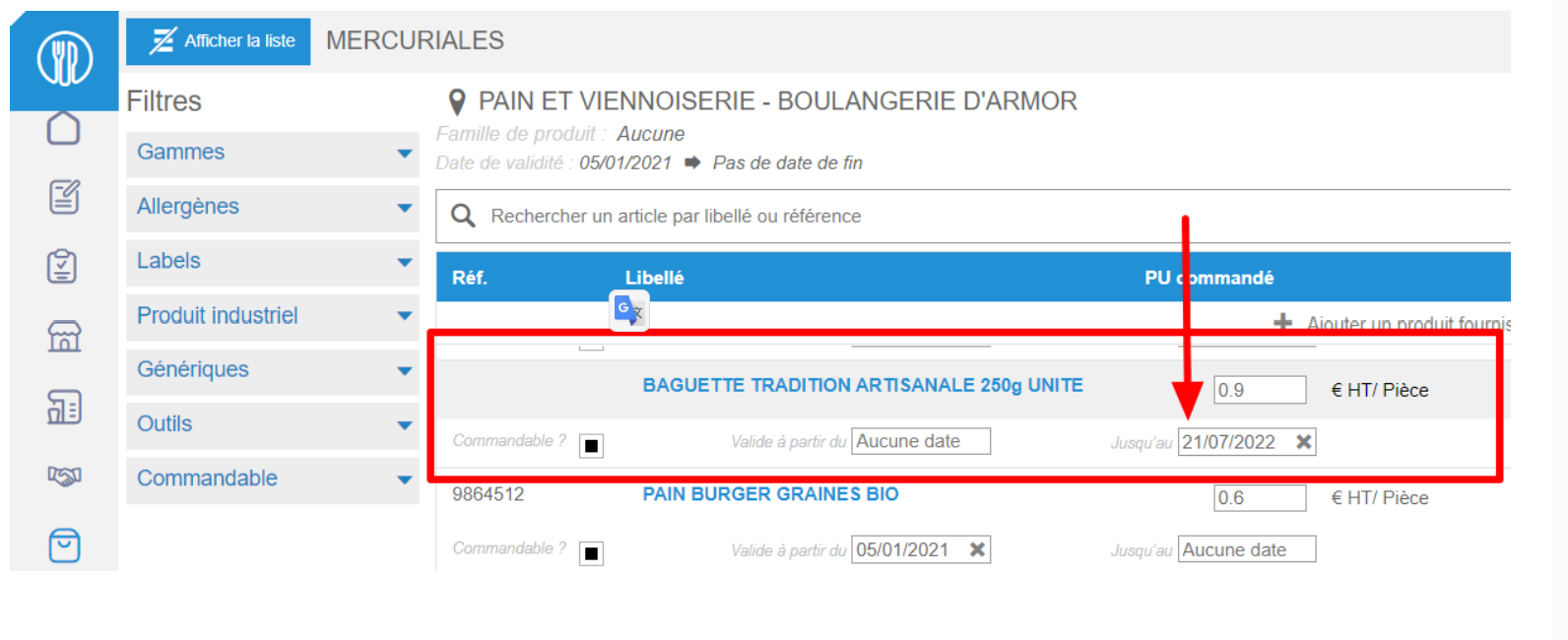
Modify the product validity period if necessary.
Select Save now.
Why can't I indicate a quantity with decimals?
If your environment is configured for multiple languages, the multilingual icon
appears for some fields. For more information on how to use it, see the article
Use Easilys in multilingual mode
.
Start from: The Easilys menu.
Select Products in the main menu > Price lists.
Select the price list containing the desired product.
Select the relevant product.
The Supplier product details window appears. In the Supplier product column :
Select the pencil icon.
Uncheck the Round the order quantities option.
Select Update.
Why can't I order my product after it has been created in the price list?
Start from: The Easilys menu.
There are several reasons for this:
The product has just been created and must be ordered directly.
When a new product is created in a price list, it is necessary, as indicated in the article "Easilys updates (or Product Flat)", to wait for the software update, which usually takes place once a day during the night, before the product can be ordered.
However, you can bypass this rule by following these steps:
Select Products > Price lists from the main menu.
Search for the product you wish to order.
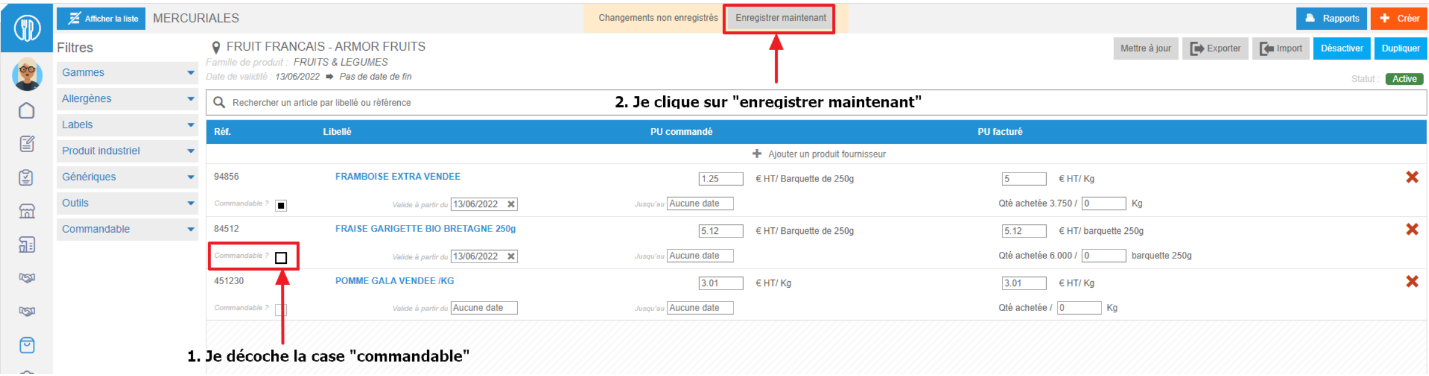
Uncheck the "Orderable?" box.
Select Save now.
Re-check the Orderable? box.
Select Save now again.
Notes: This procedure will force the update only on this product, so you can order it without having to wait for the software update.
The "Orderable?" box is unchecked
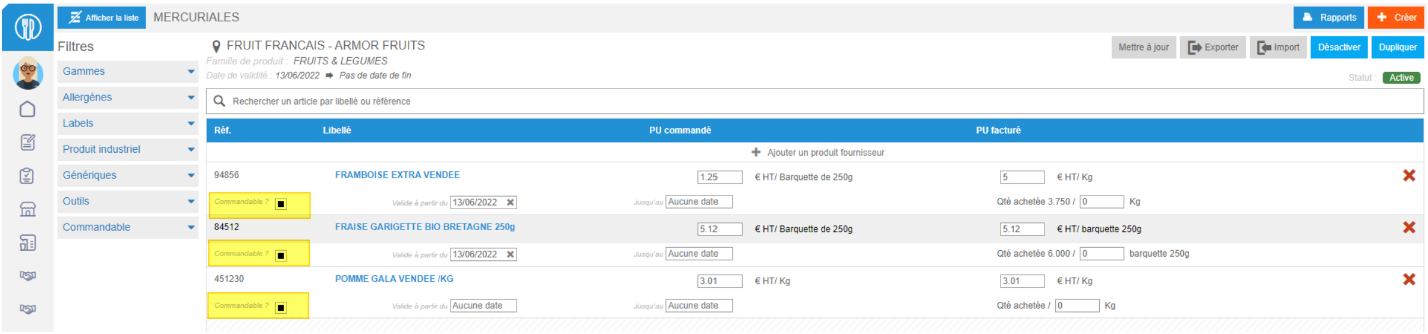
A simple check is to ensure that the "orderable" box on the right of each product line is ticked, enabling the product to be ordered via the "supplier orders" screen.
Select Products > Price lists from the main menu.
Search for the product you wish to order.
Check that the "Orderable?" box is ticked.
?
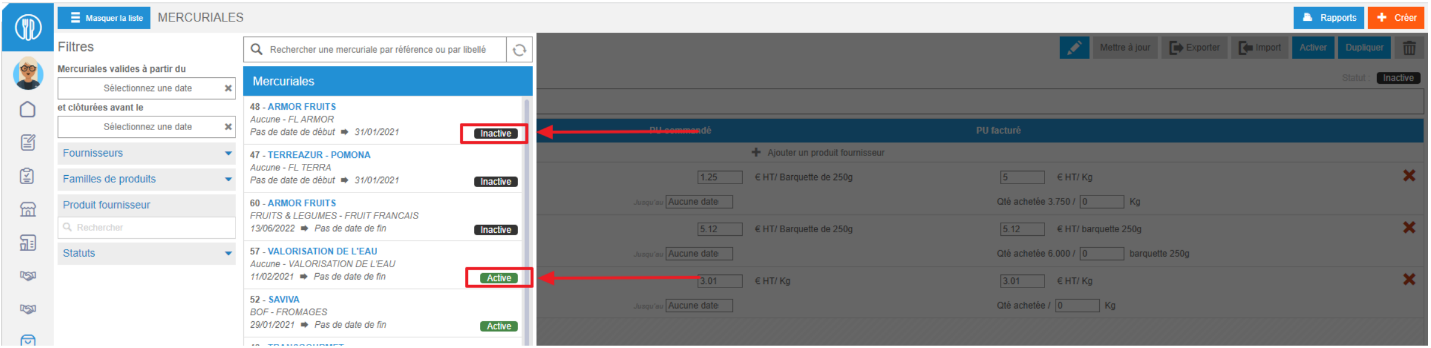
The list is inactive
If the product is part of an inactive price list, it is normal that the order cannot be placed.
To check this 😕
Select Products > Price lists from the main menu.
Look for the relevant list.
Check the label next to the list: is it Active? Or Inactive?
If it's is inactive :
Select the relevant list.
Select Activate.
Select Confirm.
Notes: Wait for the next software update, or follow the procedure suggested earlier in this article.
The validity period of the product does not correspond to your order date.
?Each product may have its own validity period within the general validity period indicated on the price list: the product's validity date may therefore be incorrect.
To check this :
Select Products > Price lists from the main menu.
Select the relevant list.
Search for the product you wish to order.
Check the validity period, modifying it if necessary.
Once the change has been made :
Select Save now.
?
When an order is placed through a child site, a smart catalog rule is in place
Smart Catalogue rules are used to manage the products that can or cannot be ordered by sites.
For example, it is possible that a rule previously created on the site with the relevant price list prevents the child site from ordering certain products, including the one just created.
To check this 😕
In the main menu, select Products > Smart Catalog.
Browse the list of smart catalog rules, checking each site and each supplier concerned by these rules.
Manage the storage areas from the stock
If your environment is configured for multiple languages, the multilingual icon
appears for some fields. For more information on how to use it, see the article
Use Easilys in multilingual mode
.
Note: At least one product must already be in stock before you can start creating, modifying, attaching or deleting storage zones from stock.
Start from: the Easilys menu
ENTER THE STORAGE AREA OF A PRODUCT
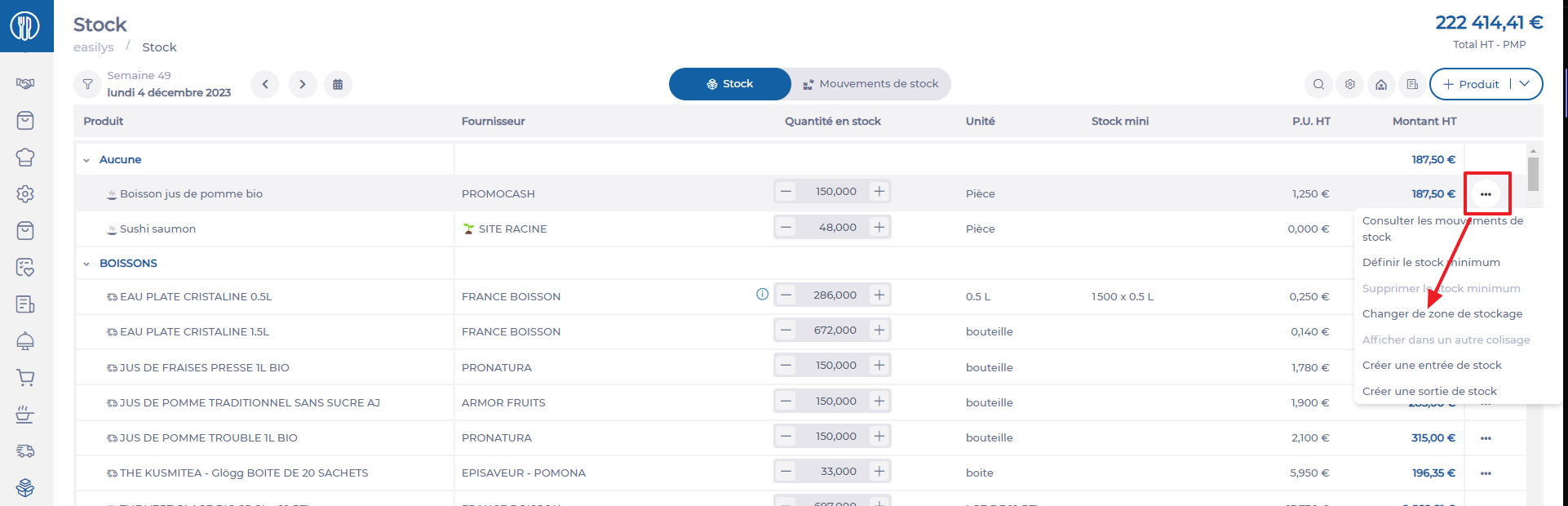
Select the Stock > Stock tabs.
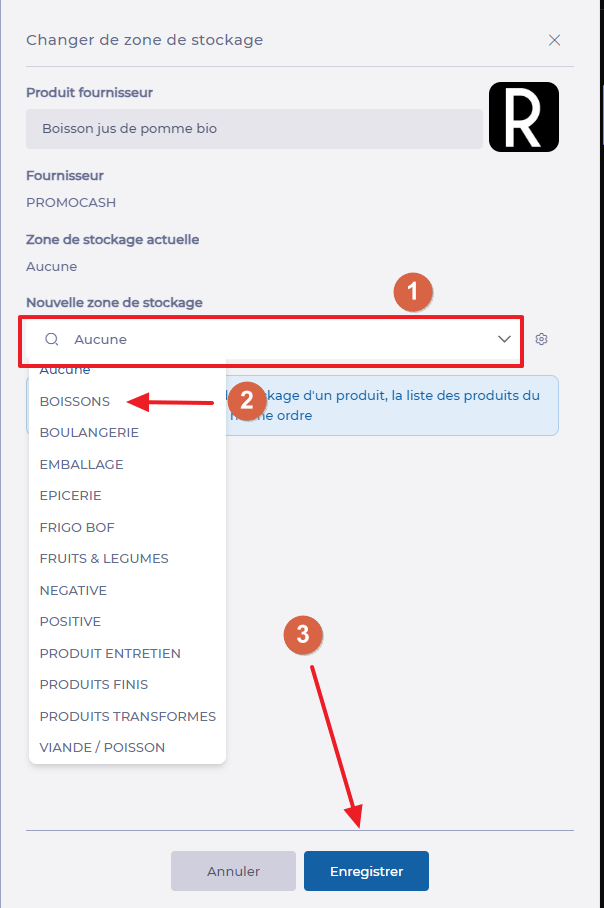
Select the three dots at the end of the product line, then select Changer de zone de stockage (Change storage zone).
The "Changer de zone de stockage" (Change storage zone) window appears on the screen. Select the new product storage area, then select Enregistrer (Save).
The product is now attached to the selected storage area. After an order, receipt or manual entry, you will always find it in this storage area.
MANAGE STORAGE AREAS
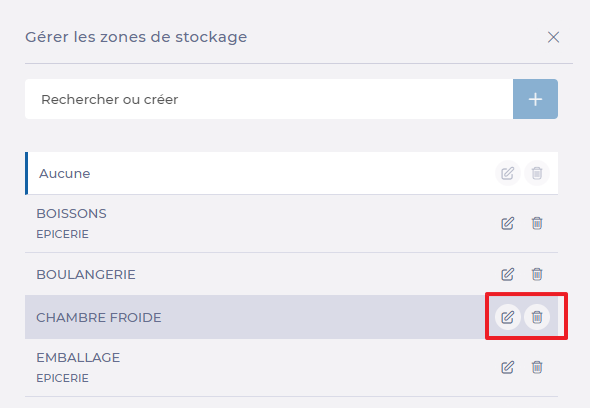
Select the cogwheel from the "Changer de zone de stockage" (Change storage area) window.
Create a new storage zone by entering the name of the new zone in the search bar, then click on + and confirm by selecting the diskette.
Modify a storage area as required, by selecting the pencil to the right of the desired area.
Delete a storage area as required by selecting the trash can to the right of the desired area.
A storage area cannot be deleted if it is still a product storage area.
Modify product information: units, labels, origins, VAT, etc.
If your environment is configured for multiple languages, the multilingual icon
appears for some fields. For more information on how to use it, see the article
Use Easilys in multilingual mode
.
Note: actions performed on the Easilys platform are subject to user access permissions. If you are unable to carry out the actions described in the articles, it may be because you do not have the necessary permissions activated on your user profile. Contact the Support team, or your administrator, for help.
Start from: The Easilys menu.
Modify product information via the "Price lists" screen
Select the Products > Price lists tabs.
Select the price list in which the product to be modified is located.
Price list details are displayed on screen.
Select the product name.
The Supplier product details panel appears at the bottom of the screen.
Select the pencil in the "Supplier product" column or in the "Industrial product" column to make changes.
The "Update a supplier product" or "Update an industrial product" window appears on the screen, allowing you to modify the items.
Make any necessary changes, then select Update to save your changes.
Modify product information via the "Products administration - V2" screen
Select the Products > Products administration - V2 tabs.
Use the filters on the left and/or the search by name box to find the product you wish to modify.
Depending on the type of information you wish to modify, select:
the industrial product, to modify product characteristics that do not depend on the supplier, such as brand, allergens, origin, VAT, etc.
the supplier's product, to modify product characteristics not dependent on the supplier, such as order units, invoicing, or the supplier's reference.
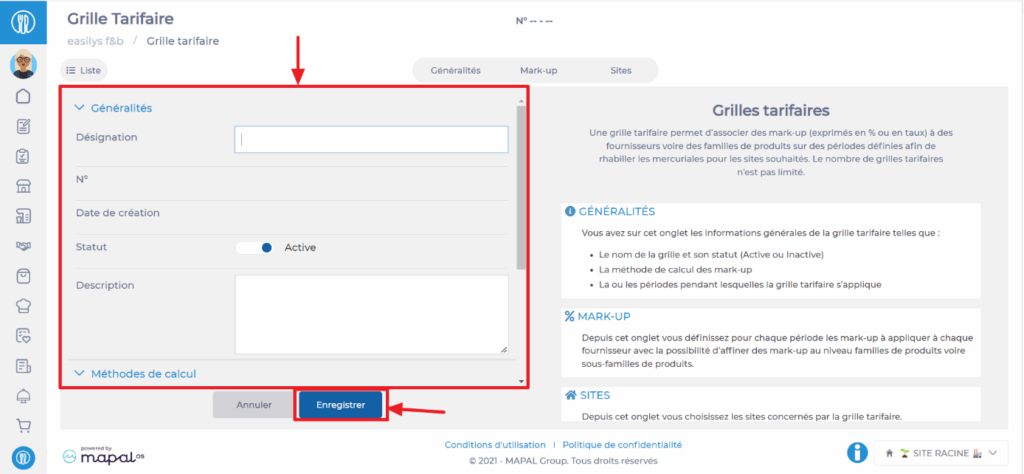
A price schedule allows you to associate mark-up (expressed as % or rate) to suppliers or even product families over defined periods in order to adjust the prices of the price lists for the desired sites. To use the price schedules, the functionality must be configured by our technical team, otherwise, the mark-ups will not affect the prices of the price lists of the sites. Interested in this feature? Contact us!
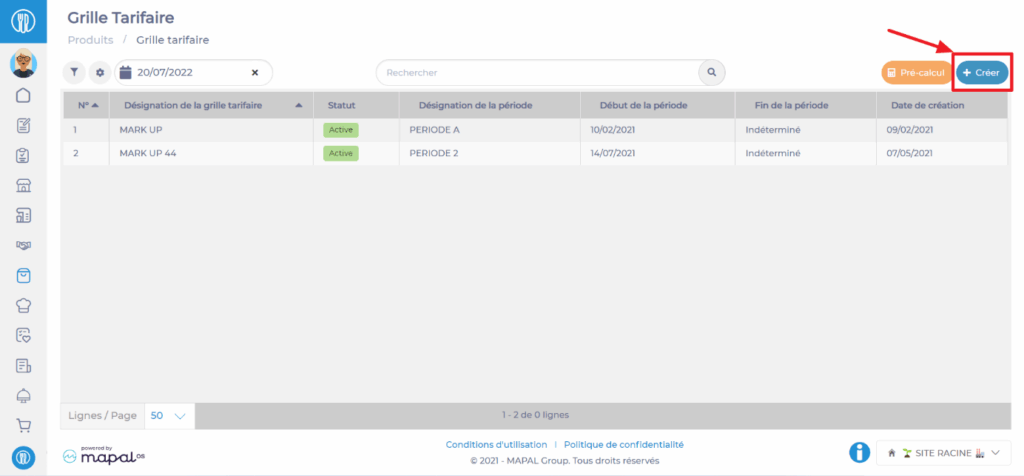
Select the tabs Products > Price schedule.
Select + Create.
A blank price schedule appears on the screen. A price schedule consists of three tabs: you are on the "General" tab.
Note: Note the presence of explanations on the right side of the screen.
Complete the information in the section "General" and "Calculation methods".
Select Save.
The price schedule is created.
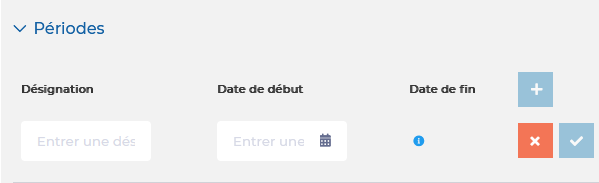
Complete the "Periods" section still in the "General" tab of the price schedule. You must create at least one period* *².
*When you generate a period, it is not possible to set the end date. The end date of the period will be automatically filled in as soon as you create another period.
*²You can create a new period at any time. If mark-ups already exist on a previous period, the new period will take them into account to pre-fill the mark-ups. You will then just need to modify them if necessary.