Find a supplier order that isn't visible in the Receptions screen

Note: Each action performed in the application is subject to access permissions. If you are unable to carry out the recommended actions in the articles you are viewing, this may mean that the necessary rights have not been activated for your user profile. Contact the Support team, or your administrator, to find out more.

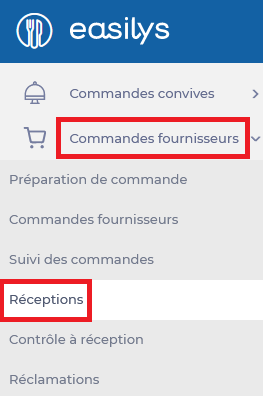
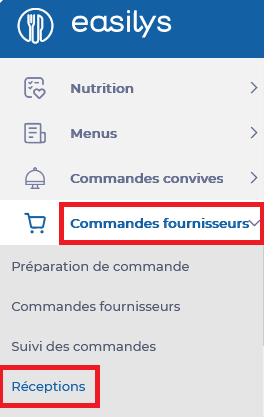
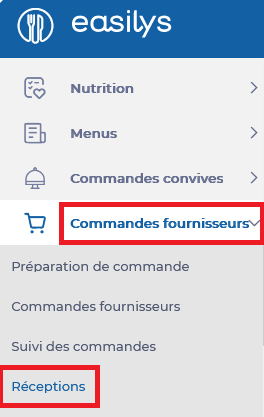
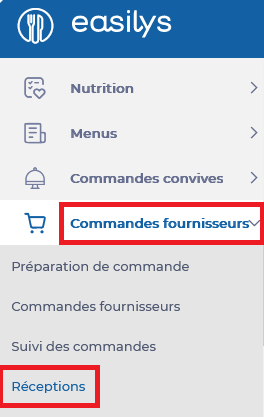
Start from: the Easilys menu.

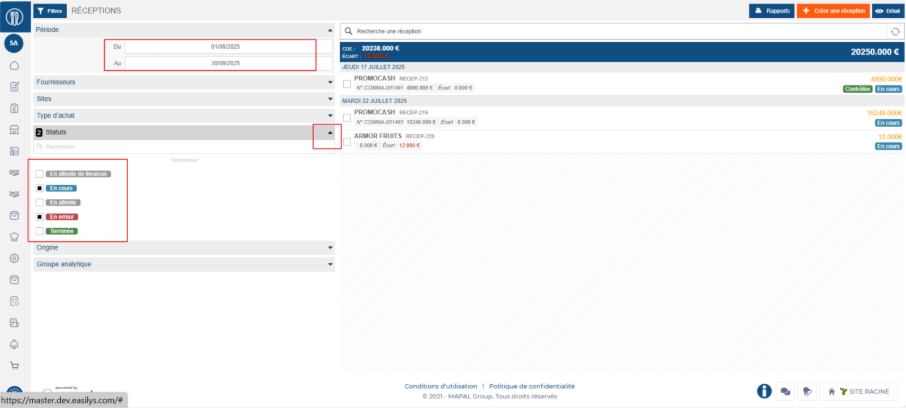
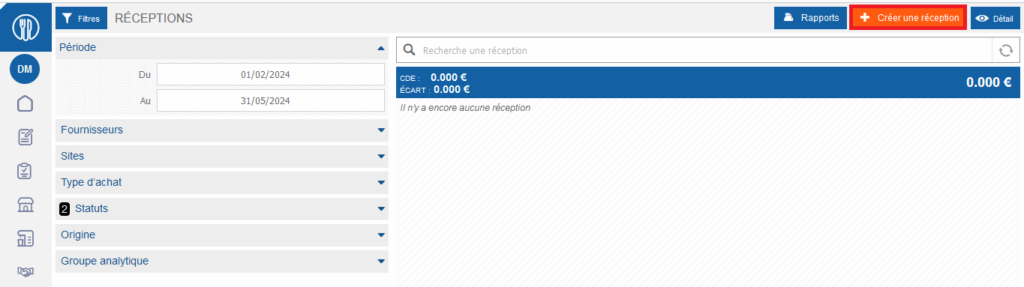
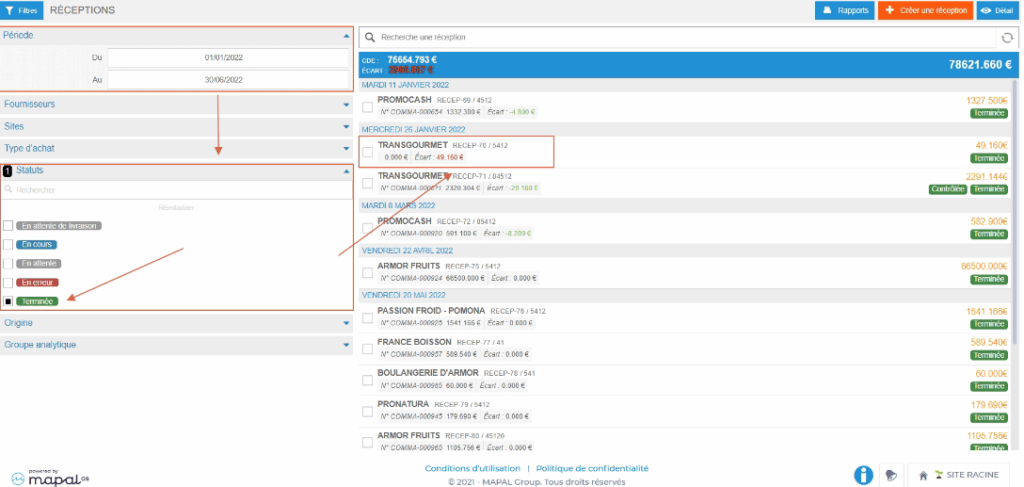
Case 1: The reception is not present in the list

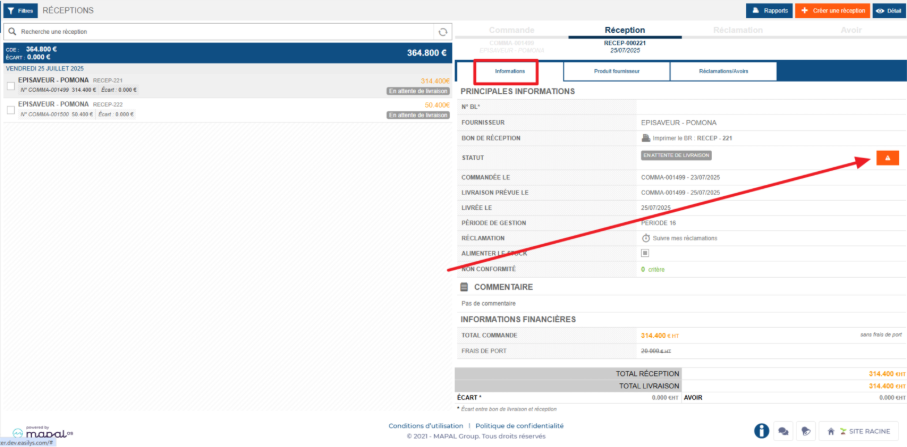
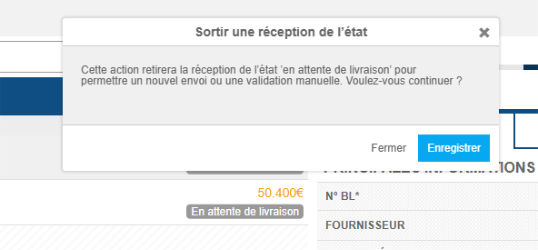
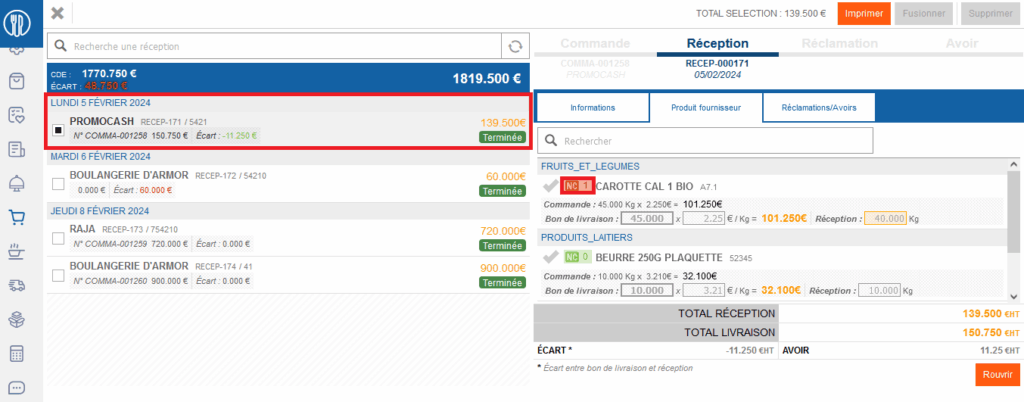
Case 2: The reception is blocked “pending delivery”

Case 3: The reception is blocked “pending”

A reception has the status “Pending” when there is a validation workflow on claims and the validator has not yet accepted or refused the claim.

Case 4: The reception is blocked “in error”

A reception is “In error” when there is a validation workflow on claims and the validator has refused the claim.

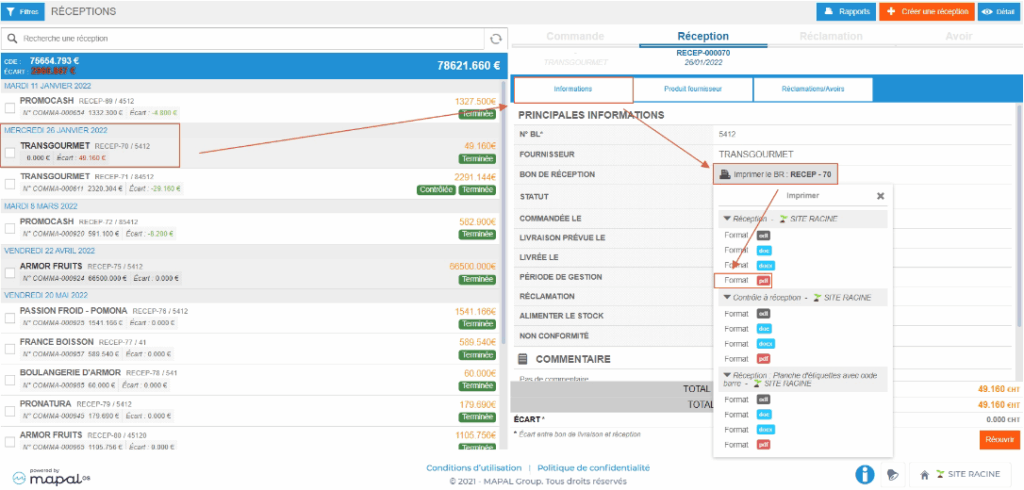
Case 5: The reception has the status “Completed”

The “Completed” status on a reception indicates that it has already been validated. If you wish to make changes to this reception, you can reopen it under certain conditions. Refer to the article Reopen a completed reception which explains this process.
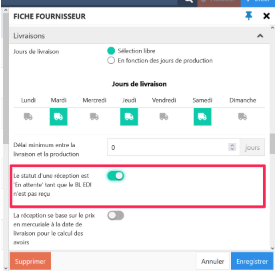
Understand reception 'Pending' status for the EDI delivery note

Note: Each action performed in the application is subject to access permissions. If you are unable to carry out the recommended actions in the articles you are viewing, this may mean that the necessary rights have not been activated for your user profile. Contact the Support team, or your administrator, to find out more.

Start from: Products > Suppliers

This option present in the DELIVERY section of the supplier file should only be enabled if the EDI sending mode is enabled.

"A reception status is 'Pending' until the EDI delivery note is received" allows you to force the wait in "Pending delivery" status of the reception voucher on the RECEPTIONS screen until the EDI delivery note has been received by Easilys. That is, until the supplier software has not sent confirmation of the delivery note to Easilys.

Do not enable this option if you do not use the EDI system for orders. This would eternally block your receptions in "Pending delivery" status on the RECEPTIONS screen and you would therefore not be able to validate them to make stock entries. The only solution would be to call on the technical team to unblock your receptions.

Manage a goods return

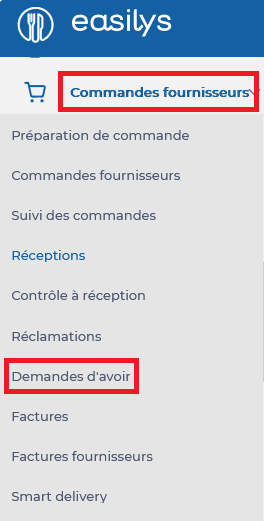
Start from: The Easilys menu.

A goods return can be processed in three steps to have precise tracking of the return.

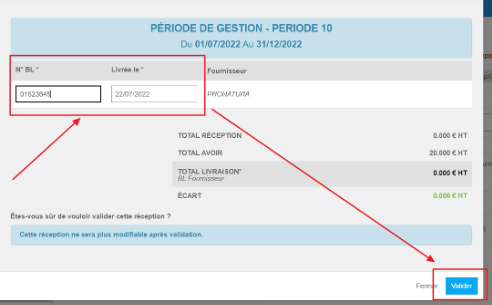
First step: CREATION OF A RECEIPT VOUCHER WITH A CREDIT NOTE REQUEST

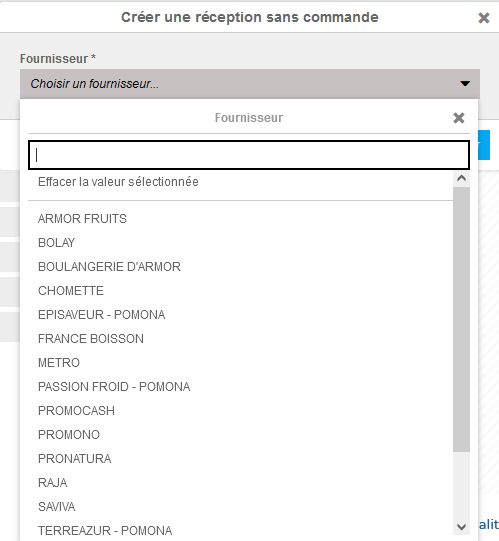
The "Create a receipt without order" window appears on the screen.

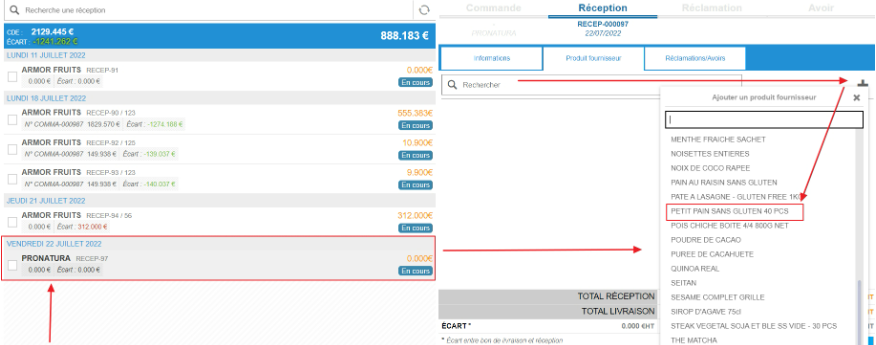
A blank receipt voucher is created and is now available in the list.

The details of the receipt voucher appear on the right of the screen.

The "Add a product" window appears on the screen.

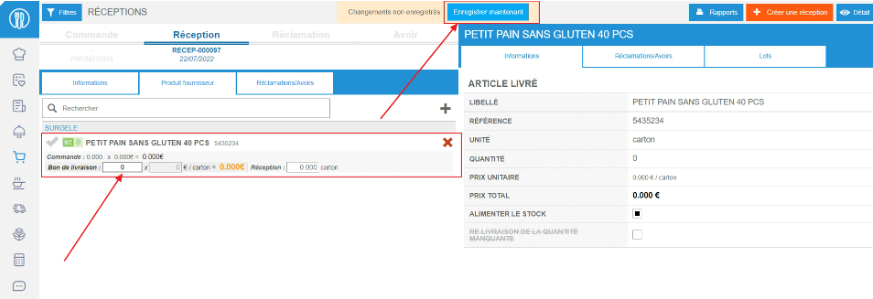
The product is now in the receipt voucher.

Attention! Make sure everything is set to 0 because you do not want to add the product to your stock.

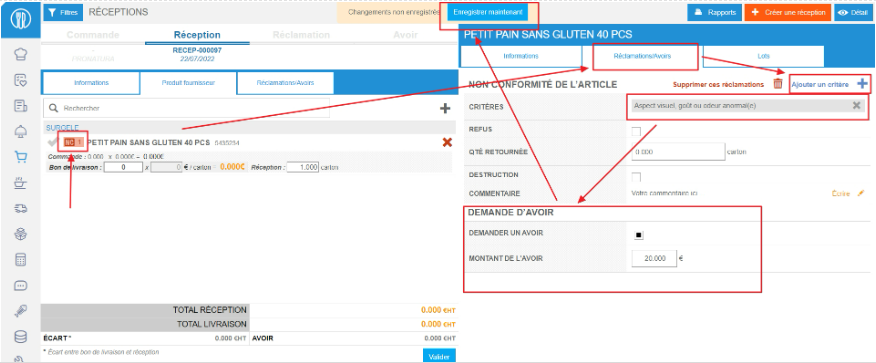
The details of claims and credit note requests related to the product are displayed.

The application creates a credit note request and therefore takes the refund into account.

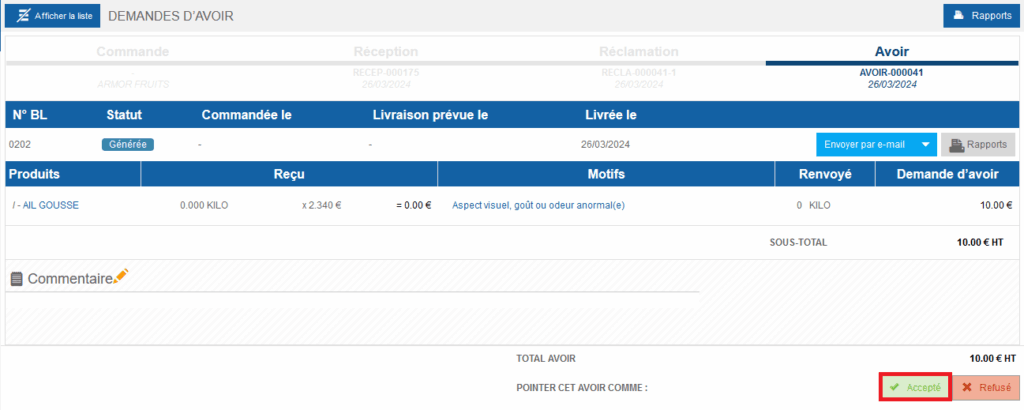
Second step: VALIDATION OF THE CREDIT NOTE REQUEST

The details of the credit note request are displayed on the screen.

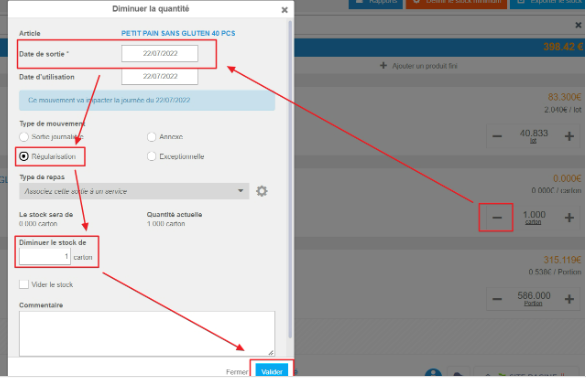
Third step: STOCK ADJUSTMENT TO REMOVE THE QUANTITY CONCERNED BY THE RETURN

The "Decrease quantity" window appears on the screen.

Delete a credit note request in a reception

Start from: The Easilys menu.

Easilys identifies a situation that requires a claim or credit note request and generates it automatically. However, the user can take control and delete an automatically generated credit note request.

Manage a free item in the delivery note

Start from: The Easilys menu.

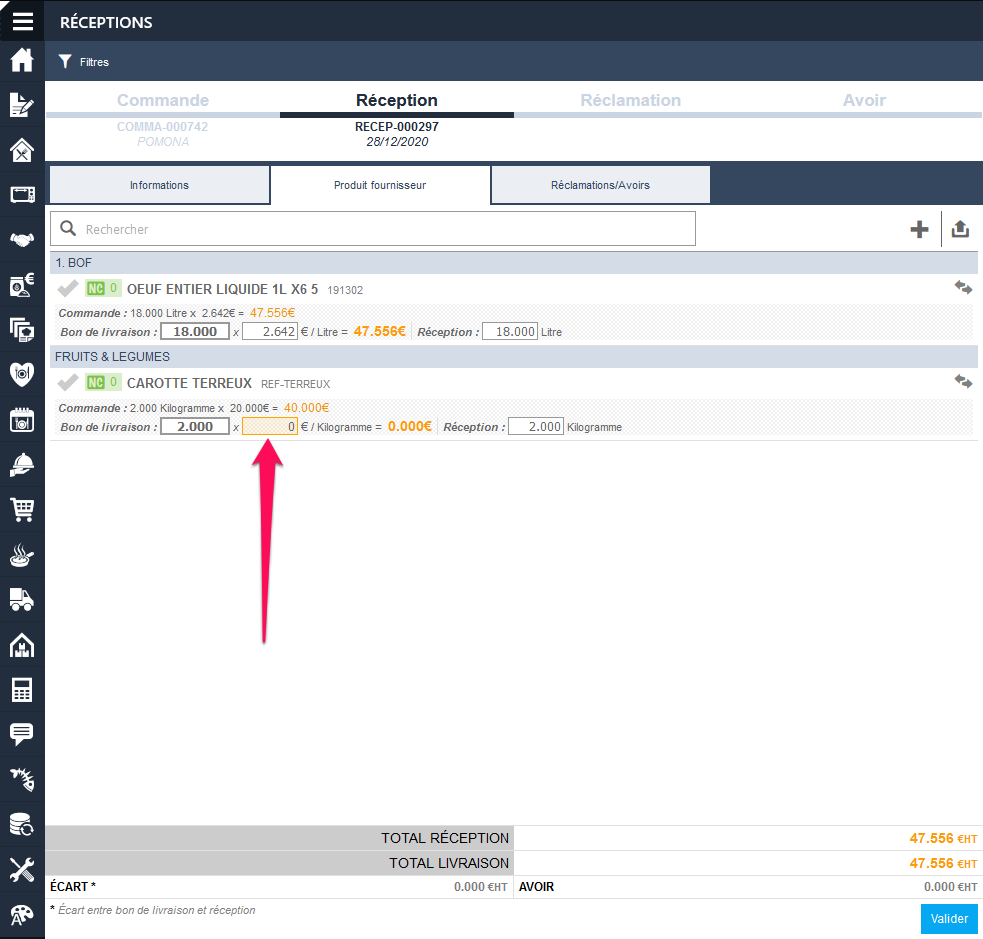
Case #1: The entire delivered quantity of the product is free.

In the Delivery note section, select the correct delivery note:

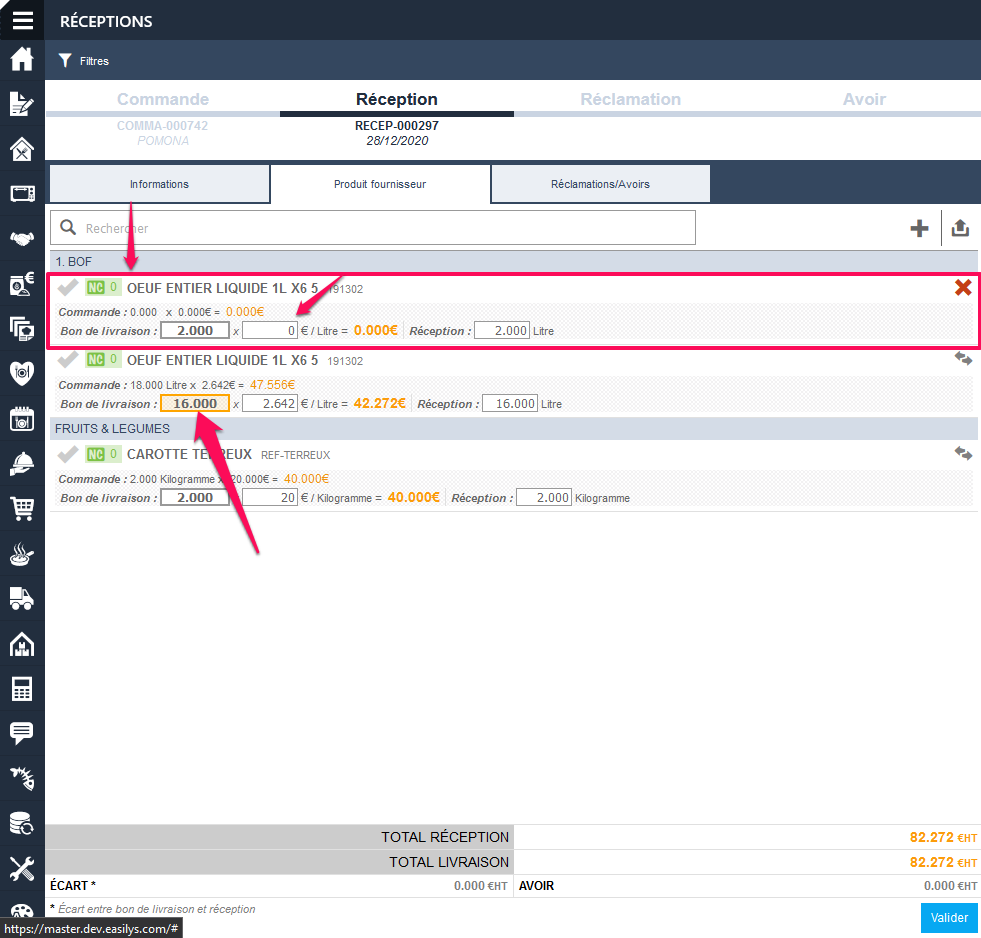
Case #2: Part of the delivered quantity of the product is free

In this scenario, you need to add the product again in the delivery note to have two receipt lines:

The product is added to the delivery note. This addition is highlighted, as this new line can be deleted with the red cross.

In the Delivery note section:

Note: Finally, remember to change the quantity on the other line of the product to indicate the quantity not concerned by the free item.

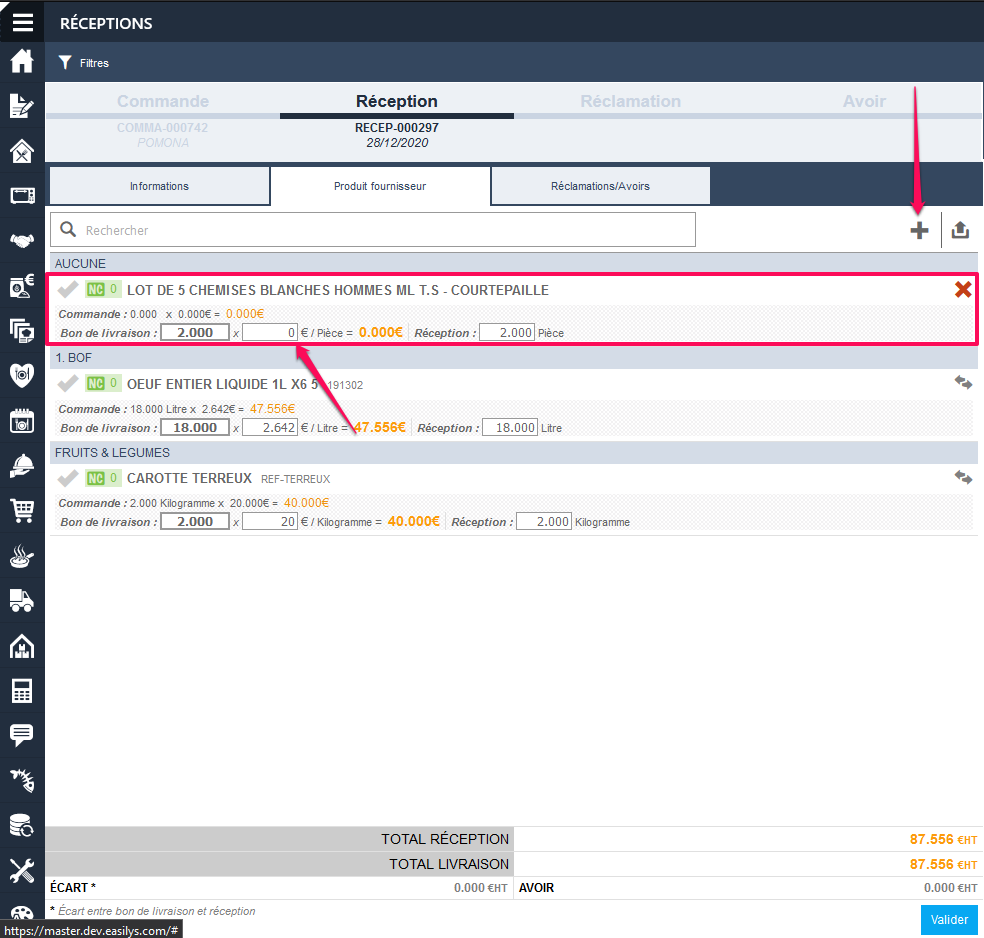
Case #3: An unordered product was offered

In this case, simply click on the + to the right of the delivery note search bar to add the product. Then, simply change the rate to zero in the Delivery note section.

Order to APPROLOCAL from Easilys

Start from: The Easilys menu.

Find APPROLOCAL products on Easilys

  • Select Supplier orders in the main menu > Supplier orders.
  • You can use the filters in the "Suppliers" OR "Product family" sections.

Note: APPROLOCAL product families contain the term "APL".

Order preparation

  • Select your first product to generate your shopping Order.
  • Select the Order to add more products.

Send order

  • Select the Order.

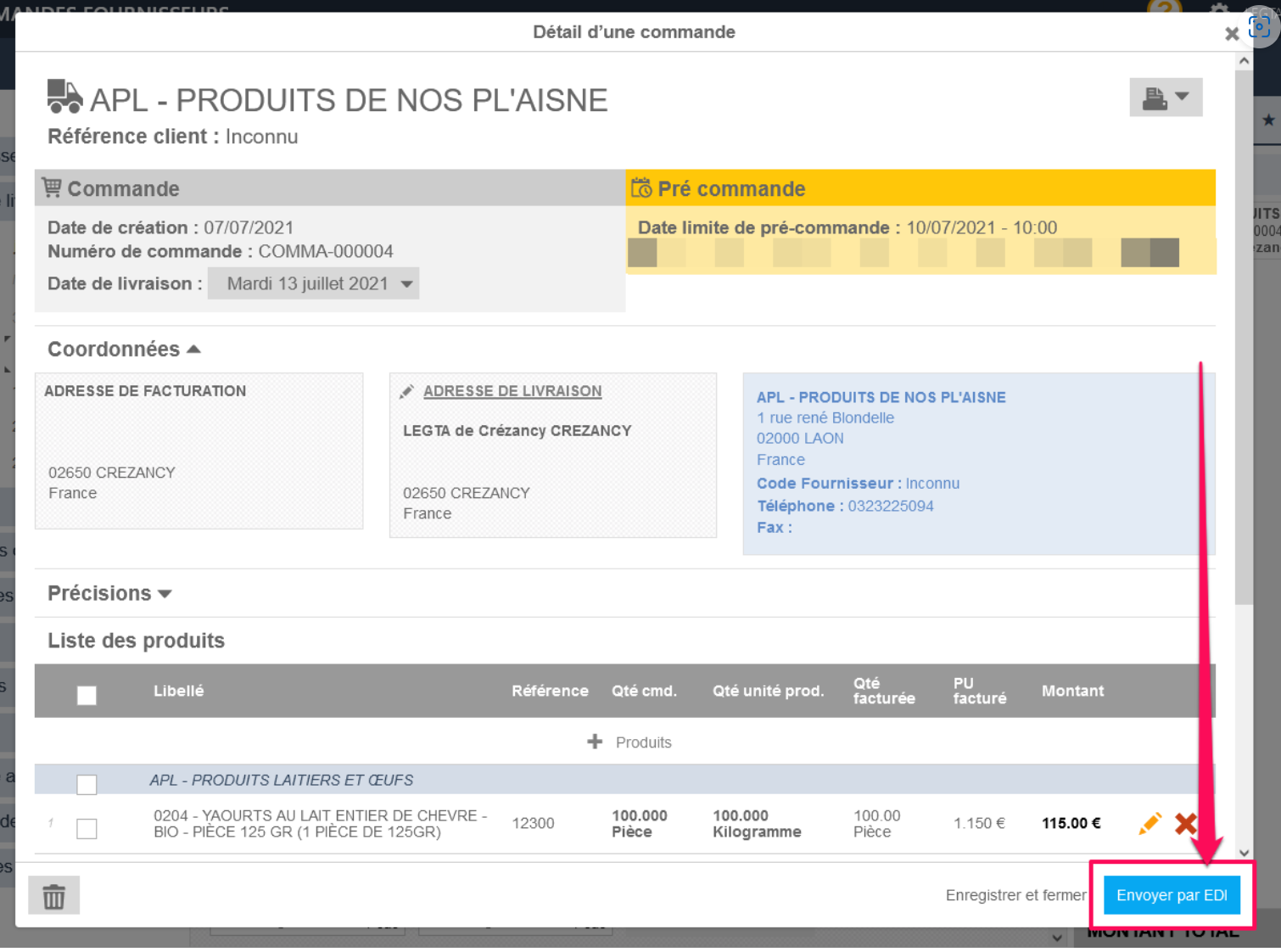
The order details are displayed.

  • Select "Send by EDI".

Note: Orders can only be sent in EDI mode. EDI is a technical term for a data exchange link between two software programs.


Once the order has been sent :

  • Your order will be created automatically in APPROLOCAL: it will be signed off by the supplier if the latter is able to deliver all or part of your order. He can therefore modify and/or cancel your order.

Note: Please do not resend or modify your order. You must wait for SIGN-OFF to validate, modify or cancel it. If you need to make any changes, please contact your supplier, who can make the changes from within APPROLOCAL.

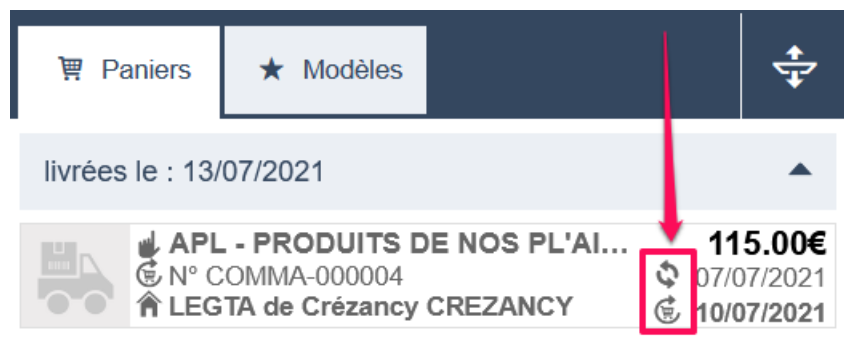
  • The order is now waiting to be processed:


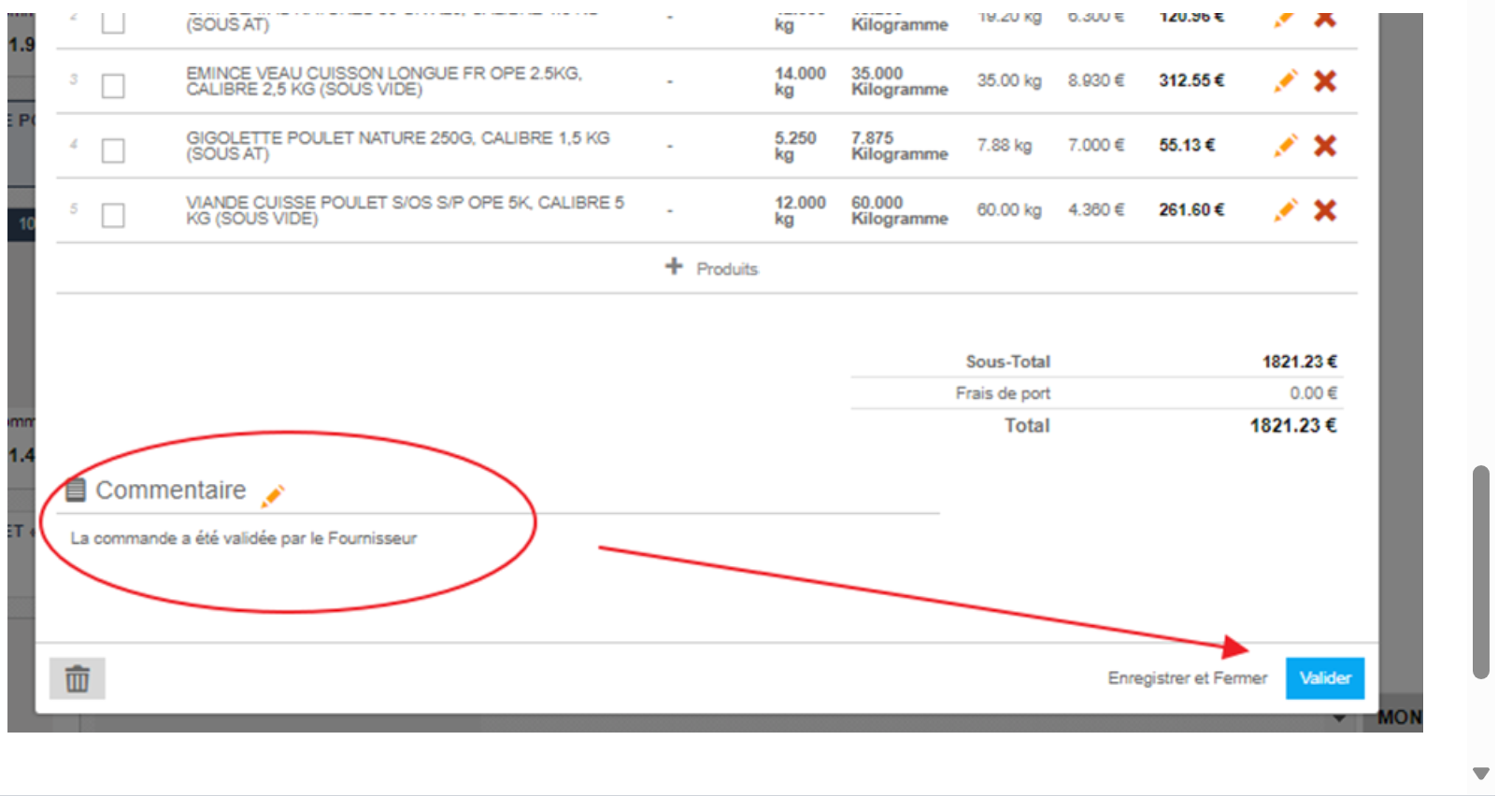
  • If the supplier signs off the pre-order from APPROLOCAL, its status changes on Easilys: it is no longer waiting to be processed, the "truck" pictogram appears and, when you display the order basket details, a comment indicates that the supplier has signed off on it on APPROLOCAL.

You then have the opportunity to sign off, in turn.


To sign off the order :

  • Select the shopping cart and click "Sign off"

A goods receipt awaiting validation will be generated in the Receptions Panel (Supplier orders > Receptions).

Manage non-conformity criteria

Note: each action performed on the application is subject to a fee. If you are unable to carry out the recommended actions in the articles you are viewing, this may mean that the necessary rights have not been enabled for your user profile. Contact the Support team, or your Admin, to find out more.

Start from: The Easilys menu.

Non-conformity criteria are used to notify problems encountered when an order is received. A non-compliance criterion can lead to the automatic creation of a credit note if so configured.

Non-compliance criteria can only be created, deleted or modified on the root site.

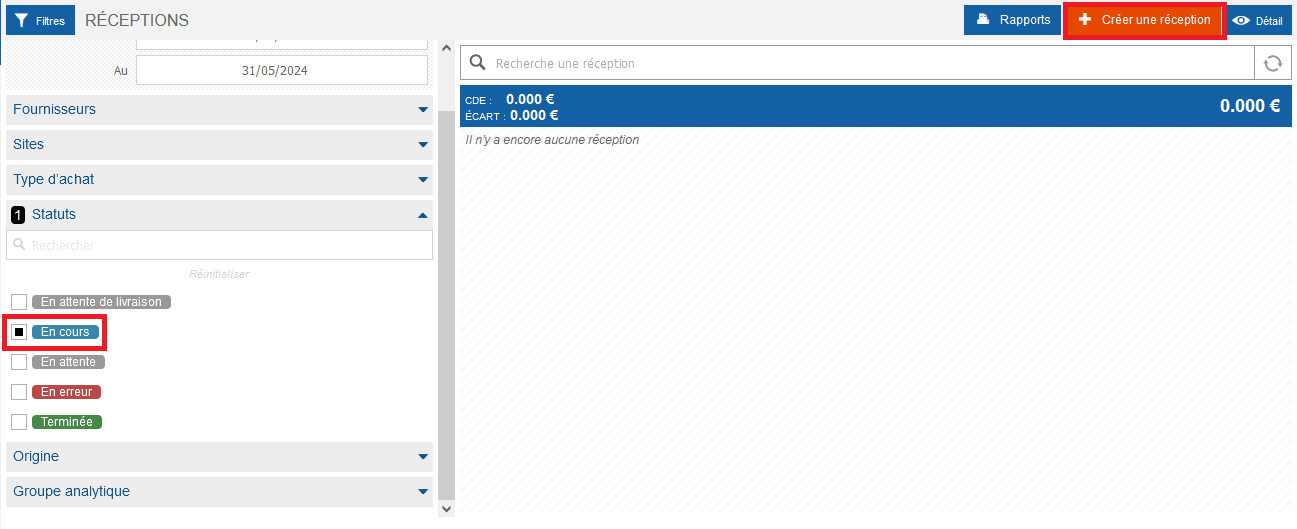
  • Select the Supplier orders > Receptions tabs.

Une image contenant texte, capture d’écran, Police, nombre<br><br>Description générée automatiquement


  • Select a delivery note in “In progress” status. If none exists, create a reception without an order by selecting Create a reception.

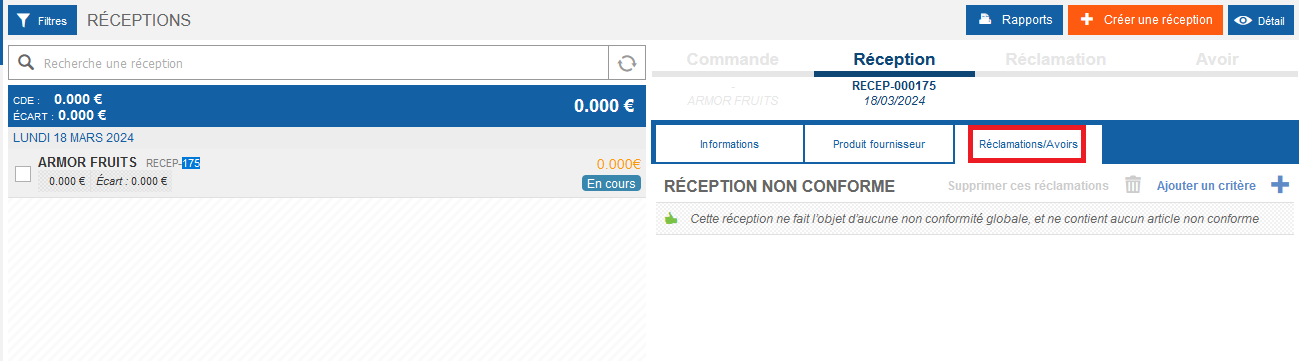
Une image contenant texte, logiciel, Icône d’ordinateur, Page web<br><br>Description générée automatiquement


  • Go to the “Claims/Credit notes” tab. 

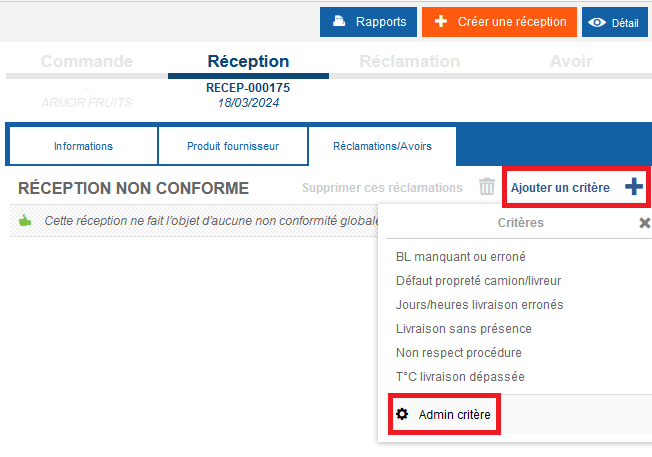
Une image contenant texte, logiciel, Page web, Site web<br><br>Description générée automatiquement


  • Select Add a criterion.
  • Select Criterion admin.

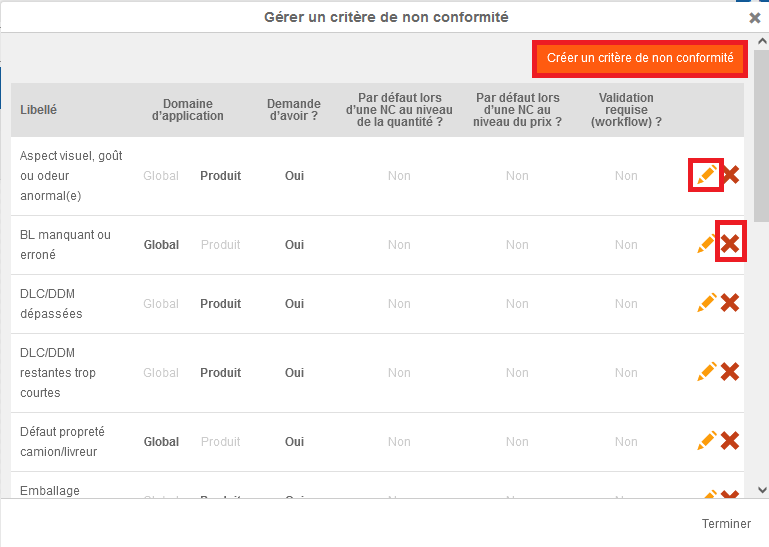
Une image contenant texte, Appareils électroniques, capture d’écran, logiciel<br><br>Description générée automatiquement

 
The “Manage a non-compliance criterion” window appears.

  • Add, delete or modify a non-compliance criterion. Use the orange pencil to modify a criterion, the red cross to delete a criterion, and the “Create a non-compliance criterion” button to create a new one.

Une image contenant texte, capture d’écran, nombre, logiciel<br><br>Description générée automatiquement

 
Note: “Criterion admin.” is only available from the root site AND if you have the rights to create, delete and modify non-compliance criteria.
 

Print a reception

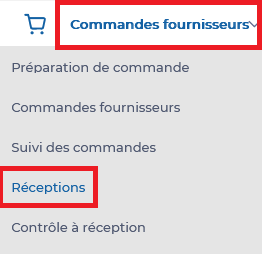
Start from: The Easilys menu.

The reception details are displayed.

Create a product from a reception

If your environment is configured for multiple languages, the multilingual icon appears for some fields. For more information on how to use it, see the article Use Easilys in multilingual mode .

Start from: The Easilys menu.

Creating a supplier product normally happens from the price lists or product administration.
To learn more, see the article Create a product.

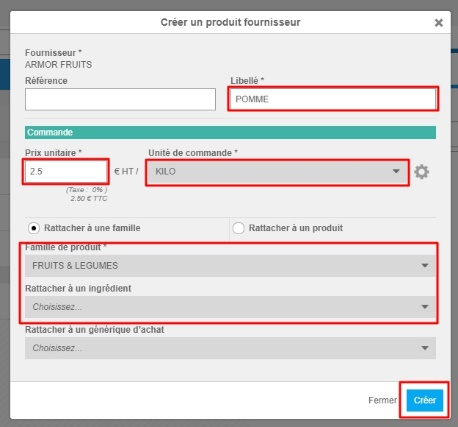
However, there is a simpler and faster creation method that we will see in this tutorial, but this one is therefore less complete.

To complete all the information, it is necessary to go through the price lists to update the elements.

ATTENTION: Creating a product in a simplified way is subject to a particular permission to be activated if needed, at the level of the profile settings defined for the user concerned. If this permission is not activated, do not hesitate to contact us.

To learn more, see the article Modify product information: units, labels, origins, VAT, etc.

Before creating a product, make sure that it does not already exist. You would risk multiplying duplicates otherwise.
These duplicates will impact orders and stock since you will have multiple lines for the same product.

Select a reception in "In progress" status.

The reception slip details are displayed on the right side of the screen.

A list of supplier products is displayed on the screen.

The "Create a supplier product" window is displayed on the screen.

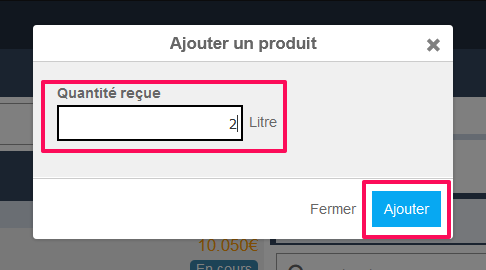
The "Add a product" window automatically appears on the screen.

To complete all the information, it is necessary to go through the price lists to update the elements.?
To learn more, see the article Modify product information: units, labels, origins, VAT, etc..

Mass printing of multiple exit vouchers or control on reception

Start from: The Easilys menu.

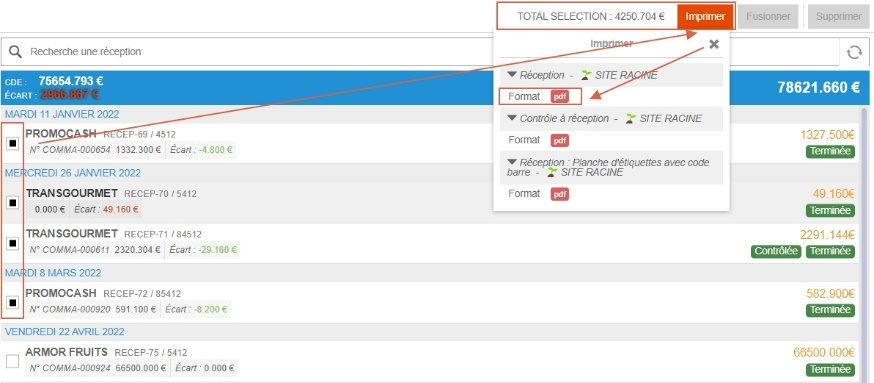
An action bar appears at the top of the screen.

Easilys displays a list of prints you can perform.