Edit and customise your lesson in Studio
Start from: The Flow Learning dashboard.
How the editor fits into the workflow
- Storyboard: the blueprint. Defines objectives, learners, writing style, outline, and branding. AI uses it to generate the first draft.
- Editor: the workshop. This is where you refine, customise, and build the final version — whether starting from AI’s draft or from scratch.
Edit a lesson
- Navigate to Learning & Development > Studio.
- The Studio dashboard opens. Select the specific lesson you want to edit.
Note: To know more about how to create a new lesson, see Generate a lesson using AI in Studio.
Layout of the editor
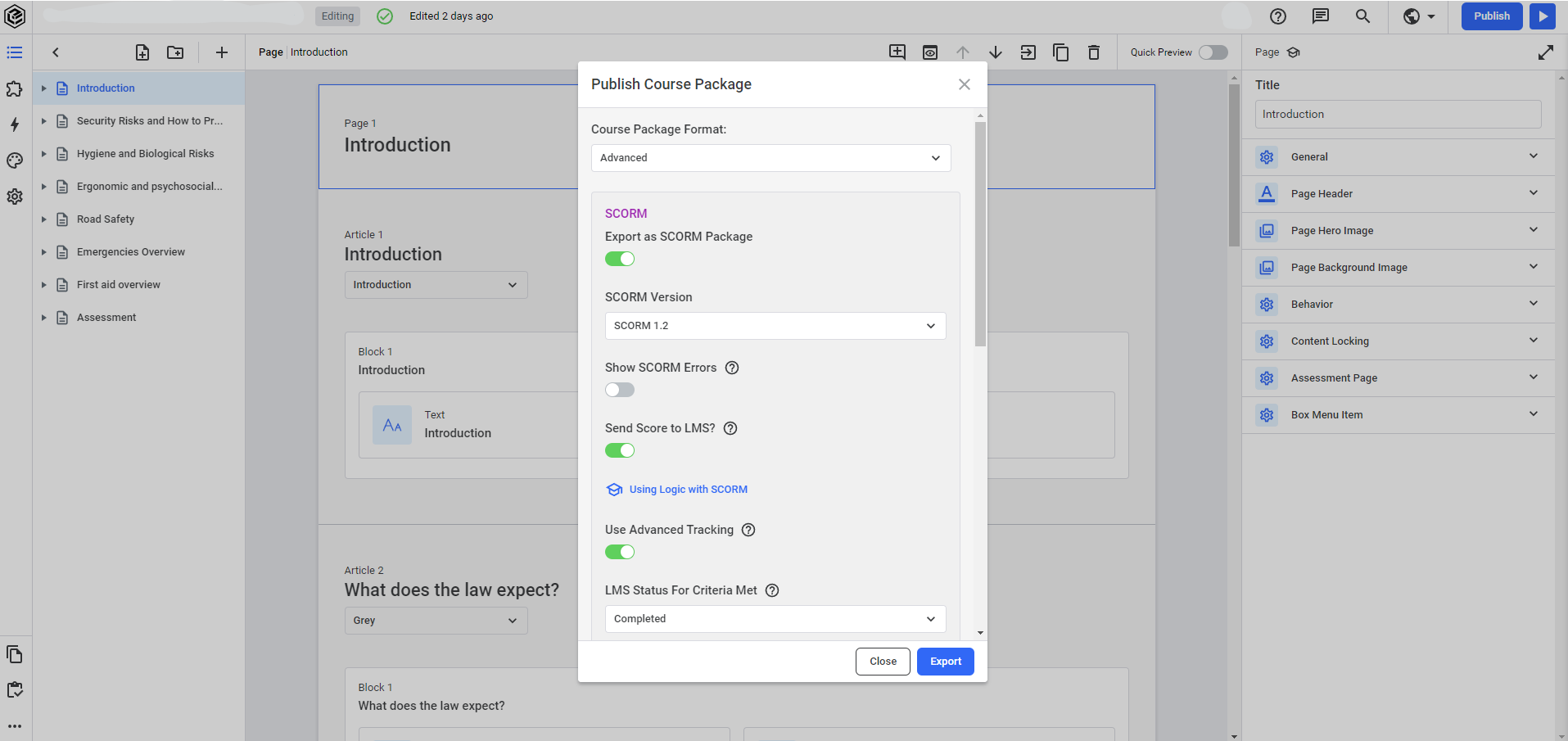
The Editor has four main spaces:
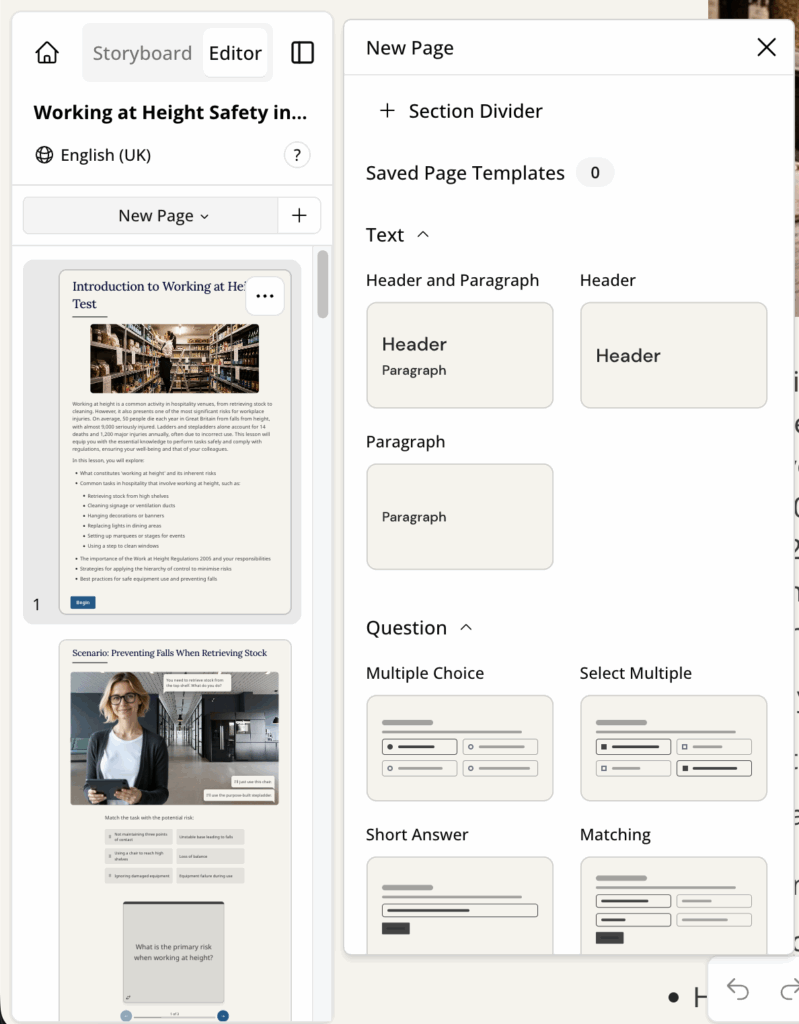
1. Left Sidebar – Pages & Sections
Your lesson’s navigation hub.
Here you can:
- Scroll through all pages.
- Add a page with + New Page.
- Insert Section Dividers to separate chapters or topics.
- Drag and drop to reorder pages.
- Create page templates for reuse.
Tip: Break long lessons into segments with Section Dividers. Learners engage better with “chunked” content.
2. Main Canvas – Page & Tile Editing
The central workspace. Each page is made of tiles — modular content blocks.
To add a tile:
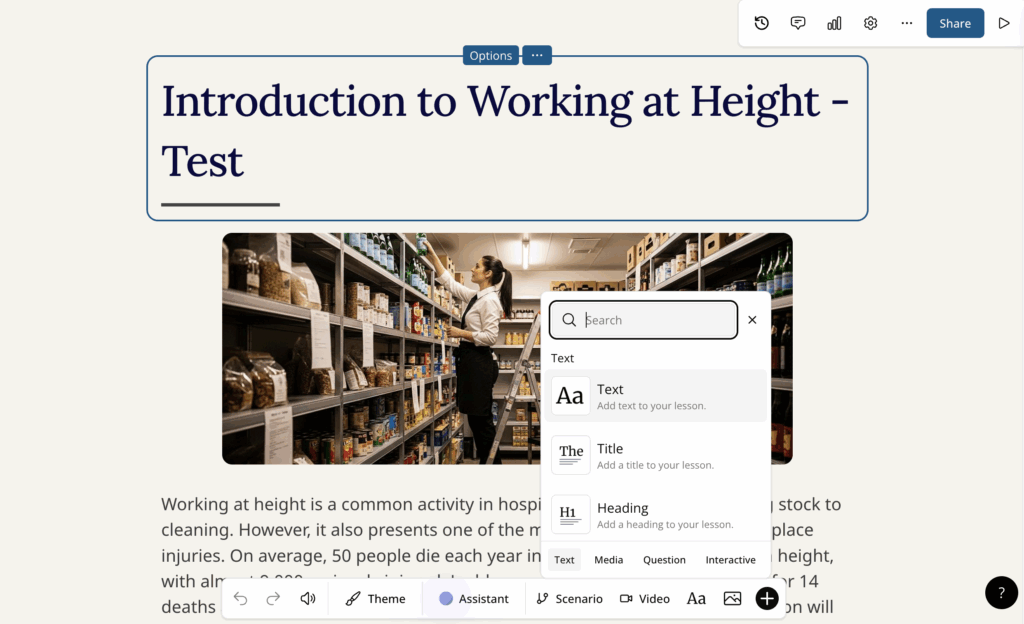
- Click + at the bottom of the page or in the toolbar.
- Choose from:
- Text: Title, header, paragraph
- Media: Image, video, embeds, links
- Interactive: Quizzes, matching, flashcards, hotspots, sorting
- Scenario Builder: Branching conversations or simulations
- To edit a tile, click into it to change text or replace media.
Tip: Keep it simple — 2–3 tiles per page work best, especially for mobile learners.
3. Bottom Toolbar – Quick Tools
Shortcuts for faster building:
- Undo/Redo: Step back or forward.
- AI Assistant: Rewrite text, generate quizzes, suggest interactives.
- Theme Builder: Adjust fonts, colours, and logos.
- Scenario: Insert branching decision trees.
- Video: Upload or embed clips.
- Aa: Add a quick text tile.
- +: Access all tile types.

Tip: Use the AI Assistant to transform existing content into interactions — e.g., turn a paragraph into a multiple-choice quiz.
4. Top Menu – Global Controls
Lesson-wide settings and tools:
- Analytics: Track learner performance (see Analytics Guide).
- Lesson Settings: Adjust preview, learning, and grading options.
- Preview: See the learner’s perspective.
- More (…) Menu: Translate, add narration, duplicate, return to Generator, or delete.

Tip: Preview often. A layout that looks balanced in the Editor may feel crowded in learner view.
Collaboration in the Editor
Studio supports real-time teamwork:
- Add inline comments on pages or tiles.
- Attach files/links for extra context.
- See live cursors when teammates edit at the same time.
Why it matters: No more version-control chaos. Subject Matter Experts, IDs, and reviewers can all work together in one place.