Bulk change a list of supplier orders to ‘manually sent’ status
Note: Each action that can be performed on the application is subject to user permissions. If you cannot perform the actions recommended in the articles you consult, it may mean that the necessary rights are not activated for your user profile. Contact the Support team, or your administrator, for more information.
Start from: the Easilys menu.
Navigate to Supplier orders > Track orders.
The list of purchase orders is displayed.
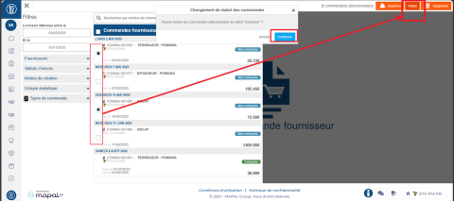
Tick the orders that you want to change to the status "Sent".
Click on Confirm
Note:
Changing the orders to the status "sent" is the equivalent of the manual sending of each of these orders. With this type of sending, the supplier will not be informed directly by Easilys of these orders, it is you who informs the supplier by other means, for example by telephone.
This action is impossible for suppliers whose order sending requires external validation. If you are concerned, a message will be displayed when you attempt to change the status.
The referencing period
Start from: The Easilys menu
When using this option, the supplier will also no longer be active in the rest of the application. It will therefore no longer be possible to place orders with the supplier even if their price lists are still active.
Modify the referencing period
It is entirely possible to modify the referencing period even once the end date has passed in order to be able to order from the supplier again. To do this:
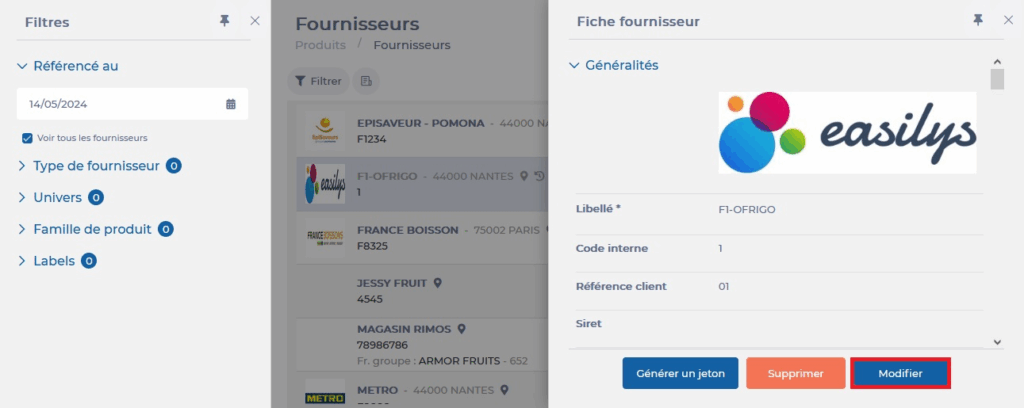
Select the tabs Products > Suppliers.
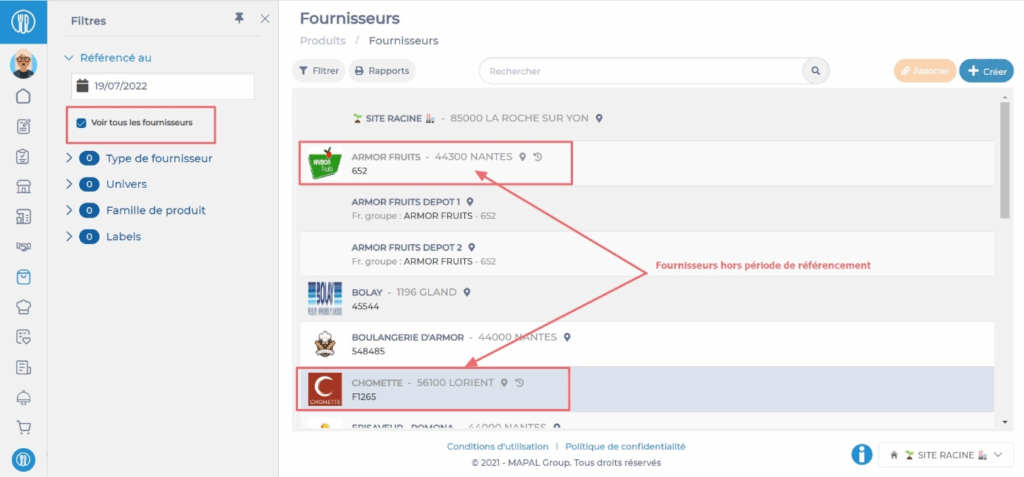
Check the "View all suppliers" filter.
Select the grayed-out supplier record.
Select Modify.
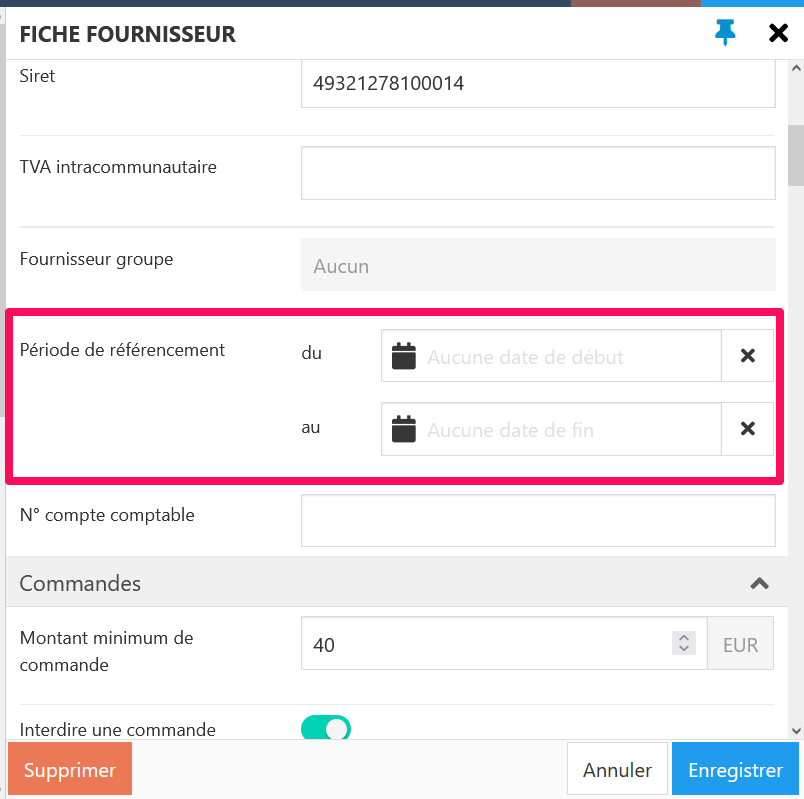
In the "Referencing period" section, modify the dates then select Save.
Order deadline and cutoff time
Start from: The Easilys menu.
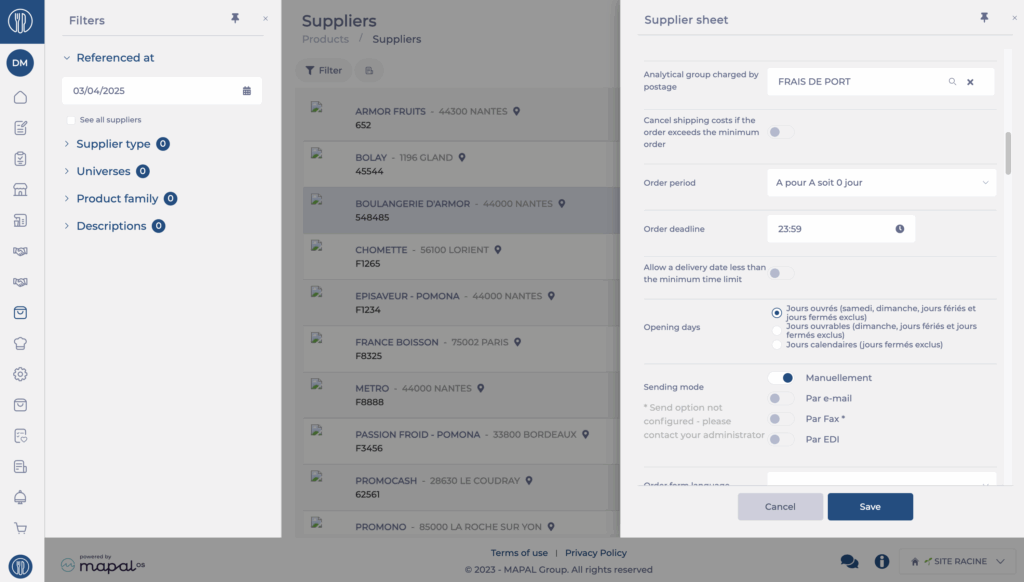
Entering the deadline and order cutoff time allows Easilys to know until what time an order can be sent to the supplier according to the expected delivery date. However, it is possible to relax this rule by activating the option Allow a delivery date less than the minimum deadline. In this case, the order outside the deadline will be flagged to you but you can still validate it.
Note: Even when activating the option Allow a delivery date less than the minimum deadline, it remains impossible to send an order, even manually, if the delivery date is a past date.
The order deadline takes into account the opening days configuration. Thus, if your supplier works on business days, Saturday, Sunday as well as holidays and closed days will be excluded from the calculation.
Example: If you have an order deadline of 2 days and you try to send your order on Friday for the following Monday, this action will be impossible if the supplier is configured for business days. If it is configured for calendar days, then it will be quite possible to send the order, because you will then be three days before the desired delivery date.
The cutoff time is also important: if you respect the order deadline, but not the order cutoff time, then sending will be impossible.
Example: If you have an order deadline of one day and an order cutoff time at 12pm and you try to send the order on Thursday at 2pm for the next day, this will not be possible. You must send the order before noon.
Set delivery days
Start from: The Easilys menu.
By indicating your suppliers' delivery days, Easilys can suggest consistent delivery dates when you prepare orders, whether this is done manually or via the ORDER PREPARATION screen.
There are two methods for entering delivery days, which we define below.
Set delivery days using "free selection"
Select the Products > Suppliers tabs.
Select the relevant supplier sheet.
Under the "Delivery" section, choose the "Free selection" mode.You then just need to check the delivery days.
You can then specify if a minimum delay between the delivery day and the production day must be observed. By default, this delay is 0, so Easilys can suggest a delivery date equal to the production date.
Set delivery days "based on production days"
If you need to manage delivery days more precisely in relation to your production management, switch to the "Based on production days" mode. You will then see a table allowing you to indicate which production day is linked to the chosen delivery day.
The first column corresponds to the delivery day; in the example below, it is indicated that when production is scheduled for Wednesday or Thursday, delivery must take place on Wednesday.
This method of indicating delivery days is useful when you have set up menus and possibly a production plan.
Manage currency exchange rates
Start from: The Easilys menu.
The exchange rate is always managed in relation to the euro (€).
Select the tabs Sites > Currency.
Select the currency for which you want to change the exchange rate.
The currently recorded exchange rate is displayed on the right side of the screen.
Modify it.
Select Save at the bottom right.
Once saved, the exchange rate applies instantly.
General technical recommendations
Start from: The Easilys menu.
Minimum browser version required
Notes: Ideally, your browser version should not be older than 18 months.
From 01/01/2024, the browser versions required are:
Chrome 104+
Firefox 103+
Microsoft Edge 103+
Safari 16+
Opera 88+
Notes: We advise you to avoid trying Internet Explorer. Some Easilys features may not work. In addition, as of February 1, 2020, we no longer guarantee compatibility with Internet Explorer.
Preferred operating system
Windows 10+
Ubuntu 14.04+
OSX 12+
Android 11+ with Chrome
iOS 15+
Locate supplier files that no longer appear in the list
Start from: The Easilys menu.
1. A filter or search is active
When you activate filters or perform a search, the displayed results correspond to your criteria. It is therefore possible that the supplier file you are looking for does not match the current filters or search.
To simply check this hypothesis, reset the filters and search or press the F5 key on your keyboard (this refreshes your web page and therefore resets the filters and search to zero.)
If the supplier file is still not found, consult the hypotheses below.
2. The supplier file's referencing period has expired
A supplier file has a referencing period. By default, this has no end date, but if an end date had been configured, it could have expired.
You can check this quickly by checking the "View all suppliers" filter. This option displays supplier files that are outside the referencing period in gray.
If you find your supplier file, select it and modify the referencing end date. Then wait until the next daily update to be able to place orders with the supplier again. (Make sure that the price lists are active and if not, activate them before this same update.)
If the supplier file is still not found, consult the hypotheses below.
3. The supplier file has been detached
If the supplier file you are looking for is a supplier file made available by a parent site, meaning that you do not handle the management of this supplier's price list (this is generally the case for national or international markets that are administered from headquarters), then the supplier file may have been detached by mistake.
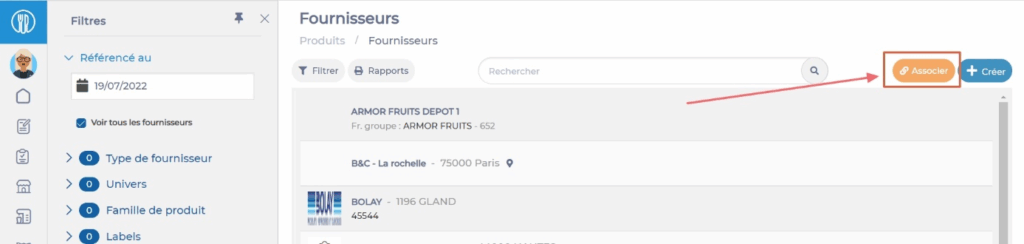
Select Associate at the top right of the SUPPLIERS screen.
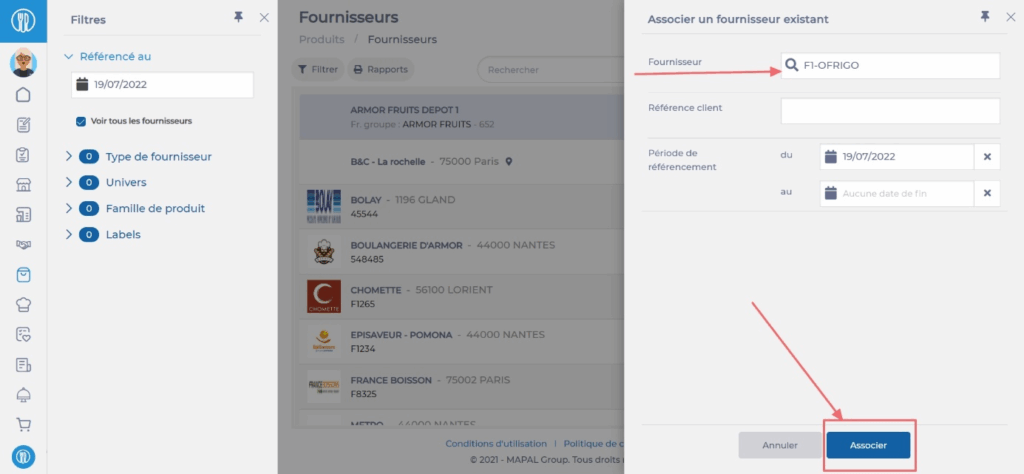
Search for the supplier.If it appears in the list, select it to associate it again with your site/establishment. If you do not have the necessary permissions to perform these actions, contact your administrator.
If the supplier file does not appear in the list, consult the last hypothesis below.
4. The supplier file has been deleted
If none of the above hypotheses was correct, then your supplier file has probably been deleted. Deletion is unfortunately permanent. You will therefore need to recreate a supplier file and modify existing price lists to attach them to this new supplier file.
Enable the ability to send pre-orders to a supplier
Start from: The Easilys menu.
Sending pre-orders is not available by default. It is necessary to enable an option on the supplier record for which you want to be able to send pre-orders.
Select Products>Suppliers.
Select the supplier for which you want to view the information record.
Select Edit at the bottom of the supplier record.
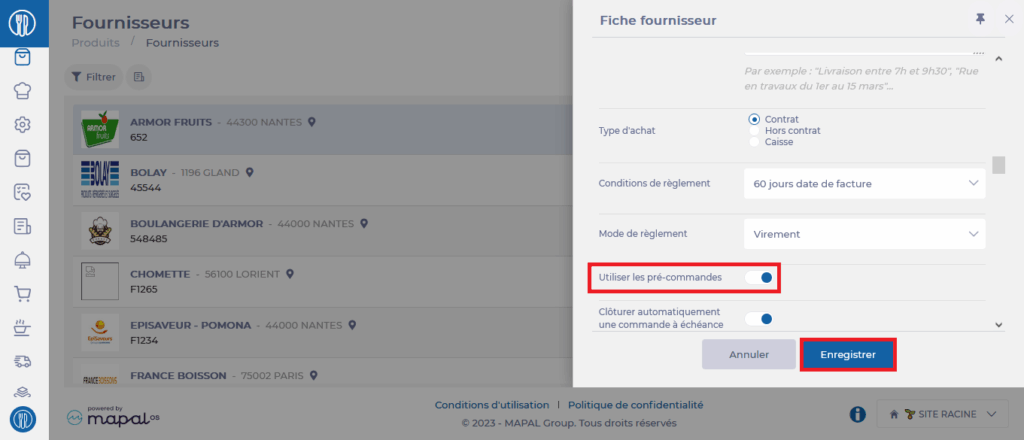
In the "ORDERS" section of the record, enable the Use pre-orders option.
Select Save to confirm the modification.
Warning: if the status does not return to Edit after selecting Save, this means that the application was unable to save your modifications.
This most likely comes from the fact that essential information is missing from your supplier record and the application is asking you to complete it before being able to save. A red indication will show you what information is missing. Generally, this involves a missing email address or generated coordinate fields that are empty (you can complete them or delete them).
You have the possibility to adjust your pre-order by modifying it until the pre-order deadline which is the last available date before exceeding the order deadline.
For example, with an order deadline of A for C, I can modify my pre-order up to three days before the delivery date. This information is indicated in the pre-order slip.
Warning: sending an order just before the deadline closes will not be processed as a pre-order, but as a final order.
Cancel a pre-order with a supplier
Cancel a pre-order with a supplier to avoid receiving goods that you no longer need. It is entirely possible to cancel your pre-order as long as the order deadline has not been reached. Starting from: The Easilys menu.
Select the Supplier orders > Supplier orders tabs.
Select the order basket linked to your pre-order.
Select the crossed-out cart icon at the bottom of the order details.
A message then asks you to confirm your choice to cancel the pre-order.
Select Yes.
If you submitted your pre-orders by email or fax, the supplier will receive a notification of your pre-order cancellation.
Warning: if you had sent your pre-orders using the "Manually" or "By EDI" (standardized or non-standardized) sending mode, you will need to inform the supplier of the pre-order cancellation by your own means. As a reminder, the "Manually" sending mode was initially designed to allow recording orders placed by phone. Therefore, always prioritize sending pre-orders using the "By email" sending mode. Warning: sending by standardized EDI (AGENA 3000 type) does not yet allow managing pre-orders.
Associate the "PARENT SITE NAME" supplier on child sites
Using the Site supply screen, you can associate the "PARENT SITE NAME" supplier to child sites, so that they can order products from the parent site (in the orders screen).
Starting from: The Easilys menu.
Go to each child site to associate the supplier record bearing the name of the parent site.
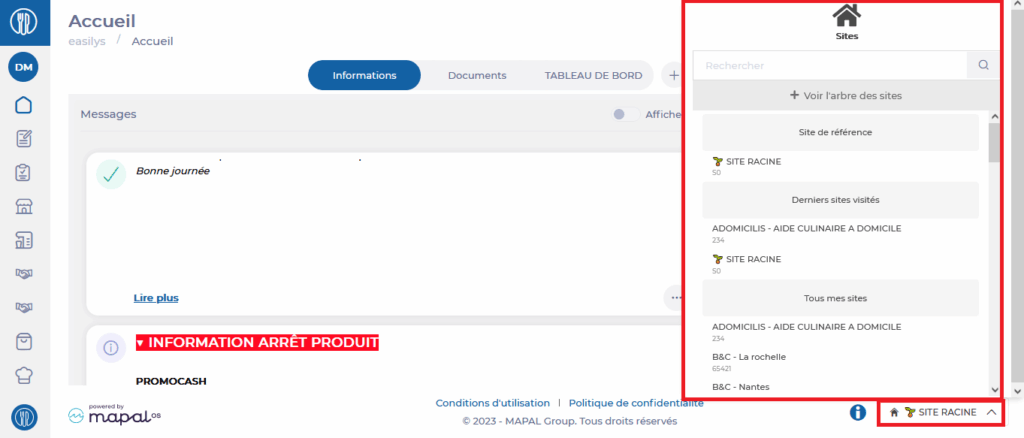
To do this, select Root Site at the bottom of the screen to display the list of your sites and select each of your child sites.
Then select the Products > Suppliers tabs.
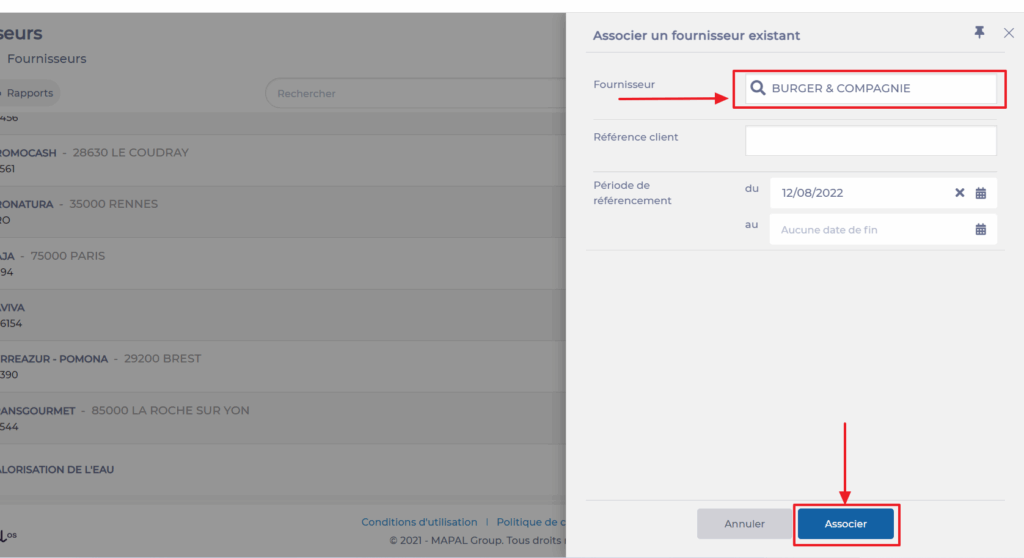
Select Associate.
The "Associate a supplier" window appears.
Enter the requested information and select Associate.
As a reminder, by associating a supplier record from a parent site on a child site, you allow the child site to order the products available in the price lists administered on the parent site. It is therefore essential to have not only associated the supplier record, but also created the price list(s) for this supplier.