Use Easilys in multilingual mode

Start from: The Easilys menu.

Prerequisite: A technical action is required to activate multilingual mode in your environment. If you would like to use this mode and it has not yet been activated, please contact the support team.

Principle

In multilingual mode, users can translate certain data into the different working languages defined in Easilys, particularly into the language associated with their user profile.

For example, the name of the same recipe may vary depending on the user’s language:

This multilingual option does not apply to the translation of interface elements (menus, buttons, etc.). Those translations are managed directly by our team and cannot be modified by users.

When the multilingual option is activated

When multilingual mode is enabled in your environment:

Entering or editing translations

Example

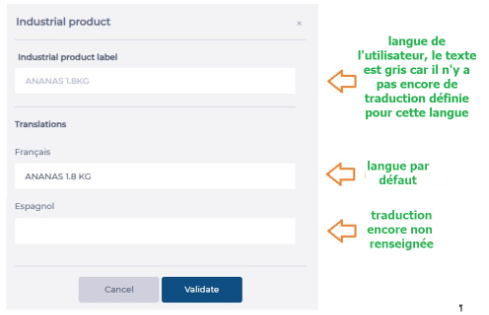
The following example shows the entry field for the name of an industrial product. The user’s language is English, but the data has not yet been translated. It therefore appears in the server’s language — in this case, French.

Note that the name appears greyed out, indicating that it has not yet been translated into English.

The user can then click the small translation button:

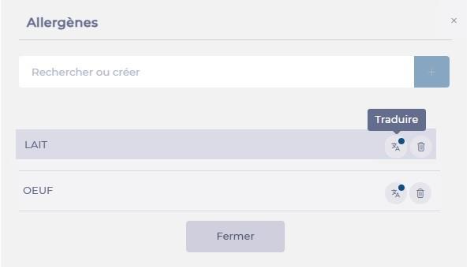
A panel appears showing which parts are already translated and which are not.
Non-exhaustive list of multilingual fields

SubjectTranslatable Field
IngredientIngredient name
Ingredient family name
Ingredient production unit name
Industrial ProductIndustrial product name
Industrial product composition
Country / place of origin name
Label name
Allergen name
Industrial product family name
Industrial product range name
Industrial product category name
Industrial product quality name
Industrial product storage zone name
Supplier ProductSupplier product name
RecipeRecipe name
Commercial recipe name
Recipe category name
Recipe steps name
Production workshop name
Transformation type name
MenuMenu name
Meal component name
Service name
Segment name
Texture name
Diet name
Guest name
OtherAnalytical group name
Smart Selection rule name
Smart Grammage name

Manage users in Mapal OS

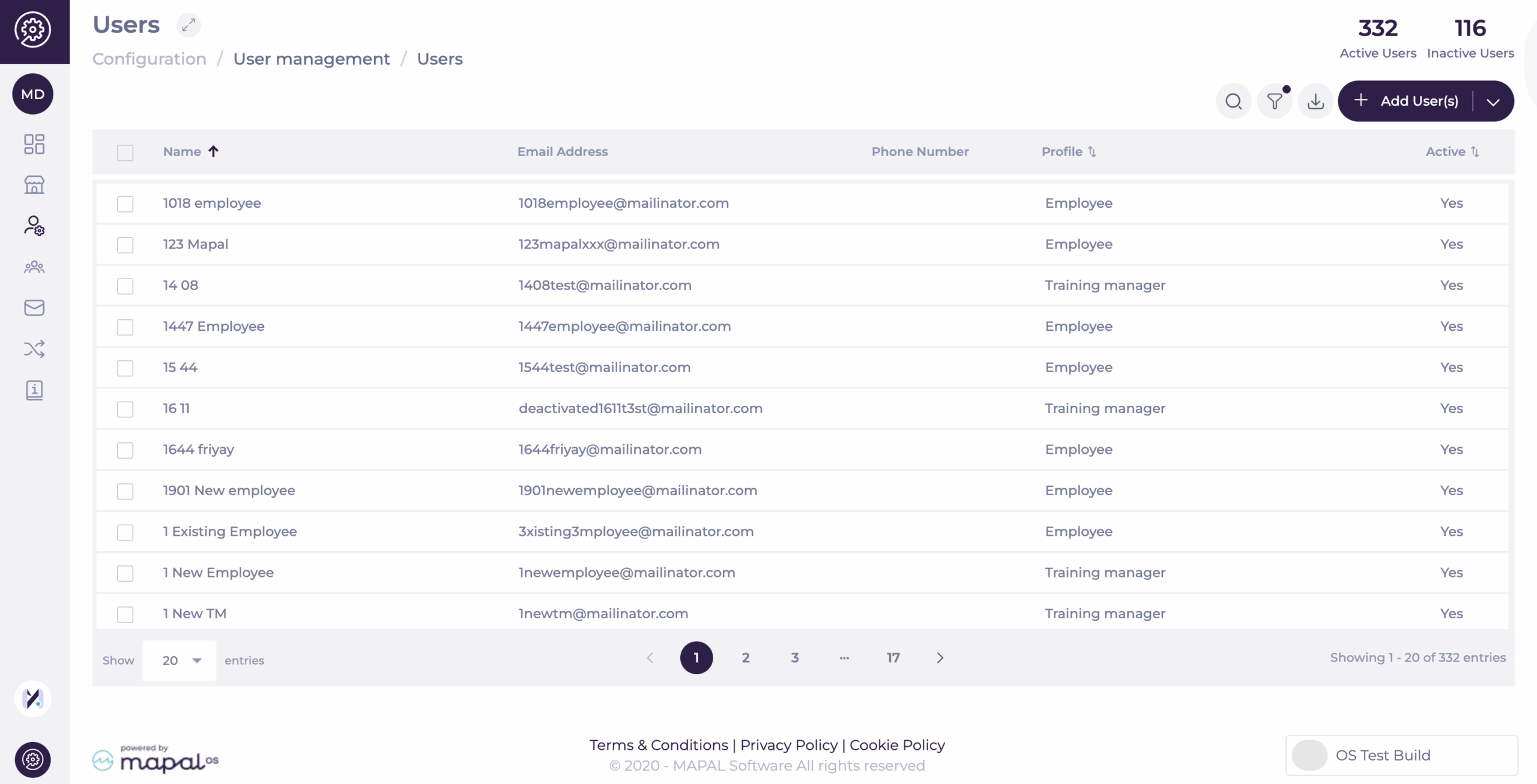
Start from: the Mapal OS dashboard.

Note: The Users page shows only active users by default. A coloured dot in the filter button indicates that a filter is applied. This speeds up navigation and reduces clutter, especially in large accounts. You can still adjust or remove the filter at any time to display inactive or all users.

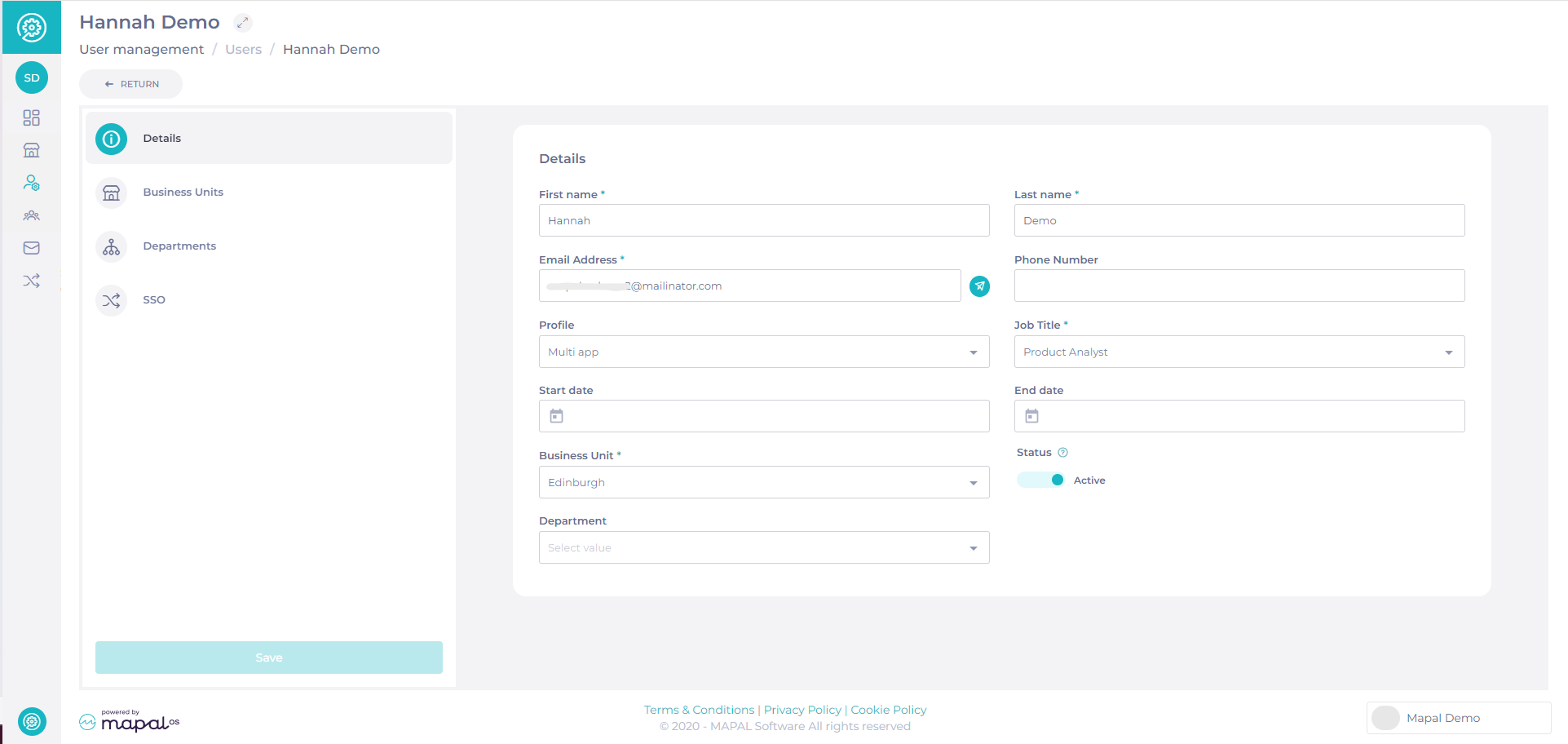
Details

Business Units

This tab enables you to choose which Business Units the user has access to.

Add Business Units individually

Notes: Users can also select select the checkboxes for multiple business units.

Departments

This tab enables you to choose what Departments the user has access to.

SSO

For more information on SSO, you can contact your Customer Success Manager at Mapal.

Notemandatory fields are marked with an asterisk (*).

Activating a user in Mapal OS

Note: If an email address is updated for an Employee or User, the old email remains in the system but becomes inactive. This process applies to all employees, including those with extra permissions (e.g., Training Managers in Flow Learning).

Resending a user welcome email

If a user needs to access the system or reset their password, you can resend their Welcome Email.

Exporting a list of users

Exports follow permission-based visibility rules:

This ensures consistent security and respects the same visibility limits that apply within the user management interface.

Configure your user account or change your password

Note: actions performed on the Easilys platform are subject to user access permissions. If you are unable to carry out the actions described in the articles, it may be because you do not have the necessary permissions activated on your user profile. Contact the Support team, or your administrator, for help.

Managing users through Mapal OS

For users on Mapal OS, your user accounts should now be managed on the Mapal OS dashboard. You can find out more at Manage users in Mapal OS.

Note: if you're not sure whether you are on Mapal OS, contact your line manager or Mapal support.


Managing users via Easilys site settings

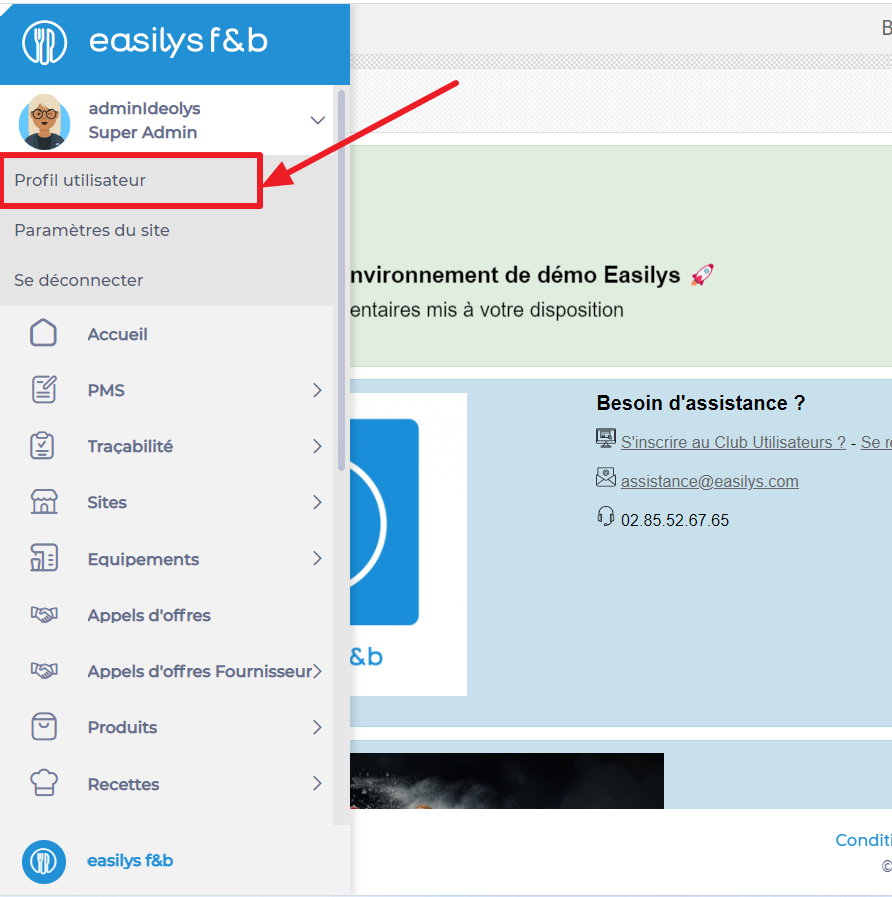
Start from: the Easilys menu

  • Select the small camera icon or your avatar.

  • Select the Profil utilisateur (User profile) tab.

Edit information

  • In the "Mes informations" (My info) box, select Mettre à jour (Update).

Nom d’utilisateur: This is your username. When logging in, you must enter this in the "Identifiant" section.

E-mail: Enter your email address to use it as an identifier. This process will allow you to reset your password in case you forgot it, provided that the corresponding option is activated. Additionally, this address will allow you to receive notifications if you use a validation system for claims or orders, and if your account is associated with a validator profile.

Edit the password

  • In the "Mon mot de passe" (My password) box, select Mettre à jour (Update).
    The "Mettre à jour mon mot de passe" (Update my password) window appears on the screen.

  • Enter your new password, confirm it by writing it again and select Mettre à jour (Update).

Edit the display options

  • In the "Mes préférences d’affichage" (My display preferences) box, select  to switch the display to tablet mode.

Go back to the Easilys menu home screen

  • Selectto close your account settings and go back to the home screen.
 

Manage your Mapal One user profile

Start from: The Mapal One dashboard.  

  • Select Your Name > View Profile from the main menu.  

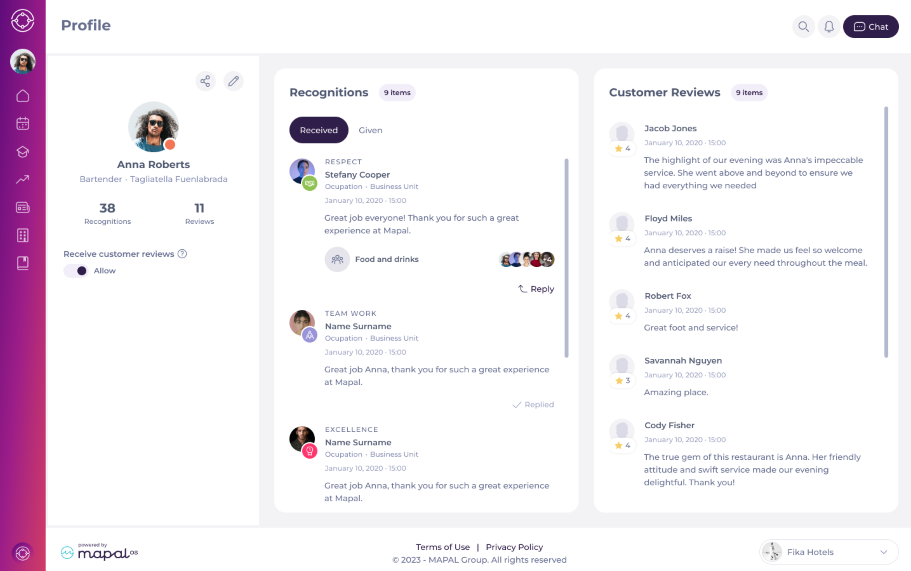
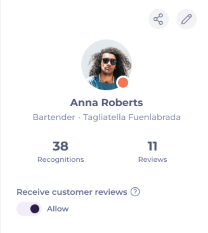
The Profile screen will provide you with a comprehensive view of your professional details. You can also access the profiles of other employees and they can access yours


In the Profile screen, you will see three columns displaying different sets of information: 

Profile  

Provides a quick overview of your professional details, including: 

  • Name: The employee's full name. 

  • Occupation: The employee's job title or role within the company. 

  • Branch: The location or branch where the employee is based. 

  • Number of Recognitions: The total count of recognitions the employee has received. 

  • Number of Customer Reviews: The total count of reviews from customers. 

  • Customer Reviews Toggle: An option to enable or disable the reception of customer reviews. This allows employees to control whether they want to receive feedback directly from customers. 


Recognitions 

Showcases the feedback and recognition employees receive from their peers. It is divided into two tabs: 

  • Received: Displays all the recognitions an employee has received. 

  • Given: Shows all the recognitions an employee has given to others. 

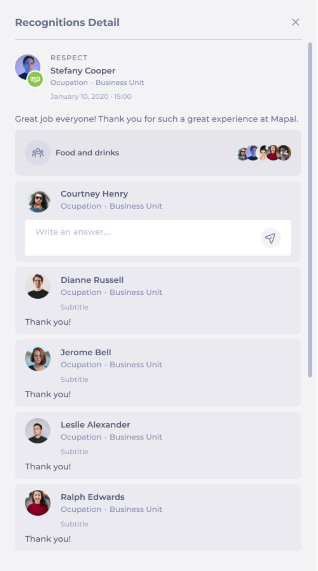
Select a specific recognition to view its details, including the number of likes and responses it has garnered. You can also reply to these recognitions directly from this section. 


Customer Reviews 

Allows you to see the feedback provided by customers. 

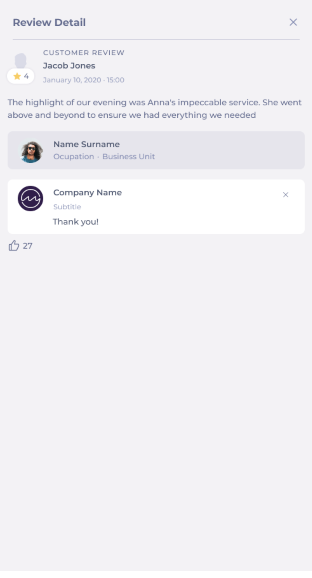
  • Review Details: You can view detailed information about each review, including the customer's name, the date and time of the review, and the review content. 

  • Likes and Company Responses: Each review can receive likes and responses from the company. However, only the company can respond to customer reviews, not the employees themselves. 


Sync permissions in Mapal OS and Flow Learning

Mapal OS are aligned with Permission Profiles in Flow Learning.

  • Profiles are established during migration or initial onboarding, ensuring all Flow Learning profiles are accessible in Mapal OS.

  • Some Mapal OS profiles, like employees and account managers, do not translate back to Flow Learning.

  • Centralised Management: Profile linking ensures all team management activities can be centralised within Mapal OS.

User Profiles in Mapal OS

  • Access the User management menu and select User profiles.
  • View all established user profiles for the operator in Mapal OS.
  • Add a permission profile in Flow Learning to update this list.

Managing Permissions in Mapal OS

  • Control solution access through the 'Solution access' setting, where available Mapal apps are determined by your subscription.
  • Default settings, such as the Employee profile being the default with limited permissions, ensure basic access is managed appropriately.

Permissions in Flow Learning

  • From the Flow dashboard, navigate to the Company menu and select User settings.
  • Manage permissions through the Permission Profiles section, ensuring alignment with Mapal OS configurations.

For more information about this workflow, see the related articles below. 

We also have more guides to Flow Learning user management on Mapal OS:

User profile permissions in Mapal OS

Start from: The Mapal OS dashboard.

User visibility

User visibility and profile assignment in Mapal OS are determined by each user’s own access level. Users can only edit and assign profiles that include the same or fewer permissions than their own. This ensures data security and prevents the assignment of roles that exceed their permission scope.

Administrators have unrestricted access to all profiles and users. Users without an assigned profile (and therefore no permissions) remain visible to all managers.

When creating or editing users, profiles with higher permission levels do appear in the selection list, but these higher-permission profiles cannot be assigned. If a user attempts to assign a restricted profile, an error message is displayed.

The same visibility logic applies to the bulk assignment tool and to user counters, ensuring that only users within the permitted scope are displayed and managed.

Permission Details

Below are the available permission groups and the areas of Mapal OS they control.

Business Units

Controls access to the Business Management > Business Units section, where Business Unit details and configurations are managed.

Category Groups

Controls access to the Business Management > Category Groups section to view or maintain category configurations.

Branding

Controls access to the OS Branding page in Configuration, where company-wide visual settings such as logos, colours, and theme elements are managed. This permission applies to both Internal and Customer user groups and should be granted only to authorised users responsible for managing the organisation’s branding.

Restricting access to this setting helps maintain brand consistency and prevents unauthorised visual changes.

Companies

Controls access to the Companies dropdown within Business Management > Business Units.

Mapal OS Configuration

Controls access to the general configuration menu within the operator.

Departments

Controls access to Business Management > Departments.

Note: This permission must be enabled to view or edit Employees.

Notifications

Controls access to the Notifications area, where email templates and system alerts can be managed.

Employee Profiles

Controls access to Employee Management > Employee Profiles.

Note: This permission must be enabled to view or edit Employees.

Employees

Controls access to Employee Management > Employees, including the ability to view or edit employee information.

Inactive Operators

Controls access to operators with an inactive status.

Job Titles

Controls access to Business Management > Job Titles.

Notes:

Operators

Controls access to User Management > Operators, including the management of profiles and logins.

This permission must be enabled to view or edit Users.

SSO Configuration

Controls access to edit SSO identifiers within the operator.

Users

Controls access to User Management > Users, where user accounts are created, edited, and maintained.

Operator access must also be enabled.

Manage user profiles in Mapal OS

Start from: The Mapal OS dashboard.

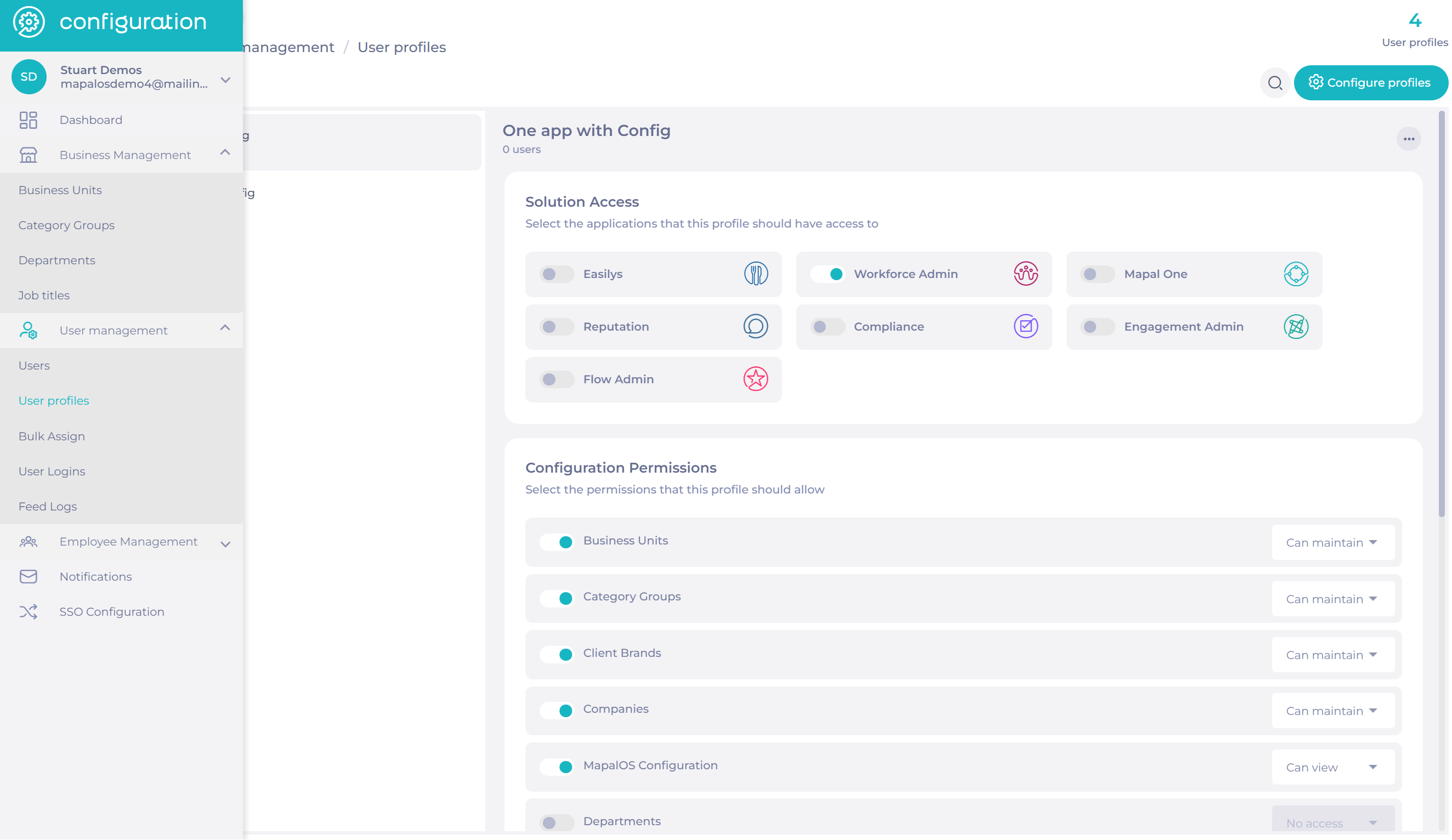
In the menu:

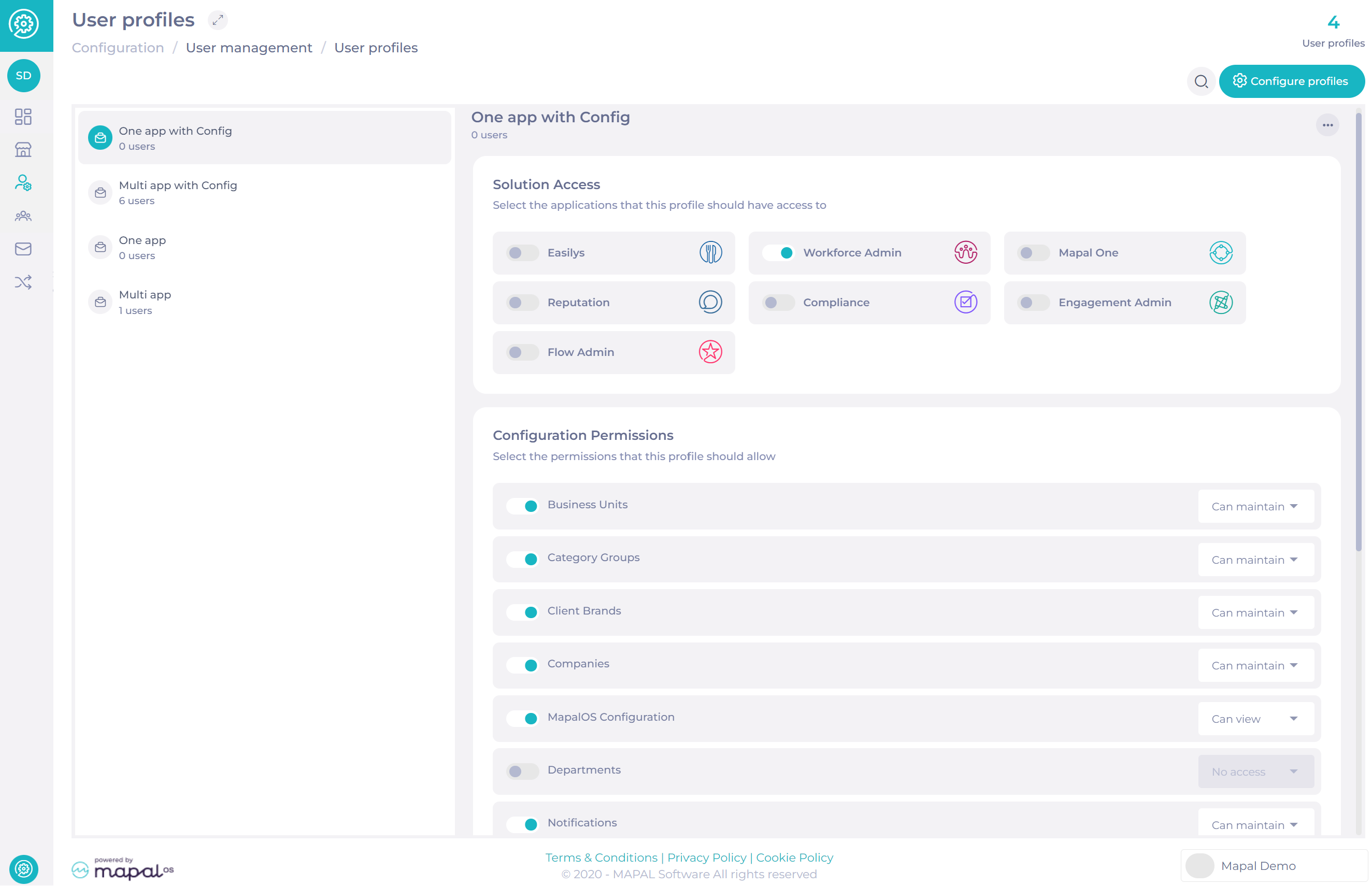
Here, you will be able to view the Solution Access and the Configuration Permissions selected for each user profile.

Adding a new user profile

Setting the Solution access

Note: Users assigned to the user profile will have access to the Solutions ticked above when they log into Mapal OS.

Editing user profiles

Note: Any changes made to user profiles will affect the access for all users with the user profile assigned to them.

Changing user profile's name

Deleting user profiles

Note: User profiles assigned to active users cannot be deleted. The users need to have their user profiles reassigned before deletion.

Copying existing user profiles

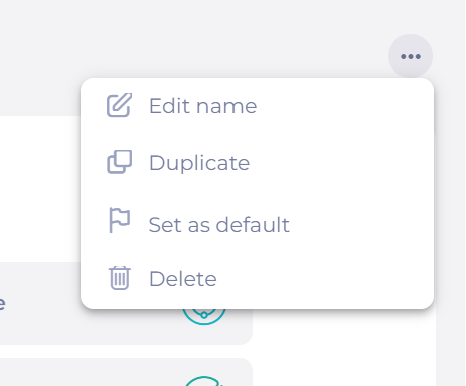
Note: The new user profile will be named the same as the original profile and will be suffixed with "Copy 1". It will also be editable.

Setting a default user profile

Users added to the platform can be automatically assigned to the default profile.

Note: As the majority of our users tend to be employees, we would recommend setting a default user profile in order to give access to Mapal One for everyone.

Note: Once you have set a user profile as default using the process above, you can no longer make a change to this default option.

Next steps

After setting up a new user profile in Mapal OS, you may wish to perform specific actions based on the products you are using.

Assign user profiles in bulk on Mapal OS

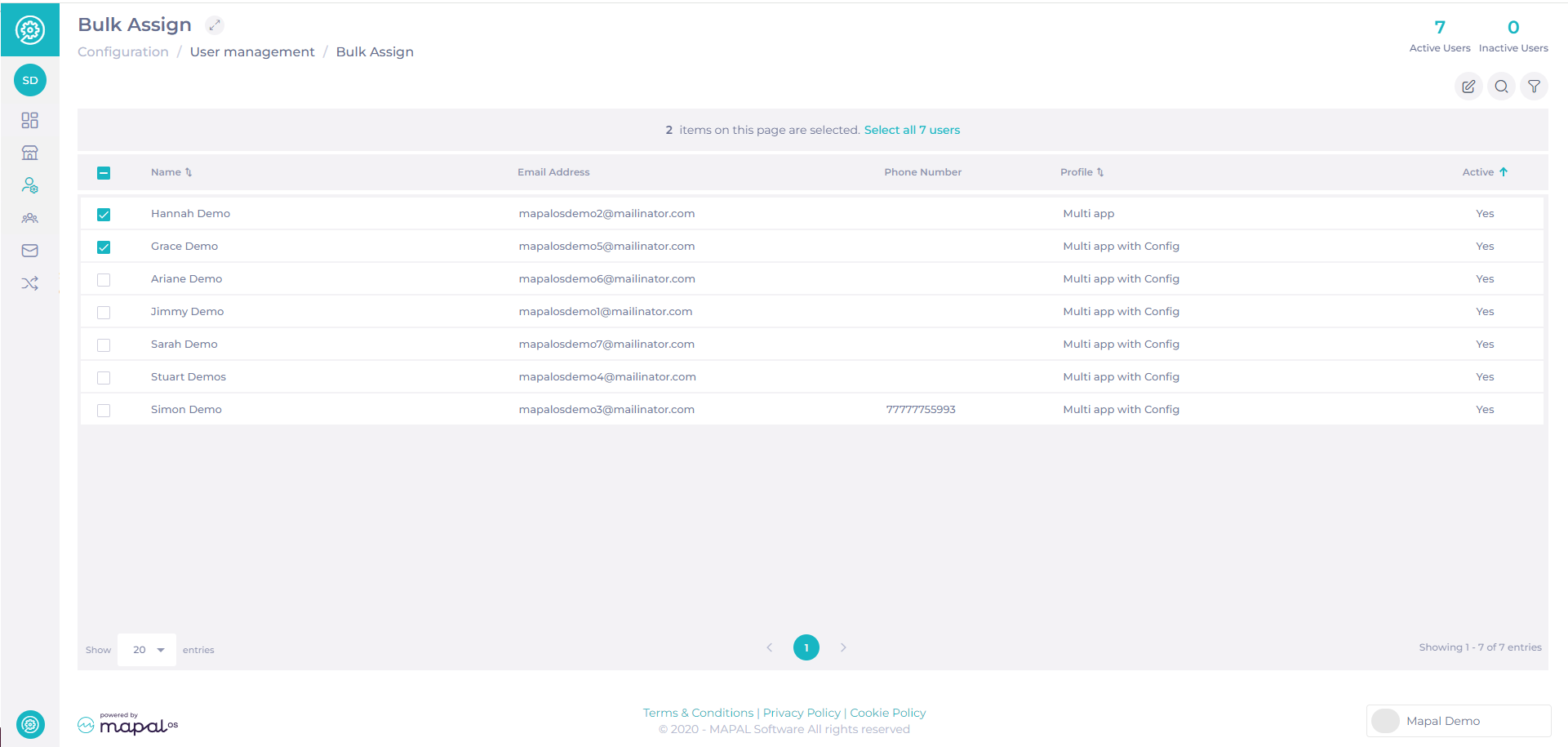
  • Select the Open button on Configuration.
  • Select User management > Bulk Assign in the main menu.
  • Select the users you wish to assign, either by clicking the checkboxes next to their names one by one, by searching their name in the search bar, or by clicking on the checkbox in the header bar, to select them all at once.

  • Select Edit.
  • Select which User profiles your selected users should be assigned from the Profile dropdown list.

  • Select Update to save your changes.

Note: you can also filter this page to show users with a selected profile type, by clicking the Filter icon and selecting the Profile type you wish to filter the list by.