


Start from: The Easilys menu.
Menu plans
Menu plans defined in the Menu pre-design screen allow you to list all the recipes needed to meet the requirements of a group of customers for meals and days within a given period, and to generate customer-specific menus. They serve the following purposes:
- Ensure all customers receive menus that comply with their contracts and specific needs.
- Provide an overall view.
- Create all menus for all child sites with one click from a single menu plan.
Important: Before creating your menu plans, you must configure rules using the Smart Specification screen to indicate if certain products, recipes, allergens, or ingredients must be excluded from menus for certain clients.
Create a menu plan
- Go to Menus > Menu Pre-Design.

- Click the + Create button (or the + at the top right if plans already exist).
- In the "Create New Menu Plan" window, fill in the following fields:
- Name*: Enter a name for the menu plan.
- Period*: Define the period covered by this plan.
- Days of the Week*: Days will be auto-filled based on selected menu templates.
- Menu templates*: Choose the menu templates to include in the plan. The dropdown shows all menu templates available on the current site. For each template, you’ll see the sites it applies to.
- Click Validate to finish creating the plan. It will now appear in the list of menu plans.
Add recipes to a menu plan
- Select the actions menu (three dots) next to the plan and click Manage Recipes.

The first week of the plan will display with all relevant services and meal components based on the selected templates. You can now start assigning recipes to each area for all weeks in the plan.
The idea is to place the main recipe first—the one you want most clients to receive. Follow this with alternative recipes for clients who cannot receive the main one due to their smart particularity rules.
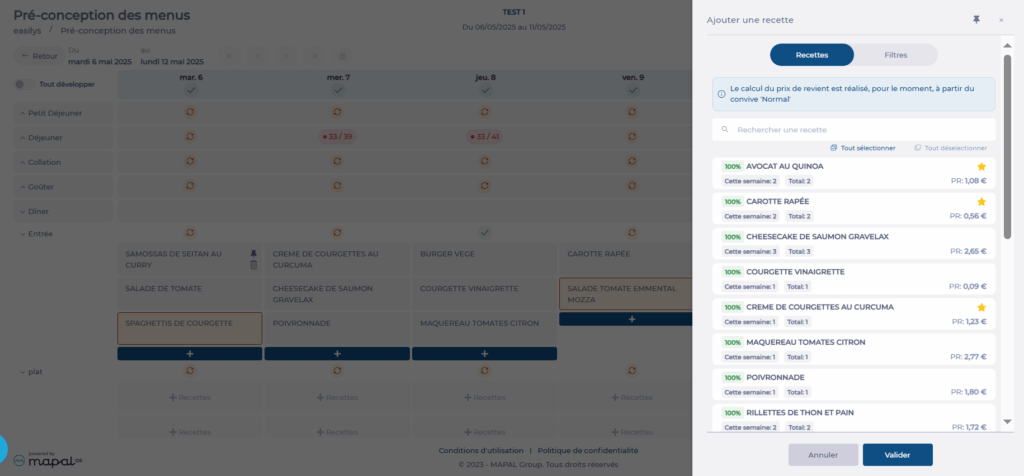
- Use the calendar or arrows to navigate to the correct week.
- Click + Recipes for the desired date, service, and meal component to open the add panel.
- Use the search or filters to find recipes.
- Consider indicators (cost, favourite, frequency, coverage rate...) to make your choice.
- Select the recipes you want to assign, in order.
- Click Validate.
Note:
- Drag and drop recipes to change their order.
- Bin icon: Remove a recipe from the plan.
- Pin icon: Use it to enforce a single recipe in a meal component (e.g., for festive meals or themed events). Pinned recipes override alternatives when the plan is applied.
Verify the menu plan
With the simulation function, you can check if the recipes in the plan will generate valid menus for each client site.
- Click Simulator to highlight any issues.
- Green checks: Recipes cover all client needs.
- Red bubbles: Recipes will not generate valid menus for some clients (e.g., all recipes on that day contain carrots, and one client cannot have carrots).
- Numbers (e.g., 0/2) show how many menu templates are covered out of the total.
To investigate issues:
- Hover over red bubbles to see affected templates.
- Click the bubble to open the problem panel.
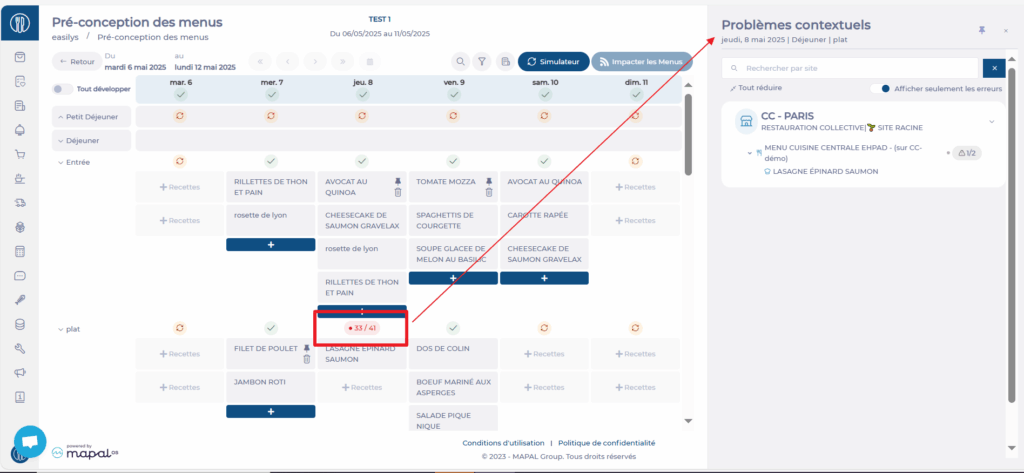
In the Contextual Issues panel:
- The Expand All/Collapse All button allows you to quickly show or hide all details across the plan for easier navigation.
- See which sites have at least one issue.
- For each site, view:
- Affected menu templates
- Recipes concerned
- The rule that is not being met
Click the eye icon to view or edit the rule.
To fix issues:
- Replace a conflicting recipe by clicking its name and selecting another.
- Add an extra recipe that complies with client requirements by clicking + in the relevant meal component.
- Re-run the simulation to confirm issues are resolved.
Note: Recipes added after a simulation are highlighted with a yellow background. This distinction remains visible as long as a new simulation is not run or the page is not exited.
Apply the menu plan to menus
Once the plan is complete, you must apply it to update the corresponding templates across all relevant sites.
- Click Impact Menus.
- Review any alerts or confirmation messages in the pop-up.
- Choose Publish or Cancel to make further edits.
- You can track the progress of the impact via the Impact Menus button, which shows the number of menu templates impacted out of the total to be affected. You can leave the screen without waiting for the impact to finish—it will continue to run in the background. You can even launch the impact of another menu plan if needed. This second impact will be queued and will automatically begin once the current impact is complete.
Note: If you change the menu plan after applying it, you must apply it again to update the templates on the child sites. This will overwrite previous versions.
