Note: Each action performed in the application is subject to a permission. If you cannot carry out the recommended actions in the articles you are viewing, it may mean that the required permissions have not been enabled for your user profile. Contact the Support team or your administrator to find out more.
Start from: The Easilys menu.
- Select Menus > Menu quantities.
- Select the desired site in the site tree displayed on the left. A search area is available to search by name if that is easier than using the tree.
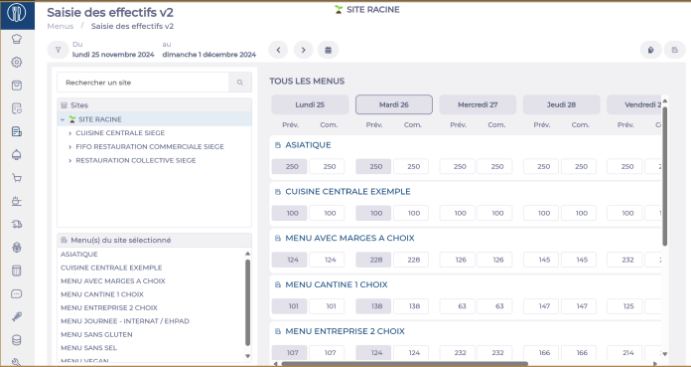
- You will then see in the central table the daily quantities for each menu template of this site.
- Depending on the choices in the filter panel (on the left), you will see one, two or three columns for each date, allowing you to view the forecast, ordered and/or invoiced quantities.
- The quantities you view and/or enter in this table are for the complete template, and are reported identically for all services (meals) of this template. You can make entries and modifications directly from this display if this day-by-day mode suits you.
- If you want to enter different quantities depending on the services or go into recipe detail, you need to proceed template by template.
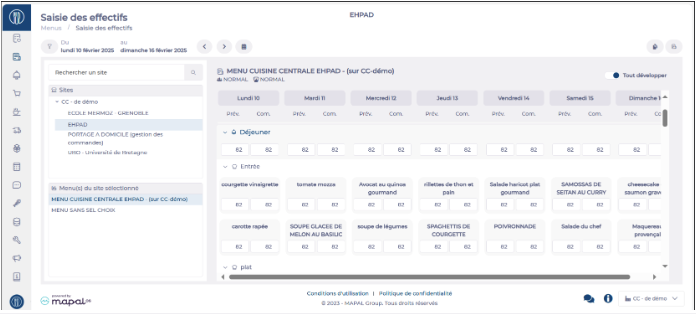
- To do this:
- Select the desired template in the lower table on the left side,
- The detail of the quantities by service and recipes will then be displayed.
- You can enter or modify forecast quantities (only for the future), ordered or invoiced.
- If a mistake was made during entry, it is possible to revert to the previous value using the rounded arrow icon next to the quantity, as long as the user is still on the screen.
To know:
- Navigation and entry help:
- It is possible, by selecting options in "Site settings", to ensure that certain sites do not appear on this screen so that it only contains sites for which quantities need to be managed.
- For faster entry, you can use the "tab", "enter" and up/down arrow keys to reach the desired entry box.
- The cursor at the top right allows you to display all service details or collapse everything with one click.
- When you enter a forecast value, it automatically populates the ordered and invoiced values identically to save time and only correct quantities by exception.
- About the consideration of entered values:
- The values indicated in the "ordered" column are taken into account in the calculation of order preparation as well as in production, packaging and shipping reports.
- The concept of "forecast" (quantities and numbers) allows you to keep a history of forecasts compared to the quantities actually ordered and invoiced.
- Currently, entries in the "invoiced" column are for information only and have no impact on calculations or other screens.
- About ordered quantities:
- When a quantity is entered in the ordered column, a blue marker appears on the box. This allows you to differentiate cases where a value has been entered from those where the box is automatically populated by the forecast value.
- If you delete a value in the "ordered" column, the system considers that the client has not placed an order (no color marker) and the value is reset to the forecast value.
- If you enter 0 in a value in the "ordered" column, the system considers that the client has confirmed they do not want this recipe/meal/day.
- If you want to fill in the forecasted staffing levels for a future period based on the staffing of another period (past or future), you can also use the Duplication function:
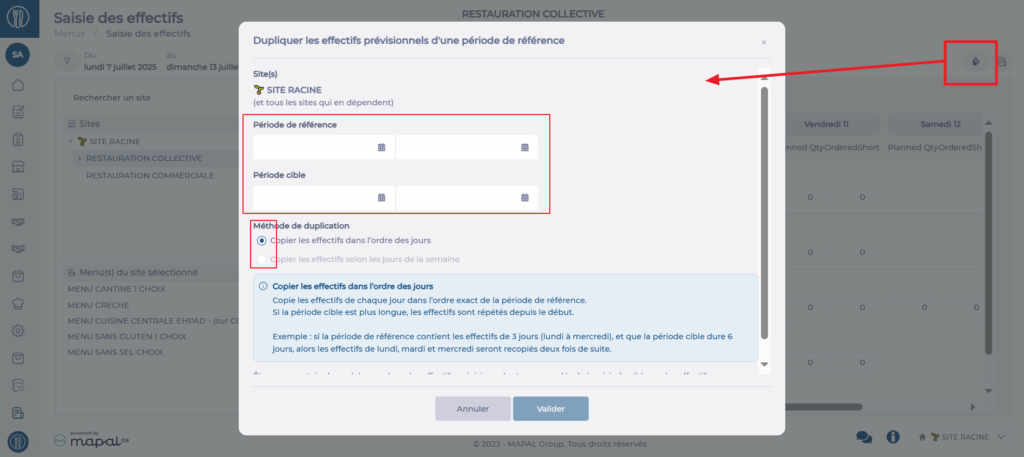
- Select Duplicate from a reference period at the top right.
- Enter the origin period and the target period.
- Select the copy option you want.
- Click Validate.
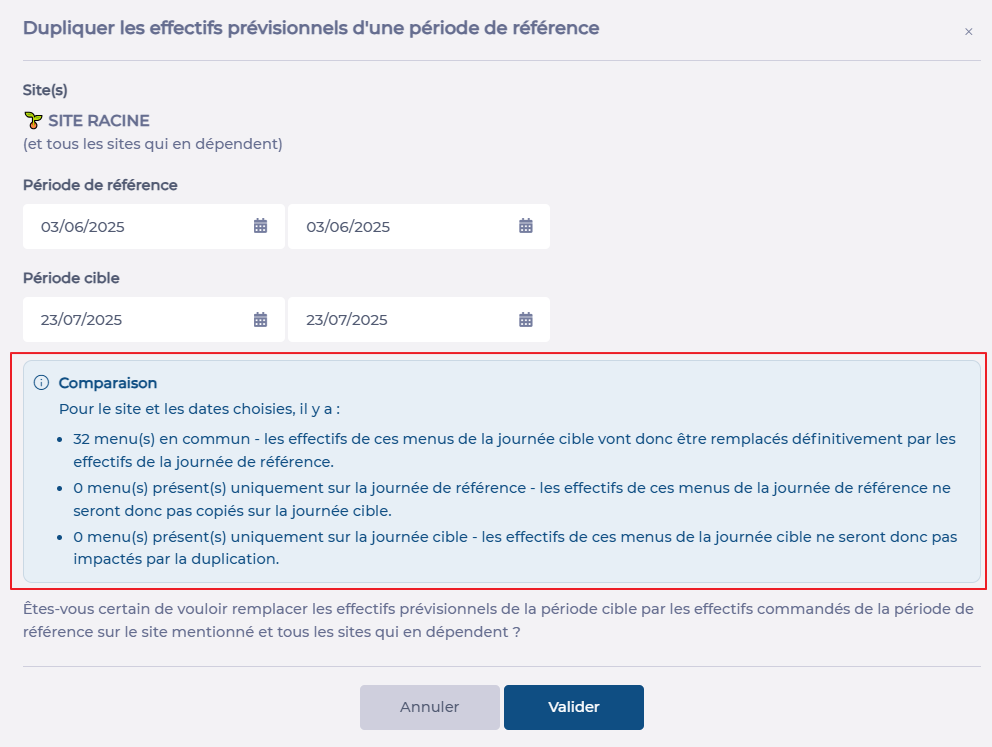
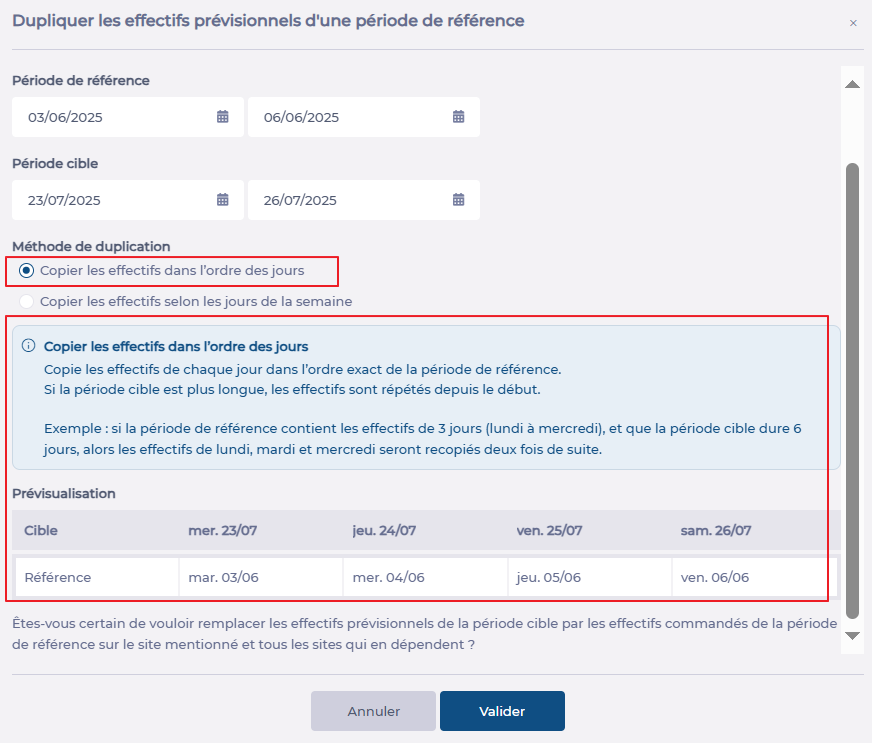
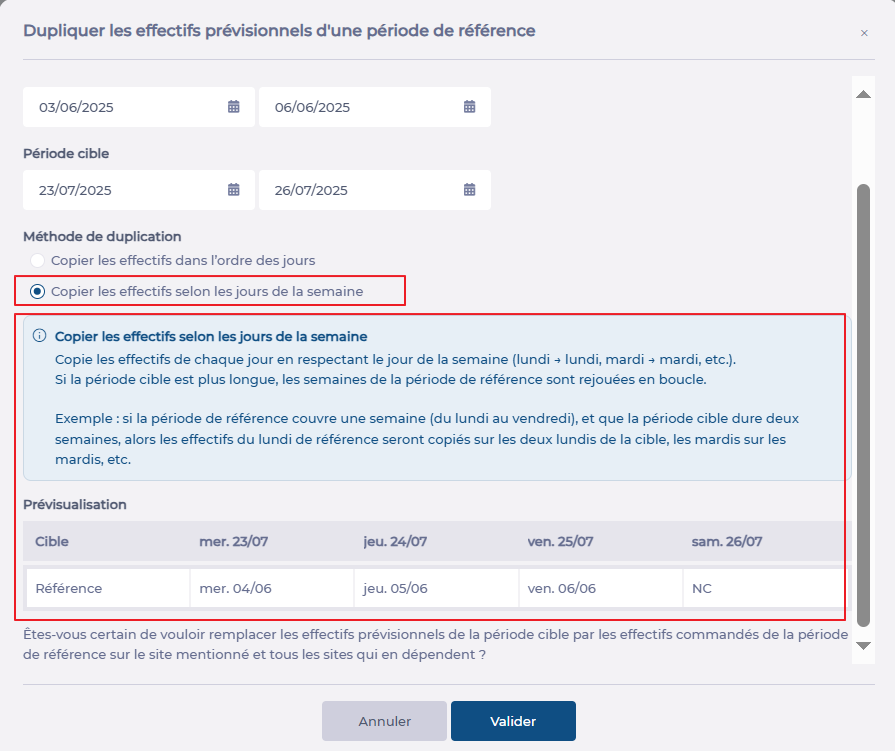
Note: Depending on the chosen period, the available options and the information message will update. Take time to read this message carefully, as well as the summary table that appears if you copy a period longer than one day, so you fully understand the impact of your action.
- Message when duplicating a single day:
- Message when duplicating a period with the “respect the order of days” option:
- Message when duplicating a period with the “respect the days of the week” option:
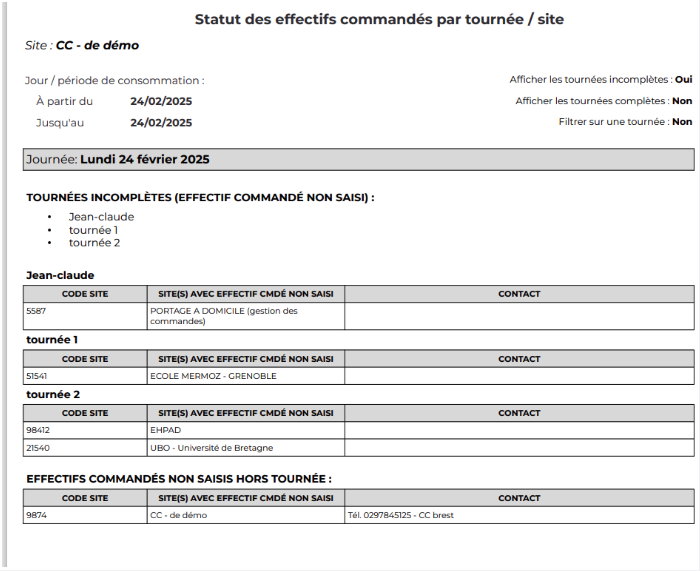
- The report "Status of ordered quantities by tour/site" can be launched from this screen by clicking the report button. It allows you to know, tour by tour, which sites have placed their order and thus have the list of sites and their contact details to follow up with them.