


Start from: The Easilys menu.
When you notice that an order is in "error" status, you can move it back to the order basket to retry sending it or indicate that the order has been communicated by another means and can be considered as sent.
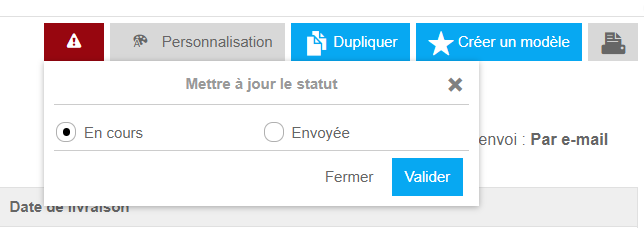
To do this, go to the order details on the Order tracking screen and select Attention, which allows you to move the order back to In progress status, meaning it is in the order basket and not yet sent, or to Sent status, for which a related delivery note will be generated to help you manage the delivery.
- Select Supplier orders > Track orders.
- Click the Status filter on the left side of the screen.
- Check the Error status and uncheck the other statuses to see only the orders in error in the list.

- Select the order in error to move it back to the order basket.
- Click the red button with the Attention! sign.
Two options are possible:
- You can then move the order to In progress status: this will place your order in the ongoing order baskets available on the Supplier orders screen. You will then need to resend the order basket to the supplier.
- You can also move it to Sent status: a delivery note will then be generated on the Deliveries screen.
If you choose this option, it means you have communicated the order to the supplier by another means (outside the Easilys platform), for example by phone or by manual email. Easilys should therefore consider it as "Sent" and await its delivery.
Once your order is again In progress, remember to check the email address or fax number on the supplier's record, then try sending again. If the problem persists, do not hesitate to contact us.
