


Note: Each action performed on the application is subject to a fee. If you are unable to carry out the recommended actions in the articles you are viewing, this may mean that the necessary rights have not been activated for your user profile. Contact the Support team, or your administrator, to find out more.
Start from: The Easilys menu.
Known product and recipe losses can be entered either directly or by using loss templates (see the article Manually record known losses and markdowns for more information).
To record losses using templates, you must first create these templates. This article explains how to do so.
Create a loss and markdown model
In order to be able to trace losses manually, it is first necessary to set up the templates, which will then be used for data entry.
- Navigate to Stock > Known losses and markdowns.
- Select Input via template.
- Select the three-dot icon in the middle of the screen, above the loss and markdown table.
- Select the + New model option.
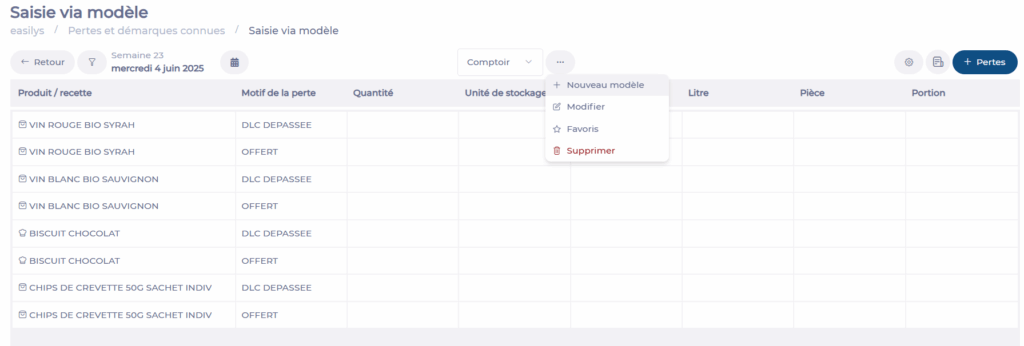
A window appears on the right:
- Enter the name of the template you wish to create.
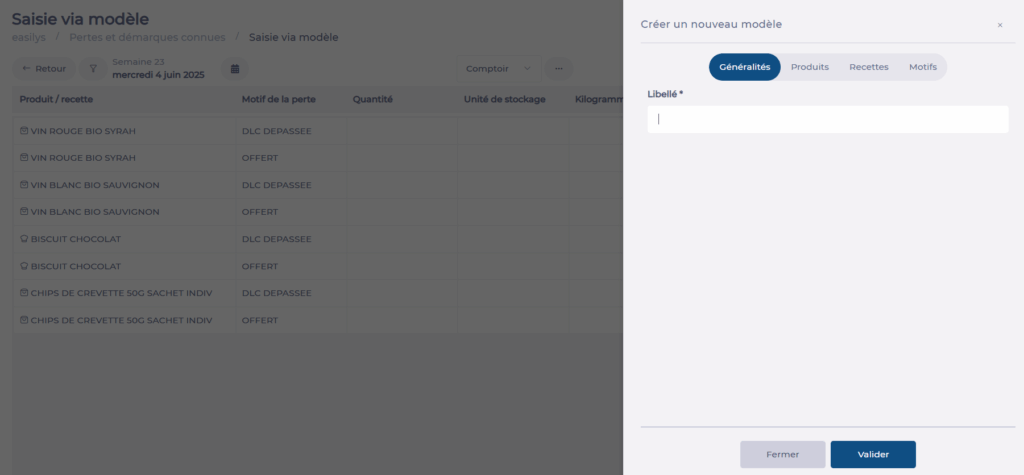
At the top of this window:
- Using the Products and Recipes tabs, select the products and/or recipes corresponding to the losses you want to be able to declare in this template.
- Select the Reasons tab.
- Select all the reasons you want to appear in your model, for all the elements you choose.
Note: It is possible to administer known reasons for losses and markdowns, by clicking on the cogwheel to the right of the label search bar. For more details, see the tutorial Manage reasons for known losses and markdowns.
- Select Validate.
Note: Templates are inherited by default.
Manage a loss and markdown model
Modifying a loss and markdown model
- Navigate to Stock > Known losses and markdowns.
- Select Input via template.
- Select the model to be modified, using the arrow to the left of the model name displayed.
- Select the three-dot icon in the middle of the screen, to the right of the selected model name.
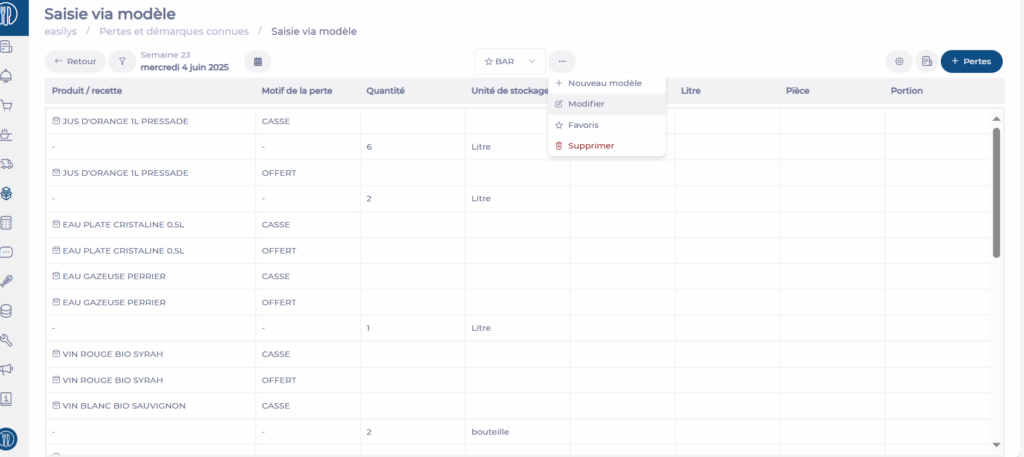
- Select Modify.
The model modification window opens on the right:
- Make the required changes.
- Select Validate at the bottom of the screen.
Delete a markdown model
- Navigate to Stock > Known losses and markdowns.
- Select Input via template.
- Select the model to be deleted, using the arrow to the left of the model name displayed.
- Select the three-dot icons in the middle of the screen, to the right of the selected model name.
- Select Delete.
Using the same procedure, you can also bookmark a model, so that it is always displayed when the screen is opened.
