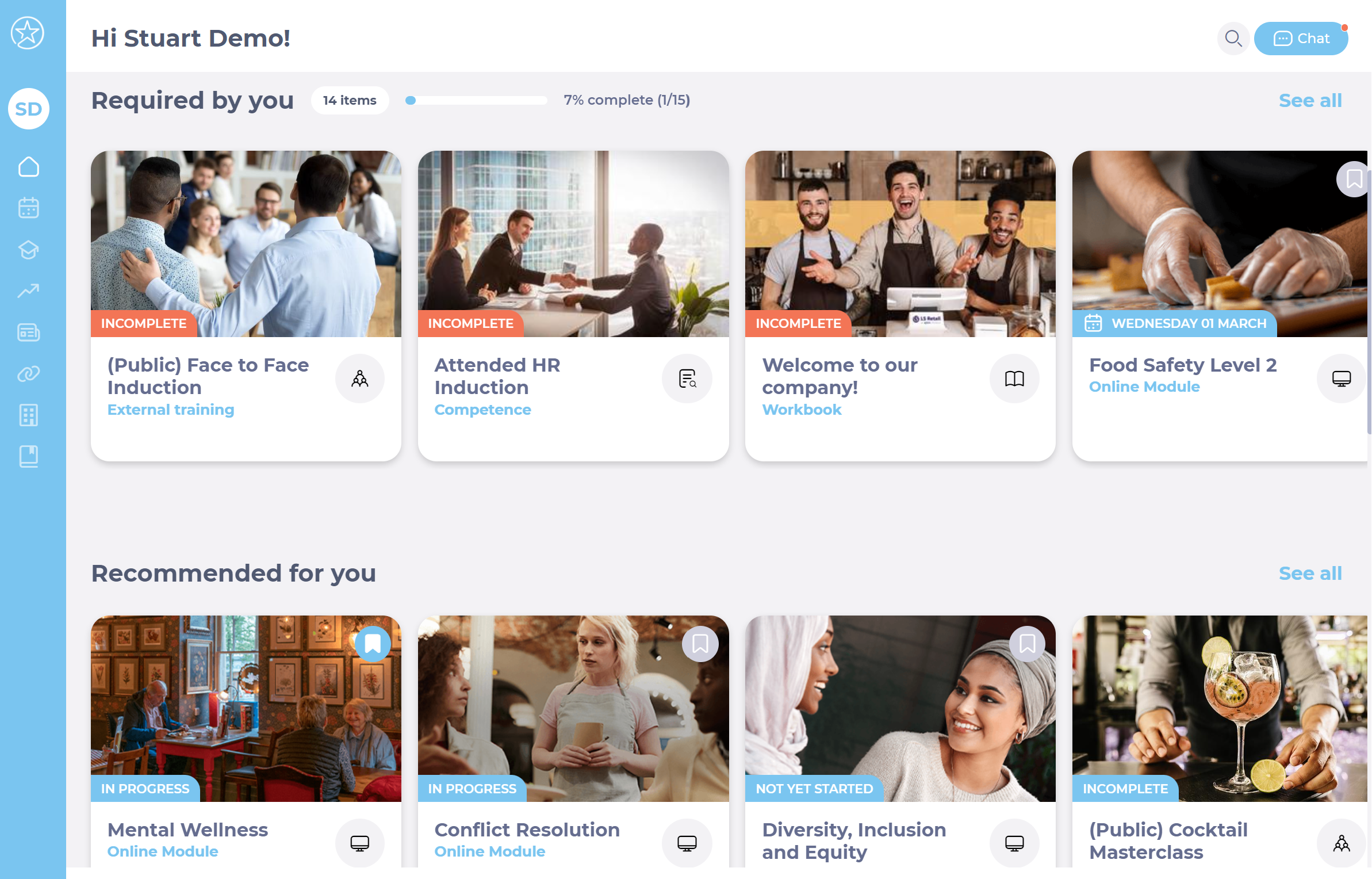
View your learning resources in Collections

Start from: The Mapal One dashboard.

  • Select Learning > Collections from the main menu.   
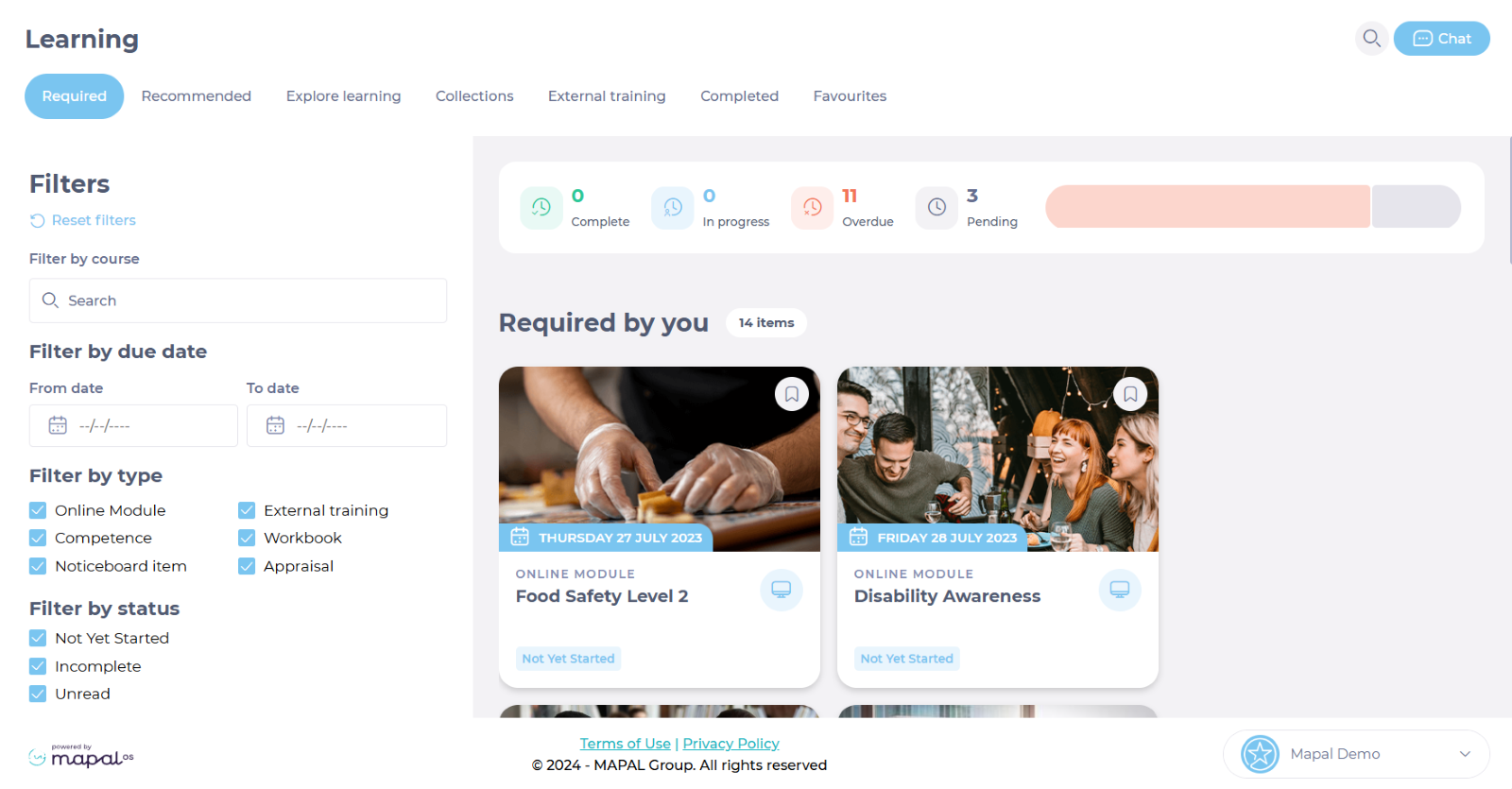
  • Once in the Collections page, you will be able to see collections in two specific sets:
    • Required by You: Collections with due dates already assigned to you.
    • Recommended for You: Collections without due dates, not required, but they are additional learning opportunities.

  • In this screen, each tile represents a learning item. Select the specific tile for the learning item you want to explore to see its details and make progress.

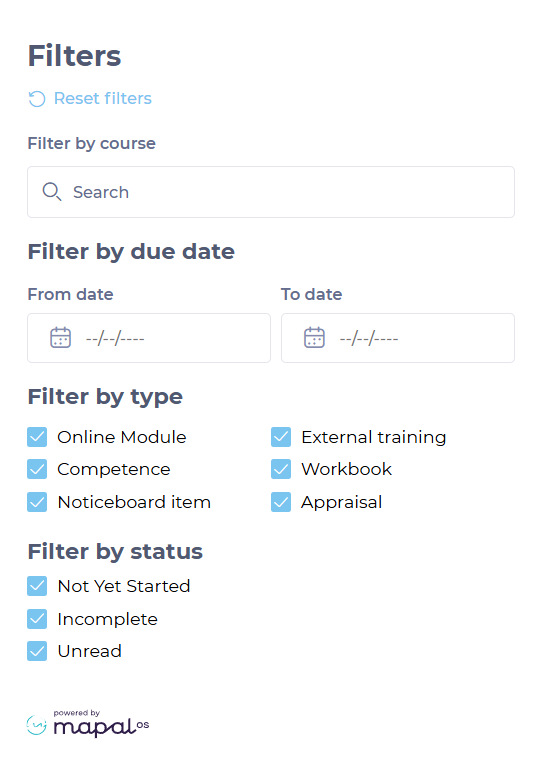
  • Back on the main Collections page, you can use the Filters to locate specific collections easily. You can filter by:
    • Specific Course.
    • By Due Dates.
    • By Type of Learning (online modules, competencies, external training, Workbooks, etc.).
    • By Status.

  • You can also view a summary bar in your Collections page, where you will be able to track:
    • Your Progress through the collections, providing transparency and motivation.
    • The Status of the collection, indicating if it’s not yet started, complete, incomplete, or overdue.

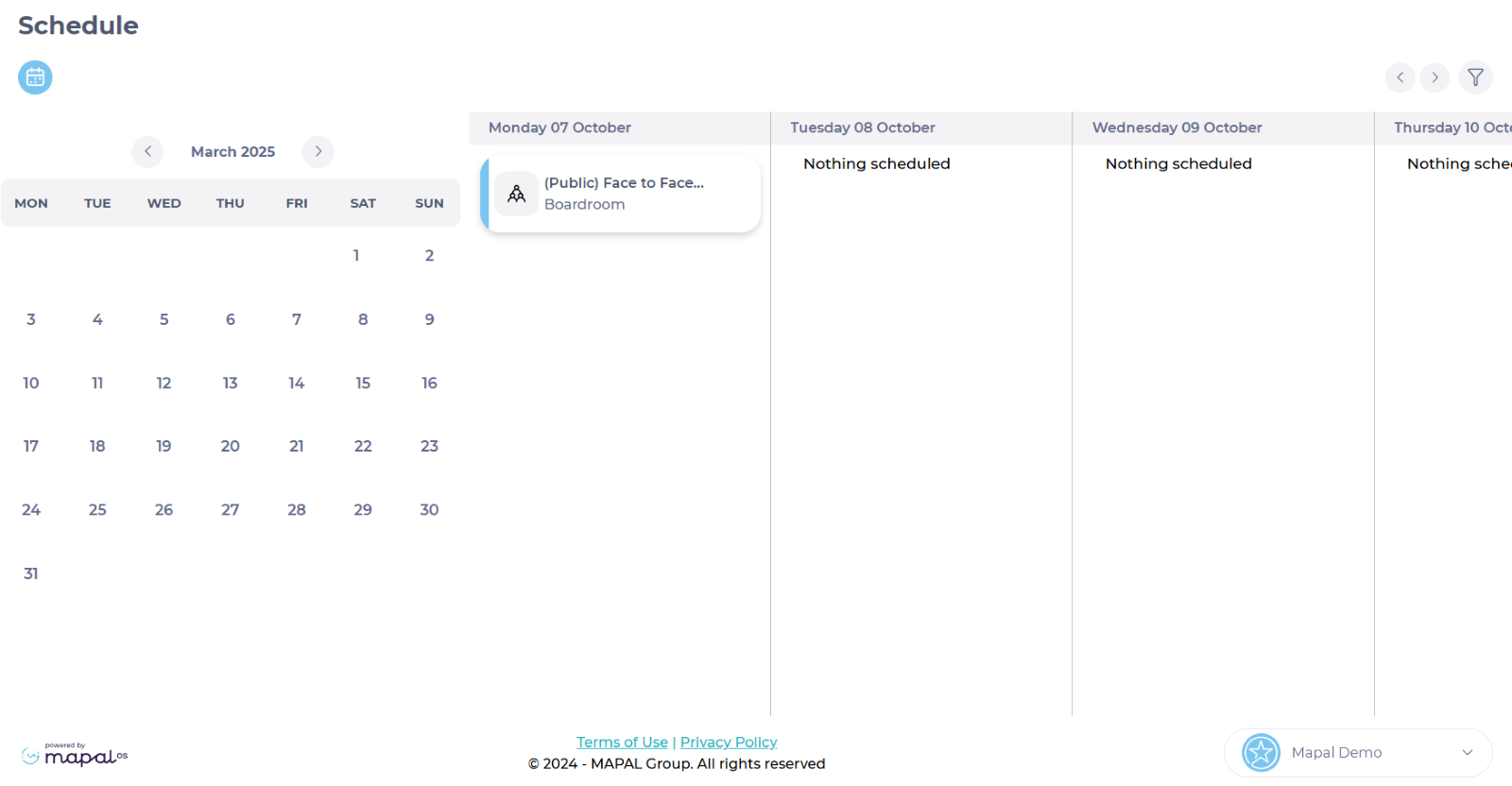
  • If the items in the collection have due dates assigned, you will be able to see them by accessing the Schedule on the main menu.

Introduction to Collections

What are Collections?

Collections in Flow Learning are a versatile tool that enables you to compile different types of training content—such as modules, quizzes, challenge leaderboards, and more—into organised units. These collections can be customised to fit the specific needs of your training programmes, making it easier to manage and assign learning materials to your team. By organising content into collections, you create a more structured and accessible learning environment.

Key Features and Benefits of Collections

  • Centralised Learning Resources: Collections gather various content types into a single location, ensuring that learners have easy access to all necessary materials, making the learning process more efficient and organised.
  • Customisation and Flexibility: Collections can include a wide range of content, such as knowledge checks, appraisals, and challenge leaderboards. This flexibility allows you to tailor collections to specific training objectives and learner needs.
  • Enhanced Engagement: Including interactive elements like quizzes and challenge leaderboards within collections increases learner engagement and motivation by adding a gamified aspect to the learning experience.
  • Structured Learning Paths: Collections can be organised in a specific sequence, guiding learners through a structured learning path. You have the option to lock the order of learning items, ensuring that learners complete them in the intended order.
  • Efficient Assignment Process: Collections can be assigned manually or through training structures, allowing for streamlined distribution of learning materials. You can control whether collections are marked as "Required" or "Recommended" by setting due dates.
  • Performance Tracking: Using collections simplifies the process of tracking learner progress and completion. By grouping related content together, it becomes easier to monitor how learners are engaging with their assigned training.

Why Use Collections?

Collections in Flow Learning provide a streamlined and organised way to deliver training materials. By grouping related content into collections, you can ensure that learners have access to all the resources they need in one place. This not only enhances the learning experience but also improves the efficiency of the training process, making it easier to assign, track, and manage learning content.

Next Steps 

To further enhance your use of Collections in Flow Learning, explore these related articles: 

Add a challenge leaderboard to a collection

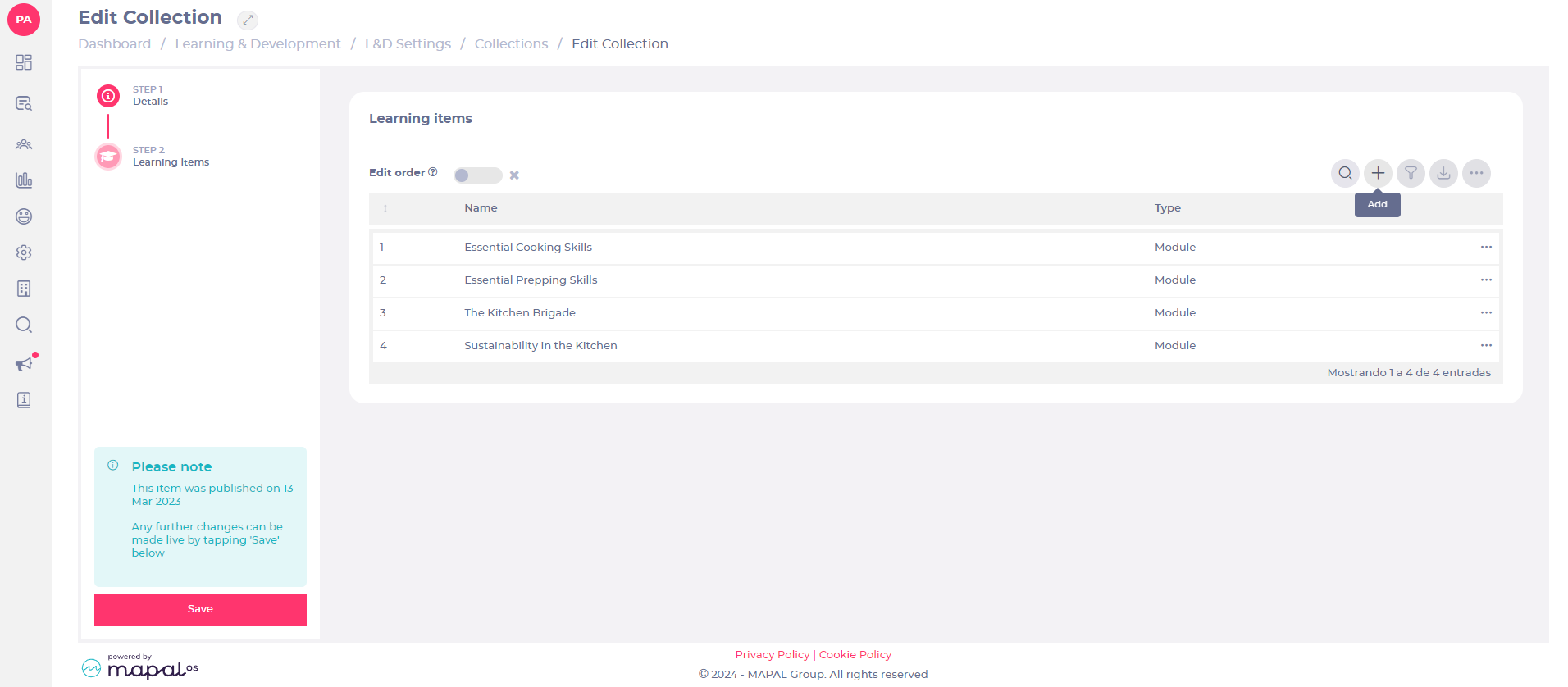
  • Select Step 2- Learning items.

  • Select Add +.
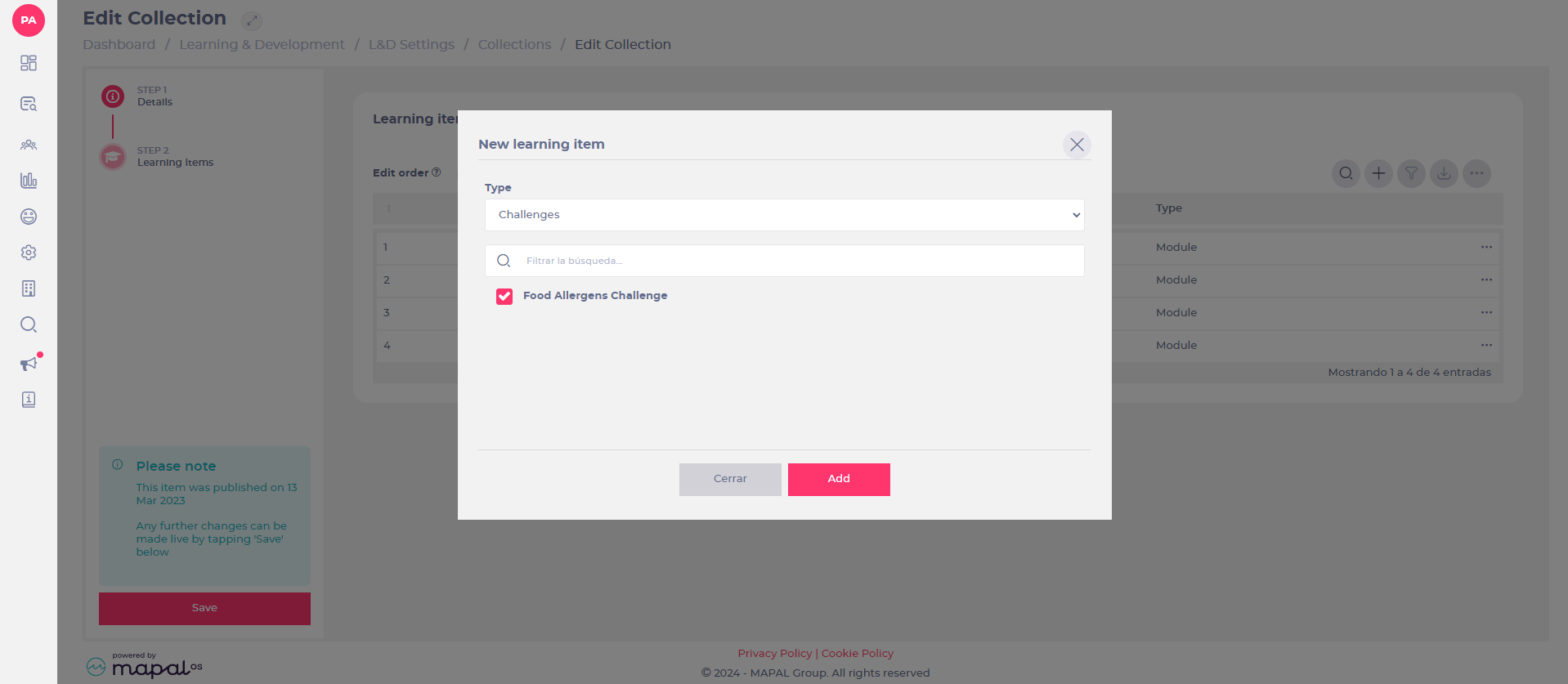
The New learning item window will pop up.
  • Select Challenges from the Type drop-down menu.
  • Select the Challenge you wish to add to the collection. Note: you will be able to choose from all challenges on your system that haven’t been archived or haven’t yet expired.

  • Select Add.
Once your challenge has been added as a learning item, the collection can then be assigned to a learner like any other collection. See Assign a collection for more information.

Manage sales types and periods

To learn more about sales types and periods, see Understand sales types and periods

Start from: The Analytics module. 

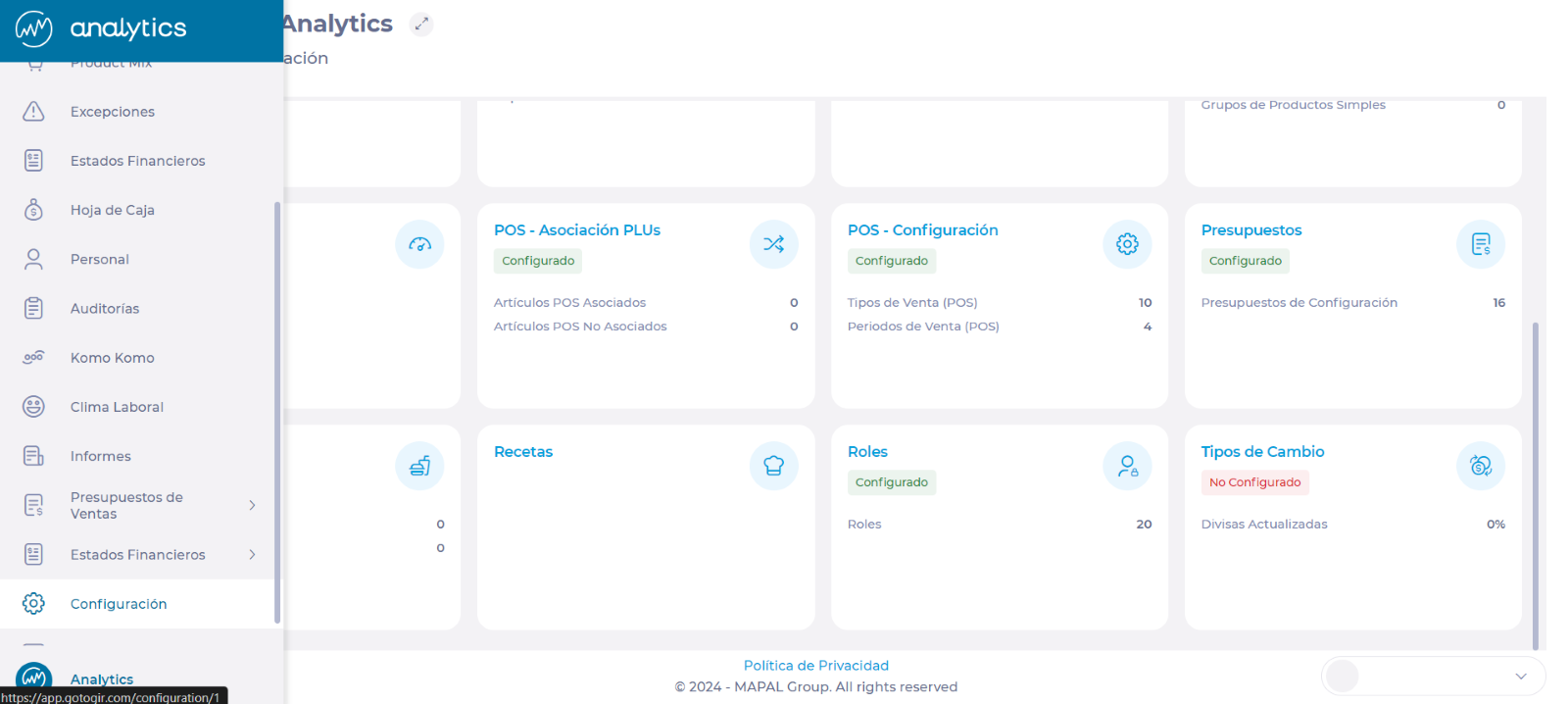
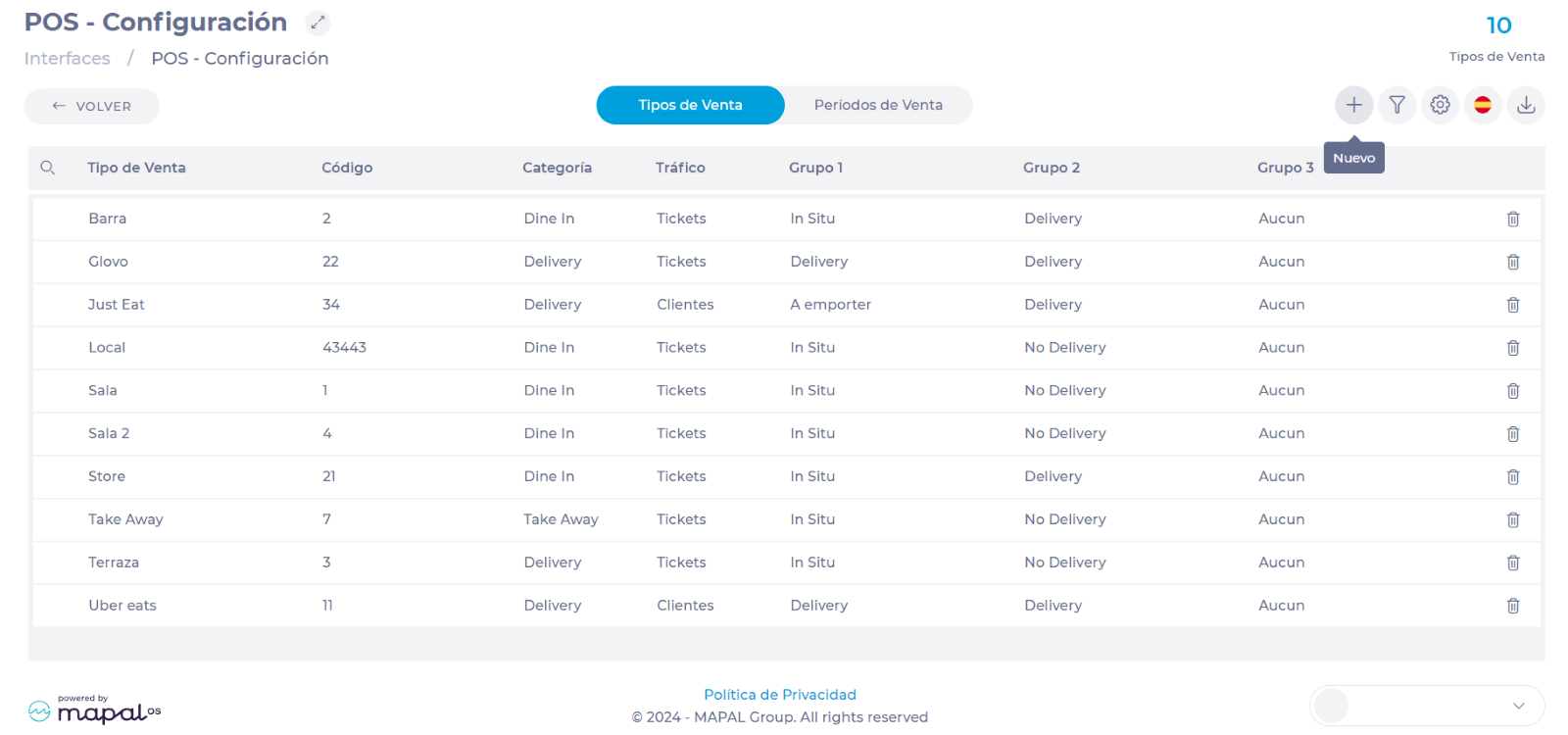
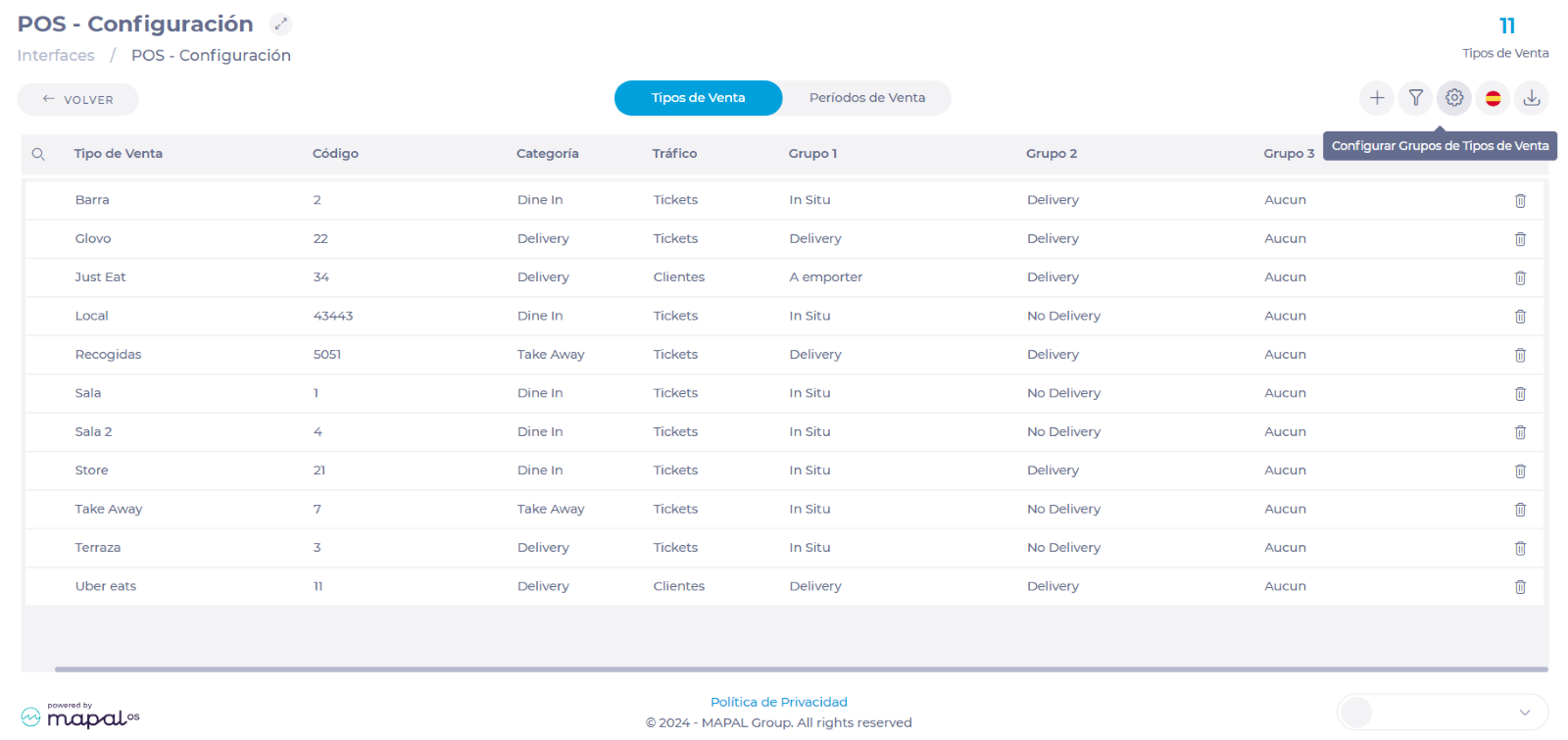
  • Navigate to Configuration > POS - Configuration


Notes: All modifications to sales types and periods must also be made directly in the POS. To edit parameters such as the name and code of the Sales Types and Periods, it is necessary to go directly to the POS configuration. GIR extracts the POS data to be used in the system's budget configuration later. The data in the system and the POS must always match to maintain a faithful record and optimal performance. 

Manage sales types 

Create a sales type 

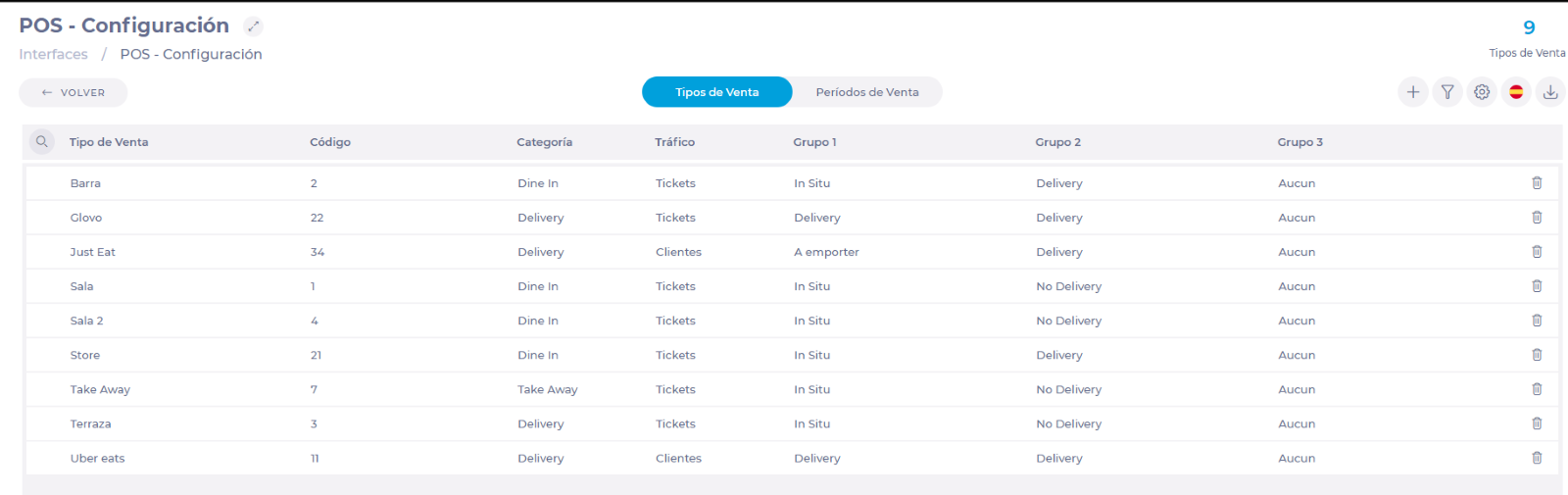
  • On the POS - Configuration screen, select the Sales Types tab. 

Una captura de pantalla de un celular con texto e imágenes<br><br>Descripción generada automáticamente con confianza media 

  • Select the + New button to add a new sales type.  


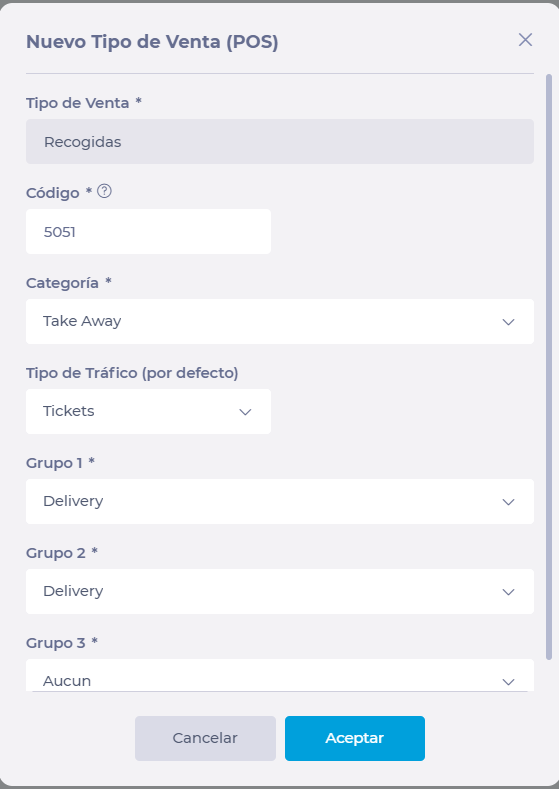
  • In the New Sales Type (POS) window, fill in the following fields: 

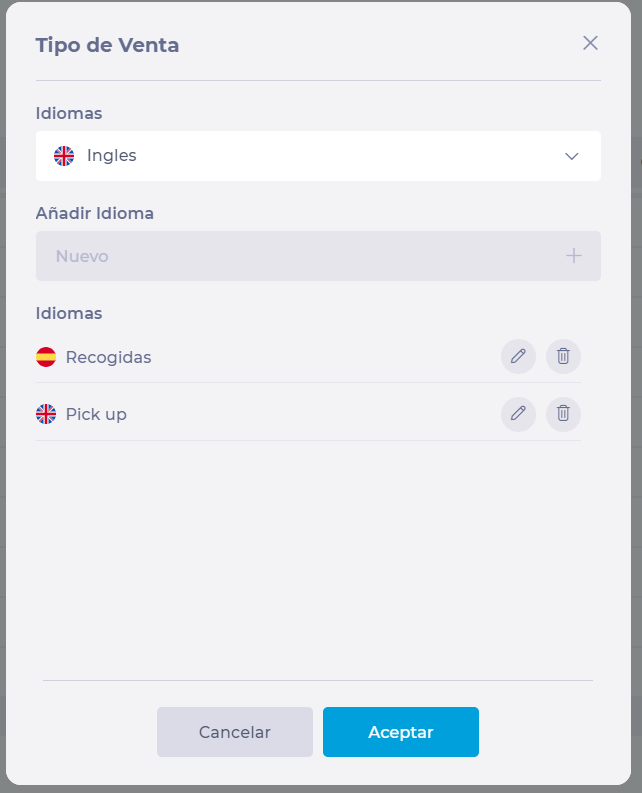
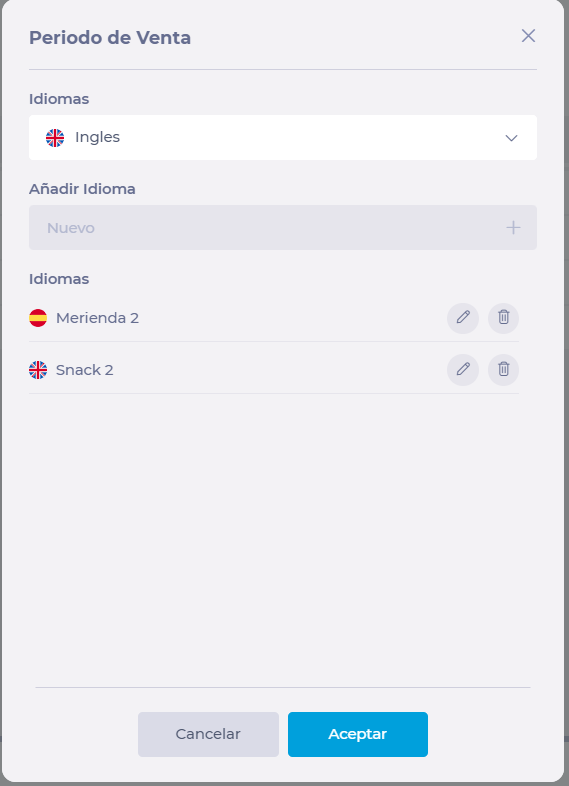
  • Sales Type: Select the field and assign the name to the new sales type in all applicable languages. Press Accept to continue with the configuration.  


  • Code: Assign the code that corresponds to this sales type according to the POS.  

Notes: The sales import service will only allow sales data from POS for which Sales Type codes match with the ones configured. 

  • Category: Assign a category from the drop-down list.  

  • Traffic Type (default): Assigns a traffic to the sales type, which can be by guests or tickets.  

  • Groups: Assign specific groups to the sales type you are creating.  

Notes: To configure the groups, go to Configure Sales Type Groups below in this same article.  


  • Once you have filled in all the fields, select Accept to complete the creation of your new sales type. 

Change sales type 

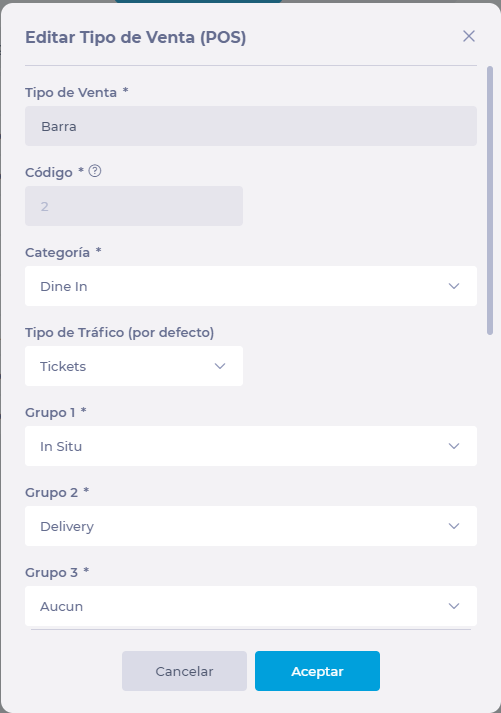
  • In the Sales Types tab, select the row of the sales type you want to modify.  

  • A pop-up window will appear where you can edit the following fields: 

    • Sales Type Name (in all languages) 

    • Category 

    • Type of traffic 

    • Groups (1, 2 and 3) 

Interfaz de usuario gráfica, Aplicación, Teams<br><br>Descripción generada automáticamente 

Notes: The code is already associated with a sales type in the POS, so it cannot be changed.  

Configure Sales Type Groups 

  • On the Sales Types tab, select Sales Types Groups Setup


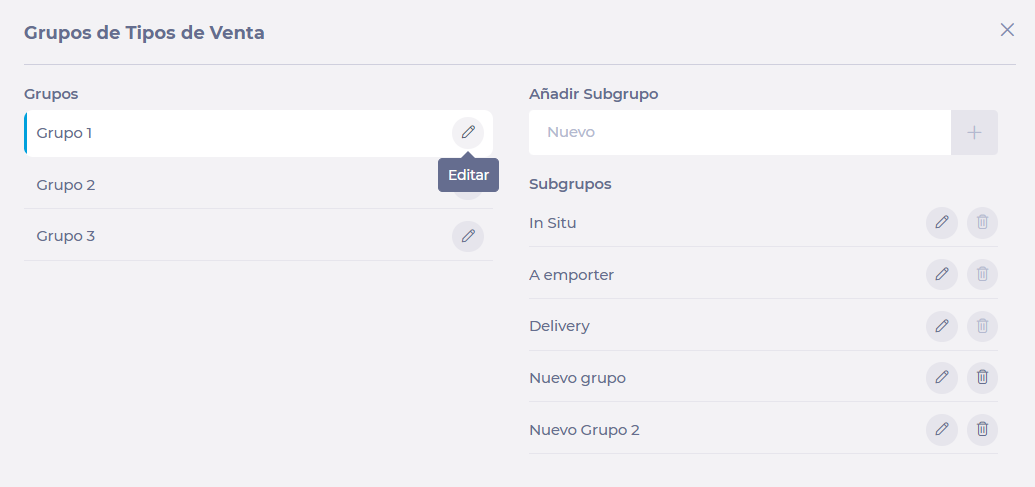
  • In the popup window, you will see the three (3) available groups and, by selecting them, you will also see their respective subgroups.  

  • Select Edit in the row of a group or subgroup to change the names. 


  • You can create new subgroups within a group by filling in the Add Subgroup field and selecting + Add


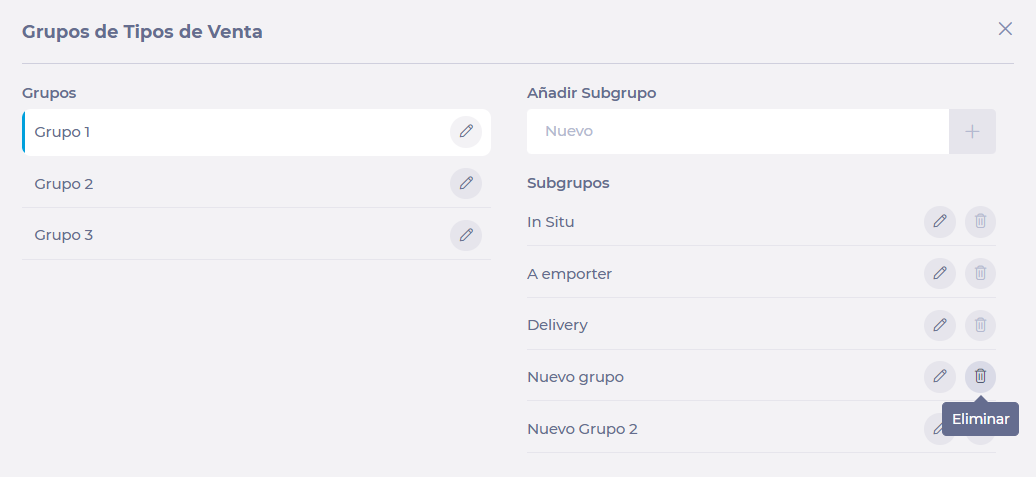
  • Select Delete in the row of a subgroup to delete it.  

Notes: Only subgroups can be deleted, as groups are three by default.  


Manage sales periods 

Create sales period 

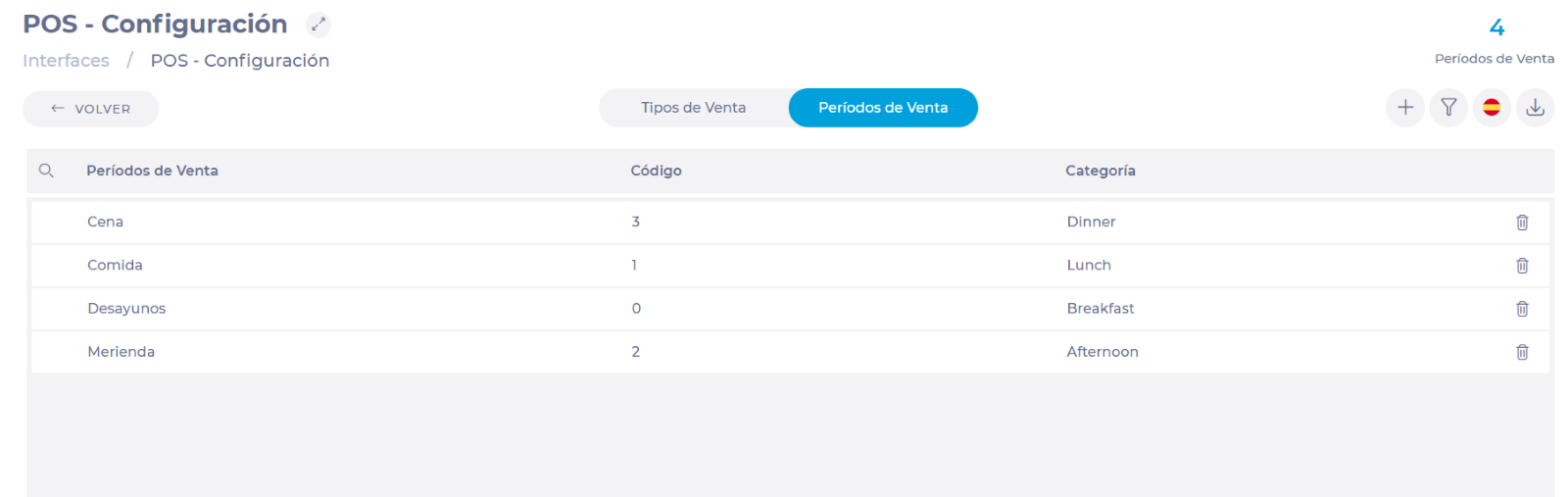
  • On the POS - Configuration screen, select the Sales Periods tab. 


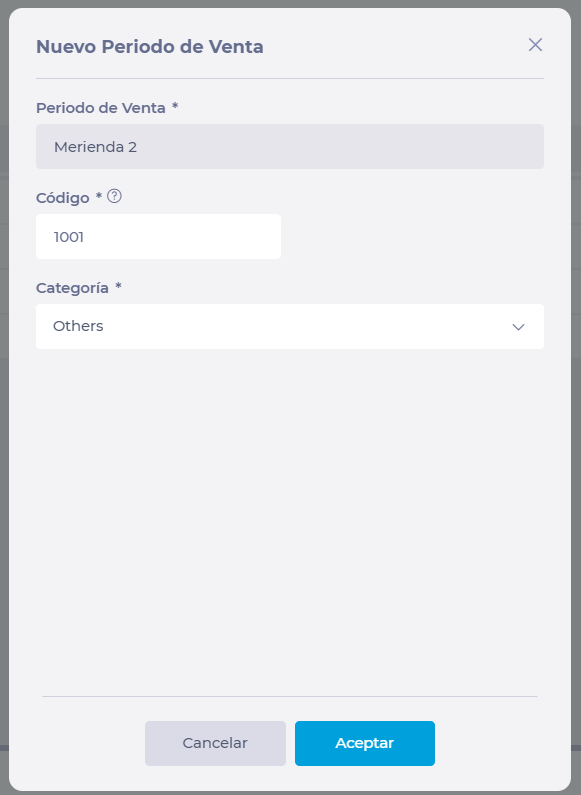
  • In the New Sales Period window, fill in the following fields: 

  • Sales Period: Select the field and assign the name to the new sales period in all applicable languages. Press Accept to continue with the configuration. 


  • Code: Assign the code that corresponds to this sales type according to the POS.  

  • Notes: The sales import service will only allow sales data from POS for which Sales Period codes match with the ones configured. 

  • Category: Assign a category from the drop-down list. 


  • Once you have filled in all the fields, select Accept to complete the creation of your new sales period. 

Change sales period 

  • In the Sales Periods tab, select the row of the sales period you wish to modify.  

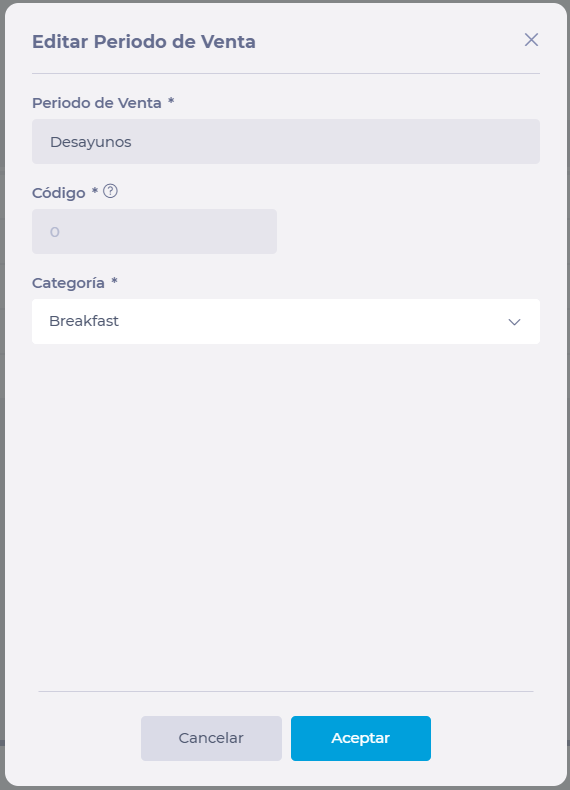
  • A pop-up window will appear where you can edit the following fields: 

    • Sales Period Name (in all languages) 

    • Category 


Notes: The code is already associated with a sales period in the POS, so it cannot be changed. 

Add Knowledge Checks to a collection

Start from: The Flow Learning Dashboard.

See Creating Knowledge Checks (Quizzes) for more information on creating Knowledge Checks.

Once the Knowledge Check is created, this should be added to a Collection so that it can be assigned to learners.

Note: this version will only go to learners once the collection is assigned. The version with the Knowledge Check will not automatically go to learners with the Collection already.

Note: The answer-assistance setting defined when the Knowledge Check was created also applies when delivered in a Collection. This means that, depending on the configuration, learners may receive immediate feedback (correct/incorrect indicators) as they answer. See Create Knowledge Checks (Quizzes) for details.

Edit the order of collections

Start from: The Flow Learning dashboard.

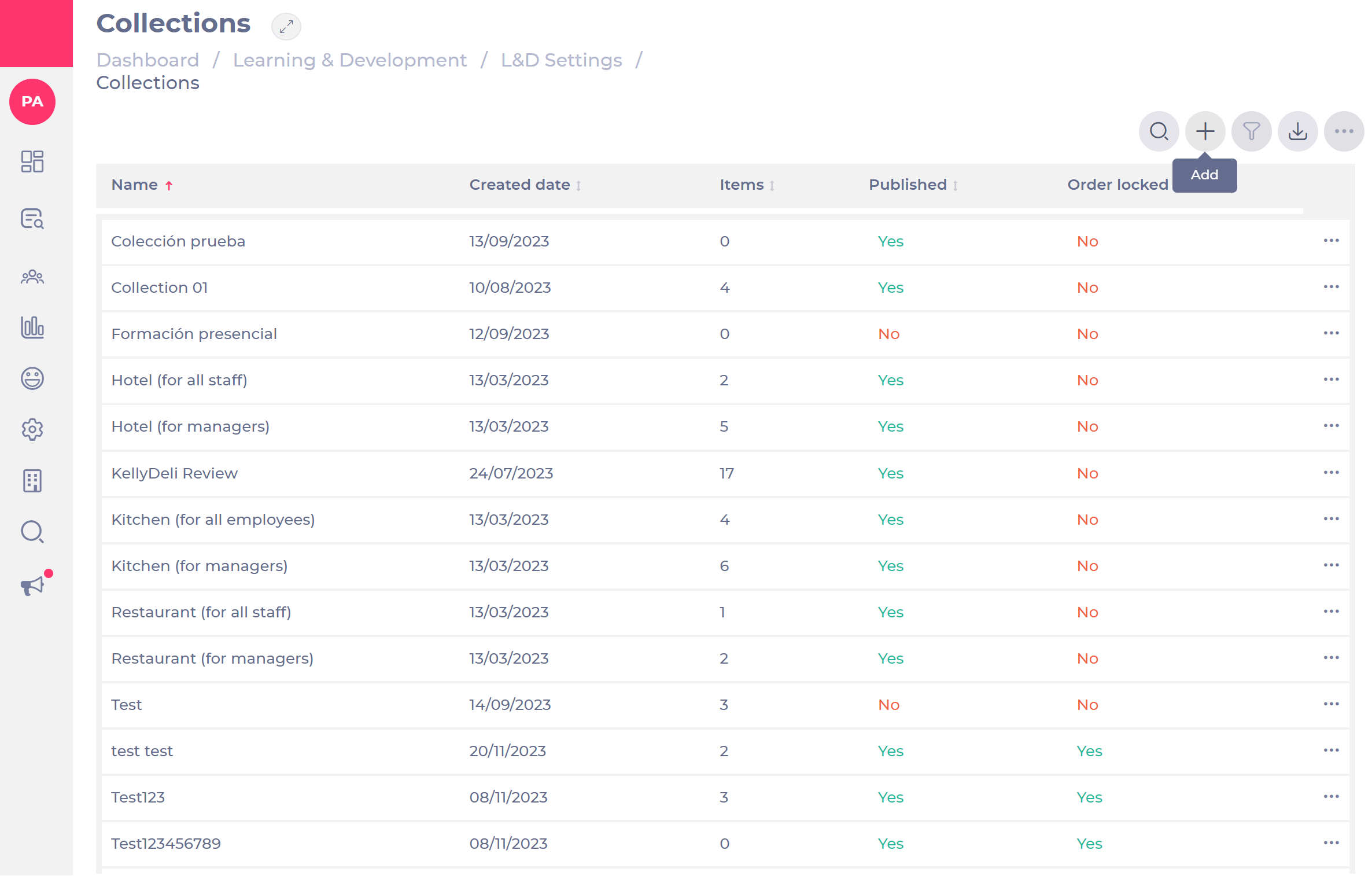
  • Select Learning & Development > L&D Settings > Create and Maintain Collections
  • Select the + icon to add a new collection.

Step 1: Details

  • Enter a name (mandatory) and a description (optional).

Note: we strongly recommend adding an image to your collection.

  • Activate the toggle switch Order locked if you want the learner to complete the training in this order.
  • Add a tag in order to link your collection make your training more visible.

Step 2: Learning items

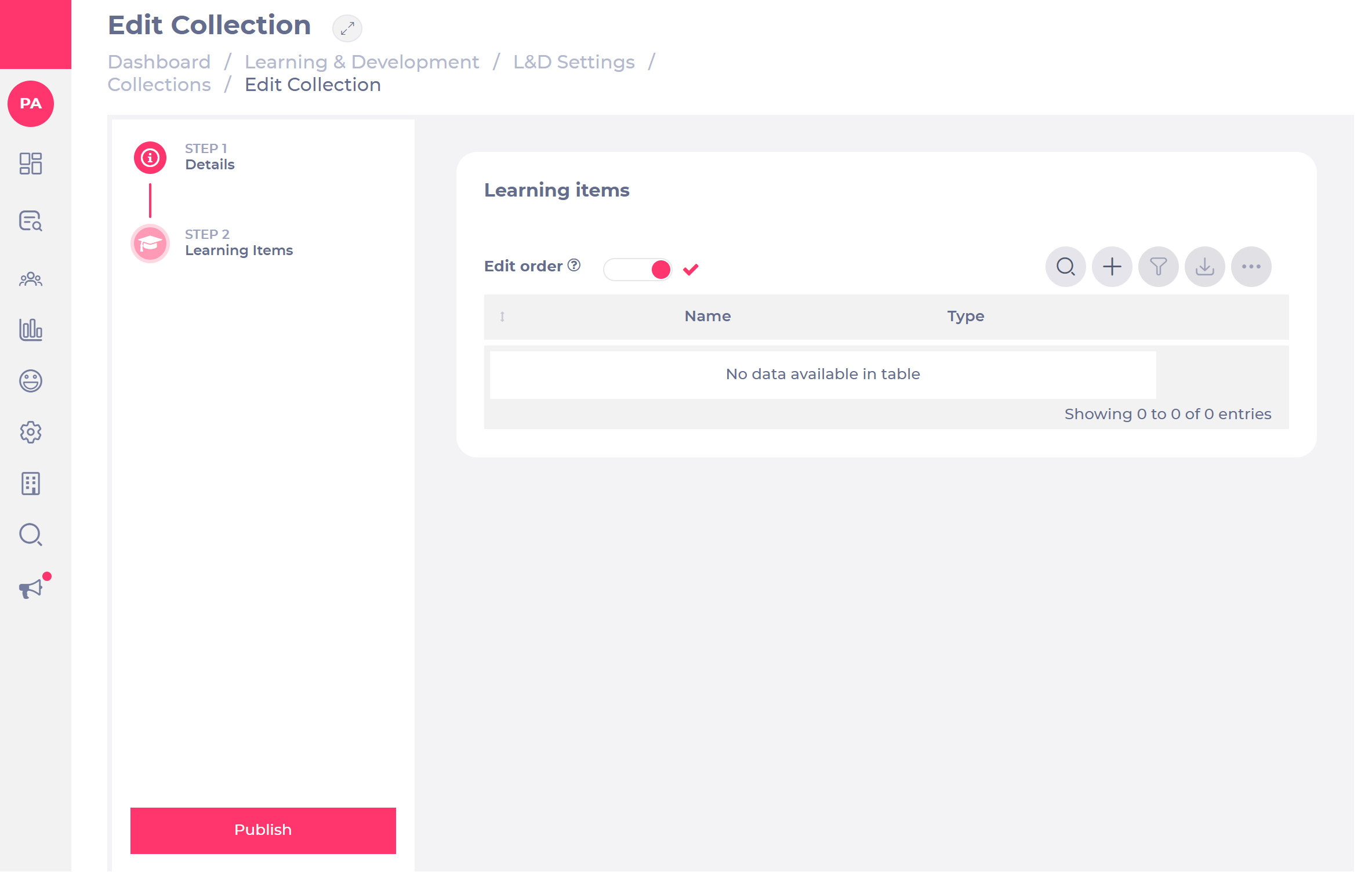
  • Add learning items selecting the + icon.

A new learning item pop-up window will open.

Note: you can add up to 25 collection items.

There are the several types of learning you can add:

  • Additional learning
  • Module
  • Bitesize learning
  • Goals
  • Competences
  • Appraisals
  • Workbooks
  • External Training

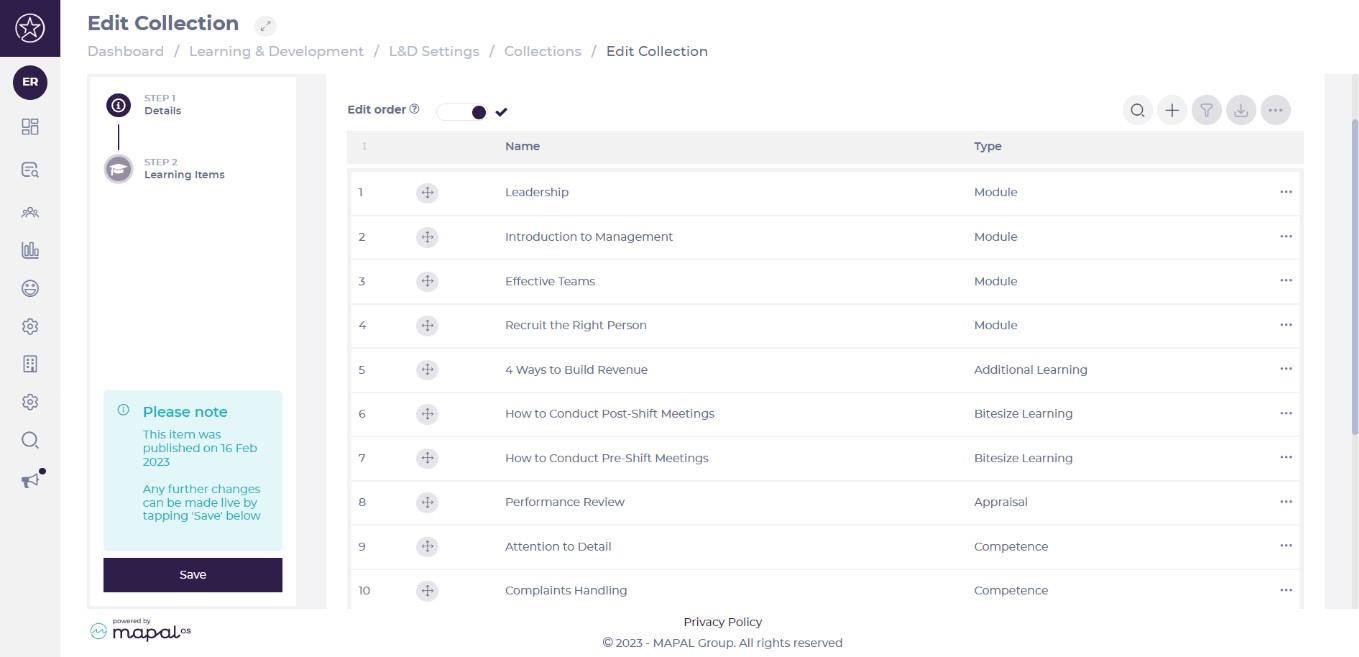
Editing the order 

Once you have added your learning items, you can now edit the order of each of them:

  • Activate the toggle switch Edit order, and you will then able to move your items using the arrow icons.

Note: the order is relevant here if you have chosen to lock your order and want learners completing them this way.

  • Select Publish.
  • A pop-up icon will open: select Confirm OR Cancel.

Note: you can edit, unpublish or delete your collection by using the three dots icon.

View collections on Mapal One

Start from: The Mapal One Dashboard.


Learners can see their collection allocation in 2 sections, both displayed as a carousel/see all page:

  • Required by You
  • Recommended for you

  • For a collection to appear as Required by You, it should have at least one item in with a due date: the collection tile will show the next upcoming due date, which is the next due date out of the remaining incomplete items in the collection.
  • For a collection to appear as Recommended for You, it should contain no items with due dates. However, if an item within a collection in Recommended for You has a due date added, the collection will then move to the Required by You carousel.

Note: If a learner had existing allocations of items either in Required by You or Recommended for You and any of these items are then put into a collection, the item will no longer appear on its own in Required or Recommended, either in the carousel or the page. However, in the case of appraisals, workbooks, competences and goals, these will still appear in their respective career pages unless the collection is locked, in which case it won't appear in the career pages either. 

Note: When a learner clicks into a collection that they have been allocated, they will be able to see the items in the order that this has been set on the Management System by their manager, as well as their progress through the collection.

Learners can favourite a collection and the collection will be stored in their favourites section by selecting the favourite icon: however, this will not favourite each individual item.

There is also a collections page which sits in the menu in the learning section. This page splits collections out between Incomplete and Complete.
 

Assign a collection

Start from: Learning & Development > Assign Learning.

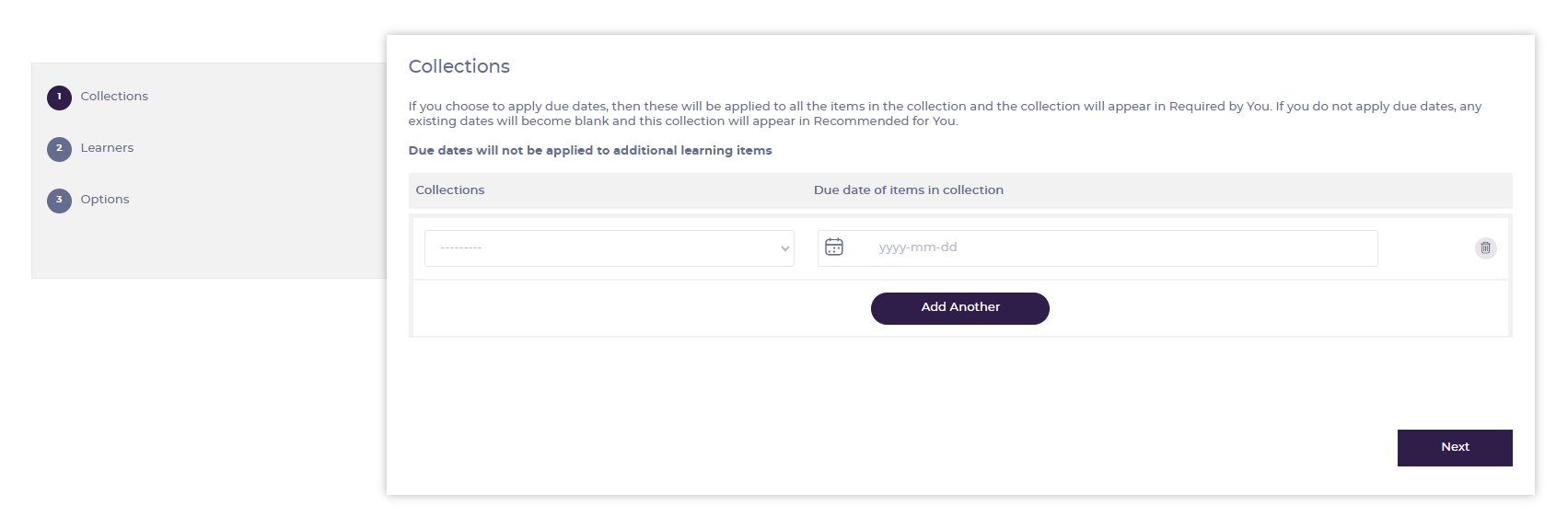
There are two ways to assign a Collection to a learner. This can either be done manually using Assign Learning or automatically using Training Structures. If a Collection is assigned with a due date, then it will appear in ‘Required by you’ within Mapal One. If a Collection is assigned without a due date, then it will appear in ‘Recommended for you’ within Mapal One.


Assign Learning

  • Select Collections from the Assign Learning panel.

The process for assigning collections detailed below is the same as assigning learning individually. See Assign learning for more details. 

  • Select the collection(s) to assign and set due date(s) if required. Select Next OR Learners when you have added the collections you require.
  • Find learners in the list and use the checkboxes to select them. You can use Search  and Filter  to find learners in the list.
  • Select Next OR Options when you have selected all the learners to assign the collection(s) to.
  • Toggle Send Emails on to send email notifications to the selected learners when the learning is assigned.
  • Toggle Reissue completed on to assign the modules to any learners who have already completed them. If this setting is left off, completed modules will not be reissued; they will remain completed.
  • Enter a code in the Exam blocker field to restrict access to assessments in legacy Flow modules.
  • Select Review Learning to continue to Review Learning summary, showing details of the collection(s), learners and selected options for the assignment.
  • Select Confirm & Assign to complete the assignment.


Training Structures

Collections are added to a training structure in the same way as other types of learning. See Edit training structures and Set up new training structures for more information.

Note: When the assignment is completed, any items in the collection(s) which are already assigned to any selected learners, will be moved into the assigned collection(s) for those learners. They will retain the status that they previously had outside of the collection, (for example, if the item is 'in progress').

Any non-module items from the collection that were already assigned to a learner will retain the due date from the original assignment. If the assigned collection has a due date set, any modules which were already assigned will have their due date changed to the setting for the collection when they are moved into it.

If any items which were already assigned have a due date, then the collection will appear in the ‘Required by you’ section in Mapal One.


Manage a collection

Start from: the Flow Learning dashboard.

  • Select Learning & Development > L&D Settings from the main menu.
  • Select the Create and Maintain Collections panel under the Collections group.

  • Select any of the collections on the list to edit fields for that item.
  • Under Details you can edit basic information for that collection.
  • Select Learning Items from the left-hand menu to change the order of the list.
  • Select Save.
  • Select the   icon back at the list view at the right of any line to find Publish and Unpublish options.
  • Select the icon and select Delete to remove a collection permanently.

Note: When a module is deactivated, it is automatically removed from any collection it belongs to and will no longer be assigned to learners. You do not need to manually edit collections before deactivating a module. 

Create a collection

Start from: Learning & Development > L&D Settings.

Cloning a collection

One easy way to create a collection is by cloning from an existing record.

  • Select the Create and Maintain Collections panel under the Collections group.
  • Select Clone from the menu on the right (with the three dots).
  • Edit your cloned collection using the 'Adding a new collection' steps below.


Adding a new collection

  • Select the Create and Maintain Collections panel under the Collections group.
  • Select Add in the Collections page to open the Create Collection page.

The process of creating or editing a collection is split into steps. You can edit the collection in each step by selecting them from the steps panel.

Note: If changes are made to a Collection that is part of a Training Structure, the updated version will only be visible to new learners added to the system after the update was published. Learners already assigned the collection prior to the update, will not see the new version.


Step 1 - Details
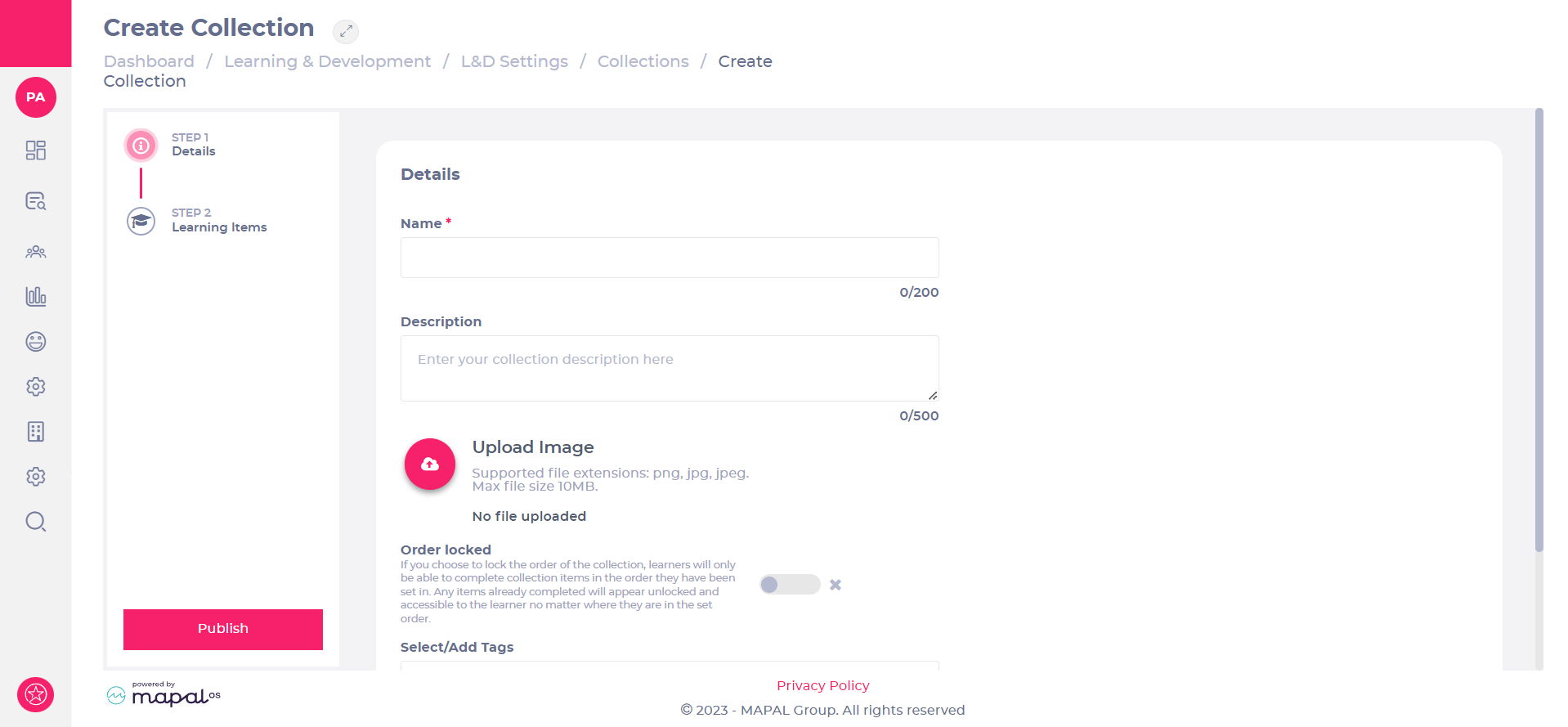
  • Enter the name for the collection in the Name field.

Note: the Name field must be completed before moving to Step 2.

  • Provide a brief description of the collection in the Description field.
  • Select Upload Image to upload a thumbnail image to represent the collection.

Note: The name, description and thumbnail will be used to display the collection to learners when viewed within Mapal One.

  • Toggle Order locked on to force the learning in the collection to be presented to the learner in the order defined in Step 2. Learners will only be able to access each learning item after completing the previous item. If Order locked is not set, the learning items can be completed in any order.

Note: locking the order can have a negative effect on learner engagement, so only set this if absolutely necessary.

  • Enter searchable tags in the Select/Add Tags field to describe the collection.
  • Select Step 2 when you are happy with these details.


Step 2 - Learning Items
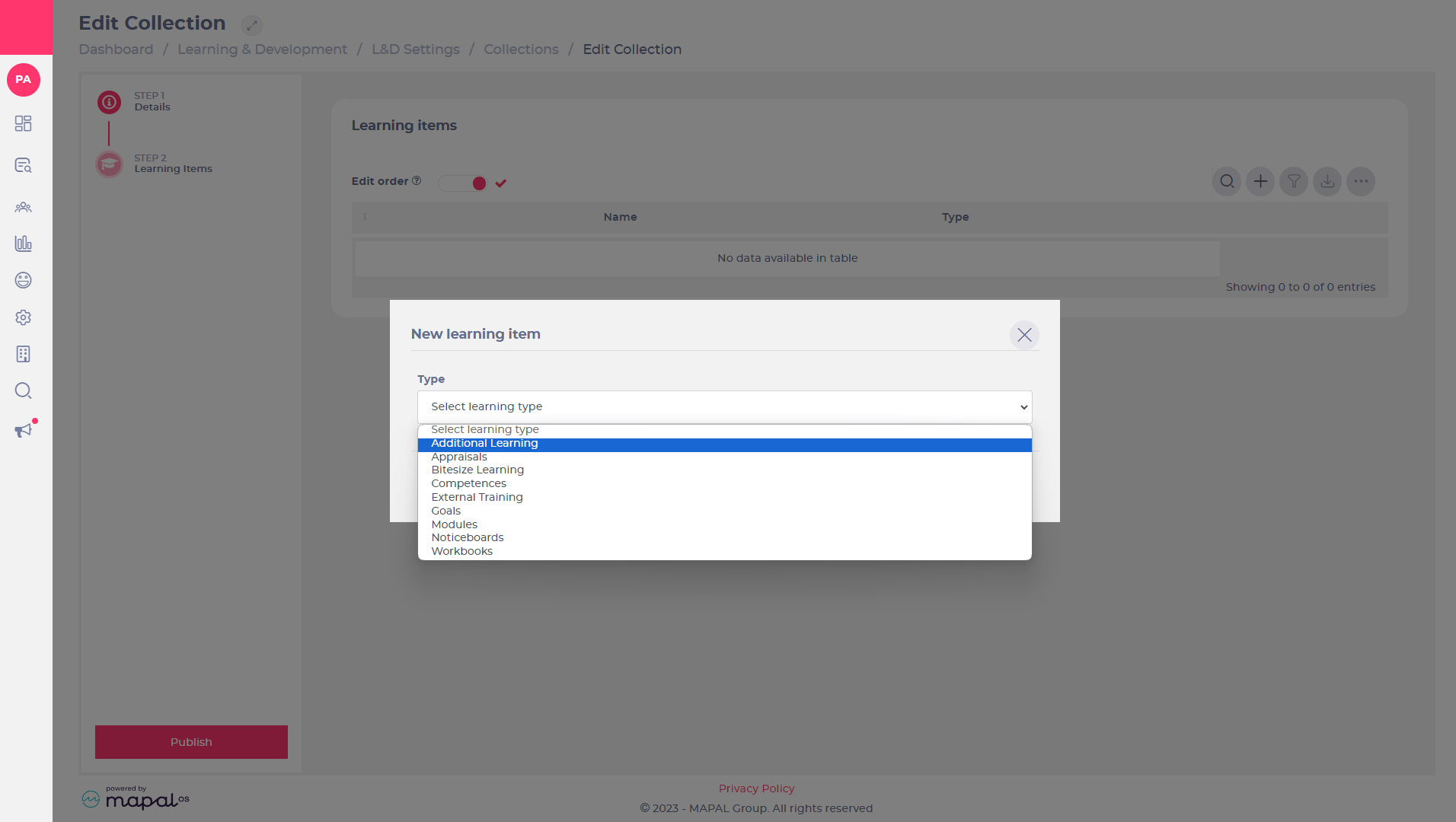
  • Select Add to open the New learning item panel.
  • Select from the Type dropdown list to display available learning of that type. You can select from the following learning types:
    • Additional learning
    • Appraisals
    • Bitesize learning
    • Competences
    • External Training
    • Goals
    • Modules
    • Noticeboards
    • Workbooks
  • Use Search to filter the available options.
  • Select the check box for each required item and select Add to add them to the collection OR select Close to cancel adding and return to the previous page.
  • You can repeat these steps as many times as you like to add learning of various types to the collection.

Note: You can add up to 25 learning items to each collection

  • You can edit the order the items appear in the collection by toggling Edit order and dragging on the items to reorder them.
  • Select [...] > Delete on an item in the list to remove it.
  • Once you are happy with the collection items and order, select Publish to save the collection and make it available to assign to learners.


Noticeboards in collections

Adding a Noticeboard into a Collection will NOT assign it to learners unless they already have that Noticeboard assigned to them (as dictated by branch, job title, department, etc.).

Find out more about how to add and remove Noticeboard items to branches.


Adding a certificate to a collection

You can add a certificate to a Collection so that learners receive it automatically in Mapal One upon successful completion. This is ideal for compliance, onboarding, or external proof of training.

To enable and upload a certificate:

  • Go to L&D Settings > Create and maintain collections.

  • Open an existing collection or create a new one.

  • Scroll to the bottom and toggle Enable certificate.

  • Select Upload to add a certificate template (PDF format).

Note: If you don’t have a custom certificate, a default Flow template is available via a link. The default template supports fields like learner, name, and certificate ID. If you upload your own template, make sure it supports these placeholders.
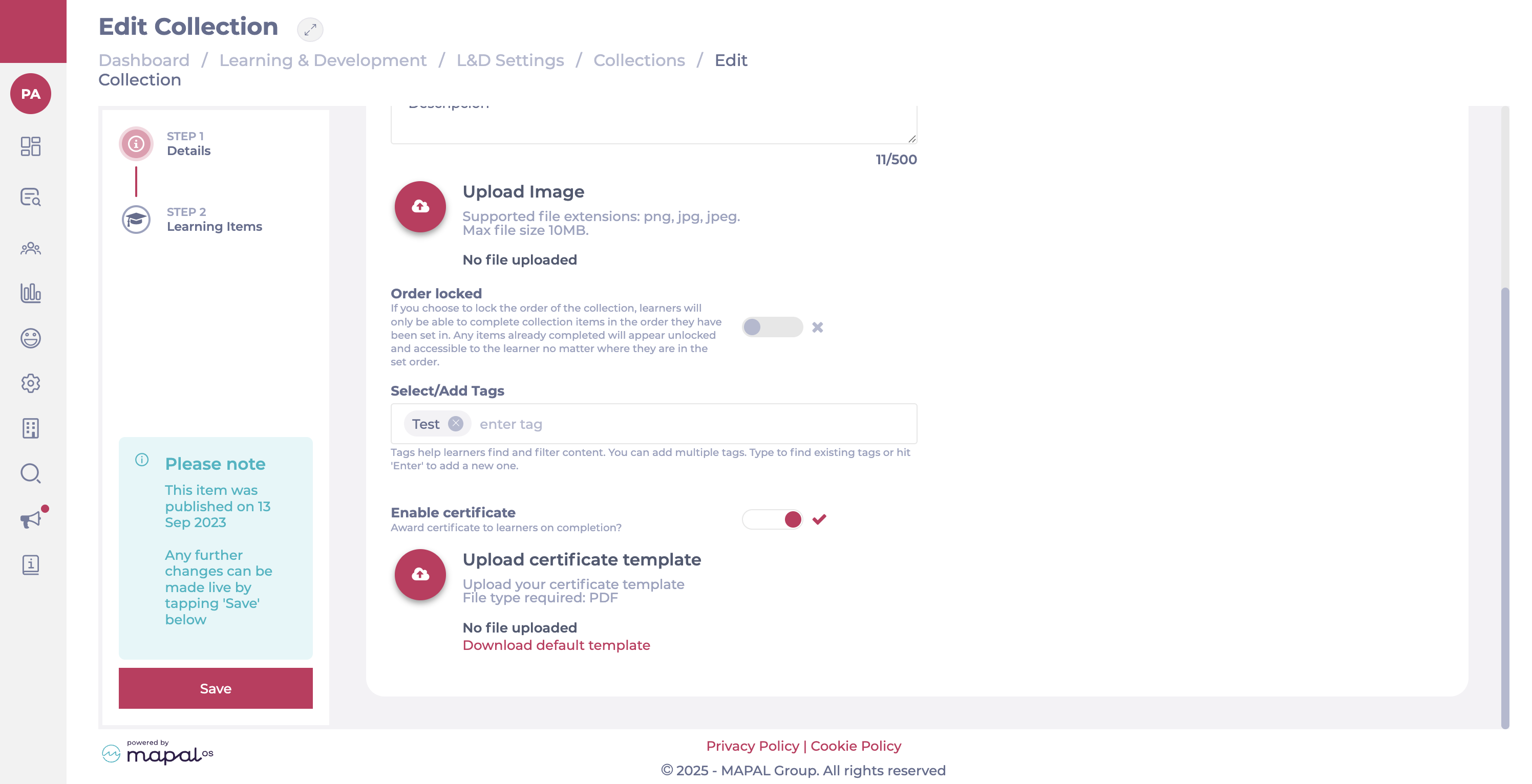
  • Select Save.

Note: When you clone a collection, the certificate toggle setting is copied. However, the uploaded certificate file is not copied. You will need to re-upload it manually.
 

What happens next

  • When a learner completes all items in the Collection, the certificate is issued automatically.

  • The certificate includes: learner name, collection name, issue date, department, and external learner ID (if available).

  • Learners can access certificates via Mapal One > Library > Certificates.

To know more, see Access certificates and other documents in Mapal One.